
The microEye
╭─────────────────────────────────────────────────────────────────────╮
│                                                                     │
│     __  ____              ____                ___  ____  ____ ____  │
│    /  |/  (_)__________  / __/_ _____   _  __|_  |/ / / / __/|_  /  │
│   / /|_/ / / __/ __/ _ \/ _// // / -_) | |/ / __//_  _// _ \_/_ <   │
│  /_/  /_/_/\__/_/  \___/___/\_, /\__/  |___/____(_)_/(_)___/____/   │
│                            /___/                                    │
│                                                                     │
╰─────────────────────────────────────────────────────────────────────╯
The microEye is a Python toolkit for fluorescence microscopy that supports super-resolution single-molecule localization microscopy and single-particle tracking. It features hardware control, data analysis, and visualization.
This toolkit is compatible with the hardware used in our microscope. For further details, refer to the miEye microscope paper and OSF project.
















What's New in microEye 2.4
-
Stage Control Overhaul
Stage management has been completely redesigned with a unified controller that handles all stage types through a single, consistent interface. A new Stage Manager lets you add, remove, and assign stages to axes on the fly. Per-axis soft limits, configurable center positions, and a new Calibrate action make setup safer and more repeatable. Dedicated XY and Z Center buttons in the Controller dock move stages to their configured center positions in one click.
-
SmarAct MCS2 Support
Full support for SmarAct MCS2 multi-channel controllers, including guided setup, calibration, homing, and soft-limit configuration for reliable multi-axis motion.
-
Slides Widget
A new Slides dock lets you visualize and navigate multi-channel slide layouts (Sticky-Slide VI, µ-Slide VI, 8/18 Well, and more). Click any channel to move the stage to its center, with live position and delta readouts, position overlays, and context menu options for axis orientation and inversion. Layout settings persist across sessions.
-
Focus Stabilization Improvements
The focus stabilizer has been thoroughly refactored. Each axis now has independent PID gains and calibration. New stabilization methods are supported — including Reflection peak fitting, Fiducial/Fourier, and a Hybrid XYZ mode. Frame statistics (count, mean, median) are now tracked and the stabilizer waits for a sufficient number of frames before locking, reducing false engagements. Plots dynamically show only the data relevant to the active method, and all settings persist across sessions.
-
New Analysis & Calibration Tools
Three new calibration workflows are available from the Multi-Viewer Tools menu:
- Dark Calibration — directory-based mean/variance analysis with results cache, import/export, and dataset comparison.
- Photon Transfer Curve (PTC) — dataset import, run/cache workflows, cache comparison, and Dark-Cal JSON export.
- Sphere Power Calibration — calibration utilities integrated into the PTC workflow.
A new Image Registration tool for aligning and merging multi-channel stacks (with transformation export/import) is also available in the Multi-Viewer Tools menu.
-
Expanded Camera Support
Cameras from Basler, Allied Vision (Vimba X SDK), IDS Peak, Thorlabs, PCO, and PycroManager now share unified ROI, exposure, and framerate handling. Notable additions:
- DCAM API v4 Support: Full support for Hamamatsu sCMOS cameras via the DCAM API v4, tested with the ORCA-Fusion BT.
- IDS Peak is newly supported with binning, flash, and full ROI and acquisition flow.
- Basler is newly supported.
- Vimba X gains black level, gain, correction, and binning controls,
plus CTI auto-discovery via
VIMBA_X_HOME/VIMBA_X_CTI. - All camera configurations are automatically saved and restored on next launch when detected.
-
Laser & Device Controls
The Controller dock now shows color-coded, wavelength-aware indicators for each laser and relay. Clicking an indicator toggles the laser state directly from the main UI. Relay mode labels (ON/F1/F2) are shown alongside each laser.
-
Experiment Protocol Designer
The protocol action list gains a new ListLoop action type for repeating sequences of steps. The parameter adjustment UI now sorts target objects, shows readable labels, and correctly handles integer and float editors.
-
Program-Wide Logging
Structured logging replaces scattered print statements across the entire codebase. Log level, file output, and console output are configurable via the launcher UI or CLI flags (
--log-level,--no-log-file,--no-log-console). Logs are written per session under./logsfor easier troubleshooting. -
Image I/O & Data Handling
Image handling has been refactored into a dedicated
microEye.imagespackage. Zarr V3 is now fully supported for streaming and saving acquisition data, with both zipped and directory store support. -
Multi-Viewer Improvements
The Multi-Viewer gains an "Opened Files" dock for quick switching between open datasets, a Registration Tool for stack alignment, and new menu entries for the Dark Calibration and PTC tools — all accessible as MDI subwindows.
-
Display & Performance
Focus widget plots have been rewritten to eliminate GUI freezes at high framerates (tested at ~165 Hz). A new optional crosshair overlay can be enabled on any camera display. OpenGL rendering is now used for image display. Application startup is faster thanks to deferred initialization of heavy components.
-
Stability & Compatibility
- GPU imports are safely guarded on CPU-only systems.
- Qt binding selection is configurable at launch via CLI or environment variable.
- Spatial filters (DoG, PointGaussFilter, Fourier) are faster via FFT convolution and Numba acceleration.
- Qt6 compatibility fixes for mouse event handling.
PiezoConcept FOCstage adapter fixes a float/int mismatch that caused random Z jumps.
Table of Contents
- The microEye
How to Install microEye
-
Install Python:
Download and install the latest
Pythonstable release (version ≥3.11.9). -
Install microEye package:
Open a terminal and execute the following command to install microEye using pip:
pip install microEye --upgrade
Or for a specific version:
pip install microEye==version
-
Install specific hardware drivers: (Optional)
-
Allied Vision CMOS cameras:
Install the
Vimba X SDK(avoid installing it inside the Program Files directory). After installation, navigate to thePython APIdirectory (e.g.,C:\Allied Vision\Vimba X\api\python) where thevmbpywheel file (.whl) is located, and install it using:python -m pip install vmbpy-1.1.1-py3-none-win_amd64.whl
Steps
-
Auto (recommended)
Set the
VIMBA_X_HOMEenvironment variable to yourVimba Xinstallation directory.microEyewill readVIMBA_X_HOMEat startup and use it to point the Vimba X transport-layer (.cti) configuration (e.g.,VIMBA_X_HOME/cti). -
Manual
If the automatic method is not prefered, create the environment variable
VIMBA_X_CTIand point it to the directory (or directories) that contain theVimba X.ctitransport-layer files. Use directory paths (not individual.ctifiles). Multiple directories are allowed — separate them with the platform-specific path separator.
-
-
-
- Hamamatsu CMOS cameras: Install
DCAM API v4. - Basler CMOS cameras: Install
pylon(avoid installing it inside the Program Files directory). - IDS CMOS cameras:
- Install
IDS Software Suite 4.96.1for Windows 32/64-bit. - Alternatively,
IDS Peak Extended Setupis prefered as it support old uEye models and the new uEye+ ones.
- Install
- Hamamatsu CMOS cameras: Install
-
- Integrated Optics Lasers: Install
Laser control software. - PCO cameras: Install
pco.sdk,pco.runtime.
- Integrated Optics Lasers: Install
-
-
Thorlabs CMOS cameras: Install
Thorcamin its default directory. Note: Some Thorlabs cameras may be identified as IDS uEye cameras by Windows and may run without Thorcam. -
Thorlabs hardware, install
Kinesis® SoftwareandElliptec™ Software.
-
-
Open a terminal and execute microEye: 🥳
usage: microEye.exe [-h] [--module {mieye,viewer}] [--QT_API {PySide6,PyQt6,PyQt5}] [--theme {None,qdarktheme,qdarkstyle,...}]
                 [--log-level {CRITICAL,ERROR,WARNING,INFO,DEBUG}] [--no-log-file] [--no-log-console]

options:
  -h, --help            show this help message and exit
  --module {mieye,viewer}
                        The module to launch [mieye|viewer], If not specified, launcher is executed.
  --QT_API {PySide6,PyQt6,PyQt5}
                        Select QT API [PySide6|PyQT6|PyQt5], If not specified, the environment variable QT_API is used.
  --theme {None,qdarktheme,qdarkstyle,...}
                        The theme of the app, if not specified, the environment variable MITHEME is used.
  --log-level {CRITICAL,ERROR,WARNING,INFO,DEBUG}
                        Root logging level (default WARNING).
  --no-log-file         Disable logging to file.
  --no-log-console      Disable logging to console.
Troubleshooting Installation
If you encounter any issues during the installation process, please check the following:
- Ensure that you have the latest version of Python installed (
3.11.9). - Try installing the required packages repeating step (2) or individually using
pip install <package_name>. - Check the system requirements for specific hardware drivers and follow the installation instructions provided by the manufacturers.
- Refer to the project's issue tracker on GitHub for any known installation issues and solutions.
microEye Launcher
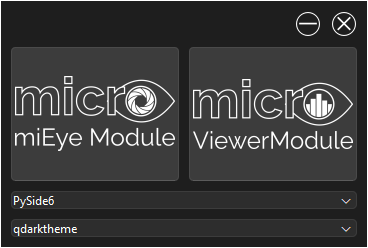
The microEye Launcher allows you to launch either the miEye Module or the Viewer Module, and provides options to select the Qt API and theme for the application.
Usage
Upon running the launcher, you will be presented with the following interface:
- miEye Module: Launches the miEye module for microscope control and acquisition.
- Viewer Module: Launches the viewer module for image/data anlysis and visualization.
- QT API (dropdown): Select the
Qt APIto use. Options arePySide6,PyQt6, orPyQt5. - Theme (dropdown): Select the
themefor the application. Options areNone(default),qdarktheme, orqdarkstyle.
To launch a module, simply click on the respective button (miEye Module or Viewer Module). If you wish to change the Qt API or theme, select the desired option from the dropdown menus before launching.
Modules
The miEye Module
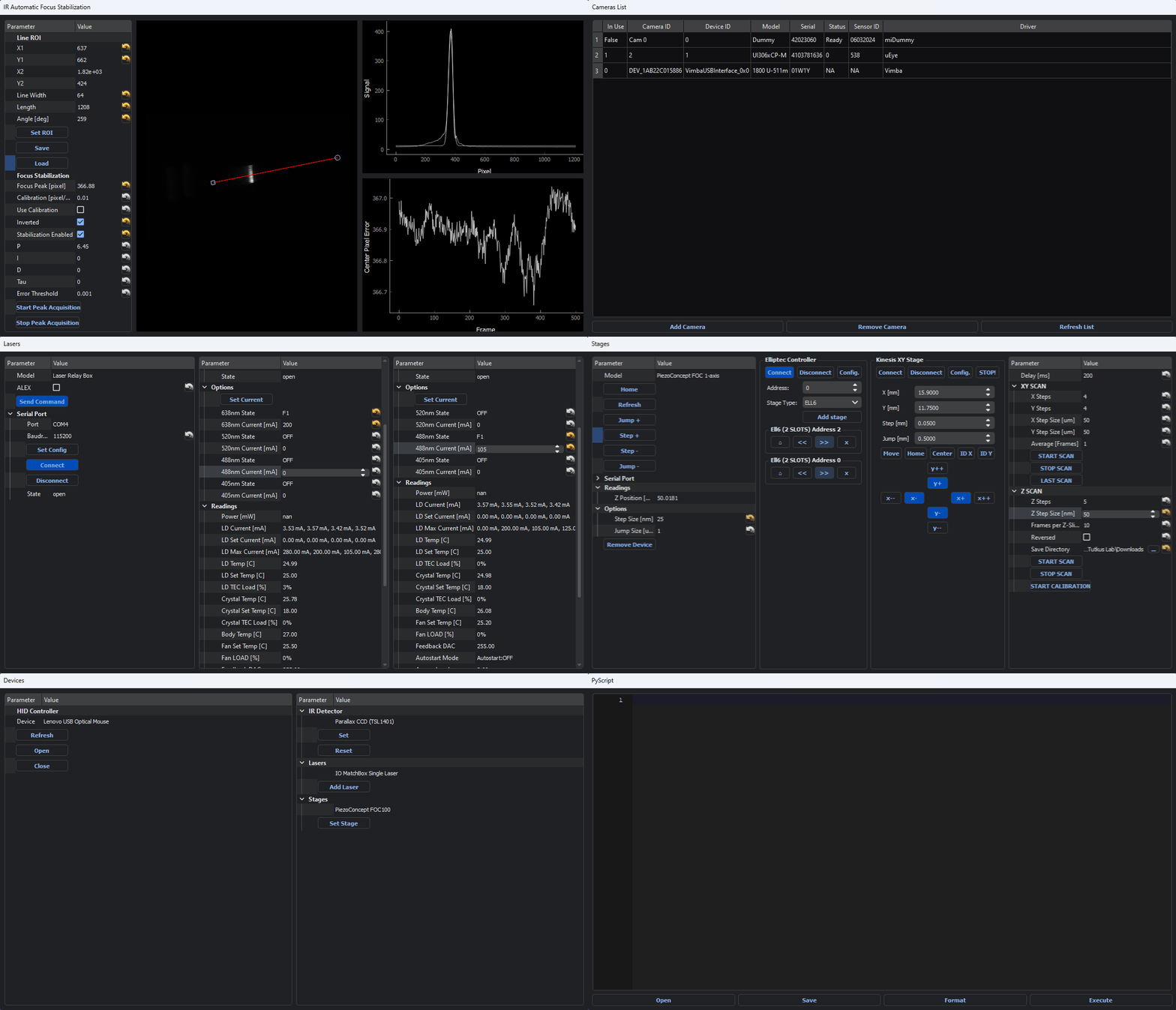
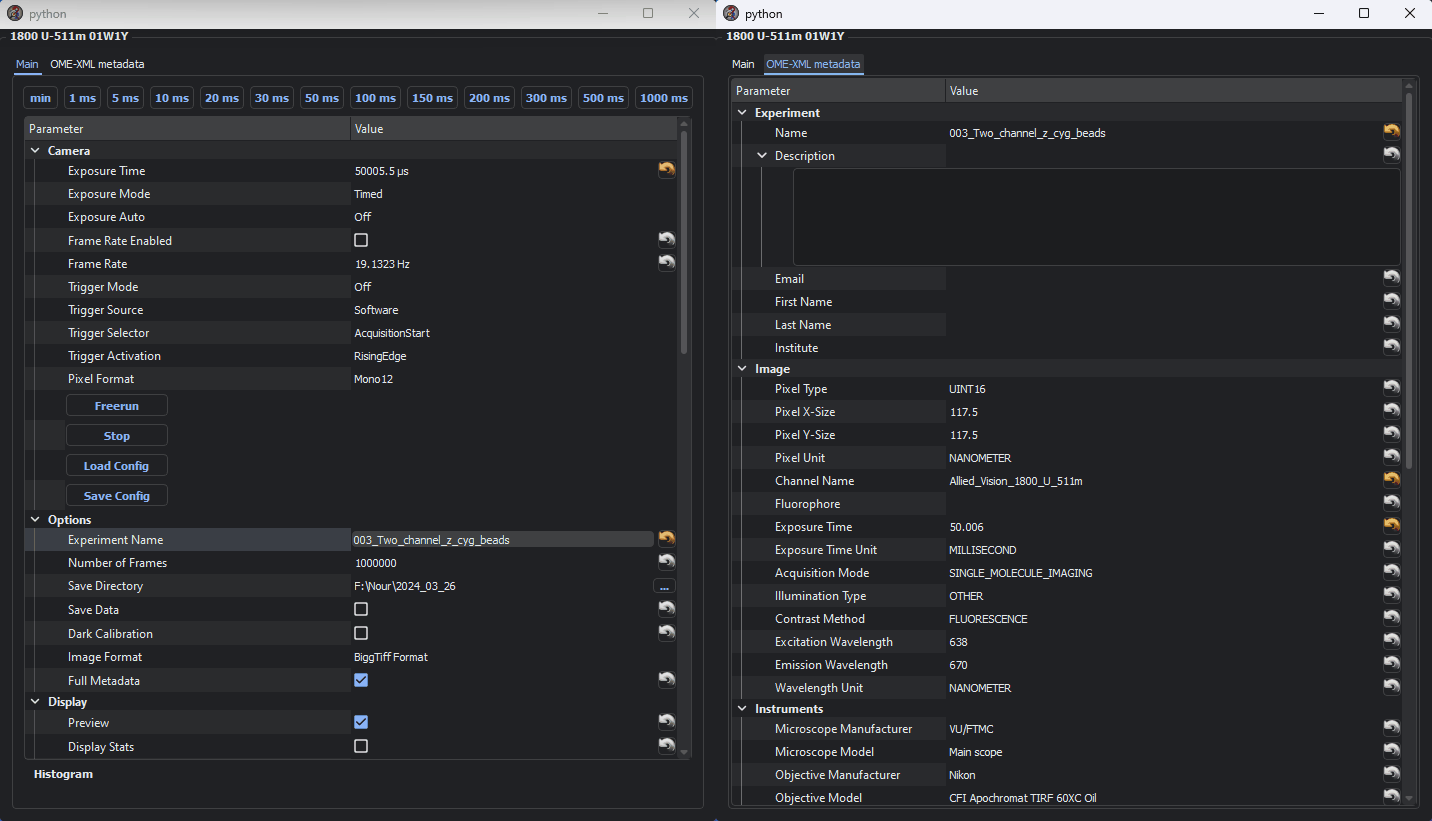
The miEye_module provides the primary graphical user interface (GUI) for microscope control and data acquisition, combining the functionalities of the deprecated Acquisition and Control modules.
| miEye module (NOT UP TO DATE) | Acquisition Camera |
|---|---|
 |
 |
How to use:
To launch the miEye module, run the following command:
microEye --module mieye
Experiment Designer (Beta)
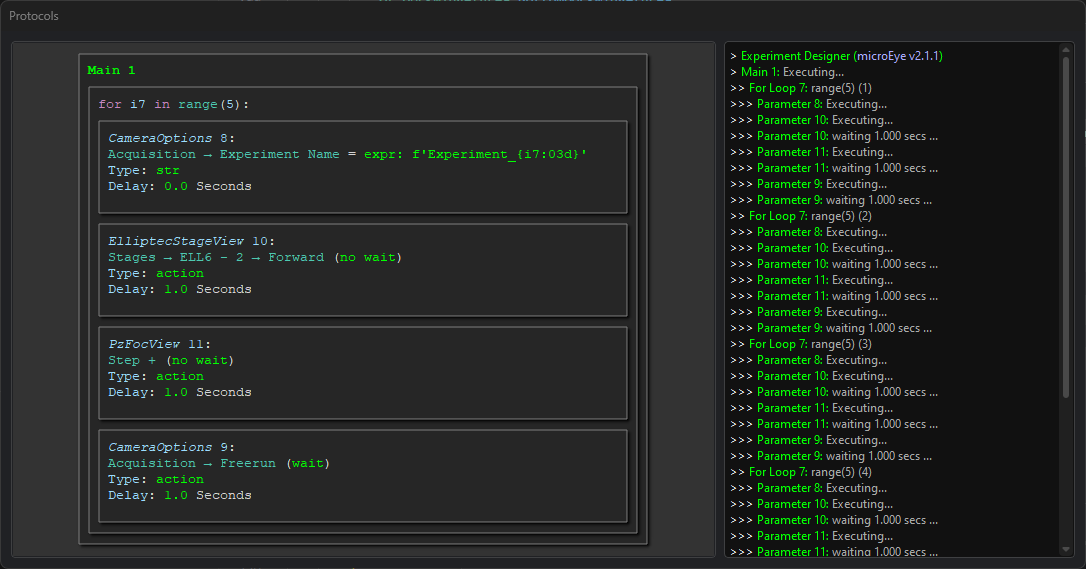
The Experiment Designer is a new feature within the miEye Module that allows users to create and manage complex acquisition protocols through a graphical interface.
Key features include:
- GUI-based design of acquisition protocols;
- Support for loops and device parameter adjustments/actions;
- Export and import capabilities for protocols;
- Threaded execution with pause functionality;
- Configurable delays between protocol steps
- Context menu for easy adjustments
- Nested protocol structure
- Acquisition action wait option
- Cell reordering and deletion via keyboard shortcuts
- Real-time execution progress view
To access the Experiment Designer:
- Launch the
miEye module. - Look for the
Protocolsview in the interface.
Note: This feature is currently in beta. We value your feedback to enhance its functionality and improve the user experience.
The Multi Viewer Module
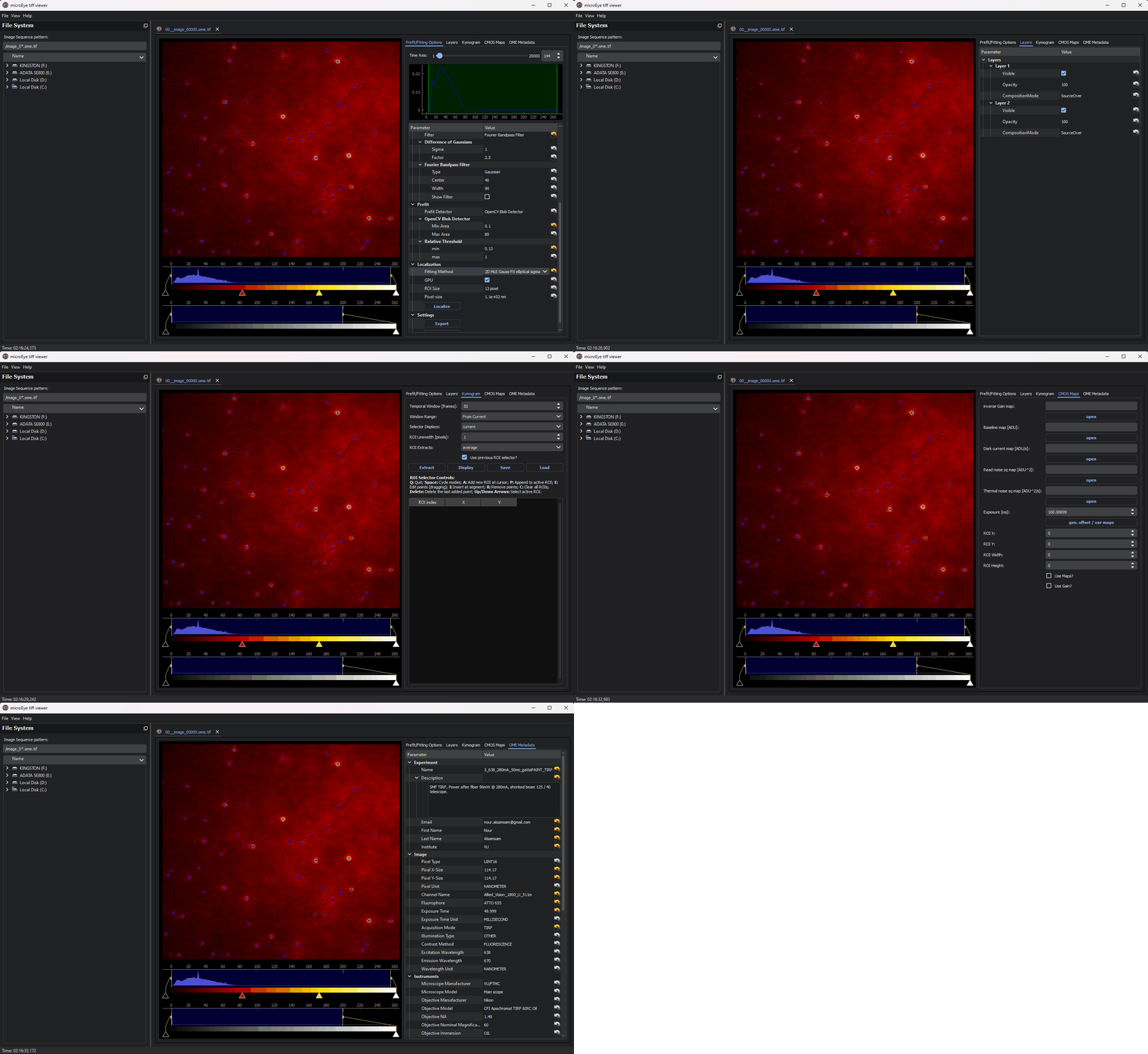
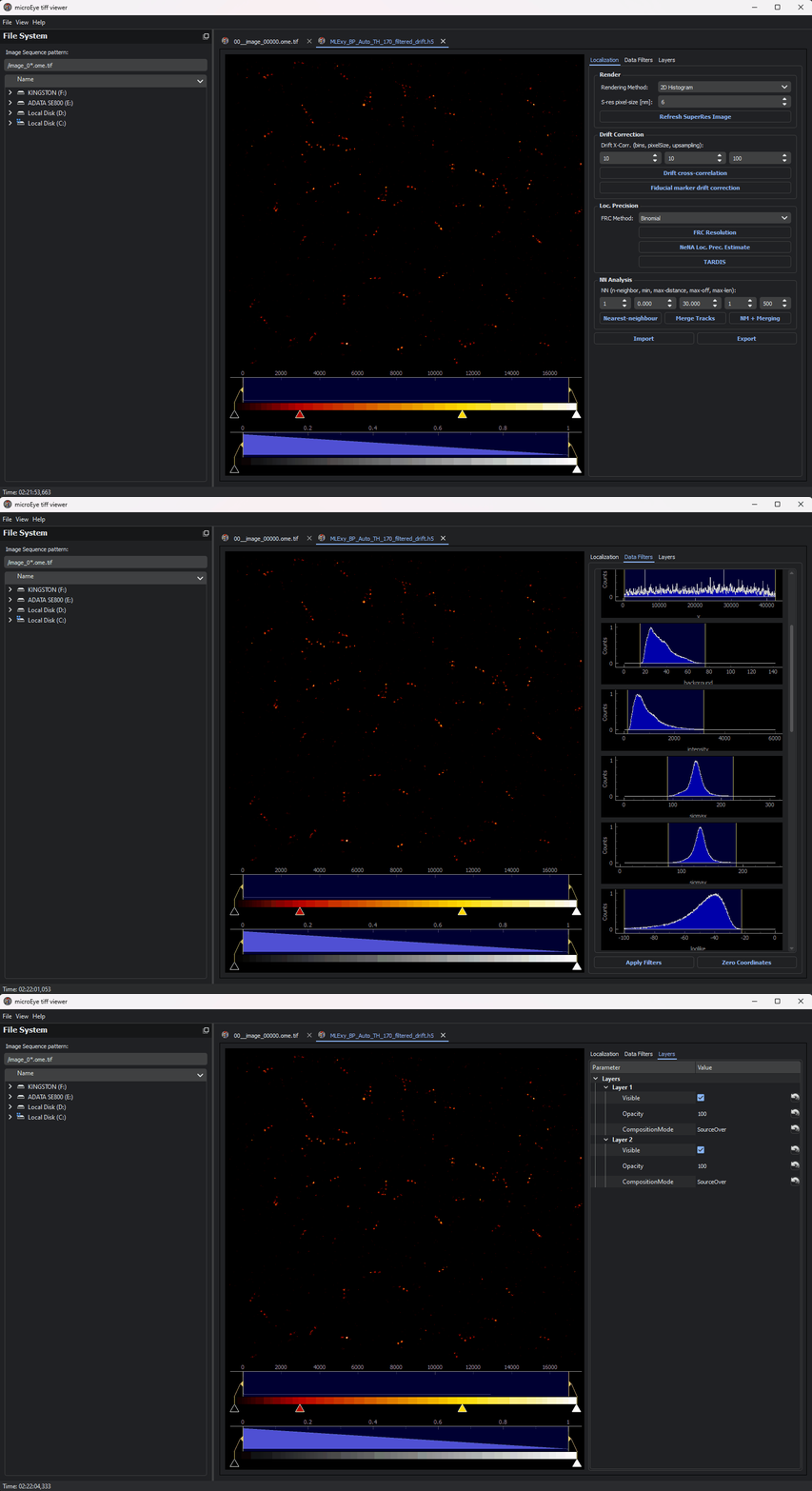
The multi_viewer Module is an improved GUI that replaces the deprecated tiff_viewer module. It allows users to process multiple files and provides data analysis and visualization tools for super-resolution single-molecule localization microscopy and single-particle tracking.
| Raw Data | Localizations |
|---|---|
 |
 |
How to use:
To launch the Multi Viewer module, run the following command:
microEye --module viewer
Uses Packages
The microEye uses the following Python packages:
| Code Quality and Formatting | Data Analysis and Visualization | File and Data Storage | GUI and UI Development | Image and Video Processing | Microscopy | Other Utilities |
|---|---|---|---|---|---|---|
| autopep8 | dask | h5py | PyQt5 (optional) | opencv_python | pco | hidapi |
| pyflakes | matplotlib | ome_types | PyQt6 (optional) | PyOpenGL | pycromanager | mmpycorex |
| numba | tables | PyQt6-QScintilla (optional) | pyueye | pyfiglet | ||
| numpy | tifffile | PySide6 | pypylon | pyjokes | ||
| pandas | zarr | pyqtgraph | pyserial | |||
| pystackreg | pyqtdarktheme | setuptools | ||||
| scikit-image | QDarkStyle | tabulate | ||||
| scikit_learn | QScintilla | tqdm | ||||
| scipy |
Microscope Scheme
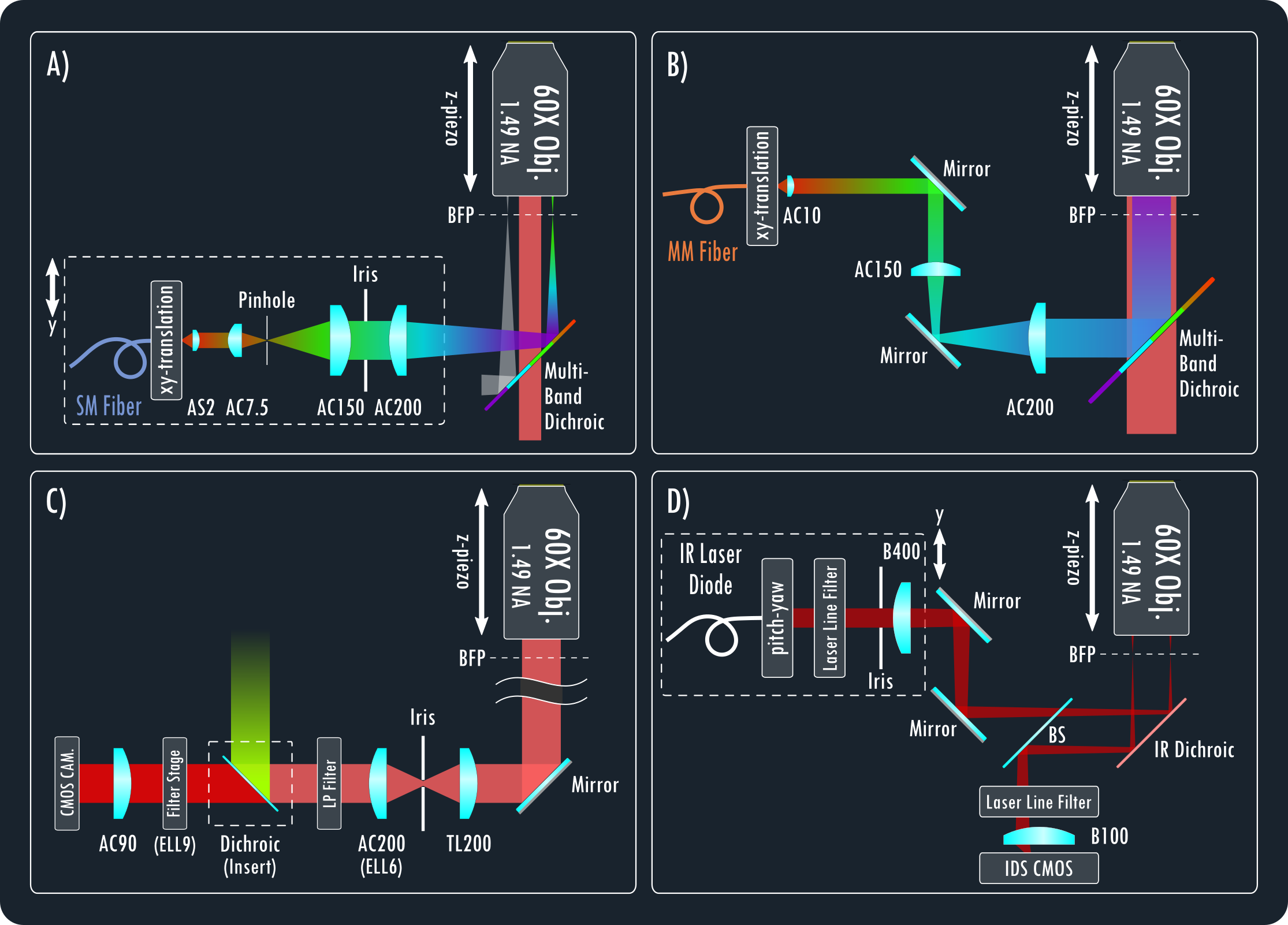
Schematic overview of the miEye instrument:
- A) Single-Mode Fiber (SMF): Excitation path for TIRF-, HILO-, and Epi-mode.
- B) Multi-Mode Fiber (MMF): Excitation path for Epi-mode when imaging MMF output on the sample plane.
- C) Fluorescence Emission: Path for fluorescence emission.
- D) Automatic Focus Stabilization: the automatic focus stabilization path using an IR laser in TIRF setting.
| Scheme 1 | Scheme 2 |
|---|---|
 |
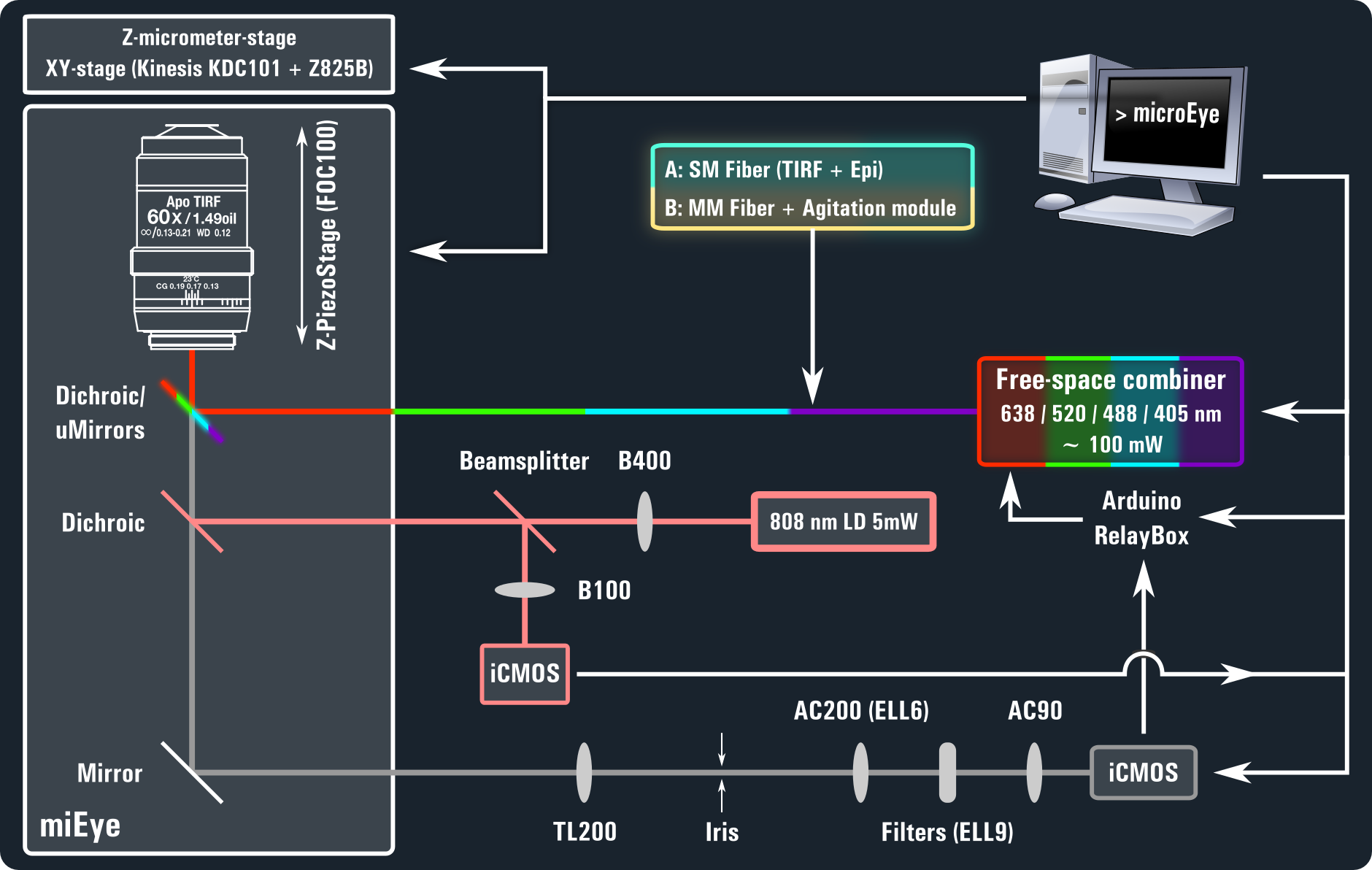 |
Key Components: AC: Achromat lens, AS: Aspheric lens, BFP: Back-focal plane, TL: Tube lens, B: B-coated N-BK7 optics, BS: Beamsplitter.
Hardware
Supported Cameras
| Camera | Description | Driver | Link |
|---|---|---|---|
| Hamamatsu sCMOS | Hamamatsu sCMOS cameras (e.g., ORCA-Flash4.0 V3, ORCA-Fusion BT) | DCAM API v4 |
Product Link |
| IDS uEye UI-3060CP Rev. 2 | IDS industrial-grade CMOS cameras | IDS uEye SDK 4.96.1 IDS Peak pyueye |
Product Link |
| Thorlabs DCC1545M | DCx camera using UC480 driver | ThorCam 3.7.0 |
Product Link |
| Allied Vision Alvium 1800 | Allied Vision industrial-grade CMOS cameras (U-158m, U-511m) | Vimba X SDK vmbpy |
Product Link |
| Basler ace 2 R PRO | Basler pylon supported cameras |
pylon pypylon |
- |
| Excelitas PCO sCMOS | Excelitas pco.edge 4.2 LT USB sCMOS Camera | pco.sdk pco.python |
Product Link |
| Pycro-camera | Access to cameras via Micro-Manager drivers/adapters using Pycro-Manager | uManager Pycro-Manager |
- |
Additional Hardware
| Hardware | Description | Driver | Link |
|---|---|---|---|
| Integrated Optics MatchBox | Multi-wavelength Laser Combiner, Single Laser MatchBox | Native |
Products Link |
| Piezo Concept FOC | Nanopositioner for microscope objectives | Native |
Piezo Concept FOC |
| SmarAct MCS2 | Support for SmarAct MCS2 multi-channel controllers | Native |
- |
| Thorlabs Elliptec ELL6/ELL9/ELL12 | Dual/Four/Six-Position Slider | Native |
ELL6, ELL9, ELL12 |
| Thorlabs Elliptec ELL14 | Rotation Mount: SM1 Threaded | Native |
ELL14 |
| Thorlabs Elliptec ELL20 | Linear Stage: 60 mm Travel | Native |
ELL20 |
| Thorlabs KDC101 | Kinesis Controller for Z825B/Z925B actuators (Activate USB VCP to access the COM port in device manager) | Native |
KDC101 |
| Parallax TSL1401-DB (#28317) | Linescan Camera Module | Native |
Parallax TSL1401-DB |
| RelayBox Arduino | For laser control using camera GPIO signals | Native |
RelayBox |
| miEye OSF Project Parts List | Parts list of miEye OSF Project | - | Repo Link |
Pycro-Manager Integration
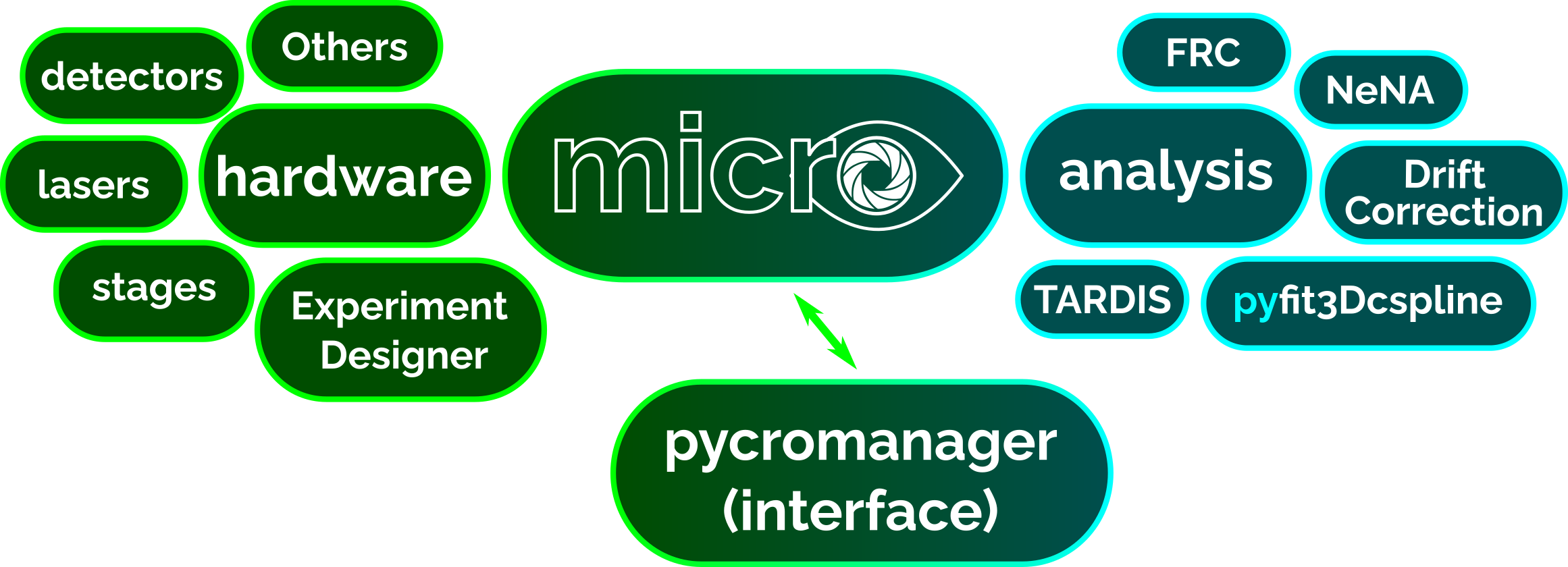
Integration with Pycro-Manager is now implemented, providing support for managing headless instances and Core instances. This allows for seamless control and configuration of hardware devices through the Pycro-Manager framework.
Features
- Headless Manager: Manage multiple headless Micro-Manager instances (JavaBackend), including starting, stopping, and saving configurations.
- Core Instances Manager: Handle multiple
PycroCoreinstances for device communication and control.
Integrated Hardware
The following table lists the hardware devices that are integrated and supported by the miEye module:
| Device | Description |
|---|---|
Camera |
Access Micro-Manager cameras (mainly done for focus stabilization). |
ZStage |
Access Micro-Manager Z-stage devices for focus stabilization and axial positioning control. |
How to Use
-
Headless Manager:
- Open the
miEye_moduleand navigate toTools -> Micro-Manager Headless Managerin the main menu. - Start a new headless instance using a specific configuration file.
- Stop individual running instances or terminate all instances simultaneously.
- Save configurations for future use or load previously saved configurations for headless instances.
- Open the
-
Core Instances:
-
Open the
miEye_moduleand navigate toTools -> Micro-Manager Core Bridgesin the main menu. -
Click on
Add Core Bridgeand provide the port address in the dialog box. -
A list of connected devices will be displayed, allowing you to view each device's properties.
-
Close the window and refresh the camera list to access Pycro-Manager cameras.
Accessing other types of devices is under development!
-
Step-by-step Instructions
For comprehensive step-by-step instructions, please refer to the Pycro-Manager Integration Guide.
Authors

People Involved
PhD supervision:

Sample preparation, experiments and testing:
Aurimas Kopūstas
Tutkus Lab Team
Acknowledgement
Research and access to intruments and samples is credited to:
- Vilnius University, Lithuania.
- Center For Physical Sciences and Technology, Vilnius, Lithuania.
- Research Council of Lithuania.
Special thanks to the following projects and libraries that make this work possible:
-
SMAP/fit3Dcspline: The original code, provided as a part of the Ries group
SMAP software. Thepyfit3Dcsplinemodule in our project is a Python adaptation of this functionality, offering both CPU and GPU accelerated fitting of Single-Molecule Localization Microscopy (SMLM) data. For more details, refer to the pyfit3DcsplineREADME. -
ACCéNT: a partial implementation of the photon free calibration within the acquisition pipeline which generates pixel-wise mean and variance images.
Robin Diekmann, Joran Deschamps, Yiming Li, Aline Tschanz, Maurice Kahnwald, Ulf Matti, Jonas Ries, "Photon-free (s)CMOS camera characterization for artifact reduction in high- and super-resolution microscopy", bioRxiv 2021.04.16.440125. doi: 2021.04.16.440125
-
Phasor Fit: We have implemented the 2D phasor fitting algorithm in Python for fast pre-fitting visualization of localizations.
K.J.A. Martens, A.N. Bader, S. Baas, B. Rieger, J. Hohlbein. "Phasor based single-molecule localization microscopy in 3D (pSMLM-3D): an algorithm for MHz localization rates using standard CPUs," bioRxiv, 2017. DOI: 10.1101/191957.
-
Endesfelder Lab/SMLMComputational: A numba accelerated adaptation of Drift Correction, Fourier Ring Correlation (FRC) structural resolution and Nearest Neighbour Analysis (NeNA) for localization precision from Endesfelder Lab.
Raw data to results: a hands-on introduction and overview of computational analysis for single-molecule localization microscopy", Martens et al., (2022), Frontiers in Bioinformatics. Paper
-
TARDIS (Temporal Analysis of Relative Distances): We have developed a partial Python implementation of TARDIS without fitting for now. For more information, refer to the
TARDISsoftware releases. The underlying algorithms and scientific details of TARDIS are detailed in the manuscript:Martens et al., “Temporal analysis of relative distances (TARDIS) is a robust, parameter-free alternative to single-particle tracking”, Nature Methods (2024). Article
-
RCC (Robust Cross-Correlation): We have implemented the RCC algorithm in Python for drift correction in SMLM data.
Y. Wang, J. Schnitzbauer, Z. Hu, X. Li, Y. Cheng, Z.-L. Huang, and B. Huang, “Localization events-based sample drift correction for localization microscopy with redundant cross-correlation algorithm,” Opt. Express 22(13), 15982 (2014). Paper GitHub
-
AIM (Adaptive Intersection Maximization): We have implemented the AIM algorithm in Python for drift correction in SMLM data.
H. Ma, M. Chen, P. Nguyen, and Y. Liu, “Toward drift-free high-throughput nanoscopy through adaptive intersection maximization,” Sci. Adv. 10(21), eadm7765 (2024). Paper GitHub
-
COMET (Cost-function Optimized Maximal overlap drift EsTimation): We have implemented the COMET algorithm in Python for drift correction in SMLM data.
L. Reinkensmeier, S. Aufmkolk, I. Farabella, A. Egner, and M. Bates, “Cost-function Optimized Maximal Overlap Drift Estimation for Single Molecule Localization Microscopy,” (2026). Paper GitHub
Citation
If you find our work or software helpful in your research or project, we kindly request that you cite it appropriately. Here is the suggested citation format:
miEye (2022) HardwareX
M.N. Alsamsam, A. Kopūstas, M. Jurevičiūtė, and M. Tutkus, “The miEye: Bench-top super-resolution microscope with cost-effective equipment,” HardwareX 12, e00368 (2022). Paper
Additionally, we would appreciate it if you could provide a link to our GitHub repository or any relevant publication associated with the software.
Software Citation
Alsamsam, M. N. microEye, https://github.com/samhitech/microEye [Computer software]
Thank you for your support!
1 maintainer

Metadata
1 maintainer
Release files for microeye 2.4.63
For a detailed explanation of source distributions (sdists) and built distributions (wheels), please see the package formats documentation.
Source distribution (sdist)
| File | Size | Uploaded | |
|---|---|---|---|
| microeye-2.4.63.tar.gz | 978.0 kB | Details |
Built distribution (wheel)
| File | Interpreter | ABI | Platform | Reset |
|---|---|---|---|---|
| microeye-2.4.63-py3-none-any.whl | Python 3 | none | any | Details |
Total release size: 2.0 MB
Release files / microeye-2.4.63.tar.gz
| Download URL | microeye-2.4.63.tar.gz |
|---|---|
| Size | 978.0 kB |
| Tags | Source |
|
SHA-256 checksum How to use checksums |
98389c8079c2962a207147998fbbfea10345440e1338df78ebb7bdb22c6dfe21
|
|
BLAKE2b-256 checksum How to use checksums |
1723cbf91f79c83021477f5b5c6d661c87a3005c6258f23cd2bb94f10abdd008
|
| Upload date | |
|
Uploaded using Trusted Publishing? What is trusted publishing? |
No |
| Uploaded via |
twine/7.0.0 CPython/3.11.9
|
Release files / microeye-2.4.63-py3-none-any.whl
| Download URL | microeye-2.4.63-py3-none-any.whl |
|---|---|
| Size | 1.1 MB |
| Tags | Python 3 |
|
SHA-256 checksum How to use checksums |
2461ac6149b671c0cc9553d90bfc01e6a203e4bd5f759a8f46453e517748545e
|
|
BLAKE2b-256 checksum How to use checksums |
576623f4637ab02d33833bb0f3bb58ce949c9f0794666825f4fafc21d9293e56
|
| Upload date | |
|
Uploaded using Trusted Publishing? What is trusted publishing? |
No |
| Uploaded via |
twine/7.0.0 CPython/3.11.9
|














