
An interactive MIDI visualization tool for Jupyter Notebooks.

Project description
MidiViz: Interactive MIDI Visualization in Jupyter Notebooks
MidiViz is a lightweight Python package designed to easily visualize and interact with MIDI files directly within a Jupyter Notebook or Google Colab environment.
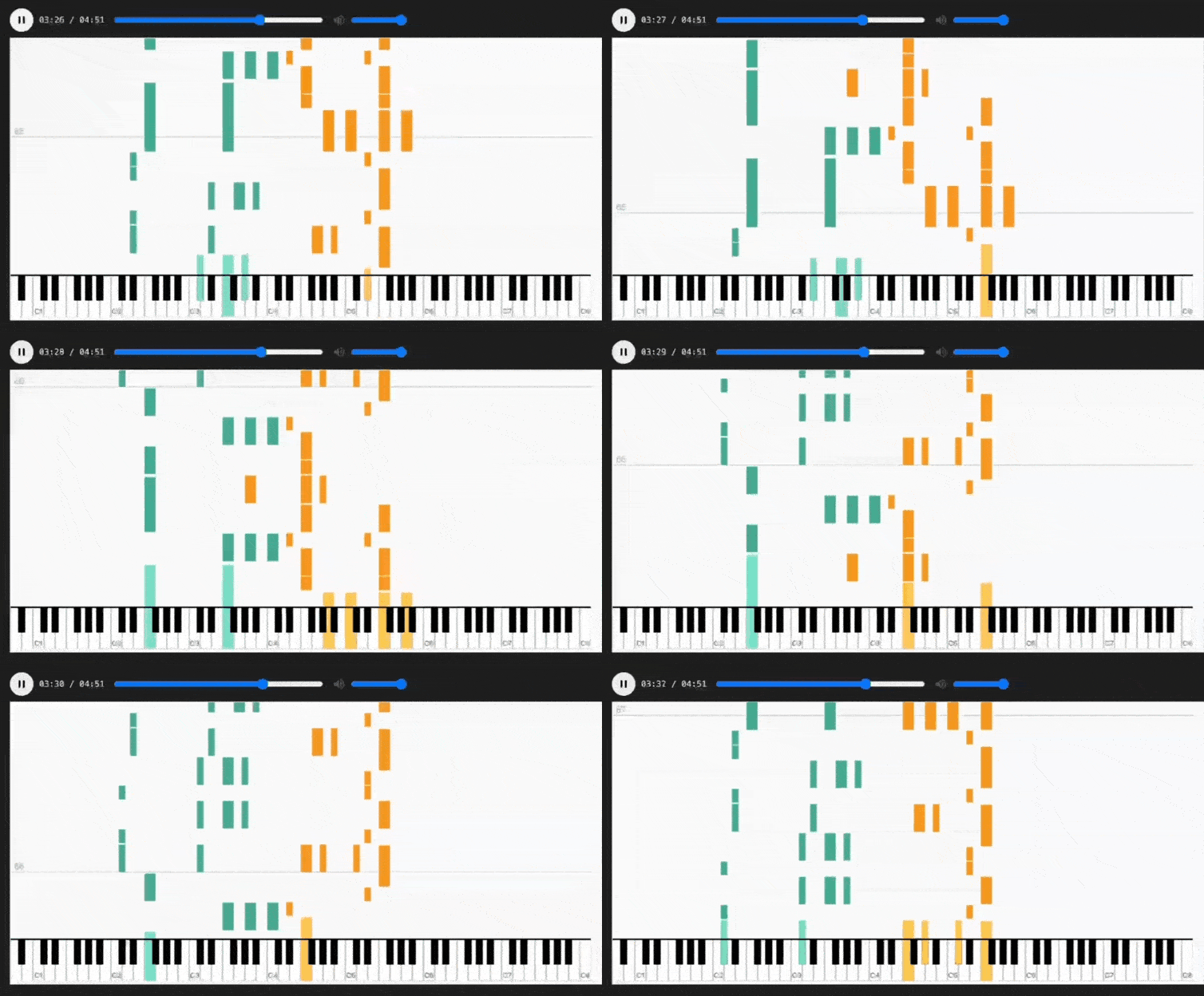
It renders MIDI notes as a dynamic waterfall or a traditional pianoroll, synchronized with audio synthesized from a SoundFont. MidiViz is highly customizable, supporting multi-track color themes, detailed tooltips on hover, beat/measure gridlines, and other professional features.
Demo
Here is a demonstration of the waterfall mode using the CLASSIC theme.
Key Features
- Two Visualization Modes: Supports
waterfallandpianorollmodes. - Multi-Track Coloring: Automatically assigns distinct colors to different tracks in the MIDI file, making complex pieces easy to follow.
- Customizable Themes: Comes with several color themes and supports fully custom user-defined palettes.
- Interactive Player: Includes a full playback controller with play/pause, a draggable seek bar, time display, and volume control.
- Note Info Tooltip: Hover over any note on the canvas to see its detailed information (track name, timing, pitch name, velocity, etc.).
- Beat & Measure Gridlines: Renders beat lines and numbered measure lines on the canvas to help understand the musical structure.
Installation & Usage
-
Install Package You can install MidiViz directly from PyPI:
pip install midiviz
-
Install System Dependencies (FluidSynth) This package uses
midi2audiofor audio synthesis, which relies on a system-level synthesizer. FluidSynth is strongly recommended.- macOS:
brew install fluidsynth
- Ubuntu / Debian:
sudo apt-get install fluidsynth
- Windows:
- Go to the FluidSynth GitHub Releases page.
- Download the latest
.ziparchive that includeswin64(orwin32) in its name. - Extract the archive to a stable location (e.g.,
C:\dev\fluidsynth). - Crucial Step: Add the path to the
bindirectory inside the extracted folder (e.g.,C:\dev\fluidsynth\bin) to your system's Environment Variables PATH.
- macOS:
Basic Usage
Using MidiViz is straightforward. All you need is a MIDI file and a SoundFont (.sf2) file.
from IPython.display import display
from midiviz import MidiViz, themes

# Define your file paths
MIDI_FILE_PATH = 'path/to/your/midi_file.mid'
SOUNDFONT_PATH = 'path/to/your/soundfont.sf2'

# 1. Create a MidiViz instance
viz = MidiViz(midi_path=MIDI_FILE_PATH, soundfont_path=SOUNDFONT_PATH)

# 2. Display the visualization (defaults to "pianoroll" mode and CLASSIC theme)
display(viz.show())

# 3. Try "waterfall" mode with a different theme
display(viz.show(mode="waterfall", theme=themes.NIGHT))
Customize
You can deeply customize the visualization through the various parameters of the show() method.
-
mode(str): Sets the visualization mode. - "pianoroll": (Default) The classic piano roll view. - "waterfall": The falling-note "Synthesia" style view.display(viz.show(mode="waterfall"))
-
theme(dict): Selects a predefined color theme from the themes.py module. - Available themes:CLASSIC,OCEAN,CUTE,HELL,FOREST,NIGHT.from midiviz import themes display(viz.show(theme=themes.FOREST))
-
custom_palette(list): Pass your own list of color strings to override the theme's palette. If the number of tracks exceeds the number of colors, random colors will be generated to fill the gap.my_colors = ["#e63946", "#f1faee", "#a8dadc", "#457b9d", "#1d3557"] display(viz.show(custom_palette=my_colors))
-
show_grid(bool): Determines whether to display beat and measure gridlines. Defaults toTrue.display(viz.show(show_grid=False))
-
height(int): Manually sets a fixed height in pixels for the canvas. Defaults toNone(auto-sizing). -
padding(int): In pianoroll mode, this sets the number of semitones to pad above the highest and below the lowest note. Defaults to2. -
config(dict): An advanced dictionary of frontend JavaScript configurations to override defaults. This allows for fine-grained control over the appearance and behavior of the visualizer.
All Adjustable Properties:
| Property | Type | Description | Default Value |
|---|---|---|---|
| noteHeight | Number | The height in pixels of each semitone in pianoroll mode. | 5 |
| noteWidth | Number | The width in pixels of each white key in waterfall mode. | 16 |
| pixelsPerSecond | Number | The scrolling/falling speed. A higher value means faster movement. | 100 |
| playheadPosition | Number | The horizontal position (in pixels) of the playhead in pianoroll mode. | 80 |
| playheadColor | String | The color of the playhead line. | "black" |
| gridColor | String | The color of the non-measure beat lines in the background. | "rgba(200, 200, 200, 0.6)" |
| labelFont | String | The CSS font property for pitch labels (e.g., C4, C5). | "10px sans-serif" |
| labelColor | String | The color of the pitch labels. | "#333" |
| labelWidth | Number | The width in pixels of the label area in pianoroll mode. | 40 |
| keyboardHeight | Number | The height in pixels of the piano keyboard in waterfall mode. | 60 |
| verticalPitchRange | Array | The MIDI pitch range [min_pitch, max_pitch] to display in waterfall mode. | [21, 108] (A0-C8) |
Example:
# Create a custom config dictionary
custom_config = {
    "noteWidth": 20,           # Make the keys wider in waterfall mode
    "pixelsPerSecond": 150,    # Increase the falling speed by 50%
    "playheadColor": "#d62728"  # Change the playhead color to red
}

display(viz.show(
    mode="waterfall",
    config=custom_config,
    theme=themes.NIGHT
))
Additional Notes
- Performance: For extremely long MIDI files with a very large number of notes, browser rendering performance may be impacted. The tool is best used with standard-length musical pieces for an optimal experience.
- Contributing: Contributions of any kind are welcome! If you have suggestions for new themes, ideas for features, or have found a bug, please feel free to open an Issue or Pull Request on GitHub.
License
This project is licensed under the MIT License.


Download files
Download the file for your platform. If you're not sure which to choose, learn more about installing packages.
Source Distribution
Built Distribution
Filter files by name, interpreter, ABI, and platform.
If you're not sure about the file name format, learn more about wheel file names.
Copy a direct link to the current filters
File details
Details for the file midiviz-1.1.tar.gz.
File metadata
- Download URL: midiviz-1.1.tar.gz
- Upload date:
- Size: 16.3 kB
- Tags: Source
- Uploaded using Trusted Publishing? No
- Uploaded via: twine/6.2.0 CPython/3.12.6
File hashes
| Algorithm | Hash digest | |
|---|---|---|
| SHA256 |
7b39101a55b2023a40ae0cf081da91e4bd5ad69bf51f0ac137a7d34d1380ee41
|
|
| MD5 |
6d5353299f070e99003137bcba69e660
|
|
| BLAKE2b-256 |
af12fce7ea34b32797df8e6eef39e139c6760534ace141b2e7a93e2b5fc015a7
|
File details
Details for the file midiviz-1.1-py3-none-any.whl.
File metadata
- Download URL: midiviz-1.1-py3-none-any.whl
- Upload date:
- Size: 14.1 kB
- Tags: Python 3
- Uploaded using Trusted Publishing? No
- Uploaded via: twine/6.2.0 CPython/3.12.6
File hashes
| Algorithm | Hash digest | |
|---|---|---|
| SHA256 |
35db35616edfedfa629b6a5c20b7e7c63277e1b7803fecf443780c840ff5e981
|
|
| MD5 |
a67aeab819810a01a9aa67132d173f4e
|
|
| BLAKE2b-256 |
de1e3b608bb65662d64edd08f7c66a90845ddae511c9ff1916c6108b48f5f045
|






