
Midjourney Python SDK



The Midjourney Python SDK is a powerful and easy-to-use library that allows you to interact with the Midjourney AI image generation platform directly from your Python code. With this SDK, you can generate stunning images, upscale them, and customize the generation process using various parameters and options.
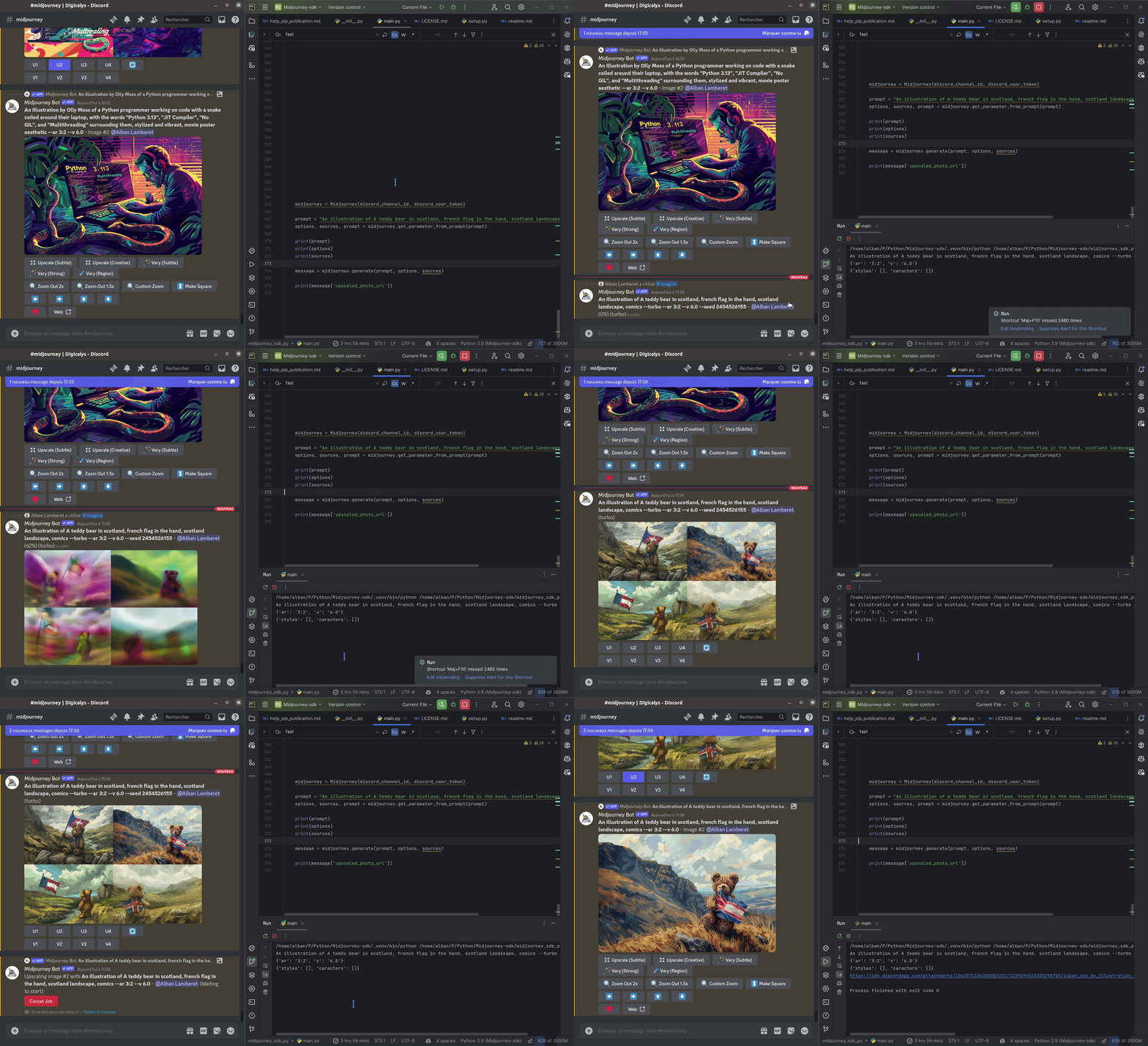
What is Midjourney?
Midjourney is an AI-powered image generation platform that creates highly detailed and imaginative images from textual descriptions. It utilizes advanced machine learning techniques to interpret and visualize prompts, enabling users to generate unique and captivating artwork, illustrations, and designs.
Installation
You can install the Midjourney Python SDK using pip:
pip install midjourney-sdk-py
Usage
To use the Midjourney Python SDK, you need to obtain your discord_channel_id and discord_user_token. Here's how you can retrieve them:
Note
You need an active subscription in Midjourney to use the Midjourney SDK.
discord_channel_id:
Navigate to the Discord channel where you want to use the Midjourney bot. The URL of the channel will look like this: https://discord.com/channels/yyyyyyyyy/xXXXXxxxXxXxxXxx Copy the last part of the URL (xXXXXxxxXxXxxXxx), which represents your discord_channel_id.
discord_user_token:
Open your Discord application and navigate to https://discord.com/channels/@me. Open the browser's developer console (usually by pressing F12). Go to the "Network" tab and select the "XHR" filter. Refresh the page and click on the "@me" request. In the "Headers" section, look for the "Authorization" header and copy the token value.
Session ID
You can get the session ID by running an /imagine command in discord and then looking at the request in the browser's developer console.
Check for "interactions" endpoint and get the request body. It's a JSON object with a "session_id" property.

After that, you can use the Midjourney Python SDK with your discord_channel_id, discord_user_token and session_id (and an active subscription).
A picture is worth a thousand words
An image to illustrate the process to get the discord_channel_id and discord_user_token.
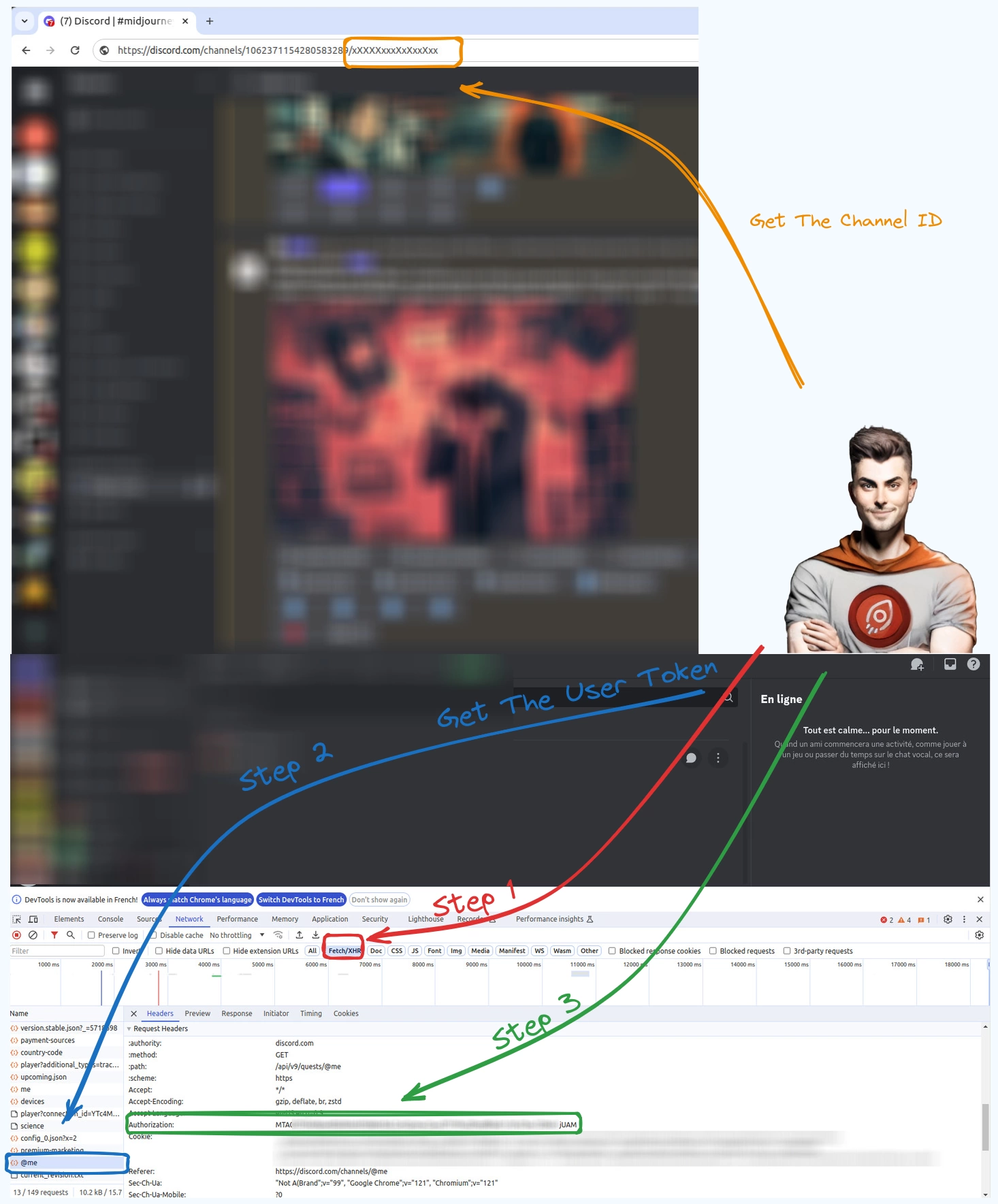
Once you have the discord_channel_id and discord_user_token, you can start using the Midjourney Python SDK. Here's a basic example of how to generate an image using the SDK:
from midjourney_sdk_py import Midjourney

discord_channel_id = "YOUR_DISCORD_CHANNEL_ID"
discord_user_token = "YOUR_DISCORD_USER_TOKEN"
discord_session_id = "YOUR_DISCORD_SESSION_ID"
midjourney = Midjourney(discord_channel_id, discord_user_token, discord_session_id)

prompt = "A teddy bear in Scotland, holding a French flag, with a Scottish landscape in the background, in a comic style"
options = {
    "ar": "3:2",
    "v": "6.1",
}

message = midjourney.generate(prompt, options)

print(message['upscaled_photo_url'])
The SDK provides various methods and options to customize the image generation process, such as:
imagine: Generate an initial image based on a prompt. upscale: Upscale a previously generated image. get_imagine: Retrieve a previously generated image. get_upscale: Retrieve an upscaled version of a generated image. get_parameter_from_prompt: Extract parameters and sources from a prompt string.
You can explore the available options and parameters to fine-tune the generated images according to your requirements. The SDK supports aspect ratios, chaos levels, quality settings, styles, negative prompting, and more.
Extracting Parameters from Prompts
The get_parameter_from_prompt method allows you to extract parameters and sources from a prompt string. This can be incredibly useful when you have a complete prompt string containing options and image sources, and you want to separate them for more flexible usage. Here's an example of how to use get_parameter_from_prompt:
from midjourney_sdk_py import Midjourney

discord_channel_id = "YOUR_DISCORD_CHANNEL_ID"
discord_user_token = "YOUR_DISCORD_USER_TOKEN"
discord_session_id = "YOUR_DISCORD_SESSION_ID"

midjourney = Midjourney(discord_channel_id, discord_user_token, discord_session_id)

prompt = "An illustration of A teddy bear in scotland, french flag in the hand, scotland landscape, comics --ar 3:2 --v 6.1 --turbo --sref http://example.com/style1.jpg, http://example.com/style2.jpg --cref http://example.com/character1.jpg, http://example.com/character2.jpg"

options, sources, cleaned_prompt = midjourney.get_parameter_from_prompt(prompt)

print("Options:", options)
print("Sources:", sources)
print("Cleaned Prompt:", cleaned_prompt)

message = midjourney.generate(cleaned_prompt, options, sources)

print(message['upscaled_photo_url'])
Midjourney Image Download and Conversion to JPEG
The Midjourney SDK also allows you to download and convert generated images into different formats. The download_and_convert_image method enables you to download an image from a URL and convert it to JPEG with options for compression and resizing.
Usage Example
Here’s an example of how you can use this method to download and convert an image:
message = midjourney.generate(prompt, options)

# Download path
download_path = "downloads"
# Download and convert the image
image_path = midjourney.download_and_convert_image(message['upscaled_photo_url'], "A Teddy bear in Scotland", download_path, 0.9, (500, 500), True)

print(f"The image has been downloaded and converted to: {image_path}")
Parameters for the download_and_convert_image Method
- image_url: The URL of the image to download.
- image_name: (Optional) The name under which the image will be saved.
- save_path: (Optional) The path where the image will be saved.
- compression: (Optional) The level of compression for the JPEG format (value between 0 and 1).
- size: (Optional) A tuple specifying the size (width, height) to which the image should be resized.
- crop: (Optional) A boolean indicating whether the image should be cropped to fit the specified size.
License
This project is licensed under the MIT License. See the LICENSE file for more details. Acknowledgments
Midjourney for providing the incredible AI image generation platform. The developers and contributors of the Midjourney Python SDK for their hard work and dedication.
Feedback and Support
If you have any questions, suggestions, or issues regarding the Midjourney Python SDK, please feel free to open an issue on the GitHub repository. We appreciate your feedback and will do our best to assist you. Happy image generation with the Midjourney Python SDK!
1 maintainer

Release files for midjourney-sdk-py 1.1.0
For a detailed explanation of source distributions (sdists) and built distributions (wheels), please see the package formats documentation.
Source distribution (sdist)
| File | Size | Uploaded | |
|---|---|---|---|
| midjourney-sdk-py-1.1.0.tar.gz | 9.2 kB | Details |
Built distribution (wheel)
| File | Interpreter | ABI | Platform | Reset |
|---|---|---|---|---|
| midjourney_sdk_py-1.1.0-py3-none-any.whl | Python 3 | none | any | Details |
Total release size: 18.8 kB
Release files / midjourney-sdk-py-1.1.0.tar.gz
| Download URL | midjourney-sdk-py-1.1.0.tar.gz |
|---|---|
| Size | 9.2 kB |
| Tags | Source |
|
SHA-256 checksum How to use checksums |
81e0fde7ecac9db43d98876d0254e08ec460eecc9c769eb932dbe568afb9158b
|
|
BLAKE2b-256 checksum How to use checksums |
d59550a3129d7bdcfeb3f75a29577615f4cb8dd4eded8611eb1435e0e5e930d4
|
| Upload date | |
|
Uploaded using Trusted Publishing? What is trusted publishing? |
No |
| Uploaded via |
twine/5.0.0 CPython/3.9.20
|
Release files / midjourney_sdk_py-1.1.0-py3-none-any.whl
| Download URL | midjourney_sdk_py-1.1.0-py3-none-any.whl |
|---|---|
| Size | 9.6 kB |
| Tags | Python 3 |
|
SHA-256 checksum How to use checksums |
9d7935ecb42cdfb2851da1422526959e03ddeb13d673bf82d361b453a8029c92
|
|
BLAKE2b-256 checksum How to use checksums |
df30f2ec8b8f31bc817ea5dbbd752f499ad8c18d7325acb0e3ded9c1c4ca8a51
|
| Upload date | |
|
Uploaded using Trusted Publishing? What is trusted publishing? |
No |
| Uploaded via |
twine/5.0.0 CPython/3.9.20
|














