
Mimora
A local, offline pronunciation trainer. Mimora speaks a phrase, you repeat it, and it scores how close you were, highlighting the words to work on. Practice the same phrase until you are happy with the score, then move on to the next one. Everything runs on your machine: speech synthesis, speech recognition, phrase generation and scoring.
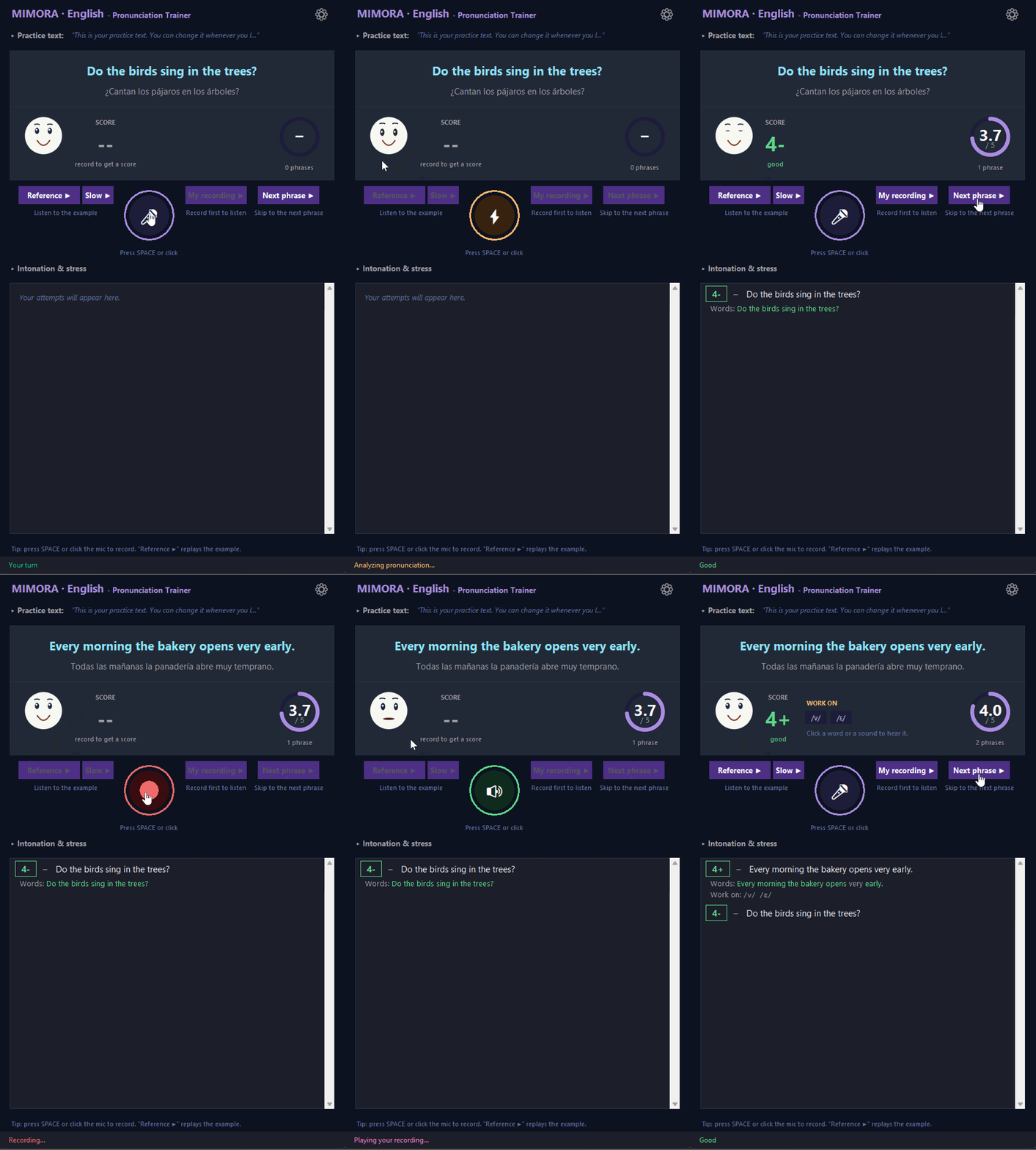
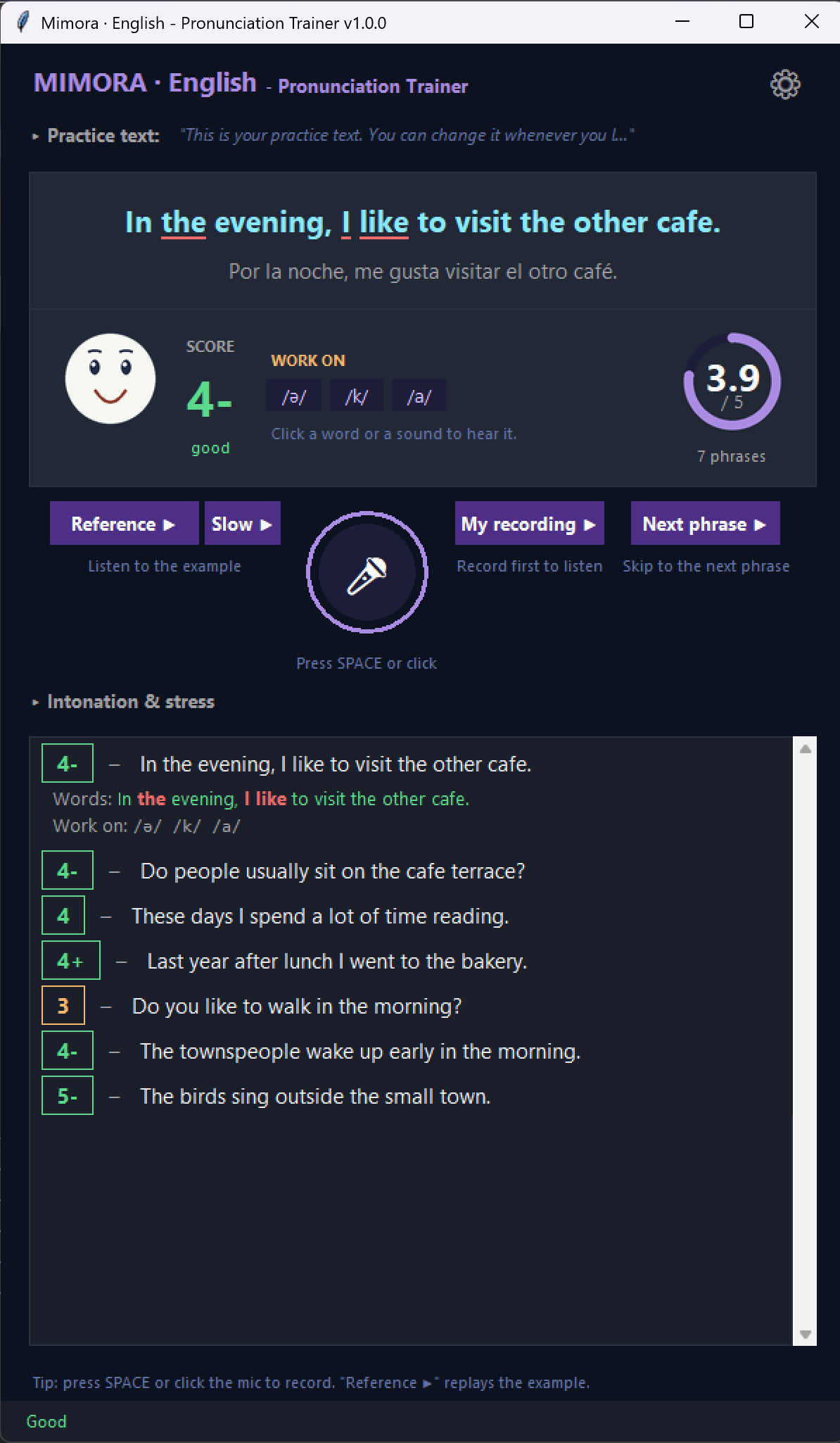
| Dark theme | Light theme |
|---|---|
 |
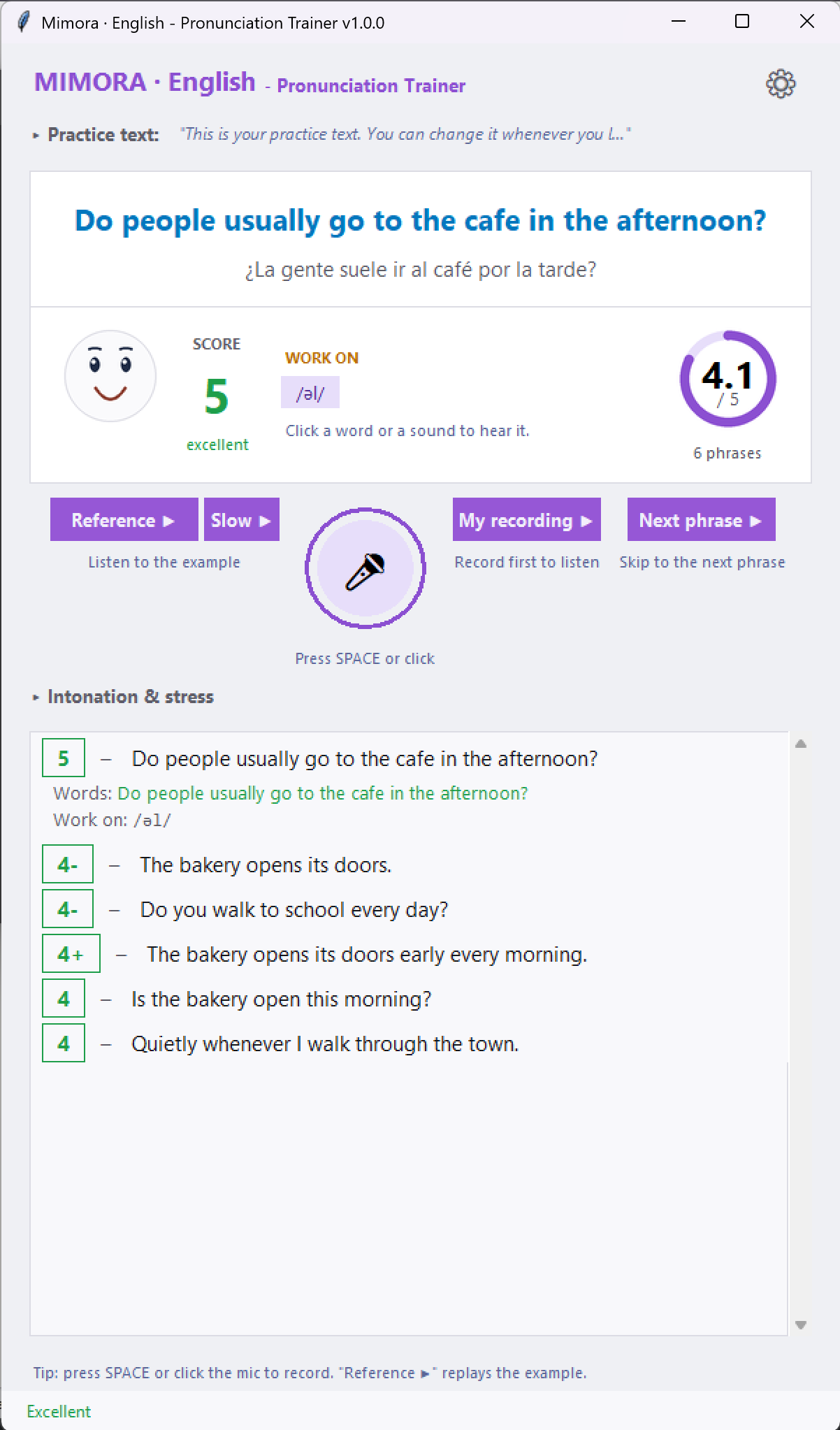 |
Both themes ship with the app; drop your own <name>_schema.json into config/themes/ to add or replace one.
Why Mimora?
- 🔒 100% offline after install - your voice never leaves your computer. No cloud, no accounts, no API keys.
- ♾️ Unlimited, varied practice - a local LLM writes fresh phrases from your own text, so you never drill the same canned sentences.
- 💸 No subscription - free and open source. The only cost is disk space for the models.
- 💻 Runs on a normal PC - 16 GB RAM and no graphics card. A GPU is optional and only makes it faster.
- 🎯 Instant, word-level feedback - a 0-100 score and the exact words to work on, with reference-vs-you replay.
Who is it for?
Anyone working on clearer speech in a new language: language learners, accent reduction and shadowing practice. You bring the text (a paragraph, a song, a script), and Mimora turns it into spoken drills.
Supported languages
The practice language is set in the settings window (Language, applies after a restart). A language can offer regional variants (Accent).
| Language | Variants | Scoring engines |
|---|---|---|
| English | American, British | phoneme (default, calibrated), acoustic, none |
| Spanish (Peninsular / Castilian) | Castilian | phoneme (experimental, see below), none |
English is fully calibrated in both variants. Spanish is an experiment while multilingual support is in development. The scoring engine itself is language-independent, but its calibration is not, and a Spanish calibration needs labeled non-native speech that is not available yet. Until it lands, Spanish takes are scored with the English calibration: usable, but not tuned. The acoustic engine uses an English recognizer and is offered for English only.
The translation panel covers 200+ languages, but that is the translation shown beside the phrase, not the practice language.
How it works
For each practice phrase Mimora runs a simple loop:
- Prompt - the local LLM writes a phrase from your practice text, and the TTS voice of the language speaks it (Kokoro for English, Supertonic for Spanish). The same audio is the reference for scoring.
- Record - press
SPACEor click the mic, then repeat the phrase. The take stops on its own once you fall silent, or when you pressSPACEagain. - Analyze - your recording is compared with the reference, and prosody (pitch and energy) is added to the result. The default phoneme engine matches espeak reference phonemes against a wav2vec2 phoneme recognizer. The acoustic engine is the alternative, selected in the settings window (Engine; settings.json
"engine"). - Feedback - you get a score out of 100, what was recognized, and the words to improve.
- Loop - repeat the same phrase until you are happy with the score, then generate the next one.
You can play the reference and your own recording back to back to hear the difference.
No-LLM mode for slow machines. Set the LLM backend to
offand the language model is never loaded or started. Each phrase is then a sentence of your practice text, taken verbatim and in order. This saves the GGUF download, the server subprocess, RAM and VRAM, and it starts faster. It also suits drilling a text exactly as written. Phrase length is fixed in this mode: sentences are never shortened. Together with thenonescoring engine, Mimora then runs with no LLM and no recognizer model at all.
Example
Reference:  The weather is getting colder.
You said:   The weather is getting color.
Score:      82 / 100
Work on:    colder
Features
- 🎙️ One-press recording - press once, speak, and it stops by itself when you go quiet.
- 🗣️ One consistent reference voice - the prompt and the scored reference are the same voice, so the target never changes. Prefer variety? Turn on Random voice per phrase in the settings.
- 🧠 Practice your own material - paste a paragraph, a song or a few sentences into the practice text panel, and the local LLM turns them into an endless stream of phrases.
- ⚙️ Settings window (the gear button) - the practice language and its accent (both apply after a restart), the TTS voice and playback speed, Random voice per phrase (needs at least two voices of the current language), the phrase length (full phrase or a few words), the translation language shown under the phrase, and a user name that selects the per-user scoring calibration.
- 📊 Two interchangeable scoring engines, selected in the settings window (Engine; settings.json
"engine"). The default phoneme engine compares the phonemes of your take with the phonemes of the reference text. The acoustic engine compares the sound of the two recordings instead. Both are length-invariant, and both can be calibrated to your voice (python pronunciation/<engine>/calibrate.py). - 🔁 Replay reference vs. your recording to hear the difference.
- 😀 Articulation face - a schematic mouth moves with the speech while audio plays, and shows a smiley for your score while idle.
- 🧵 Responsive window - scoring and model loading never block the interface.
Requirements
- Hardware - a typical laptop or desktop: 16 GB RAM and no GPU required. On CPU the first phrases are slower. An NVIDIA GPU is optional, needs a CUDA build of PyTorch, and speeds up scoring and phrase generation.
- Python 3.11 or 3.12. Python 3.13 and newer install only with a C++ compiler, because two dependencies publish no wheels for them.
piprefuses such a version by itself;uvdoes not, so pass--python 3.12to it (see below). - Windows is the primary target. macOS and Linux are supported as well.
- A microphone and speakers.
- espeak-ng is needed by
phonemizer, but it is not a separate install: the library and its data ship in theespeakng-loaderwheel, which comes with the dependencies. A system install stays a valid fallback, see espeak-ng. - PortAudio (Linux only) - the native library behind recording and playback (
libportaudio2on Debian/Ubuntu). The Windows and macOS wheels bundle it, the Linux ones do not. See Audio on Linux.
macOS notes
Apple Silicon Macs run the same pinned stack as Windows and Linux. Intel
Macs (x86_64) are supported through an automatic fallback: PyTorch publishes
no macOS x86_64 wheel newer than torch 2.2.2, and that torch cannot run
transformers 5. The dependency markers therefore install an older stack there
(torch 2.2.2, transformers 4.x, NumPy 1.x), with no manual steps. That stack
does without the transformers 5.3 fix for CVE-2026-4372, which is acceptable
for a local app that loads only fixed, trusted models. Every other platform
keeps the hardened pins.
The local chat model is the one piece that depends on the macOS version
itself, because Mimora runs llama.cpp's own llama-server binary. llama.cpp
builds its Apple Silicon asset on a current macOS runner and sets no
deployment target, so the binary inherits that runner's minimum: macOS 26.
The Intel asset sets 13.3 explicitly. Below its minimum Mimora says so
before it downloads anything and carries on without the local model, so
everything else still works. To get phrase generation back on such a Mac, set
the LLM backend to LM Studio, or build llama.cpp yourself and name the
result in "llama_server_path". See
llama-server.
tkinter comes with the python.org installer, but not with Homebrew Python.
install.py adds the matching python-tk@<version> formula for the interpreter
it runs in. If you set things up by hand on Homebrew Python, match your version,
for example brew install python-tk@3.12.
Models
install.py downloads all of these in one run (see Install from a clone).
You do not have to use it: on the first start Mimora checks what is missing,
names the exact volume, and asks before anything is downloaded. Each model also
has its own command, listed per row below.
The first-run window asks in three groups. The models a session cannot run
without (the engine's recognizer and the language's TTS) leave you Download
or Quit. The local chat model is a real choice: declining it writes
"llm_backend": "off" into config/settings.json, and the settings window turns
it back on. The offline translator appears only when a translation language is
selected, and declining it writes "translation_language": "" the same way. Turning
translation on later restarts Mimora into the same window, because with
translation off nothing about the translator is downloaded or checked over the
network.
| Model | Used by | Download | Notes |
|---|---|---|---|
facebook/wav2vec2-xlsr-53-espeak-cv-ft |
pronunciation analysis (phoneme engine, default) | 1264 MB | espeak IPA phoneme recognizer; python -m mimora.model_fetch --hf |
facebook/wav2vec2-large-960h |
pronunciation analysis (acoustic engine) | 1262 MB | python -m mimora.model_fetch --hf |
Kokoro-82M (hexgrad/Kokoro-82M) |
text-to-speech (English) | 363 MB | python -m mimora.model_fetch --hf |
Supertonic 3 (Supertone/supertonic-3) |
text-to-speech (Spanish) | 404 MB | python -m mimora.model_fetch --supertonic. Weights are OpenRAIL-M licensed (code MIT), so they are downloaded, never bundled |
facebook/nllb-200-distilled-600M |
offline translation (translation panel) | 2483 MB | downloaded only once a translation language is selected |
A GGUF chat model (e.g. Llama-3.2-3B-Instruct-Q4_K_M) |
phrase generation | 2019 MB | python -m mimora.gguf_fetch. Not needed with "llm_backend": "off" |
| llama-server binary (pinned llama.cpp release) | phrase generation | 641 MB CUDA, 18 MB CPU | most of the CUDA figure is NVIDIA's runtime; python -m mimora.llama_server_fetch |
Installation
Three ways in, in the order most people should try them:
- From the published wheel (below) - one command, no clone, no build toolchain. This is the recommended way.
- From a clone with
install.py- the guided setup for a checkout. It also downloads every model up front, and it is the way to go if you intend to change the code. - By hand - every command run yourself, plus the platform-specific pieces
behind them:
docs/installation-manual.md.
Every way installs prebuilt packages (wheels), so no compilation toolchain is needed. You need neither a C/C++ compiler nor a CUDA toolkit.
Install from PyPI (recommended)
Mimora is an application rather than a library, so install it with a tool installer instead of adding it to an everyday environment. uv is the recommended one: it is the only installer that supplies both the Python version and the CUDA build of PyTorch by itself.
uv is a single binary and needs no Python of its own:
# Windows (PowerShell)
powershell -ExecutionPolicy ByPass -c "irm https://astral.sh/uv/install.ps1 | iex"

# macOS / Linux
curl -LsSf https://astral.sh/uv/install.sh | sh
brew install uv, winget install --id=astral-sh.uv -e, scoop install main/uv
and pipx install uv install it as well. If you already have uv, check the
version (uv --version) and update it with uv self update: the GPU flag below
needs 0.9.20 or newer.
Then install Mimora and start it:
uv tool install mimora --python 3.12
mimora
--python 3.12 is not optional. A uv tool environment ignores the package's
requires-python, so without the flag uv installs into whatever interpreter it
finds first. uv downloads a 3.12 itself if the machine has none.
Windows with an NVIDIA GPU - add --torch-backend auto, so uv resolves the
CUDA build of torch instead of PyPI's CPU-only wheel. Do not add this flag on
Linux or macOS - see GPU support for
what it does there.
uv tool install mimora --python 3.12 --torch-backend auto
pipx gives the same result except for that index: an index cannot be named in a published package's metadata, so on Windows with an NVIDIA card the CUDA build is a second command.
pipx install --python 3.12 mimora
pipx runpip mimora install torch --index-url https://download.pytorch.org/whl/cu124 --force-reinstall
pip works too, into a virtual environment of Python 3.11 or 3.12:
python -m venv .venv
.venv\Scripts\activate            # Windows
# source .venv/bin/activate       # macOS / Linux

pip install mimora
mimora
On Linux one native library comes from the system rather than from a wheel:
sudo apt-get install libportaudio2 (see Audio on
Linux). Add a monochrome
emoji font as well, or the mic button draws blank boxes (see Emoji icons on
Linux).
The install itself downloads no models. The first start does, and it asks first (see Models). Those downloads and your settings live in the operating system's user-data directory (see Where Mimora keeps your files), which is outside the installed package and therefore survives both of these:
uv tool upgrade mimora            # pipx: pipx upgrade mimora
uv tool uninstall mimora          # pipx: pipx uninstall mimora
Uninstalling removes the program, not the models. Delete the data directory by hand to reclaim that space.
Install from a clone with install.py
Use this one to work on Mimora itself, or to have every model in place before the first start.
install.py does the whole setup: it checks the native pieces pip cannot supply
(tkinter and PortAudio on Linux, the MSVC runtime on Windows), installs the
Python dependencies, reports which espeak-ng library the engines will use,
detects an NVIDIA GPU and installs the matching CUDA build of torch, downloads
the Hugging Face models into model_cache/, installs the pinned llama-server
binary into bin/llama/, and downloads the GGUF chat model into models/.
git clone https://github.com/vikonix/Mimora.git Mimora
cd Mimora

# Create and activate a virtual environment, then run the installer INSIDE it
# (the script installs into whatever interpreter runs it):
python -m venv .venv
.venv\Scripts\activate            # Windows
# source .venv/bin/activate       # macOS / Linux

python install.py
The installer prints each step and its exact command, then asks before it runs
it (answer Y to run, n to abort, s to skip). Anything already installed is
offered as reinstall-or-skip rather than blindly redone. The full run is logged
to logs/install.log. Expect several minutes, mostly downloads, and roughly
10 GB of disk once all packages and models are in place.
Useful flags:
--yes- run non-interactively (skips already-installed steps; add--reinstallto force them)--dry-run- print the steps and commands without executing anything--cpu- skip the GPU (CUDA) installs--skip-models/--skip-gguf- skip the model / GGUF downloads
The espeak-ng step reports the library the engines resolve to, which on a normal install is the bundled one. It offers a system install only if none is found, and on Windows it just prints instructions. On Windows, Developer Mode lets the model cache use symlinks; without it the installer copies files instead, which always works but uses more disk.
Manual installation
Every step run by hand, plus the native pieces behind it - espeak-ng, PortAudio
on Linux, the emoji font, the CUDA build of PyTorch, the llama-server binary and
the GGUF chat model: docs/installation-manual.md.
Usage
Installed from PyPI, Mimora is a console script:
mimora
From a clone, run it in the same virtual environment you installed into, so that the app uses the interpreter that has the dependencies:
.venv\Scripts\activate            # Windows
# source .venv/bin/activate       # macOS / Linux

python main.py
On the first launch the app loads the TTS and recognizer models and starts the LLM server. Cached models are just a load that takes a moment; a missing model is downloaded first, which takes a while. Once the app shows Ready:
- Edit the Practice text panel, or keep the default.
- Click Next phrase ▶. Mimora generates a phrase and speaks it.
- Press
SPACE(or click the mic button) and repeat the phrase. The take stops on silence, or on a secondSPACE. - Read your score and verdict on the phrase card. Mispronounced words are underlined, and a click plays one slowly. The WORK ON badges name the sounds to fix, and a click gives an example word. Earlier takes stay in the attempt history below.
- Use Reference ▶ (or Slow ▶) and My recording ▶ to compare, then repeat the phrase or generate the next one.
The first few phrases run noticeably slowly while the models warm up. This is normal, and the speed settles after the first few requests.
Press ESC or close the window to quit. The LLM server subprocess is terminated
cleanly.
Where Mimora keeps your files
Running from a clone, everything stays inside the project directory: config/,
models/, model_cache/, bin/llama/ and logs/.
Installed as a package, the same layout moves under the operating system's user-data directory, because the package's own directory is rebuilt on the next upgrade:
| OS | Location |
|---|---|
| Windows | %APPDATA%\Mimora\ |
| macOS | ~/Library/Application Support/Mimora/ |
| Linux | $XDG_DATA_HOME/mimora/ (default ~/.local/share/mimora/) |
The MIMORA_HOME environment variable puts that directory anywhere else, and it
overrides both cases. Use it to move several gigabytes of downloads to another
drive, to escape a roaming Windows profile that would copy them over the network
at every login, or to run two configurations side by side.
Paths inside config/settings.json resolve against that file's own
directory. The settings window writes absolute paths, which work everywhere. A
relative path is read as relative to the settings file you are editing. Keys you
leave out follow their own defaults instead, which are resolved for you.
Most settings are editable in the settings window. For the rest,
config/settings.example.json documents every
key next to its default. Copy it to config/settings.json to start, or edit that
file directly. The file and every key in it are optional, and anything missing
falls back to the built-in default.
GPU / CPU notes
On a single GPU the recognizer, the TTS voice, the translator and llama.cpp can
compete for VRAM. Mimora keeps them apart: the LLM runs in a separate process,
the practice loop runs its phases one after another, and the translator defaults
to the CPU. If VRAM is still tight, set WAV2VEC2_DEVICE = "cpu" in
mimora/config.py; short phrases score acceptably on the CPU.
Known limitations
- Spanish scoring is experimental, because the calibration is per-language and no Spanish one exists yet (see Supported languages). The app logs a startup warning, and the settings window shows a notice.
- Only mistakes the recognizer hears become word errors. A distorted word that is still recognized may not appear in the list. The phoneme distance, the DTW of the acoustic engine and the prosody part compensate for this in the score.
- Scoring is heuristic and depends on your voice and microphone. After a practice session you can re-anchor the active engine to your own data:
python pronunciation/phoneme/calibrate.pyorpython pronunciation/acoustic/calibrate.py, where--dry-runpreviews the change. Every take's raw components are logged tologs/phoneme_samples.jsonl(orlogs/acoustic_samples.jsonl) and tologs/main.log.
Credits
- OpenPronounce (MIT) - the pronunciation-scoring core reused in
pronunciation/acoustic/. - Kokoro-82M - text-to-speech (English variants).
- Supertonic 3 (supertonic-py, code MIT, weights OpenRAIL-M) - text-to-speech (Spanish variant), ONNX runtime.
- wav2vec2-xlsr-53-espeak-cv-ft (Hugging Face Transformers) - espeak-style IPA phoneme recognizer for the default
phonemeengine. - Wav2Vec2 (Hugging Face Transformers) - acoustic embeddings and transcription (
acousticengine). - NLLB-200 (Hugging Face Transformers) - offline translation for the translation panel.
- espeak-ng / phonemizer-fork - reference phonemization (espeak IPA).
- panphon - articulatory feature distance used by the phoneme edit-distance scoring.
- llama.cpp - local LLM inference; the official
llama-serverbinary is run as a subprocess.
License
See LICENSE. The reused OpenPronounce components are MIT-licensed; their attribution is retained in pronunciation/acoustic/speech.py.
Model weights have their own licenses. The Supertonic 3 TTS weights in particular
are licensed under OpenRAIL-M
(the supertonic package code is MIT), so Mimora never bundles them: they are
downloaded into model_cache/supertonic3/ by install.py or on the first run.
1 maintainer

Download files
Download the file for your platform. If you're not sure which to choose, learn more about installing packages.
Source Distributions
Built Distribution
Filter files by name, interpreter, ABI, and platform.
If you're not sure about the file name format, learn more about wheel file names.
Copy a direct link to the current filters
File details
Details for the file mimora-1.1.0-py3-none-any.whl.
File metadata
- Download URL: mimora-1.1.0-py3-none-any.whl
- Upload date:
- Size: 365.1 kB
- Tags: Python 3
- Uploaded using Trusted Publishing? No
- Uploaded via:
twine/7.0.0 CPython/3.14.4
File hashes
| Algorithm | Hash digest | |
|---|---|---|
| SHA256 |
24c9a597bda0cd80294a9273ff11c7d98b75101b8f4397598aa305107c0a50e9
|
|
| MD5 |
59f564ef8668b95e92722eda38e6ad86
|
|
| BLAKE2b-256 |
29b99d6769969f6b8e2adef29ead269fc296922c09207c522168bfb8833f399a
|







