



mkdocs-jupyter: Use Jupyter Notebooks in mkdocs
- Docs demo Site
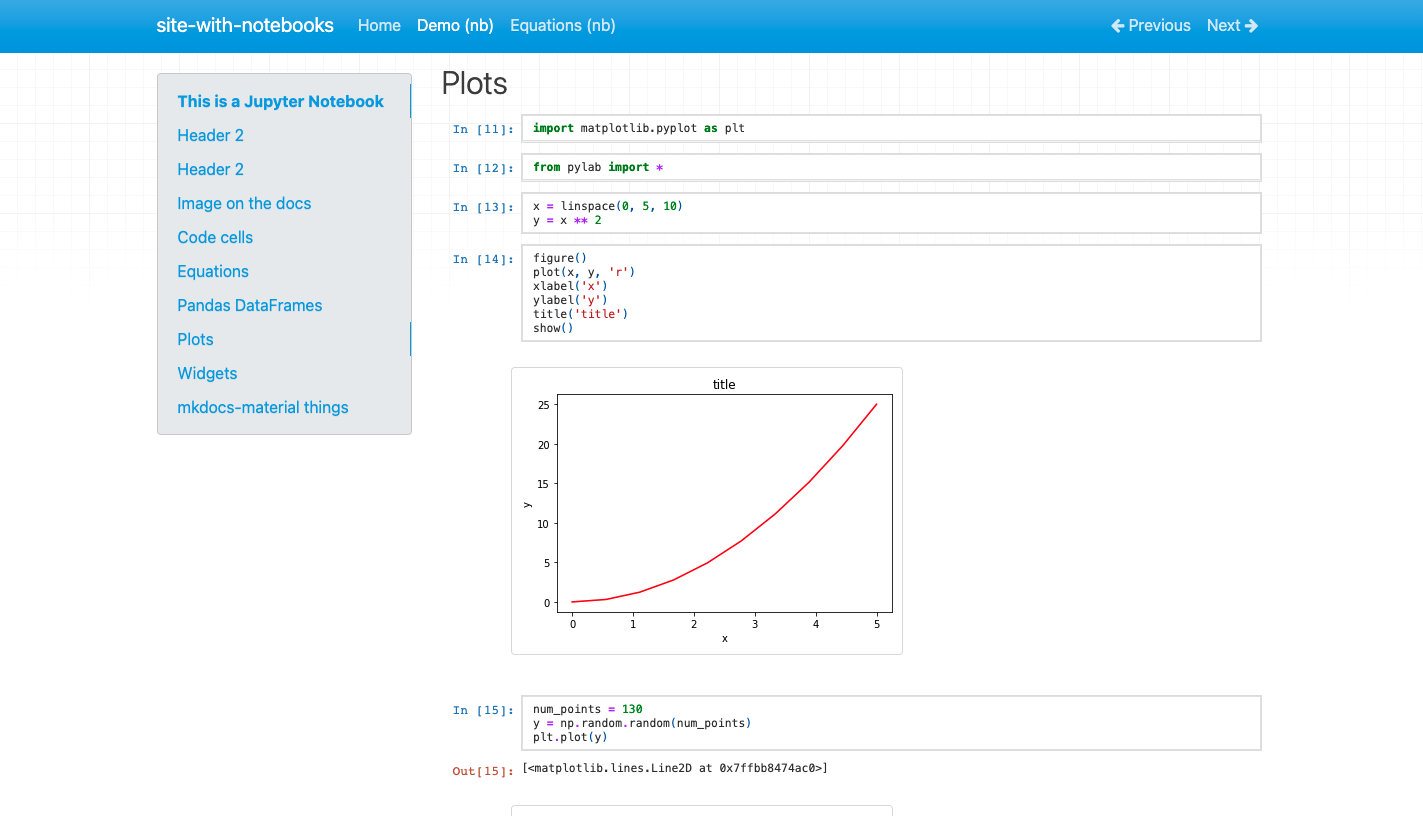
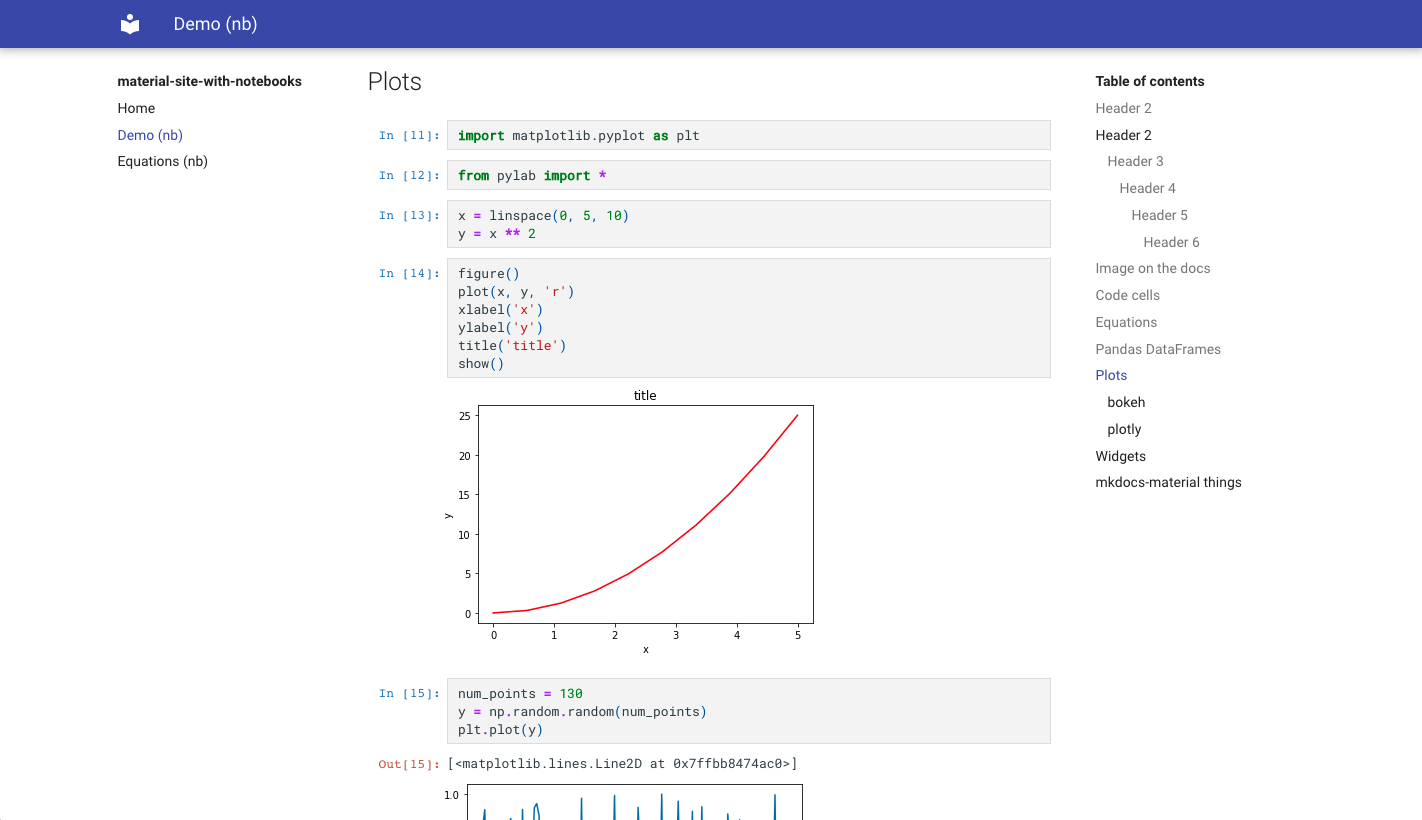
- Add Jupyter Notebooks directly to the mkdocs navigation
- Support for multiple formats:
.ipynband.pyfiles (using jupytext)
- Same style as regular Jupyter Notebooks
- Support Jupyter Themes
- Option to execute the notebook before converting
- Support for ipywidgets
- Support for mkdocs TOC
- Option to include notebook source
Installation
pip install mkdocs-jupyter
Configuration
In the mkdocs.yml use Jupyter notebooks (.ipynb) or Python scripts (.py)
as pages:
nav:
    - Home: index.md
    - Notebook page: notebook.ipynb
    - Python file: python_script.py
plugins:
    - mkdocs-jupyter
Titles and Table of Contents
The first h1 header (#) in your notebook will be used as the title.
# This H1 header will be the the title.
This can be turned off in the configuration (in which case the filename will be used as title):
plugins:
    - mkdocs-jupyter:
          ignore_h1_titles: True
In order to see the table of contents you need to maintain a hierarchical
headers structure in your notebooks. You must use h2 headers (##) and not h1
(#)
## This H2 title will show in the table of contents
If you want to nest headers in the TOC you need to add additional levels later in the same markdown cell or new bottom markdown cells:
## This header will show as top level in the table of contents

<content>

### This one will be displayed inside the above level
Including or Ignoring Files
You can control which files are included or ignored via lists of glob patterns:
plugins:
    - mkdocs-jupyter:
          include: ["*.ipynb"] # Default: ["*.py", "*.ipynb"]
          ignore: ["some-irrelevant-files/*.ipynb"]
Execute Notebook
You can tell the plugin to execute the notebook before converting, default is
False:
plugins:
    - mkdocs-jupyter:
          execute: true
You can tell the plugin to ignore the execution of some files (with glob matching):
plugins:
    - mkdocs-jupyter:
          execute_ignore:
              - "my-secret-files/*.ipynb"
To fail when notebook execution fails set allow_errors to false:
plugins:
    - mkdocs-jupyter:
          execute: true
          allow_errors: false
Kernel
By default the plugin will use the kernel specified in the notebook to execute it. You can specify a custom kernel name to use for all the notebooks:
plugins:
    - mkdocs-jupyter:
          kernel_name: python3
Ignore Code Input
By default the plugin will show full code and regular cell output details. You can hide cell code input for all the notebooks:
plugins:
    - mkdocs-jupyter:
          show_input: False
You can also decide to hide the Out[#] output notation and other cell metadata
for all the notebooks:
plugins:
    - mkdocs-jupyter:
          no_input: True
Remove Cell Using Tags
By default the plugin will show full code and regular cell output details. You can hide cell code input for specific cells using tags:
plugins:
    - mkdocs-jupyter:
          remove_tag_config:
              remove_input_tags:
                  - hide_code
More detailed on removing cell based on tag, see NbConvert Customization)
Jupyter themes
You can configure the different Jupyter themes. For example if using material
with slate color scheme you can use the Jupyter Lab dark theme:
plugins:
    - mkdocs-jupyter:
          theme: dark

theme:
    name: material
    palette:
        scheme: slate
Extra CSS classes
This option will add a custom CSS class to the div container that highlights
the code cells. This can be useful to add custom styles to the code cells.
plugins:
  - mkdocs-jupyter:
      highlight_extra_classes: "custom-css-classes
RequireJS
By default RequireJS is not loaded. This is required for Plotly. You can enable it with:
plugins:
    - mkdocs-jupyter:
          include_requirejs: true
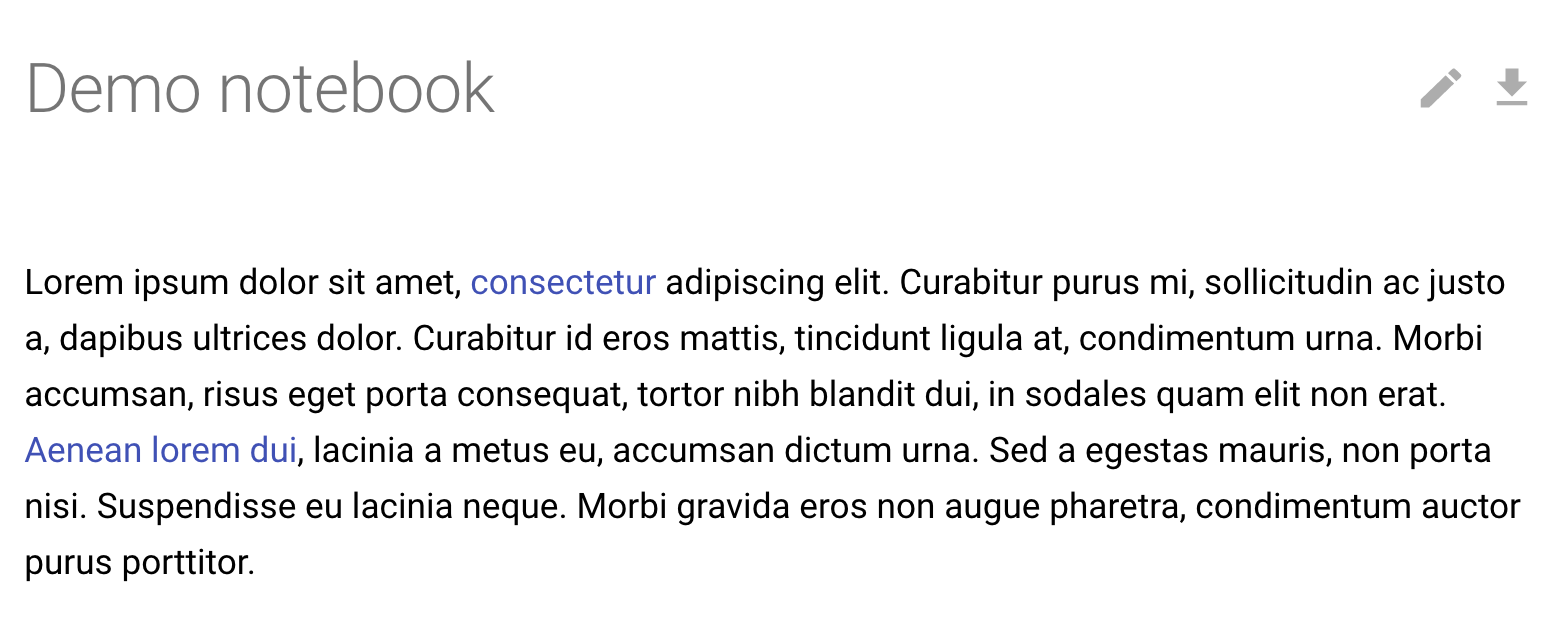
Download notebook link
You can tell the plugin to include the notebook source to make it easy to show a
download button in the theme, default is False:
plugins:
    - mkdocs-jupyter:
          include_source: True
This setting will also create a page.nb_url value that you can use in your
theme to make a link in each page.
For example in mkdocs-material (see
customization),
you can create a main.html file like this:
{% extends "base.html" %}

{% block content %}
{% if page.nb_url %}
    <a href="{{ page.nb_url }}" title="Download Notebook" class="md-content__button md-icon">
        {% include ".icons/material/download.svg" %}
    </a>
{% endif %}

{{ super() }}
{% endblock content %}
Styles
This extensions includes the Jupyter Lab nbconvert CSS styles and does some modifications to make it as generic as possible in order for it to work with a variety of mkdocs themes. This is not always possible and the theme we test the most is mkdocs-material.
It's possible you might need to do some CSS changes to make it look as good as you want, for example for the material theme take a look at their customization docs.
Create a main.html file like:
{% extends "base.html" %}

{% block content %}
{{ super() }}

<style>
// Do whatever changes you need here

.jp-RenderedHTMLCommon p {
    color: red
}

</style>
{% endblock content %}
Mkdocs Material notes
Any markdown specific features such as admonitions won't work with mkdocs-jupyter because those features are not supported by Jupyter itself and we use nbconvert to make the conversion.
To use this type of features you have to define the HTML directly in the markdown cells:
<div class="admonition note">
    <p class="admonition-title">Note</p>
    <p>
        If two distributions are similar, then their entropies are similar,
        implies the KL divergence with respect to two distributions will be
        smaller...
    </p>
</div>
1 maintainer

Metadata
1 maintainer
Release files for mkdocs-jupyter2 0.25.2
For a detailed explanation of source distributions (sdists) and built distributions (wheels), please see the package formats documentation.
Source distribution (sdist)
| File | Size | Uploaded | Provenance | Actions |
|---|---|---|---|---|
| mkdocs_jupyter2-0.25.2.tar.gz | 1.6 MB | Without provenance | Details for mkdocs_jupyter2-0.25.2.tar.gz |
Built distribution (wheel)
| File | Interpreter | ABI | Platform | Actions Reset |
|---|---|---|---|---|
| mkdocs_jupyter2-0.25.2-py3-none-any.whl | Python 3 | none | any | Details for mkdocs_jupyter2-0.25.2-py3-none-any.whl |
Total release size: 3.1 MB
Release files / mkdocs_jupyter2-0.25.2.tar.gz
| Download URL | mkdocs_jupyter2-0.25.2.tar.gz |
|---|---|
| Size | 1.6 MB |
| Tags | Source |
|
SHA-256 checksum How to use checksums |
4fc8a52d86cbcbd68572225e7cde9816a14195ad660eb39413df16592b44b653
|
|
BLAKE2b-256 checksum How to use checksums |
7f913698da05e5a1e74cef0be5feaa8256b91cd6f780bc7c0cf4935000f11529
|
| Upload date | |
|
Uploaded using Trusted Publishing? What is trusted publishing? |
No |
| Uploaded via |
python-httpx/0.28.1
|
Release files / mkdocs_jupyter2-0.25.2-py3-none-any.whl
| Download URL | mkdocs_jupyter2-0.25.2-py3-none-any.whl |
|---|---|
| Size | 1.5 MB |
| Tags | Python 3 |
|
SHA-256 checksum How to use checksums |
6ef433985a2ccf34f36e1c9740b439814406279b9bad3714e9c219f5387363a6
|
|
BLAKE2b-256 checksum How to use checksums |
749bf3b3200475a3b8c7bf62df335ad8e7e6d7e16b9d19ef74e2725a1b88d477
|
| Upload date | |
|
Uploaded using Trusted Publishing? What is trusted publishing? |
No |
| Uploaded via |
python-httpx/0.28.1
|
Security for mkdocs-jupyter2 0.25.2
Provenance
Provenance describes where a file came from. On PyPI, provenance is shared via attestations, which provide a verifiable record of the build or publishing details. View details, limitations and caveats.
No provenance found
None of the files in this release were uploaded with provenance metadata.
A note on package security
PyPI is a repository for distributing packages, not a service for auditing them. While third-party security researchers and our staff do their best to detect and remove malicious packages, PyPI cannot guarantee the quality, security or suitability of any given package.
To learn more about protecting yourself from malicious actors, visit our package security documentation.













