
A high-performance API server that provides OpenAI-compatible endpoints for MLX models. Built with Python and FastAPI, it enables efficient, scalable, and user-friendly local deployment of MLX-based multimodal models with an OpenAI-compatible interface. Supports text, vision, and audio processing capabilities. Perfect for developers looking to run MLX models locally while maintaining compatibility with existing OpenAI-based applications.

Project description
mlx-openai-server


Description
This repository hosts a high-performance API server that provides OpenAI-compatible endpoints for MLX models. Developed using Python and powered by the FastAPI framework, it provides an efficient, scalable, and user-friendly solution for running MLX-based multimodal models locally with an OpenAI-compatible interface. The server supports text, vision, audio processing, and image generation capabilities with enhanced Flux-series model support.
Note: This project currently supports MacOS with M-series chips only as it specifically leverages MLX, Apple's framework optimized for Apple Silicon.
Table of Contents
- Key Features
- Demo
- OpenAI Compatibility
- Supported Model Types
- Installation
- Usage
- Request Queue System
- API Response Schemas
- Example Notebooks
- Large Models
- Contributing
- License
- Support
- Acknowledgments
Key Features
- 🚀 Fast, local OpenAI-compatible API for MLX models
- 🖼️ Multimodal model support with vision, audio, and text
- 🎨 Advanced image generation and editing with MLX Flux-series models (schnell, dev, Krea-dev, kontext)
- 🔌 Drop-in replacement for OpenAI API in your apps
- 📈 Performance and queue monitoring endpoints
- 🧑💻 Easy Python and CLI usage
- 🛡️ Robust error handling and request management
- 🎛️ LoRA adapter support for fine-tuned image generation
- ⚡ Configurable quantization (4-bit, 8-bit, 16-bit) for optimal performance
- 🧠 Customizable context length for memory optimization and performance tuning
Demo
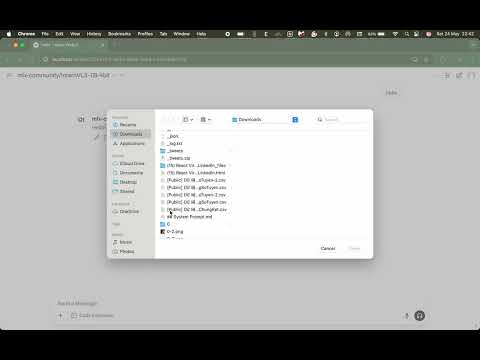
🚀 See It In Action
Check out our video demonstration to see the server in action! The demo showcases:
- Setting up and launching the server
- Using the OpenAI Python SDK for seamless integration
OpenAI Compatibility
This server implements the OpenAI API interface, allowing you to use it as a drop-in replacement for OpenAI's services in your applications. It supports:
- Chat completions (both streaming and non-streaming)
- Multimodal interactions (text, images, and audio)
- Advanced image generation and editing with Flux-series models
- Embeddings generation
- Function calling and tool use
- Standard OpenAI request/response formats
- Common OpenAI parameters (temperature, top_p, etc.)
Supported Model Types
The server supports five types of MLX models:
- Text-only models (
--model-type lm) - Uses themlx-lmlibrary for pure language models - Multimodal models (
--model-type multimodal) - Uses themlx-vlmlibrary for multimodal models that can process text, images, and audio - Image generation models (
--model-type image-generation) - Uses themfluxlibrary for Flux-series image generation models with enhanced configurations - Image editing models (
--model-type image-edit) - Uses themfluxlibrary for Flux-series image editing models - Embeddings models (
--model-type embeddings) - Uses themlx-embeddingslibrary for text embeddings generation with optimized memory management
Flux-Series Image Models
The server supports multiple Flux model configurations for advanced image generation and editing:
Image Generation Models
flux-schnell- Fast generation with 4 default steps, no guidance (best for quick iterations)flux-dev- High-quality generation with 25 default steps, 3.5 guidance (balanced quality/speed)flux-krea-dev- Premium quality with 28 default steps, 4.5 guidance (highest quality)
Image Editing Models
flux-kontext- Context-aware editing with 28 default steps, 2.5 guidance (specialized for contextual image editing)
Each configuration supports:
- Quantization levels: 4-bit, 8-bit, or 16-bit for memory/performance optimization
- LoRA adapters: Multiple LoRA paths with custom scaling for fine-tuned generation (not supported for
flux-kontext) - Custom parameters: Steps, guidance, negative prompts, and more
Context Length Configuration
The server supports customizable context length for language models to optimize memory usage and performance:
- Default behavior: When
--context-lengthis not specified, the server uses the model's default context length - Memory optimization: Setting a smaller context length can significantly reduce memory usage, especially for large models
- Performance tuning: Adjust context length based on your specific use case and available system resources
- Supported models: Context length configuration works with both text-only (
lm) and multimodal (multimodal) model types - Prompt caching: The server uses prompt caching to optimize memory usage when context length is specified
Example use cases:
- Short conversations: Use smaller context lengths (e.g., 2048, 4096) for chat applications
- Document processing: Use larger context lengths (e.g., 8192, 16384) for long document analysis
- Memory-constrained systems: Reduce context length to fit larger models in limited RAM
Installation
Follow these steps to set up the MLX-powered server:
Prerequisites
- MacOS with Apple Silicon (M-series) chip
- Python 3.11 (native ARM version)
- pip package manager
Setup Steps
-
Create a virtual environment for the project:
python3.11 -m venv oai-compat-server
-
Activate the virtual environment:
source oai-compat-server/bin/activate
-
Install the package:
# Option 1: Install from PyPI
pip install mlx-openai-server

# Option 2: Install directly from GitHub
pip install git+https://github.com/cubist38/mlx-openai-server.git

# Option 3: Clone and install in development mode
git clone https://github.com/cubist38/mlx-openai-server.git
cd mlx-openai-server
pip install -e .
Using Conda (Recommended)
For better environment management and to avoid architecture issues, we recommend using conda:
-
Install conda (if not already installed):
mkdir -p ~/miniconda3
curl https://repo.anaconda.com/miniconda/Miniconda3-latest-MacOSX-arm64.sh -o ~/miniconda3/miniconda.sh
bash ~/miniconda3/miniconda.sh -b -u -p ~/miniconda3
rm ~/miniconda3/miniconda.sh
source ~/miniconda3/bin/activate
conda init --all
-
Create a new conda environment with Python 3.11:
conda create -n mlx-server python=3.11
conda activate mlx-server
-
Install the package:
# Option 1: Install from PyPI
pip install mlx-openai-server

# Option 2: Install directly from GitHub
pip install git+https://github.com/cubist38/mlx-openai-server.git

# Option 3: Clone and install in development mode
git clone https://github.com/cubist38/mlx-openai-server.git
cd mlx-openai-server
pip install -e .
Troubleshooting
Issue: My OS and Python versions meet the requirements, but pip cannot find a matching distribution.
Cause: You might be using a non-native Python version. Run the following command to check:
python -c "import platform; print(platform.processor())"
If the output is i386 (on an M-series machine), you are using a non-native Python. Switch to a native Python version. A good approach is to use Conda.
Usage
Starting the Server
You can start the MLX server using either the Python module or the CLI command. Both methods support the same parameters.
Method 1: Python Module
# For text-only or multimodal models
python -m app.main \
  --model-path <path-to-mlx-model> \
  --model-type <lm|multimodal> \
  --max-concurrency 1 \
  --queue-timeout 300 \
  --queue-size 100

# For image generation models (Flux-series)
python -m app.main \
  --model-type image-generation \
  --model-path <path-to-local-flux-model> \
  --config-name <flux-schnell|flux-dev|flux-krea-dev> \
  --quantize <4|8|16> \
  --max-concurrency 1 \
  --queue-timeout 300 \
  --queue-size 100

# For image editing models (Flux-series)
python -m app.main \
  --model-type image-edit \
  --model-path <path-to-local-flux-model> \
  --config-name flux-kontext \
  --quantize <4|8|16> \
  --max-concurrency 1 \
  --queue-timeout 300 \
  --queue-size 100

# For embeddings models
python -m app.main \
  --model-type embeddings \
  --model-path <embeddings-model-path> \
  --max-concurrency 1 \
  --queue-timeout 300 \
  --queue-size 100
Method 2: CLI Command
# For text-only or multimodal models
mlx-openai-server launch \
  --model-path <path-to-mlx-model> \
  --model-type <lm|multimodal> \
  --port 8000

# For image generation models (Flux-series)
mlx-openai-server launch \
  --model-type image-generation \
  --model-path <path-to-local-flux-model> \
  --config-name <flux-schnell|flux-dev|flux-krea-dev> \
  --quantize 8 \
  --port 8000

# For image editing models (Flux-series)
mlx-openai-server launch \
  --model-type image-edit \
  --model-path <path-to-local-flux-model> \
  --config-name flux-kontext \
  --quantize 8 \
  --port 8000

# With LoRA adapters (image generation only)
mlx-openai-server launch \
  --model-type image-generation \
  --model-path <path-to-local-flux-model> \
  --config-name flux-dev \
  --lora-paths "/path/to/lora1.safetensors,/path/to/lora2.safetensors" \
  --lora-scales "0.8,0.6" \
  --port 8000
Server Parameters
--model-path: Path to the MLX model directory (local path or Hugging Face model repository). Required forlm,multimodal,embeddings,image-generation, andimage-editmodel types.--model-type: Type of model to run:lmfor text-only modelsmultimodalfor multimodal models (text, vision, audio)image-generationfor image generation modelsimage-editfor image editing modelsembeddingsfor embeddings models- Default:
lm
--context-length: Context length for language models. Controls the maximum sequence length for text processing and memory usage optimization. Default:None(uses model's default context length).--config-name: Flux model configuration to use. Only used forimage-generationandimage-editmodel types:- For
image-generation:flux-schnell,flux-dev,flux-krea-dev - For
image-edit:flux-kontext - Default:
flux-schnellfor image-generation,flux-kontextfor image-edit
- For
--quantize: Quantization level for Flux models. Available options:4,8,16. Default:8--lora-paths: Comma-separated paths to LoRA adapter files. Only used forimage-generationmodels (not supported forflux-kontext).--lora-scales: Comma-separated scale factors for LoRA adapters. Must match the number of LoRA paths.--max-concurrency: Maximum number of concurrent requests (default: 1)--queue-timeout: Request timeout in seconds (default: 300)--queue-size: Maximum queue size for pending requests (default: 100)--port: Port to run the server on (default: 8000)--host: Host to run the server on (default: 0.0.0.0)--disable-auto-resize: Disable automatic model resizing. Only works for Vision Language Models.
Example Configurations
Text-only model:
python -m app.main \
  --model-path mlx-community/gemma-3-4b-it-4bit \
  --model-type lm \
  --context-length 8192 \
  --max-concurrency 1 \
  --queue-timeout 300 \
  --queue-size 100
Multimodal model:
python -m app.main \
  --model-path mlx-community/llava-phi-3-vision-4bit \
  --model-type multimodal \
  --context-length 4096 \
  --max-concurrency 1 \
  --queue-timeout 300 \
  --queue-size 100
Image generation models:
Fast generation with Schnell:
python -m app.main \
  --model-type image-generation \
  --model-path <path-to-local-flux-model> \
  --config-name flux-schnell \
  --quantize 8 \
  --max-concurrency 1 \
  --queue-timeout 300 \
  --queue-size 100
High-quality generation with Dev:
python -m app.main \
  --model-type image-generation \
  --model-path <path-to-local-flux-model> \
  --config-name flux-dev \
  --quantize 8 \
  --max-concurrency 1 \
  --queue-timeout 300 \
  --queue-size 100
Premium quality with Krea-Dev:
python -m app.main \
  --model-type image-generation \
  --model-path <path-to-local-flux-model> \
  --config-name flux-krea-dev \
  --quantize 8 \
  --max-concurrency 1 \
  --queue-timeout 300 \
  --queue-size 100
Image editing with Kontext:
python -m app.main \
  --model-type image-edit \
  --model-path <path-to-local-flux-model> \
  --config-name flux-kontext \
  --quantize 8 \
  --max-concurrency 1 \
  --queue-timeout 300 \
  --queue-size 100
With LoRA adapters (image generation only):
python -m app.main \
  --model-type image-generation \
  --model-path <path-to-local-flux-model> \
  --config-name flux-dev \
  --quantize 8 \
  --lora-paths "/path/to/lora1.safetensors,/path/to/lora2.safetensors" \
  --lora-scales "0.8,0.6" \
  --max-concurrency 1 \
  --queue-timeout 300 \
  --queue-size 100
CLI Usage
The server provides a convenient CLI interface for easy startup and management:
Check version and help:
mlx-openai-server --version
mlx-openai-server --help
mlx-openai-server launch --help
Launch the server:
# For text-only or multimodal models
mlx-openai-server launch --model-path <path-to-mlx-model> --model-type <lm|multimodal> --context-length 8192 --port 8000

# For image generation models (Flux-series)
mlx-openai-server launch --model-type image-generation --model-path <path-to-local-flux-model> --config-name <flux-schnell|flux-dev|flux-krea-dev> --port 8000

# For image editing models (Flux-series)
mlx-openai-server launch --model-type image-edit --model-path <path-to-local-flux-model> --config-name flux-kontext --port 8000

# With LoRA adapters (image generation only)
mlx-openai-server launch --model-type image-generation --model-path <path-to-local-flux-model> --config-name flux-dev --lora-paths "/path/to/lora1.safetensors,/path/to/lora2.safetensors" --lora-scales "0.8,0.6" --port 8000
Note: Text embeddings via the
/v1/embeddingsendpoint are now available with both text-only models (--model-type lm) and multimodal models (--model-type multimodal).
Using the API
The server provides OpenAI-compatible endpoints that you can use with standard OpenAI client libraries. Here are some examples:
Text Completion
import openai

client = openai.OpenAI(
    base_url="http://localhost:8000/v1",
    api_key="not-needed"  # API key is not required for local server
)

response = client.chat.completions.create(
    model="local-model",  # Model name doesn't matter for local server
    messages=[
        {"role": "user", "content": "What is the capital of France?"}
    ],
    temperature=0.7
)
print(response.choices[0].message.content)
Multimodal Model (Vision + Audio)
import openai
import base64

client = openai.OpenAI(
    base_url="http://localhost:8000/v1",
    api_key="not-needed"
)

# Load and encode image
with open("image.jpg", "rb") as image_file:
    base64_image = base64.b64encode(image_file.read()).decode('utf-8')

response = client.chat.completions.create(
    model="local-multimodal",  # Model name doesn't matter for local server
    messages=[
        {
            "role": "user",
            "content": [
                {"type": "text", "text": "What's in this image?"},
                {
                    "type": "image_url",
                    "image_url": {
                        "url": f"data:image/jpeg;base64,{base64_image}"
                    }
                }
            ]
        }
    ]
)
print(response.choices[0].message.content)
Audio Input Support
import openai
import base64

client = openai.OpenAI(
    base_url="http://localhost:8000/v1",
    api_key="not-needed"
)

# Load and encode audio file
with open("audio.wav", "rb") as audio_file:
    audio_base64 = base64.b64encode(audio_file.read()).decode('utf-8')

response = client.chat.completions.create(
    model="local-multimodal",  # Model name doesn't matter for local server
    messages=[
        {
            "role": "user",
            "content": [
                {
                    "type": "text",
                    "text": "What's in this audio?"
                },
                {
                    "type": "input_audio",
                    "input_audio": {
                        "data": audio_base64,
                        "format": "wav"
                    },
                },
            ],
        }
    ],
    max_tokens=64,
)
print(response.choices[0].message.content)
Advanced Image Generation with Flux-Series Models
import openai
import base64
from io import BytesIO
from PIL import Image

client = openai.OpenAI(
    base_url="http://localhost:8000/v1",
    api_key="not-needed"
)

# Basic image generation
response = client.images.generate(
    prompt="A serene landscape with mountains and a lake at sunset",
    model="local-image-generation-model",
    size="1024x1024",
    n=1
)

# Display the generated image
image_data = base64.b64decode(response.data[0].b64_json)
image = Image.open(BytesIO(image_data))
image.show()
Advanced Image Generation with Custom Parameters
import requests

# For more control, use direct API calls
payload = {
    "prompt": "A beautiful cyberpunk city at night with neon lights",
    "model": "local-image-generation-model",
    "size": "1024x1024",
    "negative_prompt": "blurry, low quality, distorted",
    "steps": 8,
    "seed": 42,
    "priority": "normal"
}

response = requests.post(
    "http://localhost:8000/v1/images/generations",
    json=payload,
    headers={"Authorization": "Bearer fake-api-key"}
)

if response.status_code == 200:
    result = response.json()
    # Handle the base64 image data
    image_data = base64.b64decode(result['data'][0]['b64_json'])
    image = Image.open(BytesIO(image_data))
    image.show()
Image Generation Parameters:
prompt: Text description of the desired image (required, max 1000 characters)model: Model identifier (defaults to "local-image-generation-model")size: Image dimensions - "256x256", "512x512", or "1024x1024" (default: "1024x1024")negative_prompt: What to avoid in the generated image (optional)steps: Number of inference steps, 1-50 (default varies by config: 4 for Schnell, 25 for Dev, 28 for Krea-Dev)seed: Random seed for reproducible generation (optional)priority: Task priority - "low", "normal", "high" (default: "normal")async_mode: Whether to process asynchronously (default: false)
Note: Image generation requires running the server with
--model-type image-generation. The server uses MLX Flux-series models for high-quality image generation with configurable quality/speed trade-offs.
Image Editing with Flux-Series Models
import openai
import base64
from io import BytesIO
from PIL import Image

client = openai.OpenAI(
    base_url="http://localhost:8000/v1",
    api_key="not-needed"
)

# Edit an existing image
with open("images/china.png", "rb") as image_file:
    result = client.images.edit(
        image=image_file,
        prompt="make it like a photo in 1800s",
        model="flux-kontext-dev"
    )

# Display the edited image
image_data = base64.b64decode(result.data[0].b64_json)
image = Image.open(BytesIO(image_data))
image.show()
Advanced Image Editing with Custom Parameters
import requests

# For more control, use direct API calls with form data
with open("images/china.png", "rb") as image_file:
    files = {"image": image_file}
    data = {
        "prompt": "make it like a photo in 1800s",
        "model": "flux-kontext-dev",
        "negative_prompt": "modern, digital, high contrast",
        "guidance_scale": 2.5,
        "steps": 4,
        "seed": 42,
        "size": "1024x1024",
        "response_format": "b64_json"
    }

    response = requests.post(
        "http://localhost:8000/v1/images/edits",
        files=files,
        data=data,
        headers={"Authorization": "Bearer fake-api-key"}
    )

if response.status_code == 200:
    result = response.json()
    # Handle the base64 image data
    image_data = base64.b64decode(result['data'][0]['b64_json'])
    image = Image.open(BytesIO(image_data))
    image.show()
Image Edit Parameters:
image: The image file to edit (required, PNG, JPEG, or JPG format, max 10MB)prompt: Text description of the desired edit (required, max 1000 characters)model: Model identifier (defaults to "flux-kontext")negative_prompt: What to avoid in the edited image (optional)guidance_scale: Controls how closely the model follows the prompt (default: 2.5)steps: Number of inference steps, 1-50 (default: 4)seed: Random seed for reproducible editing (default: 42)size: Output image dimensions - "256x256", "512x512", or "1024x1024" (optional)response_format: Response format - "b64_json" (default: "b64_json")
Note: Image editing requires running the server with
--model-type image-edit. The server uses MLX Flux-series models for high-quality image editing with configurable quality/speed trade-offs.
Function Calling
import openai

client = openai.OpenAI(
    base_url="http://localhost:8000/v1",
    api_key="not-needed"
)

# Define the messages and tools
messages = [
    {
        "role": "user",
        "content": "What is the weather in Tokyo?"
    }
]

tools = [
    {
        "type": "function",
        "function": {
            "name": "get_weather",
            "description": "Get the weather in a given city",
            "parameters": {
                "type": "object",
                "properties": {
                    "city": {"type": "string", "description": "The city to get the weather for"}
                }
            }
        }
    }
]

# Make the API call
completion = client.chat.completions.create(
    model="local-model",
    messages=messages,
    tools=tools,
    tool_choice="auto"
)

# Handle the tool call response
if completion.choices[0].message.tool_calls:
    tool_call = completion.choices[0].message.tool_calls[0]
    print(f"Function called: {tool_call.function.name}")
    print(f"Arguments: {tool_call.function.arguments}")

    # Process the tool call - typically you would call your actual function here
    # For this example, we'll just hardcode a weather response
    weather_info = {"temperature": "22°C", "conditions": "Sunny", "humidity": "65%"}

    # Add the tool call and function response to the conversation
    messages.append(completion.choices[0].message)
    messages.append({
        "role": "tool",
        "tool_call_id": tool_call.id,
        "name": tool_call.function.name,
        "content": str(weather_info)
    })

    # Continue the conversation with the function result
    final_response = client.chat.completions.create(
        model="local-model",
        messages=messages
    )
    print("\nFinal response:")
    print(final_response.choices[0].message.content)
Structured Outputs with JSON Schema
The server supports structured outputs using JSON schema, allowing you to get responses in specific JSON formats:
import openai
import json

client = openai.OpenAI(
    base_url="http://localhost:8000/v1",
    api_key="not-needed"
)

# Define the messages and response format
messages = [
    {
        "role": "system",
        "content": "Extract the address from the user input into the specified JSON format."
    },
    {
        "role": "user",
        "content": "Please format this address: 1 Hacker Wy Menlo Park CA 94025"
    }
]

response_format = {
    "type": "json_schema",
    "json_schema": {
        "name": "Address",
        "schema": {
            "properties": {
                "address": {
                    "type": "object",
                    "properties": {
                        "street": {"type": "string"},
                        "city": {"type": "string"},
                        "state": {
                            "type": "string",
                            "description": "2 letter abbreviation of the state"
                        },
                        "zip": {
                            "type": "string",
                            "description": "5 digit zip code"
                        }
                    },
                    "required": ["street", "city", "state", "zip"]
                }
            },
            "required": ["address"],
            "type": "object"
        }
    }
}

# Make the API call with structured output
completion = client.chat.completions.create(
    model="local-model",
    messages=messages,
    response_format=response_format
)

# Parse the structured response
response_content = completion.choices[0].message.content
parsed_address = json.loads(response_content)
print("Structured Address:")
print(json.dumps(parsed_address, indent=2))
Response Format Parameters:
type: Must be set to"json_schema"for structured outputsjson_schema: A JSON schema object defining the expected response structurename: Optional name for the schemaschema: The actual JSON schema definition with properties, types, and requirements
Example Response:
{
  "address": {
    "street": "1 Hacker Wy",
    "city": "Menlo Park",
    "state": "CA",
    "zip": "94025"
  }
}
Note: Structured outputs work with text-only models (
--model-type lm). The model will attempt to format its response according to the provided JSON schema.
Embeddings
- Text-only model embeddings:
import openai

client = openai.OpenAI(
    base_url="http://localhost:8000/v1",
    api_key="not-needed"
)

# Generate embeddings for a single text
embedding_response = client.embeddings.create(
    model="mlx-community/DeepSeek-R1-Distill-Qwen-1.5B-MLX-Q8",
    input=["The quick brown fox jumps over the lazy dog"]
)
print(f"Embedding dimension: {len(embedding_response.data[0].embedding)}")

# Generate embeddings for multiple texts
batch_response = client.embeddings.create(
    model="mlx-community/DeepSeek-R1-Distill-Qwen-1.5B-MLX-Q8",
    input=[
        "Machine learning algorithms improve with more data",
        "Natural language processing helps computers understand human language",
        "Computer vision allows machines to interpret visual information"
    ]
)
print(f"Number of embeddings: {len(batch_response.data)}")
- Multimodal model embeddings:
import openai
import base64
from PIL import Image
from io import BytesIO

client = openai.OpenAI(
    base_url="http://localhost:8000/v1",
    api_key="not-needed"
)

# Helper function to encode images as base64
def image_to_base64(image_path):
    image = Image.open(image_path)
    buffer = BytesIO()
    image.save(buffer, format="PNG")
    buffer.seek(0)
    image_data = buffer.getvalue()
    image_base64 = base64.b64encode(image_data).decode('utf-8')
    return f"data:image/png;base64,{image_base64}"

# Encode the image
image_uri = image_to_base64("images/attention.png")

# Generate embeddings for text+image
multimodal_embedding = client.embeddings.create(
    model="mlx-community/Qwen2.5-VL-3B-Instruct-4bit",
    input=["Describe the image in detail"],
    extra_body={"image_url": image_uri}
)
print(f"Multimodal embedding dimension: {len(multimodal_embedding.data[0].embedding)}")
Note: Replace the model name and image path as needed. The
extra_bodyparameter is used to pass the image data URI to the API.
Warning: Make sure you're running the server with
--model-type vlmwhen making multimodal requests (with images or audio). If you send a multimodal request to a server running with--model-type lm(text-only model), you'll receive a 400 error with a message that multimodal requests are not supported with text-only models.
Request Queue System
The server implements a robust request queue system to manage and optimize MLX model inference requests. This system ensures efficient resource utilization and fair request processing.
Key Features
- Concurrency Control: Limits the number of simultaneous model inferences to prevent resource exhaustion
- Request Queuing: Implements a fair, first-come-first-served queue for pending requests
- Timeout Management: Automatically handles requests that exceed the configured timeout
- Real-time Monitoring: Provides endpoints to monitor queue status and performance metrics
Architecture
The queue system consists of two main components:
-
RequestQueue: An asynchronous queue implementation that:
- Manages pending requests with configurable queue size
- Controls concurrent execution using semaphores
- Handles timeouts and errors gracefully
- Provides real-time queue statistics
-
Model Handlers: Specialized handlers for different model types:
MLXLMHandler: Manages text-only model requestsMLXVLMHandler: Manages multimodal model requestsMLXFluxHandler: Manages Flux-series image generation requests
Queue Monitoring
Monitor queue statistics using the /v1/queue/stats endpoint:
curl http://localhost:8000/v1/queue/stats
Example response:
{
  "status": "ok",
  "queue_stats": {
    "running": true,
    "queue_size": 3,
    "max_queue_size": 100,
    "active_requests": 5,
    "max_concurrency": 2
  }
}
Error Handling
The queue system handles various error conditions:
- Queue Full (429): When the queue reaches its maximum size
{
  "detail": "Too many requests. Service is at capacity."
}
- Request Timeout: When a request exceeds the configured timeout
{
  "detail": "Request processing timed out after 300 seconds"
}
- Model Errors: When the model encounters an error during inference
{
  "detail": "Failed to generate response: <error message>"
}
Streaming Responses
The server supports streaming responses with proper chunk formatting:
{
    "id": "chatcmpl-1234567890",
    "object": "chat.completion.chunk",
    "created": 1234567890,
    "model": "local-model",
    "choices": [{
        "index": 0,
        "delta": {"content": "chunk of text"},
        "finish_reason": null
    }]
}
API Response Schemas
The server implements OpenAI-compatible API response schemas to ensure seamless integration with existing applications. Below are the key response formats:
Chat Completions Response
{
  "id": "chatcmpl-123456789",
  "object": "chat.completion",
  "created": 1677858242,
  "model": "local-model",
  "choices": [
    {
      "index": 0,
      "message": {
        "role": "assistant",
        "content": "This is the response content from the model."
      },
      "finish_reason": "stop"
    }
  ],
  "usage": {
    "prompt_tokens": 10,
    "completion_tokens": 20,
    "total_tokens": 30
  }
}
Embeddings Response
{
  "object": "list",
  "data": [
    {
      "object": "embedding",
      "embedding": [0.001, 0.002, ..., 0.999],
      "index": 0
    }
  ],
  "model": "local-model",
  "usage": {
    "prompt_tokens": 8,
    "total_tokens": 8
  }
}
Function/Tool Calling Response
{
  "id": "chatcmpl-123456789",
  "object": "chat.completion",
  "created": 1677858242,
  "model": "local-model",
  "choices": [
    {
      "index": 0,
      "message": {
        "role": "assistant",
        "content": null,
        "tool_calls": [
          {
            "id": "call_abc123",
            "type": "function",
            "function": {
              "name": "get_weather",
              "arguments": "{\"city\":\"Tokyo\"}"
            }
          }
        ]
      },
      "finish_reason": "tool_calls"
    }
  ],
  "usage": {
    "prompt_tokens": 15,
    "completion_tokens": 25,
    "total_tokens": 40
  }
}
Image Generation Response
{
  "created": 1677858242,
  "data": [
    {
      "b64_json": "iVBORw0KGgoAAAANSUhEUgAA...",
      "url": null
    }
  ]
}
Error Response
{
  "error": {
    "message": "Error message describing what went wrong",
    "type": "invalid_request_error",
    "param": null,
    "code": null
  }
}
Example Notebooks
The repository includes example notebooks to help you get started with different aspects of the API:
-
function_calling_examples.ipynb: A practical guide to implementing and using function calling with local models, including:
- Setting up function definitions
- Making function calling requests
- Handling function call responses
- Working with streaming function calls
- Building multi-turn conversations with tool use
-
structured_outputs_examples.ipynb: A comprehensive guide to using structured outputs with JSON schema, including:
- Setting up JSON schema definitions
- Making requests with response format specifications
- Parsing structured responses
- Working with complex nested schemas
- Building data extraction pipelines with structured outputs
-
vision_examples.ipynb: A comprehensive guide to using the vision capabilities of the API, including:
- Processing image inputs in various formats
- Vision analysis and object detection
- Multi-turn conversations with images
- Using vision models for detailed image description and analysis
-
lm_embeddings_examples.ipynb: A comprehensive guide to using the embeddings API for text-only models, including:
- Generating embeddings for single and batch inputs
- Computing semantic similarity between texts
- Building a simple vector-based search system
- Comparing semantic relationships between concepts
-
vlm_embeddings_examples.ipynb: A detailed guide to working with Vision-Language Model embeddings, including:
- Generating embeddings for images with text prompts
- Creating text-only embeddings with VLMs
- Calculating similarity between text and image representations
- Understanding the shared embedding space of multimodal models
- Practical applications of VLM embeddings
-
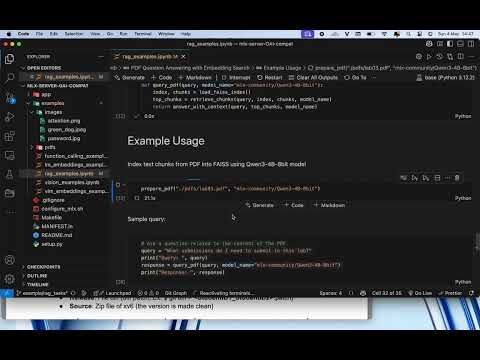
simple_rag_demo.ipynb: A practical guide to building a lightweight Retrieval-Augmented Generation (RAG) pipeline over PDF documents using local MLX Server, including:
- Reading and chunking PDF documents
- Generating text embeddings via MLX Server
- Creating a simple vector store for retrieval
- Performing question answering based on relevant chunks
- End-to-end demonstration of document QA using Qwen3 local model
-
audio_examples.ipynb: A comprehensive guide to audio processing capabilities with MLX Server, including:
- Setting up connection to MLX Server for audio processing
- Loading and encoding audio files for API transmission
- Sending audio input to multimodal models for analysis
- Combining audio with text prompts for rich, context-aware responses
- Exploring different types of audio analysis prompts
- Understanding audio transcription and content analysis capabilities
-
image_generations.ipynb: A comprehensive guide to image generation using MLX Flux-series models, including:
- Setting up connection to MLX Server for image generation
- Basic image generation with default parameters
- Advanced image generation with custom parameters (negative prompts, steps, seed)
- Working with different Flux configurations (schnell, dev, Krea-dev)
- Using LoRA adapters for fine-tuned generation
- Optimizing performance with quantization settings
-
image_edit.ipynb: A comprehensive guide to image editing using MLX Flux-series models, including:
- Setting up connection to MLX Server for image editing
- Basic image editing with default parameters
- Advanced image editing with custom parameters (guidance scale, steps, seed)
- Working with the flux-kontext configuration for contextual editing
- Understanding the differences between generation and editing workflows
- Best practices for effective image editing prompts
Large Models
When using models that are large relative to your system's available RAM, performance may suffer. mlx-lm tries to improve speed by wiring the memory used by the model and its cache—this optimization is only available on macOS 15.0 or newer. If you see the following warning message:
[WARNING] Generating with a model that requires ... it means the model may run slowly on your machine. If the model fits in RAM, you can often improve performance by raising the system's wired memory limit. To do this, run:
bash configure_mlx.sh
Contributing
We welcome contributions to improve this project! Here's how you can contribute:
- Fork the repository to your GitHub account.
- Create a new branch for your feature or bug fix:
git checkout -b feature-name
- Commit your changes with clear and concise messages:
git commit -m "Add feature-name"
- Push your branch to your forked repository:
git push origin feature-name
- Open a pull request to the main repository for review.
License
This project is licensed under the MIT License. You are free to use, modify, and distribute it under the terms of the license.
Support
If you encounter any issues or have questions, please:
- Open an issue in the repository.
- Contact the maintainers via the provided contact information.
Stay tuned for updates and enhancements!
Acknowledgments
We extend our heartfelt gratitude to the following individuals and organizations whose contributions have been instrumental in making this project possible:
Core Technologies
- MLX team for developing the groundbreaking MLX framework, which provides the foundation for efficient machine learning on Apple Silicon
- mlx-lm for efficient large language models support
- mlx-vlm for pioneering multimodal model support within the MLX ecosystem
- mlx-embeddings for text embeddings generation with optimized memory management
- mflux for Flux-series image generation models with advanced configurations
- mlx-community for curating and maintaining a diverse collection of high-quality MLX models
Open Source Community
We deeply appreciate the broader open-source community for their invaluable contributions. Your dedication to:
- Innovation in machine learning and AI
- Collaborative development practices
- Knowledge sharing and documentation
- Continuous improvement of tools and frameworks
Your collective efforts continue to drive progress and make projects like this possible. We are proud to be part of this vibrant ecosystem.
Special Thanks
A special acknowledgment to all contributors, users, and supporters who have helped shape this project through their feedback, bug reports, and suggestions. Your engagement helps make this project better for everyone.
Release history Release notifications | RSS feed


Download files
Download the file for your platform. If you're not sure which to choose, learn more about installing packages.
Source Distribution
Built Distribution
Filter files by name, interpreter, ABI, and platform.
If you're not sure about the file name format, learn more about wheel file names.
Copy a direct link to the current filters
File details
Details for the file mlx_openai_server-1.2.18.tar.gz.
File metadata
- Download URL: mlx_openai_server-1.2.18.tar.gz
- Upload date:
- Size: 79.6 kB
- Tags: Source
- Uploaded using Trusted Publishing? No
- Uploaded via: twine/6.1.0 CPython/3.11.9
File hashes
| Algorithm | Hash digest | |
|---|---|---|
| SHA256 |
9d5494be65510f64b166cbbe713416ed7a8de7e17ea5ccd031668339679c797c
|
|
| MD5 |
ae4857073a83c3f2addefe9440cbe204
|
|
| BLAKE2b-256 |
ee4353d37fa2d251139b05e2286cf8dd57f898b7f4179fe85f1a46aefdc84a23
|
File details
Details for the file mlx_openai_server-1.2.18-py3-none-any.whl.
File metadata
- Download URL: mlx_openai_server-1.2.18-py3-none-any.whl
- Upload date:
- Size: 69.7 kB
- Tags: Python 3
- Uploaded using Trusted Publishing? No
- Uploaded via: twine/6.1.0 CPython/3.11.9
File hashes
| Algorithm | Hash digest | |
|---|---|---|
| SHA256 |
b51e7039171ea814e3995c93db965d0b744f26b99bd60db194e2106966b0e45d
|
|
| MD5 |
a1ba08aed595f4650cdf9008e3fe9d1c
|
|
| BLAKE2b-256 |
32163aa5974bb92b831d45ff9113ed9aa631db1968b6ef2c863778b45c5dbceb
|






