
MoneyTerm
TUI Expense and Budget Tracker
Table Of Contents
MoneyTerm
MoneyTerm is a Textual/Rich TUI based expense and budget tracker with the following features:
- QFX/OFX Importing
- Transaction Table View
- Automatic/Manual Transaction Labeling
- Trend Analysis
- Budget Tracking
Installation
pipx install moneyterm
Usage
moneyterm
MoneyTerm supports importing QFX/OFX files. These are typically available as export options from your bank's online banking website. To import transactions, enter an import directory and file extension in the Config tab. Any files discovered will be automatically imported. Duplicate transactions will be ignored.
Transaction Table
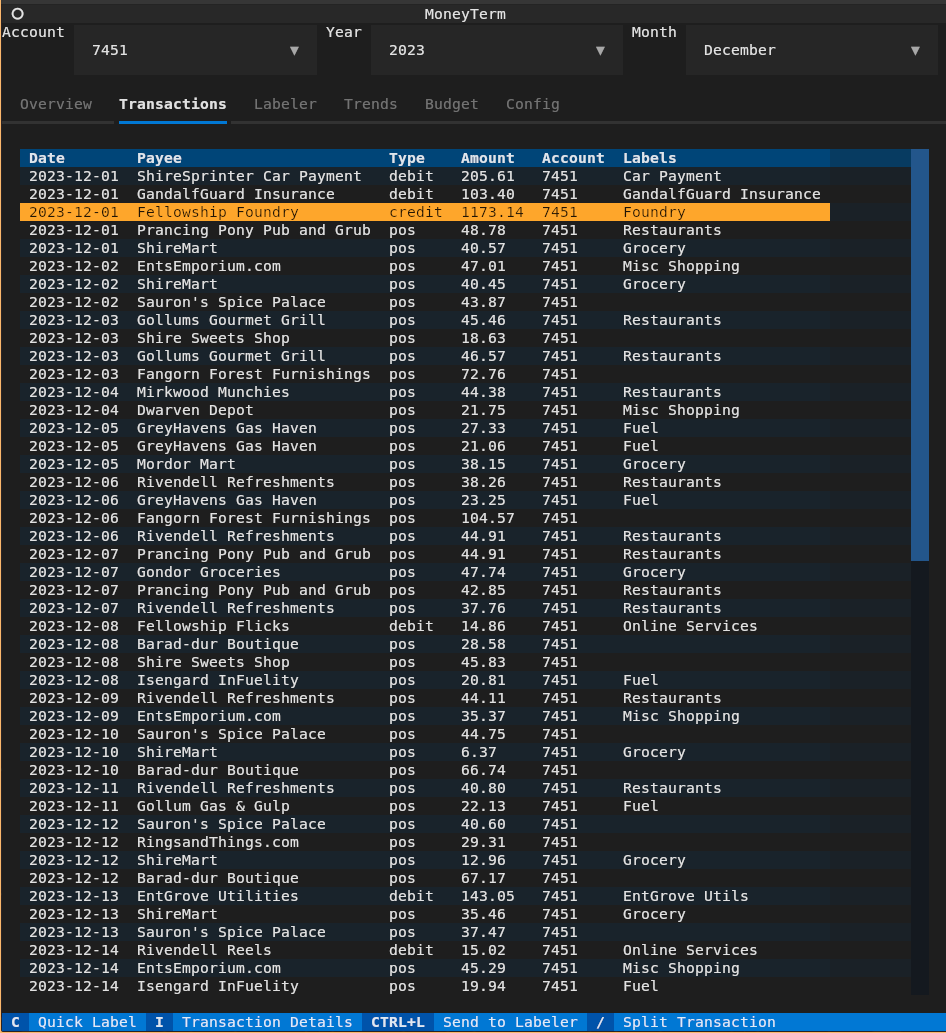
Start by selecting an account, year, and month from the scope selection drop downs at the top of the application. The Transactions tab displays an interactive datatable of all transactions for the selected account/year/month.
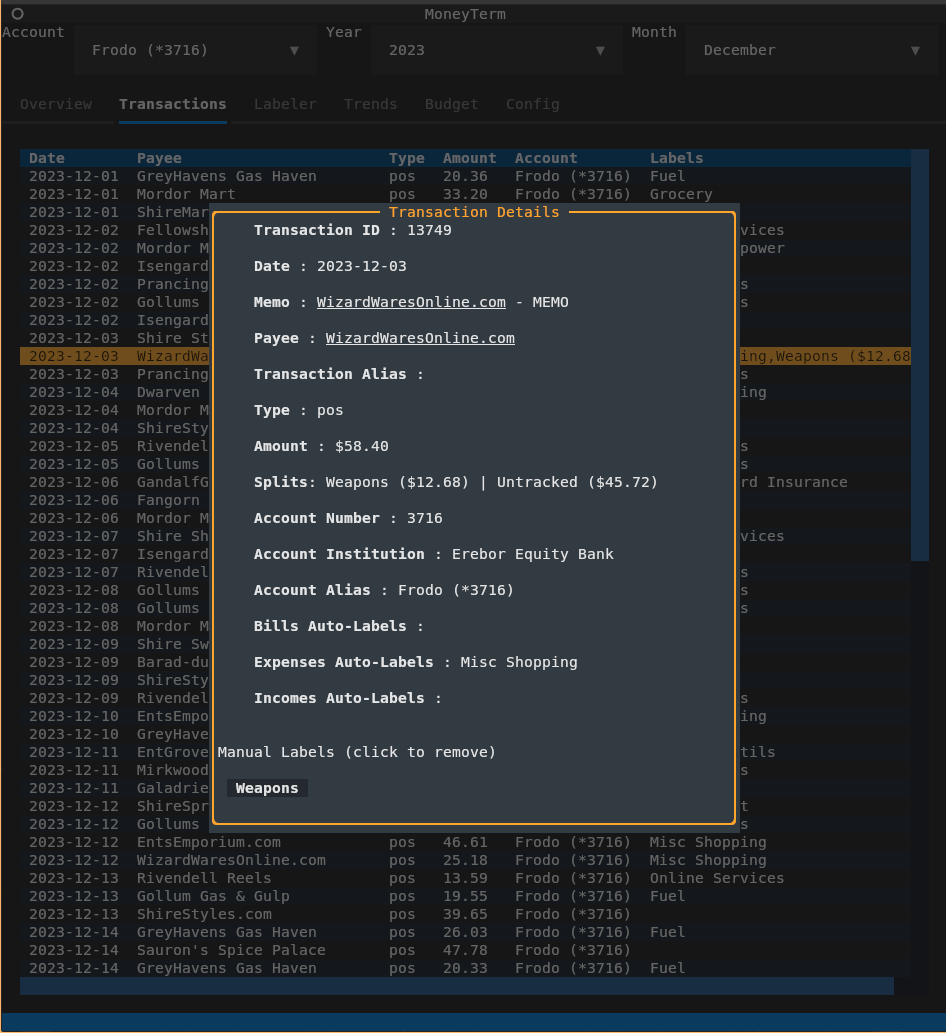
Transaction Details
Use the keyboard shortcut I to view transaction details. Transaction details includes all information provided by the banking institution as well as information on any automatic labels, manual labels, and transaction splits. Any manually added labels will be displayed at the bottom of the transaction details window. Click on a label to remove it.
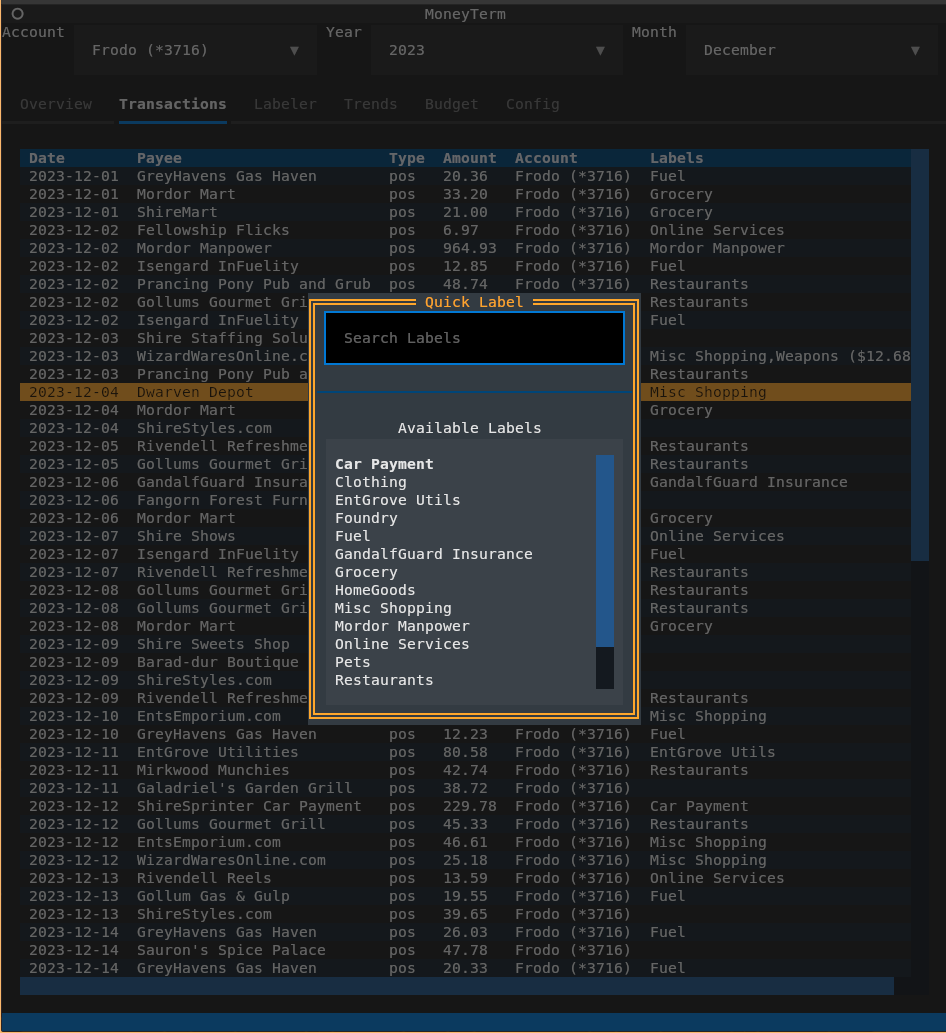
Quick Labeling
Use the keyboard shortcut c to quickly add a label to a transaction. A Quick Label window will appear. Select a label from the list of available labels, or begin typing a label to filter the list. Press enter to add the label to the transaction. Manually added labels will be displayed at the bottom of the transaction details window. Click on a label to remove it. Manually added labels will be automatically modified/removed corresponding to any changes made to the label in the Labels tab.
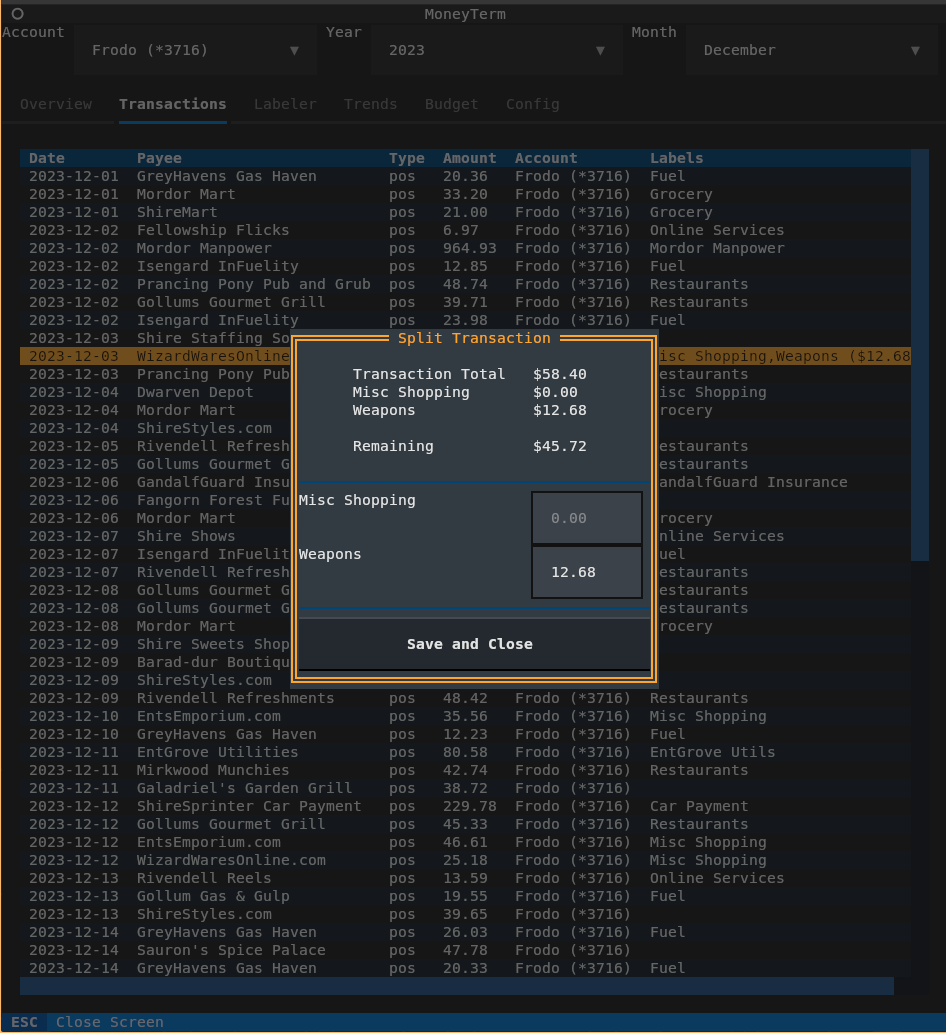
Transaction Splitting
Transactions can be split across multiple labels. The total amount across all splits must be less than or equal to the transaction amount. To split a transaction, use the keyboard shortcut /. A Split Transaction window will appear. Enter the amounts for each label. Any amount not accounted for by a split will be ignored by budgets/trends. Labels must be automatically/manually added to the transaction prior to splitting.
Automatic Expense Labeling
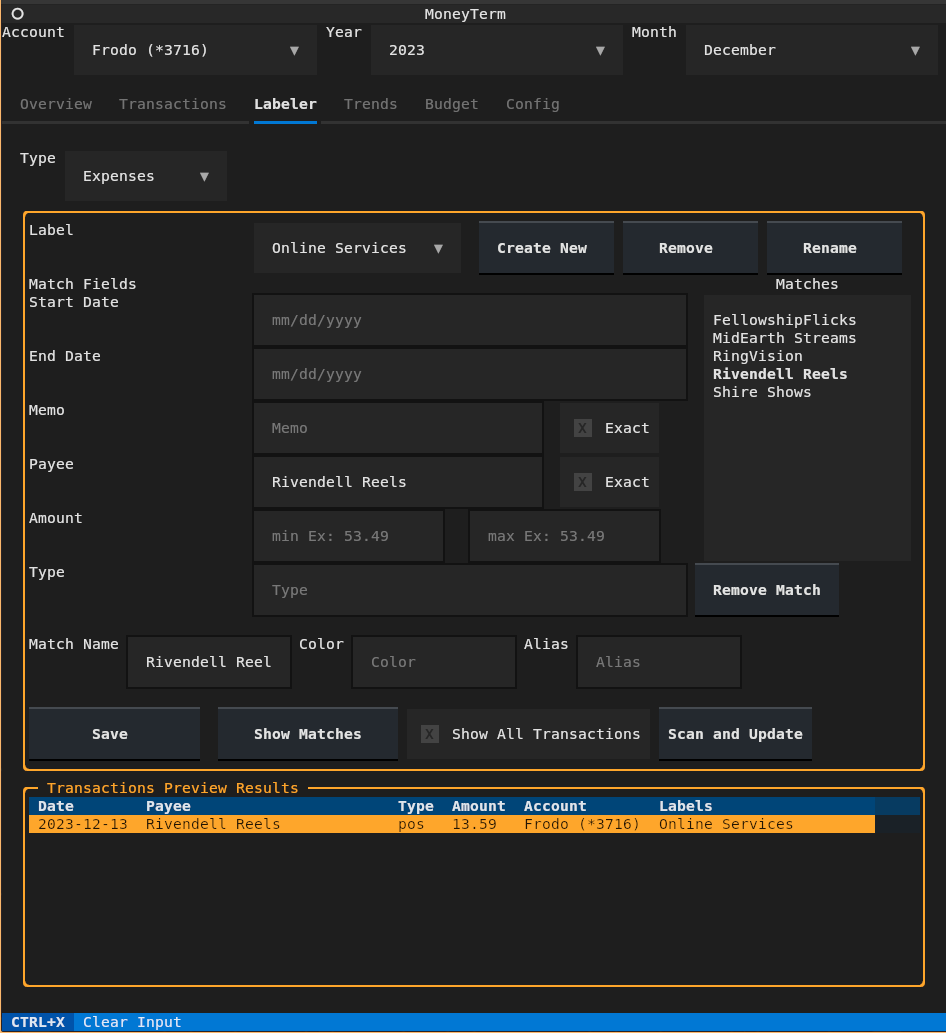
Labels for Incomes, Bills, and Expenses can be created in the Labeler tab. Labels of the type Incomes or Bills will be shown in the overview tab in tables. Expense labels are used in budgeting and trend analysis. Any label created in the Labeler tab can be manually applied to a transaction in the Transactions tab. Labels can also be automatically applied to transactions based on the Match Fields specified for the given label. Matches can be based on date (exact or range), memo/payee fields (exact or substring), amount (exact or range), and/or transaction type (debit/credit/pos/etc). Multiple match filters can be specified for a single label.
For example: A label for Groceries may have a match for Kroger and another match for Whole Foods.
In addition, labels can have an Alias specified. Any transaction matching the label will appear in the Transaction Table with the Payee field replaced by the alias. The Labeler has a Transaction Table at the bottom of the window. Use the transaction table to find transactions in need of labeling, test labels using the Show Matches button, or import the transaction details directly into the Match Fields using the keyboard shortcut ctrl-l.
Trend Analysis
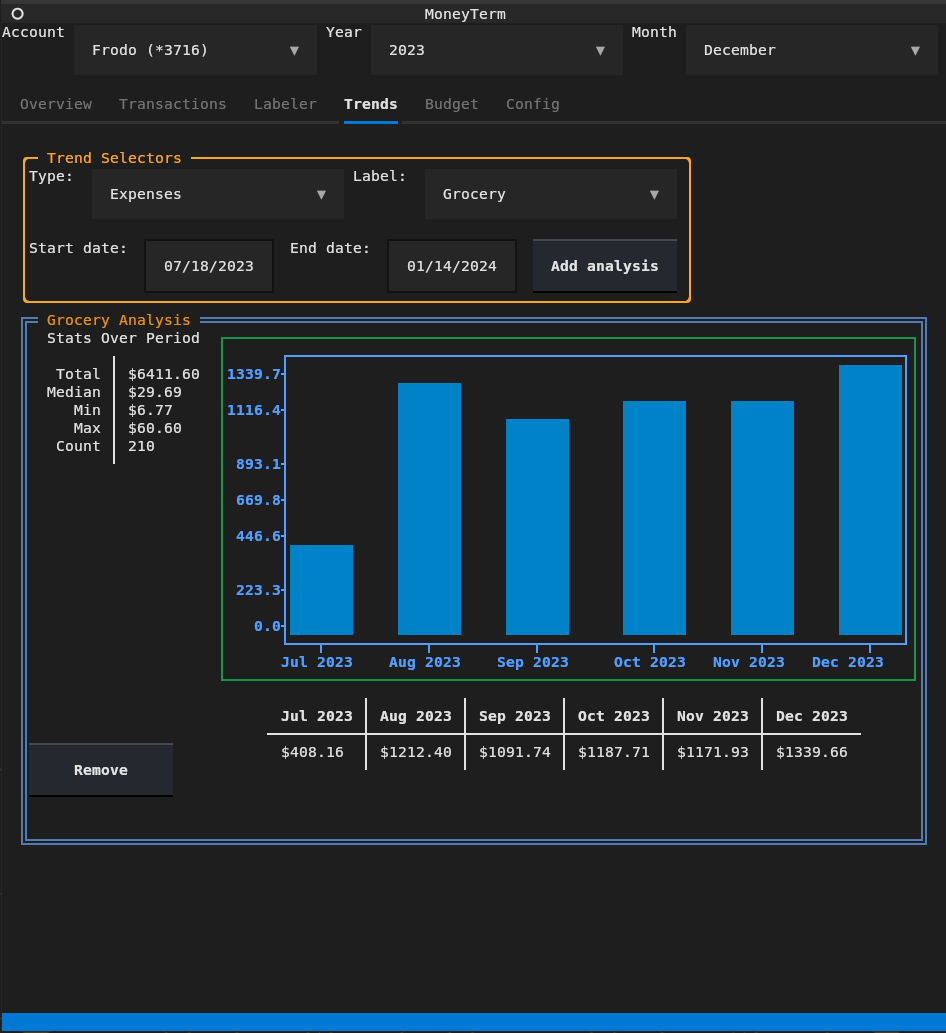
Select a label from the Trends tab to view a trend analysis for the selected label. The trend analysis will display a bar graph showing the total amount spent on this category, by month, for the selected date range. Additional information is available in a stats table on the left of a given analysis, and each month's total is displayed in an additional table at the bottom of an analysis view. Multiple analysis views can be opened at once.
Budgeting
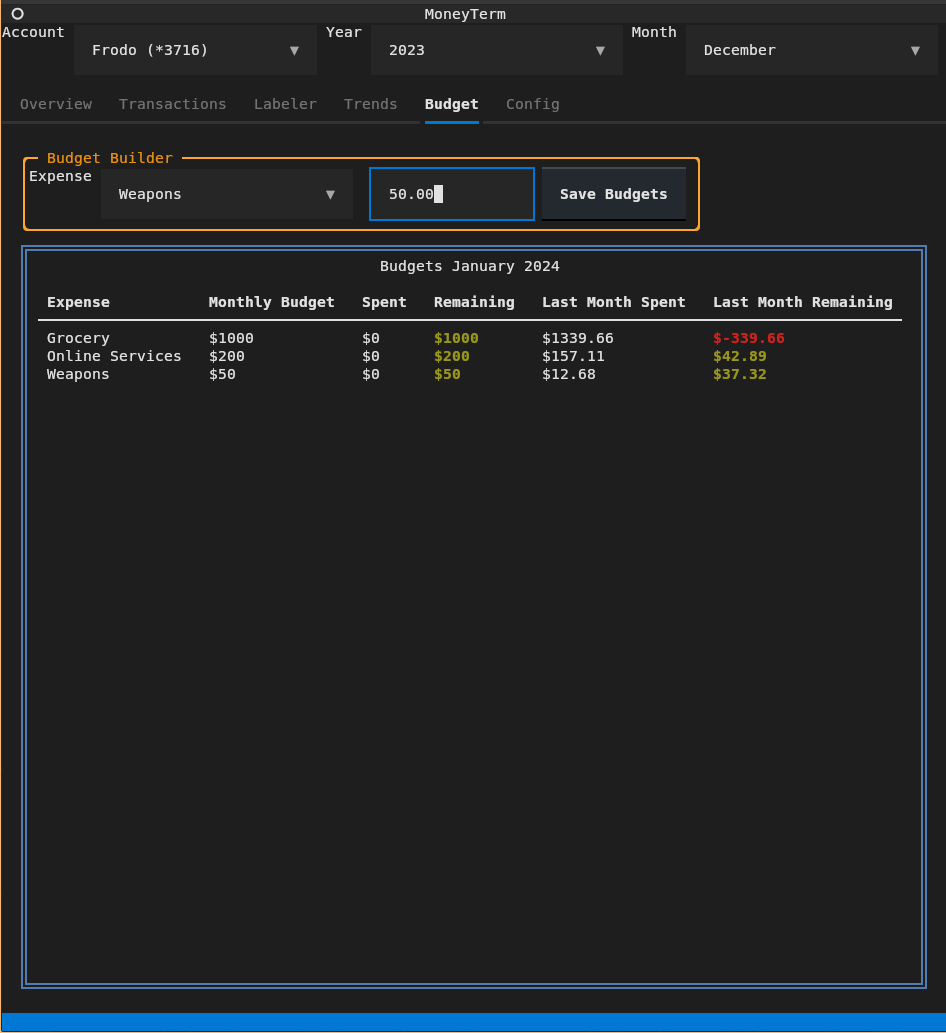
Use the Budget tab to create budgets for labels. Budgets can be created for any Expense label. Specify a monthly budget amount and save the budget to update the budgets table. The budgets table will show the spending for the current month as well as the spending/remaining from the prior month.
Overview (in progress)
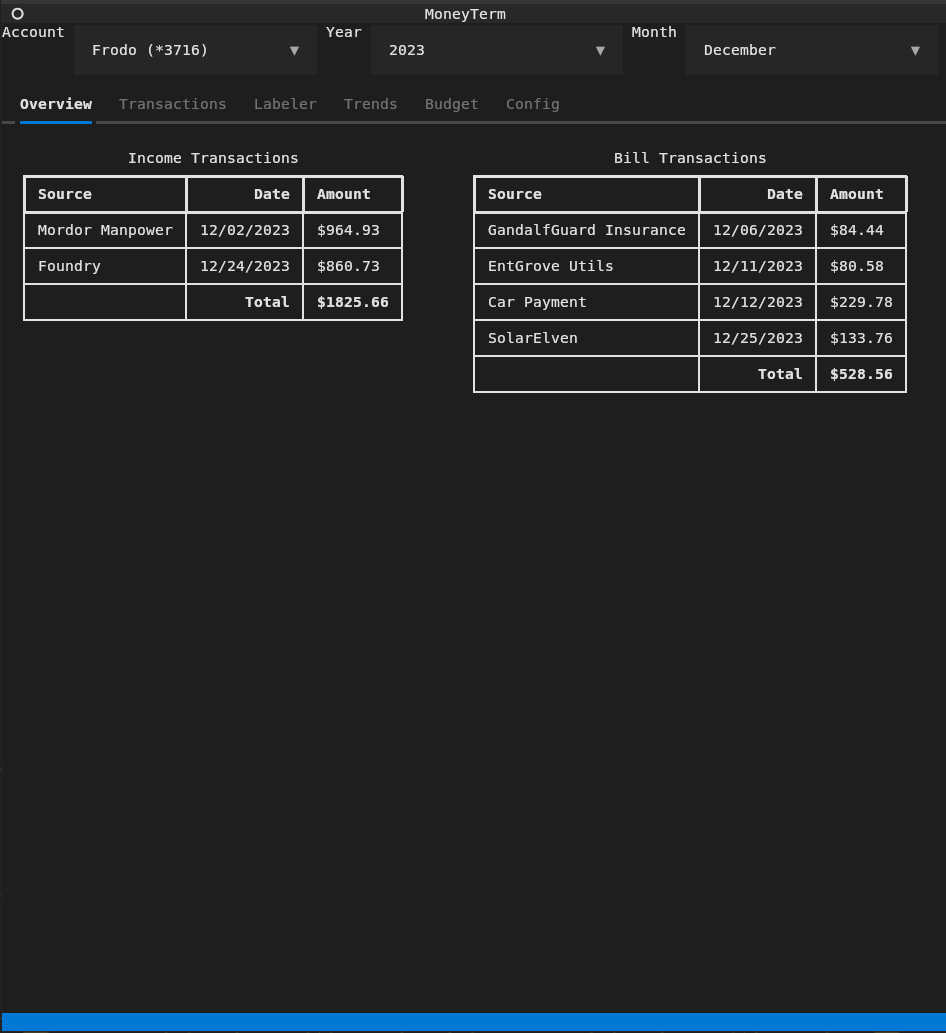
The Overview tab shows all transactions labeled as a Bill or Income in separate tables, as well as totals. The overview table can show all relevant transactions in an account, or only the selected year or month. Remove a year/month selection in the scope select dropdowns at the top of the application to widen the scope displayed.
License
Distributed under the MIT License. See LICENSE for more information.
1 maintainer

Metadata
1 maintainer
Release files for moneyterm 0.0.5
For a detailed explanation of source distributions (sdists) and built distributions (wheels), please see the package formats documentation.
Source distribution (sdist)
| File | Size | Uploaded | Provenance | Actions |
|---|---|---|---|---|
| moneyterm-0.0.5.tar.gz | 37.7 kB | Without provenance | Details for moneyterm-0.0.5.tar.gz |
Built distribution (wheel)
| File | Interpreter | ABI | Platform | Actions Reset |
|---|---|---|---|---|
| moneyterm-0.0.5-py3-none-any.whl | Python 3 | none | any | Details for moneyterm-0.0.5-py3-none-any.whl |
Total release size: 84.9 kB
Release files / moneyterm-0.0.5.tar.gz
| Download URL | moneyterm-0.0.5.tar.gz |
|---|---|
| Size | 37.7 kB |
| Tags | Source |
|
SHA-256 checksum How to use checksums |
068784a400aa8e0d9fdeb422551b60813c7ae00242ae081d527c90ffd0537441
|
|
BLAKE2b-256 checksum How to use checksums |
33427ee8c2e0e968dfa291bf386c5c0d5b71fbe5b613f79b849d6e6742c9f0f9
|
| Upload date | |
|
Uploaded using Trusted Publishing? What is trusted publishing? |
No |
| Uploaded via |
poetry/1.6.1 CPython/3.10.12 Linux/6.6.6-76060606-generic
|
Release files / moneyterm-0.0.5-py3-none-any.whl
| Download URL | moneyterm-0.0.5-py3-none-any.whl |
|---|---|
| Size | 47.2 kB |
| Tags | Python 3 |
|
SHA-256 checksum How to use checksums |
3a8704011c2150a0a13be23cb8339dab78ada5765d5e5a53a8d415ea573e8d2d
|
|
BLAKE2b-256 checksum How to use checksums |
2628a8ebb144cb73bc7fe3496ae2cb26e23b377930f9a3121e47b3f4bb00db4e
|
| Upload date | |
|
Uploaded using Trusted Publishing? What is trusted publishing? |
No |
| Uploaded via |
poetry/1.6.1 CPython/3.10.12 Linux/6.6.6-76060606-generic
|
Security for moneyterm 0.0.5
Provenance
Provenance describes where a file came from. On PyPI, provenance is shared via attestations, which provide a verifiable record of the build or publishing details. View details, limitations and caveats.
No provenance found
None of the files in this release were uploaded with provenance metadata.
A note on package security
PyPI is a repository for distributing packages, not a service for auditing them. While third-party security researchers and our staff do their best to detect and remove malicious packages, PyPI cannot guarantee the quality, security or suitability of any given package.
To learn more about protecting yourself from malicious actors, visit our package security documentation.














