
Monopyly
The Money Game
This is a package designed to help manage personal finances. The current functionality is fairly limited, with only the ability to track bank account and credit card history. Eventually the app will provide a full set of features including purchase history, investment profiles, and budgeting.
The app is designed to be run at a small scale. Information is stored in a local SQLite database and accessed using a frontend served by Flask. While the development version is hosted on the builtin Flask server, a more robust solution will be adopted if the app moves online. Despite its small scale, the app can support multiple users on any given instance.
Installation
The Monopyly app is registered on the Python Package Index (PyPI) for easy installation. To install the app, simply run
$ pip install monopyly
The package requires a recent version of Python (3.10+).
Getting started
Once the package is properly installed, launch the app in local mode from the command line (the default options should be sensible, but you may customize the host and port if necessary):
$ monopyly launch local --browser [--host HOST] [--port PORT]
Local mode indicates that the app is just going to be run using a locally hosted server, accessible to just your machine.
Other available modes are development and production, for those looking to either develop the application or host the application on a server.
Use your brain when choosing a mode!
If you intend to be the only user of the app, served just from your PC, local mode is fine; you will be served well-enough by the built-in Python server, and you do not need to configure secret keys for the application. If you plan to host the application, however, DO NOT use local mode (or development mode) and run the app in production mode instead.By using the --browser option in development mode, this will open to an empty homepage with a welcome message.
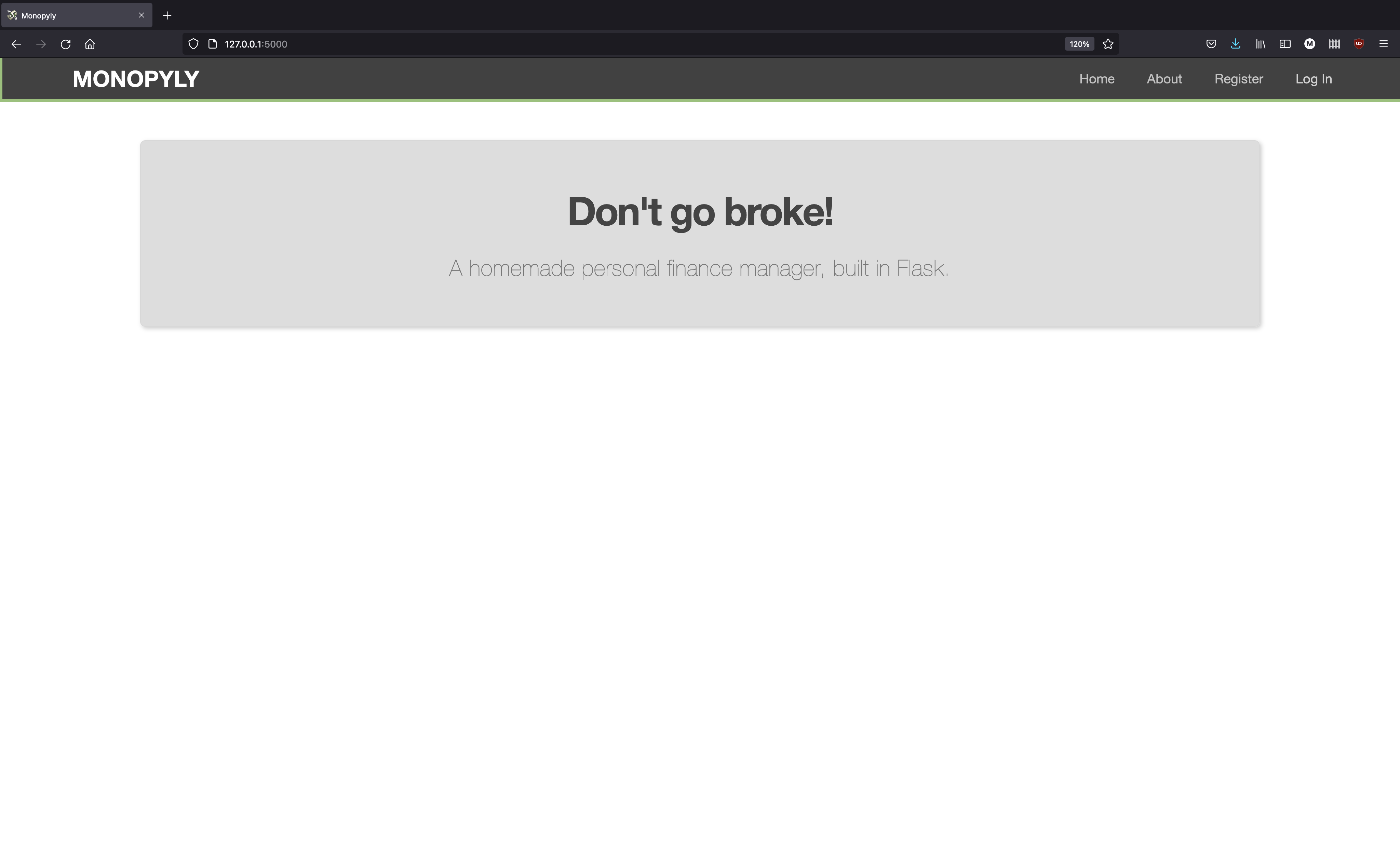
To use the app, register a new profile and then log in using your newly created credentials. A successful login will return you to the homepage, now with several different feature panels.
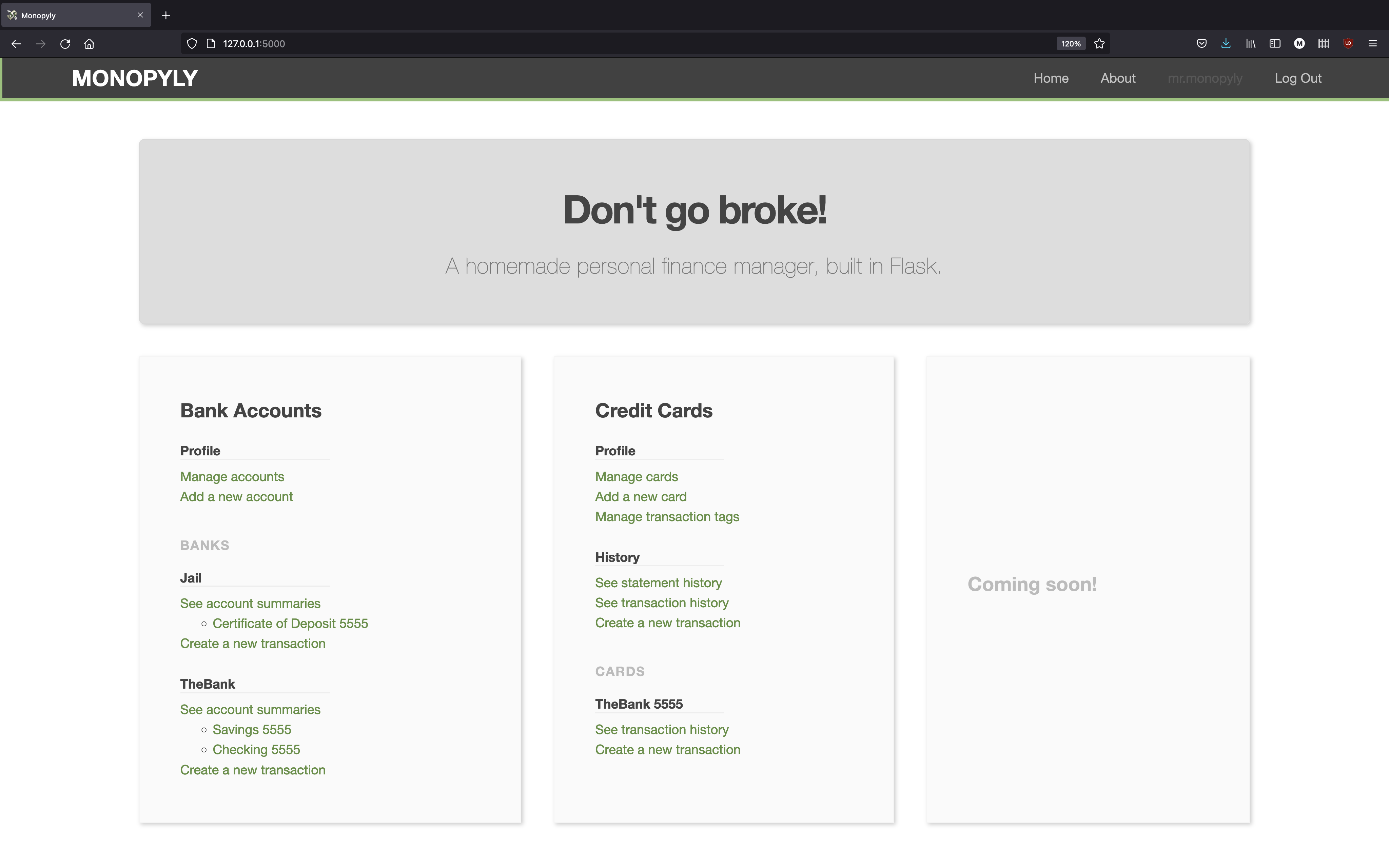
Your username should now appear at the top right of the screen, and the 'Log In' button will be replaced with a 'Log Out' button.
Features
Bank Accounts
Monopyly provides an accounting system for a user's bank transactions. Banks can be added from the 'Manage accounts' page, where a user will be able to specify bank information including the bank and account type. While some account types are preloaded into the Monopyly database (such as checking accounts, savings accounts, and certificates of deposit) each user can add additional custom account types as they need them.
After you have created a bank account, either using a bank that already exists in the Monopyly system or with a new bank, the app will redirect you back to the 'Manage accounts' page.
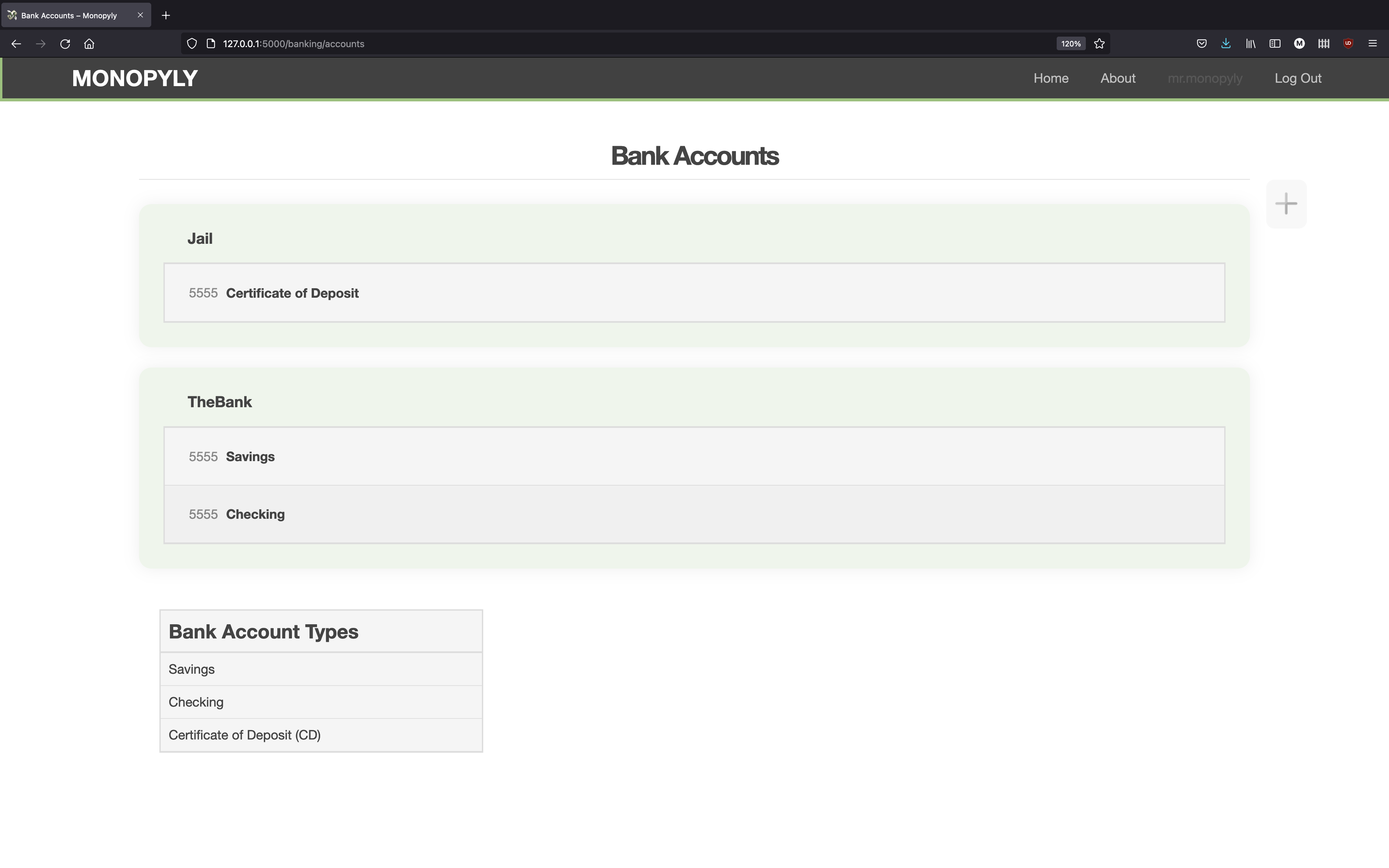
Once at least one bank account has been added, you can head on back to the account homepage to view balances and add transactions. On the left side of the page, each bank will have a section in the 'Bank Accounts' box. By clicking the 'See account summaries' button, you will be transferred to a page showing all of the bank accounts at the given bank, as well as the account balances of each account.
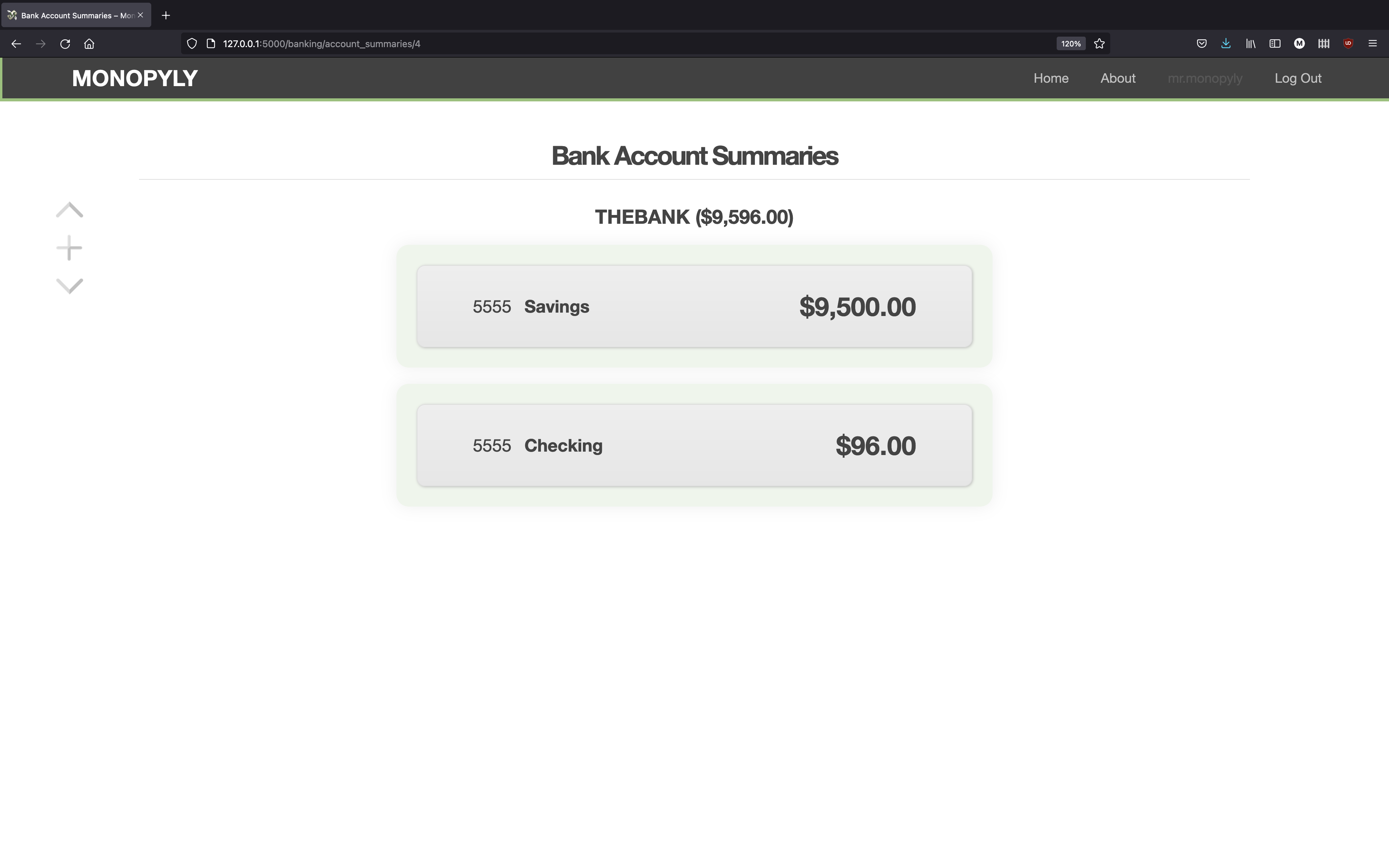
Clicking on any of these accounts will pull up a detailed summary of that account—a page that is also accessible directly from the Monopyly homepage. This detailed summary will show the current balance, but also a comprehensive set of (recent) transactions on that account.
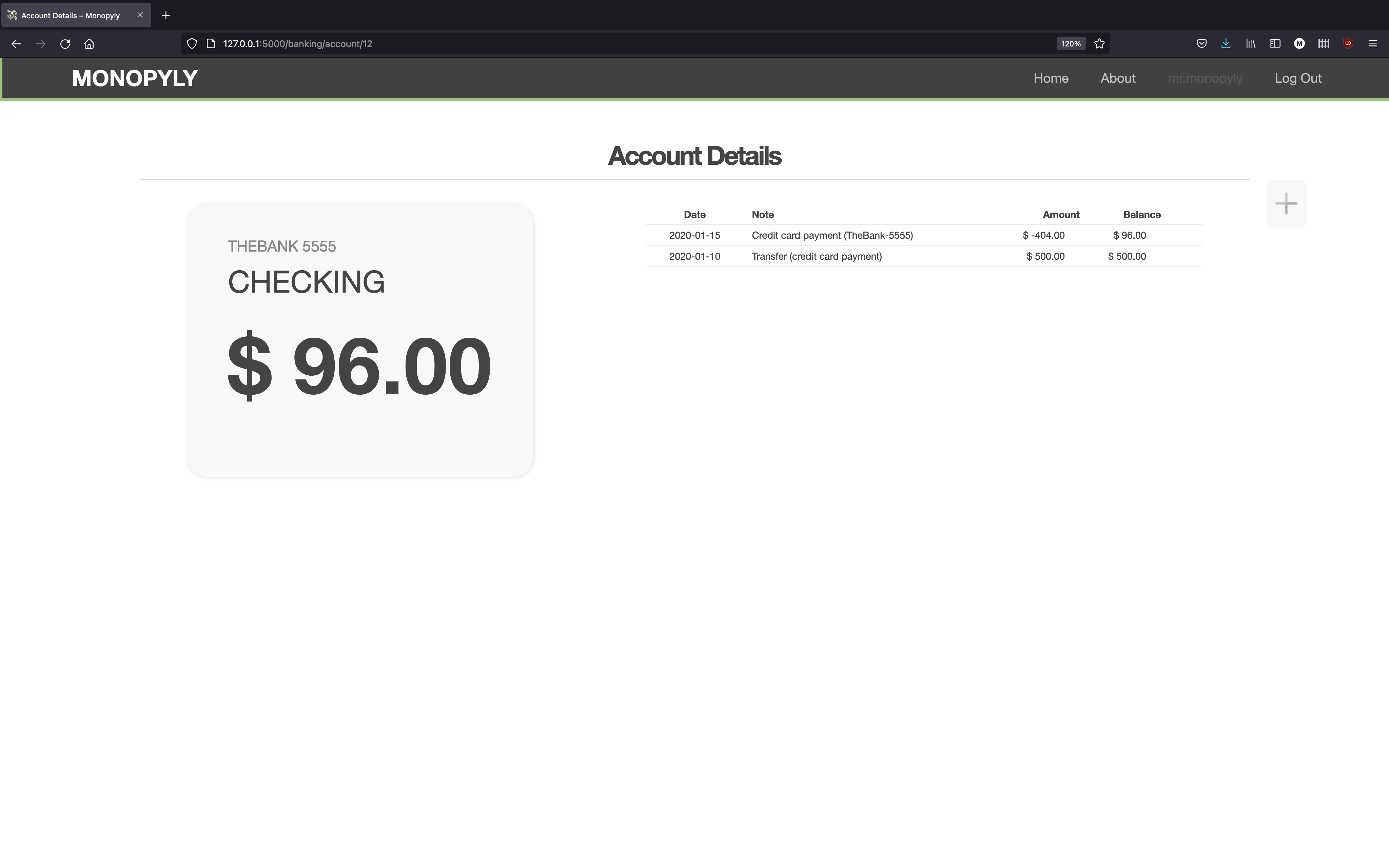
Transactions can be created from either this page or the homepage, specifying the bank account and all transaction details (date, amount, notes, etc.). Transactions can also be recorded as transfers between banks, such that they are automatically input into the database for both accounts.
Clicking the plus icon next to any listed transaction will bring up an expanded view of the transaction describing the transaction in more detail, as well as a set of buttons for editing the transaction or seeing any other transactions to which this transaction is linked.
Credit Card Accounts
Monopyly also provides tracking of credit card transactions. To use this feature, begin by navigating to the 'Manage cards' page (the link can be found under the 'Credit Cards' panel in the middle of the homepage). From there, the app will allow you to add credit cards and associate each with an account. If an account does not already exist for the card you are trying to add, a card can be added to a new account. This account will be associated with a specific bank, and will track all of the cards for that account (cards are ID'd by the last four digits of the credit card number). Additionally, each account must also be initialized with the date when the account issues statements and the date when those statements are due.
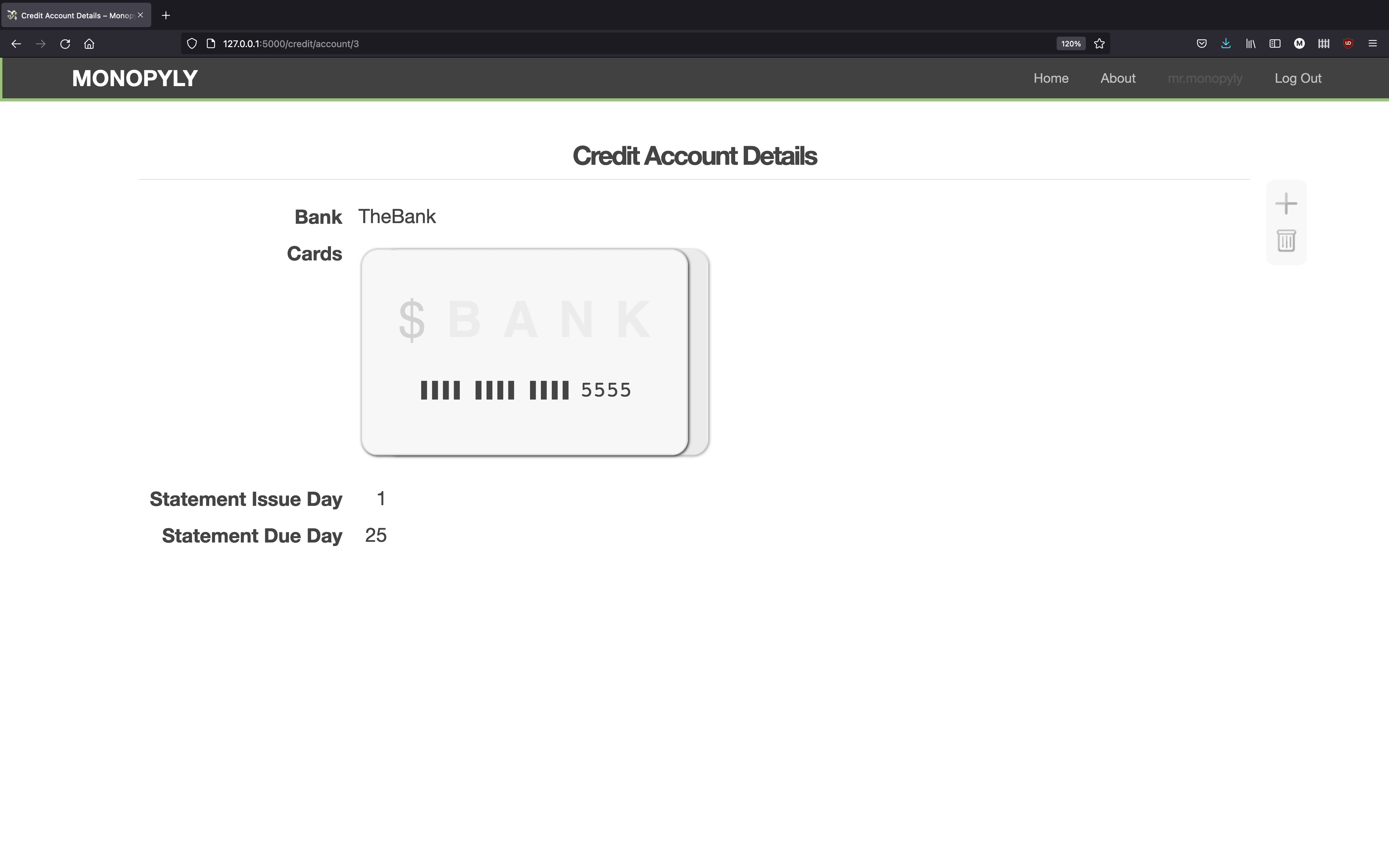
Following the addition of a new credit card, you will be redirected to a page displaying the account details, including all cards for that account.
Transactions can be added to each card using the 'Create a new transaction' links found on the 'Credit Cards' homepage panel. The link under the 'History' heading is a generic option that allows transactions to be created for any credit card in the system. If the card is already known, however, the 'Create a new transaction' links under the 'CARDS' section will prepopulate the transaction form to contain information for the desired card.
In either case, you will move to a page where you can enter credit card transaction information. The interface for adding a transaction provides some convenient automatic features. For example, if the form registers that you're inputting a transaction for a credit card account with only one active card, then the form will infer the card number to save you some typing. Likewise, given the date of the transaction and a known credit card, the form will infer the date of the statement to which the transaction belongs. (Of course, you may manually override this inferred statement date if you desire.)
From the transaction form, transactions can be classified using a heirarchical tagging system. When a transaction is tagged, the app automatically applies the tag to the transaction along with all parent tags of the selected tag. These tags can generally be seen and managed from the 'Manage transaction tags' link off the app homepage.
Since each transaction may consist of multiple components—each with it's own subtotal, notes, and tags—transactions can be split into subtransactions. Click the 'Add subtransaction' button on the transaction form to add a subtransaction.
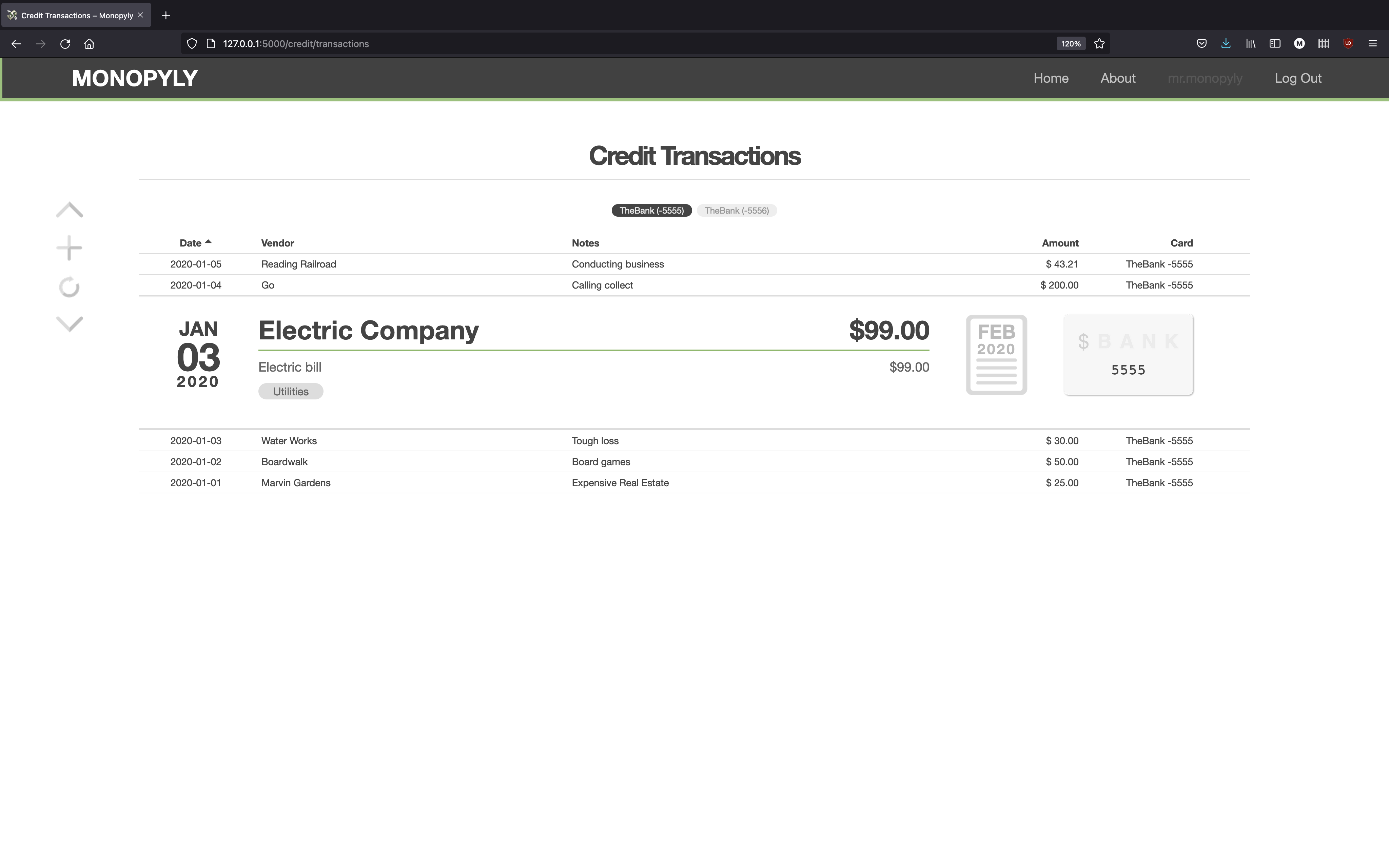
Once the transaction information has been successfully entered and submitted, the transaction will appear on the full transaction history page.
Card balances are also visible by visiting the pages for individual statements. A full history of statements for each card is available off the homepage. Each statement's page gives the statement's balance, transactions, and due date.
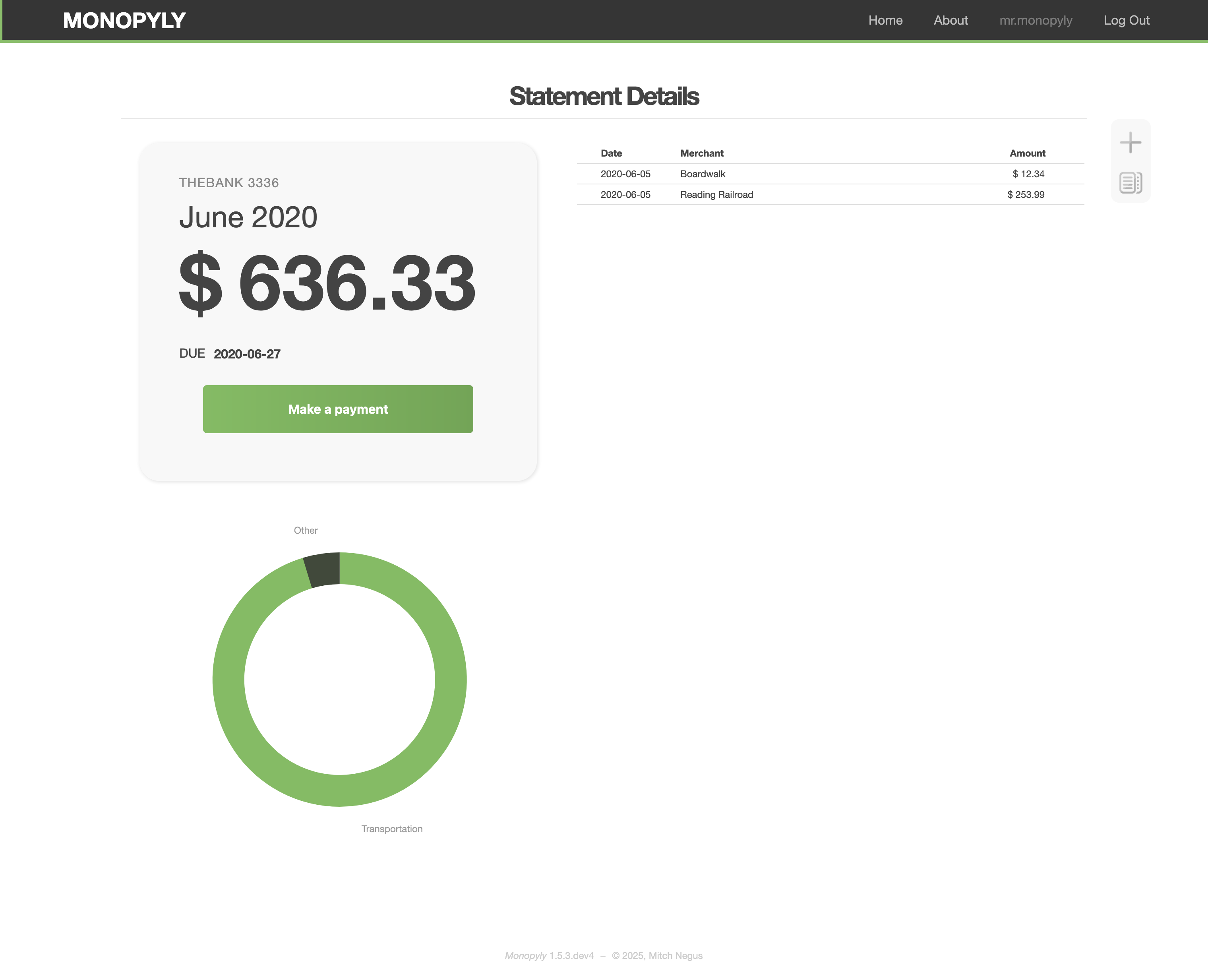
Payments can be made directly from a statement's page and can be linked to a bank account in the Monopyly system for simplified tracking. (Note that even linked transactions must be edited independently, as there are times when a user may wish to have separate values for linked transactions. For example, a credit card payment may be processed on a given date while it is only registered as a bank account transaction several days later.)
License
This project is licensed under the GNU General Public License, Version 3. It is fully open-source, and while you are more than welcome to fork, add, modify, etc. it is required that you keep any distributed changes and additions open-source.
Changes
Changes between versions are tracked in the changelog.
1 maintainer

Metadata
1 maintainer
Release files for monopyly 1.7.2
For a detailed explanation of source distributions (sdists) and built distributions (wheels), please see the package formats documentation.
Source distribution (sdist)
| File | Size | Uploaded | |
|---|---|---|---|
| monopyly-1.7.2.tar.gz | 3.5 MB | Details |
Built distribution (wheel)
| File | Interpreter | ABI | Platform | Reset |
|---|---|---|---|---|
| monopyly-1.7.2-py3-none-any.whl | Python 3 | none | any | Details |
Total release size: 7.2 MB
Release files / monopyly-1.7.2.tar.gz
| Download URL | monopyly-1.7.2.tar.gz |
|---|---|
| Size | 3.5 MB |
| Tags | Source |
|
SHA-256 checksum How to use checksums |
45b2569b6f242e2ae4093649d80cc2d0288b8fdacda15d4e7cf3b5749148899d
|
|
BLAKE2b-256 checksum How to use checksums |
67fd5059b2dd53ccaad18d5694407d38cc38a4d26fc40927c469ea579e87b5d9
|
| Upload date | |
|
Uploaded using Trusted Publishing? What is trusted publishing? |
No |
| Uploaded via |
Hatch/1.16.5 cpython/3.13.12 HTTPX/0.28.1
|
Release files / monopyly-1.7.2-py3-none-any.whl
| Download URL | monopyly-1.7.2-py3-none-any.whl |
|---|---|
| Size | 3.6 MB |
| Tags | Python 3 |
|
SHA-256 checksum How to use checksums |
65eab044e44b8d6e89cf8135e8387de2a61a6d6aa997ff8c3116c02cf2eff38f
|
|
BLAKE2b-256 checksum How to use checksums |
311f266337a26c53f7cf604642ec13b5b7e0f5ebe777bf3943fae19bc85f1628
|
| Upload date | |
|
Uploaded using Trusted Publishing? What is trusted publishing? |
No |
| Uploaded via |
Hatch/1.16.5 cpython/3.13.12 HTTPX/0.28.1
|














