





A download manager for the terminal. It splits each file across many connections, resumes after you stop it, and survives flaky networks. It is one Python file and needs nothing outside the standard library.
Install
curl -fsSL https://raw.githubusercontent.com/moxart/moxdl/main/mox.py -o ~/.local/bin/mox && chmod +x ~/.local/bin/mox
It needs Python 3.8 or newer. Or install with pipx:
pipx install moxdl
On Android, in Termux: pkg install python, then the curl line above with $PREFIX/bin/mox in place of ~/.local/bin/mox.
The package is called moxdl; the command is mox.
Speed
Many servers cap the speed of each connection, so more connections means more speed. A 100 MB file from a local server that caps each connection at 4 MB/s:
| Command | Time | Speed |
|---|---|---|
wget |
24.5 s | 3.9 MB/s |
curl |
24.4 s | 3.9 MB/s |
mox -c 4 |
6.3 s | 15.0 MB/s |
mox (16 connections) |
1.8 s | 51.7 MB/s |
mox -c 32 |
1.1 s | 88.2 MB/s |
Some servers gain nothing or refuse extra connections. mox bench URL measures what a server allows and suggests a -c value. It downloads nothing to disk.
Features
- Up to 64 connections per file, 16 by default.
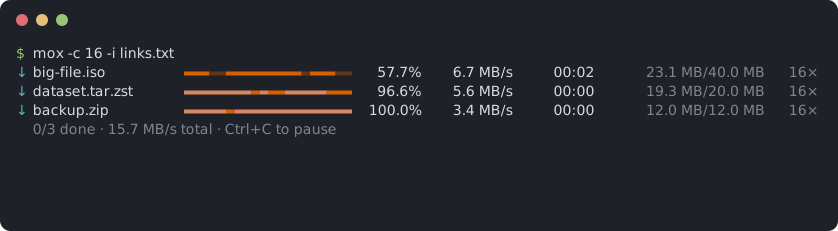
- The progress bar shows which parts of each file are done.
- Fast connections take over work from slow ones.
- Very slow connections are reopened.
- Ctrl+C pauses. Run the same command again, or
mox resume, to continue, even after a reboot. A second Ctrl+C quits without waiting for slow connections to close. - Retries dropped connections, and uses fewer connections when the server refuses more.
- Waits out internet outages, however long, and carries on by itself.
- Checks there is room on the disk before a file starts.
--watchdownloads every file link you copy, and--pastethe links on the clipboard right now, even with text around them.--pagedownloads every file a folder listing links to.- Pick what downloads first with the arrow keys while it runs, and watch a video while it downloads.
- Scheduled downloads, such as 2:00 to 7:00 every night, and shutting down or sleeping when they end.
--sortsaves videos, music, pictures and so on in their own folders, and episodes of a series in a folder per show and season.--quotapauses after a set amount, and the history shows how much was downloaded today and in the last 7 and 30 days.- A desktop notification, a Telegram message or a soft sound when the downloads are done.
- A history of finished downloads, counted by kind: video, audio, images, documents and so on.
- SOCKS5 and HTTP proxies, with user name and password, or a proxy only for the servers that cannot be reached directly.
- An expired link can be replaced with a fresh one without starting over.
- Starts over if the file on the server has changed.
- A total speed limit, SHA-256 verification, several files at once, URLs from a list file.
- Never overwrites an existing file: a second
file.zipbecomesfile (1).zip. - Works as a Python library:
mox.download(url).
Usage
The simplest way: copy the links, then run mox on its own. It offers the links on the clipboard, or asks you to paste them:
$ mox
13 links on the clipboard (Mr.Robot.S04E01.1080p.mkv and 12 more). Download? [Y/n]
Or give the links on the command line:
mox https://example.com/file.iso
Several files, saved to a folder, two at a time:
mox -d ~/Downloads -j 2 https://example.com/a.zip https://example.com/b.zip
A list of URLs, one per line. Blank lines and lines starting with # are skipped:
mox -i links.txt
Limit the total speed:
mox -l 2M https://example.com/big.mkv
A file behind a login, with a cookie from your browser:
mox -H "Cookie: session=abc123" -H "Referer: https://example.com/" https://example.com/private.zip
Check the file against a published checksum:
mox --sha256 9f86d081884c7d65... https://example.com/release.tar.gz
Settings
Save what you would otherwise type every time, and a plain mox uses it:
mox config dir ~/Downloads
mox config sort on
mox config fallback-proxy auto
mox config lists every setting and its value. mox config --unset sort forgets one. Options on the command line still win over saved settings. The settings live in ~/.config/mox/config (%APPDATA%\mox\config on Windows).
When something does not work
mox doctor
Checks this computer and says, for each thing mox uses, whether it works and what to do if not: a newer mox, free disk space, the internet, a system-wide proxy, the clipboard tool, the sound (it plays it), notifications and the keys.
Picking up where you left off
An unfinished download leaves FILE.part and FILE.mox behind. To continue everything unfinished in a folder:
mox resume ~/Downloads
It takes the same options as a normal download, such as -c, -l or --until.
Choosing what downloads first
With several downloads in a run, the arrow keys reorder them while they run:
| Key | Does |
|---|---|
| ↑ ↓ | Select a download |
| Enter | Download it next |
Shift+↑ Shift+↓, or [ ] |
Move it one place up or down |
f |
Only this one, at full speed, until it is done. f again shares the speed again |
w |
Download it from the start onward, to watch while it downloads |
p or Space |
Pause just this one, or let it carry on |
x twice |
Take it off the list. Its .part stays, to continue later |
o |
Open it: a finished file, or one in watch mode in mpv or VLC |
If every slot is taken (-j, 3 by default), the lowest download in the list pauses to make room. It keeps its progress and continues when its turn comes. Waiting downloads show their place in line.
Watching while it downloads
mox normally fetches pieces from all over a file at once, so a video cannot play until it has all arrived. --stream, or w on a selected download, fills the file from the start instead. Its icon turns to ▶, and once the first 32 MB are in, the status line says how far the .part file can be played. Open it in mpv or VLC and watch while the rest comes in. Press f too for all the speed. Seeking ahead of what has arrived does not work, and some files keep their seek index at the end.
Copy a link, get the file
mox --paste -d ~/Downloads
--paste downloads every link on the clipboard. They may sit in other text, as in a chat message, even with no space before them. -i reads files and pipes the same way.
mox --watch -d ~/Downloads
mox downloads every file link you copy, and skips links to web pages. Ctrl+C stops it.
On Linux it needs wl-paste, xclip or xsel. If your clipboard tool isn't supported, set MOX_CLIPBOARD_COMMAND to a command that prints the clipboard.
History
Every finished download is added to a history. mox history counts them by kind of file:
$ mox history
238 files, 31.4 GB, since 2026-03-02
  image         130    1.2 GB
  video          42   18.3 GB
  ...
It also shows how much was received today and in the last 7 and 30 days, unfinished downloads included, to keep an eye on a data plan. -l also lists the last 20 downloads with where they were saved (-l 50 for more), -k video shows one kind, and --clear erases it all. The history is a text file, ~/.local/share/mox/history.jsonl (%APPDATA%\mox on Windows). Links are saved without their ?query part, where signed links keep their keys.
To leave a download out, use --no-history. To keep no history at all, set MOX_NO_HISTORY=1.
Night downloads
Download between 2:00 and 7:00 every night until everything is done:
mox --at 02:00 --until 07:00 -i links.txt
Leave the terminal open and the computer awake. With only --until, mox stops at that time; run the same command later to continue. With only --at, it waits and then runs to the end.
Add --then shutdown or --then sleep to turn the computer off when everything is done. mox counts down a minute first, so Ctrl+C can still cancel it.
If the internet goes down, mox waits for it as long as it takes, without using up its retries, and continues by itself. It tells an outage from a dead server by also trying 1.1.1.1 and 8.8.8.8. Where those are blocked, set MOX_ONLINE_CHECK to other servers that are normally reachable, such as MOX_ONLINE_CHECK=host1.example:443,host2.example:443. Through a SOCKS5 proxy the check goes through the proxy; through an HTTP proxy only the proxy itself can be checked, so prefer SOCKS5 if your proxy offers both.
Data plans
mox --quota 5G -i links.txt
Pauses once 5 GB has come in during this run. Run the same command again to continue. mox history shows what you used today and in the last 7 and 30 days.
Sorting by kind
mox --sort -d ~/Downloads -i links.txt
Puts each file in a folder for its kind, inside a mox folder in --dir: Videos, Music, Pictures, Documents, Archives, Programs, Disk images or Subtitles. Files of no known kind stay in --dir. The mox folder keeps these apart from any Series or Videos folder of your own; --sort-root NAME picks another name, and --sort-root . sorts straight into --dir.
Episodes of a series go to mox/Series/<show>/Season NN, with their subtitles, the layout Plex, Jellyfin and Kodi expect. mox reads the show and season from the file name: Breaking.Bad.S02E05.720p.mkv goes to mox/Series/Breaking Bad/Season 02. It understands S02E05, 2x05, Season 2 Episode 5, and the Persian فصل ۲ قسمت ۵.
mox resume ~/Downloads finds unfinished downloads in all these folders too. Ones that 1.7 or older left in --dir itself carry on there.
mox never writes over a file. A name that is taken, by a file or by another program's .part (Firefox names its downloads in progress that way), makes it save as name (1).ext.
Notifications
mox --notify --at 02:00 --until 07:00 -i links.txt
--notify sends a desktop notification when the downloads end. For a Telegram message too, make a bot with @BotFather, send it any message, and set:
export MOX_TELEGRAM_TOKEN=123456:ABC...   # from BotFather
export MOX_TELEGRAM_CHAT=987654321        # your chat id, e.g. from @userinfobot
MOX_TELEGRAM_API sets a self-hosted Bot API server instead of api.telegram.org.
mox plays a short, low, quiet sound when the downloads end, if at least one finished. In --watch mode it plays after each file. --no-sound turns it off for one run, and MOX_SOUND=0 for good. It plays through pw-play, paplay, aplay or afplay, whichever is installed, and winsound on Windows.
Proxies
mox --proxy socks5://127.0.0.1:1080 https://example.com/file.iso
mox --proxy socks5h://user:pass@proxy.example:1080 https://example.com/file.iso
mox --proxy http://127.0.0.1:8080 https://example.com/file.iso
With SOCKS5, the proxy resolves host names. Without --proxy, the http_proxy and https_proxy environment variables apply.
To go direct and use a proxy only for the servers that cannot be reached directly:
mox --fallback-proxy auto -i links.txt
mox --fallback-proxy socks5://127.0.0.1:1080 -i links.txt
auto looks for a SOCKS5 proxy on this computer, on the ports v2rayN, xray, Clash, NekoRay and Tor use. Direct here really means direct: the http_proxy variables, which proxy apps often set for the whole system, are ignored, and a server switches to the proxy after its first failed connection.
A whole folder
mox --page 'https://files.example/series/s04/' --match 1080p
--page downloads every file a web page links to, such as a server's folder listing, skipping subfolders and other pages. --match keeps the names that contain its text, or that match it when it has * or ?. Many download sites turn their listings off, and then the page answers 403.
Expired links
If a link expires mid-download, mox prints the command to continue. Get a fresh link and pass the same file name:
mox -d ~/Downloads -o big-file.iso 'https://host.example/new-signed-link'
A fresh list of links for the same files needs no names: when the file name in each link is the same, every unfinished file continues where it stopped.
From Python
pip install moxdl, or drop mox.py next to your script:
import mox

path = mox.download("https://example.com/big.iso", "downloads",
                    progress=lambda done, total: print(f"{done}/{total}"))
Keyword arguments: name, connections, limit (bytes per second, or text such as "2M"), retries, timeout, headers, sha256 and proxy. It returns the saved file's path and raises mox.DownloadError on failure.
Options
| Option | Default | Meaning |
|---|---|---|
-d, --dir DIR |
current directory | Where to save files |
-o, --output NAME |
from the server | File name, single URL only |
-i, --input FILE |
Read URLs from a file, - for stdin |
|
-p, --paste |
Download the links on the clipboard | |
--page URL |
Download the files a page links to, repeatable | |
--match TEXT |
With --page, only names containing TEXT or matching it |
|
-c, --connections N |
16 | Connections per file, 1 to 64 |
-j, --jobs N |
3 | Files downloaded at the same time |
-l, --limit RATE |
none | Total speed limit, such as 500K or 2M |
-r, --retries N |
10 | Retries per connection before giving up |
-t, --timeout SEC |
30 | Network timeout |
-H, --header 'K: V' |
Extra request header, repeatable | |
--sha256 HEX |
Verify the finished file, single URL only | |
-x, --proxy URL |
environment | socks5://, socks5h:// or http:// proxy |
--fallback-proxy URL |
SOCKS5 proxy only for servers unreachable directly, auto to find one |
|
--at HH:MM |
Wait until this time of day before starting | |
--until HH:MM |
Pause at this time of day | |
-w, --watch |
Download every file link copied to the clipboard | |
-s, --sort |
Save each kind of file in its own folder | |
--sort-root NAME |
mox | The folder in --dir that --sort fills, . for --dir itself |
--stream |
Fill files from the start, to watch while they download | |
-q, --quota SIZE |
none | Pause after this much, such as 5G |
--then ACTION |
shutdown or sleep when the downloads end |
|
-n, --notify |
Desktop or Telegram notification when done | |
--no-sound |
No sound when done, MOX_SOUND=0 for never |
|
--no-history |
Leave these downloads out of mox history |
Other commands: mox resume [DIR] takes the download options above, except -s. mox history takes -l [N], -k KIND and --clear. mox config [SETTING [VALUE]] takes --unset. mox doctor takes nothing. mox bench URL takes -s SECONDS per round, -c for the most connections to try, and -t, -H, -x and --fallback-proxy.
Exit codes are 0 when everything finished, 1 when any download failed, 2 for a usage error, 3 when --until or --quota stopped unfinished downloads, and 130 when you pressed Ctrl+C.
Limitations
- HTTP and HTTPS only. No FTP, BitTorrent or Metalink.
- If a server does not support range requests, mox falls back to one connection, and an interrupted download starts over.
- Servers that allow only a few connections waste the first seconds on refusals. Use
mox benchto find the right-c. - HTTP proxies are slower than SOCKS5.
- The schedule only works while mox is running and the computer is awake.
- An existing file with the same name and size counts as already downloaded.
- Not yet tested in Termux or on Windows.
Tests
python3 -m unittest discover -s tests -v
License
MIT. See LICENSE.
1 maintainer

Metadata
1 maintainer
Release files for moxdl 1.8
For a detailed explanation of source distributions (sdists) and built distributions (wheels), please see the package formats documentation.
Source distribution (sdist)
| File | Size | Uploaded | Provenance | |
|---|---|---|---|---|
| moxdl-1.8.tar.gz | 80.0 kB | With provenance | Details |
Built distribution (wheel)
| File | Interpreter | ABI | Platform | Reset |
|---|---|---|---|---|
| moxdl-1.8-py3-none-any.whl | Python 3 | none | any | Details |
Total release size: 136.9 kB
Release files / moxdl-1.8.tar.gz
| Download URL | moxdl-1.8.tar.gz |
|---|---|
| Size | 80.0 kB |
| Tags | Source |
|
SHA-256 checksum How to use checksums |
aaa10681c38051b77ad0aa02bcecf3ac0cb0f11dab6a8b5658e5d8819626b35c
|
|
BLAKE2b-256 checksum How to use checksums |
d6aa08c6e440084d245f2b35392f9063592fb33c1e42ac36c198a37ba5acd8b9
|
| Upload date | |
|
Uploaded using Trusted Publishing? What is trusted publishing? |
Yes |
| Uploaded via |
twine/7.0.0 CPython/3.13.16
|
Provenance
Provenance describes where a file came from. On PyPI, provenance is shared via attestations, which provide a verifiable record of the build or publishing details. View details, limitations and caveats.


PyPI Publish Attestation
PyPI verified that this artifact, at this checksum, originated from the publisher listed below.
Signed by GitHub Actions, verified by PyPI on Oct 21, 2026.
Transparency logRelease files / moxdl-1.8-py3-none-any.whl
| Download URL | moxdl-1.8-py3-none-any.whl |
|---|---|
| Size | 56.9 kB |
| Tags | Python 3 |
|
SHA-256 checksum How to use checksums |
b302dbe2c7de95c8df2856faed24cab6d94a8081d4420ac66fe1db67218163b1
|
|
BLAKE2b-256 checksum How to use checksums |
e7a293cee102ab11be4d79267efdf2bb3fa2a477a9847082aca4f592aedfb66e
|
| Upload date | |
|
Uploaded using Trusted Publishing? What is trusted publishing? |
Yes |
| Uploaded via |
twine/7.0.0 CPython/3.13.16
|
Provenance
Provenance describes where a file came from. On PyPI, provenance is shared via attestations, which provide a verifiable record of the build or publishing details. View details, limitations and caveats.
PyPI Publish Attestation
PyPI verified that this artifact, at this checksum, originated from the publisher listed below.
Signed by GitHub Actions, verified by PyPI on Oct 21, 2026.
Transparency logSecurity for moxdl 1.8
Provenance
Provenance describes where a file came from. On PyPI, provenance is shared via attestations, which provide a verifiable record of the build or publishing details. View details, limitations and caveats.
Full provenance
All 2 files in this release have been uploaded with provenance metadata.
Attestation for moxdl-1.8.tar.gz
PyPI Publish Attestation
PyPI verified that this artifact, at this checksum, originated from the publisher listed below.
Signed by GitHub Actions, verified by PyPI on Oct 21, 2026.
Transparency logA note on package security
PyPI is a repository for distributing packages, not a service for auditing them. While third-party security researchers and our staff do their best to detect and remove malicious packages, PyPI cannot guarantee the quality, security or suitability of any given package.
To learn more about protecting yourself from malicious actors, visit our package security documentation.














