
A customizable1 tool that provides some quality-of-life additions for FFmpeg such as pretty printing, progress bars, and command presets. This tool does not aim to replace FFmpeg or other transcoding software such as Handbrake. Rather, it tries to provide an easier to use interface to FFmpeg for simple operations.
Installation
Ensure Python and FFmpeg is installed. Then, use the Python Packaging Index (PyPI) to install mpeg-convert and its dependencies. You may need to use pip3 instead of pip in certain environments:
$ pip install --upgrade mpeg-convert
$ mpeg-convert --help
See usages and configuring for more details.
Usage
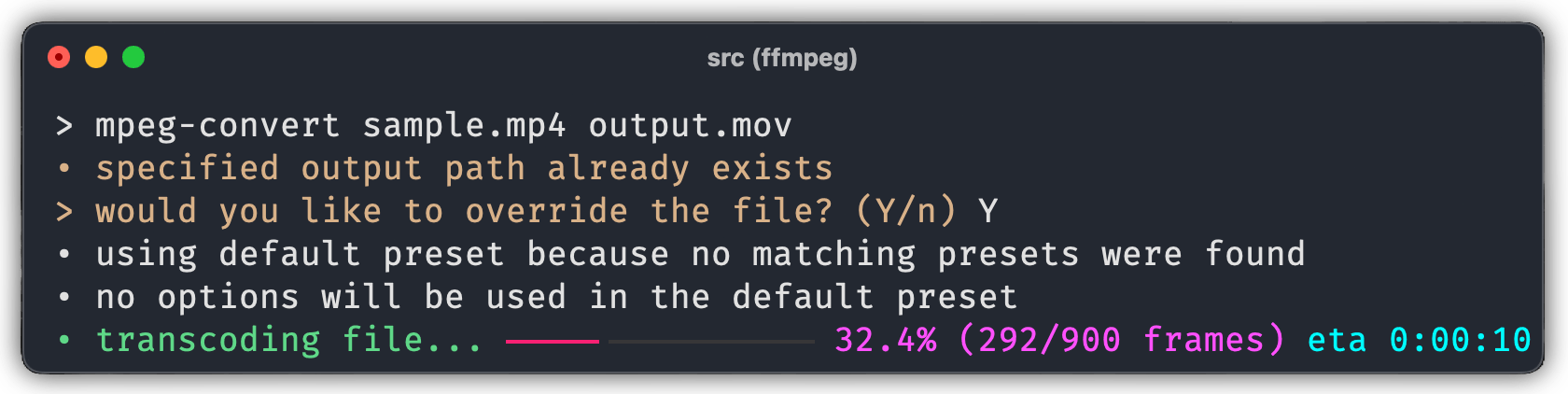
The most basic way to use mpeg-convert is to specify an input file path and an output file path. mpeg-convert will then call FFmpeg to initiate the conversion, and display a bar indicating the progress of the conversion. No extra FFmpeg options will be added when transcoding the file. This is demonstrated with the command and screenshot below:
$ mpeg-convert sample.mp4 output.mov
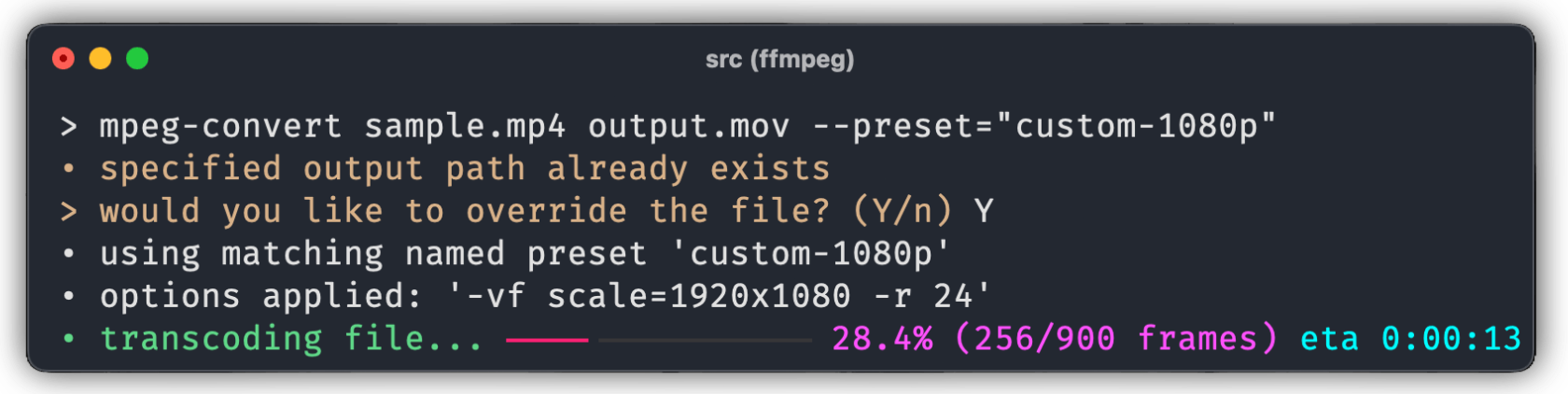
For conversions where you may need or want to tweak extra options (e.g. frame rate, contrast, or bitrate changes), you can add a named or unnamed preset by following the configuration guide. After you have saved your custom preset to the config file, you can use it by using the --preset flag for named presets, or convert between matching file containers/extensions for unnamed presets. This will use the extra custom FFmpeg options you specified in the preset when transcoding. This is demonstrated below:
$ mpeg-convert sample.mp4 output.mov --preset="custom-1080p"
As of writing, presets are the only method to use FFmpeg options while converting with mpeg-convert. Additionally, multiple inputs and other advanced FFmpeg features are not supported by mpeg-convert. Such feature is unlikely to be added to mpeg-convert, since it is written as a complement, not replacement, to FFmpeg; consider directly using FFmpeg or other UI based programs such as Handbrake for such tasks.
Configuring
Presets allows you to save FFmpeg commands for repeated use, eliminating the need to enter long and complex flag/options each time you need to convert or edit media files. You can add presets to mpeg-convert by editing the YAML configuration file. To open the config, use the --config flag as demonstrated below:
$ mpeg-convert --config
There are two types of presets you can specify in the config file: named presets and unnamed presets.
- Named presets are invoked when you explicitly use the
--presetflag. You can add a named preset under thenamedkey. Each named preset must have a unique name and a string of ffmpeg options. To activate a named preset, specify its name with the--presetflag, andmpeg-convertwill use the options when converting. An example of a named preset is below:
named:
- name: "custom-1080p"
  options: "-vf scale=1920x1080 -r 24"
- Unnamed presets are applied automatically to conversions of specific file types and extensions. They are useful when you want conversions between one container type and another container type to always use certain FFmpeg options. Each unnamed preset must have an array of file extensions in
from-typeandto-type, and a string of FFmpeg options; and voilà, whenever you convert between any of the file extensions infrom-typeto any of the extensions into-type,mpeg-convertwill automatically use the FFmpeg options specified in the unnamed preset. An example of an unnamed preset is below:
unnamed:
- from-type: ["mp4", "mov"]
  to-type: ["gif"]
  command: "-vf scale=1280x720 -r 8"
If you have an unnamed preset specified for a file type you are converting to/from, but you would like to temporarily disable it, you can use the --plain flag. This will remove any FFmpeg options for the current conversion.
When searching for matching presets, mpeg-convert will check using the following order:
- Check if
--plainflag is specified. If not... - Check if
--presetflag is specified. If not... - Check if there is a matching unnamed preset. If not...
- Initiate the conversion without any FFmpeg commands
Troubleshooting
- Do you have python installed?
- Do you have ffmpeg installed?
- Common pitfalls:
- Does the output file have an extension?
- Does the extension match the codec?
HEVCwith.mp4ALACwith.m4a
- Is the encoder installed on your system?
Notes
This project has undergone substantial changes in v0.2.0. Click here if you are looking for documentation before v0.2.0
This project has been tested in the following environments:
- Python 3.9.1 (Windows)
- Python 3.8.19 (Linux)
- Python 3.12.2 (macOS)
--
1 maintainer

Metadata
1 maintainer
Release files for mpeg-convert 0.2.1
For a detailed explanation of source distributions (sdists) and built distributions (wheels), please see the package formats documentation.
Source distribution (sdist)
| File | Size | Uploaded | |
|---|---|---|---|
| mpeg_convert-0.2.1.tar.gz | 17.3 kB | Details |
Built distribution (wheel)
| File | Interpreter | ABI | Platform | Reset |
|---|---|---|---|---|
| mpeg_convert-0.2.1-py3-none-any.whl | Python 3 | none | any | Details |
Total release size: 34.6 kB
Release files / mpeg_convert-0.2.1.tar.gz
| Download URL | mpeg_convert-0.2.1.tar.gz |
|---|---|
| Size | 17.3 kB |
| Tags | Source |
|
SHA-256 checksum How to use checksums |
f800694feaba844d42e45b3bcae2e5c704dab27029123e72342a86c42fc260a7
|
|
BLAKE2b-256 checksum How to use checksums |
5015d1fbd5eebcb54ab7286b5caae4ae5ea94e985dee3008bc99058cfce76284
|
| Upload date | |
|
Uploaded using Trusted Publishing? What is trusted publishing? |
No |
| Uploaded via |
twine/5.1.0 CPython/3.12.2
|
Release files / mpeg_convert-0.2.1-py3-none-any.whl
| Download URL | mpeg_convert-0.2.1-py3-none-any.whl |
|---|---|
| Size | 17.3 kB |
| Tags | Python 3 |
|
SHA-256 checksum How to use checksums |
bde192d698891961838440a7e043a26e3420c07a3c330be096d3a25419d25543
|
|
BLAKE2b-256 checksum How to use checksums |
2498badc015858e9dfde56538fad4f4f3b1bbca6c0ddbf166531d7d54dfd8de5
|
| Upload date | |
|
Uploaded using Trusted Publishing? What is trusted publishing? |
No |
| Uploaded via |
twine/5.1.0 CPython/3.12.2
|














