
MS Word Parser

Overview
Purpose
Conduct a forensic analysis of one or more Microsoft Word docx/dotx/dotm files.
Installation
MS Word Parser is available for installation via pip as ms-word-parser:
python3 -m pip install ms-word-parser
All requirements will automatically install when using this method.
Usage
To use the command-line version, simply run:
$ parse-docx

usage: parse-docx [-h] [-e] [-g] [-H] [-o OUTPUT] [-r] [-s] [-T] [-v] [--ingest INGEST | --dir DIR |
                  --files [FILES ...]] [-t | -f]

MS Word Parser 3.0.0

options:
  -h, --help           show this help message and exit
  -e, --excel          outputs data to an Excel document
  -g, --gui            launch the gui
  -H, --hash           hash the doc zip contents
  -o, --output OUTPUT  output directory
  -r, --recurse        recursively process files in directory
  -s, --sqlite         save data to an sqlite database
  -T, --timeline       produce a timeline view in SQLite or Timeline Sheets in Excel
  -v, --verbose        Output to STDOUT as well as log, -v: INFO, -vv: DEBUG
  --ingest INGEST      text file with a list of files to ingest
  --dir DIR            directory to process
  --files [FILES ...]  individual files to be processed
  -t, --triage         triage mode
  -f, --full           full mode
To use the Graphical User Interface (GUI), simply run:
parse-docx -g
Input
You can select one or more MS Word files within a folder, a root folder and the script will recursively add all MS Word files it finds from that point in the hierarchy, or you can ingest a text file that contains a list of files with their full path (one file per line).
Output
The results will be saved to a Microsoft Excel file, an SQLite file, or both. You will be prompted to provide an output path where the log file and Excel and/or SQLite files will be written. The Excel file will have four or more worksheets depending on the processing option you select.
The script will output all files in the same output folder will bear the following naming convention: ms-word-parser-log-YYYYMMDD_HHMMSS.(log/xlsx/db).
Processing Options
Triage
Triage mode will produce the Doc_Summary, Metadata, Comments, and Excel Tips worksheets only. If you are examining 10K, 20K or more MS Word documents collected as part of your investigation, you are going to want to start with triage mode. This will run faster, as there is less parsing. It does not produce the RSIDs or Archive Files worksheets, which can account for a lot of data.
Conduct your initial review using this triage mode and identify documents that you want to reprocess with the full parsing option.
Full
The Full parsing option will produce all of the worksheets covered earlier, as well as parsing comment reactions, ink markings, people.xml, and custom properties. If processing a large number of files, it can result in a large Excel document. In a test case with 17,500 files, it produced 25 worksheets of RSID values (1 million rows per worksheet), and an Excel document that was ½ Gig in size. For this reason, it is recommended that you start with triage and only use the Full parsing on select files identified as a result of the triage exercise.
If you are going to process a large number of files in full parsing mode, it is highly recommended to use SQLite only as your output. It will be faster, and it won't need to split the output like it does in Excel. Rather than storing 10 million rsid rows across ten spreadsheets, they will all be stored in a single table within the database.
Hash Files
If you select this option, the script will hash each file it processes, as well as hash each file within the DOCx compound file (found in the worksheet “Archive Files”). You may want to use this option to capture the MD5 hash of each file to attest to the integrity of the file later on, as well as to use to identify duplicate files.
GUI Workflow
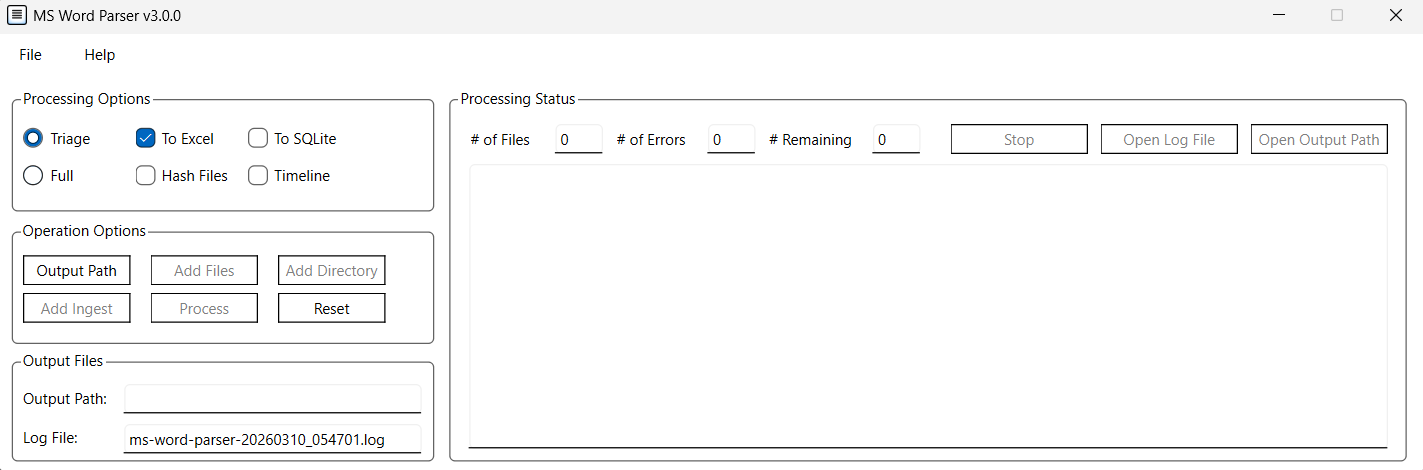
When you launch the application in GUI mode, you’ll need to select your parsing option (Triage or Full), and if you wish, check off the option to hash the files. By default, it will output to Excel. You can change that to SQLite, or output to both formats if you wish. You can also select the option to generate a timeline. In Excel, it will also include a visual timeline.
You will need to select the output folder where to save the processing results, as well as select either a list of files within a single folder, select a folder that you wish to process recursively, or ingest a text file with a list of file names with full path that you wish to process.
The Processing Status window will identify how many files were passed to the script for parsing, the number of files that produced a processing error, and the # of files remaining to be processed. Within this window you will see output from the script as it’s processing the files.
Stop
If you click on the stop button, it will stop processing. The Excel file will written up to the point of the last file to be processed. The log file will also be written.
Reset
If you want to run the script again, you can click on the Reset button and select a new output file and new files to process.
Open Log File
Opens the log file.
Open Excel File
Opens the Excel file.
Open Output Path
Open the output path folder.
Microsoft Excel File/SQLite File
Worksheets/DB Tables
Will vary depending on files processed and processing option selected.
Doc_Summary
This worksheet will have one row for each file processed. It will contain a summary of the artifacts relating to the documents (e.g., MD5 hash, number of rsidR, RSID Root, number of paragraph tags (w:p), run tags (w:r), text tags (w:t).
Metadata
This worksheet will have one row for each file processed. It will contain metadata such as the author of the document, the date created, who last modified it, the last modified date, revision count, editing time, etc. It’s important to note that there have been instances where the metadata relating to the number of pages/lines/characters have been inaccurate. This is not a flaw in the script. Rather, it was found that the metadata within the document was wrong. To correct this, the document had to be opened and resaved. But in doing so, you are changing the last time it was modified, and by whom.
Comments/comments_ids, extended_comments, extensible_comments
This worksheet will have zero or more rows for each file. If there are any comments in the document, each comment will occupy one row. Any reply to a comment will be in its own row. It will contain the comment ID number, the timestamp of the comment, the author, the author’s initials, and the comment itself.
RSIDs
This worksheet will have multiple rows for each file. Each row will be a unique RSID Type and value, as well as how many times that RSID appears in the document. The rsidR value denotes Revision Save Identifier. Each time there is a save action, a new rsidR value is generated and any text from that session will have that rsidR value attached to it. This allows you to identify what text was typed within a given editing session (a given rsidR value).
Large documents can result in hundreds of rows, as they will contain many different RSID values. Excel limits the number of rows in a spreadsheet to just over 1 million. The script will break up the RSIDs worksheet into multiple worksheets if necessary, with 1 million rows in each. Each RSIDs worksheet will include a number (1, 2, 3, etc.) in the worksheet name.
Archive Files
This worksheet will have multiple rows for each file. Microsoft Word docx files are compound files. In fact, they are nothing more than a ZIP compressed file with multiple files within it. This worksheet will extract the name of each file within the compound file and include its name, the modified time of the file within the compound file (which in most cases should be “nil”), the uncompressed size of the file, and various ZIP file attributes for that specific file within the compound file.
ink_xml_files
Files with ink markings, and the date/time of the ink marking.
people
List of people in the people.xml files. Normally populated by list of people who interacted with comments (added a comment, or reacted to a comment).
item_xml_files
Files under customXml bearing the names item1.xml, item2.xml, etc.
custom_properties
Custom properties
Excel Tips
This worksheet will contain analysis tips.
SQLite Views
SQLite allows you to create views. These are simply output of SQLite statements that you can browse under the Browse Data in DB Browser for SQLite for example. It's a convenient way of presenting the data in existing tables to the user without them needing to execute an SQLite statement of their own.
If applicable, the SQLite file will have the following views:
Aggregated Comments - this resolves the relationship between the four XML files used to track comments, child comments, and reaactions to comments.
Timeline - this view will contain a timeline of all timestamped artifacts.
Suggested Workflow
- Execute the script in triage mode first if processing a large number of files.
- Filter on files of interest.
- Copy out filenames to a text file.
- Re-process with full parsing, using the text file containing the list of files for input.
- If you are going to use the full parsing option on a very large number of files, it is recommended that you select SQLite output only. The application successfully parsed over 15k+ files with full parsing enabled. The rsids table in SQLite had over 14 million records. The Archived Files table had over 300,000 records. Due to limitations in Excel, the application will split outputs to a maximum of 1 million rows per worksheet. Thus, the rsids would be spread across 15 worksheets vs a single table in SQLite.
1 maintainer

Metadata
1 maintainer
Release files for ms-word-parser 3.0.1
For a detailed explanation of source distributions (sdists) and built distributions (wheels), please see the package formats documentation.
Source distribution (sdist)
| File | Size | Uploaded | Provenance | |
|---|---|---|---|---|
| ms_word_parser-3.0.1.tar.gz | 43.8 kB | Without provenance | Details |
Built distribution (wheel)
| File | Interpreter | ABI | Platform | Reset |
|---|---|---|---|---|
| ms_word_parser-3.0.1-py3-none-any.whl | Python 3 | none | any | Details |
Total release size: 86.8 kB
Release files / ms_word_parser-3.0.1.tar.gz
| Download URL | ms_word_parser-3.0.1.tar.gz |
|---|---|
| Size | 43.8 kB |
| Tags | Source |
|
SHA-256 checksum How to use checksums |
4b84cb646a4aaba614da856fd199ac986c2fb6acfef268d4615fafac7c5fd1c3
|
|
BLAKE2b-256 checksum How to use checksums |
69c2f752dec491633ca20355e88dc1ef5b5f73d30186f6249dfc902c5587e418
|
| Upload date | |
|
Uploaded using Trusted Publishing? What is trusted publishing? |
No |
| Uploaded via |
twine/6.2.0 CPython/3.12.3
|
Release files / ms_word_parser-3.0.1-py3-none-any.whl
| Download URL | ms_word_parser-3.0.1-py3-none-any.whl |
|---|---|
| Size | 43.0 kB |
| Tags | Python 3 |
|
SHA-256 checksum How to use checksums |
c037125b952f3669765b323f7d4a4fcf5bcd8901cbee868125c03f4070f334fd
|
|
BLAKE2b-256 checksum How to use checksums |
eb28b70c135623dc73773ab2e6fe6df2e6eb832c628ddccdb1ba7a6a03521e90
|
| Upload date | |
|
Uploaded using Trusted Publishing? What is trusted publishing? |
No |
| Uploaded via |
twine/6.2.0 CPython/3.12.3
|
Security for ms-word-parser 3.0.1
Provenance
Provenance describes where a file came from. On PyPI, provenance is shared via attestations, which provide a verifiable record of the build or publishing details. View details, limitations and caveats.
No provenance found
None of the files in this release were uploaded with provenance metadata.
A note on package security
PyPI is a repository for distributing packages, not a service for auditing them. While third-party security researchers and our staff do their best to detect and remove malicious packages, PyPI cannot guarantee the quality, security or suitability of any given package.














