
A tool for analyzing Mule integration projects to generate sequence diagrams or natural language descriptions of each flow

Project description
Mule Flow Analyzer
A library for analyzing Mule integration projects to generate sequence diagrams or natural language descriptions of each flow.
Before analysis, placeholders in code will attempt to be replaced using values from the property files in the project directory. If there are multiple properties files, you can supply a hierarchy to follow and any omitted properties will not be referenced. This can be helpful if multiple environment property files are in the project.
Depending on your output format, text files and/or diagrams will be generated with file names based on the flow name (with special characters replaced with underscores).
Table of Contents
- Example Outputs
- Installation
- IDE agent skill (VS Code / GitHub Copilot)
- Diagram Generation
- Overriding Configuration
- Instructions for LLMs
- Troubleshooting
Example Outputs
Real examples generated by this project are copied under docs/examples/plantuml/.
Nested Flow Refs
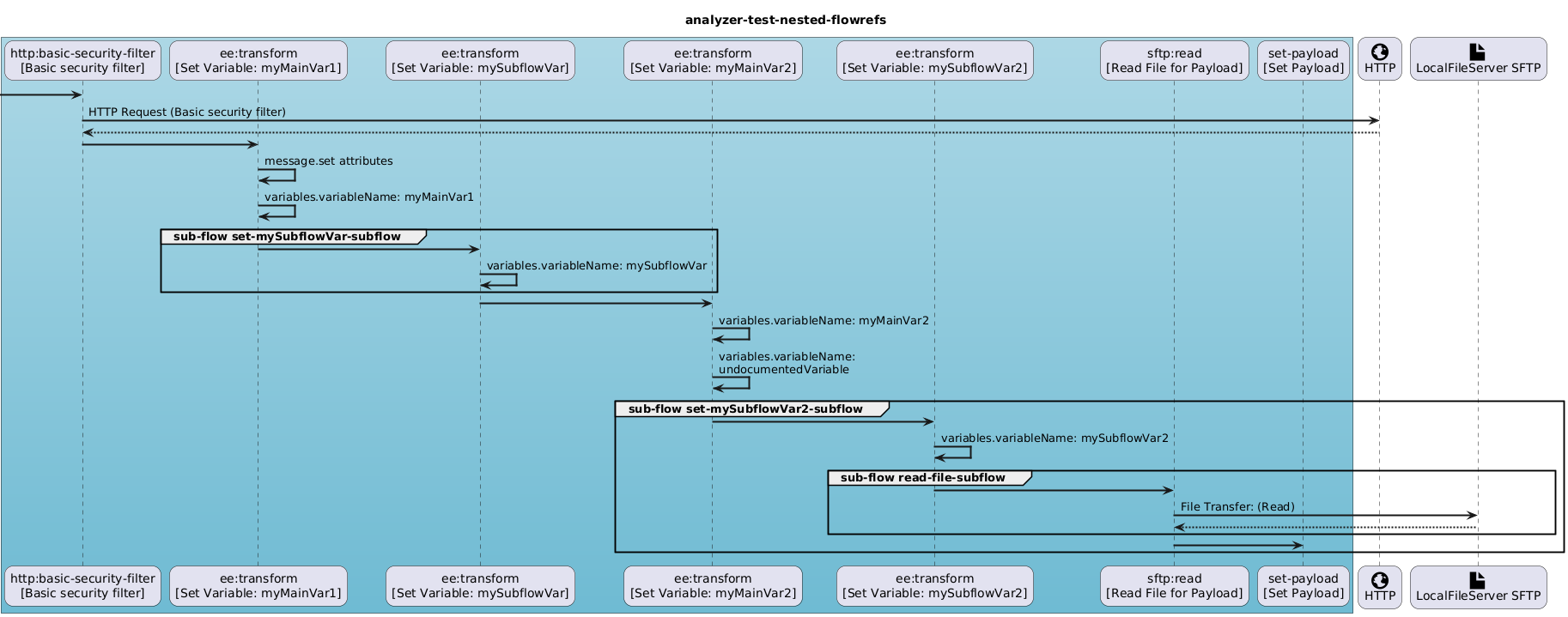
Full UML source: docs/examples/plantuml/analyzer-test-nested-flowrefs.txt
box #LightBlue-6FBBD3
participant "http:basic-security-filter\n[Basic security filter]"
participant "ee:transform\n[Set Variable: myMainVar1]"
participant "ee:transform\n[Set Variable: mySubflowVar]"
participant "ee:transform\n[Set Variable: myMainVar2]"
participant "ee:transform\n[Set Variable: mySubflowVar2]"
participant "sftp:read\n[Read File for Payload]"
participant "set-payload\n[Set Payload]"
end box
participant "<size:30><&globe>\nHTTP" as HTTP
participant "<size:30><&file>\nLocalFileServer SFTP" as LocalFileServer
title analyzer-test-nested-flowrefs
 -> "http:basic-security-filter\n[Basic security filter]" :
"http:basic-security-filter\n[Basic security filter]" -> "HTTP" : HTTP Request (Basic security filter)
"HTTP" --> "http:basic-security-filter\n[Basic security filter]" :
Nested Flow Refs (create_mode: true)
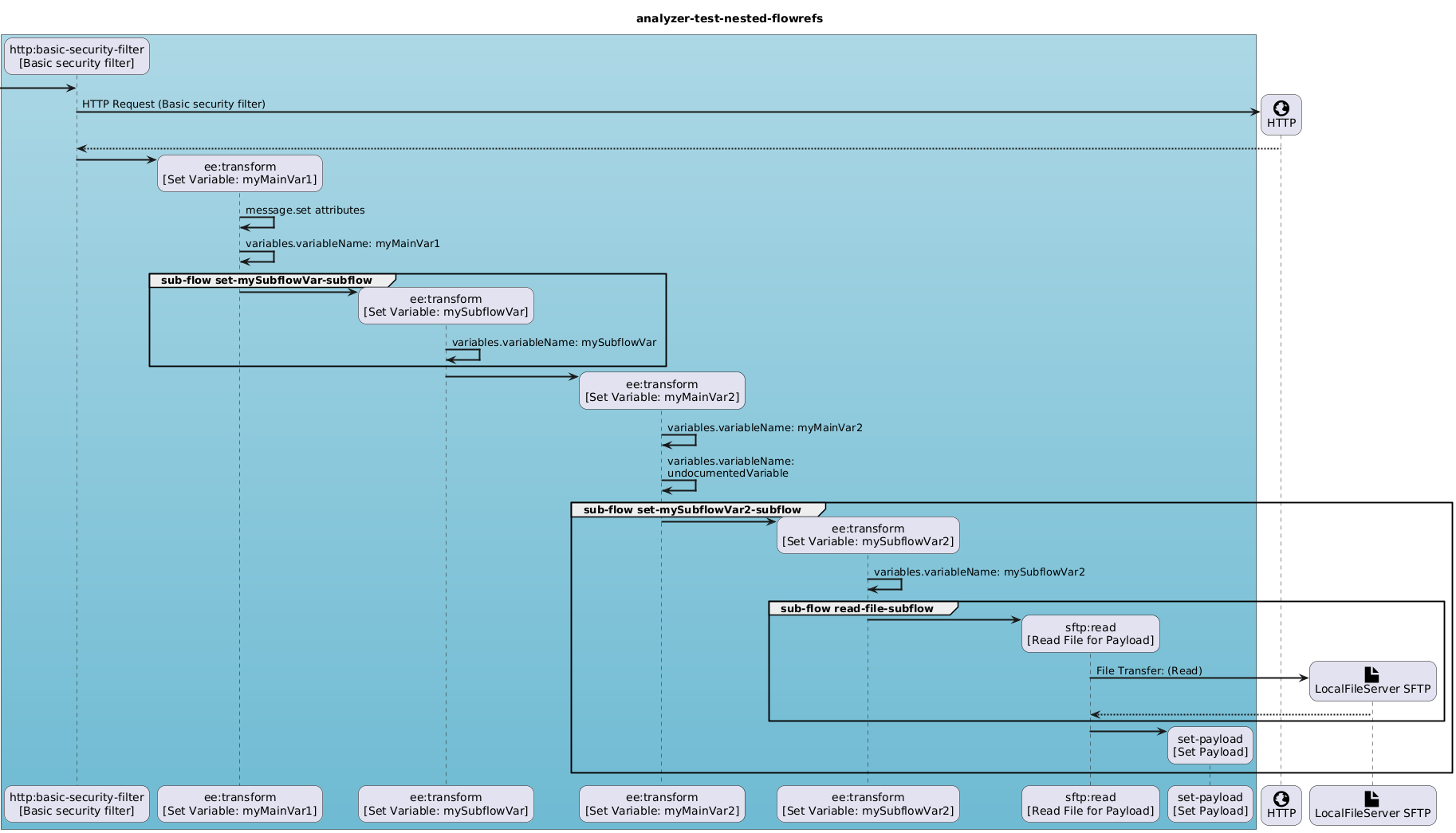
Full UML source: docs/examples/plantuml/analyzer-test-nested-flowrefs-create-mode-true.txt
box #LightBlue-6FBBD3
participant "http:basic-security-filter\n[Basic security filter]"
participant "ee:transform\n[Set Variable: myMainVar1]"
participant "ee:transform\n[Set Variable: mySubflowVar]"
participant "ee:transform\n[Set Variable: myMainVar2]"
participant "ee:transform\n[Set Variable: mySubflowVar2]"
participant "sftp:read\n[Read File for Payload]"
participant "set-payload\n[Set Payload]"
end box
participant "<size:30><&globe>\nHTTP" as HTTP
participant "<size:30><&file>\nLocalFileServer SFTP" as LocalFileServer
title analyzer-test-nested-flowrefs
 -> "http:basic-security-filter\n[Basic security filter]" ** :
"http:basic-security-filter\n[Basic security filter]" -> "HTTP" ** : HTTP Request (Basic security filter)
"HTTP" --> "http:basic-security-filter\n[Basic security filter]" :
Anypoint MQ Queues
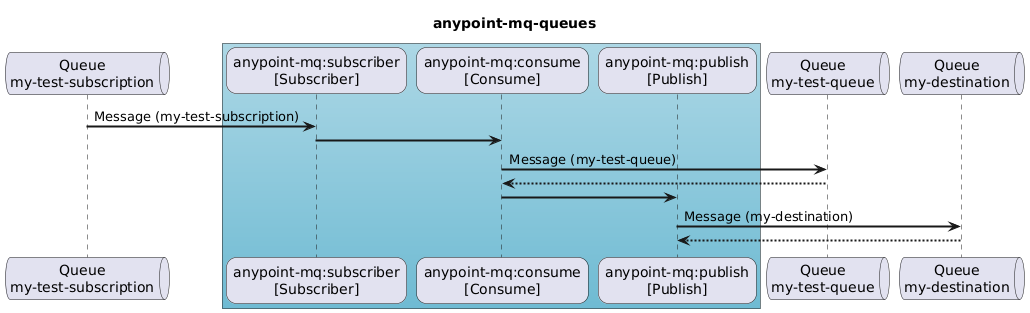
Full UML source: docs/examples/plantuml/anypoint-mq-queues.txt
queue "Queue\nmy-test-subscription"
box #LightBlue-6FBBD3
participant "anypoint-mq:subscriber\n[Subscriber]"
participant "anypoint-mq:consume\n[Consume]"
participant "anypoint-mq:publish\n[Publish]"
end box
queue "Queue\nmy-test-queue"
queue "Queue\nmy-destination"
'source event
"Queue\nmy-test-subscription" -> "anypoint-mq:subscriber\n[Subscriber]" : Message (my-test-subscription)
title anypoint-mq-queues
"anypoint-mq:subscriber\n[Subscriber]" -> "anypoint-mq:consume\n[Consume]" :
"anypoint-mq:consume\n[Consume]" -> "Queue\nmy-test-queue" : Message (my-test-queue)
"Queue\nmy-test-queue" --> "anypoint-mq:consume\n[Consume]" :
"anypoint-mq:consume\n[Consume]" -> "anypoint-mq:publish\n[Publish]" :
Async Operation
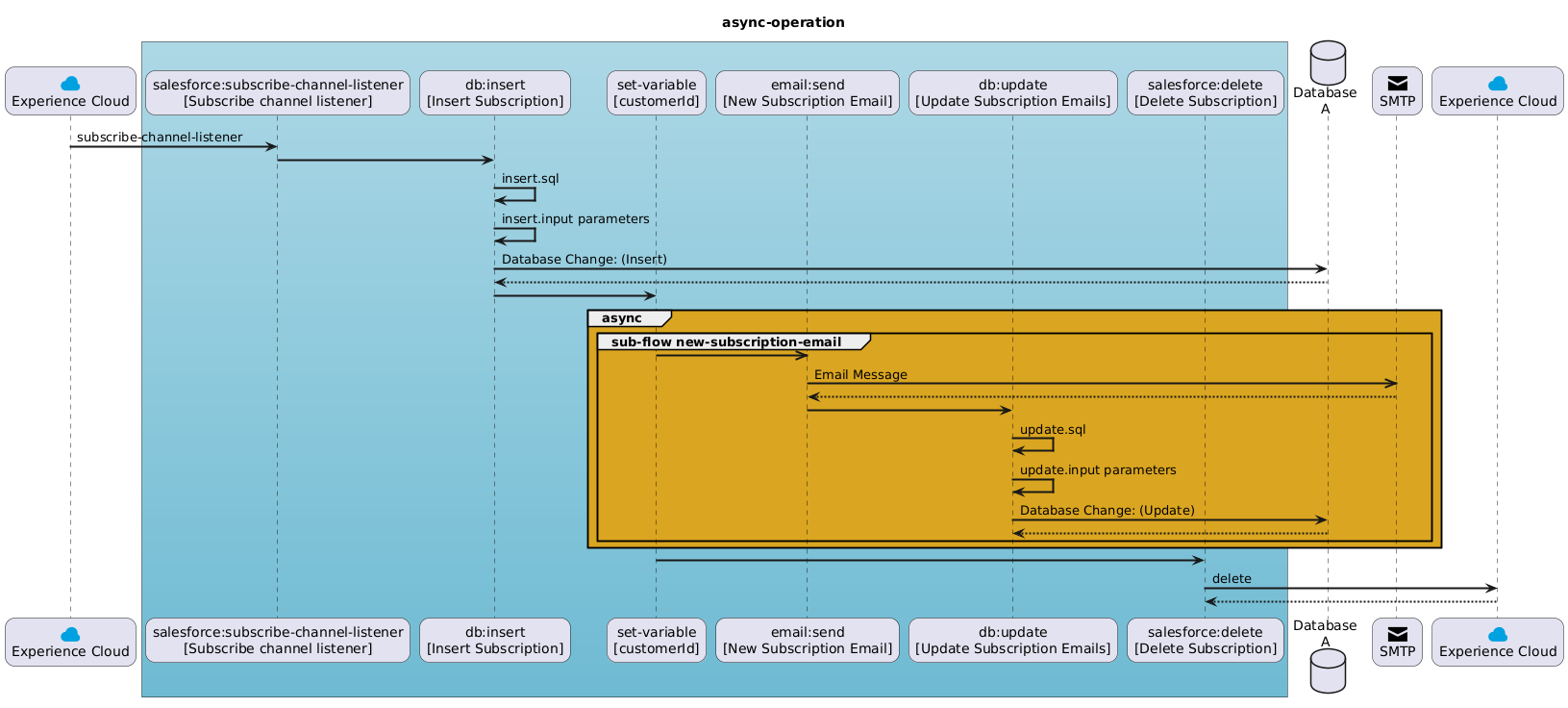
Full UML source: docs/examples/plantuml/async-operation.txt
participant "<size:30><color:#00A1E0><&cloud>\nExperience Cloud" as Experience
box #LightBlue-6FBBD3
participant "salesforce:subscribe-channel-listener\n[Subscribe channel listener]"
participant "db:insert\n[Insert Subscription]"
participant "set-variable\n[customerId]"
participant "email:send\n[New Subscription Email]"
participant "db:update\n[Update Subscription Emails]"
participant "salesforce:delete\n[Delete Subscription]"
end box
database "Database\nA"
participant "<size:30><&envelope-closed>\nSMTP" as Email
participant "<size:30><color:#00A1E0><&cloud>\nExperience Cloud" as Experience_4
'source event
"Experience" -> "salesforce:subscribe-channel-listener\n[Subscribe channel listener]" : subscribe-channel-listener
title async-operation
Installation
Install from PyPI:
pip install mule-flow-analyzer
To install a specific version:
pip install mule-flow-analyzer==1.0.0
For development, clone the repository and install in editable mode with test dependencies:
pip install -e ".[dev]"
IDE agent skill (VS Code / GitHub Copilot)
This repo ships an Agent Skill for analyzing flows from inside a Mule workspace using Copilot or compatible agents.
Where it lives here: .cursor/skills/mule-flow-analyzer/ (SKILL.md plus scripts/run_analyzer.py).
Where to use it: Copy the whole mule-flow-analyzer folder into a skill discovery location used by your IDE/agent. This can be inside your Mule application repository (the project that contains src/main/mule/) or in a shared/global skills directory configured in your IDE. Do not rely on this library clone for analyzing your apps unless you open that app as the workspace. Examples:
.github/skills/mule-flow-analyzer/(commonly used by GitHub Copilot in VS Code), or.cursor/skills/mule-flow-analyzer/in the target workspace, or- any shared/global folder configured for skill discovery (for example via
chat.skillsLocations).
The name field in SKILL.md must match the parent directory name (mule-flow-analyzer). After copying, install the package in a venv (pip install mule-flow-analyzer) and run the helper from the Mule app root; see the script’s --help for flags.
Diagram Generation
Sequence diagram generation supports two syntax engines. PlantUML is the recommended output format for sequence diagrams.
plantuml(default): writes PlantUML source and can render PNG/SVG through a server, local JAR, or CLI.mermaid(experimental): writes Mermaid.mmdsource and can optionally render through Mermaid CLI.
Select the engine with analyzer_properties.diagram_engine. Existing configurations continue to use PlantUML by default.
PlantUML
PlantUML image generation supports three rendering approaches:
server: HTTP PlantUML server URL (local Docker-hosted or hosted service)jar: localjava -jar plantuml.jarexecution (offline, no Docker)cli: localplantumlcommand execution (offline)
If no mode is explicitly set, the library defaults to server mode for backward compatibility.
Running the PlantUML server locally with Docker
No Mule application source is required to be sent to a public server, only the generated UML. If you don't want to send the UML to a public server, you can run the PlantUML server locally.
Pull the PlantUML server image:
docker pull plantuml/plantuml-server
Run the PlantUML server. (In this example, the server will be available on port 8087)
docker run -d -p 8087:8080 plantuml/plantuml-server:jetty
Use server mode with http://localhost:8087/:
analyzer_properties:
  plantuml:
    mode: "server"
    server: "http://localhost:8087/"
    format: "png"
    output_directory: "./output/plantuml"
Running with local PlantUML JAR (no Docker, offline)
Requirements:
- Java installed and on
PATH plantuml.jardownloaded locally (for example./tools/plantuml.jar)
Use jar mode:
analyzer_properties:
  plantuml:
    mode: "jar"
    java_command: "java"
    jar_path: "./tools/plantuml.jar"
    format: "png"
    output_directory: "./output/plantuml"
Running with local PlantUML CLI (offline)
If plantuml is installed as a command:
analyzer_properties:
  plantuml:
    mode: "cli"
    cli_command: "plantuml"
    format: "png"
    output_directory: "./output/plantuml"
Quick validation commands
Check local server:
curl -I http://localhost:8087/
Check Java:
java -version
Check PlantUML CLI:
plantuml -version
Refer to Overriding Configuration for full configuration details.
Mermaid
Mermaid support is experimental. PlantUML is the recommended sequence diagram output because it has the most complete mapping for Mule flow constructs and formatting.
Mermaid output can still be useful when you want syntax that can be rendered by GitHub, GitLab, documentation tools, editor extensions, or Mermaid CLI.
By default, Mermaid mode writes source only:
analyzer_properties:
  diagram_engine: "mermaid"
  mermaid:
    mode: "file"
    output_directory: "./output/mermaid"
    source_extension: "mmd"
To render with Mermaid CLI, install @mermaid-js/mermaid-cli and use cli mode:
npm install -g @mermaid-js/mermaid-cli
mmdc --version
analyzer_properties:
  diagram_engine: "mermaid"
  mermaid:
    mode: "cli"
    cli_command: "mmdc"
    format: "svg"
    output_directory: "./output/mermaid"
Mermaid support intentionally degrades PlantUML-only features. Custom PlantUML actor icons, skinparam, scale settings, colored arrows, colored notes/groups, and the generated PlantUML legend do not have direct Mermaid equivalents.
Overriding Configuration
For detailed configuration options, see Configuration Documentation.
Instructions for LLMs
LLMs can be shown the python usage instructions to help them generate code.
Troubleshooting
If you encounter an error, check the log file for more information. The default path in configuration metadata is mfa-logs/mule_flow_analyzer.log (relative to the process working directory where Python is run). Override it under analyzer_properties.logging.file in your merged configuration or YAML.
If the log file is not found, check the default properties file for the correct path.
The log level can be set to DEBUG to get more information in the configuration file.
Release history Release notifications | RSS feed

Download files
Download the file for your platform. If you're not sure which to choose, learn more about installing packages.
Source Distribution
Built Distribution
Filter files by name, interpreter, ABI, and platform.
If you're not sure about the file name format, learn more about wheel file names.
Copy a direct link to the current filters
File details
Details for the file mule_flow_analyzer-1.0.0.tar.gz.
File metadata
- Download URL: mule_flow_analyzer-1.0.0.tar.gz
- Upload date:
- Size: 38.1 kB
- Tags: Source
- Uploaded using Trusted Publishing? No
- Uploaded via: twine/6.2.0 CPython/3.12.7
File hashes
| Algorithm | Hash digest | |
|---|---|---|
| SHA256 |
4ff10719592b1a20bdfa5fa2a57469847a2bef5206af98148880e6e45b0724bf
|
|
| MD5 |
61e36d8824e8e8cdea8e364eac19a576
|
|
| BLAKE2b-256 |
727cd3c542402d3fc3af63807aacaa699a0bc6737fc8a5092a45a449335c66b9
|
File details
Details for the file mule_flow_analyzer-1.0.0-py3-none-any.whl.
File metadata
- Download URL: mule_flow_analyzer-1.0.0-py3-none-any.whl
- Upload date:
- Size: 37.6 kB
- Tags: Python 3
- Uploaded using Trusted Publishing? No
- Uploaded via: twine/6.2.0 CPython/3.12.7
File hashes
| Algorithm | Hash digest | |
|---|---|---|
| SHA256 |
3179f1ab82519c7a2c07546152e60ab578933d8920648d41bf7e45a82172e620
|
|
| MD5 |
d6a840a0cb266919737bd671f021a969
|
|
| BLAKE2b-256 |
7988f9722de5e870b99ef548408a5825c994674f24e262ab6cd9b088cfa81f0f
|






