
mulebox
Send your AI coding agents' builds and tests to the Linux machines on your network.
Agents (Claude Code, Codex, and others) edit code on your dev machine. Builds, type checks, linting
and test suites are slow, hot and noisy, and several agents running them at once can freeze the
dev machine. With mulebox, an agent types mulebox check instead. The job waits its turn in one
line shared by every project and agent, runs on a Linux node, and the agent gets the
output and the exit code as if the command had run locally.
Status: 1.x, in daily use on a real node (version in VERSION). The
commands, .mulebox.yml and the config files are stable: a change that breaks them needs 2.0.
What is open is in the roadmap.
Why mulebox
Most tools that put your own machines to work run CI. mulebox is built for the agent at your dev machine, here and now, and it takes your CI along in the same line.
- Made for agents.
checkgives the output and exit code a local run would. An agent can send a job with--detach, come back withwait, and answer a long job's check-in withmulebox ok. The same files never run twice: a repeat gets the earlier result, and a second agent joins the job already running. (For agents) - Your working copy, not a push. Committed or not, the files as they are now go to the node. Secrets stay behind, each branch has its own git worktree there, and only changed files are sent. (Fast)
- Real projects, not just a command. Every job gets its own Docker Compose services and ports, removed on every outcome (files root wrote included). Package caches, Playwright browsers and the environment are built once and reused. (Real projects)
- Tools an agent can use alone.
mulebox contracttells an agent how this project runs. The skill keeps itself current.doctorchecks everything before a job is sent,initwrites the config,warmgets a project ready ahead of time, andfeedbackfiles a scrubbed issue. (For agents) - One line for agents and CI. GitHub Actions runners wait for a slot in the same line as your agents' jobs, so a node never runs more than it has room for. (GitHub Actions)
- You see and steer everything. A live dashboard has logs, resource graphs, stages as a waterfall, a CI run's steps as they happen, and job minutes. From it or the CLI you can freeze, boost, move or cancel a job, and pause a machine. (The dashboard, You steer)
- Upgrades that wait their turn. An upgrade queues like a job or waits until the node is idle, so no running job is cut short. (You steer)
Install
You need a Linux machine with systemd, git and Python 3.12 or newer, which your dev machine reaches over ssh with a key, at an address that does not change (below).
Give every machine a fixed address
mulebox remembers where each node is: the dev machine keeps the address you set it up with, a second machine keeps its coordinator's address in its own config, and the dashboard on the LAN is opened at it. Most routers hand out addresses by DHCP, and a machine can get a new one after a reboot, a lost Wi-Fi connection or a router restart. Then the dev machine cannot reach it (exit 3), other machines show offline, and nothing runs until the address is fixed. mulebox does not work with an address that changes.
Before mulebox setup, make each machine's address permanent, in one of these ways:
- Reserve it on your router (called a DHCP reservation, static lease or fixed IP): pick the machine by its MAC address and give it an address. Nothing changes on the machine itself.
- Set a static address on the machine, outside the range the router hands out.
- Use a name that always finds the machine, if every machine and the dev machine can resolve it, such as a VPN that keeps each device's address.
Check after a reboot of the machine that ssh <node> true still works. If an address did change,
put the new one in ~/.ssh/config (or in coordinator in the dev machine's client.toml), and on every
other machine in coordinator in node.toml, then mulebox service restart worker there.
Let your coding agent install it
Give your agent (Claude Code, Codex, or another) this prompt, with your node's ssh name:
Install mulebox for me and set up this project to use it. Read
https://raw.githubusercontent.com/typerhack/mulebox/main/docs/getting-started.md and follow it
in order. My node is <node> (I reach it with `ssh <node>`). Ask me, in one message, only
for the steps that need a password or sudo, then finish the rest yourself and show me a passing
`mulebox check`.
The page is written for this: it says which steps need you (copying an ssh key, installing
python3-venv with sudo) and which the agent can do alone.
Or by hand
On the dev machine:
uv tool install mulebox        # or, with Python 3.12 or newer: pipx install mulebox
mulebox setup <node>           # installs mulebox on your node, then runs a first job
mulebox is on PyPI. uv brings its own Python, so the dev machine
needs none; to get uv: brew install uv, or curl -LsSf https://astral.sh/uv/install.sh | sh.
<node> is your node as you reach it with ssh, named as you like: a name from your
~/.ssh/config, such as mulebox setup homelab, or user@address, such as
mulebox setup alice@192.168.1.50. The dashboard shows the machine under its own hostname.
Then, in any project:
mulebox init                   # writes .mulebox.yml from the project's own files
mulebox check                  # runs the project's checks on the node
mulebox dashboard open         # the dashboard in your browser, through an ssh tunnel
To upgrade later: uv tool upgrade mulebox (or pipx upgrade mulebox), then
mulebox setup <node>. From a clone, and the details: install.md. The whole
path from nothing to a passing project, in order: getting-started.md.
How it works
Two kinds of machine:
- the dev machine: where you and your agents edit code: a laptop, a desktop or another Linux PC. It runs only the
muleboxcommand, which talks to the nodes over ssh. - nodes: the Linux machines that run the jobs. Each runs a worker, which runs jobs. One node is also the coordinator: it holds the line of jobs and their history, and serves the dashboard.
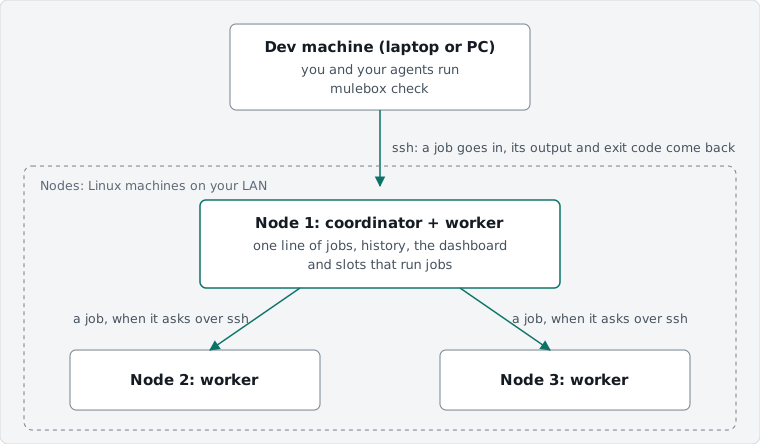
- The dev machine only ever talks to the coordinator. It does not know how many nodes there are, so adding one changes nothing for agents or projects.
- Workers ask the coordinator for work. A job goes to the first node with a free slot that has what the job needs (Docker, Playwright, a toolchain). A worker reaches the coordinator with a key that can do nothing but worker requests.
- The dashboard runs only on the coordinator. Workers send their CPU, memory and network readings with every heartbeat, so one page shows every node.
- One node is enough to start: it is both coordinator and worker. A second joins with
mulebox setup <second-node> --worker-of <first-node>. A node can be drained, resumed and removed (mulebox machine). More than one node has been tried with a stand-in container only, so far.
The dashboard
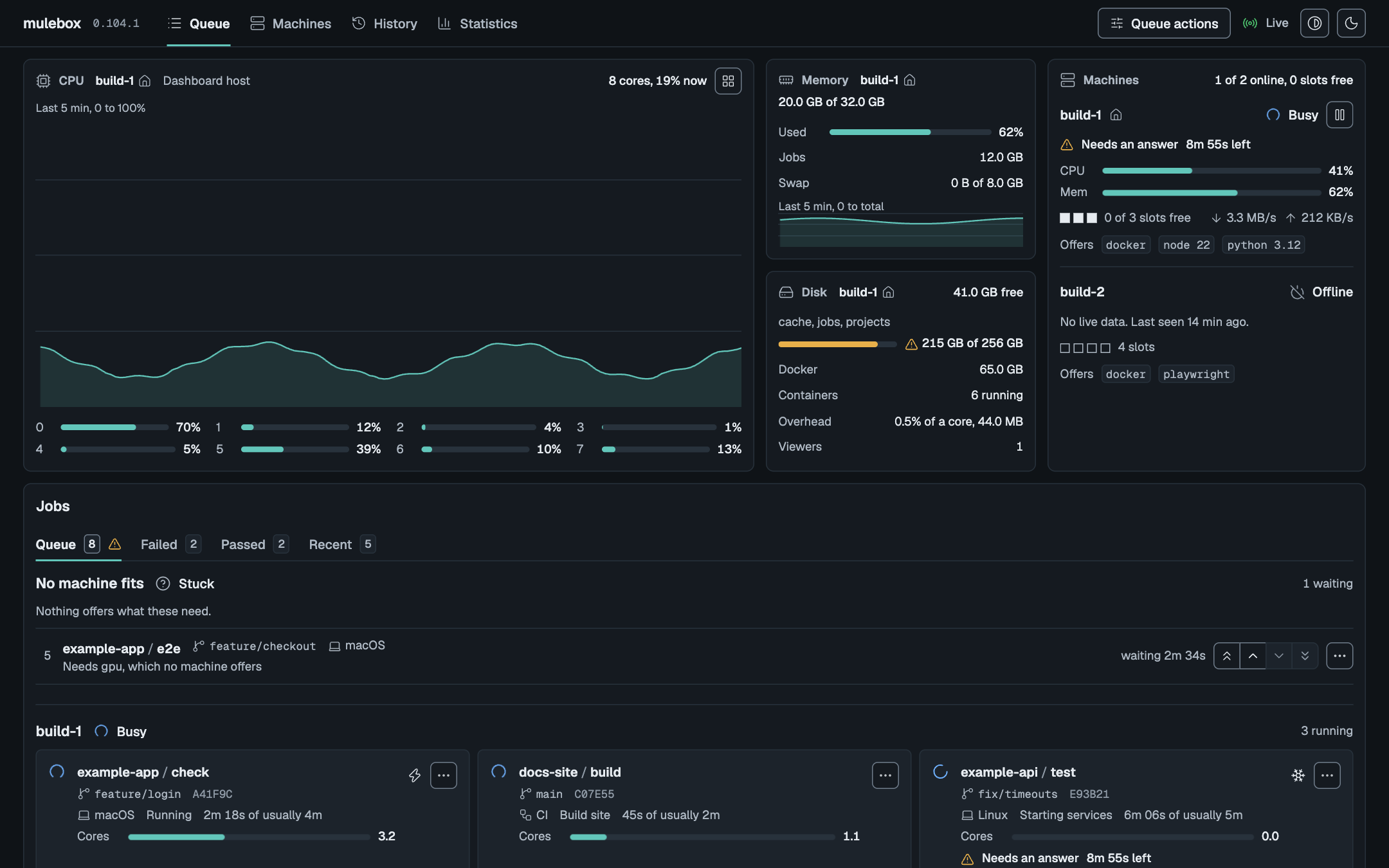
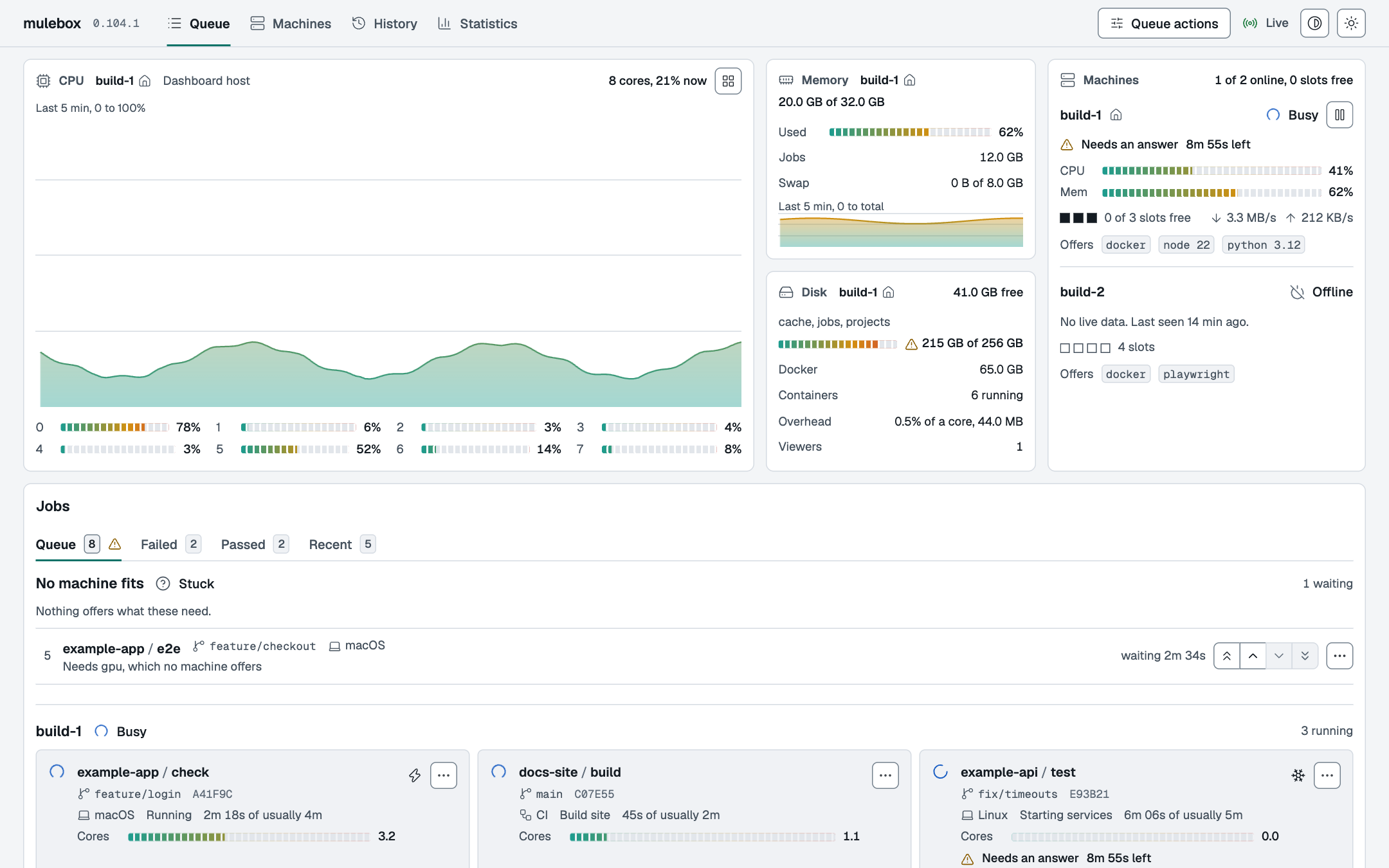
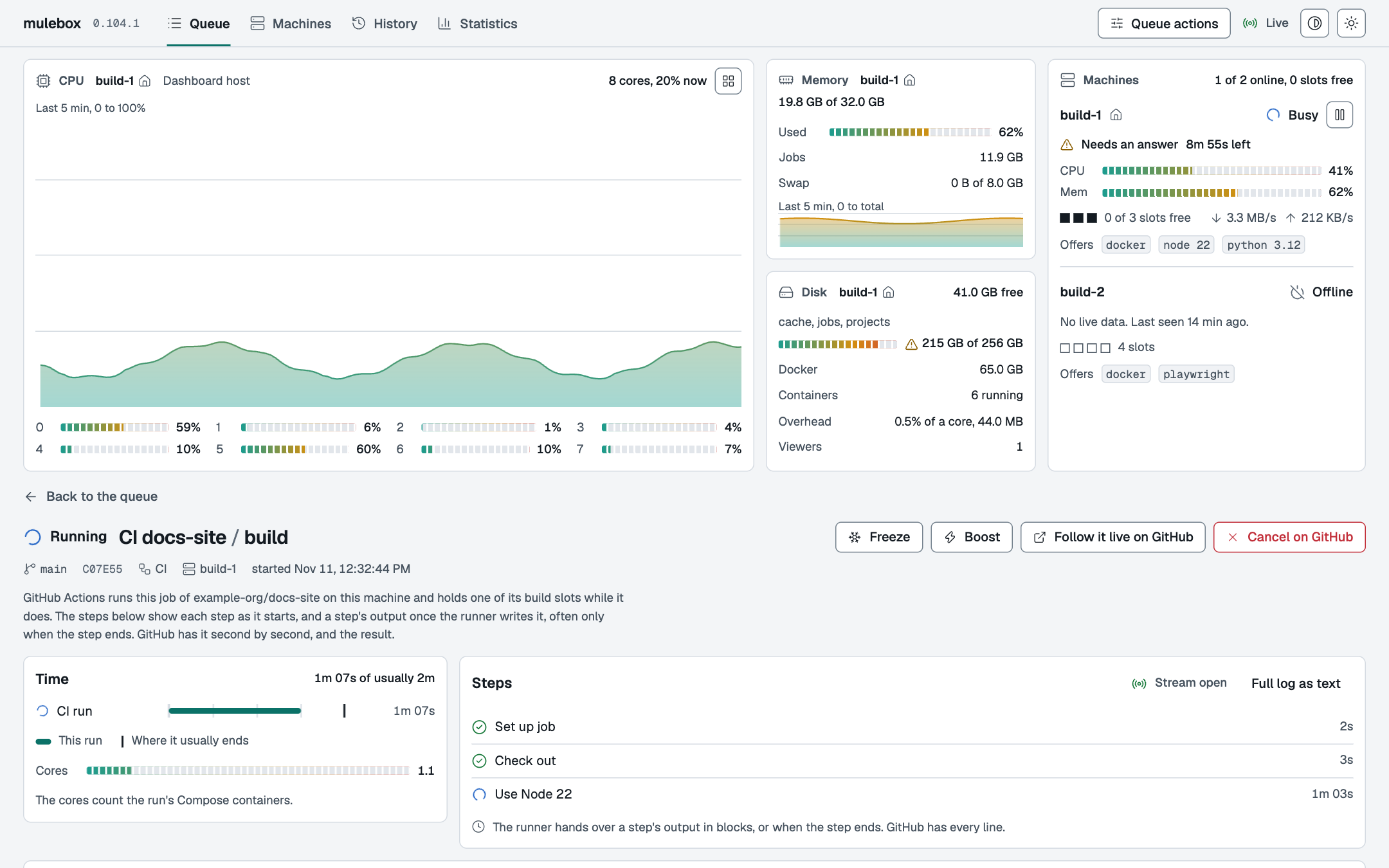
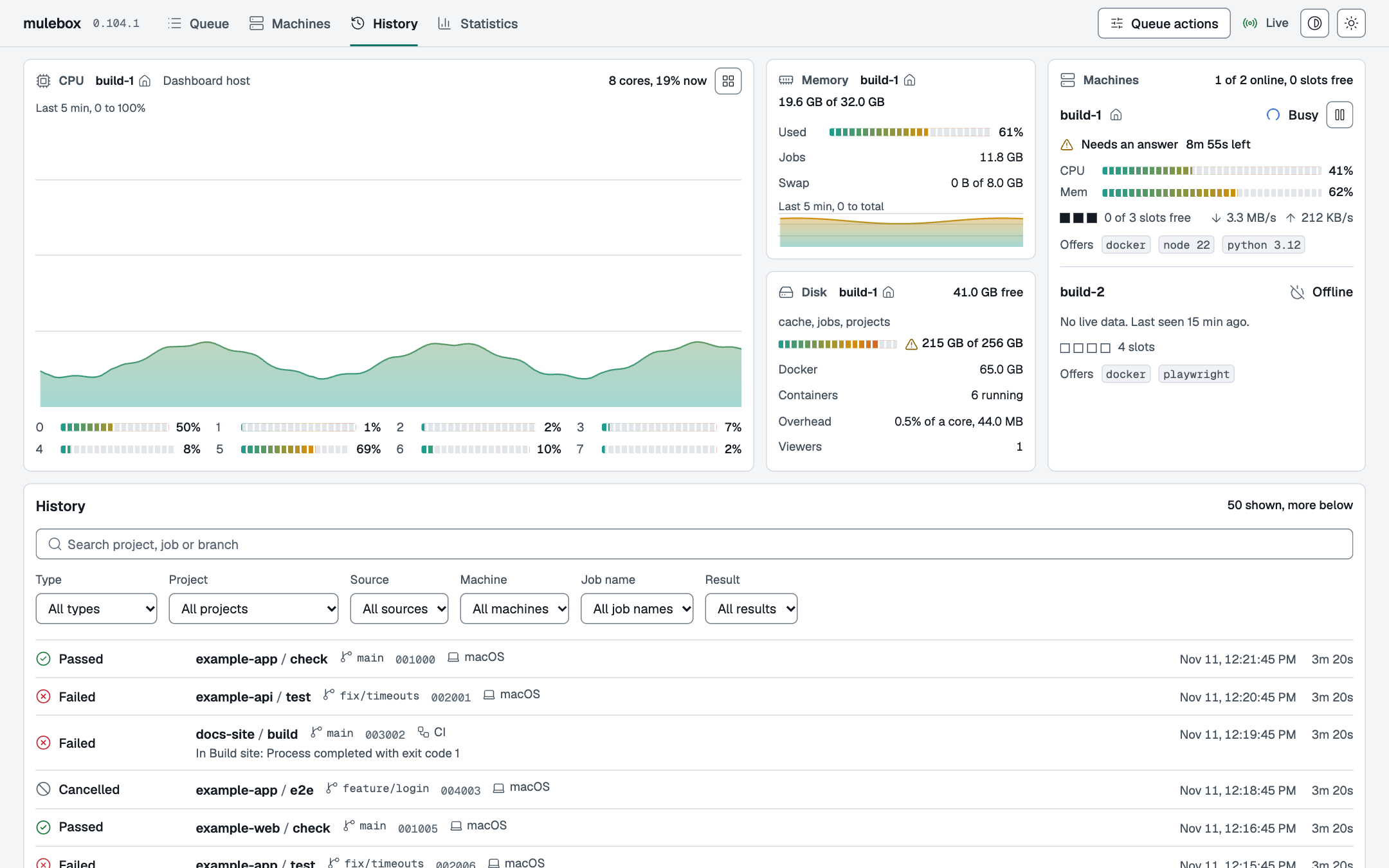
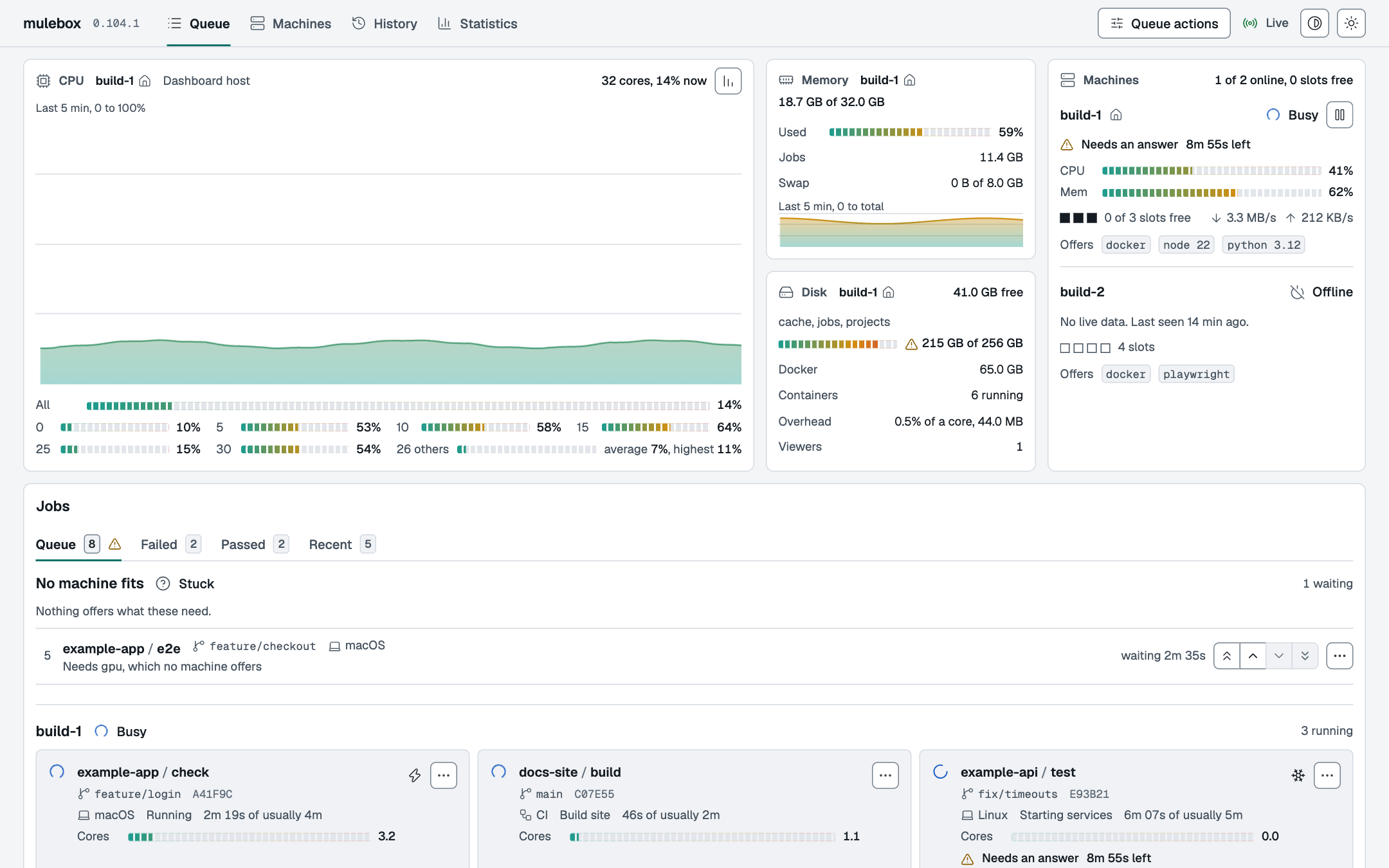
Live, in the browser: the line of jobs with each machine's lane, every job's stages and log as they happen, and controls to pause, freeze, boost, reorder or cancel. It has a dark and a light theme and follows the system's by default.
 |
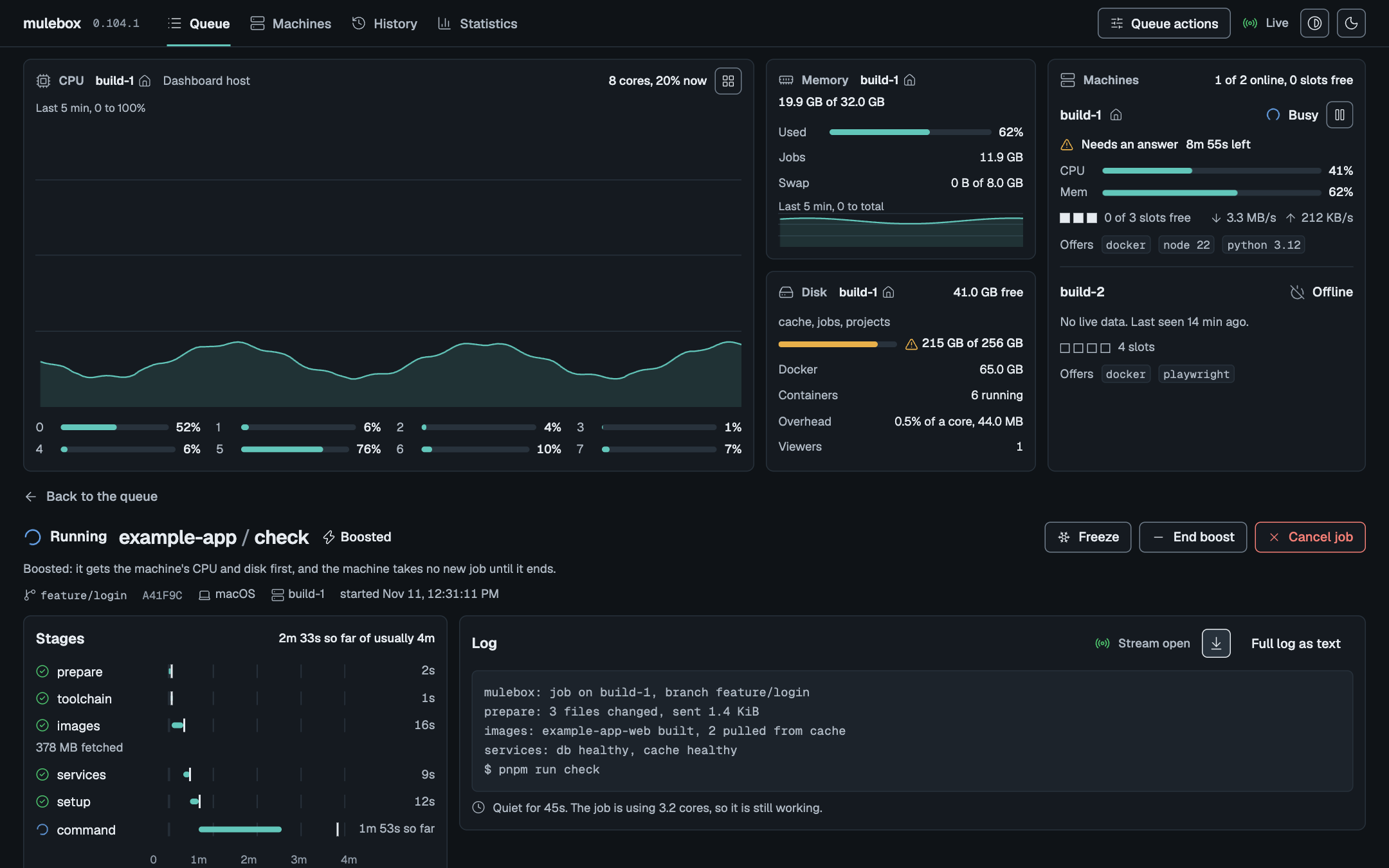 |
| The queue, light theme | A running job: stages and live log |
 |
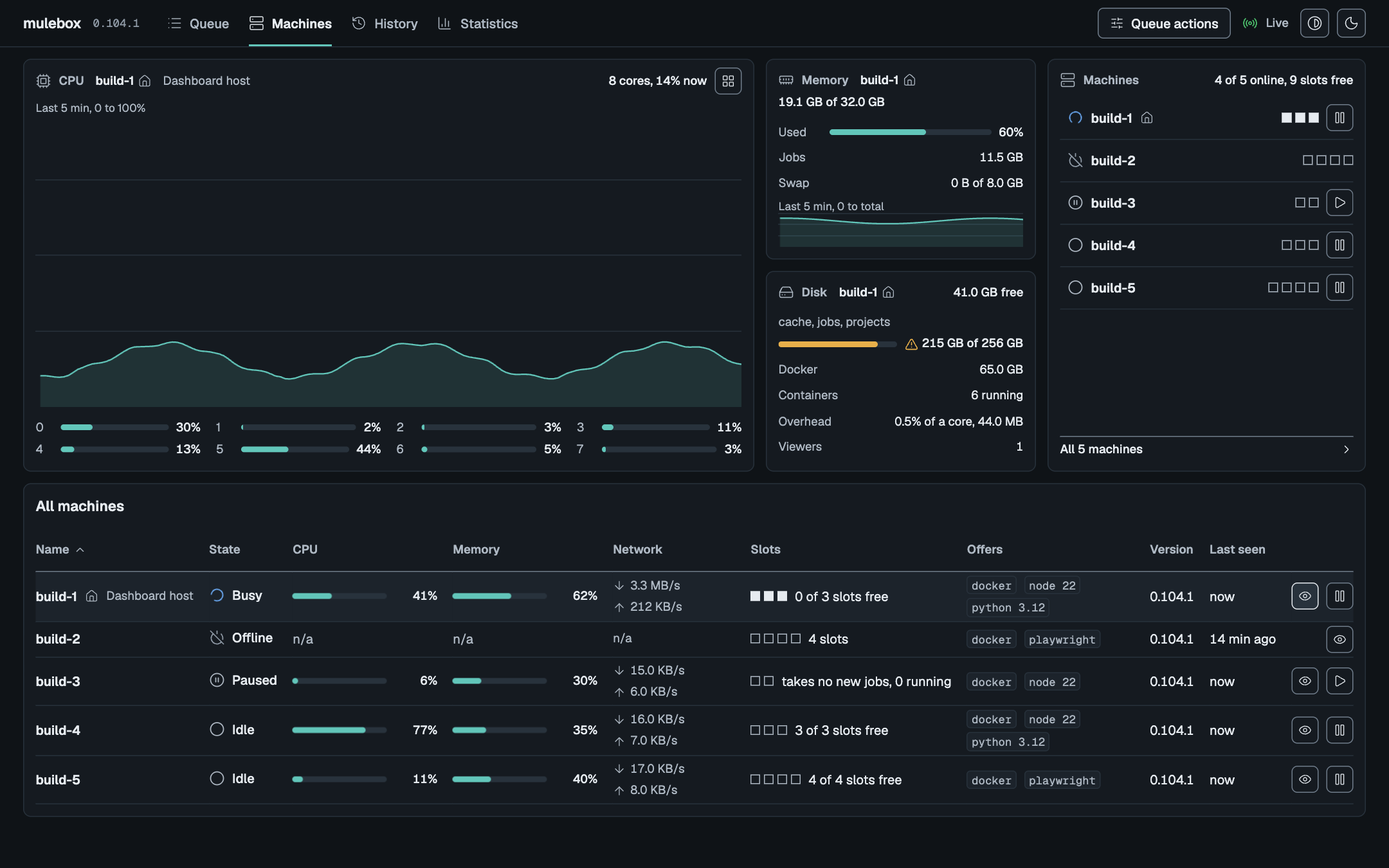 |
| A GitHub Actions run, step by step | Every machine at a glance |
 |
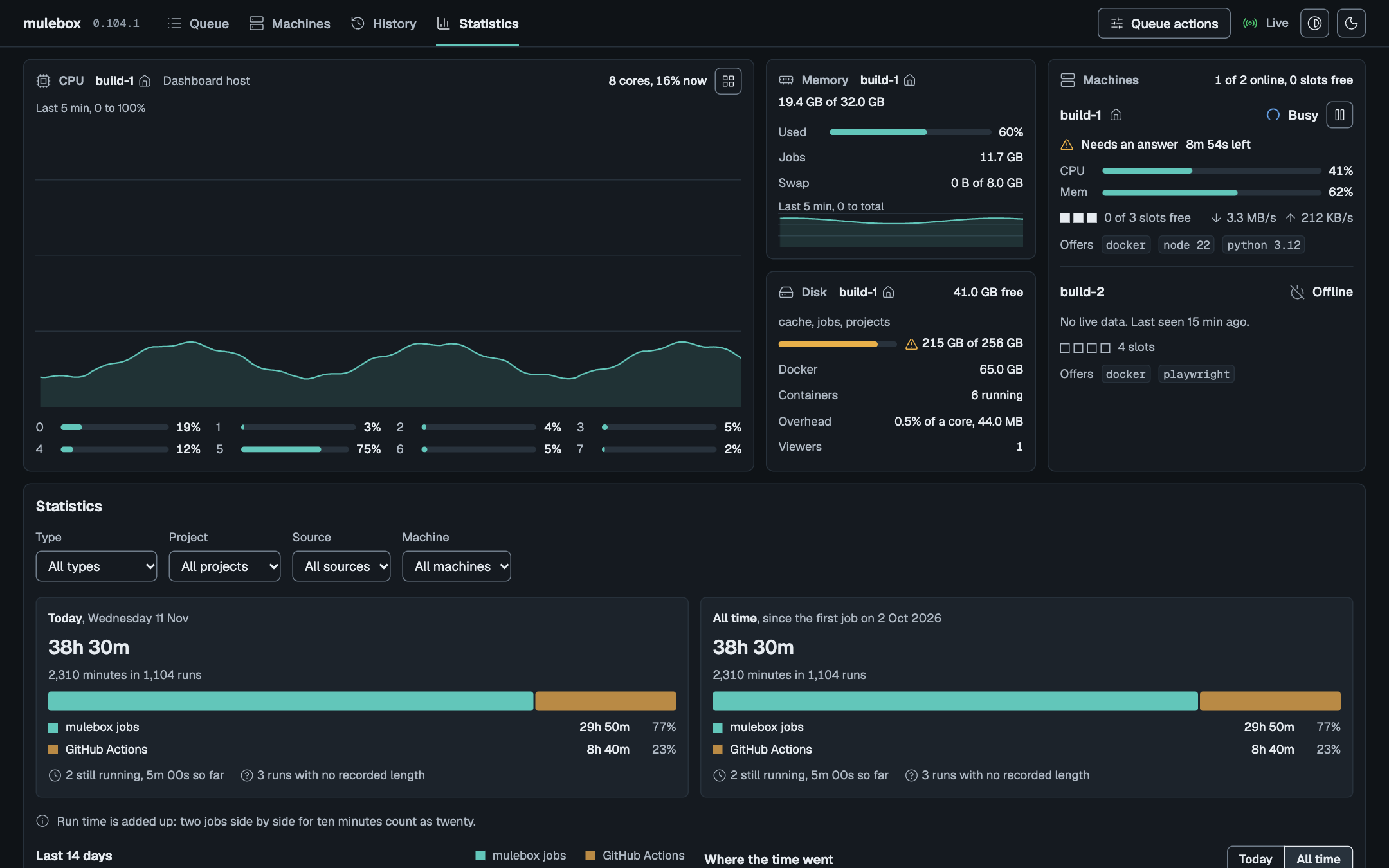 |
| History, searchable | Job minutes, by kind, project and machine |
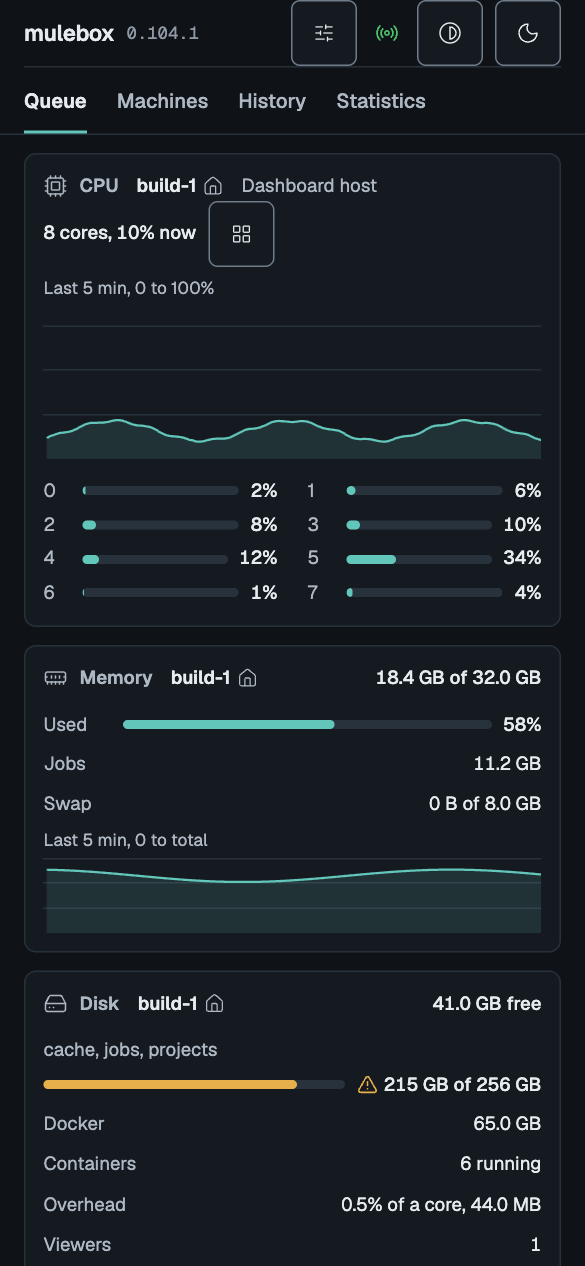
A machine with many cores can show its busiest cores and one line for the rest (compact view, left). On a phone the page stacks into one column (right).
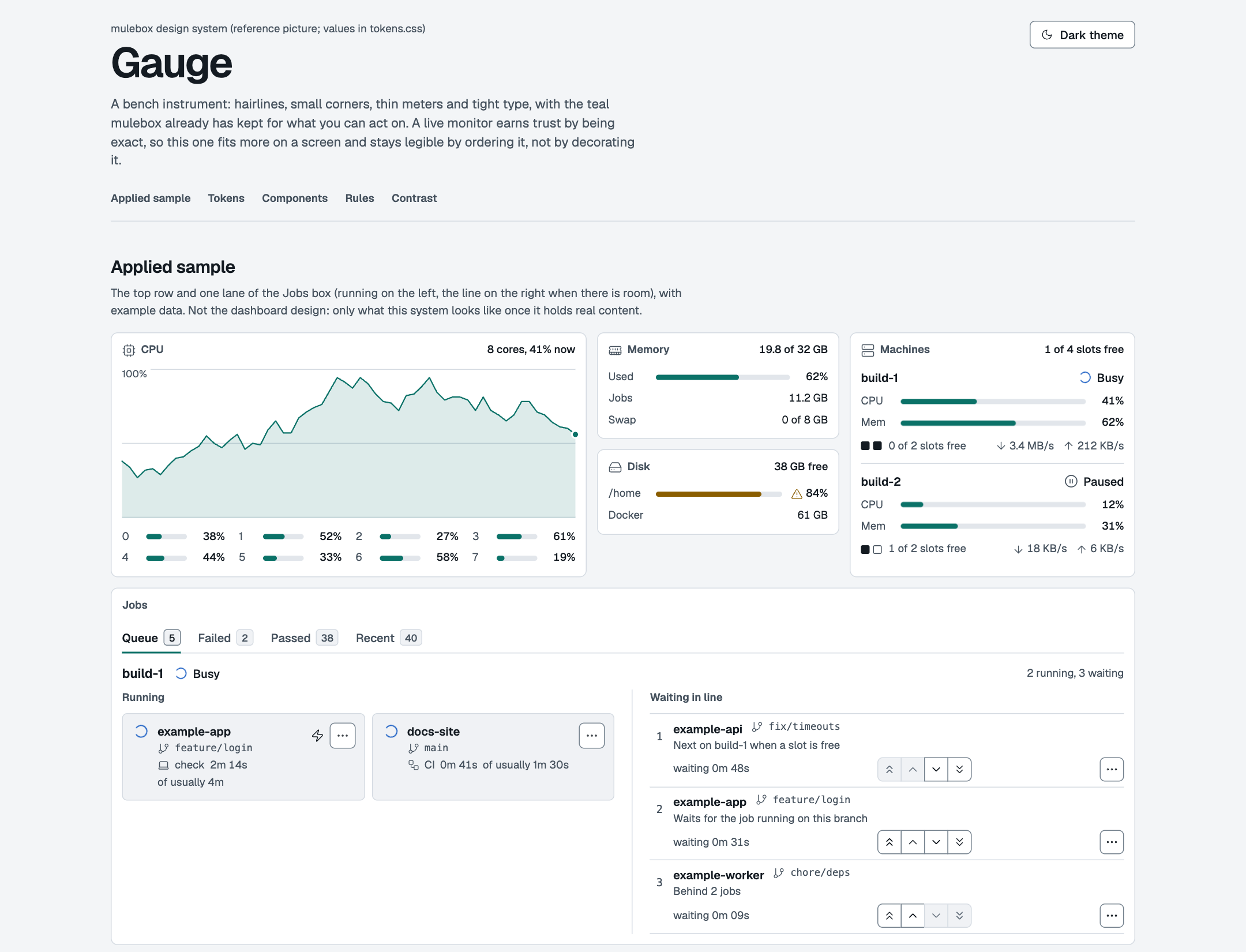
Every screen is built on one small design system, Gauge: its tokens, components and rules are in design-system.md, with a reference page you can open in a browser (specimen.html).
All pictures come from made-up data (tools/screenshots.py).
Open it from your phone, with a password
By default the dashboard opens only through an ssh tunnel from the dev machine
(mulebox dashboard open), so it needs no password. To open it from any device on your network,
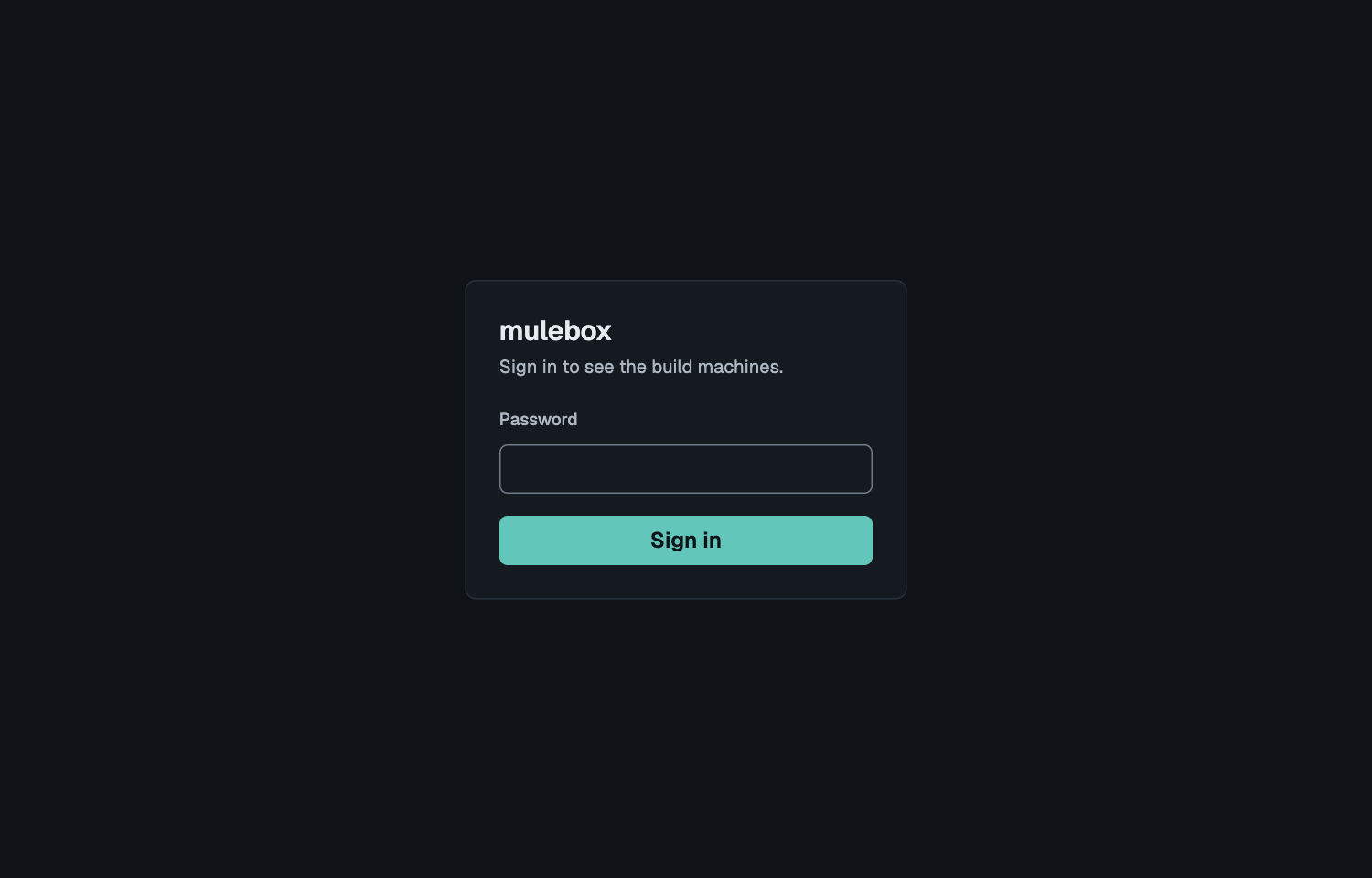
turn on lan mode on the coordinator node; the page then asks for a password:
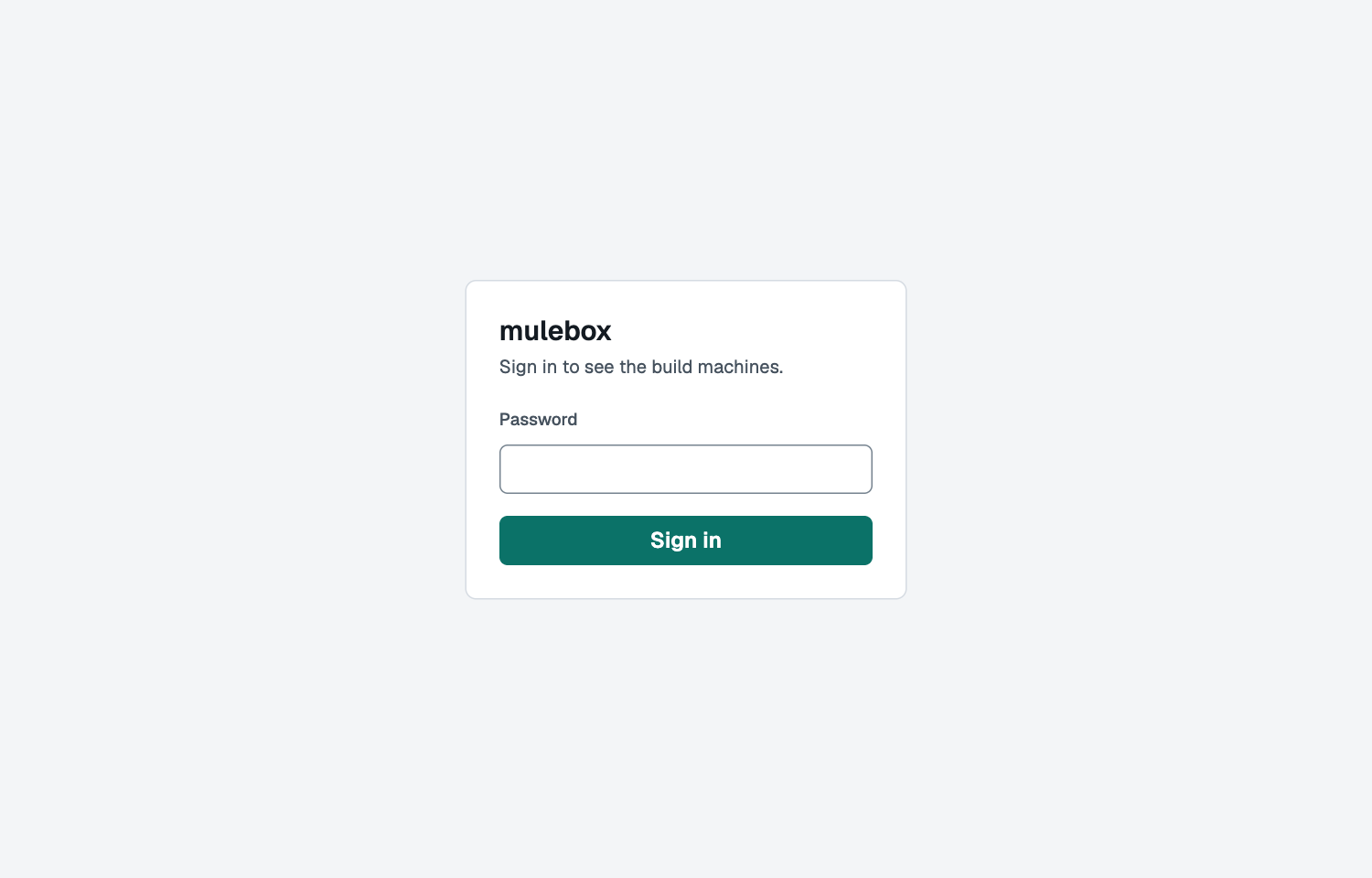
- In
~/.config/mulebox/node.tomlon the node, under[dashboard], set who may connect and the node's own address:lan_range = "192.168.1.0/24"andlan_address = "192.168.1.50". - On the node:
mulebox dashboard password(asks twice, at least 10 characters), thenmulebox dashboard firewall > firewall.sh, read it, andsudo sh firewall.sh. - Set
mode = "lan"under[dashboard]andmulebox service restart dashboard. - Open
http://192.168.1.50:8090(the node's address) on any device in that range.
A sign-in lasts 24 hours; restarting the dashboard signs everyone out. It is plain HTTP unless you
turn on HTTPS, and a network you trust can go without the password (lan_password = false).
All of it, step by step: Dashboard on the LAN.
Features
For agents
- One command, the same answer.
mulebox checkruns the project's checks on a node and gives back the output and exit code a local run would, with your files as they are now, committed or not. If you change files while it runs, the result says it is stale. - Every job has an id. Send it with
--detach, keep working or end the session, and come back:mulebox wait <id>gives the output and exit code,status <id>where it stands,logs <id>its log. A job runs to its end even when its agent went away, and the agent's next command tells it the result, once. - Three ways to wait: follow the job, be pinged when it ends (
mulebox events --job <id>), or check back later. - No duplicate work. On exactly the same files,
checkjoins the job already running or gives its recent result, failures included.--againforces a run. - Failures read fast. A failed job ends with a short summary of the error and the stage it failed
in (
logs <id> --summary), with a hint when the failure reads like a lost network. - Clear exit codes. The check's own code on a failure; 5 for a job that could not start (a missing tool, an unreachable image, a bad lockfile); 2 for a config error, caught before anything is sent; 75 for a job a restart interrupted; 76 for a stuck job that was stopped.
- Long jobs ask, they do not die. There is no hard time limit. A long job asks its agent if all is
well, with its last output line; the agent answers
mulebox ok. Only a job that is really stuck, with no answer, stops. - The position in line, and why. A waiting job says where it stands, what runs ahead of it, and why it waits: its branch is busy, no machine has what it needs, a machine is paused.
- Checked before anything is sent.
mulebox doctorchecks the config, the node's tools and versions, the project's compose files and whether the node reaches the images' registries; it runs nothing. - Written for agents.
mulebox contracttells an agent how this project works through mulebox. The Claude Code skill teaches it the rest;mulebox setupinstalls it, and an agent whose skill is out of date is told so and updates it. - Problems reported safely.
mulebox feedback draftwrites a GitHub issue with the job's ids, stages and log lines, scrubbed of addresses, names and secrets;postfiles it once you read it.
Fast
- Only changes cross the network. Each project has a folder on the node, with a git worktree per branch, and a job sends only the files that changed since the last one.
- Installs once.
installandsetuprun only when the lockfile, manifests or toolchain change, and a lost network during an install is tried again. - Download once, not every job. Packages for pnpm, npm, Composer and pip are kept in a cache per
project on the node, so the next job, a fresh container or the project's CI runner installs from
there instead of the internet (
needs: [cache-pnpm]in.mulebox.yml). On one real project, a second job reused all 73 packages and downloaded none; a Composer install ran with the network turned off. - Toolchains install themselves. A project pins Node and pnpm, and the first job that needs a version installs it on the node, checked against the official checksums, once for every project.
- Branches side by side. Different branches run at once; a second job on the same branch waits.
- Get ready ahead of time.
mulebox warmfetches toolchains, images and caches and runs the installs, with no command. - Quiet logs. Image download progress is folded into one line, with the bytes on the stage.
- How long it usually takes. Each job and each stage shows its usual length from past passed runs, beside the time so far.
Real projects
mulebox initwrites.mulebox.ymlfrom the project's own files: Node, pnpm, npm, yarn, PHP with Composer, Python, Flutter, Go and Rust, also one folder down (api/,web/), following what the project's CI uses.- Docker Compose. Every job gets its own containers, names, networks and host ports (a port in use moves), removed on every outcome, files written as root included. Services get 65536 open files and the machine's job settings.
- Browser tests. Playwright against the job's containers, with browsers kept for the next job.
- Several jobs per project, each with its own command, setup, ports and containers or none, and
env:values that build on each other. mulebox run -- <cmd>runs any command on the node;--in <service>runs it in a compose service,--take <path>brings a changed file, such as a lockfile, back to the dev machine.
GitHub Actions on the same machines
- Runners for your private repositories (
mulebox runner register --repo <owner>/<repo>), with their own labels. A CI job waits for a slot in the same line as the agents, so the node never runs more than its slots. It needs admin rights on the repository, as GitHub lets only admins attach a runner, andgh auth loginas that account on the dev machine (what a runner needs). - Only your own runs: a runner refuses a fork's pull request, and a run anyone but you started, before any of it runs.
- CI runs in the dashboard: each step live, its output as the runner writes it, its length and result; passed, failed or cancelled from the runner's own record, with the failed step and GitHub's message. A run's CPU counts its containers.
- Steered like any job: freeze, boost, move in line, open on GitHub, cancel on GitHub.
- Shared caches: a runner can download through the project's package caches (
runner caches). - Public repositories only in a container (
runner register --isolated). See below for why.
Public repositories. On a public repository anyone can fork it and open a pull request,
and GitHub runs the workflow file from that pull request, not yours. A stranger can write
runs-on: [self-hosted, mulebox] and a step such as curl ... | sh, and on a plain runner it runs
on your node as your user, with Docker (as good as root there), next to your other projects'
runners. GitHub's own documentation advises against self-hosted runners on public repositories
for this reason. So a plain runner refuses a public repository. An isolated runner
(mulebox runner register --isolated) takes it: the guard refuses other people's runs before
anything runs, and every job runs in a fresh container with no folder of the node, no Docker
socket and no privileges, removed when the job ends. It needs Docker on the node and the node's
gh signed in as the repository's admin; what it does not cover (a shared kernel, your network)
is in install.md.
You steer
From the CLI or the dashboard, with no sign-in needed through the tunnel:
- A job: pause a waiting one (it keeps its place), freeze a running one with its containers and resume it where it stopped, boost it (the machine's CPU and disk first, nothing new starts beside it), move it to the front, up, down or to the end, cancel it.
- A machine: pause (drain) it so it finishes what runs and takes nothing new, resume it, or remove it.
- A project: pause all its jobs and CI runs, for a set time or until resumed (
mulebox project pause). - Everything at once: the dashboard's Queue actions pause or resume every machine, and freeze or resume every running job.
- Upgrades in line:
mulebox setup <node> --queuedwaits its turn like a job, next by default or--behindthe jobs already waiting, then installs and the line goes on.--when-idlewaits for running jobs; a running job is never cut short unless you say--now. - Clean up:
mulebox projectsshows each project's folder and size;project cleanremoves old branch folders,project reseta whole project. The node warns when its disk runs low.
The dashboard
- Live: the line by machine, every running job with its stages as a waterfall and its log as it happens, and a note when a job is quiet but still working.
- Top panels: CPU over the last 5 minutes with a meter per core, or a compact view of the busiest cores; memory with what jobs use and swap; disk with Docker's share; network in and out; every machine with its slots and what it offers.
- Tabs: Queue, Failed, Passed and Recent, with live counts.
- History with search and filters you can share as a link, and Statistics: job minutes today,
by day and since the first job, by kind, project, source and machine (also
mulebox stats). - Machines page: every node with its state, load, network, slots, version and last contact.
- Out of step: a strip says when a dev machine, a worker or a skill runs another version, with the fix.
- Light and dark themes and two meter styles, remembered per browser, and a layout that works on a phone.
- From any device on your LAN, with a password, a firewall rule and optional HTTPS, or read-only
(
controls = false). - Light on the node: about 0.6% of one core and 46 MB with a page open.
Machines and safety
- One command to set up:
mulebox setup <node>installs a node from the dev machine, finds what it offers (Docker, Playwright, toolchains), writes the dev machine's config and proves it with a first job. - More nodes:
mulebox setup <node> --worker-of <coordinator>adds a worker, with a key that can only ask for work. Jobs go to a node that has what they need. - Survives restarts: services come back by themselves after a reboot; a running job ends as
interrupted(exit 75) and is not run again by itself, and waiting jobs run. - On your own machines: jobs travel over ssh to machines you own; no cloud service, no port open to the internet.
- Private by default: files that look like secrets are never uploaded, and logs are scrubbed of secrets before they are stored or shown.
- Stays in its folders: mulebox writes and deletes only inside its own roots on a node, checked for links and mounts. Jobs run under systemd with limits, and nothing is left behind.
- Old logs go by themselves after 30 days; job records stay.
Commands
Every command has its own help: mulebox --help lists them, mulebox <command> --help explains
one. <node> is a node's ssh name, <id> a job's id, which every job gets and every
command prints. The ones you and your agents use:
Run jobs, from a project folder:
| Command | What it does |
|---|---|
mulebox init |
write .mulebox.yml from the project's own files |
mulebox check [job] |
run a job from .mulebox.yml (default check) on a node; exits with its exit code. --detach returns at once with the id, --again runs even on files already tested |
mulebox run -- <cmd> |
run any command there, once; --in <service> runs it in a compose service |
mulebox warm |
get toolchains, images, caches and installs ready ahead of a job |
mulebox doctor |
check the project and the node before sending anything; changes nothing |
mulebox contract |
how this project works through mulebox, written for agents |
Follow jobs:
| Command | What it does |
|---|---|
mulebox queue |
what is running, waiting and recently finished, and why a job waits |
mulebox status <id> |
one job's state, stage, last line and usual length |
mulebox wait <id> |
wait for a job and end with its result and exit code, as check would |
mulebox events --job <id> |
a job's changes of state as lines, for agents that want to be pinged |
mulebox logs <id> |
a job's log; --summary gives only the failure summary |
mulebox ok <id> |
answer a long job's question: all is well, let it go on |
mulebox projects |
every project that has run, with its folder and size on the node |
mulebox stats |
how long jobs ran, today, by day and in total |
Steer the line:
| Command | What it does |
|---|---|
mulebox cancel <id> |
cancel a job |
mulebox pause <id>, resume <id> |
hold a waiting job, or freeze a running one, and let it go again |
mulebox first, up, down, last <id> |
move a waiting job in line |
mulebox boost <id>, normal <id> |
give a job the machine first, and end that |
mulebox project pause, resume, paused |
hold all of a project's jobs and CI runs for a while |
mulebox project clean, reset |
remove old branch folders, or a project's whole folder, on the node |
Machines and setup:
| Command | What it does |
|---|---|
mulebox setup <node> |
install or upgrade mulebox on a node from the dev machine; --queued waits its turn in line, --worker-of <coordinator> adds a worker |
mulebox machine list, drain, resume, remove |
every node, online or not; stop one taking jobs, bring it back, forget it |
mulebox dashboard open |
the dashboard in your browser, through an ssh tunnel |
mulebox dashboard password, firewall, cert |
on the node: sign-in, firewall and HTTPS for lan mode |
mulebox runner register, unregister |
add or remove a GitHub Actions runner for a private repository |
mulebox skill install, update, status |
the agent skill in your Claude config folders |
mulebox feedback draft, post |
report a problem as a GitHub issue, scrubbed of private data first |
mulebox version |
this mulebox's version |
The rest of mulebox --help (rpc, worker, coordinator, runner-hook and others) is what
mulebox runs on the nodes itself; you do not call those.
Documentation
| Page | For |
|---|---|
| getting-started.md | the first install and the first project, in order |
| install.md | node, dev machine, upgrades, more nodes, GitHub runners, the dashboard |
| agents.md | everyday commands, every .mulebox.yml field, the agent rule |
| troubleshooting.md | what an error means and what to do |
| design.md | how it works and why |
| design-system.md | the dashboard's look: tokens, components, rules |
| phases.md | the roadmap: what is done and what is open |
| releasing.md | CI and releases, for maintainers |
For coding agents
mulebox ships a skill for Claude Code, SKILL.md, that teaches an agent to send its work through mulebox in any project. You do not install it yourself:
mulebox setup <node>           # installs the skill in every Claude config folder, updates old copies
mulebox skill status           # which copies you have, and whether they match this mulebox
mulebox skill update           # bring them up to date by hand
The skill is part of mulebox, so the newest skill comes with the newest mulebox:
uv tool upgrade mulebox (or pipx upgrade mulebox), then mulebox setup <node> upgrades the
node and the skill together. An
agent whose skill is out of date is told so by mulebox itself and updates it. Details:
install.md.
Agents without skills can read docs/agents.md: everyday use, setting a project
up (.mulebox.yml, the agent rule), and moving GitHub Actions to mulebox runners. Point an agent
at it: "read mulebox's docs/agents.md and set this project up".
Security
mulebox is for one owner and the projects that owner trusts. A job runs as the node's user, with Docker, so it is not a sandbox: read the security model before pointing it at a machine that holds anything else. mulebox attaches GitHub runners to private repositories only (why).
Development
Requires Python 3.12 or newer, and Node.js 22 with npm for the dashboard's front end (web/,
web/README.md): from a checkout, mulebox setup builds it and stops without npm,
and the dashboard shows no page until it is built.
python3 -m venv .venv
.venv/bin/python -m pip install -e '.[dev]'
.venv/bin/mulebox --version
.venv/bin/python -m pytest              # includes the file-size check
.venv/bin/python -m pytest -n auto      # same, in parallel (about 5x faster)
.venv/bin/python tools/check_line_counts.py
(cd web && npm ci && npm run build)    # the dashboard's page, into mulebox/dashboard/app/
.venv/bin/python tools/screenshots.py   # the README's pictures, from the dashboard's stand-in data
After a VERSION bump, rerun the pip install -e step: the installed metadata keeps the old
version until then and the version test fails.
CI and the release process: docs/releasing.md. Rules for contributors and agents: AGENTS.md. Every change bumps VERSION and adds an entry to PROJECT_LOG.md.
License
MIT.
1 maintainer

Metadata
1 maintainer
Release files for mulebox 1.13.5
For a detailed explanation of source distributions (sdists) and built distributions (wheels), please see the package formats documentation.
Built distribution (wheel)
| File | Interpreter | ABI | Platform | Actions Reset |
|---|---|---|---|---|
| mulebox-1.13.5-py3-none-any.whl | Python 3 | none | any | Details for mulebox-1.13.5-py3-none-any.whl |
Release files / mulebox-1.13.5-py3-none-any.whl
| Download URL | mulebox-1.13.5-py3-none-any.whl |
|---|---|
| Size | 693.6 kB |
| Tags | Python 3 |
|
SHA-256 checksum How to use checksums |
11b295c056975e9e42d698bc1aacad29a28b90532d75686eaa9c11b026e8316a
|
|
BLAKE2b-256 checksum How to use checksums |
3bf46431d112daddbd7af3f61387555420fc857d2c41ced415e0e565042147c6
|
| Upload date | |
|
Uploaded using Trusted Publishing? What is trusted publishing? |
Yes |
| Uploaded via |
twine/7.0.0 CPython/3.13.16
|
Provenance
Provenance describes where a file came from. On PyPI, provenance is shared via attestations, which provide a verifiable record of the build or publishing details. View details, limitations and caveats.


PyPI Publish Attestation
PyPI verified that this artifact, at this checksum, originated from the publisher listed below.
Signed by GitHub Actions, verified by PyPI on Nov 12, 2026.
Transparency logSecurity for mulebox 1.13.5
Provenance
Provenance describes where a file came from. On PyPI, provenance is shared via attestations, which provide a verifiable record of the build or publishing details. View details, limitations and caveats.
Full provenance
1 file in this release has been uploaded with provenance metadata.
Attestation for mulebox-1.13.5-py3-none-any.whl
PyPI Publish Attestation
PyPI verified that this artifact, at this checksum, originated from the publisher listed below.
Signed by GitHub Actions, verified by PyPI on Nov 12, 2026.
Transparency logA note on package security
PyPI is a repository for distributing packages, not a service for auditing them. While third-party security researchers and our staff do their best to detect and remove malicious packages, PyPI cannot guarantee the quality, security or suitability of any given package.
To learn more about protecting yourself from malicious actors, visit our package security documentation.














