
● Open Interpreter





Let language models run code on your computer.
An open-source, locally running implementation of OpenAI's Code Interpreter.
Get early access to the desktop application.
pip install open-interpreter
interpreter
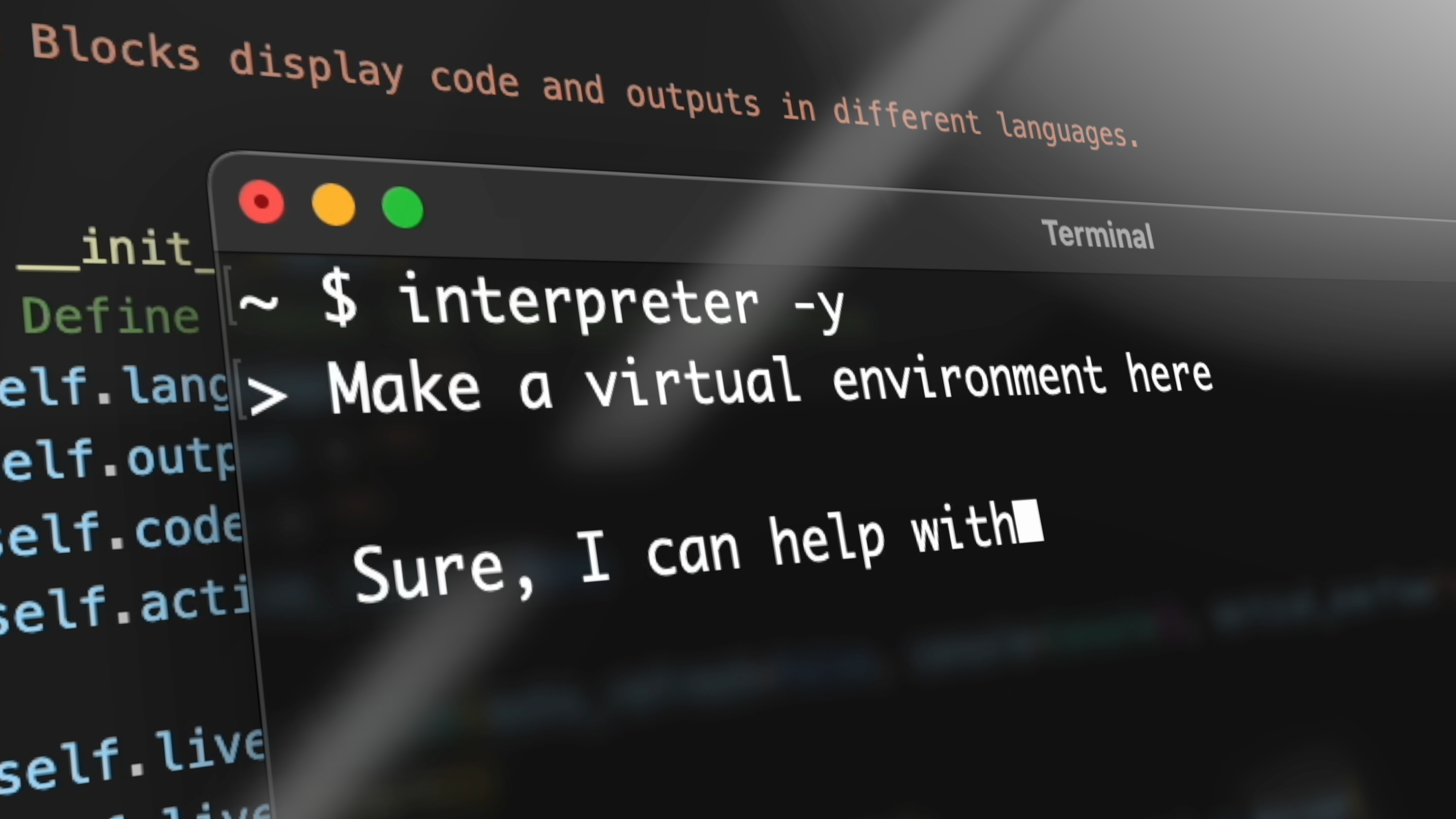
Open Interpreter lets LLMs run code (Python, Javascript, Shell, and more) locally. You can chat with Open Interpreter through a ChatGPT-like interface in your terminal by running $ interpreter after installing.
This provides a natural-language interface to your computer's general-purpose capabilities:
- Create and edit photos, videos, PDFs, etc.
- Control a Chrome browser to perform research
- Plot, clean, and analyze large datasets
- ...etc.
⚠️ Note: You'll be asked to approve code before it's run.
Demo
An interactive demo is also available on Google Colab:

Quick Start
pip install open-interpreter
Terminal
After installation, simply run interpreter:
interpreter
Python
import interpreter

interpreter.chat("Plot AAPL and META's normalized stock prices") # Executes a single command
interpreter.chat() # Starts an interactive chat
Comparison to ChatGPT's Code Interpreter
OpenAI's release of Code Interpreter with GPT-4 presents a fantastic opportunity to accomplish real-world tasks with ChatGPT.
However, OpenAI's service is hosted, closed-source, and heavily restricted:
- No internet access.
- Limited set of pre-installed packages.
- 100 MB maximum upload, 120.0 second runtime limit.
- State is cleared (along with any generated files or links) when the environment dies.
Open Interpreter overcomes these limitations by running on your local environment. It has full access to the internet, isn't restricted by time or file size, and can utilize any package or library.
This combines the power of GPT-4's Code Interpreter with the flexibility of your local development environment.
Commands
Interactive Chat
To start an interactive chat in your terminal, either run interpreter from the command line:
interpreter
Or interpreter.chat() from a .py file:
interpreter.chat()
Programmatic Chat
For more precise control, you can pass messages directly to .chat(message):
interpreter.chat("Add subtitles to all videos in /videos.")

# ... Streams output to your terminal, completes task ...

interpreter.chat("These look great but can you make the subtitles bigger?")

# ...
Start a New Chat
In Python, Open Interpreter remembers conversation history. If you want to start fresh, you can reset it:
interpreter.reset()
Save and Restore Chats
interpreter.chat() returns a List of messages when return_messages=True, which can be used to resume a conversation with interpreter.load(messages):
messages = interpreter.chat("My name is Killian.", return_messages=True) # Save messages to 'messages'
interpreter.reset() # Reset interpreter ("Killian" will be forgotten)

interpreter.load(messages) # Resume chat from 'messages' ("Killian" will be remembered)
Customize System Message
You can inspect and configure Open Interpreter's system message to extend its functionality, modify permissions, or give it more context.
interpreter.system_message += """
Run shell commands with -y so the user doesn't have to confirm them.
"""
print(interpreter.system_message)
Change the Model
For gpt-3.5-turbo, use fast mode:
interpreter --fast
In Python, you will need to set the model manually:
interpreter.model = "gpt-3.5-turbo"
Running Open Interpreter locally
ⓘ Issues running locally? Read our new GPU setup guide and Windows setup guide.
You can run interpreter in local mode from the command line to use Code Llama:
interpreter --local
Or run any Hugging Face model locally by using its repo ID (e.g. "tiiuae/falcon-180B"):
interpreter --model tiiuae/falcon-180B
Local model params
You can easily modify the max_tokens and context_window (in tokens) of locally running models.
Smaller context windows will use less RAM, so we recommend trying a shorter window if GPU is failing.
interpreter --max_tokens 2000 --context_window 16000
Azure Support
To connect to an Azure deployment, the --use-azure flag will walk you through setting this up:
interpreter --use-azure
In Python, set the following variables:
interpreter.use_azure = True
interpreter.api_key = "your_openai_api_key"
interpreter.azure_api_base = "your_azure_api_base"
interpreter.azure_api_version = "your_azure_api_version"
interpreter.azure_deployment_name = "your_azure_deployment_name"
interpreter.azure_api_type = "azure"
Debug mode
To help contributors inspect Open Interpreter, --debug mode is highly verbose.
You can activate debug mode by using it's flag (interpreter --debug), or mid-chat:
$ interpreter
...
> %debug true <- Turns on debug mode

> %debug false <- Turns off debug mode
Interactive Mode Commands
In the interactive mode, you can use the below commands to enhance your experience. Here's a list of available commands:
Available Commands:
• %debug [true/false]: Toggle debug mode. Without arguments or with 'true', it
enters debug mode. With 'false', it exits debug mode.
• %reset: Resets the current session.
• %undo: Remove previous messages and its response from the message history.
• %save_message [path]: Saves messages to a specified JSON path. If no path is
provided, it defaults to 'messages.json'.
• %load_message [path]: Loads messages from a specified JSON path. If no path
is provided, it defaults to 'messages.json'.
• %help: Show the help message.
Feel free to try out these commands and let us know your feedback!
Configuration with .env
Open Interpreter allows you to set default behaviors using a .env file. This provides a flexible way to configure the interpreter without changing command-line arguments every time.
Here's a sample .env configuration:
INTERPRETER_CLI_AUTO_RUN=False
INTERPRETER_CLI_FAST_MODE=False
INTERPRETER_CLI_LOCAL_RUN=False
INTERPRETER_CLI_DEBUG=False
INTERPRETER_CLI_USE_AZURE=False
You can modify these values in the .env file to change the default behavior of the Open Interpreter.
Safety Notice
Since generated code is executed in your local environment, it can interact with your files and system settings, potentially leading to unexpected outcomes like data loss or security risks.
⚠️ Open Interpreter will ask for user confirmation before executing code.
You can run interpreter -y or set interpreter.auto_run = True to bypass this confirmation, in which case:
- Be cautious when requesting commands that modify files or system settings.
- Watch Open Interpreter like a self-driving car, and be prepared to end the process by closing your terminal.
- Consider running Open Interpreter in a restricted environment like Google Colab or Replit. These environments are more isolated, reducing the risks associated with executing arbitrary code.
How Does it Work?
Open Interpreter equips a function-calling language model with an exec() function, which accepts a language (like "Python" or "JavaScript") and code to run.
We then stream the model's messages, code, and your system's outputs to the terminal as Markdown.
Contributing
Thank you for your interest in contributing! We welcome involvement from the community.
Please see our Contributing Guidelines for more details on how to get involved.
License
Open Interpreter is licensed under the MIT License. You are permitted to use, copy, modify, distribute, sublicense and sell copies of the software.
Note: This software is not affiliated with OpenAI.
Having access to a junior programmer working at the speed of your fingertips ... can make new workflows effortless and efficient, as well as open the benefits of programming to new audiences.
— OpenAI's Code Interpreter Release
1 maintainer

Metadata
1 maintainer
Release files for my-interpreter 0.1.8.1
For a detailed explanation of source distributions (sdists) and built distributions (wheels), please see the package formats documentation.
Source distribution (sdist)
| File | Size | Uploaded | |
|---|---|---|---|
| my_interpreter-0.1.8.1.tar.gz | 112.5 kB | Details |
Built distribution (wheel)
| File | Interpreter | ABI | Platform | Reset |
|---|---|---|---|---|
| my_interpreter-0.1.8.1-py3-none-any.whl | Python 3 | none | any | Details |
Total release size: 193.2 kB
Release files / my_interpreter-0.1.8.1.tar.gz
| Download URL | my_interpreter-0.1.8.1.tar.gz |
|---|---|
| Size | 112.5 kB |
| Tags | Source |
|
SHA-256 checksum How to use checksums |
8805b8eac0cf84a29006f0187b5bae7658ae89194d99b43d79a4d1af93e76a4a
|
|
BLAKE2b-256 checksum How to use checksums |
7470a18661b957d4f2663d3480142548e76c31244bf8659848f04e58593f750d
|
| Upload date | |
|
Uploaded using Trusted Publishing? What is trusted publishing? |
No |
| Uploaded via |
twine/4.0.2 CPython/3.11.5
|
Release files / my_interpreter-0.1.8.1-py3-none-any.whl
| Download URL | my_interpreter-0.1.8.1-py3-none-any.whl |
|---|---|
| Size | 80.7 kB |
| Tags | Python 3 |
|
SHA-256 checksum How to use checksums |
2e3e5a3f46e6624021c7968f5d641e49fe25e192bf81e21c5aee6109e20a4a32
|
|
BLAKE2b-256 checksum How to use checksums |
bacfcb4ecda46d1d95e4c1d6db22407b31b3e2682fba49f841b13ba70555b2b4
|
| Upload date | |
|
Uploaded using Trusted Publishing? What is trusted publishing? |
No |
| Uploaded via |
twine/4.0.2 CPython/3.11.5
|














