
Lightweight photo and video viewer with editing, PDF export and plugins.
Verified details
These details have been verified by PyPIProject links
GitHub Statistics
Maintainers

Project description
myImages
A lightweight desktop viewer, editor and converter for photos and videos, built with PySide6. It looks like a compact, dark, icon-driven gallery (a close cousin of the sibling myPhotos project) but adds a tool panel, inline image editing, PDF/GIF export and preview, duplicate finding, batch rename and a plugin system.
The runtime core is deliberately tiny — PySide6 + Pillow. Everything else (ffmpeg for video, trash support, HEIC) is optional and can be installed from inside the app.
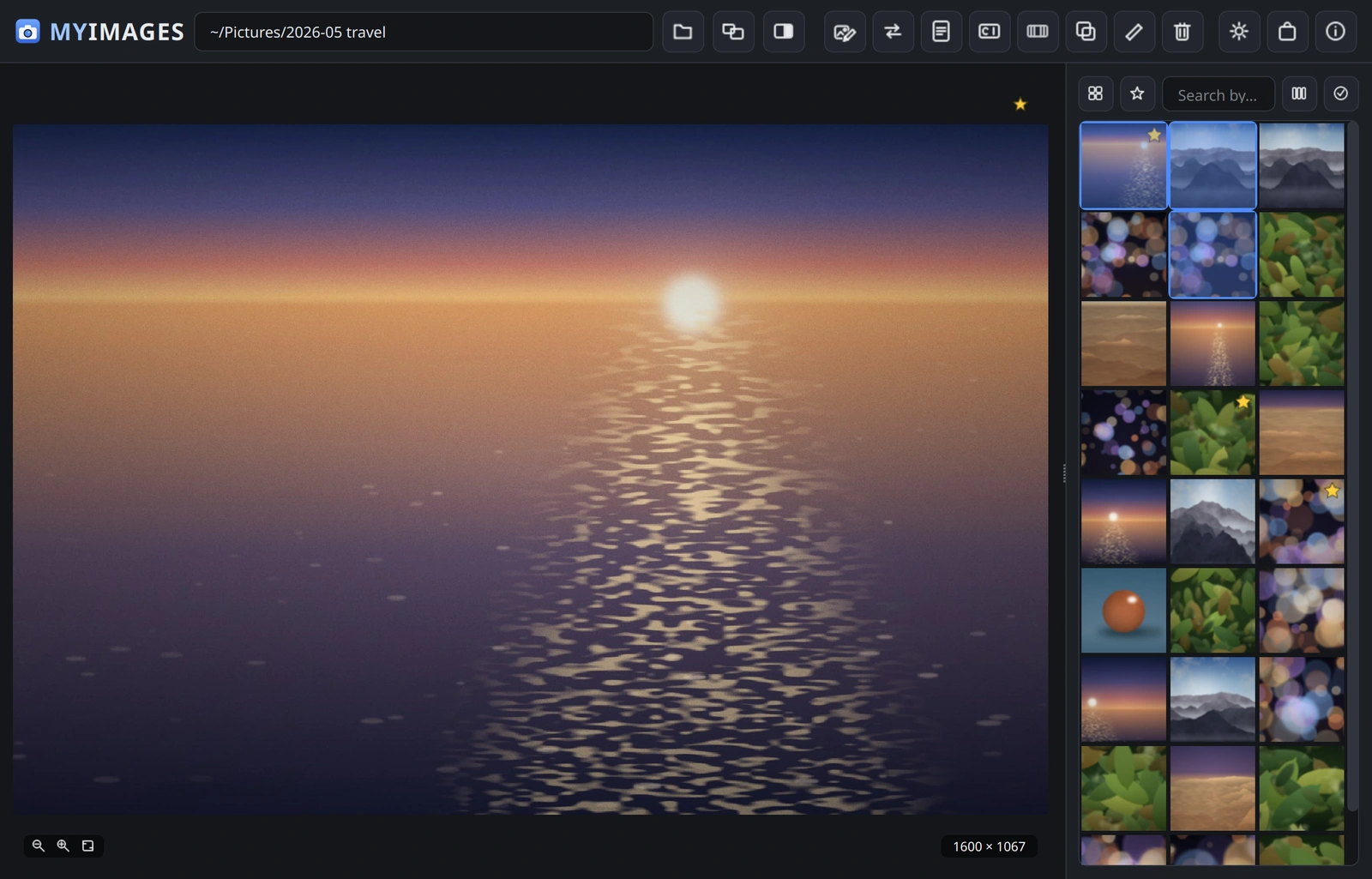
Cropping to a locked shape, and cutting a background away by hand:
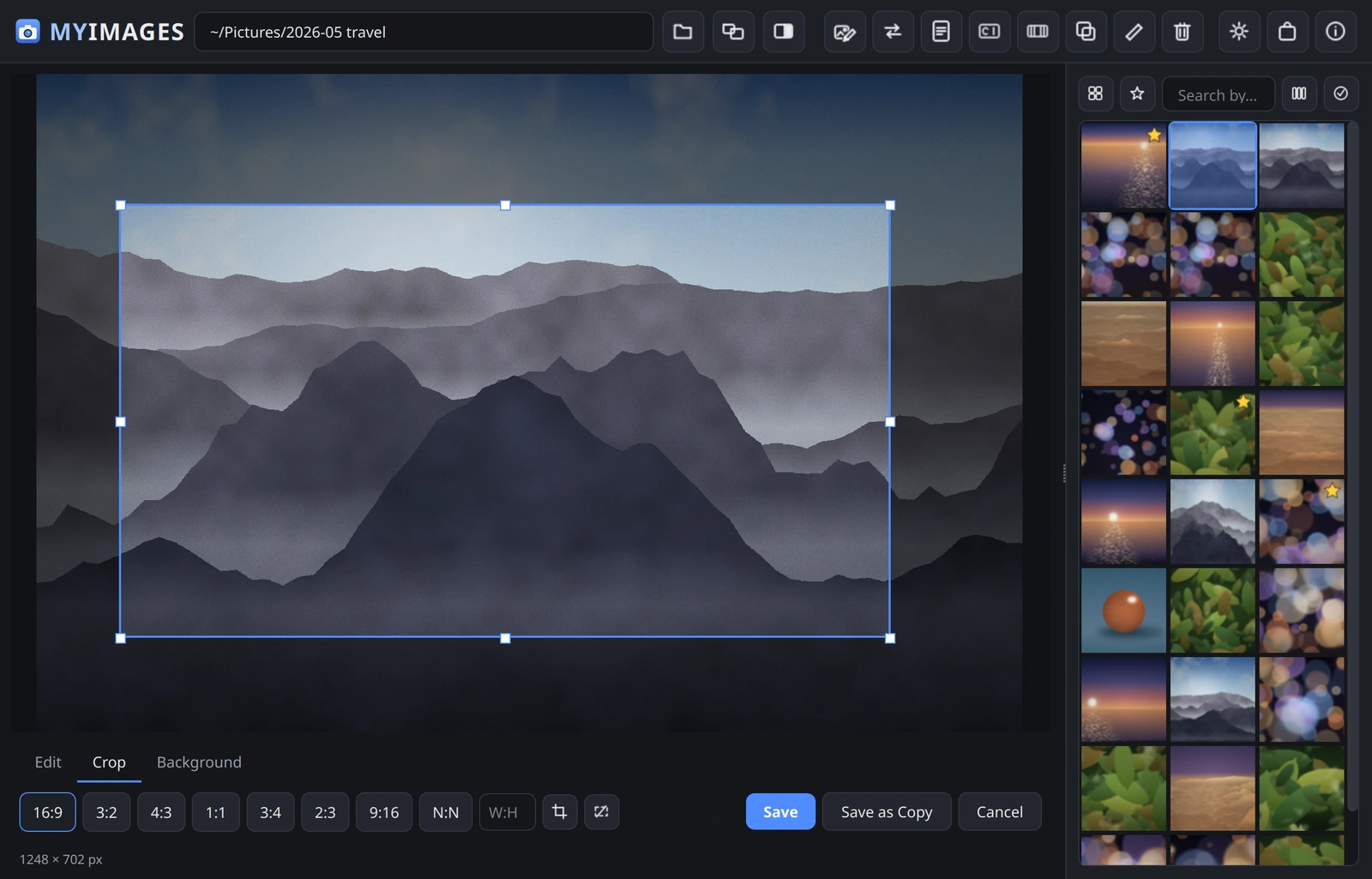
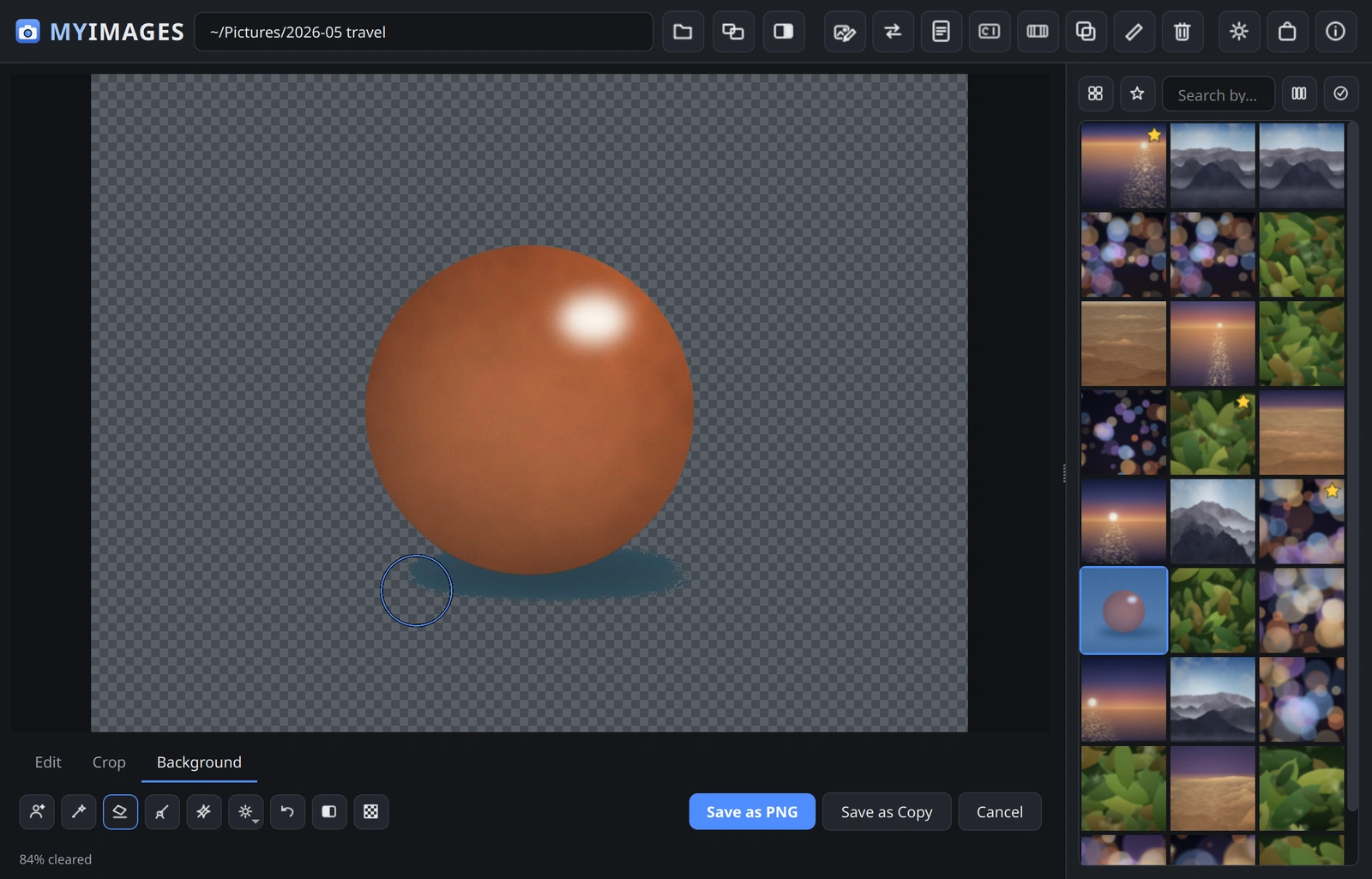
Regenerate these with python scripts/make_demo_shots.py — they are grabbed
from the real application against a folder of sample photographs the script
paints, so they cannot drift away from what it actually looks like.
Features
- Browse a folder, optionally including its sub-folders. The list keeps itself up to date when files are added, deleted or edited by other programs, and only the thumbnails that actually changed are rebuilt.
- Preview photos with fit / wheel-zoom / pan, and videos with Qt Multimedia (falls back to a note + the video tools when the backend is absent).
- Navigate with ←/→ or the mouse wheel; Ctrl+wheel zooms and never zooms out past the fit-to-window size.
- File list on a panel that can sit on either side: three views (thumbnail grid, plain names, or a sortable table with clickable headers), a name-search box, favourites (F, shown as a star), and multi-select. Its width is set in whole thumbnail columns — one to four — so the grid always fills the panel instead of leaving a ragged strip of empty space.
- Edit images inline under the preview (double-click a thumbnail, or the pencil icon), in three panes: Edit rotates, mirrors and resizes, Crop locks the box to a shape and applies it, Background cuts the subject out and lifts watermarks. Then Save (overwrite) or Save as Copy; plus format conversion (JPEG/PNG/WebP/BMP/TIFF/GIF) and colour → black & white.
- Resize for print, not only in pixels. Give the page size in inches and the resolution the printer asked for and the pixel count follows — a KDP cover at 8.625 × 11.25 in and 300 dpi is 2588 × 3375 px, and the dialog says what the picture you have comes to across that page, so a file that will print at 127 dpi says so before it is sent. The chosen resolution is written into the file.
- Remove a watermark: the badge generators stamp into a corner is detected and painted over with its surroundings. Draw a selection first to clean a mark anywhere else. The result opens in the editor, so nothing is written until you approve it.
- Remove the background: switch the editor to Cut out (or use the wand
on the toolbar). The first control finds the subject with a model and clears
everything else in one press; it needs the optional
bgremoveextra and a one-off download, and the app offers both when you press it. The result is just another step in the edit list, so Undo removes it and the hand tools below correct whatever it got wrong. Click a colour with the magic wand to clear its region, drag the eraser to take more away and the restore brush to paint the picture back, and soften the edge. Hold Compare to see the original, and cycle the backdrop between a checkerboard, white, black and magenta to spot a leftover fringe. Every step is undoable one at a time. Saving over a JPEG writes a PNG beside it, since a JPEG cannot hold transparency; the button says so before you press it. - Right-click a photo or a thumbnail for Copy File, Copy Filename, Copy Picture, Delete, Rename, Select, Edit Image, Rotate, Convert, Remove Watermark and Remove Background. Rename here renames that one file; the toolbar keeps the pattern-based batch rename for a whole selection.
- Images → PDF: combine a selection into one PDF with control over page quality, maximum edge and greyscale, plus an optional target file size the builder meets by lowering quality automatically.
- Video tools (via ffmpeg): trim on a timeline, crop the sides, scale, and export a GIF of the trimmed range.
- GIF from frames: build an animated GIF from several selected images.
- Find duplicates: exact (content hash) and visually similar (perceptual hash, adjustable) with one-click bulk delete of the extras.
- Batch rename with a filename mask and a live preview (one file at a time is the plain box on the right-click menu).
- Delete to the system trash when Send2Trash is installed.
- Plugins: drop a
*.pyviewer into the plugins folder to preview new file types (a 3D-model example ships inmyimages/plugins/). - Themes (dark/light), remembered layout, on-disk thumbnail cache.
- Desktop integration (Settings → Desktop): add myImages to the application
menu and make it the default for the photo and video types it opens. Both
install into your own
~/.local/share, need no root, and can be undone from the same place. Opening a photo from a file manager loads its whole folder, so you can step through the gallery from there.
Run from source
Requires Python 3.10+ and (for video features) ffmpeg on the PATH.
python3 -m venv .venv && source .venv/bin/activate
pip install -e .
python main.py          # or: myimages
main.py in the repository root is just a thin shell around
myimages.app.main; all the real code lives in the myimages package.
Pressing Ctrl+C in the launching terminal closes the app the normal way, so
the window layout and settings are still saved on the way out.
Optional features
Open Optional features (the puzzle icon) in the app to see what is missing and install the Python ones (Send2Trash, pillow-heif) with a click. ffmpeg is a system tool — install it with your package manager:
sudo apt install ffmpeg
Develop
pip install -e ".[dev,trash,heif]"
pre-commit install
make check          # ruff + mypy + pytest (>90% coverage gate)
Individual gates: make lint, make typecheck, make test, make format.
The code style is strict on purpose: ruff, black, mypy --strict,
self-documenting names (no leading-underscore identifiers) and a docstring on
every public function. The pure logic (imaging, video, scanning, dedup, rename)
is fully unit-tested; the PySide6 UI is tested offscreen with pytest-qt.
Build a package
pip install pyinstaller
make deb        # -> myimages_<ver>_<arch>.deb   (installs under /opt/myimages)
make appimage   # -> myImages-<ver>-x86_64.AppImage
Both freeze the application with PyInstaller from one shared spec
(packaging/myimages.spec) and wrap the result, so each artifact carries its
own Python and needs none on the machine it lands on. They also carry the
segmentation runtime, because a packaged build cannot pip-install into itself;
the model weights are still fetched on first use. Only the Qt system libraries
are expected from the host, and the Debian package declares them.
On Windows, pwsh -File packaging/build_windows.ps1 produces
myImages-<ver>-windows-x64.zip. Unpack it anywhere and run myimages.exe;
everything the app keeps lives under %USERPROFILE%\.myimages, so deleting the
folder removes it completely.
The Windows build is unsigned, so SmartScreen shows "Windows protected your PC" the first time. Choose More info, then Run anyway. Signing needs a certificate that now requires hardware or a cloud signing service; it is not worth it for this project yet.
On macOS, bash packaging/build_macos.sh produces
myImages-<ver>-macos-<arch>.dmg. Open it and drag the app to Applications.
Apple Silicon and Intel are separate images: there is no universal2 build of
PySide6, so each architecture is built on its own machine.
The macOS build is ad-hoc signed but not notarised, so a copy downloaded through a browser is quarantined and Gatekeeper reports it as damaged. Clear the quarantine flag once:
xattr -dr com.apple.quarantine /Applications/myImages.app
Since macOS 15 the old right-click → Open bypass no longer works for unsigned apps, so this is the way. Proper signing needs an Apple Developer account; it is not worth it for this project yet.
FFmpeg is not bundled — the prebuilt binaries are GPL, which would change the
licence of the whole distribution. It stays a Recommends, and the app names
the right install command for the platform you are on.
Project layout
| Path | Purpose |
|---|---|
main.py |
Shell entry point (python main.py) |
myimages/app.py |
QApplication bootstrap: logging, theme, plugins |
myimages/config.py |
JSON-backed settings model |
myimages/theme.py, icons.py |
Dark/light theme and painted vector icons |
myimages/core/ |
Media model, scanning, thumbnails, dedup, rename, deletion, folder watching, plugins, dependencies |
myimages/imaging/ |
Convert, transform (crop/scale/rotate/grey), PDF |
myimages/video/ |
ffmpeg wrapper, trim, crop/scale, GIF |
myimages/gui/ |
PySide6 window, panels, viewers and tool dialogs |
myimages/plugins/ |
Bundled example plugins (3D model info) |
tests/ |
Pytest suite (offscreen, synthetic assets) |
packaging/ |
.deb / AppImage build scripts and .desktop |
See the roadmap for the plugin API and planned work.
Storage
Everything the app persists lives under ~/.myimages/:
settings.json— all preferences and favourites,thumbnails/— the on-disk thumbnail cache,plugins/— drop your own*.pyviewer plugins here.
Point MYIMAGES_DATA_DIR elsewhere to relocate all of it (the test suite uses
this to stay isolated).
Watching the folder
While a folder is open the app follows changes made to it elsewhere. A check reads the directory listing only — never the pictures — so it stays cheap: a folder of 3 000 photos (428 MB) costs about 114 ms per check, on a worker thread, every 10 s by default. The operating system also reports changes instantly, so the timer is only a safety net for network shares.
Optionally (Settings → Also verify file checksums) a handful of files per
check are also md5-summed. That catches a file rewritten without changing
its size or date, which no amount of stat-ing can see. Only a small
rotating batch is hashed per pass, so the whole folder is still covered over
time without ever re-reading every photo at once — hashing 3 000 photos in
one pass would cost roughly 0.9 s and 428 MB of reads.
Project details
Verified details
These details have been verified by PyPIProject links
GitHub Statistics
Maintainers
Release history Release notifications | RSS feed


Download files
Download the file for your platform. If you're not sure which to choose, learn more about installing packages.
Source Distribution
Built Distribution
Filter files by name, interpreter, ABI, and platform.
If you're not sure about the file name format, learn more about wheel file names.
Copy a direct link to the current filters
File details
Details for the file myimages-0.0.3.tar.gz.
File metadata
- Download URL: myimages-0.0.3.tar.gz
- Upload date:
- Size: 241.8 kB
- Tags: Source
- Uploaded using Trusted Publishing? Yes
- Uploaded via: twine/7.0.0 CPython/3.13.14
File hashes
| Algorithm | Hash digest | |
|---|---|---|
| SHA256 |
b2e2c1c50da0c30ce23cf2769a7d4723e40edb9db28a5d610bafc6f4c47abec4
|
|
| MD5 |
4d93a7d236442aff20ed88c3c9ac2a6d
|
|
| BLAKE2b-256 |
e844d9397cfeef2176a952a50d59b95d27ec29f817ca478c5ad3cef53a6cf261
|
Provenance
The following attestation bundles were made for myimages-0.0.3.tar.gz:
Publisher:
publish.yml on wachawo/myimages
-
Statement:
-
Statement type:
https://in-toto.io/Statement/v1 -
Predicate type:
https://docs.pypi.org/attestations/publish/v1 -
Subject name:
myimages-0.0.3.tar.gz -
Subject digest:
b2e2c1c50da0c30ce23cf2769a7d4723e40edb9db28a5d610bafc6f4c47abec4 - Sigstore transparency entry: 2341304290
- Sigstore integration time:
-
Permalink:
wachawo/myimages@6243c5da72e3034725ef02713ef8668f7c94e20f -
Branch / Tag:
refs/tags/v0.0.3 - Owner: https://github.com/wachawo
-
Access:
public
-
Token Issuer:
https://token.actions.githubusercontent.com -
Runner Environment:
github-hosted -
Publication workflow:
publish.yml@6243c5da72e3034725ef02713ef8668f7c94e20f -
Trigger Event:
release
-
Statement type:
File details
Details for the file myimages-0.0.3-py3-none-any.whl.
File metadata
- Download URL: myimages-0.0.3-py3-none-any.whl
- Upload date:
- Size: 161.8 kB
- Tags: Python 3
- Uploaded using Trusted Publishing? Yes
- Uploaded via: twine/7.0.0 CPython/3.13.14
File hashes
| Algorithm | Hash digest | |
|---|---|---|
| SHA256 |
646a08f99176d658d66bc67d26bbbabea1ff068a9185200a6ac8c73c4c37d491
|
|
| MD5 |
00df23d3dc176247a4a8de6f97ea8b2f
|
|
| BLAKE2b-256 |
05b2e887974efb0564cf51f843847dab780bad078d5ad57c121b55367cec62ec
|
Provenance
The following attestation bundles were made for myimages-0.0.3-py3-none-any.whl:
Publisher:
publish.yml on wachawo/myimages
-
Statement:
-
Statement type:
https://in-toto.io/Statement/v1 -
Predicate type:
https://docs.pypi.org/attestations/publish/v1 -
Subject name:
myimages-0.0.3-py3-none-any.whl -
Subject digest:
646a08f99176d658d66bc67d26bbbabea1ff068a9185200a6ac8c73c4c37d491 - Sigstore transparency entry: 2341304294
- Sigstore integration time:
-
Permalink:
wachawo/myimages@6243c5da72e3034725ef02713ef8668f7c94e20f -
Branch / Tag:
refs/tags/v0.0.3 - Owner: https://github.com/wachawo
-
Access:
public
-
Token Issuer:
https://token.actions.githubusercontent.com -
Runner Environment:
github-hosted -
Publication workflow:
publish.yml@6243c5da72e3034725ef02713ef8668f7c94e20f -
Trigger Event:
release
-
Statement type:






