
synology-search-agent
English | 日本語
Let AI agents search your Synology NAS. An MCP server and CLI that searches the existing Universal Search index (file names and full text) of a Synology NAS over SSH and returns JSON.
- MCP server or CLI.
nas-search-mcpofferssearchandstatusas MCP tools for MCP apps;nas-searchis the same search as a command. - No sudo, no root. It runs as a normal DSM user.
- Two-factor authentication (OTP) stays on. It never turns it off.
- Read-only. It never changes files, the index or shared folders.
- Runs on the Python 3.8+ standard library only (no extra packages).
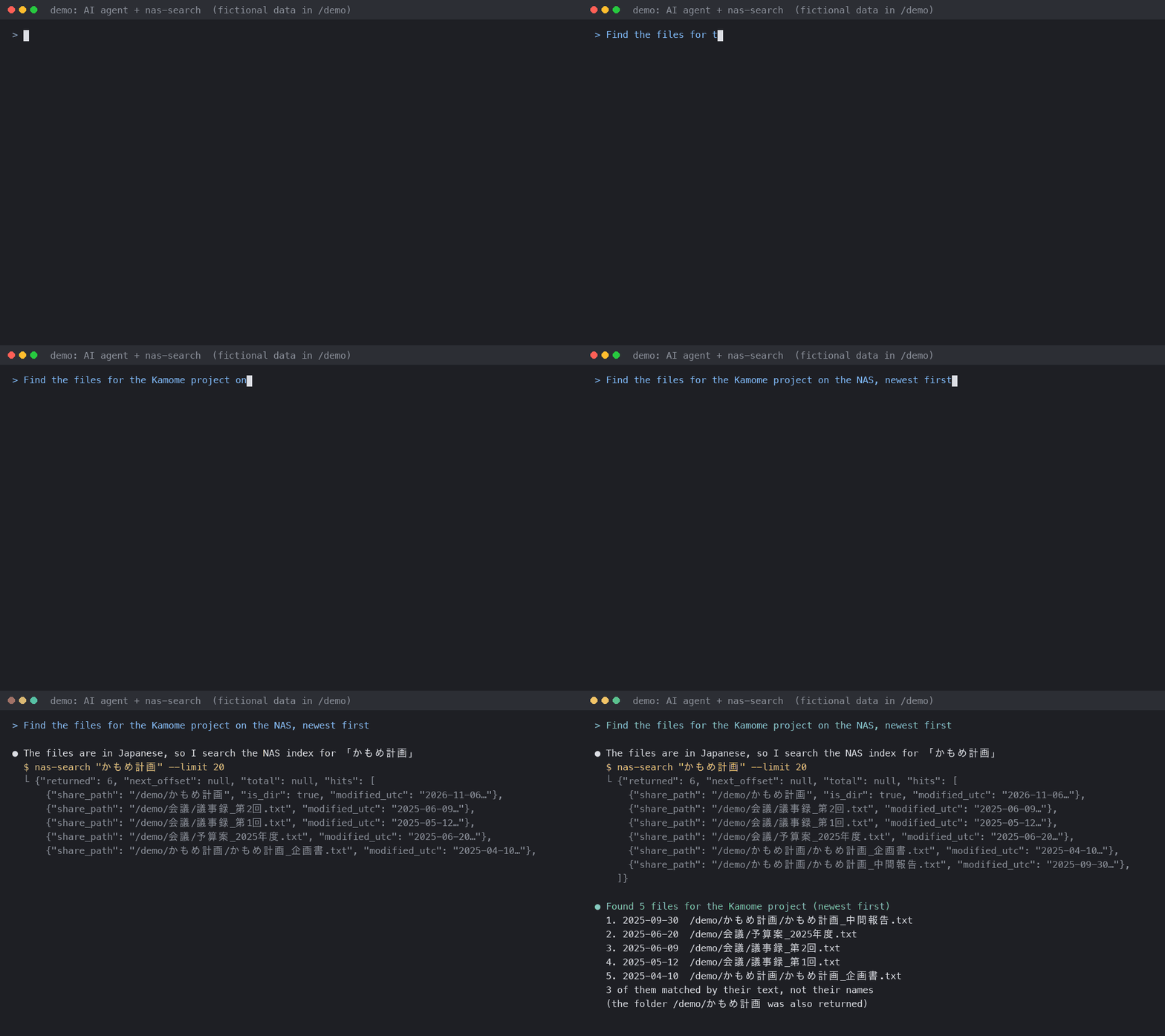
Use it as an MCP server
On the machine where the AI agent runs (macOS or Linux, Python 3.8+), install the package from PyPI, or run it without installing through uv:
pipx install nas-search-mcp      # installs nas-search-mcp and nas-search
uvx nas-search-mcp --version     # or run it with uvx, no install
Tell it where the NAS is, in ~/.config/unisearch/client.conf (or the environment variables UNISEARCH_HOST and UNISEARCH_KEY):
host=<ssh-user>@<nas-host>
key=~/.ssh/unisearch_agent
lang=en
Then register it in your MCP app. Claude Code:
claude mcp add nas-search -- uvx nas-search-mcp
Apps with a JSON config (Claude Desktop, Cursor and others):
{
  "mcpServers": {
    "nas-search": { "command": "uvx", "args": ["nas-search-mcp"] }
  }
}
Desktop apps may not see your shell's PATH. If the app cannot start it, write the full path of uvx (from which uvx) as command.
| Tool | What it does |
|---|---|
search |
Search by file name and document text. Arguments: query, limit (1-100), offset, max_results (pages automatically, up to 1,000). Returns the JSON below |
status |
The search session: time left, allowed folders, number of searches, last error |
Both are read-only. The server only starts nas-search and passes its JSON on; it sends long searches' progress when the app asks for it, and stops a search when the app cancels it.
The MCP server is the agent's side only. The NAS needs a one-time setup (Before you start and docs/agent-setup.md): place unisearch on the NAS, give the agent a search-only SSH key, and have a person start a search session with the DSM password and OTP. Without a session, the tools return exit code 8 (session_required).
Why
find and grep walk the files on every search. A file-name search can be fast enough, but a full-text search over a large share is not practical. Synology Universal Search already keeps an index that includes file contents, but there is no public way to use it from a program.
This tool does not build a new index. It lets an AI agent use the Universal Search index that already exists. The agent gets only short candidates (name, path, size, date) and opens only the files it needs. It hands the agent the ability to search, and nothing else: no root, no sudo, no shell.
The idea that this API can be called came from atkaper/synology-universal-search-cli (2021). No code from that project is used here (it has no license); only the fact that the API exists and can be called.
The background story (in Japanese) is in docs/background.md.
Tested environment
- Synology DS225+, DSM 7.4.1 (build 90080), Python 3.8.15 on the NAS
- Status: beta. A search session was checked to keep working for about 25 hours (not yet to the end of 90 days). Other models and DSM versions are not verified yet
- What was checked on the device: docs/verification.md (Japanese)
On other models and DSM versions, run --check-api first to see whether the API is there.
How it fits together
AI agent ──ssh (search-only key)──▶ NAS: unisearch --agent-gateway
  nas-search                                │ (UNIX socket)
                                            ▼
                               search session (started by a person with OTP)
                                            │
                                            ▼
                               DSM Web API (127.0.0.1:5001)
| File | Role |
|---|---|
unisearch |
Runs on the NAS. Interactive search, the search session, and the SSH entry point |
clients/nas-search |
Runs on the agent's machine. Builds the ssh call and returns the result |
clients/nas-search-mcp |
Offers the same search as MCP tools (search, status); runs nas-search inside |
skills/nas-search/SKILL.md |
Instructions for agents (Claude Code skill format) |
scripts/remote-run.sh |
Try the CLI without placing any file on the NAS |
Before you start (on the NAS)
-
Make the NAS reachable from the agent over SSH. The author uses Tailscale and does not expose the NAS to the internet. The tool itself does not need Tailscale; any SSH path works. Do not expose the NAS's SSH port to the internet.
-
Check the API. After placing the CLI on the NAS (step 1 of docs/agent-setup.md), run
~/.local/bin/unisearch --check-apion the NAS. No login is needed. It returns"ok": truewhen the needed APIs exist in a supported version. It does not check the contents of the index or whether a search works. -
Check Universal Search (if
--check-apifails). On DSM 7, Universal Search is normally preinstalled as a built-in package that cannot be removed from Package Center. Synology does not officially state that it is present on every model, though. Look for "Universal Search" in Package Center → Installed and make sure it is running. If it is missing, install it from Package Center. -
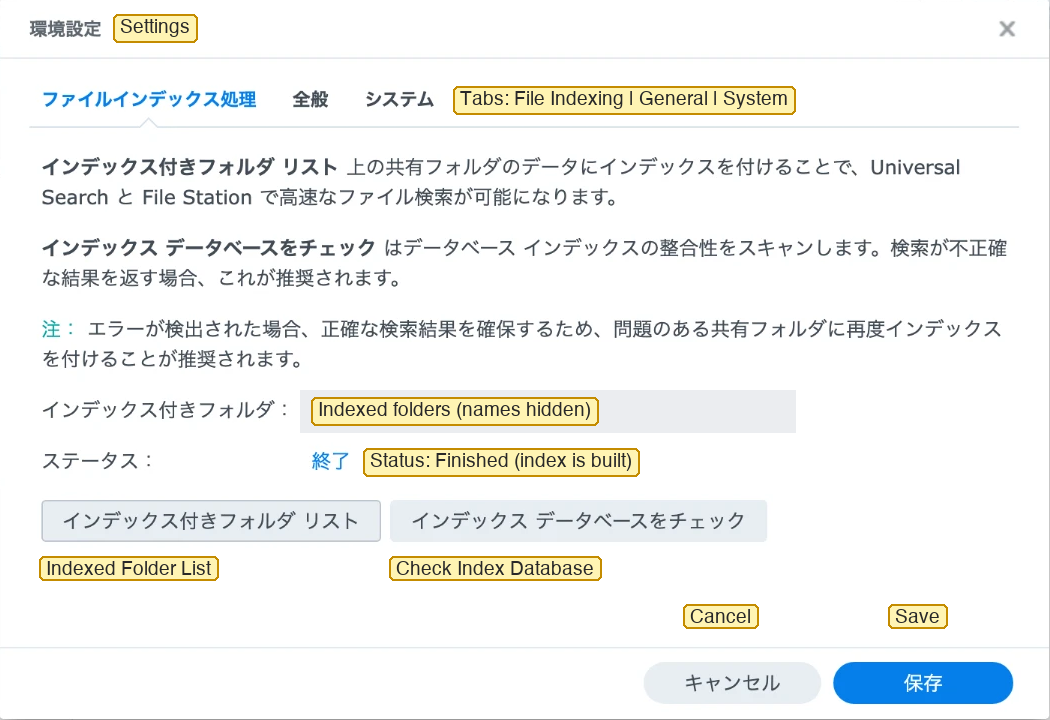
Choose the shared folders to index. In Universal Search, open settings (gear icon, top right) → File Indexing → Indexed Folder List, and add the folders you want to search. If you add none, no index is built and searches return nothing. Synology's help says files in folders that are not indexed do not appear in results, and that folders used through File Station or SMB must be added by hand (File Indexing). To search inside documents, choose "File content indexing".
The screenshot is from a Japanese DSM; the yellow English labels were added. The text in the middle says that the folders in Indexed Folder List are indexed for Universal Search and File Station, and that Check Index Database scans the index when search results look wrong.
-
Create a search-only DSM account. Not an administrator, with two-factor authentication, and with read access only to the shared folders you want searched. Be careful with
homes: if the account can read it, every user's home folder shows up in results. -
Try a search. Use the interactive search in Usage step 1 and check that files in the indexed folders are found.
A result of 0 hits in a folder that is not indexed does not mean the file is not there. External USB/SD drives, remote folders and cloud folders are not searched by Universal Search (Universal Search).
Usage
1. Interactive search (for people)
ssh -t <ssh-user>@<nas-host> '~/.local/bin/unisearch "test" --limit 5'
ssh -t <ssh-user>@<nas-host> '~/.local/bin/unisearch "test" --limit 20 --json'
You type the DSM user name, password and OTP in the terminal. Each run logs in and logs out.
2. From an AI agent
- A person starts a search session on the NAS and types the password and OTP. The session lasts 8 hours by default (1 minute to 90 days). When it ends, a person starts it again. DSM kept the login alive for about 25 hours in our test; longer periods are not verified yet.
- The agent calls
nas-search "<query>"with its search-only SSH key. No password or OTP is needed.
nas-search "test" --limit 20
nas-search --status
For MCP apps, see Use it as an MCP server. Without PyPI, copy clients/nas-search and clients/nas-search-mcp into the same folder and start the server with python3 <folder>/nas-search-mcp.
Setup steps are in docs/agent-setup.md (Japanese; the commands in it can be used as they are).
Output
One JSON line on stdout:
{"schema_version": 1, "query": "test", "offset": 0, "limit": 20, "total": null,
 "returned": 20, "next_offset": 20, "has_error": false, "unavailable": null,
 "hits": [{"name": "test.pdf", "share_path": "/archive/Drive/test.pdf",
           "path": "/volume1/archive/Drive/test.pdf", "extension": "pdf",
           "size": 12345, "is_dir": false, "modified": 1396685721,
           "modified_utc": "2014-04-05T08:15:21Z", "readable": true}]}
totalis alwaysnullwhen results are limited to allowed folders, so the number of out-of-scope hits is never revealed. Usenext_offset(notnull) to tell whether more results exist.- Pages are consistent while the index does not change. If files are added or removed between pages, a page can repeat or skip results (on the device, deleting files shown on an earlier page skipped the same number of later results). Deduplicate by
share_path.
Errors are one JSON line on stderr: {"error": {"type", "message", "exit_code"}}.
| Exit code | Meaning |
|---|---|
| 0 | Success (0 hits is possible) |
| 1 | Unexpected internal error (internal) |
| 2 | Usage or settings error (usage, config) |
| 3 | Login failed (auth, interactive search) |
| 4 | Search API error (api), or scan_limit (too many out-of-scope results; call again to continue) |
| 5 | Connection failed or no response in time (network on the NAS, ssh from nas-search) |
| 6 | Unexpected response format (response; the API may have changed) |
| 7 | No terminal for interactive input (no_tty) |
| 8 | No search session, or it has ended (session_required): ask a person to start one |
| 9 | A search session is already running (session_running), or the state folder is wrong (state) |
| 130 | Interrupted with Ctrl-C (interrupted) |
The full specification (options, fields, exit codes, settings) is in docs/cli-spec.md (Japanese).
Security design
- Passwords, OTPs and SIDs are never written to files or logs. The SID lives only in the memory of the search session.
- Only the owner can talk to the search session: a UNIX socket with mode 0600.
- The agent's key is limited by
restrict,command=inauthorized_keys. It can only search: no shell, no port forwarding. - The search scope is limited twice. The main guard is DSM's shared-folder permissions; the CLI's
--allow-prefixis a second layer. When results are limited, the out-of-scope count is not shown. - Use a search-only DSM account (not an administrator, with two-factor authentication).
The design discussion (Japanese) is in docs/design-noninteractive-auth.md.
Settings files
Timing values can be changed in settings files. Order of precedence: command-line options > settings file > defaults. Safety limits (for example, a session lasts at most 90 days) are fixed in the code. Passwords, OTPs and SIDs cannot be written in settings files.
| Where | File | Main settings |
|---|---|---|
| NAS | ~/.config/unisearch/server.conf |
Session length, keepalive, timeouts, language |
| Agent's machine | ~/.config/unisearch/client.conf |
Host, key, wait time, language |
For English messages, write lang = en in both files (on the agent's machine, UNISEARCH_LANG=en also works). Messages from a search session that is already running stay in the language it started with. JSON keys, error.type and exit codes are the same in every language.
Tests
The tests use only the standard library and do not need a NAS.
python3 -m unittest discover -s tests -v
The steps for checking on a real NAS are in docs/nas-verification.md (Japanese).
See also
- atkaper/synology-universal-search-cli: an earlier command-line tool that calls the Universal Search API from a shell. It is what started this project.
Changes and security
- Changelog: CHANGELOG.md
- Reporting security problems: SECURITY.md
License
1 maintainer

Metadata
1 maintainer
Release files for nas-search-mcp 0.6.0
For a detailed explanation of source distributions (sdists) and built distributions (wheels), please see the package formats documentation.
Source distribution (sdist)
| File | Size | Uploaded | Provenance | Actions |
|---|---|---|---|---|
| nas_search_mcp-0.6.0.tar.gz | 18.7 kB | Without provenance | Details for nas_search_mcp-0.6.0.tar.gz |
Built distribution (wheel)
| File | Interpreter | ABI | Platform | Actions Reset |
|---|---|---|---|---|
| nas_search_mcp-0.6.0-py3-none-any.whl | Python 3 | none | any | Details for nas_search_mcp-0.6.0-py3-none-any.whl |
Total release size: 39.9 kB
Release files / nas_search_mcp-0.6.0.tar.gz
| Download URL | nas_search_mcp-0.6.0.tar.gz |
|---|---|
| Size | 18.7 kB |
| Tags | Source |
|
SHA-256 checksum How to use checksums |
8e39d8562c696e2b994e960ecaa2f405b0ff466b4ddfc1315c5a66415a14121b
|
|
BLAKE2b-256 checksum How to use checksums |
a0c4be6a869e91b7a7641e6076e21993b75ba6bb4ff3c6651f60b4885e9efa6e
|
| Upload date | |
|
Uploaded using Trusted Publishing? What is trusted publishing? |
Yes |
| Uploaded via |
twine/7.0.0 CPython/3.12.16
|
Release files / nas_search_mcp-0.6.0-py3-none-any.whl
| Download URL | nas_search_mcp-0.6.0-py3-none-any.whl |
|---|---|
| Size | 21.2 kB |
| Tags | Python 3 |
|
SHA-256 checksum How to use checksums |
bde2f3ec187892941f12a54f35394a6b374df6e40604823d4673f211bf766796
|
|
BLAKE2b-256 checksum How to use checksums |
d7a26f1f2738b76dc6911627ea9f57d075a7b2bc22df3038df035938902573e6
|
| Upload date | |
|
Uploaded using Trusted Publishing? What is trusted publishing? |
Yes |
| Uploaded via |
twine/7.0.0 CPython/3.12.16
|
Security for nas-search-mcp 0.6.0
Provenance
Provenance describes where a file came from. On PyPI, provenance is shared via attestations, which provide a verifiable record of the build or publishing details. View details, limitations and caveats.
No provenance found
None of the files in this release were uploaded with provenance metadata.
A note on package security
PyPI is a repository for distributing packages, not a service for auditing them. While third-party security researchers and our staff do their best to detect and remove malicious packages, PyPI cannot guarantee the quality, security or suitability of any given package.
To learn more about protecting yourself from malicious actors, visit our package security documentation.













