
NavamAI enhances your craft with personal, fast, and quality AI. Turn your Terminal or Shell into a rich personal AI. Supports 10 GenAI models by 5 providers. Pairs with Markdown, VS Code, Obsidian.

Project description
NavamAI enhances your craft with AI
NavamAI enhances your craft with personal, fast, and quality AI. Turn your Terminal or Shell into a rich personal AI. Supports 10 GenAI models by 5 providers. Pairs with Markdown, VS Code, Obsidian.
You can switch private models or hosted frontier LLMs with ease. NavamAI comes with configurable support for more than 10 leading models (GPT 4o, Sonnet 3.5, Gemini 1.5 Pro, Mistral NeMo...) from five providers (Ollama, Anthropic, OpenAI, Groq, Google).
NavamAI works with markdown content (text files with simple formatting commands). So you can use it with many popular tools like VS Code and Obsidian to quickly and seamlessly design a custom workflow that enhances your craft.
NavamAI is very simple to use out of the box as you learn its handful of powerful commands. As you get comfortable you can customize NavamAI commands simply by changing one configuration file navamai.yml and align NavamAI to suit your workflow. Everything in NavamAI has sensible defaults to get started quickly. When you are ready, everything is configurable and extensible including commands, models, providers, prompts, model parameters, folders, and document types.
Quick Start
Go to a folder where you want to initialize NavamAI. This could be your Obsidian vault or a VC Code projct folder or even an empty folder.
pip install navamai
navamai init # copies config file, quick start samples
navamai ask "what is the distance between Earth and Moon?"
NavamAI Expands Your Content
Using NavamAI with few simple commands in your Terminal you can create a simple yet powerful personal AI content manager with your Markdown tool of choice like Obsidian or VS Code. For example, you can write partial blogs posts, write your seed ideas, start with a list of intents and prompts, or capture partial notes from a lecture where you were slightly distracted.
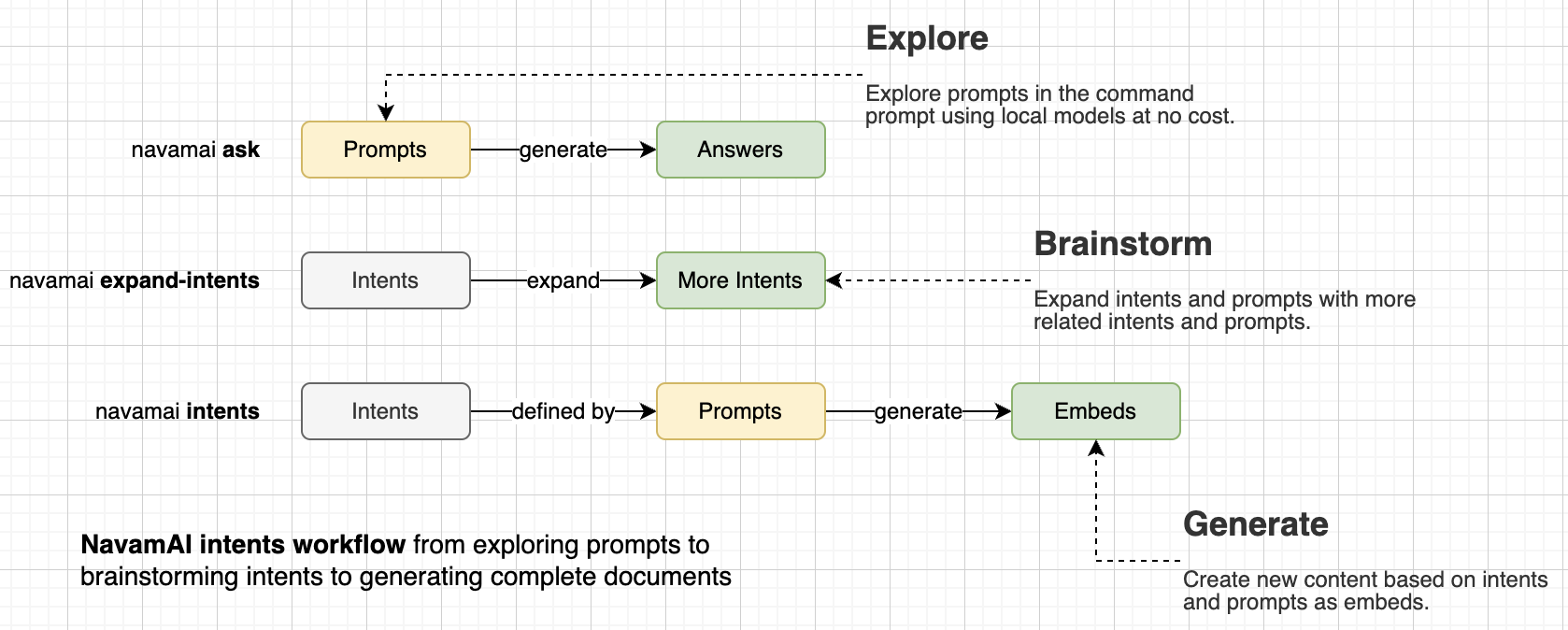
Then you can use navamai expand command in conjunction with custom expand-section configs within navamai.yml to expand this partial, incomplete, or seed content into complete posts, notes, articles, prompt templates, and even well-researched papers. You can experiment with choice of models and providers, tune model settings in the config by document type, define custom folders for your content, and specify document specific system prompts to get exactly the outcome you desire based on the type of the document. You just have to remember one simple command navamai expand and you are all set.
As a quick example, check out the Posts folder with sample partially written post on startup growth strategies. Now view the related config section within navamai.yml for expanding posts.
expand-post:
  lookup-folder: Posts
  max-tokens: 4000
  model: sonnet
  provider: claude
  save: true
  save-folder: Posts
  system: You will be given a partially written blog post on a topic.
    Your job as an expert blog writer is to expand the post...
  temperature: 0.5
Please note that for brevity we are not listing the complete system prompt here. You can obviously change it to suit your workflow. For now, just run navamai expand post "startup-growth-hacking" command within the working folder where you initialized NavamAI. Soon the model response starts streaming into your terminal. The expanded post is saved in the Posts folder with expanded prefix so you can compare with the original.
To create a new document type like research papers, class notes, cooking recipes, or whatever, all you need to do is copy and customize one of the expand-post or expand-intents sections into something like your custom expnand-notes section. Then you can run a custom command on your new document type like navamai expand notes "your-notes-file" and achieve the same results.
Combining NavamAI Commands
When combined with other NavamAI commands this workflow can get even more powerful. As an example, start by defining your document template for a set of intents and prompts as a simple markdown. For example Financial Analysis or Product Management are shown here. Next add a few intents as headings like, Macro Factors Impact Stocks or Top Companies by ROCE and so on. Then add simple prompts under these intents to generate content. You can now use NavamAI to expand on the set of intents and prompts in your document template with the command navamai expand intents "Financial Analysis" and the model will brainstorm more related intents and prompts for you to use.
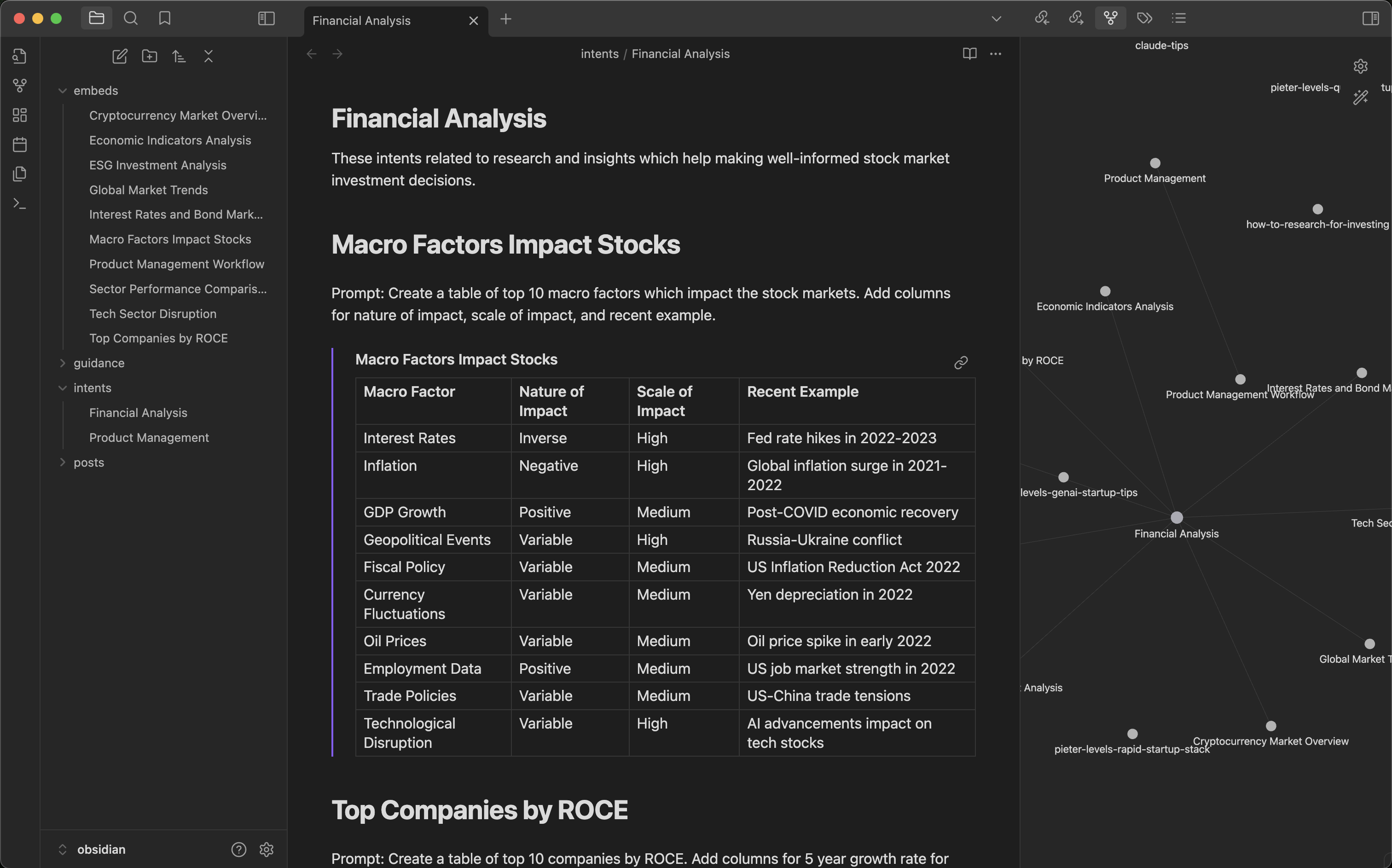
Now run navamai intents "Financial Analysis" and choose among a list of intents to generate as content embeds. The response is saved under Embeds folder automatically and the embed is linked in your document template instantly. Rinse, repeat.
This workflow can get really useful very fast. As each template has linked embeds, Obsidian Graph view can be used to visualize the links. You can get creative and link related templates or even enhance generated embeds with more intents. Of course this also means you can use all the great Obsidian plugins to generate websites, PDFs, and more. Your creativity + Obsidian + NavamAI = Magic!
Why NavamAI
So, the LLM science fans will get the pun in our tagline - Command is all you need. It is a play on the famous paper that introduced the world to Transformer model architecture - Attention is all you need. With NavamAI a simple command via your favorite terminal or shell is all you need to bend an large or small language model to your wishes. NavamAI provides a rich UI right there within your command prompt. No browser tabs to open, no apps to install, no context switching... just pure, simple, fast workflow. Try it with a simple command like navamai ask "create a table of planets" and see your Terminal come to life just like a chat UI with fast streaming responses, markdown formatted tables, and even code blocks with color highlights if your prompt requires code in response!
Another magical thing happens when the interface to your generative AI is a humble command prompt. You will experience a sense of being in control. In control of your workflow, your privacy, your intents, and your artifacts.
Command Reference
| Command | Example and Description |
|---|---|
| ask | navamai ask "your prompt"Prompt the LLM for a fast, crisp (default up to 300 words), single turn response |
| config | navamai config ask save trueEdit navamai.yml file config from command line |
| expand | navamai expand intents "Financial Analysis"Expand a set of intents and prompts within an intents template |
| init | navamai initInitialize navamai in any folder. Copies navamai.yml default config and quick start Intents and Embeds folders and files. Checks before overwriting. Use --force option to force overwrite files and folders. |
| intents | navamai intents "Financial Analysis"Interactively choose from a list of intents within a template to expand into content embeds |
| test | navamai test askTests navamai command using all providers and models defined in navamai.yml config and provides a test summary. |
| validate | navamai validate "Financial Analysis"Validates prior generated embeds running another model and reports the percentage difference between validated and original content. |
| vision | navamai vision -p path/to/image.png "Describe this image"Runs vision models on images from local path (-p), url (-u), or camera (-c) and responds based on prompt. |
Test and Evaluate Models and Providers
NavamAI comes with configurable support for more than 10 leading models from five providers (Ollama, Anthropic, OpenAI, Groq, Google). The navamai test command can be used to run each of the navamai commands over all the provider and model combinations and respond with a summary of model test and evaluation results. Use this to quickly compare models and providers as well as when you add or remove a new model or provider in the config.
This command is super useful when comparing model response time (latency), response quality (does it follow the system and prompt instructions), response accuracy, and token length (cost) for the same prompt. You can configure the test prompts within navamai.yml in the test section.
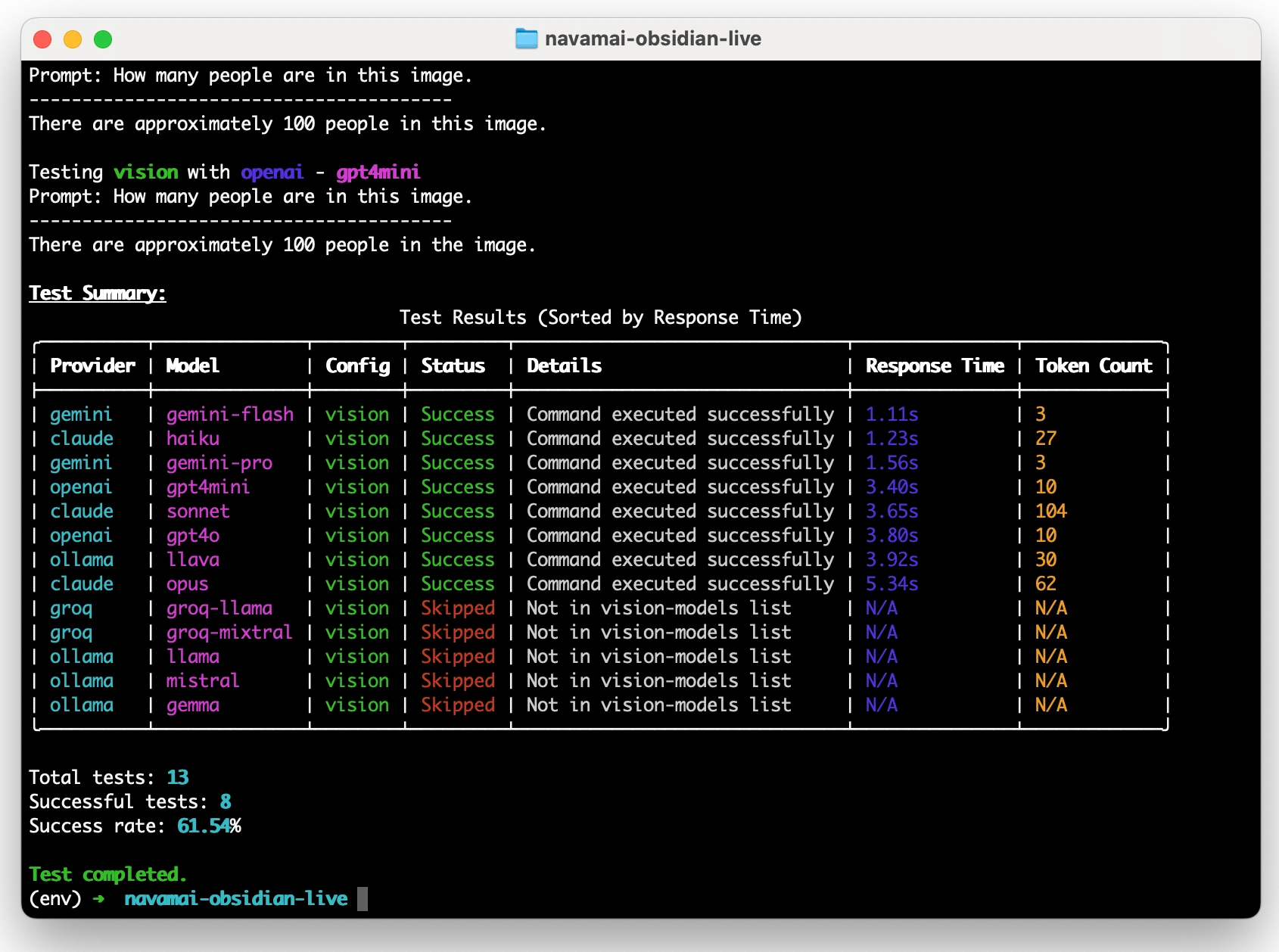
Here is an example of running navamai test vision command and resulting test summary. I this defailt prompt and image we are sharing image of around 150-160 people standing in close proximity in a circle and asking the model to count the number of people. The right number is between 150-160. This can be used to calculate the relative accuracy of each model based on the response. How closely the response follows the system prompt and the user prompts is indicative of quality of response.
You can also notice the response times seem proportional to model size. For Claude, Opus > Sonnet > Haiku. For Gemini, Pro > Flash. For OpenAI, GPT-4o > GPT-4-mini.
You can similarly run navamai test ask command to test across all models and providers. In this run you may find groq is among the fastest providers when it comes to response time.
Of course, you may need multiple test runs to get better intuition of response times as there are multiple factors which effect latency other than model size or architecture, like network latency, which may change across multiple test runs.
Chatbot UI in command prompt
NavamAI can work like a chatbot UI in your terminal or command prompt. Just type navamai ask "your prompt here" and you will receive streaming response back just like a chatbot. The response is rich formatted for code blocks with highlights, markdown tables, and markdown text formatting.
Use the navamai ask command when you want to run a single turn prompt-response or question-answer.
$ navamai ask "create a table of 5 tallest buildings with floors, construction, height, city"


  Building                Floors   Construction Start   Height (ft)   City
 ━━━━━━━━━━━━━━━━━━━━━━━━━━━━━━━━━━━━━━━━━━━━━━━━━━━━━━━━━━━━━━━━━━━━━━━━━━━━━━
  Burj Khalifa            163      2004                 2717          Dubai
  Shanghai Tower          128      2008                 2073          Shanghai
  Makkah Royal Clock      120      2004                 1971          Mecca
  Tower
  Ping An Finance         115      2010                 1965          Shenzhen
  Centre
  Lotte World Tower       108      2011                 1819          Seoul
Workflow freedom
There is no behavioral marketing or growth hacking a business can do within your command prompt. You guide your workflow the way you feel fit. Run the fastest model provider (Groq with Llama 3.1), or the most capable model right now (Sonnet 3.5 or GPT-4o), or the latest small model on your laptop (Mistral Nemo), or the model with the largest context (Gemini 1.5 Flash), you decide. Run with fast wifi or no-wifi (using local models), no constraints. Instantly search, research, Q&A to learn something or generate a set of artifacts to save for later. Switching to any of these workflows is a couple of changes in a config file or a few easy to remember commands on your terminal.
You can also configure custom model names to actual model version mapping for simplifying model switching commands. With the following mapping the commands to switch models are navamai config ask model llama or navamai config intents model haiku and so on.
model-mapping:
  # Claude models
  sonnet: claude-3-5-sonnet-20240620
  opus: claude-3-opus-20240229
  haiku: claude-3-haiku-20240307

  # Ollama models
  llama: llama3.1
  gemma: gemma2
  mistral: mistral-nemo

  # Groq models
  groq-mixtral: mixtral-8x7b-32768
  groq-llama: llama2-70b-4096

  # OpenAI models
  gpt4mini: gpt-4o-mini
  gpt4o: gpt-4o

  # Gemini models
  gemini-pro: gemini-1.5-pro
  gemini-flash: gemini-1.5-flash
Run multiple models side by side
Want to compare multiple models side by side? All you need to do is open multiple shells or Terminal instances. Now in each of these, one by one, change the model, run same navamai ask "prompt" and compare the results side by side. Simple!


As NavamAI commands use the navamai.yml config in the current folder every time they run, you can create more complex parallel running, multi-model and cross-provider workflows by simply copying the config file into multiple folders and running commands there. This way you can be running some long running tasks on a local model in one folder and terminal. While you are doing your day to day workflow in another. And so on.
Privacy controls
You decide which model and provider you trust, or even choose to run an LLM locally on your laptop. You are in control of how private your data and preferences remain. NavamAI supports state of the art models from Anthropic, OpenAI, Google, and Meta. You can choose a hosted provider or Ollama as a local model provider on your laptop. Switch between models and providers using a simple command like navamai config ask model llama to switch from the current model.
You can also load custom model config sets mapped to each command. Configure these in navamai.yml file. Here is an example of constraining how navamai ask and navamai intents commands behave differently using local and hosted model providers.
ask:
  provider: ollama
  model: mistral
  max-tokens: 300
  save: false
  system: Be crisp in your response. Only respond to the prompt
	using valid markdown syntax. Do not explain your response.
  temperature: 0.3

intents:
  provider: claude
  model: sonnet
  max-tokens: 1000
  save: true
  folder: Embeds
  system: Only respond to the prompt using valid markdown syntax.
    When responding with markdown headings start at level 2.
    Do not explain your response.
  temperature: 0.0
Intent driven
Your intents are tasks you want to execute, goals you want to accomplish, plans you want to realize, decisions you want to make, or questions you want to answer. You control your entire NavamAI experience with your intents. You can save your intents as simple outline of tasks in a text file. You can recall them when you need. You can run models on your intents as you feel fit. You can save results based on your intents.
$ navamai intents "Financial Analysis"
[1] Macro Factors Impact Stocks
[2] Top Companies by ROCE
[3] Economic Indicators Analysis
[4] Sector Performance Comparison
[5] Global Market Trends
[6] Emerging Market Opportunities
[7] ESG Investment Analysis
[8] Cryptocurrency Market Overview
[9] Interest Rates and Bond Market Analysis
[10] Tech Sector Disruption
Select an option: 3

# this will generate and save embed for intent #3
Automating commands
You can do many interesting things when the command line is your interface to your large or small language model. For example, you can chain these commands using pipe symbol and in turn chain response from one model turn into prompt for another model turn, and so on. Here is a command line version of simple chaining. This will chain the output of prior command as input {} to the next one. How cool is that! It is fun to try this with a local model at no cost for simple prompts.
navamai ask "what is the currency of USA" | xargs -I {} echo "\"How many INR is {}\"" | xargs navamai ask

1 USD = 74.89 INR
In the same vein you can also use basic navamai commands and write simple bash scripts to automate your workflow even further. Here is a bash script to make chaining more reusable and simpler.
# Save this script as `navamai-chain.sh` and make it executable with `chmod +x navamai-chain.sh`

# Initial prompt passed as the first argument
response=$(navamai ask "$1")

# Loop through the rest of the arguments
shift  # Shift the arguments to skip the first one
while [[ $# -gt 0 ]]; do
    prompt="$1"
    response=$(navamai ask "$(echo $prompt | sed "s/{}/$response/")")
    shift
done

# Output the final response
echo "$response"
Voilà! You have created your custom navamai command. This now makes chaining much simpler and powerful.
$ ./navamai-chain.sh "Who was US president in 2018?" \
> "Who is son to {}" \
> "Who is sister to {}"

Ivanka Trump
Validate Generations
You can verify content generated by one LLM with validation from another model. Make sure you only run validate command after you have run expand-intents command to generate the first pass of embeds. Use navamai validate "Financial Analysis" or any intent template that you have created. The workflow for validation is similar to expand intents. Only in this case the validate model config decides which model and provider to use. You can also modify the validation prompt to check for any specific things relevant for your use case. The diff is calculated on original and validated text removing any newlines, white space, or markdown formatting when making the diff comparison using similarity scoring. Use this to automate quality validation of generated content.
Release history Release notifications | RSS feed


Download files
Download the file for your platform. If you're not sure which to choose, learn more about installing packages.
Source Distribution
Built Distribution
Filter files by name, interpreter, ABI, and platform.
If you're not sure about the file name format, learn more about wheel file names.
Copy a direct link to the current filters






