
nbinlineai
Write AI prompts directly in JupyterLab notebooks. Choose an OpenAI or Anthropic model once for the notebook, and override it in individual prompts when needed. Each answer appears in a paired Markdown cell below its prompt. Prompts, answers, and notebook defaults stay in the notebook when you save and reopen it.
User manual
The full user manual covers setup, editing and rerunning cells, context boundaries, live variables and tools, saved notebook data, and troubleshooting. It is included in the source archive and installed under share/doc/nbinlineai/docs/user-guide.md in the Python environment. The FAQ covers Run All, cell toggles, corrections, kernel loss, and other edge cases. The documentation site also includes architecture and contributor guides. The quick start below is self-contained.
Quick start
You need Python 3.11 or newer and JupyterLab 4.2 or newer.
- Install: open Extension Manager (the puzzle icon), search for nbinlineai, and click Install. Restart the Jupyter server; refreshing the browser alone is insufficient.
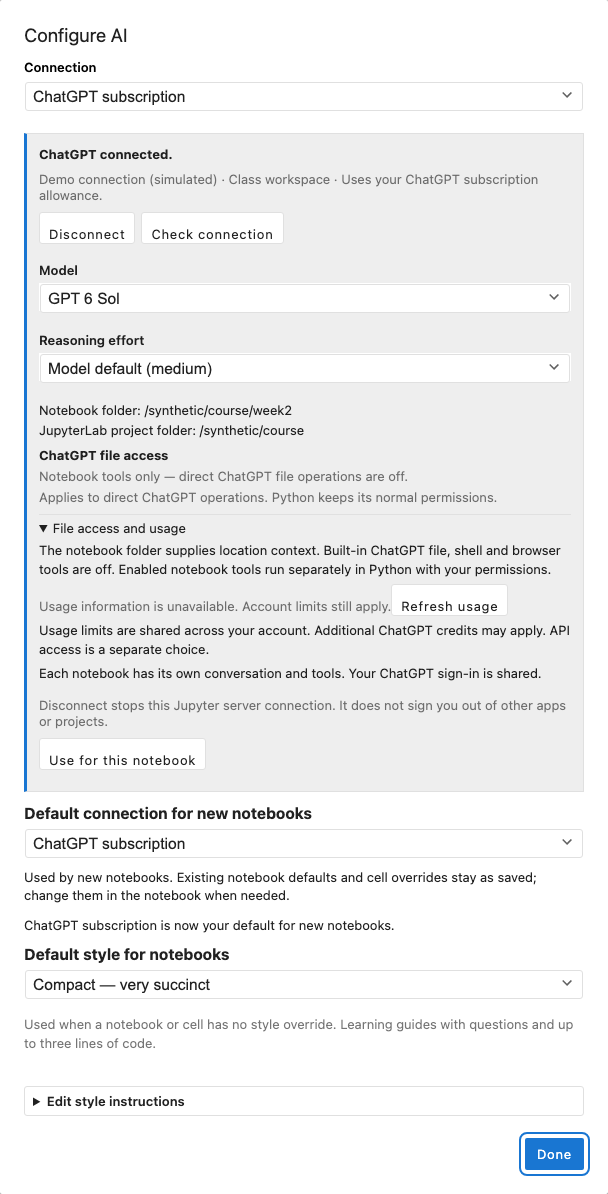
- Configure AI: open a Python notebook, click Configure AI in its toolbar, and save an OpenAI or Anthropic API key.
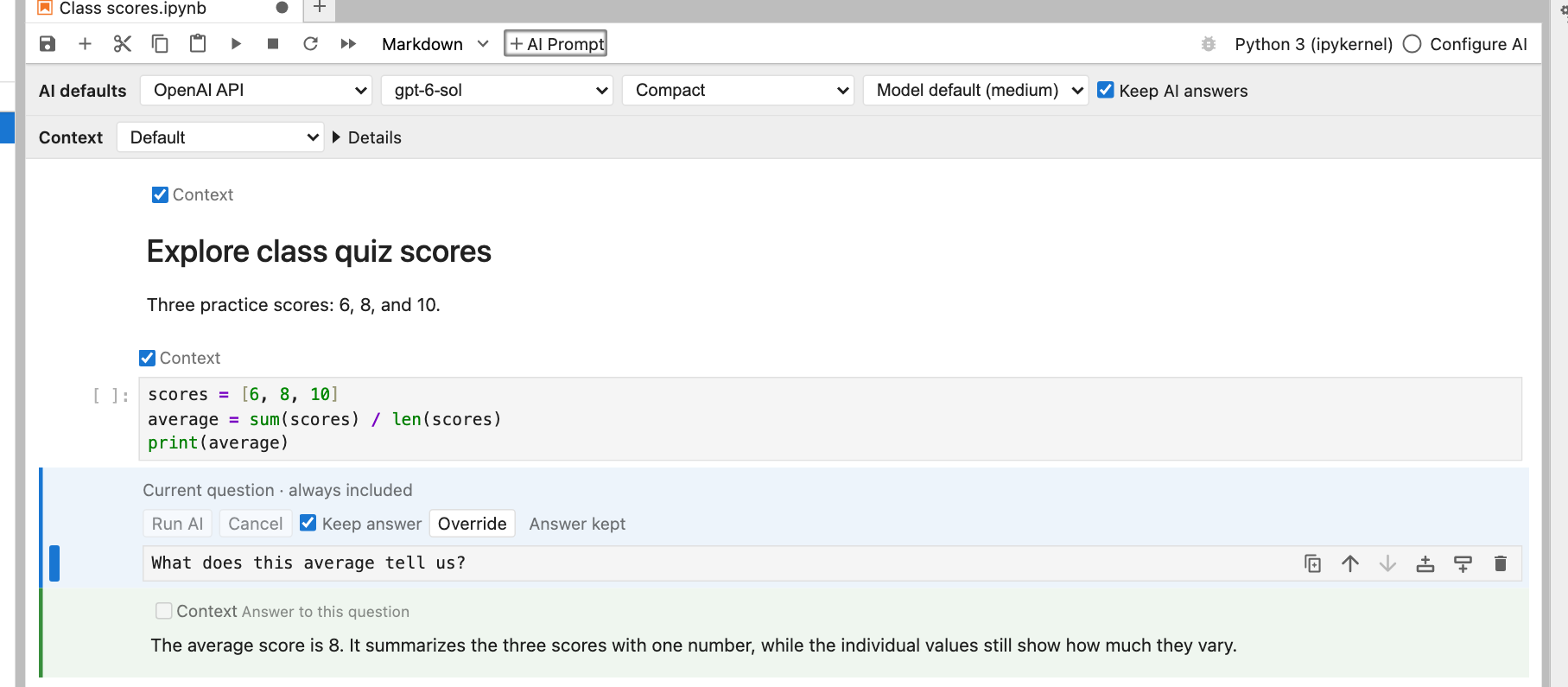
- Create an AI cell: select a cell and click + AI Prompt in the toolbar. Write a question, such as "Explain the code above."
- Set notebook defaults: use the AI defaults row at the top of the notebook to choose provider, model, response style, and thinking effort. Compact and Model default effort are the starting choices.
- Run it: press Shift+Enter or click Run AI. The answer appears in a paired Markdown cell below the prompt. Use the cell's Override control only when it needs different settings.
| To… | Do this |
|---|---|
| Ask about earlier code or notes | Write an ordinary question. The AI sees code and ordinary Markdown above the prompt, plus earlier AI turns. |
| Read a live Python value | Include a reference such as $`score` . Run the cell defining the variable first. |
| Let the AI call a Python function | Include a reference such as &`add_bonus` . Run its definition first; only explicitly named functions are exposed. |
| Correct an answer yourself | Double-click its Markdown and edit it. Later AI prompts read the corrected text when they run. |
| Ask for a revised answer | Edit the prompt, turn off Keep answer, and run it again; its existing answer is replaced. |
| Work through a saved notebook | Leave the notebook's Keep AI answers on. Completed answers are preserved without another API call. |
| Develop a notebook with fresh answers | Turn notebook Keep AI answers off. Pin any answer you are happy with using that cell's Keep answer. |
| Run the whole notebook | Use JupyterLab's Run All Cells. Code and eligible AI prompts finish in order; each prompt respects its Keep answer choice. |
| Learn through questions | Choose Learning in the notebook defaults. Answer each tutor question in a new AI Prompt cell below its response. |
| Use suggested code | Click the copy icon on a code block in an AI answer, then paste into a code cell. |
| Stop a response | Click Cancel. Calls already performed cannot be undone. |
| Keep the conversation | Save the notebook; prompts and answers are saved with it. |
Ordinary code cells keep their normal execution behavior. See the runnable example below for variable and function references.
Keep AI answers is on by default for the notebook. Cells inherit it unless you explicitly change their Keep answer checkbox; the cell's reset control restores inheritance. A new prompt can still run once, and failed, cancelled, empty, or deleted answers can be retried. Keep protects completed answers; it does not disable all provider requests.
Editing an earlier answer changes the history available to later prompts, but does not regenerate their existing answers. Rerun affected prompts with Keep answer off. Pin a manually corrected answer to preserve it when running the notebook again. See the rerun and Run All edge cases, including kernel restarts and tool side effects. Native Run All support starts in 0.1.5; earlier releases rendered AI Markdown without calling the provider.
Choose a response style
Choose a style in the notebook's AI defaults row:
| Style | How the AI responds |
|---|---|
| Compact (default) | Very succinct answers, with code when useful. |
| Full | Detailed explanations and code when useful. |
| Learning | A Socratic tutor: focused questions, hints, and feedback on your attempts. It is instructed to avoid complete solutions and use at most 3 lines of code per response, only when needed as a hint. It may suggest documentation to read. |
Notebook defaults are saved with the .ipynb. Cells inherit them unless you choose an Override; returning a cell to notebook defaults clears its overrides. Reruns use the current effective settings. A run already in progress keeps the choices it started with.
In Configure AI, expand the style instructions to edit Compact, Full, or Learning. Each editor starts with our bundled instructions. Save stores your custom wording in JupyterLab user settings; Reset restores the bundled instructions. Your custom wording applies when that style is selected. It is separate from the notebook's saved style choice.
In Learning, start with a question such as “Help me understand why this loop skips an item.” When the tutor asks a question, insert another AI Prompt cell below its answer, write your reply, and run it. Earlier exchanges provide the conversation history. Repeat as you work through the problem. To replace an earlier exchange, turn off Keep answer and rerun that prompt.
In Compact and Full, the AI is instructed to put code in fenced Markdown blocks. Code blocks in AI answers have a Copy code button: click it, create or select an ordinary code cell, and paste. Copying does not execute code. If the browser blocks clipboard access, select and copy the code manually. These styles guide the model; Learning is not an enforced assessment restriction.
Cells and context at a glance
- Storage: AI prompts and their paired answers are separate standard Markdown cells, identified by
metadata.nbinlineai. Both texts are saved in the.ipynb; an answer is not a code-cell output. - Editing and rerunning: edit questions or answers directly. Rerunning a prompt replaces its paired answer, including manual edits. Each run reads the current notebook and kernel state. Later AI cells do not rerun automatically when earlier content changes.
- Context: code and ordinary Markdown source above the prompt are included in notebook order within size limits. Completed earlier AI prompt/answer pairs are included separately as conversation history, without duplicating their text in the source context. Raw cells and code outputs are omitted; image data is not sent.
- Live values: explicit variable/function references use the running kernel, including values created by code executed out of order or below the prompt. The source-code boundary and live kernel state are separate.
- Architecture: the JupyterLab interface talks to a Python extension inside Jupyter Server. That extension calls providers through FastLLM and reads variables or calls functions in the notebook's separate Python kernel.
Choose a model
The notebook's AI defaults row has a model dropdown. Choose a listed model, use Default, or choose Custom model… and enter another model ID supported by that provider. Most notebooks can use one model throughout. Individual AI cells expose their own choices under Override. Changing providers clears the previous provider's model choice.
Providers without a configured API key are marked unavailable. If you have only an Anthropic key, a notebook without saved AI defaults starts with Anthropic (and likewise for OpenAI). Saved notebook choices and explicit cell overrides are preserved; if that provider's key is missing, add it through Configure AI or select an available provider. Cells created by older versions keep their saved provider/model choices until you return them to notebook defaults.
| Provider | Bundled default | Other listed choices |
|---|---|---|
| OpenAI | gpt-6-sol |
gpt-6-luna, gpt-6-astra |
| Anthropic | claude-sonnet-5 |
claude-haiku-4-5-20251001, claude-opus-5-5, claude-fable-5-1 |
These are bundled suggestions, not a live list of your account's model access. The IDs were checked against the OpenAI model catalog and Anthropic model catalog for version 0.1.1. Existing cells keep any explicitly selected model; select Default to use the current default. A provider default set in JupyterLab's nbinlineai settings takes precedence over the bundled default.
Thinking effort
The effort selector starts at Model default and offers the levels supported by the selected model. For example, GPT-6 Sol supports None, Low, Medium, High, Extra high, and Max; Claude Sonnet 5 supports Low through Max. Effort affects the model's reasoning and can increase latency and token usage. It is independent of style: Compact + High can produce a carefully reasoned short answer. See the OpenAI model documentation and Claude effort documentation.
Unknown custom model IDs and models without this effort control use Model default. nbinlineai does not guess unsupported API parameters. A cell can override effort through the same Override control.
Installation and API keys
Keys are saved in your user configuration, outside notebooks. On macOS and Linux the default is ~/.config/nbinlineai/credentials.json; Windows uses its user configuration directory. An absolute XDG_CONFIG_HOME changes the location when set. No .env file is needed.
Your school or hosted Jupyter service may manage extensions centrally. If Extension Manager is unavailable, ask the administrator to install the package in the Python environment running Jupyter Server and restart that server. For a self-managed environment using pip, the equivalent command is:
python -m pip install nbinlineai
If you launch JupyterLab from a project managed by uv, add the extension as a project dependency so future uv sync runs keep it installed:
uv add jupyterlab nbinlineai
uv run jupyter lab
Some uv environments omit pip, which the JupyterLab Extension Manager may need for its Install button. In that case, use uv add as above, or add pip to the environment before using the panel.
If Configure AI reports that its server endpoint is unavailable (404), click Retry. If you just installed or updated the extension and the error persists, save your notebooks, stop the whole Jupyter server, start it again with your usual command, and refresh the browser. Restarting only a notebook kernel is insufficient. The extension must be installed in the environment running the server. The key storage folder is created automatically; you do not need to create it yourself.
API provider usage is billed by the provider separately from JupyterLab. You can replace or remove a saved key through Configure AI. A server administrator can also provide OPENAI_API_KEY or ANTHROPIC_API_KEY in the Jupyter server environment; a key you save in the UI takes precedence for that provider.
Saved keys are shared by JupyterLab environments under the same operating-system account. A Python kernel running as that account can read that account's files, including its saved keys; use a separate OS account for notebooks you do not trust.
Example: variables and tools
In a Python notebook, run this code cell:
score = 7

def add_bonus(value: int) -> int:
    """Return the score plus a bonus."""
    return score + value
Insert an AI Prompt cell below it and ask:
What is $`score`? Call &`add_bonus` with value 3, then explain the result.
The source distribution also includes examples/quickstart.ipynb with these cells.
$ followed by a backtick-quoted Python name uses its live value from the running kernel. This can differ from what the notebook source currently says. To let the model call a function you defined in the kernel, name it with &, for example Call &`add_bonus` with value 3. Only functions named in that prompt are made available as tools. This release supports ordinary synchronous Python functions with named parameters and simple annotations. Function calls can change notebook state; cancelling a prompt cannot undo an earlier call.
The model sees bounded code and ordinary Markdown source from cells above the prompt and earlier AI turns. Your explanations, assignment instructions, equations, and other Markdown notes are included as text. It does not see later cells. Only AI Prompt cells use the new Shift+Enter behavior; ordinary code cells run normally. Re-running a prompt updates its paired answer cell instead of adding another one.
This release supports text prompts and Python kernels. It does not send notebook images or rich outputs as model context, and it does not offer ChatGPT subscription sign-in.
Develop from source
This section is for contributors. Installing the published package does not require Node.js or a source checkout. Development requires Python 3.11+, Node.js 22.12+ (or 20.19+), uv, and JupyterLab 4.2 or newer.
uv sync --python 3.12 --group dev --no-install-project
uv run --no-sync jlpm install
uv run --no-sync jlpm build:prod
uv sync --python 3.12 --group dev
uv run --no-sync jupyter-builder develop . --overwrite
uv run jupyter lab
The backend reads provider keys saved by Configure AI. For a developer-only environment, it can also read OPENAI_API_KEY or ANTHROPIC_API_KEY from the server environment or a project-root .env file. Never put keys in a notebook.
Run tests and packaging checks:
uv run --no-sync pytest
uv run --no-sync jlpm test:unit
uv run --no-sync jlpm build:prod
uv run --no-sync jupyter-builder develop . --overwrite
uv run --no-sync jlpm test:e2e
uv build
The browser suite starts its own JupyterLab on 127.0.0.1:8897, uses a real Python kernel from the project environment, and replaces only the model provider with a deterministic test implementation. It refuses port 8888, disables port retries, and keeps notebooks, Jupyter settings, and saved fake keys in temporary directories. Use NBINLINEAI_E2E_PORT=8899 to select another free port. Install Chromium once if Playwright asks: uv run --no-sync jlpm playwright install chromium.
An optional live smoke sends one small prompt to each configured API provider and verifies variable lookup plus a function call:
NBINLINEAI_E2E_LIVE=1 uv run --no-sync jlpm test:e2e
A tool round can make multiple provider API calls within one prompt. These live requests incur provider usage.
License
GPL-3.0-only. The full license text is included in the package.
1 maintainer

Release files for nbinlineai 0.1.5
For a detailed explanation of source distributions (sdists) and built distributions (wheels), please see the package formats documentation.
Source distribution (sdist)
| File | Size | Uploaded | |
|---|---|---|---|
| nbinlineai-0.1.5.tar.gz | 798.1 kB | Details |
Built distribution (wheel)
| File | Interpreter | ABI | Platform | Reset |
|---|---|---|---|---|
| nbinlineai-0.1.5-py3-none-any.whl | Python 3 | none | any | Details |
Total release size: 1.4 MB
Release files / nbinlineai-0.1.5.tar.gz
| Download URL | nbinlineai-0.1.5.tar.gz |
|---|---|
| Size | 798.1 kB |
| Tags | Source |
|
SHA-256 checksum How to use checksums |
ee86447428a8524875a4ce6c45df0baab3460090334934d4db1d5641b5cc2a81
|
|
BLAKE2b-256 checksum How to use checksums |
c6e885c68c0bae5e8b74bb0236d8c17107d4706977731eb70dfd7514f1c989f4
|
| Upload date | |
|
Uploaded using Trusted Publishing? What is trusted publishing? |
No |
| Uploaded via |
uv/0.12.13 {"installer":{"name":"uv","version":"0.12.13","subcommand":["publish"]},"python":null,"implementation":{"name":null,"version":null},"distro":{"name":"macOS","version":null,"id":null,"libc":null},"system":{"name":null,"release":null},"cpu":null,"openssl_version":null,"setuptools_version":null,"rustc_version":null,"ci":null}
|
Release files / nbinlineai-0.1.5-py3-none-any.whl
| Download URL | nbinlineai-0.1.5-py3-none-any.whl |
|---|---|
| Size | 620.3 kB |
| Tags | Python 3 |
|
SHA-256 checksum How to use checksums |
6ede0df522ad9d25933d6999850b4f14453621d2900f8b21f2d6c7c6c1afc1f9
|
|
BLAKE2b-256 checksum How to use checksums |
26017aa563139649d8f7a1cc25a24997903aca0caecc4791c6e5e6ecdd1d822d
|
| Upload date | |
|
Uploaded using Trusted Publishing? What is trusted publishing? |
No |
| Uploaded via |
uv/0.12.13 {"installer":{"name":"uv","version":"0.12.13","subcommand":["publish"]},"python":null,"implementation":{"name":null,"version":null},"distro":{"name":"macOS","version":null,"id":null,"libc":null},"system":{"name":null,"release":null},"cpu":null,"openssl_version":null,"setuptools_version":null,"rustc_version":null,"ci":null}
|














