
nested-aad-scim-connector


This utility provides ability to sync Users and Groups from AAD to Databricks. This application allows to sync nested groups and users as well which is not supported in "Azure Databricks SCIM Provisioning Connector application"
Using the code is as simple as below few commands :
Install
pip install nestedaaddb
Configure
Copy the config.cfg.template from here (https://github.com/mick2004/nested-aad-scim-connector/blob/main/config.cfg.template) ,populate details and rename to config.cfg
Usage
from nestedaaddb.nested_groups import SyncNestedGroups
sn = SyncNestedGroups()
sn.loadConfig(<<Path of config.cfg>>")
sn.sync(<<Top level Group>>,<<Is Dry Run>>)
Details
Steps for running code:
Step (i)
Register an application in Azure ADD with ReadAll permissions
You will need to register an application in Azure Active Directory to enable user authentication
Follow the steps below to do same:
1.Open a browser and navigate to the Azure Active Directory admin center and login using a personal account (aka: Microsoft Account) or Work or School Account.
2.Select Azure Active Directory in the left-hand navigation, then select App registrations under Manage.
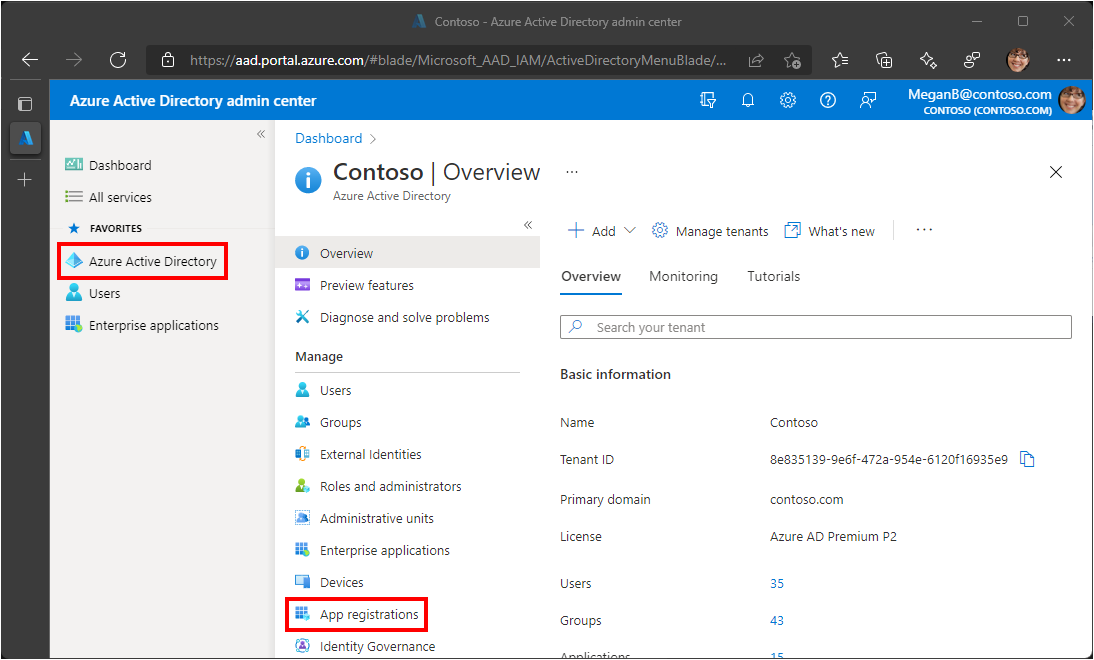
3.Select New registration. Enter a name for your application, for example, CustomAADConnector.
4.Set Supported account types as desired.
5.Leave Redirect URI empty.
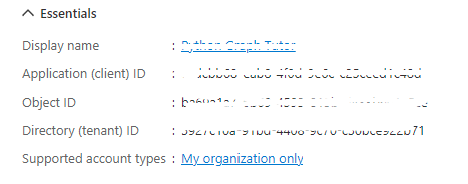
6.Select Register. On the application's Overview page, copy the value of the** Application (client) ID** and save it, you will need it in the next step. If you chose Accounts in this organizational directory only for Supported account types, also copy the Directory (tenant) ID and save it.
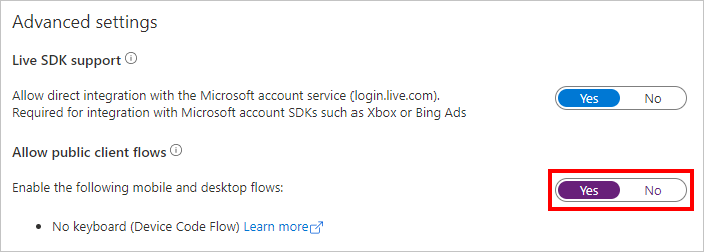
7.Select Authentication under Manage. Locate the Advanced settings section and change the **Allow public client flows toggle to Yes, then choose Save.
- In the Application menu blade, click on the Certificates & secrets, in the Client secrets section, choose New client secret:
-
Type a key description (for instance app secret)
-
Select a key duration as per your security concerns
-
The generated key value will be displayed when you click the Add button. Copy the generated value for use in the steps later.
-
You'll need this key later in your code's configuration files. This key value will not be displayed again, and is not retrievable by any other means, so make sure to note it from the Azure portal before navigating to any other screen or blade.
9.In the Application menu blade, click on the API permissions in the left to open the page where we add access to the Apis that your application needs.
-
Click the Add a permission button and then,
-
Ensure that the Microsoft APIs tab is selected
-
In the Commonly used Microsoft APIs section, click on Microsoft Graph
-
In the Application permissions section, ensure that the right permissions are checked: User.Read.All
-
Select the Add permissions button at the bottom.
10.At this stage, the permissions are assigned correctly but since the client app does not allow users to interact, the user's themselves cannot consent to these permissions. To get around this problem, we'd let the tenant administrator consent on behalf of all users in the tenant. Click the Grant admin consent for {tenant} button, and then select Yes when you are asked if you want to grant consent for the requested permissions for all account in the tenant. You need to be the tenant admin to be able to carry out this operation.
Step (i)
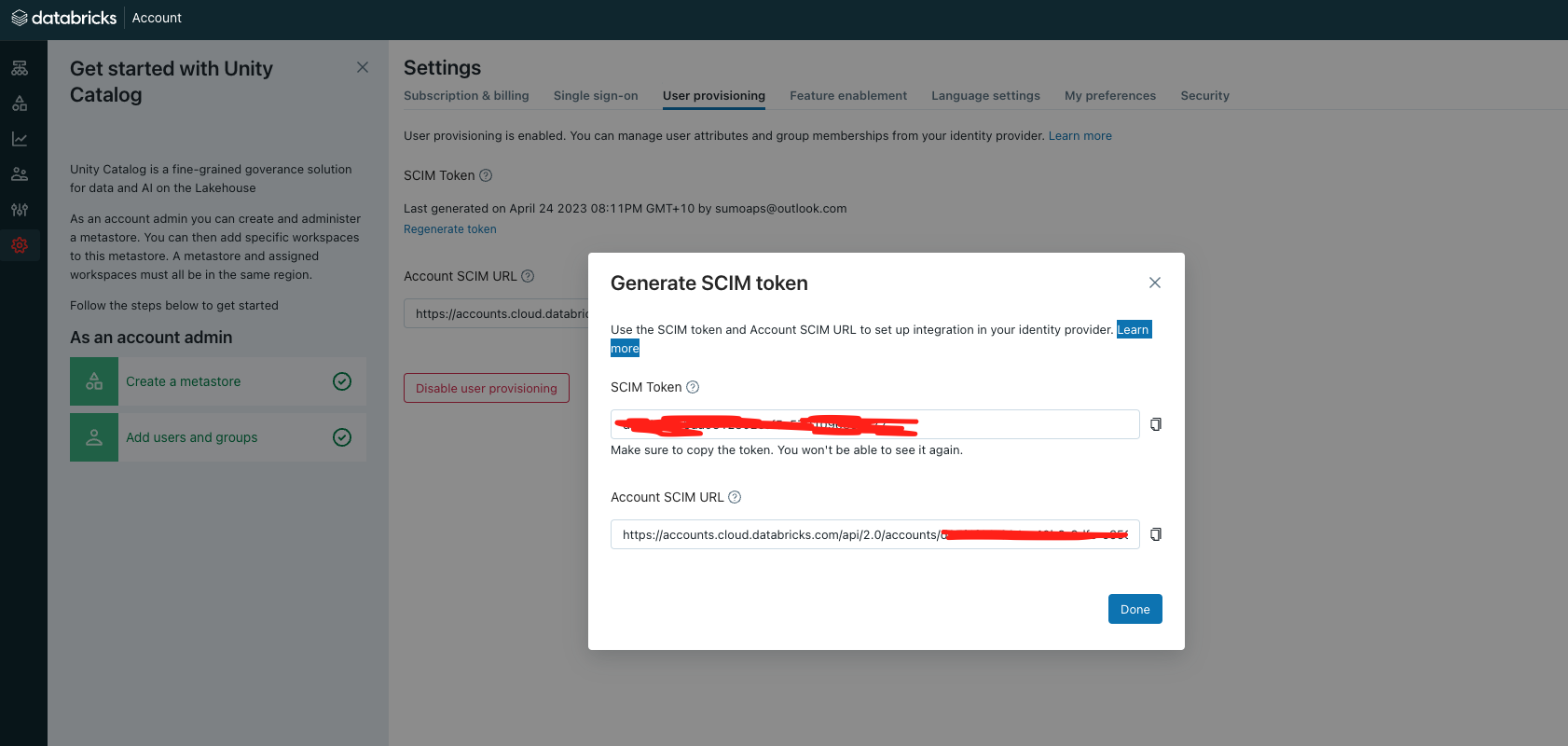
Populate config.cfg files with Databricks Settings Extract the SCIM Token and ACCOUNT SCIM URL Details: https://learn.microsoft.com/en-us/azure/databricks/administration-guide/users-groups/scim/aad#step-1-configure-azure-databricks
Step (iii)
Running the app
As Standalon Python app:
- Install utility via pip
pip install nestedaaddb
- Copy the config.cfg.template ,populate details and rename to config.cfg
- Run as below:
from nestedaaddb.nested_groups import SyncNestedGroups
sn = SyncNestedGroups()
sn.loadConfig(<<Path of config.cfg>>")
sn.sync(<<Top level Group>>,<<Is Dry Run>>)
Contributors
 Shubham Jain 💻 ⚠️ |
 Abhishek Pratap Singh 🚇 ⚠️ 💻 |
1 maintainer

Metadata
1 maintainer
Release files for nestedaaddb 1.0.4
For a detailed explanation of source distributions (sdists) and built distributions (wheels), please see the package formats documentation.
Source distribution (sdist)
| File | Size | Uploaded | |
|---|---|---|---|
| nestedaaddb-1.0.4.tar.gz | 14.7 kB | Details |
Built distribution (wheel)
| File | Interpreter | ABI | Platform | Reset |
|---|---|---|---|---|
| nestedaaddb-1.0.4-py3-none-any.whl | Python 3 | none | any | Details |
Total release size: 27.8 kB
Release files / nestedaaddb-1.0.4.tar.gz
| Download URL | nestedaaddb-1.0.4.tar.gz |
|---|---|
| Size | 14.7 kB |
| Tags | Source |
|
SHA-256 checksum How to use checksums |
f486a4fe3e026fbda2549d8538b41e2a79adfbd3b603ad7ee5753a354c38f089
|
|
BLAKE2b-256 checksum How to use checksums |
43ccd14351078bcea8ad4a484579b21fd4df1b9eb4faf2e819dceb65a6d2d3dc
|
| Upload date | |
|
Uploaded using Trusted Publishing? What is trusted publishing? |
No |
| Uploaded via |
twine/4.0.2 CPython/3.11.9
|
Release files / nestedaaddb-1.0.4-py3-none-any.whl
| Download URL | nestedaaddb-1.0.4-py3-none-any.whl |
|---|---|
| Size | 13.1 kB |
| Tags | Python 3 |
|
SHA-256 checksum How to use checksums |
7b6665816f75d5017afab26da5beda47fd09ace55e820c50dcfbe215990d130b
|
|
BLAKE2b-256 checksum How to use checksums |
62ea21795edbb86e619c2ba2eb3b3f804646d41dcd8e2a0b85fd58026a1bb006
|
| Upload date | |
|
Uploaded using Trusted Publishing? What is trusted publishing? |
No |
| Uploaded via |
twine/4.0.2 CPython/3.11.9
|














