
A TUI network usage monitor.

Project description
Netwatch TUI (netwatchpy)


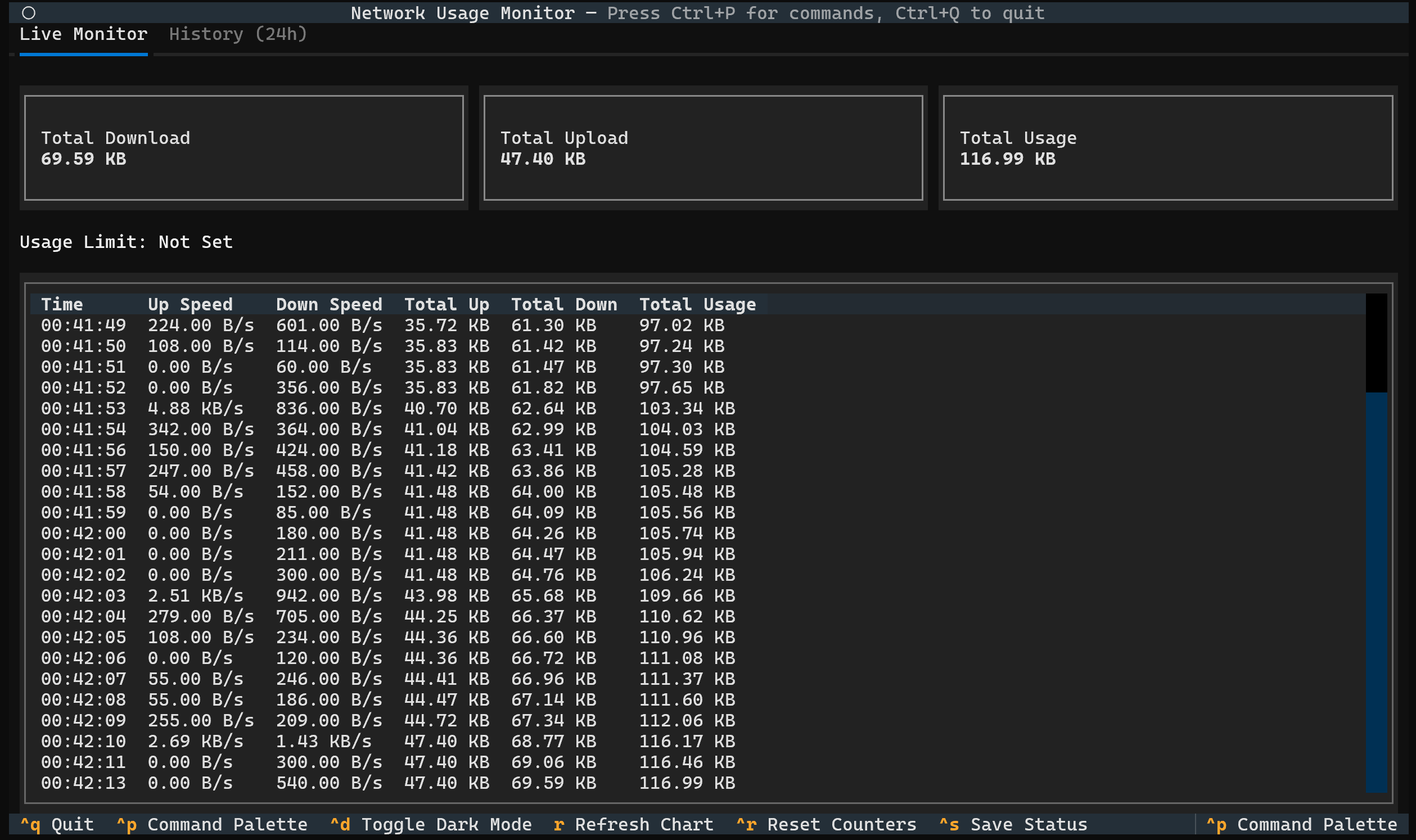
A TUI (Text-based User Interface) for monitoring network usage in real-time, with support for data limits and desktop notifications.
Features
- Real-time Dashboard: A clean, terminal-based dashboard showing total download, upload, and current speeds.
- Historical Analytics: View your usage trends for the last 24 hours with a built-in interactive ASCII graph.
- Crash-Proof Database: Powered by SQLite with Write-Ahead Logging (WAL) to ensure your data is safe even if your PC loses power.
- Data Cap Monitoring: Set a data limit (e.g.,
10GB) and see your usage on a real-time progress bar. - Desktop Notifications: Get native desktop notifications when you hit 80% and 100% of your data limit.
- Live Activity Log: An interactive, scrolling log of all network activity, updated every second.
- Command Palette & Dark Mode: A modern TUI experience with a built-in command palette (
Ctrl+P) and dark mode support (Ctrl+D). - Auto-Migration: Automatically detects and imports data from older versions (
quota.json) so you never lose history. - Cross-Platform: Runs perfectly on Windows, macOS, and Linux.
Installation
Designed for Python 3.8+ and distributed on PyPI for simple installation with pip.
pip install netwatchpy
Usage
Once installed, the netwatch command will be available in your terminal.
To start the monitor (monitors all interfaces):
netwatch
To see all available options and help:
netwatch --help
Command-Line Arguments
You can control the monitor with these arguments:
-
-h,--help- Shows the help message and all options.
-
-i INTERFACE,--interface INTERFACE- Monitors a single, specific network interface (e.g., -i "Wi-Fi"). Defaults to "all".
-
-l LIMIT,--limit LIMIT- Sets a data cap and shows a progress bar (e.g., -l "10GB" or -l "500MB").
-
--log LOG- Saves all network activity to a specified CSV file (e.g., --log "usage.csv").
Examples
Set a 10GB data limit:
netwatch -l "10GB"
Monitor a specific interface ("Wi-Fi") and log to a file:
netwatch -i "Wi-Fi" --log "my_usage.csv"
In-App Keybindings
-
Ctrl+p: Open the Command Palette -
Ctrl+d: Toggle Dark / Light Mode -
r: Refresh the history chart -
Ctrl+r: Reset all counters and history to zero -
Ctrl+s: Show save status (Data is auto-saved) -
Ctrl+q: Quit the application
Understanding the Interface
1. Live Monitor Tab
This is the default view. It shows:
-
Summary Cards: Total Upload, Download, and Combined Usage for the current session + history.
-
Quota Bar: If a limit was set, this bar fills up. It turns Yellow at 80% and Red at 100%.
-
Live Table: A scrolling list of network speeds recorded every second.
2. History Tab (24h)
This tab visualizes your traffic over the last 24 hours.
-
Rows: Each row represents a 1-hour block of time (e.g., 14:00 covers 2:00 PM to 2:59 PM).
-
The Bar:
-
Solid Block (█): Represents Download traffic.
-
Shaded Block (░): Represents Upload traffic.
-
-
Total: The text on the right shows the exact data transferred during that hour.
Tip: If the graph looks outdated, press r to pull the latest stats from the database.
Bug Reports & Feature Requests
Found a bug or have a great idea? Please open an issue on the GitHub repository.
License
This project is licensed under the MIT License.
Release history Release notifications | RSS feed


Download files
Download the file for your platform. If you're not sure which to choose, learn more about installing packages.
Source Distribution
Built Distribution
Filter files by name, interpreter, ABI, and platform.
If you're not sure about the file name format, learn more about wheel file names.
Copy a direct link to the current filters
File details
Details for the file netwatchpy-1.1.1.tar.gz.
File metadata
- Download URL: netwatchpy-1.1.1.tar.gz
- Upload date:
- Size: 12.9 kB
- Tags: Source
- Uploaded using Trusted Publishing? No
- Uploaded via: twine/6.1.0 CPython/3.13.7
File hashes
| Algorithm | Hash digest | |
|---|---|---|
| SHA256 |
a1c280189182e27df6cd675a27f445baef14360984cfe30e94e262cbb7c8c955
|
|
| MD5 |
f969d43bfe38ddbff0447309e124db5d
|
|
| BLAKE2b-256 |
17dba9abfdbb92f924ab48023c51ab5317d6b376c0793348df447a9468d49955
|
File details
Details for the file netwatchpy-1.1.1-py3-none-any.whl.
File metadata
- Download URL: netwatchpy-1.1.1-py3-none-any.whl
- Upload date:
- Size: 12.5 kB
- Tags: Python 3
- Uploaded using Trusted Publishing? No
- Uploaded via: twine/6.1.0 CPython/3.13.7
File hashes
| Algorithm | Hash digest | |
|---|---|---|
| SHA256 |
6cb51130a99f27e304c35ceb2f8e25608447b2128f4d936f415fd17b336a0d0a
|
|
| MD5 |
70539b8171106ad3169d7a746fbcb7ca
|
|
| BLAKE2b-256 |
a9ce9a76b3907122116aec5f5de0ec7c0cd7cadc1b85f1c332497a39a618c825
|






