
nextmeeting: Calendar Widget for Waybar and Polybar
Overview
nextmeeting is a simple CLI tool that leverages gcalcli to display your
upcoming meetings in bars, terminals, and other scripts.
It goes beyond basic gcalcli output:
- Integrates with status bars like Waybar and Polybar.
- Displays dates in natural English ("tomorrow", "next Monday") instead of raw timestamps.
- Shows time-to-meeting countdowns and changes color when events are imminent.
- Provides clickable hyperlinks in the default terminal view.
- Sends configurable notifications via
notify-send. - Truncates long meeting titles for tighter layouts.
- Excludes next-day events when you only care about today.
- Queries CalDAV-compatible calendars with the
--caldav-*flags.
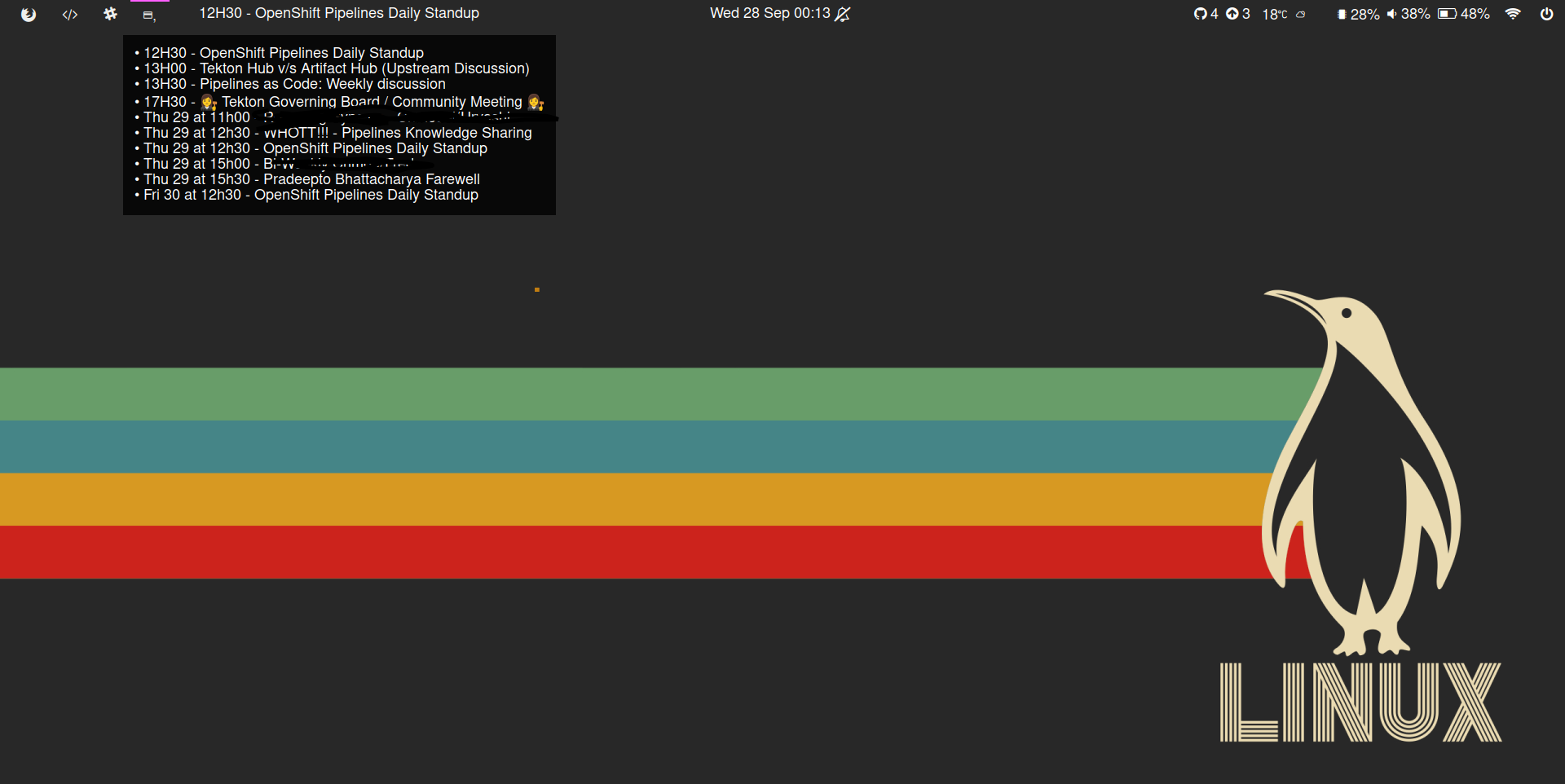
Screenshot
Installation
Use pip with:
pip install -U nextmeeting
Alternatively, if you prefer to run from source, you can use uv (recommended)
or install dependencies manually.
Using uv (recommended)
First, install uv by following the instructions uv installation
guide. Then, clone
this repository and run:
uv run nextmeeting
Manual Installation
If you don't want to use uv, install the dependencies manually from PyPI or
your operating system's package manager:
- python-dateutil
- gcalcli
- caldav (required when you use the
--caldav-*options)
Then install nextmeeting itself:
pip install nextmeeting
After installing dependencies, you can run the nextmeeting script directly:
python3 src/nextmeeting/cli.py
You can also copy src/nextmeeting/cli.py to your system's PATH for convenience.
AUR
yay -S nextmeeting
NixOS
For Nix users, the repository includes ready-to-use flake inputs and a Home-Manager module. Expand below for details.
Flake and Home-Manager install instructions.
- Add nextmeeting to your flake.
nextmeeting = {
  url = "github:chmouel/nextmeeting?dir=packaging";
  inputs.nixpkgs.follows = "nixpkgs";
};
- Use Home-manager to add nextmeeting to waybar like this:
let
  nextmeeting = lib.getExe inputs.nextmeeting.packages.${pkgs.system}.default;
in
{
  "custom/agenda" = {
      format = "{}";
      exec = nextmeeting + "--max-title-length 30 --waybar";
      on-click = nextmeeting + "--open-meet-url";
      interval = 59;
      return-type = "json";
      tooltip = true;
  };
}
- Follow along with the rest of the instructions.
Prerequisites
- Install gcalcli.
- Set up the Google OAuth integration so gcalcli can read your calendar.
Quick Start
Run uv sync once, then display upcoming meetings:
uv run nextmeeting
If no meetings show up, specify a calendar with --calendar=CALENDAR. Explore
nextmeeting --help for every option.
Working with other calendar servers
Point nextmeeting straight at a CalDAV-compatible server when you do not want
to rely on gcalcli:
nextmeeting \
  --caldav-url https://example.com/dav/calendars/user/work/ \
  --caldav-username user \
  --caldav-password secret
Every filter and output mode still applies. If your server exposes several
collections, pass --caldav-calendar with the specific collection URL. For
basic-auth deployments the username and password flags are enough; for token
auth just put the token in --caldav-password.
The fetch window defaults to “12 hours back, 48 hours ahead”. Tune it with:
--caldav-lookbehind-hoursto include ongoing meetings that started up to N hours ago (default12).--caldav-lookahead-hoursto look N hours into the future (default48).
To avoid typing the flags each time, drop them in your config file:
[nextmeeting]
caldav-url = "https://example.com/dav/calendars/user/work/"
caldav-username = "user"
caldav-password = "secret"
today-only = true
If a request fails, rerun with -v (or --debug) to see the full traceback and
the endpoints that were attempted.
JSON output
If you need machine-readable output outside Waybar, use --json to print the
same JSON shape as --waybar (keys like text, tooltip, and optional
class). This is useful for other bars or scripts:
nextmeeting --json
Configuration file
You can set defaults in a TOML file. By default, ~/.config/nextmeeting/config.toml
is loaded if present, or you can point to a custom file with --config.
Command-line flags map directly to keys in the [nextmeeting] table: remove the
leading -- and keep hyphen separators (--max-title-length → max-title-length).
Both hyphens and underscores work in configuration keys (caldav-url and caldav_url are equivalent).
Example ~/.config/nextmeeting/config.toml:
[nextmeeting]
calendar = "Work"
max-title-length = 30
today-only = true
include-title = ["standup", "1:1"]
exclude-title = ["OOO"]
notify-min-before-events = 5
notify-offsets = [15, 5]
privacy = false
CLI flags always override config values.
Event caching
Reduce calls to gcalcli by caching its raw output for a short period:
nextmeeting --cache-events-ttl 2 # cache for 2 minutes
Polybar output
For Polybar, print a single-line text with the next meeting:
nextmeeting --polybar
It uses the same formatting and filters as other modes and respects
--max-title-length.
Custom formatting
You can customize how each line is rendered using templates. Available
placeholders: {when}, {title}, {start_time}, {end_time}, {meet_url},
{calendar_url}, {minutes_until}, {is_all_day}, {is_ongoing}.
# Single-line formatting (TTY, Polybar, and Waybar text)
nextmeeting --format "{when} • {title}"

# Waybar tooltip formatting (applies to the tooltip only)
nextmeeting --waybar --tooltip-format "{start_time:%H:%M}-{end_time:%H:%M} · {title}"
Use 12-hour timestamps for absolute times:
nextmeeting --time-format 12h
Showing multiple items
Limit the number of meetings shown in list-style outputs (TTY and Waybar tooltip):
nextmeeting --limit 3
Title filters
You can include or exclude meetings based on title substrings (case-insensitive):
# Only include meetings containing either "standup" or "1:1"
nextmeeting --include-title standup --include-title "1:1"

# Exclude meetings containing "OOO" or "holiday"
nextmeeting --exclude-title ooo --exclude-title holiday
Filters apply across modes (TTY, --json, --waybar).
You can also restrict to working hours by start time:
nextmeeting --work-hours 09:00-18:00
Filter by calendar using substrings of the event URL (useful when you have multiple accounts/calendars):
nextmeeting --include-calendar "primary" --exclude-calendar "personal"
Privacy mode
Redact meeting titles to a static label to avoid leaking details:
nextmeeting --privacy               # titles become "Busy"
nextmeeting --privacy --privacy-title "Busy 🗓️"
Unicode titles like the emoji example work fine, but sticking to ASCII keeps the output consistent across limited fonts.
Quick actions
-
Open the next meeting URL
nextmeeting --open-meet-url -
Copy the next meeting URL to the clipboard (tries
wl-copy,xclip, orpbcopy; falls back to printing)nextmeeting --copy-meeting-url -
Open the Google Calendar day view for the next meeting (respects
--google-domainif set)nextmeeting --open-calendar-day
Waybar
A more interesting use case for nextmeeting is its integration with Waybar,
allowing for a clean output on your desktop. For example, my configuration
looks like this:
    "custom/agenda": {
        "format": "{}",
        "exec": "nextmeeting --max-title-length 30 --waybar",
        "on-click": "nextmeeting --open-meet-url",
        "on-click-right": "kitty -- /bin/bash -c \"batz;echo;cal -3;echo;nextmeeting;read;\"",
        "interval": 59,
        "return-type": "json",
        "tooltip": "true"
    },
This configuration displays the time remaining until my next meeting. Clicking
the item opens the meeting's URL. A right-click launches a kitty terminal to
show time zones using batz and my
next meeting. I can also click on the meeting title within the terminal to open
its URL.
Styling
You can style the Waybar item using the following CSS:
#custom-agenda {
  color: #696969;
}
If you enable the --notify-min-before-events option, nextmeeting will
output a soon class when an event is approaching, allowing you to style it
with:
#custom-agenda.soon {
  color: #eb4d4b;
}
Notifications
-
Choose how many minutes before a meeting to trigger the built-in notification and the
soonCSS class with--notify-min-before-events(default5). -
Add extra reminder offsets with
--notify-offsets(repeatable or comma separated):nextmeeting --notify-offsets 15 --notify-offsets 5 # 15 and 5 minutes nextmeeting --notify-offsets 20,10,5 # CSV variant
-
Customize the highlighted countdown in Waybar with
--notify-min-colorand--notify-min-color-foreground. -
Control notification urgency with
--notify-urgency low|normal|critical. -
Snooze all notifications and exit:
nextmeeting --snooze 30 # minutes
-
Send a once-per-day morning agenda near a specific time (±2 minutes window):
nextmeeting --morning-agenda 09:00
Related
- For GNOME users, gnome-next-meeting-applet provides similar information inside the desktop shell if you prefer an applet over a status bar widget but the project has been discontinued.
Copyright
Authors
- Chmouel Boudjnah https://github.com/chmouel
- Fediverse - <@chmouel@fosstodon.org>
- Twitter - <@chmouel>
- Blog - <https://blog.chmouel.com>
1 maintainer

Metadata
1 maintainer
Release files for nextmeeting 3.1.1
For a detailed explanation of source distributions (sdists) and built distributions (wheels), please see the package formats documentation.
Source distribution (sdist)
| File | Size | Uploaded | |
|---|---|---|---|
| nextmeeting-3.1.1.tar.gz | 116.2 kB | Details |
Built distribution (wheel)
| File | Interpreter | ABI | Platform | Reset |
|---|---|---|---|---|
| nextmeeting-3.1.1-py3-none-any.whl | Python 3 | none | any | Details |
Total release size: 141.6 kB
Release files / nextmeeting-3.1.1.tar.gz
| Download URL | nextmeeting-3.1.1.tar.gz |
|---|---|
| Size | 116.2 kB |
| Tags | Source |
|
SHA-256 checksum How to use checksums |
2a6281a9a1c36c926a9b33c82fe4d2e5573cc700505207c4d7f0003ee61c7901
|
|
BLAKE2b-256 checksum How to use checksums |
fbaab67220d3e5b7859b32dc6e7e60c07fdf437a5d6ba2f677f8747c2d31973c
|
| Upload date | |
|
Uploaded using Trusted Publishing? What is trusted publishing? |
No |
| Uploaded via |
uv/0.9.29 {"installer":{"name":"uv","version":"0.9.29","subcommand":["publish"]},"python":null,"implementation":{"name":null,"version":null},"distro":{"name":"Arch Linux","version":null,"id":null,"libc":null},"system":{"name":null,"release":null},"cpu":null,"openssl_version":null,"setuptools_version":null,"rustc_version":null,"ci":null}
|
Release files / nextmeeting-3.1.1-py3-none-any.whl
| Download URL | nextmeeting-3.1.1-py3-none-any.whl |
|---|---|
| Size | 25.4 kB |
| Tags | Python 3 |
|
SHA-256 checksum How to use checksums |
b1e5e036ddc773e690d3adc18bb2be6ba8cc9aa0d95df2ca87e6fbc9c5d7e4be
|
|
BLAKE2b-256 checksum How to use checksums |
23106829765b8ed2cbe57c383f39140f67b032bb7182bac20dcd71b7dcb56c45
|
| Upload date | |
|
Uploaded using Trusted Publishing? What is trusted publishing? |
No |
| Uploaded via |
uv/0.9.29 {"installer":{"name":"uv","version":"0.9.29","subcommand":["publish"]},"python":null,"implementation":{"name":null,"version":null},"distro":{"name":"Arch Linux","version":null,"id":null,"libc":null},"system":{"name":null,"release":null},"cpu":null,"openssl_version":null,"setuptools_version":null,"rustc_version":null,"ci":null}
|














