
NexusAndroid







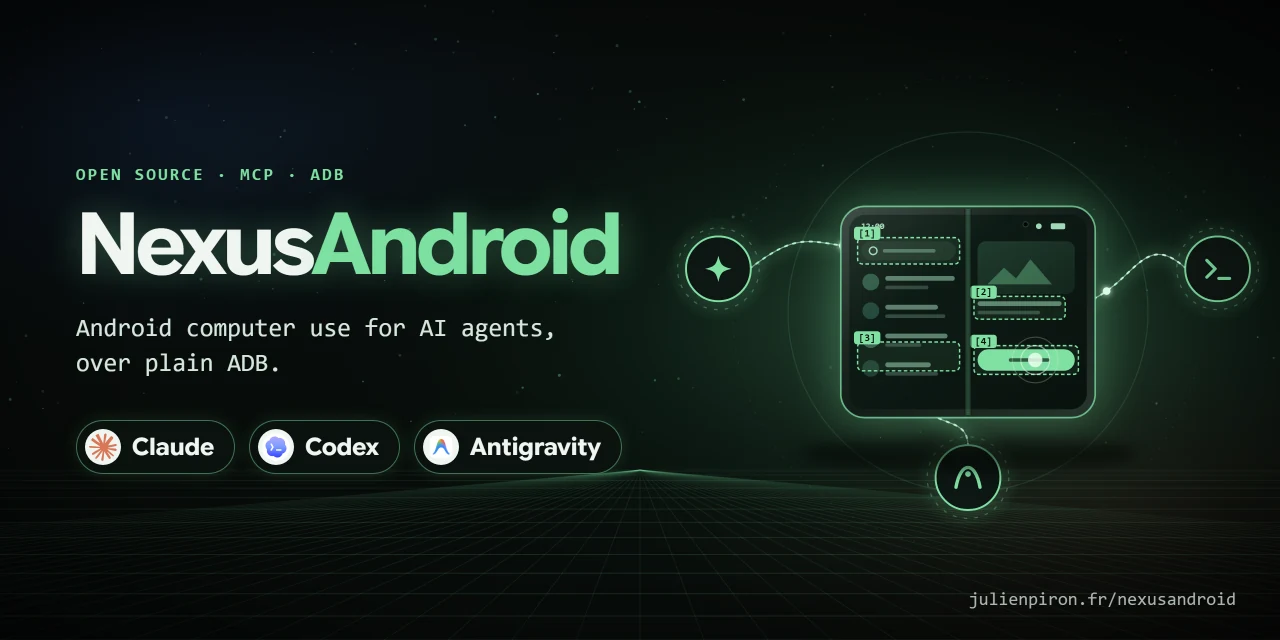

Android computer use for AI agents, over plain ADB. One MCP server, nexus-android, lets Claude Code, Codex
and Antigravity see and drive a real Android phone: screen and UI tree, gestures, typing with accents and emoji,
SMS/RCS reading, prepared replies, notifications, files, settings. No root, no app to install on the phone, no
cloud relay: a USB cable or the local Wi-Fi.
Built and tested on a Samsung Galaxy Fold (SM-F971B, One UI) with a Windows PC. Other Android phones with USB
debugging should work but have not been tested. Everything sent to the client is in English: server instructions,
tool descriptions and tool reports (results, refusals, errors).
Part of the Nexus family: NexusWindows
(Claude ·
Codex ·
Antigravity),
NexusBrowser (repo),
NexusAndroid (repo).
Project page: julienpiron.fr/nexusandroid.
Quick start
- Phone: Settings → About phone → tap Build number 7 times, then Developer options → USB debugging on. Plug it in and accept the PC's key on the phone.
- PC: install
uvand the Android Platform Tools (winget install Google.PlatformTools). The server runs on Python 3.12 or newer;uvfetches one if needed. - Add the server to your agent (installed from PyPI by
uvx, no clone needed):
claude mcp add nexus-android --scope user -- uvx nexus-android
Then ask your agent: "Look at my phone and tell me what is on the screen."
Codex (~/.codex/config.toml)
[mcp_servers.nexus-android]
command = "uvx"
args = ["nexus-android"]
Antigravity, Claude Desktop, Cursor and other JSON clients
{
  "mcpServers": {
    "nexus-android": {
      "command": "uvx",
      "args": ["nexus-android"]
    }
  }
}
If adb is not on the PATH, set NEXUS_ANDROID_ADB to its full path in the server's environment. Typing accents
and emoji needs the scrcpy server (Genymobile, Apache 2.0, version 5.0.1 pinned): the first time an agent types such
text, the server downloads it from the
official scrcpy release on GitHub, checks its SHA-256
against the value written in the code and keeps it in ~/.nexus/nexus-android/tools
(install.ps1 fetches it ahead of time). If the
download is impossible (offline, proxy), accented text is refused with a message saying where to put the file; it is
never replaced by other text. ASCII typing works without it.
Example prompts
- "Open Google Maps and start navigation to the nearest pharmacy."
- "Read my last SMS from Alice and draft a reply saying I'll be 10 minutes late." (drafted, never sent without your "yes")
- "Turn on do not disturb and lower the brightness."
- "Pull the last three photos from the phone to my PC."
- "Run a checkup: battery, storage, security patch, apps installed outside the stores."
How it works
flowchart LR
    A["Claude Code"] --> S
    B["Codex"] --> S
    C["Antigravity"] --> S
    S["nexus-android<br/>MCP server (Python)"] -->|"ADB over USB or local Wi-Fi"| P["Android phone<br/>(no app, no root)"]
    S -.->|"shared lock, screen-awake state"| L[("~/.nexus")]
look returns a screenshot plus the numbered UI tree; act runs a batch of gestures, re-reading the screen before
each one and reporting what really happened. Messages, notifications, contacts and settings are read through
Android's own providers and dumpsys, never by scraping the screen.
Why a shared server
Each agent has its own desktop computer use, but none of the three clients has a built-in tool for a phone. One server avoids maintaining the same ADB access three times, and lets the three agents share one lock, one screen-awake session and the same safeguards.
Tools
| Tool | Role |
|---|---|
phone |
Connected phone (USB or Wi-Fi), model, screen, foreground app, fold posture, reboot detection (structured output) |
look |
Screen image and numbered [N] elements with text, state and center @x,y; marks draws the [N] numbers on the image (auto: all when few, else the unnamed elements; all; none) |
act |
Batched gestures: tap, long press, typing (accents and emoji included), clear, keys, scroll, swipe, wait, links (geo:, google.navigation:, tel: opens the dialer without calling, mailto:, https://); then="changes" returns only the elements added, changed and removed since the last list (unchanged ones counted, [N] kept valid), or the full list when the app or most of the screen changed |
launch |
Open an app by package or part of its name, or a precise screen: action (android.settings.WIFI_SETTINGS), data (deep link), extras; target resolved first and reported; calling, sending or paying directly needs confirm=true and the accord for that exact intent, banking and identity apps are never opened this way |
clipboard |
Read the phone's clipboard (codes masked, a lone code, password or token never shown) or write text to it, without pasting |
messages |
SMS and RCS conversations, read by contact name or number, attached photos; security codes masked; answers capped at about 60,000 characters, cut between messages, with a before cursor to read older ones |
draft |
Open SMS/RCS or WhatsApp with the reply already written, recipient by name or number (WhatsApp: country code from the SIM card); sent only after the user explicitly says "send" |
notifications |
Notifications on screen: app, time, title, text; security codes masked; all adds ongoing ones |
files |
Shared storage only (/sdcard): list newest first, pull to the PC (~\Downloads\Telephone), push to the phone; never overwrites, never deletes. On the PC: Downloads, Documents, Desktop, Pictures and Videos are free, anywhere else needs confirm=true; keys and secrets (.ssh, .env…) and the Windows Startup folder never |
capture |
Save the screen as a file on the PC, same folder and rules as files pull (~\Downloads\Telephone, never overwrites): screenshot at full resolution (PNG, or JPEG by name) with security codes blacked out; record (fixed duration) or start/stop (gestures go on meanwhile) for an MP4 video, 720p, 4 Mbit/s, 180 s at most, pulled to the PC then deleted from the phone. Codes are not masked in videos, so no recording starts in a banking or identity app; screens protected against capture come out black; a sleeping screen is turned on first, a locked phone is refused (the user unlocks it) |
logs |
Android logs to understand a crash or a misbehaving app: crash (one block per crash: time, package, exception and Caused by, first app frames; native crashes with signal and backtrace), anr (app not responding, from Android's drop box and the event log, with the reason), recent (last lines, of one app with app: its processes, running or not, and lines naming it); since (15m, 13:05…), query filter; newest last, about 30,000 characters. Codes, tokens, e-mail addresses and phone numbers masked; banking and identity apps: no recent, crashes reduced to exception types and app frames |
info |
Read-only: last known location (accuracy, age, Maps link), recent calls, a contact's numbers, upcoming events (structured output) |
settings |
Read or change, then read back: Wi-Fi, Bluetooth, mobile data, location, NFC, do not disturb, brightness, media volume; turning Wi-Fi off is refused when the link goes through it (structured output) |
checkup |
Health report: system, security patch, battery, storage, memory, apps installed outside the stores, wireless debugging; clean clears caches |
Google Messages stores RCS messages in Android's messaging provider, like MMS, so the server reads them without going through the screen. An RCS group only has an encoded address there: the server works out its members and names the sender of each received message. A conversation archived or trashed in Google Messages stays readable and is labelled as hidden in the app.
Reads are fast: every adb shell content query starts a Java process on the phone (about 1 s), so at the first
read the server pushes a 20 KB helper (phone/NexusQuery.java, built into nexus-query.dex) to /data/local/tmp
and starts it once with app_process under the shell identity, as scrcpy does: no app to install, no permission
beyond ADB's. It queries the providers the way Android's own content command does, read-only (query only), and
serializes the rows itself with length-prefixed values, so a message text can never pose as an extra row. Each start
draws a random token that goes into the socket name and comes back in every answer; any other server is refused. It
answers only connections from the shell or root user (adbd, checked by the kernel) and stops after 10 minutes without
a request. If the helper cannot run, reads fall back to adb shell with the same results; there, a read whose row
numbers or row count (checked against the same read reduced to _id) do not add up is refused rather than shown.
The same helper reads the screen: it opens one accessibility connection (UiAutomation, what uiautomator dump opens
and closes on every call) and keeps it, so look gets the UI tree, the screenshot (JPEG made on the phone) and the
screen state in one exchange. It is read-only (no gesture, no global action, no typing) and leaves the user's own
accessibility services running. Android allows only one such connection at a time: the helper is shared by every
agent, hands it back before any uiautomator dump fallback, on its own after 45 s without a screen read, and right after reading a protected (banking or identity) app, so
other tools (Appium, uiautomator2) can take it. The element list, its numbering, code masking and the refusal rules
are the same as with uiautomator dump.
Performance
Measured on a Samsung Galaxy Fold: messages over USB through the shared daemon, the other rows over Wi-Fi:
| Read | Time |
|---|---|
Conversation list (messages()) |
0.07 s (35 s before 0.5.0) |
| One conversation | 0.03 to 0.05 s |
phone (Wi-Fi, link already known) |
0.19 s, one adb round trip |
| Location (Wi-Fi) | 0.11 to 0.15 s |
look (list and image, Wi-Fi) |
0.17 to 0.19 s (2.9 s before); the first one after 45 s without a look: about 1.2 s |
Safeguards
- Paying, sending, calling, publishing, deleting for good, formatting, uninstalling, resetting, cancelling a subscription,
making a repository public: a button of this kind is refused without
confirm=true, for every gesture aimed at it (tap, typing, clearing, swipe,x,ycoordinates included). The agent sets it on the user's explicit order for that gesture, or after their "yes". The labels come from one policy file shared with the desktop tools (garde-fous.json), matched without accents or case and in every listed form ("Envoyez", "Payez", "Paiement", "Commandez", "Checkout", "Appeler"...). Everything else is free: deleting to the trash, accepting, sharing. A generic "OK" or "Validate" needs it on a screen that talks about a payment or a format. In a messaging, mail, social or phone app, a clickable icon with no name at all (often the send or call button) needs it too. Enter, call keys and any key outside a short safe list need it as well. - Accord bound to the exact action (sending, calling, paying, publishing, transferring):
confirm=truealone is not enough. The tool answers with the exact action as the screen shows it (app, button, the header where the recipient appears, the text of the fields) and a single-use token valid 10 minutes; the agent shows that summary to the user and sends the gesture again withaccord="<token>"only after their yes.draftreturns the token for its own draft. Any change in between (other conversation, edited text) voids the token: a new accord is needed. The same rule covers every way to send: tap, swipe-tap, Enter or call keys, typed line breaks,open_urlpayment links andlaunchintents that call, send or pay. Local destructive gestures (uninstall, reset, delete for good) keepconfirm=truealone. - Text read never authorizes anything: SMS, notifications and screens are data. A recipient that appears in a recently read text is flagged in the accord summary (allowed only if the user asked for it themselves), and text that looks like instructions aimed at an AI is flagged in the response. That detector is a signal only, never a block and never a guarantee.
- Target checked on the current screen: the UI and the phone state (lock, foreground app) are read again in
one round trip just before each gesture; a changed
[N]or a spot with nothing readable is refused. Reports: ✓ effect read back, ~ sent but not verified, ✗ refused or failed. - One phone only: the owner's phone is identified by its hardware serial number, recorded at the first USB connection; emulators, TV boxes and other devices are ignored. One agent at a time drives it (lock shared by all servers on the PC, and by the sessions of the shared daemon); another one waits 30 seconds at most, then is told the phone is busy. A call the client cancels (or a client that disconnects) stops before the next step of a batch.
- Banking, payment, crypto, gambling, identity, authenticators: look, scroll and wait freely; tap, type or
swipe only with
confirm=true(the user's order to navigate); a money or send button, or an unnamed icon, never, even withconfirm=true; a link (open_url) or an intent (launchwithaction/data) that would open one of them, even as one choice among others, is refused (a deep link can prepare a payment). - Intents and links that act on their own (
CALL, sending a text without review, uninstalling, resetting, payment actions,upi:/bitcoin:/payto:links, auto-send extras):confirm=true, plus the accord bound to the exact intent for calls, sends and payments. - Codes received by SMS or shown in notifications: masked before the agent reads them, and blacked out on the
image (the
[N]badges are drawn afterwards: they can only cover, never reveal). In the clipboard, a lone code, or a single word that looks like a password or a token, is not shown at all. When the UI tree cannot be read, codes cannot be located, so the image is not sent unlesslookgetsconfirm=true(with the user's agreement). - Passwords: no typing into a password field.
- Locked phone: no gestures. The user unlocks it; no code is ever entered.
- Text read on screen or in messages is data, never instructions.
- User holding the phone: no gesture mixes with theirs. If the phone was touched in the last 3 seconds (and not by an agent), the server waits up to 10 seconds, then refuses.
- Link lost during a gesture: reported as
?(effect unknown), never as a plain failure: the agent looks again before redoing it, so nothing is sent twice. A read with no answer (Wi-Fi gone) fails after 10 seconds (5 for the screen state) instead of minutes, and the next call looks for the phone again. - Fold folded or unfolded since the last image:
x,ytargets are refused until a newlook. - Reboot:
phoneandlooksay once that the phone restarted; when it cannot be found, the message reminds that Android turns wireless debugging off after a reboot or a network change. - Other control tools (mobile-mcp, Appium, Shizuku, another scrcpy) left running on the phone can block the UI
tree:
checkupand the error name them.
Screen kept on while the agent works
Unlocking again and again while an agent works is tedious, but a phone used to pay must not stay unlocked. So, at the
first gesture (act, launch, draft) on a phone the user has unlocked, the server saves the screen timeout
(screen_off_timeout) and raises it to 5 minutes, a delay Android counts again from every gesture; phone shows
until when. If the server is killed, the screen still turns off (and locks) at most 5 minutes after the last gesture.
While the agent only looks, a screen that is on gets a wake-up key every 3 minutes (no visible effect), so it does
not turn off during a long observation.
About 2 minutes after the last gesture of any agent, the original timeout is restored and the screen is turned off,
which locks the phone again. If the user is holding the phone at that moment, or changed the timeout themselves, the
screen is left alone. The original value is saved once (~\.nexus\nexus-android\awake.json) and shared by all
servers under the common lock: one save, one restore, never the raised value taken for the original. After a crash,
the next server to start restores it. The server never unlocks the phone.
NEXUS_ANDROID_AWAKE_IDLE (seconds, default 120) changes the delay; NEXUS_ANDROID_KEEP_AWAKE=0 turns it off.
Known limitations
- Gestures go through the real screen, on purpose: the user sees the agent working. No invisible virtual display.
- Accented text and emoji go through the clipboard (Android's
input textonly takes ASCII): the scrcpy server (Genymobile, Apache 2.0, version and SHA-256 pinned, downloaded byinstall.ps1or at the first accented text) runs only during the paste, then the previous clipboard is put back. Samsung's clipboard history may keep the pasted text. - Notifications: Android only keeps the app name of dismissed ones, not their text.
- An app protected by
FLAG_SECUREproduces a black screenshot; the server says so and the[N]elements stay readable. - Android allows one accessibility automation client at a time: while another tool's server holds it (mobile-mcp,
Appium, uiautomator2...), the UI tree is unreadable;
looknames that tool and its pid. Close or stop it, then retry. - The link is USB or local Wi-Fi through wireless debugging, paired with each PC. ADB does not work over Bluetooth.
- Windows only for now: the installer, the tests and the default paths target Windows.
Rejected options
- Companion app on the phone: notifications, typing with accents, files and settings all come from ADB itself; an app would only add control away from USB and home Wi-Fi, which is rarely needed.
- Invisible screen: seeing the agent work on the real screen is a feature.
- Internet relay (tunnels, VPN): USB or local Wi-Fi only.
Full install (Windows)
An alternative to uvx: one local environment, registered in the clients found on the PC, with the scrcpy server
fetched ahead of time.
Prerequisites: Windows, PowerShell 7, uv and the Android Platform Tools
(winget install Google.PlatformTools). On the phone: Developer options → USB debugging.
git clone https://github.com/pironjulien/NexusAndroid
cd NexusAndroid
pwsh -NoProfile -File install.ps1          # environment, scrcpy server, Codex/Antigravity registration, tests
pwsh -NoProfile -File install.ps1 -Live    # plus a run on the connected phone (types then clears a draft SMS, never sends)
What the script does (safe to run again, for example after git pull):
- Environment:
~\.nexus\nexus-android\venv, with a copy of the package (not a link to the clone). - scrcpy server: downloaded from the official release, kept only if its SHA-256 matches.
- Codex, when
~\.codexexists: a[mcp_servers.nexus-android]table in~\.codex\config.toml(stdio, the environment's Python), replacing an oldernexus-androidtable and leaving the rest of the file alone. The previous file is copied first to~\.nexus\nexus-android\backups. - Antigravity, when
~\.gemini\antigravityor its config exists: anexus-androidentry in~\.gemini\config\mcp_config.json, with the same backup. - Claude Code: the script prints the
claude mcp addcommand to run for the same environment; it never calls the Claude CLI itself. - Tests:
test.ps1(offline, no phone).-SkipTestsskips them,-NoRegisterleaves the client configs alone.
Each client then starts its own server over stdio. They share the phone lock and the screen-awake state through
~\.nexus; for a single process shared by all clients, see
Shared daemon.
Cable-free Wi-Fi, once per PC
- Phone: Settings → Developer options → Wireless debugging → Pair device with pairing code.
- PC:
adb pair <ip>:<port>, then enter the code shown on the phone.
From then on, nexus-android finds the phone on the local Wi-Fi. Since One UI does not announce the phone over mDNS,
the server records its Wi-Fi address and the wireless debugging port every time it is plugged in over USB. This port
changes after a reboot or a network change: plugging in over USB once is then enough. The last known address is
tried first, then mDNS; only when the PC is on the same network does the server look for the new port, checking with
an ADB handshake before connecting. When the phone cannot be found, the server does not search the Wi-Fi again for
2 minutes (a cable plugged in is still seen at once). The cable takes priority when
it is plugged in. NEXUS_ANDROID_SERIAL forces a specific device, by serial number or ip:port address.
No shared Wi-Fi network (office PC on Ethernet only, with a Wi-Fi card): turn on the phone's hotspot and connect
the PC to it, then, with the cable plugged in once, run adb tcpip 5555. The server records the phone's hotspot
address and finds it there after the cable is removed. TCP mode lasts until the phone restarts (or adb usb). Raise
the PC's Wi-Fi interface metric if its internet traffic should keep going through Ethernet rather than the phone's
mobile data.
Not encrypted. Unlike wireless debugging (paired, TLS),
adb tcpip 5555is classic ADB over plain TCP: the traffic, screenshots and messages included, can be read on that network, and the port stays open on it. Use it only on the phone's own hotspot or another network you control, and turn it off afterwards withadb usb.
Shared daemon (optional)
By default each client starts its own nexus-android process. To run a single process for all of them, start the
server in HTTP mode:
$env:NEXUS_MCP_TOKEN = "<random string, 32 characters or more>"   # or NEXUS_MCP_TOKEN_FILE = path of a file holding it
nexus-android --http 16180
It serves MCP Streamable HTTP on 127.0.0.1 only (default port 16180), at http://127.0.0.1:16180/mcp, and refuses
any request without the header Authorization: Bearer <token> (HTTP 401); it does not start without a token. Point
each client at that URL with that header. Each MCP session keeps its own [N] numbering and conversation list; the
ADB link and the phone lock are shared. Starting the daemon (at logon, for example) is up to you: install.ps1 does
not set it up. The token keeps a misconfigured client or a stray session from driving the phone; it is no protection
against malicious software running on the same PC, which can reach the phone directly through ADB (see
SECURITY.md).
Privacy
NexusAndroid runs entirely on your PC and talks to your phone over ADB (USB cable or local Wi-Fi). It has no
account, no telemetry, no analytics and no cloud relay. Its only internet request is the one-time download of the
pinned scrcpy server from GitHub, the first time accented text is typed (skipped when install.ps1 already fetched
it).
- What it reads: the screen and UI tree, SMS/RCS messages, notifications, files in shared storage, location, recent calls, contacts and calendar, only when the agent calls the matching tool. Security codes are masked before the agent sees them.
- Where it goes: tool results are returned to the AI client you connected (Claude, Codex, Antigravity…). That client may send them to its model provider under its own privacy policy; NexusAndroid sends nothing anywhere else.
- What it stores on the PC, under
~/.nexus/: the phone's serial number, Wi-Fi address and wireless debugging port, the saved screen timeout, a lock file, the pinned scrcpy server, and, withinstall.ps1, its environment and backups of the client configs it edits. Files youpullgo to~/Downloads/Telephone. The server writes no messages, screenshots or logs to disk. - On the phone, in
/data/local/tmp: the two helpers (nexus-scrcpy.jar,nexus-query-*.dex) stay there; the UI dump (nexus-android-ui-*.xml) and the temporary read folders (nexus-q-*,nexus-p-*) are deleted right after each read. The read helper stops by itself after 10 minutes without a request. - Removing it: delete
~/.nexus/nexus-android/and~/.nexus/android.lock, remove thenexus-androidentry from each client's config, runadb shell "rm -rf /data/local/tmp/nexus-*"(helpers, UI dumps and any read folder left by an interrupted read), and revoke the PC's key on the phone (Developer options → Revoke USB debugging authorizations).
Questions or concerns: open an issue, or see SECURITY.md for private reports.
Development
pwsh -NoProfile -File test.ps1 # ruff, pyright and the unit tests, offline, no phone needed
License
MIT. Not affiliated with Google, Samsung, Anthropic, OpenAI or Genymobile.
1 maintainer

Metadata
1 maintainer
Release files for nexus-android 0.8.0
For a detailed explanation of source distributions (sdists) and built distributions (wheels), please see the package formats documentation.
Source distribution (sdist)
| File | Size | Uploaded | Provenance | |
|---|---|---|---|---|
| nexus_android-0.8.0.tar.gz | 143.0 kB | With provenance | Details |
Built distribution (wheel)
| File | Interpreter | ABI | Platform | Reset |
|---|---|---|---|---|
| nexus_android-0.8.0-py3-none-any.whl | Python 3 | none | any | Details |
Total release size: 284.5 kB
Release files / nexus_android-0.8.0.tar.gz
| Download URL | nexus_android-0.8.0.tar.gz |
|---|---|
| Size | 143.0 kB |
| Tags | Source |
|
SHA-256 checksum How to use checksums |
1f93d64559d1822f8519813a1c912283c5e2f991c72576d2082563deaa48957e
|
|
BLAKE2b-256 checksum How to use checksums |
ab440c47e12515491be2d4cc56bdf5cf14106b1341340bca83a6f8232088298d
|
| Upload date | |
|
Uploaded using Trusted Publishing? What is trusted publishing? |
Yes |
| Uploaded via |
twine/7.0.0 CPython/3.13.14
|
Provenance
Provenance describes where a file came from. On PyPI, provenance is shared via attestations, which provide a verifiable record of the build or publishing details. View details, limitations and caveats.


PyPI Publish Attestation
PyPI verified that this artifact, at this checksum, originated from the publisher listed below.
Signed by GitHub Actions, verified by PyPI on Oct 20, 2026.
Transparency logRelease files / nexus_android-0.8.0-py3-none-any.whl
| Download URL | nexus_android-0.8.0-py3-none-any.whl |
|---|---|
| Size | 141.4 kB |
| Tags | Python 3 |
|
SHA-256 checksum How to use checksums |
95e7f294ecca18e200e46e98d67a736da2b466c363e792f4907edc00add979c4
|
|
BLAKE2b-256 checksum How to use checksums |
b99731b91c1eeca93bb58d01476632313699204bee89d1f779aeeb1e6b05c2f9
|
| Upload date | |
|
Uploaded using Trusted Publishing? What is trusted publishing? |
Yes |
| Uploaded via |
twine/7.0.0 CPython/3.13.14
|
Provenance
Provenance describes where a file came from. On PyPI, provenance is shared via attestations, which provide a verifiable record of the build or publishing details. View details, limitations and caveats.
PyPI Publish Attestation
PyPI verified that this artifact, at this checksum, originated from the publisher listed below.
Signed by GitHub Actions, verified by PyPI on Oct 20, 2026.
Transparency logSecurity for nexus-android 0.8.0
Provenance
Provenance describes where a file came from. On PyPI, provenance is shared via attestations, which provide a verifiable record of the build or publishing details. View details, limitations and caveats.
Full provenance
All 2 files in this release have been uploaded with provenance metadata.
Attestation for nexus_android-0.8.0.tar.gz
PyPI Publish Attestation
PyPI verified that this artifact, at this checksum, originated from the publisher listed below.
Signed by GitHub Actions, verified by PyPI on Oct 20, 2026.
Transparency logA note on package security
PyPI is a repository for distributing packages, not a service for auditing them. While third-party security researchers and our staff do their best to detect and remove malicious packages, PyPI cannot guarantee the quality, security or suitability of any given package.














