

nimRum — Synchronized Wireless Audio
Multi-room wireless audio streaming over WiFi/Ethernet with sub-sample synchronization. Stream up to 16 channels from one source to multiple speakers — perfectly in sync.
What it does
- One transmitter reads audio (file, line-in, or S/PDIF) and streams unique audio to up to 16 receivers
- Receivers play back in perfect synchronization — no echo, no phase issues
- Configurable per-receiver: channel assignment, volume, latency offset
- Uncompressed WAVE transport — one channel per receiver, so a stereo pair is two receivers and 16 receivers give 16 channels
- Works with standard Raspberry Pi hardware and sound cards
This means you can put multiple wireless speakers in the same room and have them play together — for music or as surround speakers — without the timing issues that plague other wireless audio solutions.
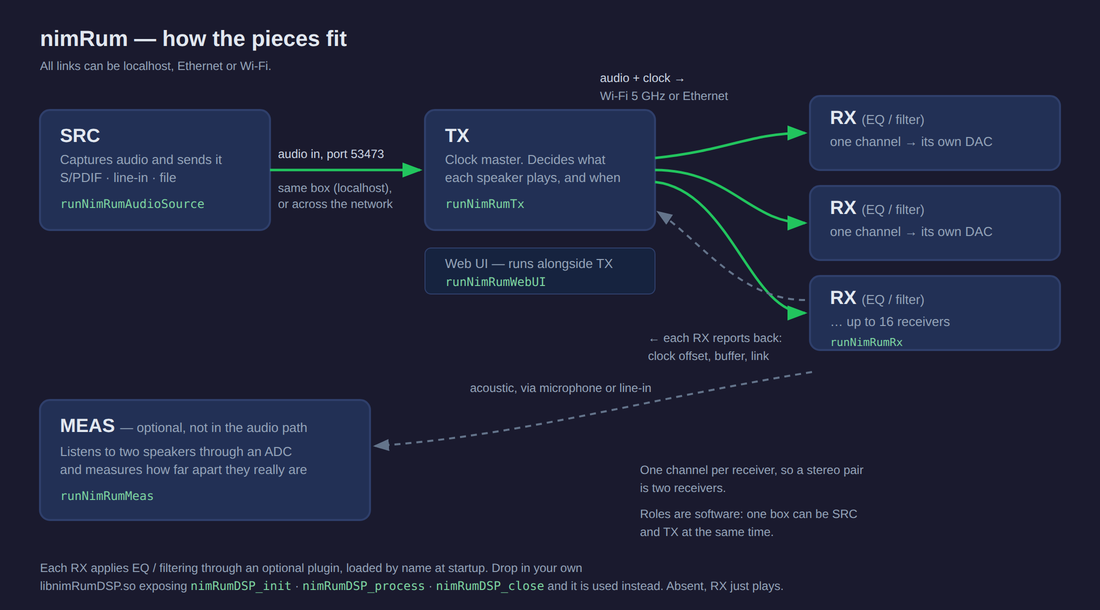
How the pieces fit
Four roles, all of them just software — one box can be several at once, and every link is UDP over localhost, Ethernet or Wi-Fi:
Install
# Prerequisites
sudo apt install libavcodec-dev libavformat-dev libavutil-dev libasound2-dev \
                 libsndfile1-dev screen

# Install
pip3 install nimRum
Quick start
Transmitter (TX)
runNimRumTx myfile.wav      # Stream a file
runNimRumTx                 # Stream from line-in/S/PDIF
First run creates a txConfig.yaml template — configure receiver hostnames and channel mapping there.
Receiver (RX)
runNimRumRx
First run uses defaults. On exit, saves rxConfig.last — rename to rxConfig.yaml to customize.
Web UI
runNimRumWebUI
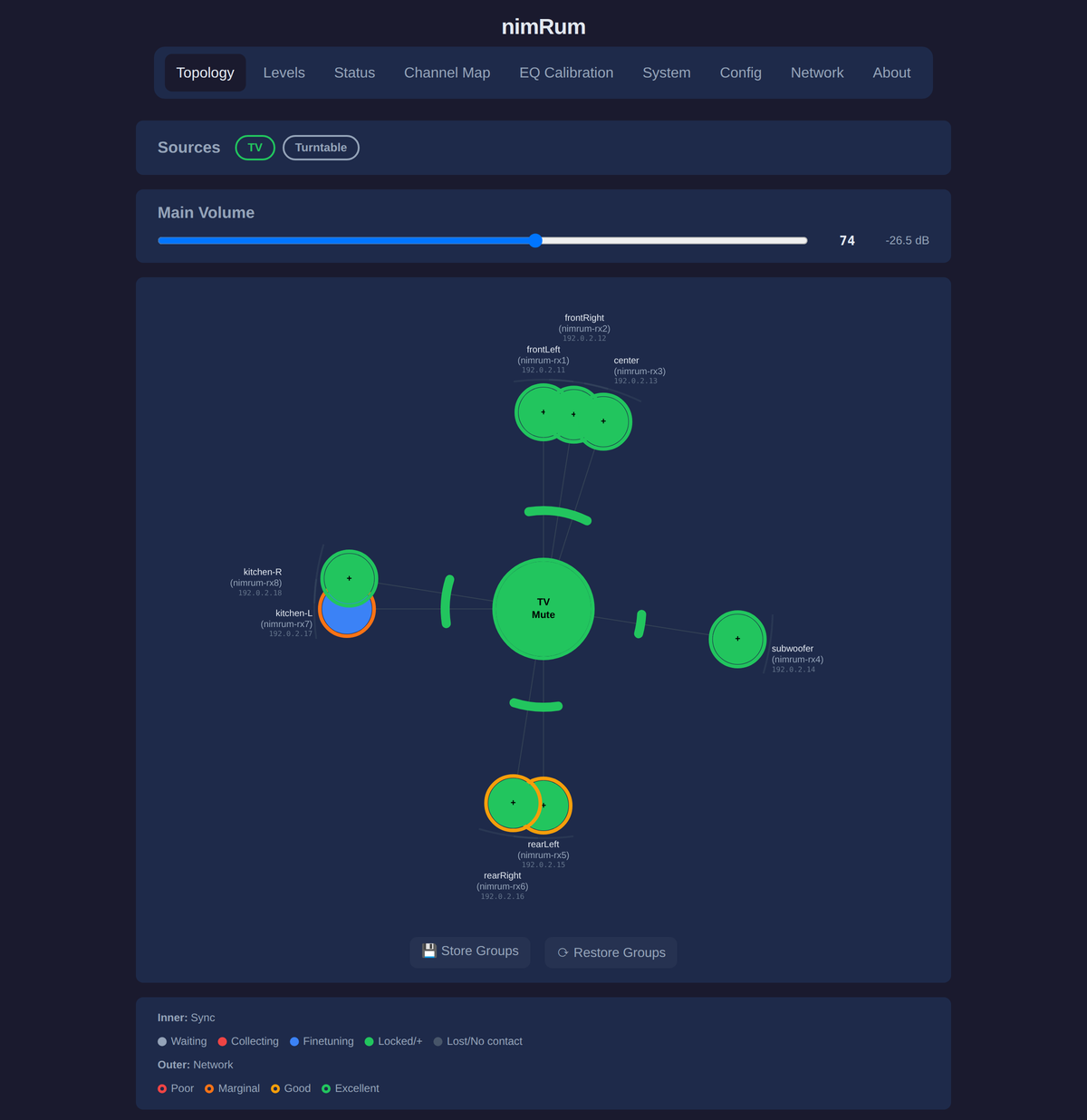
Opens a web interface showing topology, status, and volume controls.
Preparing a device
Order of work for a brand-new device, since the scripts below each assume the step before it:
- Flash Raspberry Pi OS and get the device on the network. Nothing here does that
for you. Raspberry Pi Imager can preload SSH, WiFi and a hostname;
doc/headless-install.mdcovers the awkward version, with no monitor and no ethernet. setup-device.sh— hostname, NTP, audio and DAC overlay (below).pip3 install nimRumon the device.install-systemd.shfrom your workstation, to run it as a service.
A note on OS choice. 64-bit Raspberry Pi OS on a Pi 3 or newer is the well-trodden path. On a 32-bit Pi 2 we have measured XRUNs under Debian 13 (Trixie) that do not occur under Bullseye — a kernel driver problem rather than anything in nimRum — so on that board prefer the older release.
Then, on the device:
sudo ./scripts/setup-device.sh
sudo ./scripts/setup-device.sh --dry-run   # show the plan, change nothing
This script is experimental and we would like your feedback. We can only test it on the boards and sound cards we happen to own, and the combinations are many: board revision, OS release, HAT. If it misidentifies your hardware, picks the wrong overlay, or does anything you did not expect, please open an issue with the summary it printed and your
config.txt. That helps us more than quietly fixing it by hand.
It prints everything it intends to change and asks before touching anything, keeps your
original config.txt as config.txt.nimrum-original from the first run onwards, and is
safe to run twice — it edits settings in place instead of appending duplicates. A reboot
is needed afterwards for the overlay and hostname to take effect.
It does not install the package or the services: pip3 install nimRum and
install-systemd.sh below cover those. It writes no nimRum config file either, so
playback settings stay at their auto-detecting defaults.
Running as a service
The commands above run in the foreground, which is fine for trying things out. For a
permanent installation the package ships ready-made unit files in
device-config/:
device-config/systemd/     One unit per role: rx, tx, webui, src, meas
device-config/journald/    Journal size cap, so logs cannot fill the SD card
device-config/avahi/       mDNS advert for the Web UI (TX only)
These are not installed by pip. pip3 install nimRum places the executables only —
installing the units is a separate, one-off step per device. scripts/install-systemd.sh
does it for you over SSH, from the machine you are sitting at:
./scripts/install-systemd.sh speaker1            # RX (the default role)
./scripts/install-systemd.sh mytx tx src         # TX, also feeding audio in
./scripts/install-systemd.sh mysrc src           # audio source only
It installs the journald limit, copies the units for the roles you name, stops anything
already running, then enables, starts and verifies each service. It needs key-based SSH
and passwordless sudo on the target, and it is safe to re-run — that is how you change
a device's role.
Afterwards, on the device:
systemctl status nimrum-rx
journalctl -u nimrum-rx -f
device-config/README.md documents each file and where it lands.
Features
- Up to 16 receivers, one channel each — 16 channels in total
- Per-receiver channel assignment from the source's channel layout
- Uncompressed WAVE transport
- Software volume control with per-receiver dB adjustment
- Static delay adjustment per receiver (microseconds)
- Network quality monitoring
- Optional IR remote control (volume/mute via LIRC)
- Optional rotary encoder for volume
- RGB LED status indicator
- Auto-start and restart-on-failure via systemd units (see device-config/)
Hardware
- Supported: Raspberry Pi 3, 4, 5 and Zero 2 W
- OS: 64-bit Raspberry Pi OS on Pi 3 and newer. A 32-bit Pi 2 is not in the list above and needs Bullseye if you use one anyway — we measured XRUNs on that board under Debian 13 (Trixie), caused by a kernel driver rather than by nimRum.
- Network: WiFi 5 (802.11ac) on 5GHz recommended, or Ethernet
- Sound cards: HifiBerry, IQAudio, JustBoom, or any ALSA-compatible card. A HAT with an ID EEPROM is detected by the firmware and needs no overlay configuring.
Important notes
setup-device.sh above does all three of these for you. They are spelled out here
because they are easy to get wrong by hand, and because knowing why helps when
something misbehaves:
- Disable NTP on every device:
sudo systemctl disable systemd-timesyncd.service. nimRum synchronises the devices itself, and NTP stepping the clock underneath it is the one thing that must not happen while audio is playing. - Give every device a unique hostname — the device ID is the md5 of it, so two devices sharing a hostname collide.
- Disable unused sound devices. The Pi's built-in analog output is noisy, and HDMI audio will otherwise compete for the default card.
License
This package contains two kinds of thing under two different licences. Which applies depends on the artefact, so they are listed rather than summarised:
| Artefact | Licence |
|---|---|
All Python in nimRum/, plus scripts/, tests/, doc/ |
GPL-3.0-or-later, with a linking exception for the nimRumLib binaries — LICENSE.txt |
C sources under clibs/dsp/ and clibs/audio_source/, and the libraries built from them (libnimRumDSP.so, nimRumAudioSource_ct.so) |
GPL-3.0-or-later, same as the Python — LICENSE.txt |
The pre-built nimRumLib binaries libNimRumTx_ct.so and libNimRumRx_ct.so |
Proprietary. Private and evaluation use only; no redistribution and no commercial use without written permission — LICENSE-nimRumLib.txt |
In short: everything whose source is in this repository is GPL-3.0-or-later. The two nimRumLib binaries are not, their source is not published, and they state the same terms in their own startup banner.
The linking exception in LICENSE.txt is what allows GPL-3.0 code in this package to link against those two proprietary libraries.
Commercial licensing: AbtAudio AB.
Links
- Website: www.abtaudio.tech
- PyPI: pypi.org/project/nimRum
1 maintainer

Metadata
1 maintainer
Release files for nimRum 2.8.7
For a detailed explanation of source distributions (sdists) and built distributions (wheels), please see the package formats documentation.
Built distributions (wheels)
| File | Interpreter | ABI | Platform | Reset |
|---|---|---|---|---|
| nimrum-2.8.7-py3-none-manylinux_2_27_aarch64.whl | Python 3 | none | Linux glibc 2.27+ ARM64 | Details |
| nimrum-2.8.7-py3-none-linux_armv7l.whl | Python 3 | none | linux armv7l | Details |
Total release size: 1.1 MB
Release files / nimrum-2.8.7-py3-none-manylinux_2_27_aarch64.whl
| Download URL | nimrum-2.8.7-py3-none-manylinux_2_27_aarch64.whl |
|---|---|
| Size | 554.8 kB |
| Tags | Linux glibc 2.27+ ARM64 Python 3 |
|
SHA-256 checksum How to use checksums |
cd6f4e7f950ef02d7859f7171afd419ecdcfd58769904220829fc7e7067e5f17
|
|
BLAKE2b-256 checksum How to use checksums |
6639682006c61707d011a8ddce4a2d3deda0c28a9b686a489e89d3a2ab1764fc
|
| Upload date | |
|
Uploaded using Trusted Publishing? What is trusted publishing? |
No |
| Uploaded via |
twine/7.0.0 CPython/3.12.3
|
Release files / nimrum-2.8.7-py3-none-linux_armv7l.whl
| Download URL | nimrum-2.8.7-py3-none-linux_armv7l.whl |
|---|---|
| Size | 550.0 kB |
| Tags | Python 3 linux armv7l |
|
SHA-256 checksum How to use checksums |
0bd16d9a396e59b8def5f2e4183c467ae22fb15e0d7b94fc0963e8ddbfaf0ea1
|
|
BLAKE2b-256 checksum How to use checksums |
1d5910e9aa1eb29632e8b2d1b2e0e767bef1acd477b0a77740389a801453940d
|
| Upload date | |
|
Uploaded using Trusted Publishing? What is trusted publishing? |
No |
| Uploaded via |
twine/7.0.0 CPython/3.12.3
|














