
JetStream: Cloud Data Manager - A comprehensive tool for managing local-to-cloud uploads with queue management, statistics, and folder analysis
Verified details
These details have been verified by PyPIProject links
GitHub Statistics
Maintainers

Project description
NOAA JetStream — Cloud Data Management Transfer System
A comprehensive web-based application for managing Google Cloud Storage uploads with features including job queuing, real-time analytics, cloud bucket analysis, and batch processing capabilities.
Features
- Upload Management
- Analytics & Monitoring
- Cloud Bucket Analysis
- File Filtering
- Web Dashboard
- Terminal UI (TUI) — full-featured htop-style dashboard for terminals and remote sessions
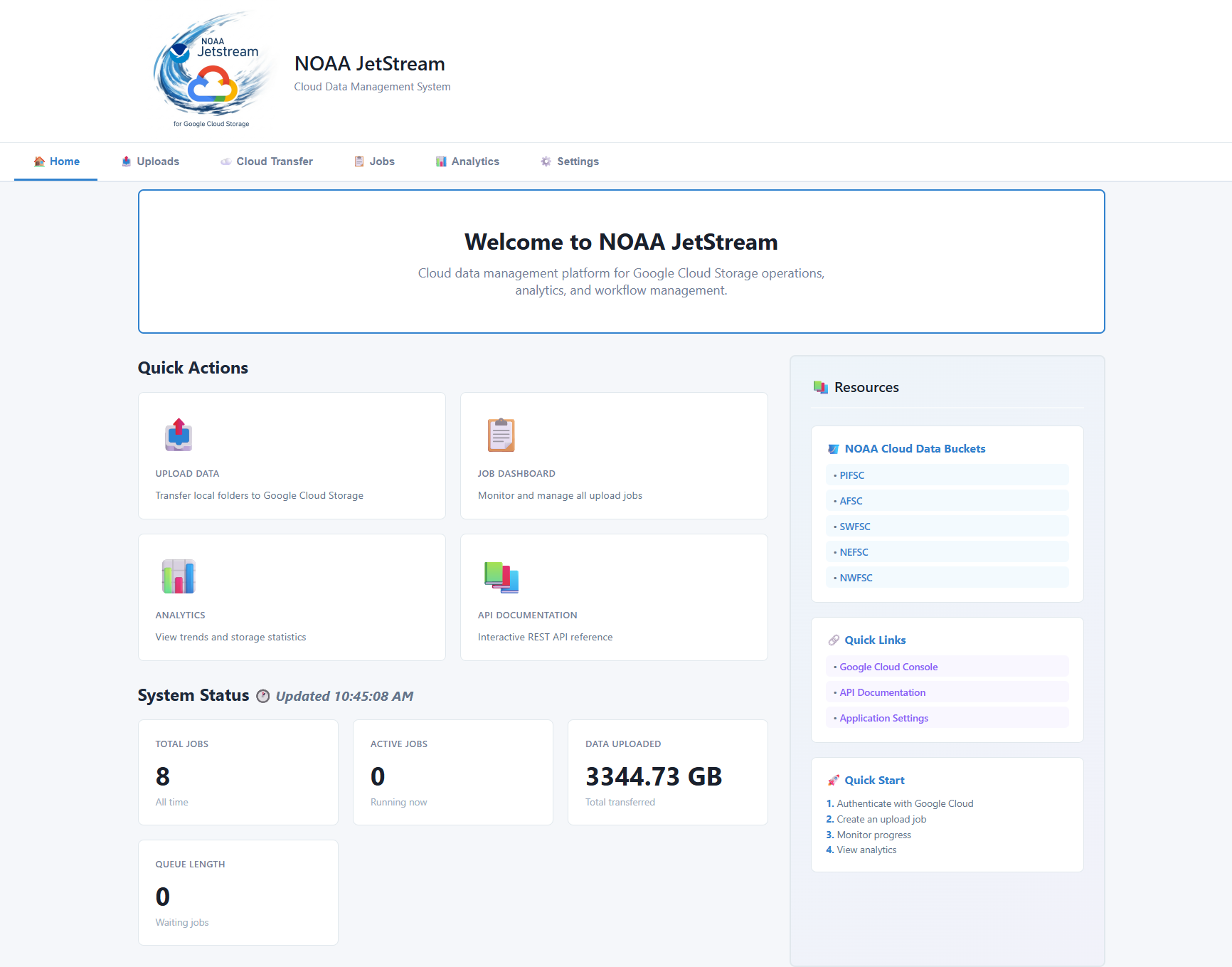
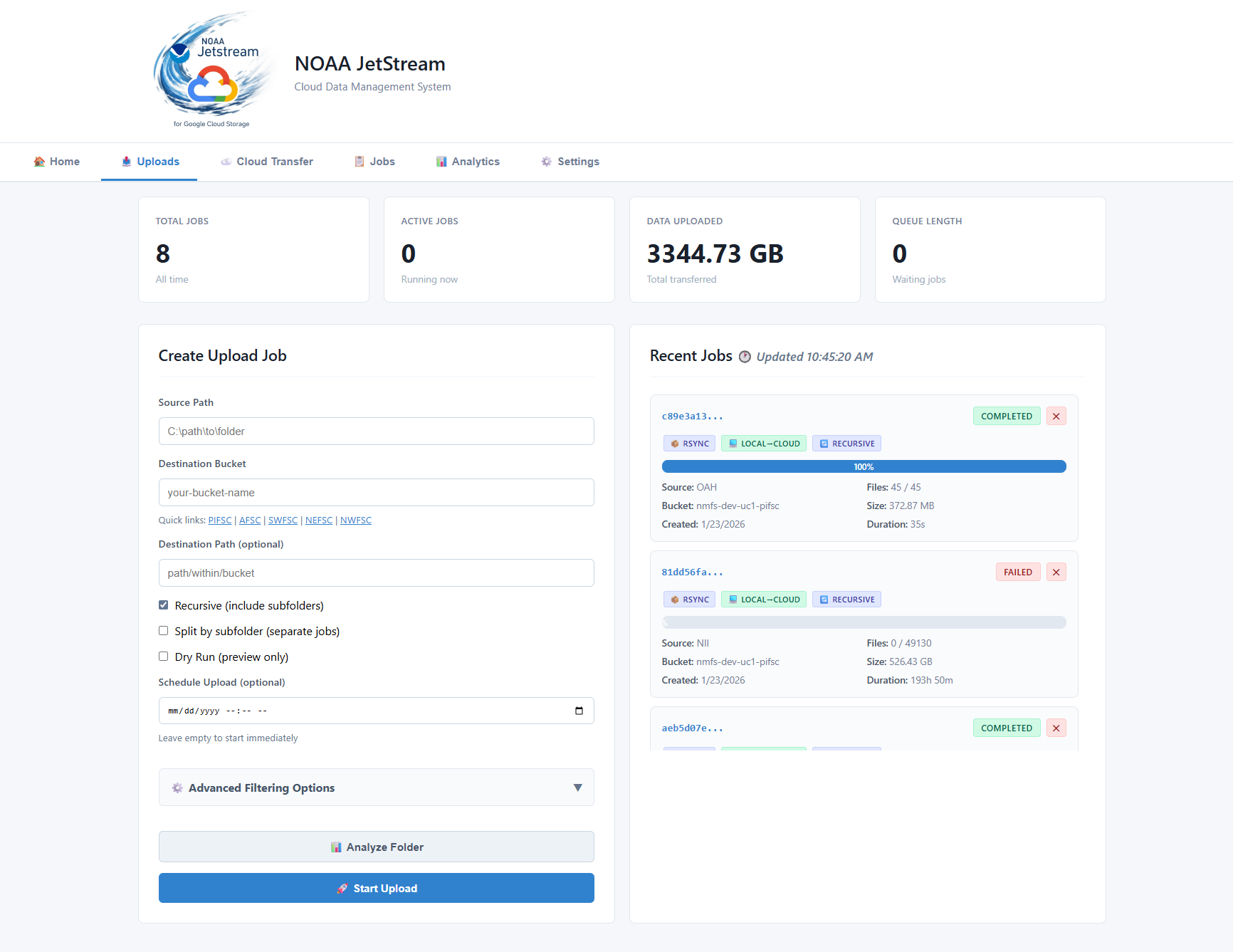
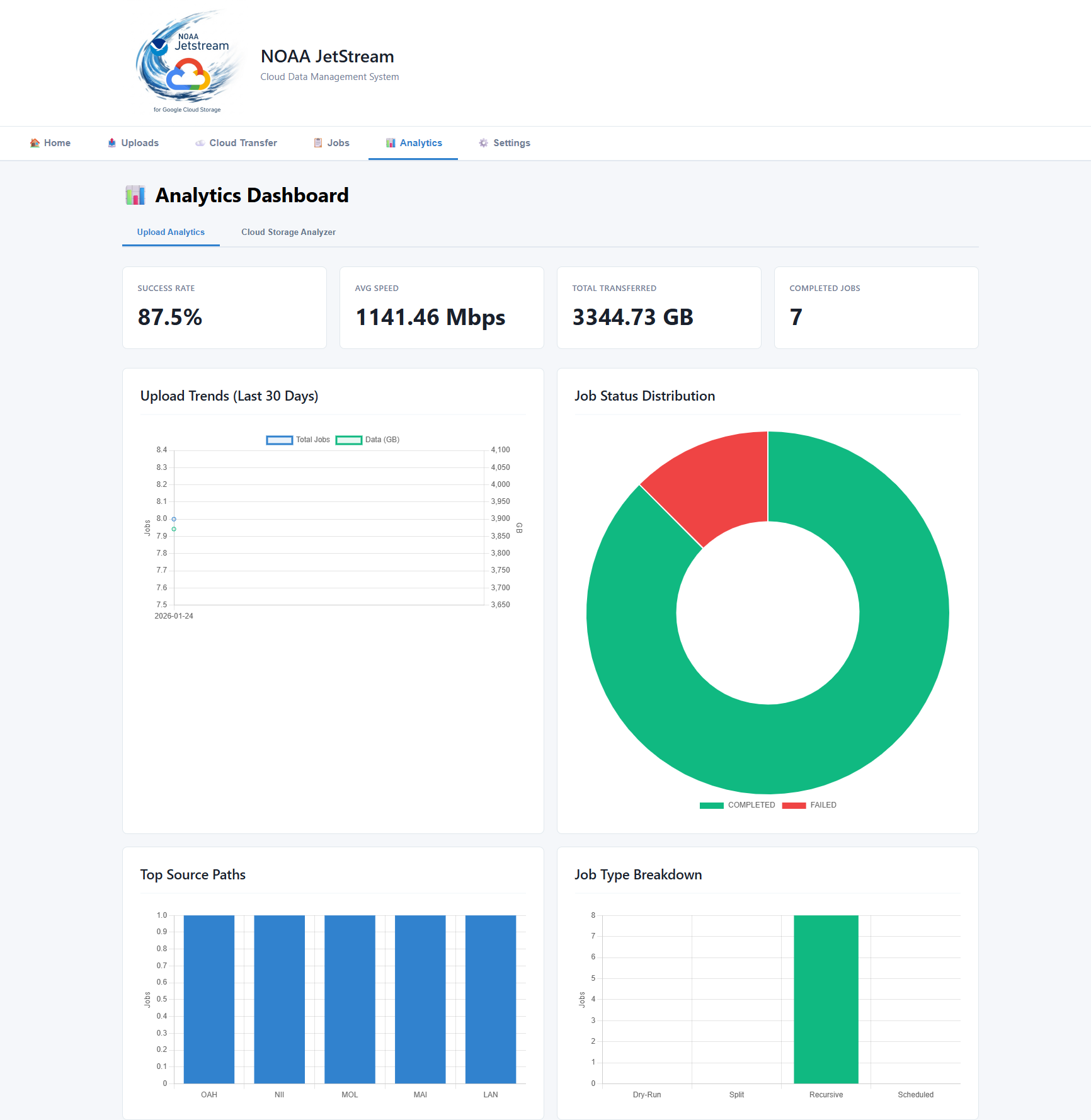
Screenshots
| Dashboard | Upload Jobs | Analytics |
|---|---|---|
 |
 |
 |
Terminal UI (TUI) Screenshot

Prerequisites
- Python 3.9+
- Google Cloud SDK (includes gsutil) — for cloud upload features
- Permissions to target GCS buckets
Google Cloud Setup
Required only for cloud upload features:
# Install Google Cloud SDK
# Download from: https://cloud.google.com/sdk/docs/install

# Authenticate
gcloud auth login --no-launch-browser
gcloud auth application-default login --no-launch-browser

# Verify access (optional)
gsutil ls
gcloud auth list
Installation
Option 1: Install from PyPI (Recommended)
pip install noaa-jetstream
Using Anaconda/conda? If you see dependency resolver warnings, use
uv(recommended) or--no-cache-dir:# Option A: use uv (faster, cleaner resolver — recommended for conda users) pip install uv uv pip install noaa-jetstream # May need to create virtual environment first, so do it in a local directory then activate uv venv then .venv\Activate\scripts.bat # Option B: skip pip cache pip install --no-cache-dir --no-user noaa-jetstream
Upgrade
uv pip install --no-cache --upgrade noaa-jetstream
Option 2: Install from Source (Development)
# Clone the repository
git clone https://github.com/MichaelAkridge-NOAA/jetstream.git
cd jetstream

# Install in development mode
pip install -e .

# Or using uv (recommended)
pip install uv
uv pip install -e ".[dev]"
# May need to pip install uvicorn, pip install fastapi, pip install google-cloud-storage separately
Starting the Application
If Installed via pip
# Start the server (opens browser automatically)
jetstream

# view options
jetstream --help
# With custom options
jetstream --port 9000
jetstream --host 127.0.0.1 --port 8080
jetstream --no-browser
jetstream --log-level debug
If Running from Source
# Using the CLI
python main.py

# Or with the diagnostic startup script
python start.py

# Or directly with uvicorn
python -m uvicorn jetstream.main:app --reload
The application will start on http://localhost:8000 and automatically open in your default browser.
Terminal UI (TUI)
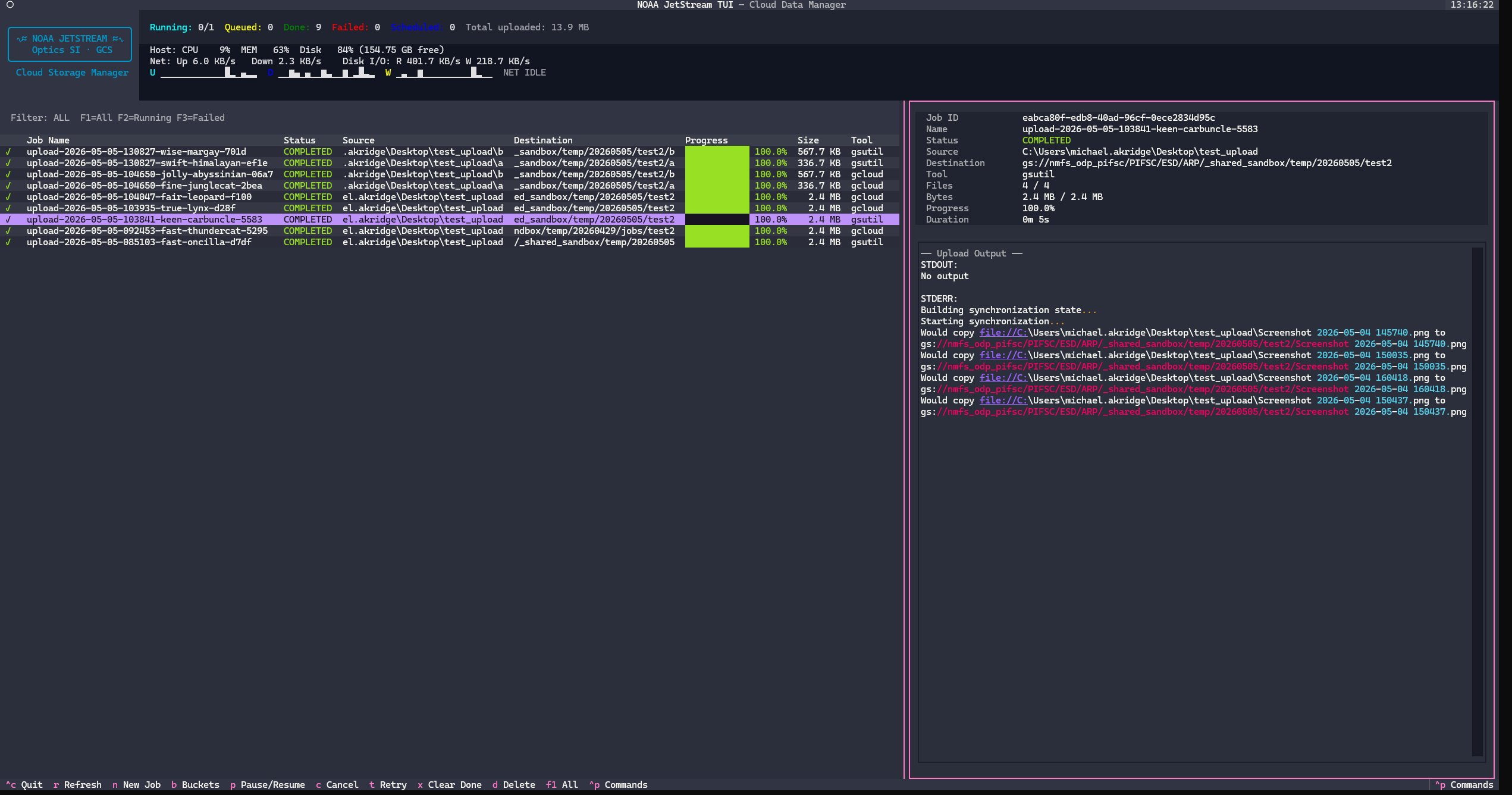
JetStream ships a full terminal dashboard — think htop + ranger + gsutil — that runs in any terminal or SSH session without a browser.
Screenshots
| Dashboard | Upload Jobs | Analytics |
|---|---|---|
 |
 |
 |
Launch
# If installed via pip
jetstream-tui

# From source
python -m jetstream.tui.cli
Screens & Key Bindings
Dashboard (main screen)
The dashboard opens automatically and shows a live two-panel layout:
- Left (60%) — scrollable job table with status icons, progress bars, tool, size, and destination
- Right (40%) — selected job detail: metadata card + live log tail
| Key | Action |
|---|---|
R |
Refresh job list |
N |
New upload job (opens form) |
B |
Open GCS bucket browser |
P |
Pause / resume queue |
C |
Cancel selected job |
T |
Retry selected job |
X |
Clear all completed jobs |
D |
Delete selected job |
F1 |
Show all jobs |
F2 |
Show running jobs only |
F3 |
Show failed jobs only |
Ctrl+C |
Quit |
The queue status bar at the top shows live counts (Running / Queued / Done / Failed / Scheduled), total bytes uploaded, and a PAUSED indicator when the queue is paused.
New Job Form (N)
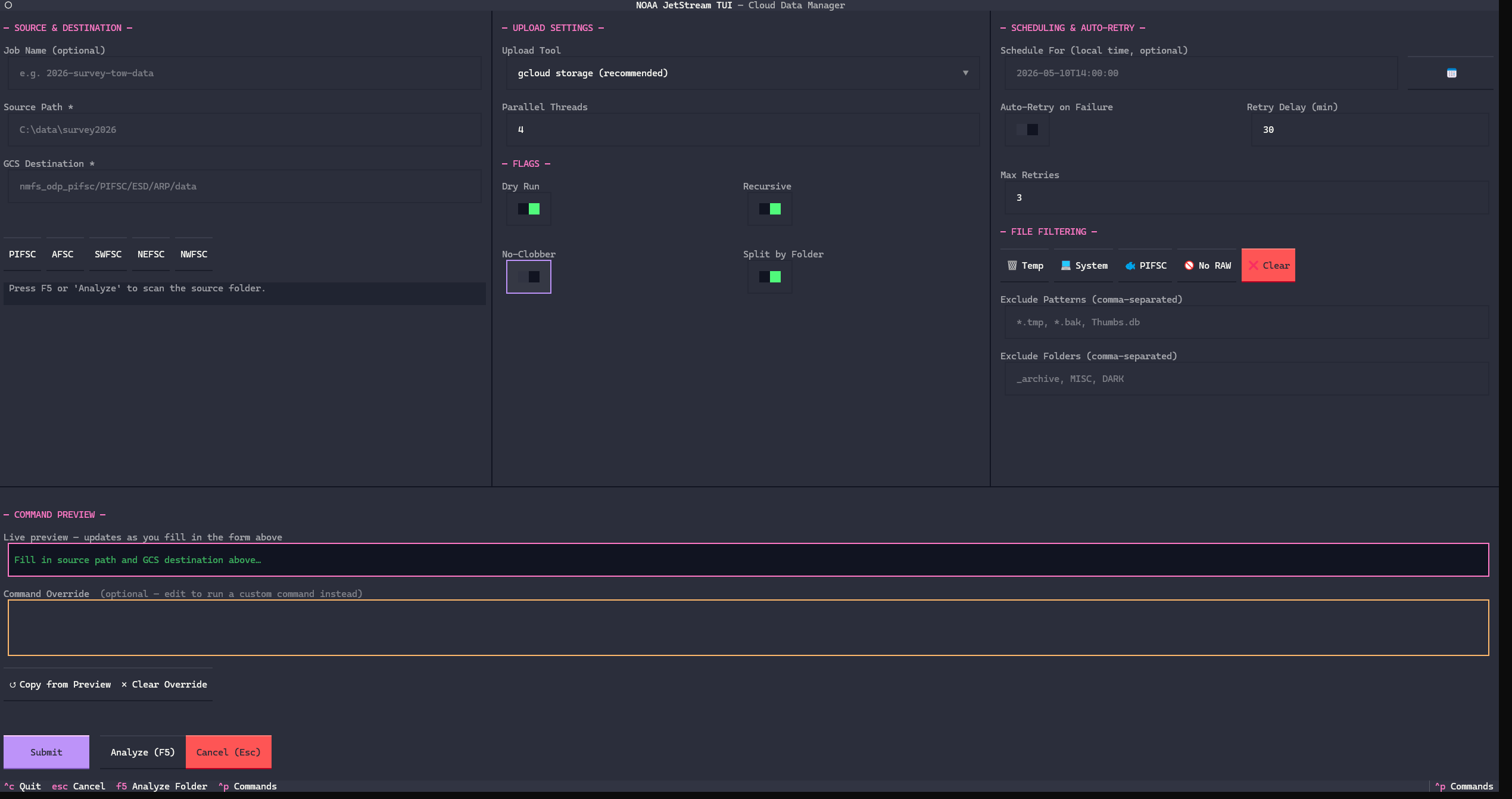
A guided form for creating upload jobs:
- Source path (local folder)
- GCS destination (
gs://bucket/path) - Upload tool (
gcloud/gsutil/rclone) - Threads, dry-run, recursive, no-clobber, split-folder toggles
- Auto-retry settings and exclude patterns
- Optional scheduled start time
Press Analyze to scan the source folder before submitting.
Bucket Browser (B)
An interactive ranger-style GCS browser:
- Type a bucket name or full
gs://bucket/prefix/pathURI and press Enter or Browse - Navigate into virtual folders with Enter, go up with Backspace
- Columns: type (📁/📄), name, size, last modified
| Key | Action |
|---|---|
Enter |
Drill into prefix / folder |
Backspace |
Go up one level |
R |
Refresh current listing |
Esc |
Back to dashboard |
Bucket Analytics (Summary button in browser)
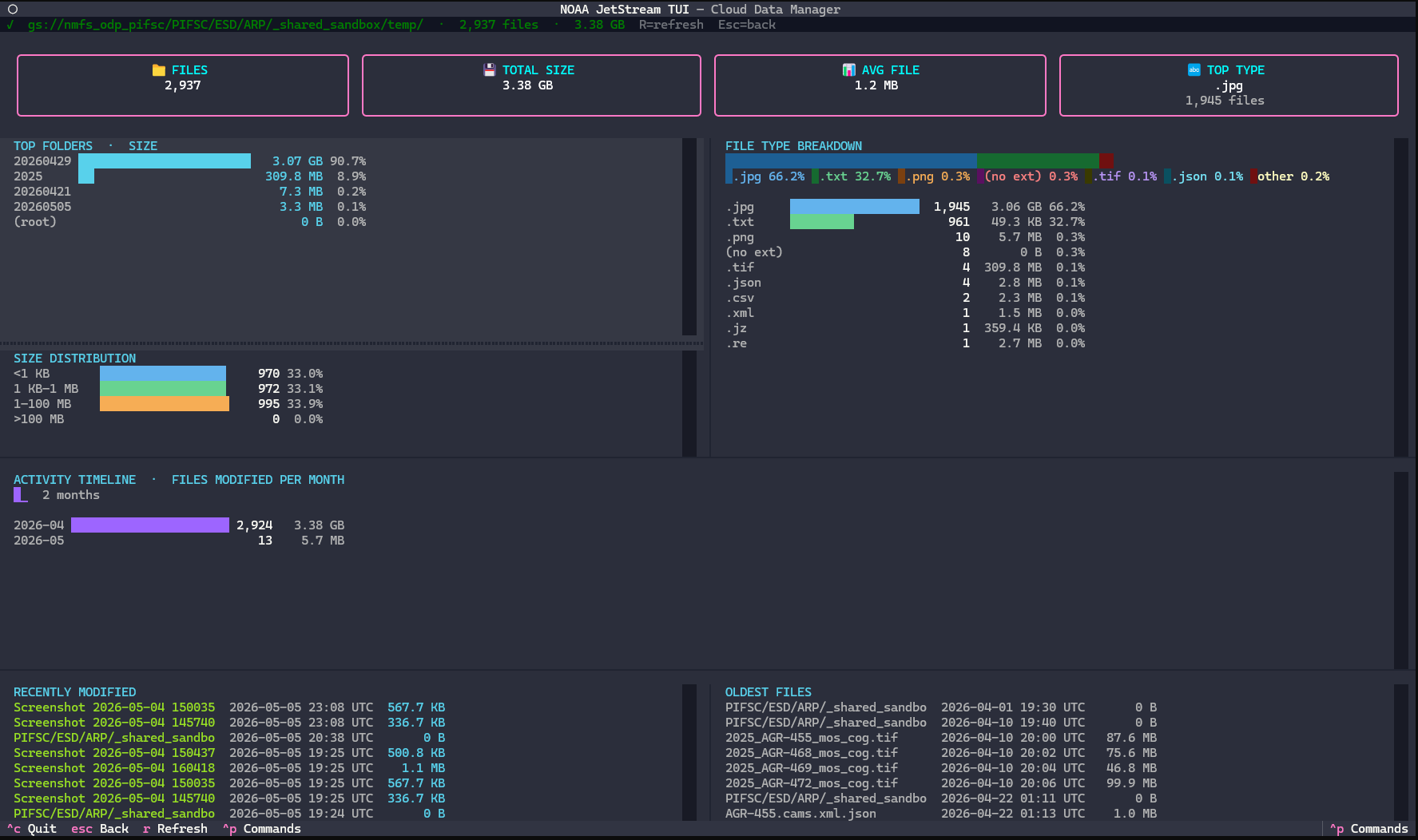
A full-screen analytics view for the current bucket path:
| Section | Content |
|---|---|
| Overview | Total files, total size, average size, top file type, folder count |
| Top Folders by Size | Horizontal Unicode bar chart, size, count, % of total |
| Top Folders by File Count | Count-sorted bar chart |
| File Type Distribution | Extension breakdown (.tif, .csv, etc.) |
| Size Distribution | <1 KB / 1 KB–1 MB / 1–100 MB / >100 MB buckets |
| Activity Timeline | Files-modified-per-month bars + sparkline trend |
| Newest / Oldest Files | 8 most-recently and 8 least-recently modified files |
The analytics scan is scoped to whatever prefix you have navigated to in the browser (not the whole bucket unless you're at root). A scan cap of 5,000 objects applies; a warning is shown if hit.
Press R to re-scan, Esc to return to the browser.
Requirements
The TUI requires textual>=0.80.0 (installed automatically with noaa-jetstream). For development extras:
pip install "noaa-jetstream[dev]"
# or
uv pip install -e ".[dev]"
Desktop and Start Menu shortcuts are included with the default install. The shortcut will automatically use the JetStream icon (icon.ico) when created.
# Create desktop + Start Menu shortcut (uses JetStream icon automatically)
jetstream-create-shortcuts

# Remove shortcuts
jetstream-remove-shortcuts
Shortcuts launch JetStream directly using the current Python environment and open a terminal window. On Windows a .lnk shortcut is created on the desktop and in the Start Menu. On macOS/Linux a .app/.desktop shortcut is created in Applications.
Troubleshooting Startup Issues
If the server appears to start but you can't connect:
-
Run diagnostics:
python diagnose.py -
Run with debug logging:
jetstream --log-level debug
# or from source:
python -m uvicorn jetstream.main:app --reload --log-level debug
Troubleshooting
Cannot connect to GCS:
- Verify authentication:
gcloud auth list - Check bucket permissions
- Ensure Application Default Credentials are set
Jobs stuck in queue:
- Check queue status in dashboard
- Verify no jobs are blocking the queue
- Restart the application if needed
Database errors:
- Delete
jetstream.dbto reset (loses history) - Check file permissions in application directory
API not responding:
- Check if port 8000 is already in use
- View logs in terminal for error messages
- Ensure all dependencies are installed
Disclaimer
This repository is a scientific product and is not official communication of the National Oceanic and Atmospheric Administration, or the United States Department of Commerce. All NOAA GitHub project content is provided on an 'as is' basis and the user assumes responsibility for its use. Any claims against the Department of Commerce or Department of Commerce bureaus stemming from the use of this GitHub project will be governed by all applicable Federal law. Any reference to specific commercial products, processes, or services by service mark, trademark, manufacturer, or otherwise, does not constitute or imply their endorsement, recommendation or favoring by the Department of Commerce. The Department of Commerce seal and logo, or the seal and logo of a DOC bureau, shall not be used in any manner to imply endorsement of any commercial product or activity by DOC or the United States Government.
License
See the LICENSE.md for details
Project details
Verified details
These details have been verified by PyPIProject links
GitHub Statistics
Maintainers
Release history Release notifications | RSS feed


Download files
Download the file for your platform. If you're not sure which to choose, learn more about installing packages.
Source Distribution
Built Distribution
Filter files by name, interpreter, ABI, and platform.
If you're not sure about the file name format, learn more about wheel file names.
Copy a direct link to the current filters
File details
Details for the file noaa_jetstream-0.1.17.tar.gz.
File metadata
- Download URL: noaa_jetstream-0.1.17.tar.gz
- Upload date:
- Size: 2.9 MB
- Tags: Source
- Uploaded using Trusted Publishing? Yes
- Uploaded via: twine/6.1.0 CPython/3.13.12
File hashes
| Algorithm | Hash digest | |
|---|---|---|
| SHA256 |
e9e1553d5cc6c8a9bacedbaa6067e0b1f6a1c571a28b2b3b7dbcbaccde2c4e47
|
|
| MD5 |
99ee36ff35944fc3f21eae27bd0dbfcf
|
|
| BLAKE2b-256 |
0219912e3124c615dcd431a162acf07b8988d4c17b5bf3b7f90e6c388e6a718b
|
Provenance
The following attestation bundles were made for noaa_jetstream-0.1.17.tar.gz:
Publisher:
publish.yml on MichaelAkridge-NOAA/jetstream
-
Statement:
-
Statement type:
https://in-toto.io/Statement/v1 -
Predicate type:
https://docs.pypi.org/attestations/publish/v1 -
Subject name:
noaa_jetstream-0.1.17.tar.gz -
Subject digest:
e9e1553d5cc6c8a9bacedbaa6067e0b1f6a1c571a28b2b3b7dbcbaccde2c4e47 - Sigstore transparency entry: 1551268353
- Sigstore integration time:
-
Permalink:
MichaelAkridge-NOAA/jetstream@6f8679cd2f4396f3b038fc93978e2b9bcdc1c369 -
Branch / Tag:
refs/heads/main - Owner: https://github.com/MichaelAkridge-NOAA
-
Access:
public
-
Token Issuer:
https://token.actions.githubusercontent.com -
Runner Environment:
github-hosted -
Publication workflow:
publish.yml@6f8679cd2f4396f3b038fc93978e2b9bcdc1c369 -
Trigger Event:
push
-
Statement type:
File details
Details for the file noaa_jetstream-0.1.17-py3-none-any.whl.
File metadata
- Download URL: noaa_jetstream-0.1.17-py3-none-any.whl
- Upload date:
- Size: 2.9 MB
- Tags: Python 3
- Uploaded using Trusted Publishing? Yes
- Uploaded via: twine/6.1.0 CPython/3.13.12
File hashes
| Algorithm | Hash digest | |
|---|---|---|
| SHA256 |
92b7f76ce81a3285bb07612ce417538516655d30fe2d7847ccbe34fdd05f5cbe
|
|
| MD5 |
8e8dd501f88ed8fb213c16374fee2174
|
|
| BLAKE2b-256 |
3af8796dd410b6557de912feb05314d89e353bf06b4e828a862c3ffaf5feb05e
|
Provenance
The following attestation bundles were made for noaa_jetstream-0.1.17-py3-none-any.whl:
Publisher:
publish.yml on MichaelAkridge-NOAA/jetstream
-
Statement:
-
Statement type:
https://in-toto.io/Statement/v1 -
Predicate type:
https://docs.pypi.org/attestations/publish/v1 -
Subject name:
noaa_jetstream-0.1.17-py3-none-any.whl -
Subject digest:
92b7f76ce81a3285bb07612ce417538516655d30fe2d7847ccbe34fdd05f5cbe - Sigstore transparency entry: 1551268371
- Sigstore integration time:
-
Permalink:
MichaelAkridge-NOAA/jetstream@6f8679cd2f4396f3b038fc93978e2b9bcdc1c369 -
Branch / Tag:
refs/heads/main - Owner: https://github.com/MichaelAkridge-NOAA
-
Access:
public
-
Token Issuer:
https://token.actions.githubusercontent.com -
Runner Environment:
github-hosted -
Publication workflow:
publish.yml@6f8679cd2f4396f3b038fc93978e2b9bcdc1c369 -
Trigger Event:
push
-
Statement type:






