
command line interface tool that displays a banner when ever you open a new ternimal tab.

Project description
NOOHAYO
command line interface (cli) tool made with python, it displays a banner when ever you open a new ternimal tab.
ScreenShots -
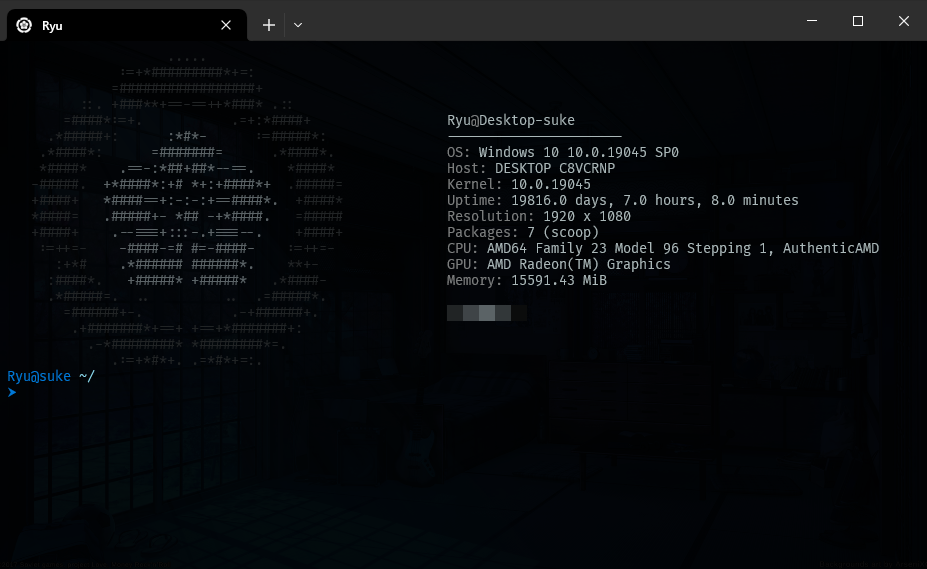
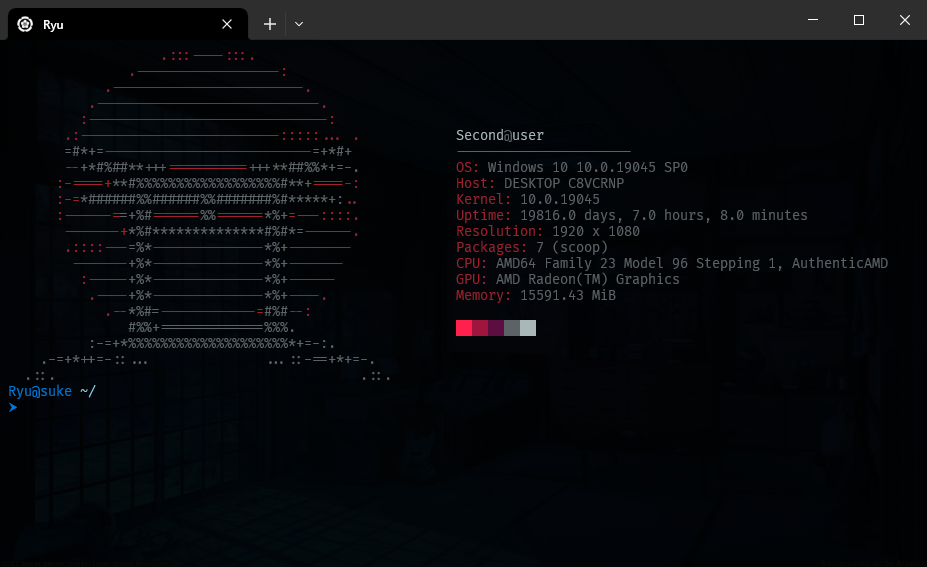
Usage -
1 Installation
You can install it via pip :
pip install noohayo
2 Create a profile
- when you first install the tool you will find no profile, to create one :
noohayo -n ProfileName - if the profile is created successfully run this command to see all the profiles you have :
noohayo -s - to select a profile as the default one run this command :
noohayo -s ProfileName - if you want to locate the profiles folder for Customization run this command :
noohayo -l - for more information about the command run this command :
noohayo -h
Customization
- All what's being displayed in the banned is customizable, to start Customizing :
after runningRyu@suke ~/⮞ noohayo -l C:\Users\user\AppData\Local\BreakRyo\noohayo\Profilesnoohayo -lyou will get the location of the profiles, if you didn't find the profiles folder follow these steps first Create a profile- Each profile has 2 files
ProfileName.jsonandProfileName.txt.
- Each profile has 2 files
- Before explaining the Customization of those two files of the profile, this is how the coloring works :
-
you will notice 色, 止 are inside
ProfileName.jsonandProfileName.txt. -
色[number]is a where you want a certain color to start and end the previous color. -
止is where you want the color to end and reset to white.ProfileName.json :
- would look like this :
    "MyComputer": [
        "色1Ryu色2@色1Desktop-suke止",
        "色1----------------------止",
        "色2OS: 色1Windows 10 10.0.19045 SP0止",
        "色2Host: 色1DESKTOP C8VCRNP止",
        "色2Kernel: 色110.0.19045止",
        "色2Uptime:色1 19816.0 days, 7.0 hours, 8.0 minutes止",
        "色2Resolution: 色11920 x 1080                       止",
        "色2Packages: 色17 (scoop)止",
        "色2CPU: 色1AMD64 Family 23 Model 96 Stepping 1, AuthenticAMD止",
        "色2GPU: 色1AMD Radeon(TM) Graphics  止",
        "色2Memory: 色115591.43 MiB止"
    ],
    "customLeftMargin":40,
    "colors": [ // Colors the lines in MyComputer ↑
        "#aab7b8", // 色1
        "#7b7d7d" // 色2
    ],
    "logoColors": [ // Colors the lines in ProfileName.txt
        "#212425", // 色1
        "#5b6366" // 色2
    ],
    "palette": [
        "#212425",
        "#3f4447",
        "#5b6366",
        "#323739",
        "#0b0c0c"
    ]
}
MyComputer: is the information that show in the right side of the logo, you can add/remove as many info as you want.customLeftMargin: you can increase this option if you see a bad display of the informations, it won't be effective if any of the logo's lines is bigger than it in that case locate the big line in the logo and delete the additional spaces.colors: contains all the colors you want the informationMyComputerto have, you can add as many colors as you want. (read the comments in the json file above)logoColors: contains all the colors you want the logo to have, you can add as many colors as you want. (read the comments in the json file above)palette: the colors of the bottom right color palette.
ProfileName.txt :
- would look like this :
色colors fromlogoColorsin the json file,色1is the first color and色2is the second color, you can add as many colors as you want.色1 ..... 止 色1 :=+*#########*+=: 止 色1 =#################+ 止 色1 ::. +###**+==-==++*###* .:: 止 色1 =####*:=+. .=+:*####+ 止 色1 .*#####+: 色2 :*#*- 色1 :=#####*: 止 色1 .*####*: 色2 =#######= 色1 .*####*. 止 色1 *####* 色2 .==-:*##+##*--==. 色1 *####* 止 色1 -#####. 色2 +*####*:+# *+:+####*+ 色1 .#####= 止 色1 +####+ 色2 *####==+:-:-:+==####*. 色1 +####* 止 色1 *####= 色2 .#####+- *## -+*####. 色1 =##### 止 色1 +####+ 色2 .--===+:::-.+===--. 色1 +####+ 止 色1 :=++=- 色2 -####-=# #=-####- 色1 :=++=- 止 色1 :+*# 色2 .*###### ######*. 色1 **+- 止 色1 :####*. 色2 +#####* +#####* 色1 .*####- 止 色1 .*#####=. .. .. .=#####*. 止 色1 =######+-. .-+######+. 止 色1 .+#######*+==+ +==+*#######+: 止 色1 .-*########* *########*=. 止 色1 .:=+*#*+. .=*#*+=:. 止
Conclusion :
- noohayo will read the json file and gets the colors and reads the the txt that contains the logo, and replaces
色with the colors while printing the banner.
- would look like this :
-
How to make the banner show when ever you open a new tab ?
- run this command
Notepad $PROFILE, it will open notepad file . - if you found something inside the file add this
; noohayootherwisenoohayo.


Download files
Download the file for your platform. If you're not sure which to choose, learn more about installing packages.
Source Distribution
Built Distribution
Filter files by name, interpreter, ABI, and platform.
If you're not sure about the file name format, learn more about wheel file names.
Copy a direct link to the current filters
File details
Details for the file noohayo-1.0.4.tar.gz.
File metadata
- Download URL: noohayo-1.0.4.tar.gz
- Upload date:
- Size: 9.1 kB
- Tags: Source
- Uploaded using Trusted Publishing? No
- Uploaded via: twine/5.0.0 CPython/3.11.0
File hashes
| Algorithm | Hash digest | |
|---|---|---|
| SHA256 |
a5ab814e44d8b7e0adc097786c8a385e4e0ce6ab98fa52ec1032245bc4e414f6
|
|
| MD5 |
7fba51e3eba7eb4670d159565b3d226f
|
|
| BLAKE2b-256 |
70d164a94d23700d97a0898f4083edcd83a9e9da40bd304ac166bde44feb2561
|
File details
Details for the file noohayo-1.0.4-py3-none-any.whl.
File metadata
- Download URL: noohayo-1.0.4-py3-none-any.whl
- Upload date:
- Size: 9.5 kB
- Tags: Python 3
- Uploaded using Trusted Publishing? No
- Uploaded via: twine/5.0.0 CPython/3.11.0
File hashes
| Algorithm | Hash digest | |
|---|---|---|
| SHA256 |
62e523b8187ff1b3385426f202a69d5bac8a1e0bb68db430ce09adcffcc60245
|
|
| MD5 |
73b8c4c02760774be4cb69d79c1c6ea0
|
|
| BLAKE2b-256 |
ad1f674e354d33482cab86763d9efd8387d38ab86c390328d4831cf8ada3d6d8
|






