

Agreements





This module adds an Agreement object to Odoo so that contracts and other agreements concluded with customers and suppliers can be registered and followed in one place. Each agreement has a code, a name, a partner, a Sale or Purchase domain, and signature, start and end dates. The partner may be a contact person of a company: the company is stored on the agreement as Commercial Entity, and the agreement code must be unique per commercial entity and company.
Agreements have a chatter with tracked field changes and activities, can be archived, are listed on the partner form through a smart button, and are protected by three access roles (Read-Only Users, User and Manager). Optionally, agreements can be classified with agreement types, which preset the domain, and flagged as templates that can be duplicated to create new agreements.
This module is the base of the OCA agreement modules. Its settings page lets you install extensions for stages, signatures, revisions, termination, legal content, and links to sales, products, projects and rebates.
Table of contents
Use Cases / Context
Companies sign many contracts with their customers and suppliers: maintenance contracts, framework agreements, supply and service agreements, non-disclosure agreements. Without a dedicated record, these documents end up as attachments on a partner or on a sales order, and nobody can quickly answer which agreements exist, with whom, and when they start or end.
This module answers that need with a dedicated Agreement record. It is deliberately minimal and only stores what every agreement has in common: identification, partner, sale or purchase domain and dates. It also provides the Agreements application menu, the access roles and the settings page that the other modules of the OCA agreement repository build upon, so a company installs only the features it needs:
agreement_stage: stage workflow for agreements.
agreement_signature: signatories and signed document of agreements.
agreement_revision: versions and revisions of agreements.
agreement_termination: term dates, notices and termination tracking.
agreement_type: hierarchical agreement types with sub-types.
agreement_legal and agreement_legal_content: legal aspects and legal content of agreements.
agreement_sale, agreement_product, agreement_project and agreement_rebate: links between agreements and sales, products, projects and rebates.
The module is multi-company aware: an agreement belongs to a company and is only visible to users allowed to work in that company. Agreements without a company are shared.
Configuration
Access rights
The module creates an Agreement privilege with three roles. Assign them in Settings > Users & Companies > Users, tab Access Rights:
Read-Only Users: see the Agreements menu and read agreements.
User: create, edit, delete and archive agreements, and read agreement types. When the module is installed, every existing internal user receives this role.
Manager: in addition, manage agreement types and the Agreements settings.
Agreement types and agreement templates are available to every user with one of these roles.
Settings
Go to Agreements > Configuration > Settings (Manager role required).
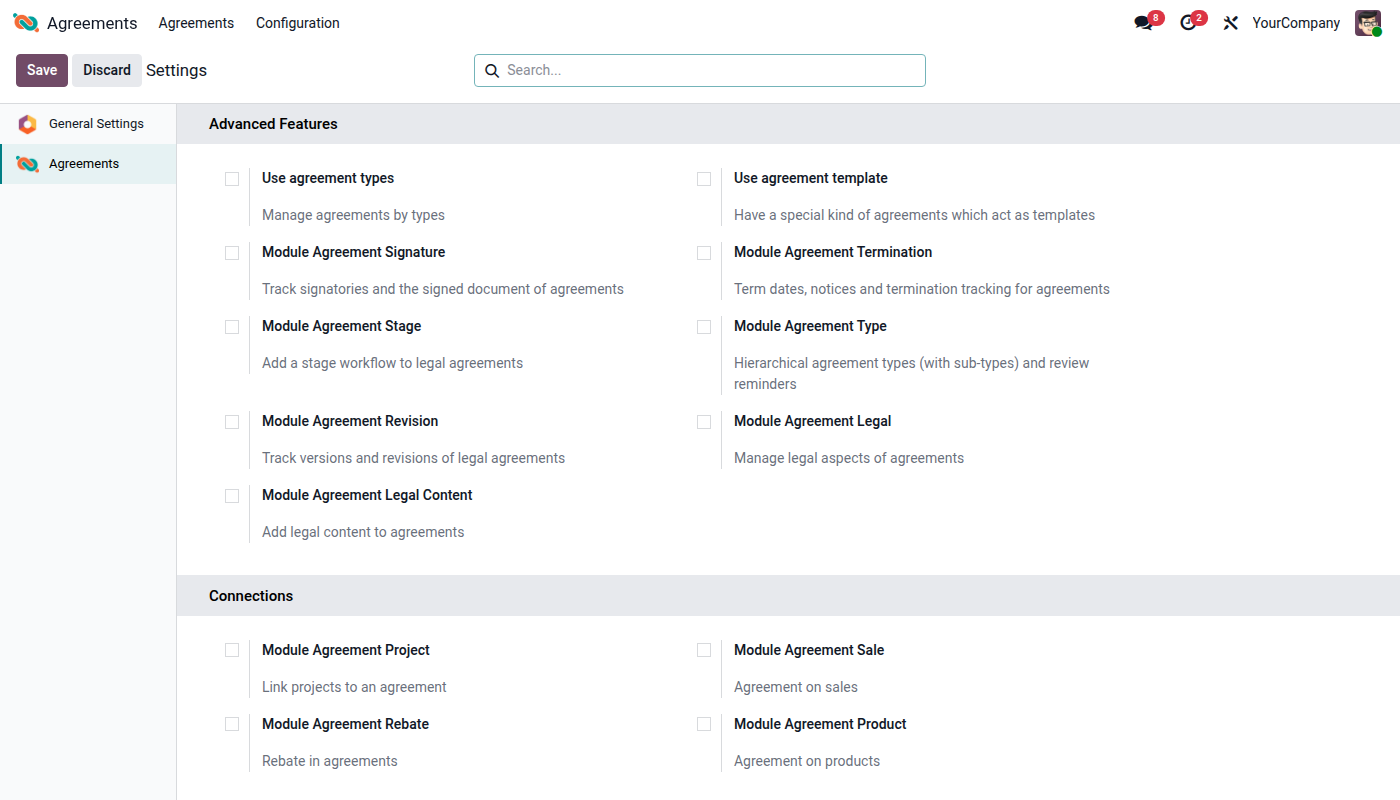
Advanced Features offers shortcuts to the agreement types and agreement templates and lets you install the extension modules for signatures, termination, stages, hierarchical types, revisions and legal content.
Connections lets you install the modules linking agreements to projects, sales, rebates and products.
Agreement types
Go to Agreements > Configuration > Types (Manager role required) and create the types you need. Each type has a name and a default domain (Sale or Purchase) that is applied to agreements of that type. Types can be archived.
Usage
Create an agreement
Go to Agreements > Agreements and click New.
Enter the Agreement Name and the Code. The code must be unique per commercial entity and company. Agreements are displayed as [code] name everywhere.
Select the Partner. You can pick a contact person of a company: the company is then shown as Commercial Entity above the partner.
Choose the Domain: Sale for agreements with customers, Purchase for agreements with suppliers. If you select an Agreement Type, the domain of the type is applied; you can still change it.
Enter the Signature Date, Start Date and End Date.
In a multi-company setup, check the Company of the agreement.
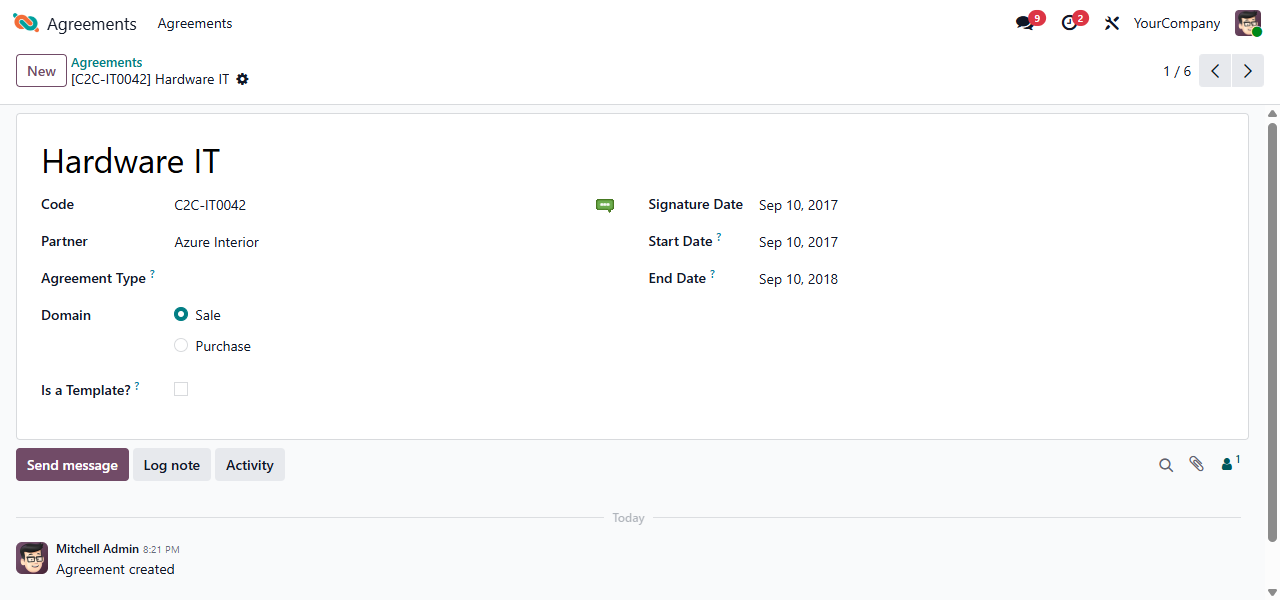
Changes to the code, name, partner, domain and dates are tracked in the chatter, where you can also log notes, send messages and schedule activities.
Find agreements
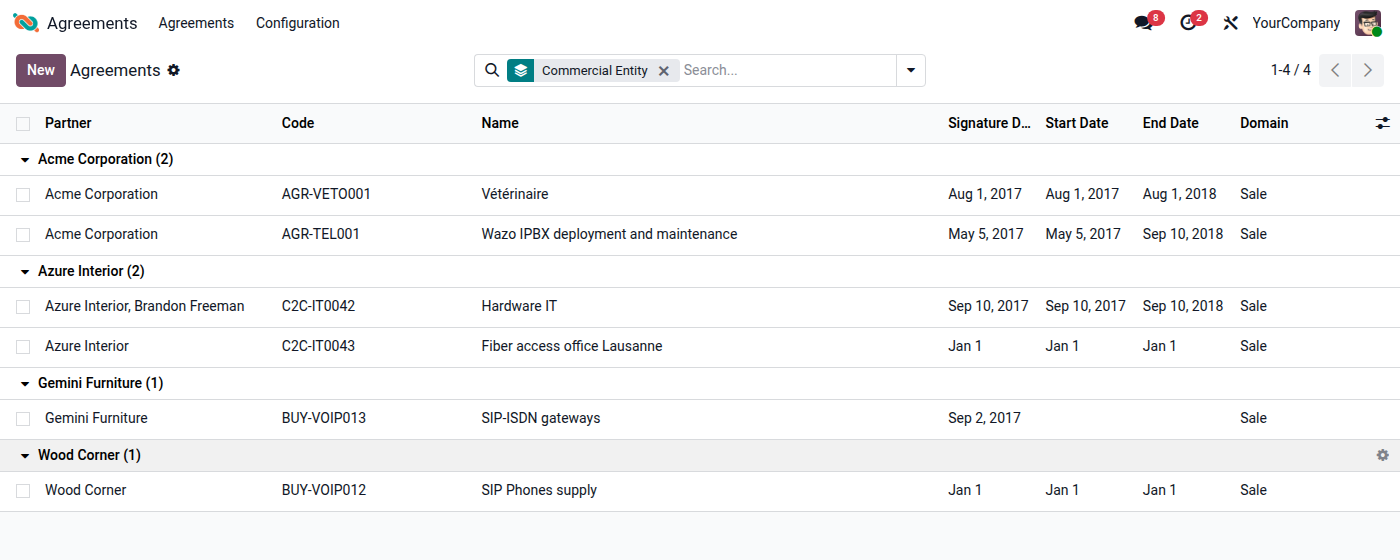
The agreement list can be searched by name or code and by partner. The Sale and Purchase filters restrict the list to one domain, and the Archived filter shows archived agreements. Group the list by partner, commercial entity, signature date or domain. The Commercial Entity column is optional and can be shown from the column selector.
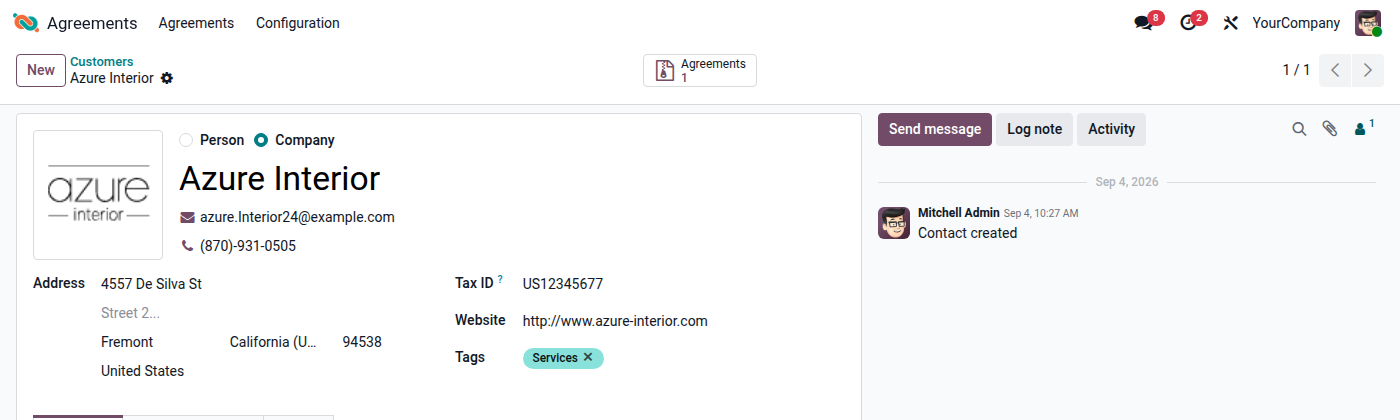
On the partner form, the Agreements smart button shows the number of agreements linked directly to that partner and opens them. A new agreement created from there is pre-filled with the partner.
Duplicate and archive agreements
Actions > Duplicate copies an agreement. As the code must be unique, the copy gets the code of the original followed by (copy).
Actions > Archive hides an agreement without deleting it. Archived agreements are shown with the Archived filter and can be unarchived from there.
Agreement templates
Templates are agreements used as a starting point for new agreements. They do not require a partner and are not shown in the main agreement list.
Go to Agreements > Configuration > Templates and create a template, or tick Is a Template? on an existing agreement.
To create an agreement from a template, open the template and use Actions > Duplicate. The copy is a regular agreement: the template flag is not copied. Rename it, set the code and the partner.
Known issues / Roadmap
The Use agreement types and Use agreement template toggles in Agreements > Configuration > Settings have no visible effect, as the Read-Only Users role already grants both features to all agreement users.
The Agreements > Reporting menu is empty; entries are added by extension modules.
The agreement code is entered manually; there is no sequence to generate it.
The Agreements smart button on a company only counts agreements linked directly to the company, not those linked to its contact persons.
Changelog
19.0.2.1.0 (2026-09-04)
[IMP] Show the commercial entity in the agreement list and allow grouping agreements by commercial entity.
19.0.2.0.0 (2026-07-15)
[ADD] Read-Only Users, User and Manager roles for agreements.
[ADD] Agreements settings page with shortcuts to agreement types and templates and toggles to install the extension modules.
19.0.1.0.0 (2026-01-15)
[MIG] Migration to Odoo 19.0.
18.0.1.1.0 (2025-09-22)
[IMP] The Agreements smart button on the partner form moved from agreement_legal to this module.
Bug Tracker
Bugs are tracked on GitHub Issues. In case of trouble, please check there if your issue has already been reported. If you spotted it first, help us to smash it by providing a detailed and welcomed feedback.
Do not contact contributors directly about support or help with technical issues.
Credits
Contributors
Alexis de Lattre <alexis.delattre@akretion.com>
Yves Goldberg <yves@ygol.com>
Alexandre Fayolle <alexandre.fayolle@camptocamp.com>
-
Sergio Teruel
Tharathip Chaweewongphan <tharathipc@ecosoft.co.th>
-
Maxime Franco
-
Nhan Tran <nhant@trobz.com>
-
Vang Nguyen Phu
-
Christopher Rogos
Maintainers
This module is maintained by the OCA.

OCA, or the Odoo Community Association, is a nonprofit organization whose mission is to support the collaborative development of Odoo features and promote its widespread use.
Current maintainers:


This module is part of the OCA/agreement project on GitHub.
You are welcome to contribute. To learn how please visit https://odoo-community.org/page/Contribute.
1 maintainer

Metadata
1 maintainer
Release files for odoo-addon-agreement 19.0.2.2.0
For a detailed explanation of source distributions (sdists) and built distributions (wheels), please see the package formats documentation.
Built distribution (wheel)
| File | Interpreter | ABI | Platform | Reset |
|---|---|---|---|---|
| odoo_addon_agreement-19.0.2.2.0-py3-none-any.whl | Python 3 | none | any | Details |
Release files / odoo_addon_agreement-19.0.2.2.0-py3-none-any.whl
| Download URL | odoo_addon_agreement-19.0.2.2.0-py3-none-any.whl |
|---|---|
| Size | 406.8 kB |
| Tags | Python 3 |
|
SHA-256 checksum How to use checksums |
7a71b17e4faad7fa178dcf36dd585c90e8f53d33dda2b7e25cc0b40c2aa3dfbb
|
|
BLAKE2b-256 checksum How to use checksums |
627f862cf575472dc071755791f1c5d9f9c9b4255855a10c7acd815f5034a03c
|
| Upload date | |
|
Uploaded using Trusted Publishing? What is trusted publishing? |
No |
| Uploaded via |
twine/7.0.0 CPython/3.14.4
|














