

Excel Import/Export/Report





The module provide pre-built functions and wizards for developer to build excel import / export / report with ease.
Without having to code to create excel file, developer do,
Create menu, action, wizard, model, view a normal Odoo development.
Design excel template using standard Excel application, e.g., colors, fonts, formulas, etc.
Instruct how the data will be located in Excel with simple dictionary instruction or from Odoo UI.
Odoo will combine instruction with excel template, and result in final excel file.
Table of contents
Installation
To install this module, you need to install following python library, xlrd, xlwt, openpyxl.
Then, simply install excel_import_export.
For demo, install excel_import_export_demo
Configuration
If you have existing templates from the version 16.0.1.2.0 or earlier, you need to click ‘REMOVE EXPORT ACTION’ and then click ‘ADD EXPORT ACTION’ in these templates for export actions to work as expected.
Usage
Concepts
This module contain pre-defined function and wizards to make exporting, importing and reporting easy.
At the heart of this module, there are 2 main methods
self.env['xlsx.export'].export_xlsx(...)
self.env['xlsx.import'].import_xlsx(...)
For reporting, also call export_xlsx(…) but through following method
self.env['xslx.report'].report_xlsx(...)
After install this module, go to Settings > Technical > Excel Import/Export > XLSX Templates, this is where the key component located.
As this module provide tools, it is best to explain as use cases. For example use cases, please install excel_import_export_demo
Use Cases
Use Case 1: Export/Import Excel on existing document
This add export/import action menus in existing document (example - excel_import_export_demo/import_export_sale_order)
Create export action menu on document, <act_window> with res_model=”export.xlsx.wizard” and src_model=”<document_model>”, and context[‘template_domain’] to locate the right template – actions.xml
Create import action menu on document, <act_window> with res_model=”import.xlsx.wizard” and src_model=”<document_model>”, and context[‘template_domain’] to locate the right template – action.xml
Create/Design Excel Template File (.xlsx), in the template, name the underlining tab used for export/import – <file>.xlsx
Create instruction dictionary for export/import in xlsx.template model – templates.xml
Use Case 2: Import Excel Files
With menu wizard to create new documents (example - excel_import_export_demo/import_sale_orders)
Create report menu with search wizard, res_model=”import.xlsx.wizard” and context[‘template_domain’] to locate the right template – menu_action.xml
Create Excel Template File (.xlsx), in the template, name the underlining tab used for import – <import file>.xlsx
Create instruction dictionary for import in xlsx.template model – templates.xml
Use Case 3: Create Excel Report
This create report menu with criteria wizard. (example - excel_import_export_demo/report_sale_order)
Create report’s menu, action, and add context[‘template_domain’] to locate the right template for this report – <report>.xml
Create report’s wizard for search criteria. The view inherits excel_import_export.xlsx_report_view and mode=”primary”. In this view, you only need to add criteria fields, the rest will reuse from interited view – <report.xml>
Create report model as models.Transient, then define search criteria fields, and get reporing data into results field – <report>.py
Create/Design Excel Template File (.xlsx), in the template, name the underlining tab used for report results – <report_file>.xlsx
Create instruction dictionary for report in xlsx.template model – templates.xml
Note:
Another option for reporting is to use report action (report_type=’excel’), I.e.,
<record id="action_report_saleorder_excel" model="ir.actions.report">
        <field name="name">Quotation / Order (.xlsx)</field>
        <field name="model">ir.model</field>
        <field name="report_name">'sale.order'</field>
        <field name="report_file">'sale.order'</field>
        <field name="binding_model_id" ref="sale.model_sale_order"/>
        <field name="binding_type">report</field>
        <field name="report_type">excel</field>
</record>
By using report action, Odoo will find template using combination of model and name, then do the export for the underlining record. Please see example in excel_import_export_demo/report_action, which shows,
Print excel from an active sale.order
Run partner list report based on search criteria.
Easy Reporting Option
Technically, this option is the same as “Create Excel Report” use case. But instead of having to write XML / Python code like normally do, this option allow user to create a report based on a model or view, all by configuration only.
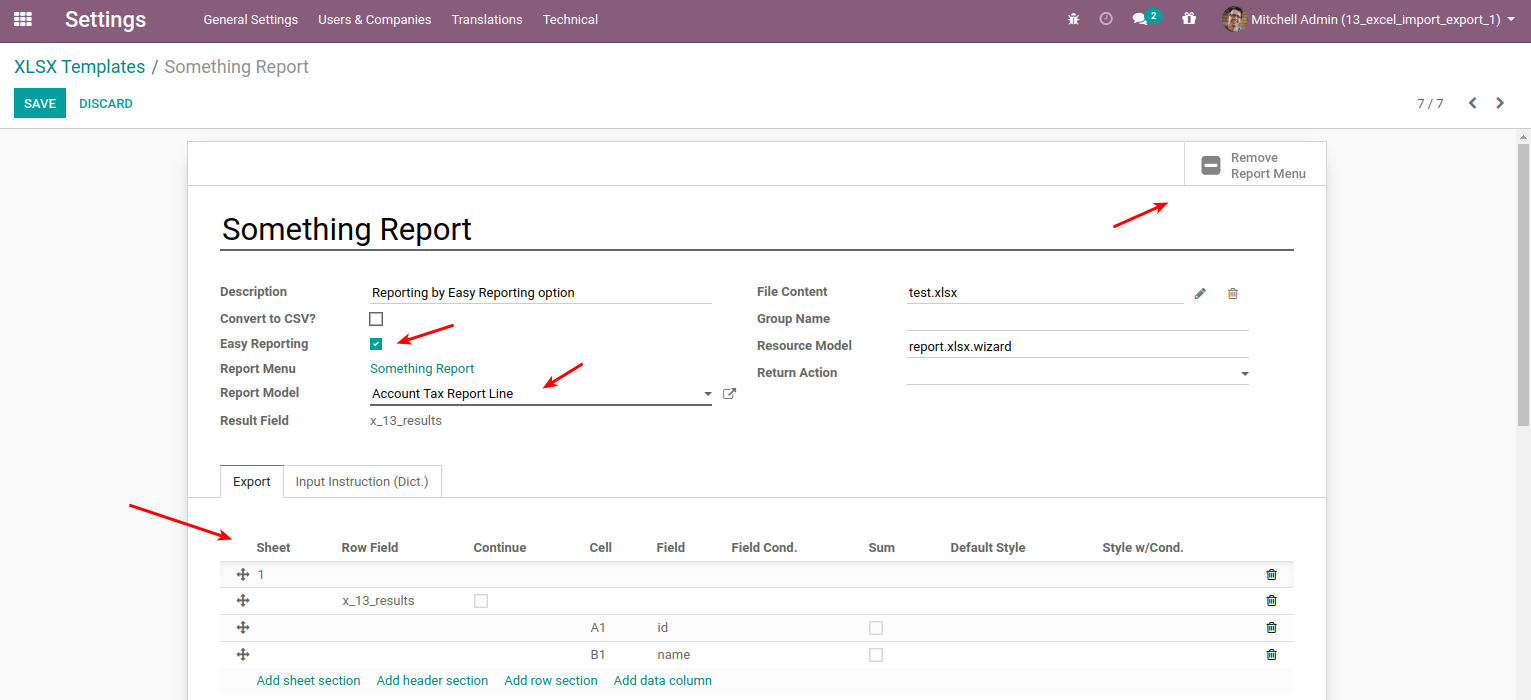
Go to Settings > Technical> Excel Import/Export > XLSX Templates, and create a new template for a report.
On the new template, select “Easy Reporting” option, then select followings
Report Model, this can be data model or data view we want to get the results from.
Click upload your file and add the excel template (.xlsx)
Click Save, system will create sample export line, user can add more fields according to results model.
Click Add Report Menu, the report menu will be created, user can change its location. Now the report is ready to use.
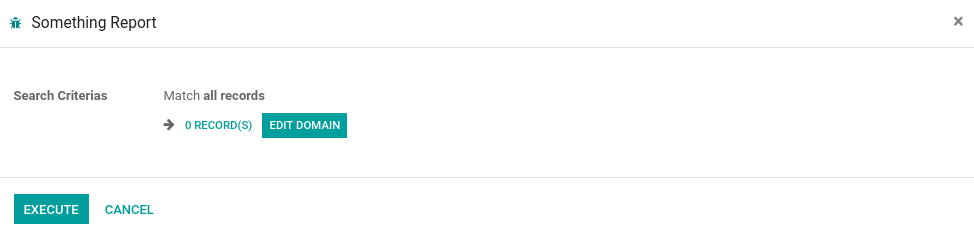
Note: Using easy reporting mode, system will used a common criteria wizard.
Known issues / Roadmap
Module extension e.g., excel_import_export_async, that add ability to execute as async process.
Bug Tracker
Bugs are tracked on GitHub Issues. In case of trouble, please check there if your issue has already been reported. If you spotted it first, help us to smash it by providing a detailed and welcomed feedback.
Do not contact contributors directly about support or help with technical issues.
Credits
Contributors
Kitti Upariphutthiphong. <kittiu@gmail.com> (http://ecosoft.co.th)
Saran Lim. <saranl@ecosoft.co.th> (http://ecosoft.co.th)
Do Anh Duy <duyda@trobz.com>
Maintainers
This module is maintained by the OCA.

OCA, or the Odoo Community Association, is a nonprofit organization whose mission is to support the collaborative development of Odoo features and promote its widespread use.
Current maintainer:

This module is part of the OCA/server-tools project on GitHub.
You are welcome to contribute. To learn how please visit https://odoo-community.org/page/Contribute.
1 maintainer

Release files for odoo-addon-excel-import-export 18.0.1.0.0.6
For a detailed explanation of source distributions (sdists) and built distributions (wheels), please see the package formats documentation.
Built distribution (wheel)
| File | Interpreter | ABI | Platform | Reset |
|---|---|---|---|---|
| odoo_addon_excel_import_export-18.0.1.0.0.6-py3-none-any.whl | Python 3 | none | any | Details |
Release files / odoo_addon_excel_import_export-18.0.1.0.0.6-py3-none-any.whl
| Download URL | odoo_addon_excel_import_export-18.0.1.0.0.6-py3-none-any.whl |
|---|---|
| Size | 199.0 kB |
| Tags | Python 3 |
|
SHA-256 checksum How to use checksums |
523c01b487c039a605b9d3fa83afa72a48a16b684bd316544eed32c211236ffc
|
|
BLAKE2b-256 checksum How to use checksums |
5f97289162f9be0835397c6d58499bf36dc92e32e35fcf5dc2c57d05b4ab11c5
|
| Upload date | |
|
Uploaded using Trusted Publishing? What is trusted publishing? |
No |
| Uploaded via |
twine/6.2.0 CPython/3.12.3
|














