
Auto-create Purchase Orders when FSOs are assigned to subcontractor workers

Project description

Field Service - Subcontracting





This module integrates Field Service with Purchasing to automate the subcontracting workflow.
It allows users to:
Mark subcontractor vendors on partners.
Configure a service product on Field Service order templates.
Resolve the Purchase Order vendor from the assigned worker or its parent company.
Create draft Purchase Orders for subcontracted orders.
Set the Purchase Order Expected Arrival from the Field Service Order Scheduled End.
Keep the Purchase Order Expected Arrival synchronized when the Field Service Order planned dates change.
Update delivered quantities from Field Service timesheets.
Reassign workers on orders with linked subcontract Purchase Orders.
The module uses fieldservice_stage_server_action to trigger automation on stage transitions.
Table of contents
Use Cases / Context
Field Service operations sometimes require external workers or companies to perform part of the service delivery.
A Field Service Order can be assigned to an internal worker, an individual subcontractor, or an employee of a subcontractor company.
The module resolves the Purchase Order vendor from the assigned worker: when the worker partner has a subcontractor parent company, that parent company receives the Purchase Order; otherwise, the worker partner receives it when it is marked as subcontractor.
If neither the worker partner nor its parent company is marked as subcontractor, the worker is treated as internal and no Purchase Order is created.
The company can create a Purchase Order for that external service without manually duplicating information between Field Service and Purchase.
The Purchase Order Expected Arrival is set from the Field Service Order Scheduled End (scheduled_date_end).
When the Field Service Order planned dates change, the linked subcontract Purchase Order Expected Arrival is updated to match the current Scheduled End.
The Purchase Order remains under the standard Odoo purchase flow: it is created as a draft, reviewed and confirmed manually, and later billed by the vendor.
Timesheet hours logged on the Field Service Order can be pushed to the Purchase Order line as delivered quantity.
Vendor bills based on received quantities can then be created with the correct quantity.
Worker reassignment is available for orders with at least one linked subcontract Purchase Order, even if all linked subcontract Purchase Orders are cancelled.
Worker reassignment is only available before the Field Service Order reaches a closed stage.
Configuration
Subcontractor partner setup
Go to Contacts.
Open the partner linked to the Field Service worker, or the parent company of that partner.
Configure as a vendor the partner that should receive the subcontract Purchase Order.
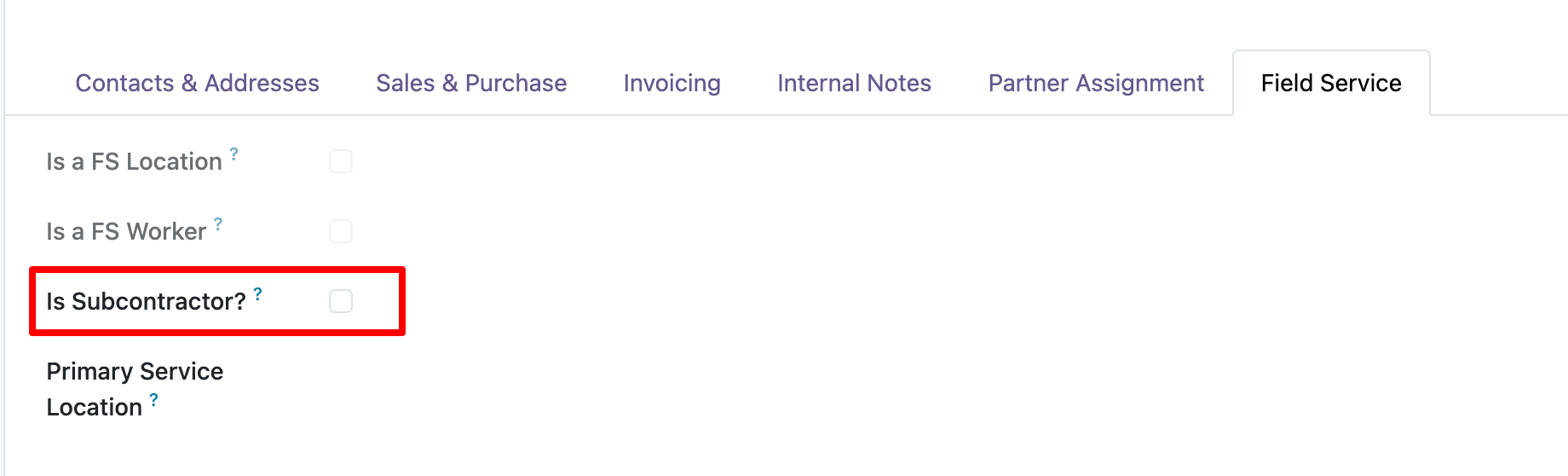
Enable Is Subcontractor? on the relevant partner.
The subcontract vendor is resolved with the following priority:
If the worker partner has a parent company and that parent company is marked as Is Subcontractor?, the Purchase Order is created for the parent company.
If the previous rule does not apply and the worker partner is marked as Is Subcontractor?, the Purchase Order is created directly for the worker partner, such as an individual freelancer.
If neither rule applies, no Purchase Order is created because the worker is considered internal.
Configure vendor prices on the subcontracting service product for the partner that will receive the Purchase Order.
Template setup
Go to Field Service > Master Data > Templates.
Open the template that can create subcontract Purchase Orders.
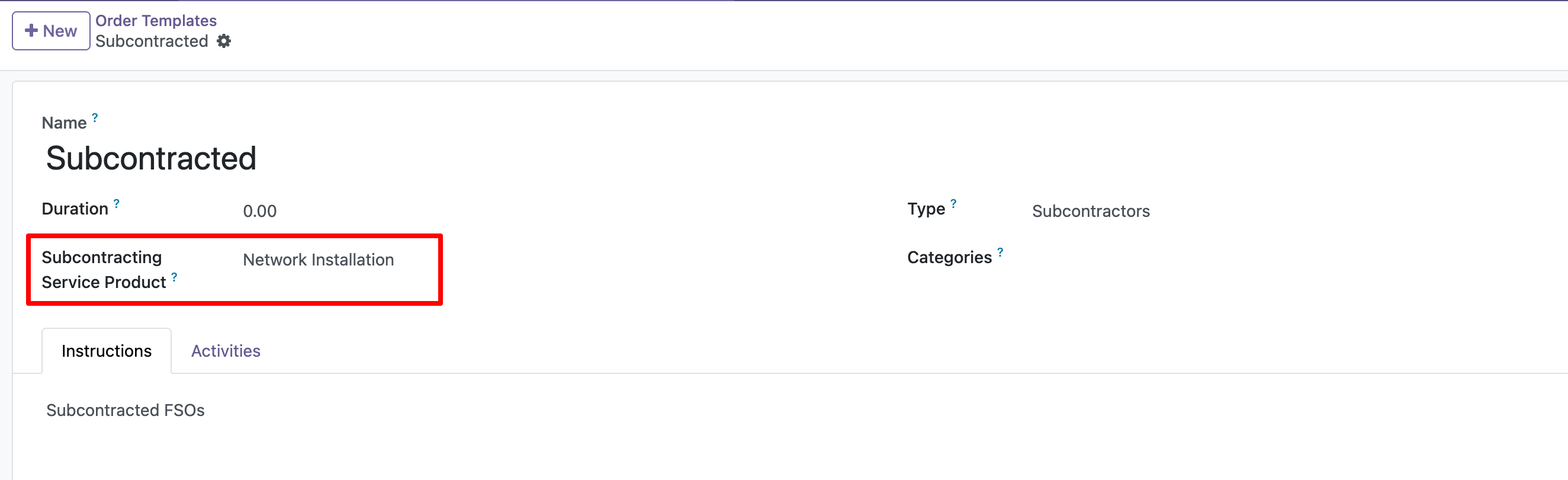
Set the Subcontracting Service Product.
Use a service product that is purchased based on received quantities.
Configure a vendor price on the product for each resolved subcontractor partner that can receive a Purchase Order.
If vendor bills are controlled by received quantities, update the delivered quantity before creating the vendor bill.
Stage automation
Go to Field Service > Configuration > Stages.
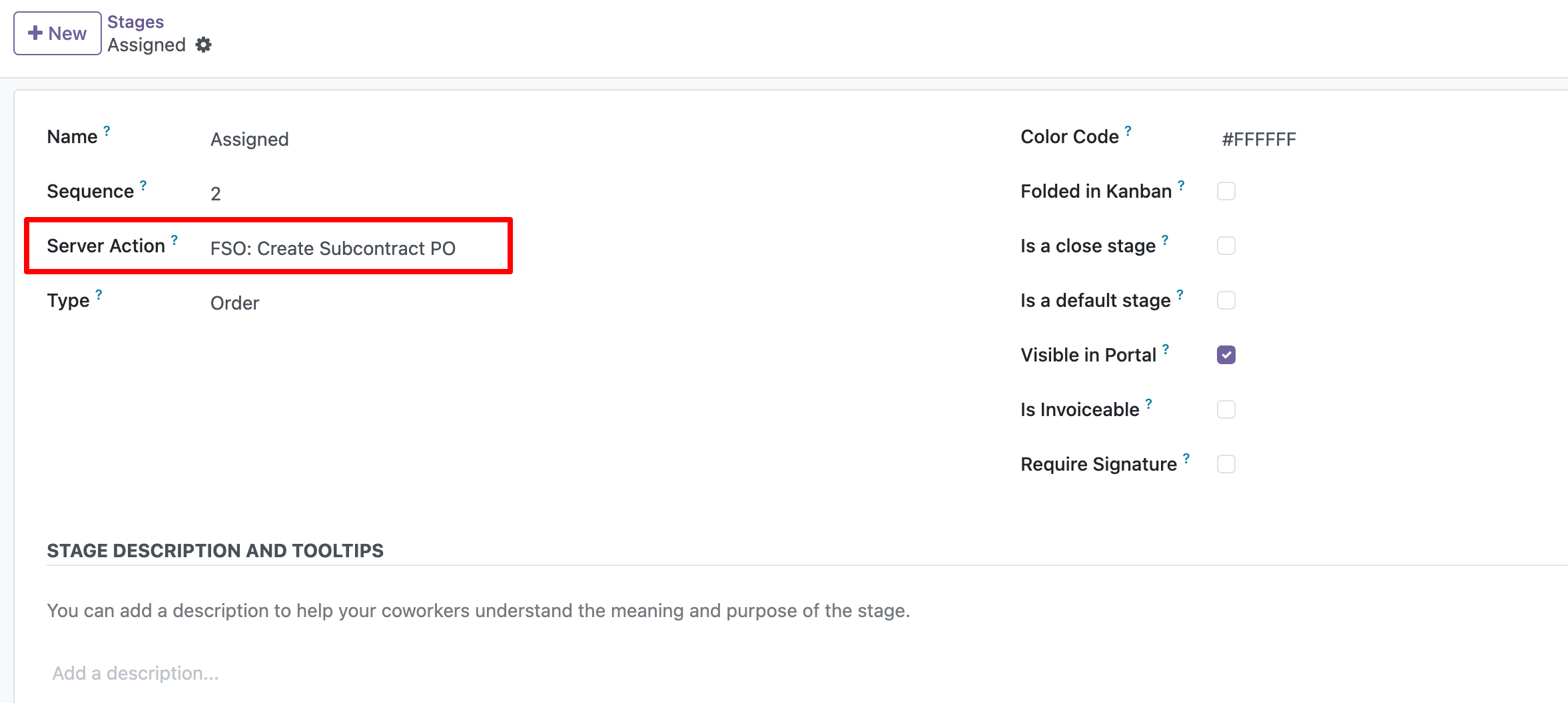
Open the stage that should create the draft Purchase Order.
Assign the server action FSO: Create Subcontract PO.
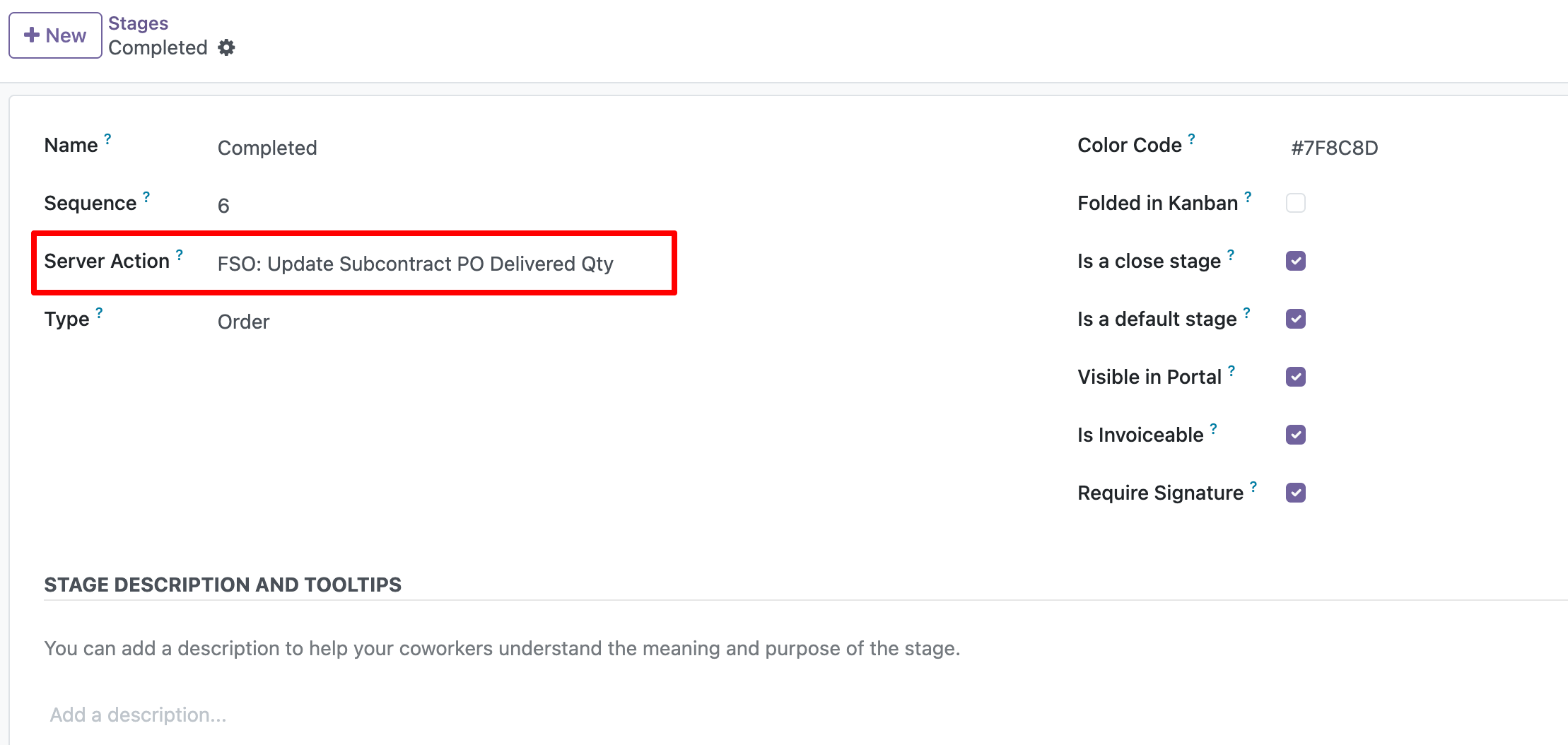
Open the closing stage that should update delivered quantities.
Assign the server action FSO: Update Subcontract PO Delivered Qty.
This action copies timesheet hours to the Purchase Order delivered quantity.
Usage
Create the subcontract Purchase Order
Create or open a Field Service Order that uses a template configured for subcontracting.
Assign a worker.
Move the order to the stage configured to create the subcontract Purchase Order.
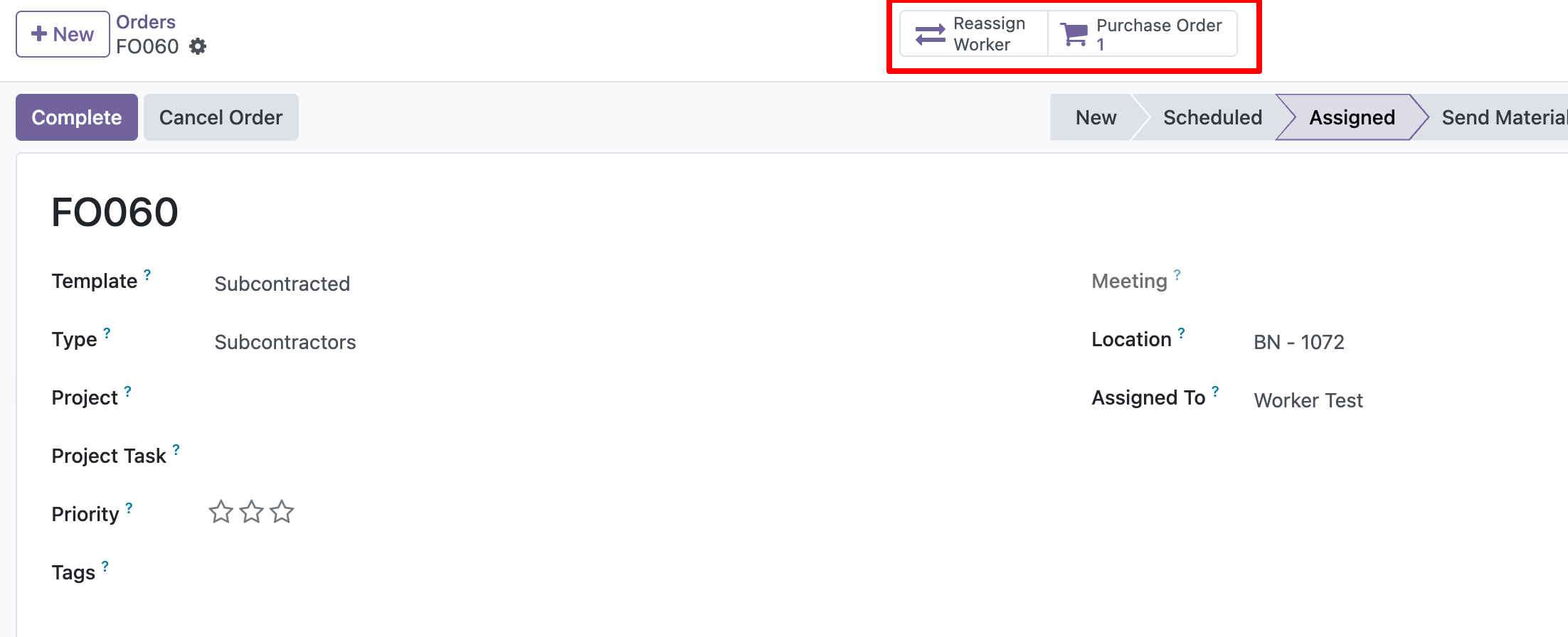
The module resolves the vendor before creating the Purchase Order.
If the worker related partner has a parent company marked as subcontractor, the parent company is used as the vendor.
Otherwise, if the worker related partner is marked as subcontractor, that partner is used as the vendor.
If neither condition applies, the worker is considered internal and no Purchase Order is created. The Field Service Order chatter records that no Purchase Order was created for an internal worker.
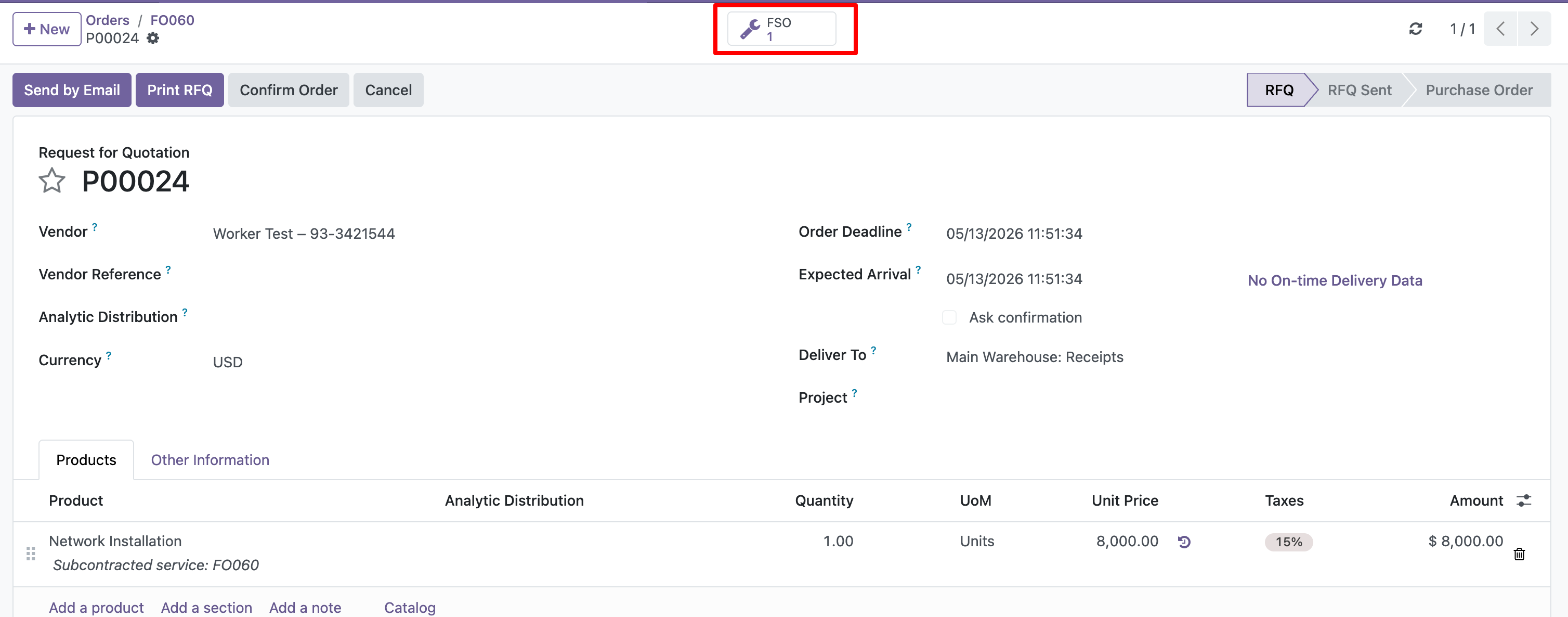
Use the Purchase Order smart button to open the generated draft Purchase Order.
Review the Purchase Order. Its Expected Arrival is set from the Field Service Order Scheduled End (scheduled_date_end).
Confirm the Purchase Order manually.
If the Purchase Order is not created, check the Field Service Order chatter.
Review the reason posted by the module.
Fix the missing configuration or worker data.
Move the order through the configured stage again if needed.
Update the Purchase Order Expected Arrival
Change the Field Service Order planned dates.
Save the Field Service Order.
The active subcontract Purchase Order Expected Arrival is updated with the current Field Service Order Scheduled End (scheduled_date_end).
The generated Purchase Order line expected date is updated as well, so the Purchase Order header keeps the same Expected Arrival.
Update delivered quantities
Log timesheet hours on the Field Service Order.
Move the Field Service Order to the stage configured to update subcontract delivered quantities.
The module updates the delivered quantity on the subcontract Purchase Order line with the total timesheet hours of the Field Service Order.
The ordered quantity remains unchanged after the Purchase Order is created.
Create the vendor bill after the delivered quantity has been updated when the product bills based on received quantities.
Reassign or cancel an order
Use the Reassign Worker button when an order with at least one subcontract Purchase Order must be reassigned.
The Reassign Worker button remains available even if all linked subcontract Purchase Orders are cancelled.
The Reassign Worker button is only available while the Field Service Order is not in a closed stage.
If the Field Service Order is already in a closed stage, move it to a non-closed stage before reassigning the worker, if the business process allows it.
Select the new worker in the reassignment wizard.
Confirm the wizard.
The wizard cancels draft vendor bills linked to active subcontract Purchase Orders before cancelling those Purchase Orders.
The wizard cancels active subcontract Purchase Orders.
If the new worker is also a subcontractor, the module creates a new Purchase Order for that subcontractor.
To cancel a Field Service Order with active subcontract Purchase Orders, use the standard cancel action.
Choose whether to cancel only the Field Service Order or also its active subcontract Purchase Orders.
If there are posted vendor bills, manage the Purchase Orders and vendor bills manually before reassigning or cancelling the Field Service Order.
Bug Tracker
Bugs are tracked on GitHub Issues. In case of trouble, please check there if your issue has already been reported. If you spotted it first, help us to smash it by providing a detailed and welcomed feedback.
Do not contact contributors directly about support or help with technical issues.
Credits
Contributors
-
Edilio Escalona Almira e.escalona@binhex.cloud
Maintainers
This module is maintained by the OCA.

OCA, or the Odoo Community Association, is a nonprofit organization whose mission is to support the collaborative development of Odoo features and promote its widespread use.
Current maintainer:

This module is part of the OCA/field-service project on GitHub.
You are welcome to contribute. To learn how please visit https://odoo-community.org/page/Contribute.
Release history Release notifications | RSS feed


Download files
Download the file for your platform. If you're not sure which to choose, learn more about installing packages.
Source Distributions
Built Distribution
Filter files by name, interpreter, ABI, and platform.
If you're not sure about the file name format, learn more about wheel file names.
Copy a direct link to the current filters
File details
Details for the file odoo_addon_fieldservice_subcontracting-18.0.1.0.0.3-py3-none-any.whl.
File metadata
- Download URL: odoo_addon_fieldservice_subcontracting-18.0.1.0.0.3-py3-none-any.whl
- Upload date:
- Size: 569.7 kB
- Tags: Python 3
- Uploaded using Trusted Publishing? No
- Uploaded via: twine/6.2.0 CPython/3.12.3
File hashes
| Algorithm | Hash digest | |
|---|---|---|
| SHA256 |
41584967d2089e0a0c4f719c96f53f31faa0a562534e9272e7bac6d99df43277
|
|
| MD5 |
3a87c1b6a57ee47df196f7532795c88d
|
|
| BLAKE2b-256 |
8a77ca1ee57aeaafc494b7a8ffe9c52059bd355edea1399d0c78d749eac31dd0
|






