

Sale planner calendar





This module allows to manage commercial visits to partners by using recurrence events.
Table of contents
Configuration
You can find the following configurations in the settings:
Subscriptions Backward Days: Backward days to search documents to update subscriptions.
Sale Planner Forward Months: Forward months to create calendar events.
Send invitation to attendees: Send invitations to attendees when a planner event is created.
Sale planner order cut hour: Time of the next day until which orders of the current day are assigned.
Calendar event max duration: Show a warning message when duration is more than this time. Set 00:00 to disable warning.
Other setting are available with system parameters
Sale order partner when a so is created from a event planned. You can create or update the system parameter sale_planner_calendar.create_so_to_commercial_partner with True value to create the sale order to commercial partner instead of partner
Sale order salesperson when a so is created from an event planned. By default the salesperson assigned to the event (usually whoever is doing the visit) is kept on the new order - typical when a salesperson covers for another one’s vacation. You can create or update the system parameter sale_planner_calendar.keep_partner_salesperson with True value to keep the partner’s own assigned salesperson on the new order instead
Usage
You can create now the recurrent events directly from the partners by clicking next smart button:
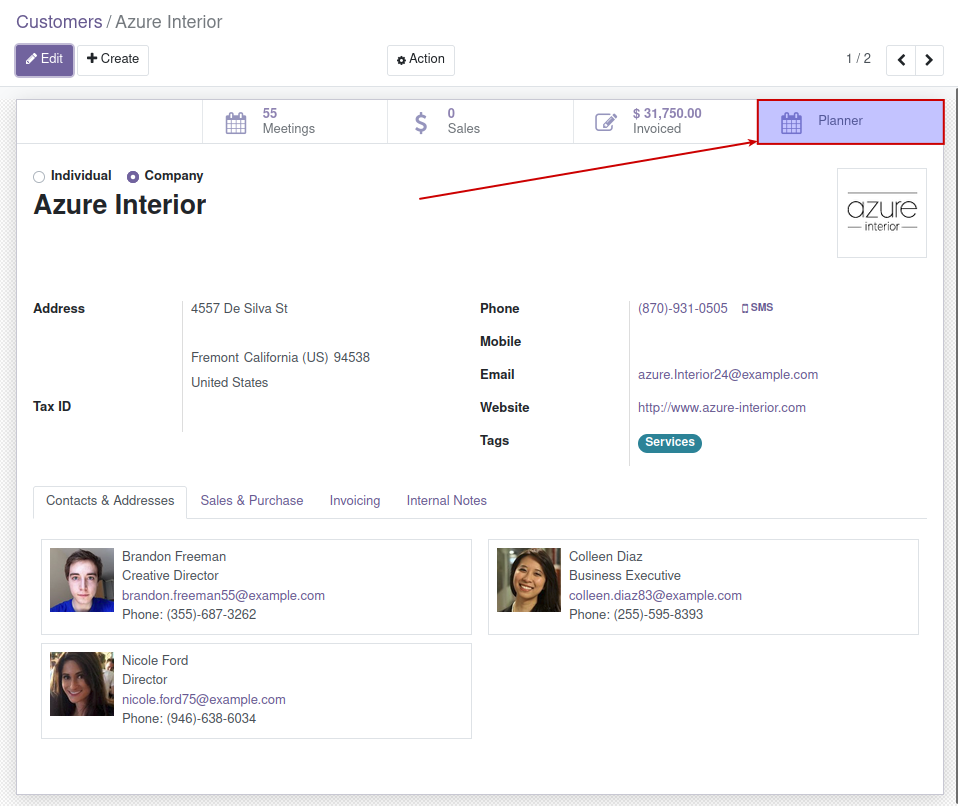
By default the end of the recurrence is set by the settings field Sale Planner Forward Months.
You can manage this new recurrent events from Calendar planner menu entry.
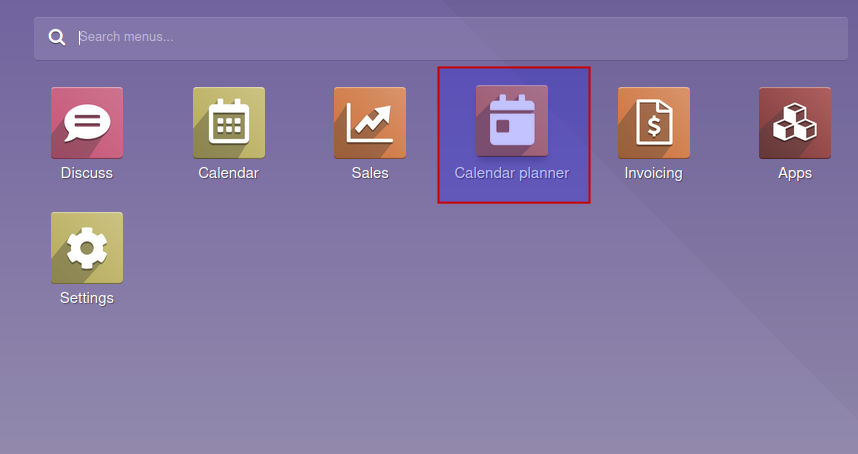
On the first window, you will find a summary of the events that the user has to do today.
By going to Calendar planner > Calendar events you will have two options:
View the calendar events related to your user (My Calendar).
View your base events related to the recurrences (Recurrent calendar events).
Finally on Calendar planner > Wizards you will have again two options:
You can change the hour of the start of all the events related to a recurrency by using Sale planner calendar wizard.
You can change the salesperson assigned to events related to a period of time by using the wizard Reassignment of salesperson.
Bug Tracker
Bugs are tracked on GitHub Issues. In case of trouble, please check there if your issue has already been reported. If you spotted it first, help us to smash it by providing a detailed and welcomed feedback.
Do not contact contributors directly about support or help with technical issues.
Credits
Contributors
-
Sergio Teruel
Carlos Dauden
Carlos Roca
Pilar Vargas
Víctor Martínez
Maintainers
This module is maintained by the OCA.

OCA, or the Odoo Community Association, is a nonprofit organization whose mission is to support the collaborative development of Odoo features and promote its widespread use.
Current maintainer:

This module is part of the OCA/sale-workflow project on GitHub.
You are welcome to contribute. To learn how please visit https://odoo-community.org/page/Contribute.
1 maintainer

Release files for odoo-addon-sale-planner-calendar 18.0.1.1.0
For a detailed explanation of source distributions (sdists) and built distributions (wheels), please see the package formats documentation.
Built distribution (wheel)
| File | Interpreter | ABI | Platform | Reset |
|---|---|---|---|---|
| odoo_addon_sale_planner_calendar-18.0.1.1.0-py3-none-any.whl | Python 3 | none | any | Details |
Release files / odoo_addon_sale_planner_calendar-18.0.1.1.0-py3-none-any.whl
| Download URL | odoo_addon_sale_planner_calendar-18.0.1.1.0-py3-none-any.whl |
|---|---|
| Size | 286.9 kB |
| Tags | Python 3 |
|
SHA-256 checksum How to use checksums |
dbfc2967f25e069eaa77c6631214007c61c093e2a8f71cc8aaea16562d484b75
|
|
BLAKE2b-256 checksum How to use checksums |
722f4539038c77f70557d8ae09dc267e90932f65fe52ade376ce4c48e850e42c
|
| Upload date | |
|
Uploaded using Trusted Publishing? What is trusted publishing? |
No |
| Uploaded via |
twine/7.0.0 CPython/3.14.4
|














