
Utility for detecting, planning, and scrubbing Microsoft Office installations.

Project description
Office Janitor





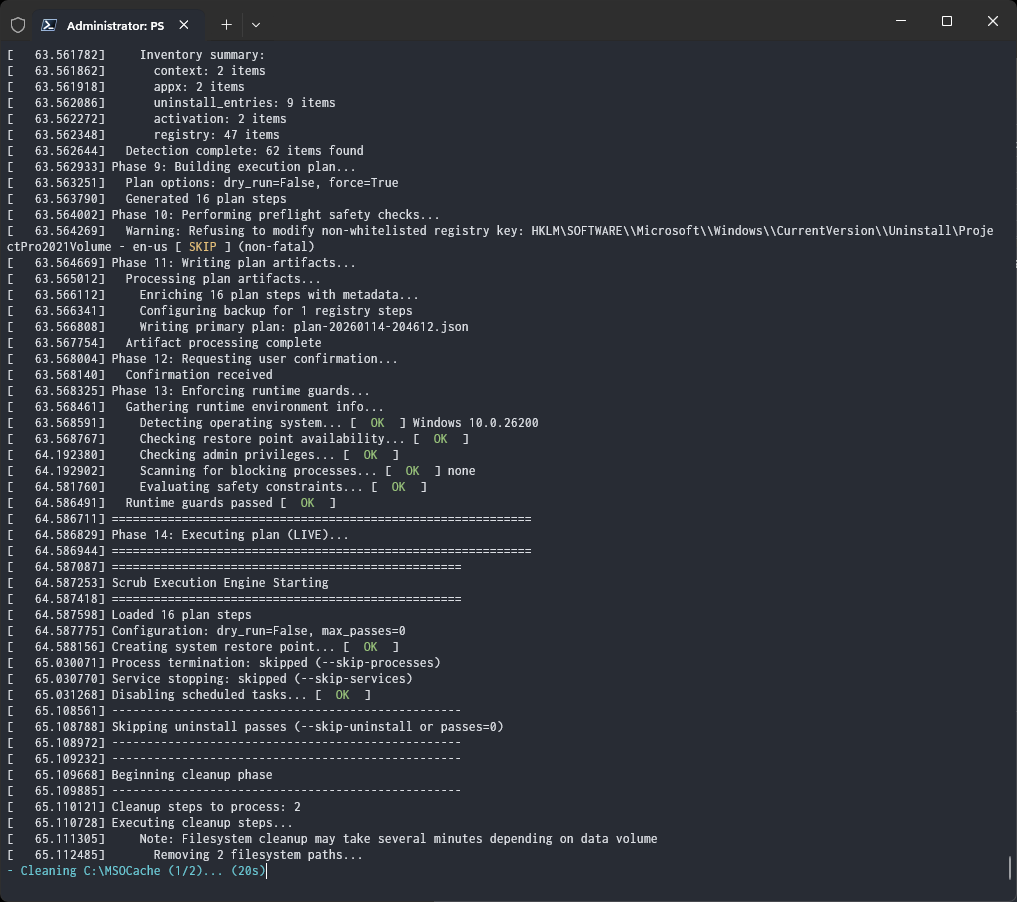
Office Janitor is a comprehensive, stdlib-only Python utility for managing Microsoft Office installations on Windows. It provides three core capabilities:
- 🔧 Install – Deploy Office using ODT with presets, custom configurations, and live progress monitoring
- 🔄 Repair – Quick and full repair for Click-to-Run installations with bundled OEM configurations
- 🧹 Scrub – Deep uninstall and cleanup of MSI and Click-to-Run Office across all versions (2003-2024, Microsoft 365)
The tool follows the architecture defined in spec.md and can be packaged into a single-file Windows executable with PyInstaller.
Table of Contents
- Installation
- Quick Start
- ODT Installation
- Office Repair
- Office Removal & Scrubbing
- CLI Reference
- Configuration Files
- Safety Guidance
- Logging & Diagnostics
- Contributing & Testing
Installation
Prerequisites
- Windows 7 or later with administrator privileges
- Python 3.9+ (for running from source)
- Optional: PyInstaller for building standalone executables
Running from Source
# Clone and enter the repository
git clone https://github.com/supermarsx/office-janitor.git
cd office-janitor

# Create virtual environment (recommended)
python -m venv .venv
.venv\Scripts\activate

# Install in editable mode
python -m pip install -e .

# Run the tool
python office_janitor.py --help
Building Standalone Executable
pyinstaller --onefile --uac-admin --name office-janitor office_janitor.py --paths src
The resulting dist/office-janitor.exe is a single-file admin-elevated executable that includes the embedded ODT setup.exe.
Quick Start
# Install Office LTSC 2024 with Visio and Project (no bloatware)
office-janitor --goobler

# Repair Office Click-to-Run (quick repair)
office-janitor --repair quick

# Remove all Office installations (preview first!)
office-janitor --auto-all --dry-run
office-janitor --auto-all --backup C:\Backups

# Interactive mode - launches menu
office-janitor
ODT Installation
Office Janitor includes an embedded Office Deployment Tool (setup.exe) and can install any Office product directly with live progress monitoring.
Installation Presets
Use presets for one-command installations:
# Install Office LTSC 2024 Professional Plus (64-bit)
office-janitor --odt-install --odt-preset office2024-x64

# Install full suite: Office 2024 + Visio + Project
office-janitor --odt-install --odt-preset ltsc2024-full-x64

# Install clean version without OneDrive/Skype bloatware
office-janitor --odt-install --odt-preset ltsc2024-full-x64-clean

# Add multiple languages
office-janitor --odt-install --odt-preset ltsc2024-full-x64 \
  --odt-language en-us --odt-language de-de --odt-language es-mx

# Preview without installing
office-janitor --odt-install --odt-preset office2024-x64 --dry-run
Microsoft 365 Presets
| Preset | Products | Description |
|---|---|---|
365-proplus-x64 |
O365ProPlusRetail | Microsoft 365 Apps for enterprise (64-bit) |
365-proplus-x86 |
O365ProPlusRetail | Microsoft 365 Apps for enterprise (32-bit) |
365-business-x64 |
O365BusinessRetail | Microsoft 365 Apps for business |
365-proplus-visio-project |
O365ProPlusRetail + Visio + Project | Full M365 suite |
365-shared-computer |
O365ProPlusRetail | Shared Computer Licensing enabled |
365-proplus-x64-clean |
O365ProPlusRetail | No OneDrive/Skype |
365-proplus-visio-project-clean |
Full suite | No OneDrive/Skype |
Office LTSC 2024 Presets
| Preset | Products | Description |
|---|---|---|
office2024-x64 |
ProPlus2024Volume | Office LTSC 2024 Professional Plus |
office2024-x86 |
ProPlus2024Volume | 32-bit version |
office2024-standard-x64 |
Standard2024Volume | Standard edition |
ltsc2024-full-x64 |
ProPlus + Visio + Project | Complete 2024 suite |
ltsc2024-full-x86 |
ProPlus + Visio + Project | 32-bit complete suite |
ltsc2024-x64-clean |
ProPlus2024Volume | No OneDrive/Skype |
ltsc2024-full-x64-clean |
Full suite | No OneDrive/Skype ⭐ |
ltsc2024-full-x86-clean |
Full suite (32-bit) | No bloatware |
Office LTSC 2021 & 2019 Presets
| Preset | Products | Description |
|---|---|---|
office2021-x64 |
ProPlus2021Volume | Office LTSC 2021 Professional Plus |
office2021-standard-x64 |
Standard2021Volume | Standard edition |
ltsc2021-full-x64 |
ProPlus + Visio + Project | Complete 2021 suite |
office2019-x64 |
ProPlus2019Volume | Office 2019 Professional Plus |
office2019-x86 |
ProPlus2019Volume | 32-bit version |
Standalone Products
| Preset | Product | Description |
|---|---|---|
visio-pro-x64 |
VisioPro2024Volume | Visio Professional 2024 |
project-pro-x64 |
ProjectPro2024Volume | Project Professional 2024 |
Quick Install Aliases
Author-defined shortcuts for common installations:
# Goobler: Full Office 2024 suite, no bloatware, Portuguese + English
office-janitor --goobler

# Pupa: ProPlus only, no bloatware, Portuguese + English
office-janitor --pupa

# Both support dry-run
office-janitor --goobler --dry-run
| Alias | Preset | Products | Languages |
|---|---|---|---|
--goobler |
ltsc2024-full-x64-clean |
ProPlus 2024 + Visio + Project | pt-pt, en-us |
--pupa |
ltsc2024-x64-clean |
ProPlus 2024 only | pt-pt, en-us |
Custom Installations
Build custom configurations when presets don't fit:
# Custom product selection
office-janitor --odt-install \
  --odt-product ProPlus2024Volume \
  --odt-product VisioPro2024Volume \
  --odt-channel PerpetualVL2024 \
  --odt-language en-us \
  --odt-exclude-app OneDrive \
  --odt-exclude-app Lync

# Generate XML without installing
office-janitor --odt-build --odt-preset office2024-x64 --odt-output install.xml

# Download for offline installation
office-janitor --odt-download "D:\OfficeSource" \
  --odt-preset 365-proplus-x64 \
  --odt-language en-us --odt-language es-es

# Generate removal XML
office-janitor --odt-removal --odt-remove-msi --odt-output remove.xml
Progress Monitoring
During installation, Office Janitor provides real-time progress:
⠋ ODT: ProPlus2024Volume, VisioPro2024Volume 45% Installing Office... [1.2GB, 3421 files, 892 keys, CPU 12%, RAM 245MB] (5m 34s)
The spinner shows:
- Products being installed
- Progress percentage from ODT logs
- Current phase (downloading, installing, configuring)
- Disk usage (Office installation size)
- File count in Office directories
- Registry keys created
- CPU/RAM usage of installer processes
- Elapsed time
If setup.exe exits but ClickToRun processes continue (common behavior), monitoring automatically switches to track those processes until installation completes.
Ctrl+C during installation will:
- Terminate the ODT setup process
- Kill all ClickToRun-related processes (OfficeClickToRun.exe, OfficeC2RClient.exe, etc.)
- Display what was terminated
Office Repair
Repair Click-to-Run Office installations without reinstalling.
Quick Repair
Fast local repair using cached installation files:
# Quick repair (runs silently)
office-janitor --repair quick

# Show repair UI
office-janitor --repair quick --repair-visible

# Preview without executing
office-janitor --repair quick --dry-run
Quick repair:
- Uses locally cached files (fast, no download)
- Fixes corrupted files and settings
- Preserves user data and customizations
- Completes in 5-15 minutes
Full Online Repair
Complete repair that re-downloads Office from CDN:
# Full online repair
office-janitor --repair full

# With visible progress UI
office-janitor --repair full --repair-visible

# Specify architecture
office-janitor --repair full --repair-platform x64
Full repair:
- Downloads fresh files from Microsoft CDN
- Repairs more severe corruption
- Takes 30-60+ minutes depending on connection
- Requires internet connectivity
OEM Configurations
Use bundled configuration presets for repair/reconfiguration:
# List available OEM presets
office-janitor --oem-config --help

# Quick repair preset
office-janitor --oem-config quick-repair

# Full repair preset
office-janitor --oem-config full-repair

# Repair specific products
office-janitor --oem-config proplus-x64
office-janitor --oem-config business-x64
office-janitor --oem-config office2024-x64

# Remove all C2R products
office-janitor --c2r-remove

# Quick aliases
office-janitor --c2r-repair-quick
office-janitor --c2r-repair-full
Available OEM presets:
full-removal- Remove all C2R Office productsquick-repair- Quick local repairfull-repair- Full online repairproplus-x64/proplus-x86- Repair Office 365 ProPlusproplus-visio-project- Repair full suitebusiness-x64- Repair Microsoft 365 Businessoffice2019-x64- Repair Office 2019office2021-x64- Repair Office 2021office2024-x64- Repair Office 2024multilang- Multi-language configurationshared-computer- Shared Computer Licensinginteractive- Show repair UI
Custom Repair Configuration
Use your own XML configuration:
office-janitor --repair-config "C:\Configs\custom_repair.xml"
Office Removal & Scrubbing
Deep uninstall and cleanup for all Office versions (2003-2024, Microsoft 365).
Automatic Removal
Remove all detected Office installations:
# ALWAYS preview first!
office-janitor --auto-all --dry-run

# Execute with backup
office-janitor --auto-all --backup "C:\Backups\Office"

# Silent unattended removal
office-janitor --auto-all --yes --quiet

# Keep user data during removal
office-janitor --auto-all --keep-templates --keep-user-settings --keep-license
Targeted Removal
Remove specific Office versions:
# Remove only Office 2016
office-janitor --target 2016

# Remove Microsoft 365 only
office-janitor --target 365

# Remove Office 2019 including Visio/Project
office-janitor --target 2019 --include visio,project

# Remove only MSI-based Office
office-janitor --msi-only --auto-all

# Remove only Click-to-Run Office
office-janitor --c2r-only --auto-all

# Remove specific MSI product by GUID
office-janitor --product-code "{90160000-0011-0000-0000-0000000FF1CE}"

# Remove specific C2R release
office-janitor --release-id O365ProPlusRetail
Scrub Levels
Control cleanup intensity:
# Minimal - uninstall only
office-janitor --auto-all --scrub-level minimal

# Standard - uninstall + residue cleanup (default)
office-janitor --auto-all --scrub-level standard

# Aggressive - deep registry/filesystem cleanup
office-janitor --auto-all --scrub-level aggressive

# Nuclear - remove everything possible
office-janitor --auto-all --scrub-level nuclear
| Level | Uninstall | Files | Registry | Services | Tasks | Licenses |
|---|---|---|---|---|---|---|
| minimal | ✅ | ❌ | ❌ | ❌ | ❌ | ❌ |
| standard | ✅ | ✅ | ✅ | ✅ | ✅ | ❌ |
| aggressive | ✅ | ✅ | ✅+ | ✅ | ✅ | ✅ |
| nuclear | ✅ | ✅+ | ✅++ | ✅ | ✅ | ✅+ |
Cleanup-Only Mode
Skip uninstall, clean residue only:
# Clean leftover files/registry after manual uninstall
office-janitor --cleanup-only

# Aggressive residue cleanup
office-janitor --cleanup-only --scrub-level aggressive

# Registry cleanup only
office-janitor --registry-only
License Management
# Clean all Office licenses
office-janitor --cleanup-only --clean-all-licenses

# Clean SPP tokens only (KMS/MAK)
office-janitor --cleanup-only --clean-spp

# Clean OSPP tokens
office-janitor --cleanup-only --clean-ospp

# Clean vNext/device-based licensing
office-janitor --cleanup-only --clean-vnext

# Preserve licenses during removal
office-janitor --auto-all --keep-license
Additional Cleanup Options
# Clean MSOCache installation files
office-janitor --auto-all --clean-msocache

# Remove Office AppX/MSIX packages
office-janitor --auto-all --clean-appx

# Clean Windows Installer metadata
office-janitor --auto-all --clean-wi-metadata

# Clean Office shortcuts
office-janitor --auto-all --clean-shortcuts

# Clean registry add-ins, COM, shell extensions
office-janitor --cleanup-only --clean-addin-registry --clean-com-registry --clean-shell-extensions
Multiple Passes
For stubborn installations:
# Run 3 uninstall passes
office-janitor --auto-all --passes 3

# Or use max-passes
office-janitor --auto-all --max-passes 5
CLI Reference
Modes (mutually exclusive)
| Flag | Description |
|---|---|
--auto-all |
Detect and scrub all Office installations |
--target VER |
Target specific version (2003-2024, 365) |
--diagnose |
Detection and planning only, no changes |
--cleanup-only |
Skip uninstall, clean residue only |
--repair TYPE |
Repair C2R Office (quick/full) |
--repair-config XML |
Repair using custom XML |
--odt-install |
Install Office via ODT |
--odt-build |
Generate ODT XML configuration |
| (none) | Launch interactive menu |
Core Options
| Flag | Description |
|---|---|
-n, --dry-run |
Simulate without changes |
-y, --yes |
Skip confirmations |
-f, --force |
Bypass guardrails |
--backup DIR |
Backup registry/files |
--plan FILE |
Export plan to JSON |
--logdir DIR |
Custom log directory |
--timeout SEC |
Per-step timeout |
--config JSON |
Load options from file |
ODT Options
| Flag | Description |
|---|---|
--odt-preset NAME |
Use installation preset |
--odt-product ID |
Add product (repeatable) |
--odt-language CODE |
Add language (repeatable) |
--odt-arch 32/64 |
Architecture (default: 64) |
--odt-channel CHANNEL |
Update channel |
--odt-exclude-app APP |
Exclude app (repeatable) |
--odt-shared-computer |
Enable shared licensing |
--odt-remove-msi |
Include RemoveMSI element |
--odt-output FILE |
Output XML path |
--odt-list-presets |
List available presets |
--odt-list-products |
List product IDs |
--odt-list-channels |
List update channels |
--odt-list-languages |
List language codes |
Repair Options
| Flag | Description |
|---|---|
--repair-culture LANG |
Language for repair (default: en-us) |
--repair-platform ARCH |
Architecture (x86/x64) |
--repair-visible |
Show repair UI |
--repair-timeout SEC |
Timeout (default: 3600) |
Scrub Options
| Flag | Description |
|---|---|
--scrub-level LEVEL |
minimal/standard/aggressive/nuclear |
--passes N |
Uninstall passes |
--skip-uninstall |
Skip uninstall phase |
--skip-processes |
Don't terminate Office processes |
--skip-services |
Don't stop Office services |
--skip-tasks |
Don't remove scheduled tasks |
--skip-registry |
Don't clean registry |
--skip-filesystem |
Don't clean files |
--registry-only |
Only registry cleanup |
License Options
| Flag | Description |
|---|---|
--keep-license |
Preserve licenses |
--clean-spp |
Clean SPP tokens |
--clean-ospp |
Clean OSPP tokens |
--clean-vnext |
Clean vNext cache |
--clean-all-licenses |
Clean all license types |
User Data Options
| Flag | Description |
|---|---|
--keep-templates |
Preserve templates |
--keep-user-settings |
Preserve settings |
--keep-outlook-data |
Preserve Outlook data |
--delete-user-settings |
Remove settings |
--clean-shortcuts |
Remove shortcuts |
Configuration Files
Save common options in JSON:
{
  "dry_run": false,
  "backup": "C:\\Backups\\Office",
  "scrub_level": "standard",
  "keep_license": true,
  "keep_templates": true,
  "passes": 2,
  "timeout": 600
}
Use with:
office-janitor --config settings.json --auto-all
CLI flags override config file values.
Safety Guidance
Always Preview First
# Preview what will happen
office-janitor --auto-all --dry-run --plan preview.json

# Review the plan file, then execute
office-janitor --auto-all --backup "C:\Backups"
Create Backups
# Automatic backup to specified directory
office-janitor --auto-all --backup "C:\Backups\Office"

# System restore points are created by default
# Disable with --no-restore-point if needed
Preserve User Data
# Keep everything the user might want
office-janitor --auto-all \
  --keep-templates \
  --keep-user-settings \
  --keep-outlook-data \
  --keep-license
Enterprise Deployment
# Silent unattended for SCCM/Intune
office-janitor --auto-all --yes --quiet --no-restore-point

# Log to network share
office-janitor --auto-all --logdir "\\server\logs\%COMPUTERNAME%"
Logging & Diagnostics
Log Locations
Default: %ProgramData%\OfficeJanitor\logs
human.log– Human-readable log (rotated)events.jsonl– Machine-readable telemetry
Override with --logdir or OFFICE_JANITOR_LOGDIR environment variable.
Diagnostics Mode
# Full diagnostic without changes
office-janitor --diagnose --dry-run --plan report.json -vvv

# JSON output to stdout
office-janitor --diagnose --json

# Maximum verbosity
office-janitor --diagnose -vvv
Troubleshooting
# Skip phases to isolate issues
office-janitor --auto-all --skip-processes --skip-services --dry-run

# Force through guardrails (use with caution)
office-janitor --auto-all --force --skip-preflight

# Registry-only cleanup
office-janitor --registry-only
TUI (Text User Interface)
Launch the interactive terminal UI:
office-janitor --tui
The TUI provides:
- Live progress display with spinner
- Real-time event log
- Detection/planning/execution phases
- Key bindings for control
Auto-selects TUI when terminal supports ANSI sequences. Disable colors with --no-color.
OffScrub Compatibility
Legacy OffScrub VBS switches are mapped to native behaviors. See docs/CLI_COMPATIBILITY.md for the full matrix.
# OffScrub-style flags
office-janitor --offscrub-all          # Remove all
office-janitor --offscrub-quiet        # Reduce output
office-janitor --offscrub-test-rerun   # Double-pass
Contributing & Testing
Development Setup
git clone https://github.com/supermarsx/office-janitor.git
cd office-janitor
python -m venv .venv
.venv\Scripts\activate
pip install -e ".[dev]"
Running Tests
# Run all tests
pytest

# With coverage
pytest --cov=src/office_janitor

# Specific test file
pytest tests/test_odt_build.py -v
Code Quality
# Format
black .

# Lint
ruff check .

# Type check
mypy src tests

# All checks (PowerShell helper)
.\scripts\lint_format.ps1 -Fix
.\scripts\type_check.ps1
.\scripts\test.ps1
Building
# PyInstaller executable
.\scripts\build_pyinstaller.ps1

# Distribution packages
.\scripts\build_dist.ps1
Documentation Style
Use Doxygen-style docstrings:
def my_function(arg: str) -> bool:
    """!
    @brief Short description.
    @details Extended description if needed.
    @param arg Description of parameter.
    @returns Description of return value.
    """
License
See license.md for licensing information.
Support
- Bug reports: Reference relevant sections of
spec.md - Feature requests: Discuss alignment with intended architecture
- Documentation: See
docs/for detailed guides


Download files
Download the file for your platform. If you're not sure which to choose, learn more about installing packages.
Source Distribution
Built Distribution
Filter files by name, interpreter, ABI, and platform.
If you're not sure about the file name format, learn more about wheel file names.
Copy a direct link to the current filters
File details
Details for the file office_janitor-0.0.0.tar.gz.
File metadata
- Download URL: office_janitor-0.0.0.tar.gz
- Upload date:
- Size: 301.4 kB
- Tags: Source
- Uploaded using Trusted Publishing? Yes
- Uploaded via: twine/6.1.0 CPython/3.13.7
File hashes
| Algorithm | Hash digest | |
|---|---|---|
| SHA256 |
40983478ef8fb56f54092af1c65cbe6a0564c9442ee75c3bff863037e074e44d
|
|
| MD5 |
c66a1cca6c0cc1e4efc66a302855203b
|
|
| BLAKE2b-256 |
356e4d0e110de9ad2ccebe25b5a2943b8c03b116ac48d4622274dd62f889d37b
|
Provenance
The following attestation bundles were made for office_janitor-0.0.0.tar.gz:
Publisher:
ci.yml on supermarsx/office-janitor
-
Statement:
-
Statement type:
https://in-toto.io/Statement/v1 -
Predicate type:
https://docs.pypi.org/attestations/publish/v1 -
Subject name:
office_janitor-0.0.0.tar.gz -
Subject digest:
40983478ef8fb56f54092af1c65cbe6a0564c9442ee75c3bff863037e074e44d - Sigstore transparency entry: 826452765
- Sigstore integration time:
-
Permalink:
supermarsx/office-janitor@8a296216eccf5a2a0dad20f5864d405fbb0f108d -
Branch / Tag:
refs/heads/main - Owner: https://github.com/supermarsx
-
Access:
public
-
Token Issuer:
https://token.actions.githubusercontent.com -
Runner Environment:
github-hosted -
Publication workflow:
ci.yml@8a296216eccf5a2a0dad20f5864d405fbb0f108d -
Trigger Event:
push
-
Statement type:
File details
Details for the file office_janitor-0.0.0-py3-none-any.whl.
File metadata
- Download URL: office_janitor-0.0.0-py3-none-any.whl
- Upload date:
- Size: 242.8 kB
- Tags: Python 3
- Uploaded using Trusted Publishing? Yes
- Uploaded via: twine/6.1.0 CPython/3.13.7
File hashes
| Algorithm | Hash digest | |
|---|---|---|
| SHA256 |
b5612bd2ce24687430e34f2cc40610d40081f49ebf5cbf481a75e4025ce06615
|
|
| MD5 |
36a5363736c53df722b5abcb3ea061be
|
|
| BLAKE2b-256 |
0097b672bffd882bc038f39b0bdae67052982354d5836d34ba2ea3fc4b24de86
|
Provenance
The following attestation bundles were made for office_janitor-0.0.0-py3-none-any.whl:
Publisher:
ci.yml on supermarsx/office-janitor
-
Statement:
-
Statement type:
https://in-toto.io/Statement/v1 -
Predicate type:
https://docs.pypi.org/attestations/publish/v1 -
Subject name:
office_janitor-0.0.0-py3-none-any.whl -
Subject digest:
b5612bd2ce24687430e34f2cc40610d40081f49ebf5cbf481a75e4025ce06615 - Sigstore transparency entry: 826452817
- Sigstore integration time:
-
Permalink:
supermarsx/office-janitor@8a296216eccf5a2a0dad20f5864d405fbb0f108d -
Branch / Tag:
refs/heads/main - Owner: https://github.com/supermarsx
-
Access:
public
-
Token Issuer:
https://token.actions.githubusercontent.com -
Runner Environment:
github-hosted -
Publication workflow:
ci.yml@8a296216eccf5a2a0dad20f5864d405fbb0f108d -
Trigger Event:
push
-
Statement type:






