

OMERO BioFile Finder
This plugin supports opening a table of OMERO Images, Rois or Shapes in the BioFile Finder app https://bff.allencell.org/.
Usage
The table of data that is displayed by BioFile Finder (BFF) can be compiled in a number of ways.
In each case, you start by selecting a Project, Dataset or Plate in the webclient and use the
context menu to Open With > BioFile Finder. This will open a page that lists the following options:
- Build a table "On the fly": BFF will request a table of Images from the chosen Project, Dataset or Plate. This table will be compiled from Key-Value pairs on the Images with a column for each key. A Creation Date column is also added. The advantage of this option is that you don't need to create the Table of data before-hand. Also, if you refresh the BFF app page, it will re-load the table from OMERO and this will include any updated Key-Value pairs. The disadvantage is that building the table on the fly can take several seconds or longer for large numbers of Images. This may lead to a time-out on the request.
- Use a script to build a table: OMERO-biofilefinder includes an OMERO server script that will create a
BFF-compatible table of Images as a
Parquetfile on a Project, Dataset or Plate using the same logic as above. This option is only displayed on theOpen withpage if the Project, Dataset or Plate has a large number of images (currently set at 400 or more) when time-out could become a problem for "on the fly" creation. - Use an existing OMERO.table or CSV file: if you have any OMERO.tables or
csvfiles attached to the selected Project, Dataset, Plate (or Image), these will be listed in theOpen withpage. You can click on the OMERO.table orcsvfile to open it in BFF. When the table is loaded into BFF, it will augmented with certain columns that BFF expects. See the following section for info on how to format your CSV or OMERO.table:
Table format
You can attach a CSV or OMERO.table to any Project, Dataset, Image or Plate.
One option for creating a suitable table for Shapes and ROIs is use the Batch_ROI_Export script.
Select a parent object (Project, Dataset, Image or Plate), run the script which is under the
export_scripts menu, and the CSV file will be attached to the object.
If you wish to create your own table, it will need to include a Shape, ROI or Image column.
OMERO-biofilefinder will first look in the table for a column named shape, shape_id or shape id
(when converted to lowercase). If none is found, then the same strategy is used to find any ROI column,
followed by any Image column. The Shape or ROI or Image IDs are used to add an appropriate
Thumbnail column for each row, and to create Open with links to that object in the OMERO webclient or viewer.
Screenshots
The following screenshots illustrate workflow 1) from above:
Starting in the webclient, we can see that images are annotated with several Key-Value pairs
in the right panel, including Gene Symbol. The data here is from idr0021.
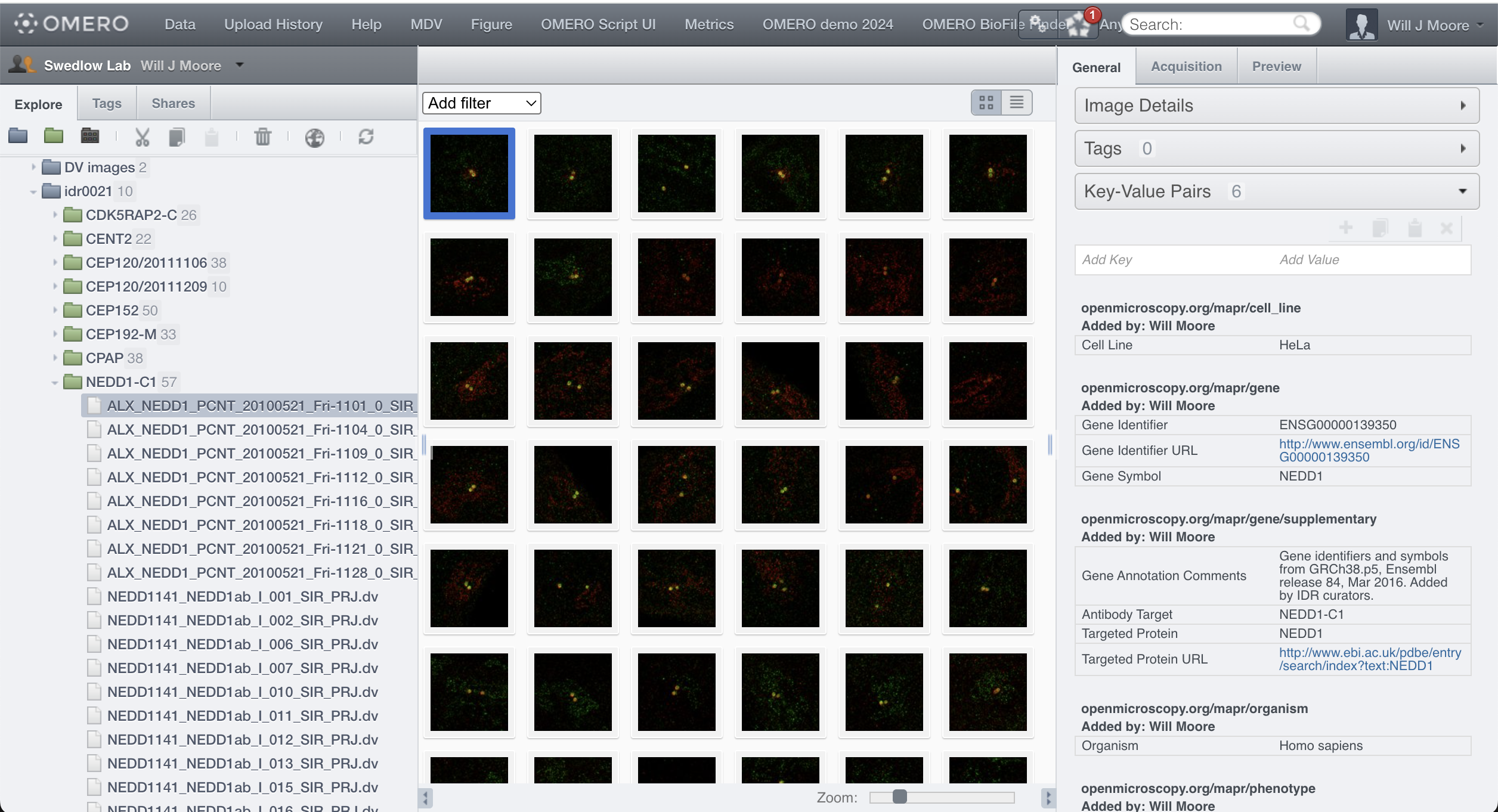
Select the Project and Open with BioFile Finder...
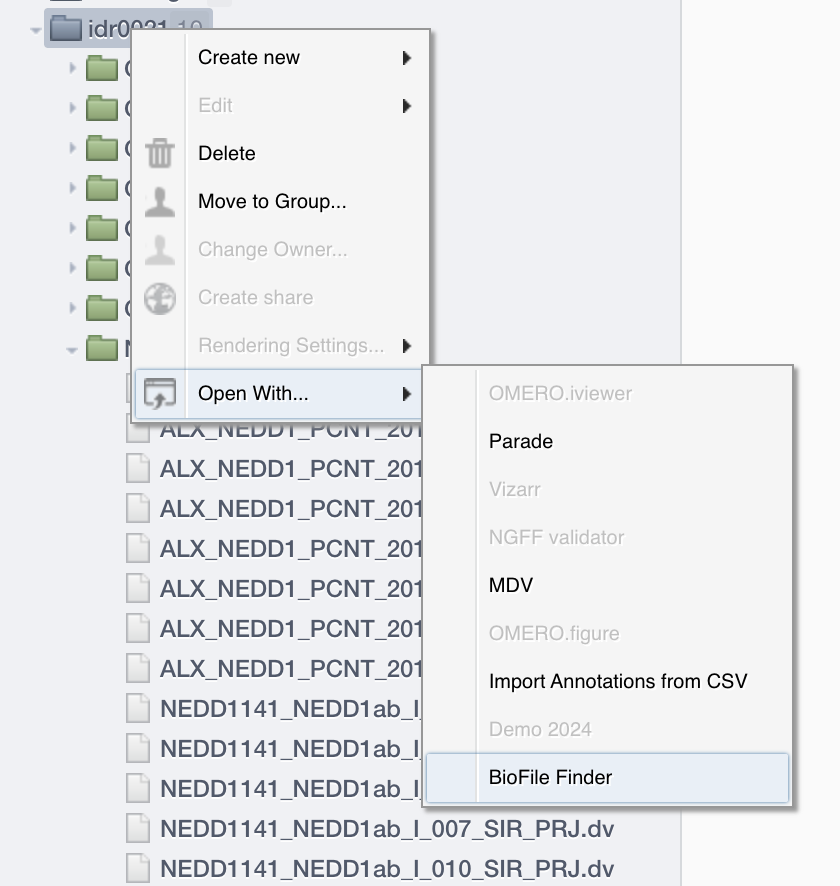
This will open a page where you can choose options for loading data into BioFile Finder.
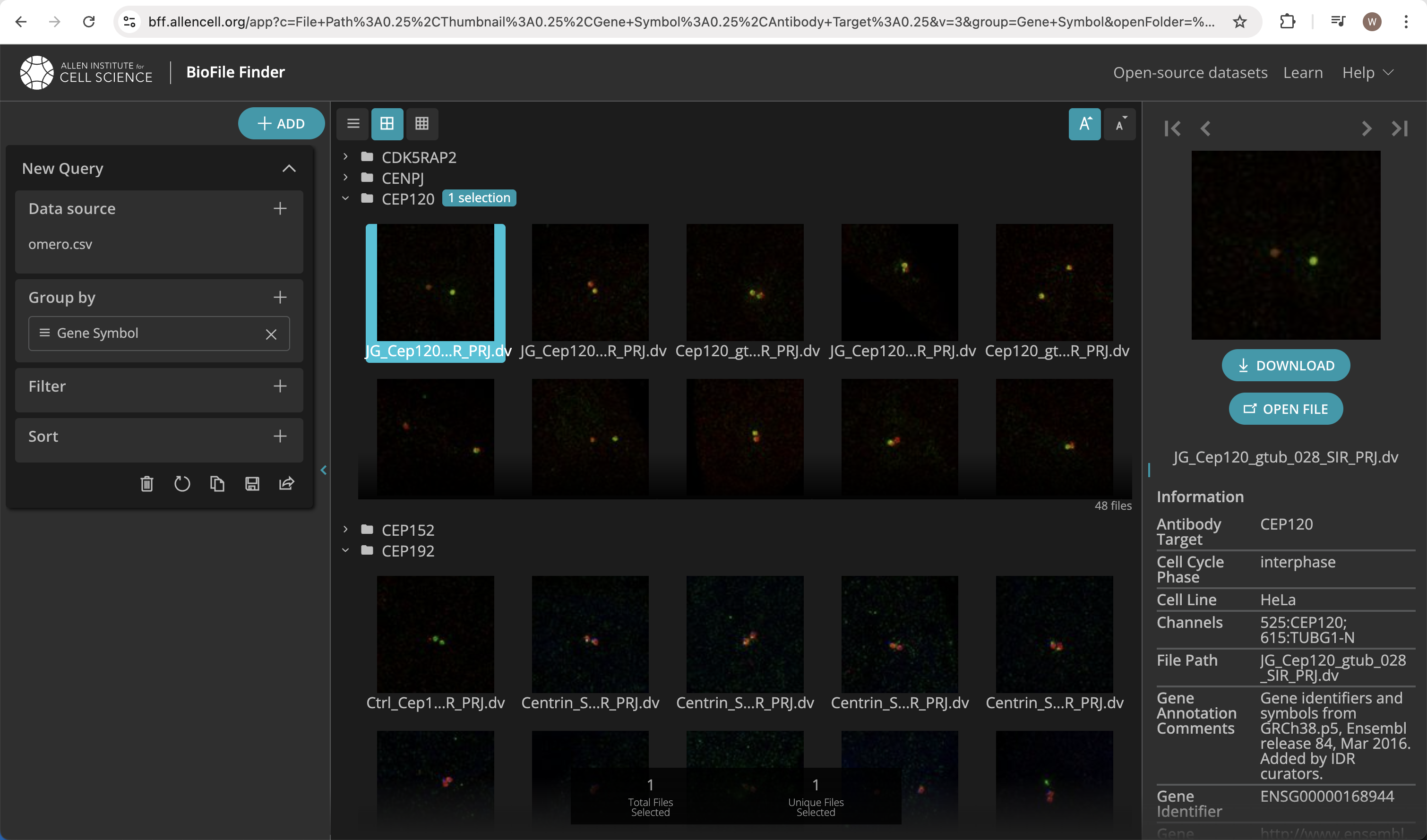
Choosing the first option will Open BFF and the table of images with Key-Value pairs is loaded "on the fly".
Here, the Thumbnail view is selected in BFF and the Images are grouped by Gene Symbol.
Installation
This section assumes that an OMERO.web is already installed. OMERO BioFile Finder should be installed in the same python environment as OMERO.web:
$ pip install omero-biofilefinder
To add the application to the omero.web.apps settings, run the following command:
Note the usage of single quotes around double quotes:
$ omero config append omero.web.apps '"omero_biofilefinder"'
Configure Open with:
$ omero config append omero.web.open_with '["omero_bff", "omero_biofilefinder_openwith", {"supported_objects":["project", "dataset", "plate", "image"], "target": "_blank", "label": "BioFile Finder"}]'
If your omero-web server is not aware that it is running under https, the absolute URLs generated by Django will
be http. This can be tested by visiting https://your-omeroweb-url/api and checking whether the url that appears
in the JSON response starts with http://. If this is the case, then other urls passed to the Biofile Finder app
(for loading thumbnails from OMERO.web) will also be http and BFF will refuse to load them.
To work around this, you can force Django to use https for generation of absolute URLs in BFF:
$ omero config set omero.web.bff.force_https True
Now restart your omero-web server.
Export script
We use an OMERO.server script to build a Parquet file that is read by BioFile Finder.
The script depends on pyarrow library which should first be installed in the OMERO.server python environment.
The script can be uploaded by logging in to the webclient as an Admin and going to biofilefinder/admin where
there is an Upload Script button. This uploads the script from the web app to the OMERO.server.
Experimental: The script can also be run locally (without using the OMERO scripting service). This will use cli_login to login
to your chosen OMERO server. The exported data will get written to your current directory (where you're running the script)
and the parquet file will only get attached to the target (e.g. Project or Dataset) if you can annotate it.
$ cd omero_biofilefinder/scripts
$ python omero/annotation_scripts/Export_to_Biofile_Finder.py Project:501 --base-url https://your-server.org/
Development
Installation
Install omero-biofilefinder in development mode as follows:
# within your python venv:
$ cd omero-biofilefinder
$ pip install -e .
Configure other settings as described above.
Updating the BioFile Finder app
To update the BioFile Finder app, checkout the code, build and replace existing static files:
NB: this uses PR #519.
$ git clone git@github.com:AllenInstitute/biofile-finder.git
$ cd biofile-finder
$ npm install
$ npm --prefix packages/web run build
Replace existing static files in this repo with the build artifacts:
$ rm /PATH/TO/omero-biofilefinder/omero_biofilefinder/static/omero_biofilefinder/dist/*
$ cp packages/web/dist/* /PATH/TO/omero-biofilefinder/omero_biofilefinder/static/omero_biofilefinder/dist/
Further Info
- This app was derived from cookiecutter-omero-webapp.
- For further info on deployment, see Deployment
License
This project, similar to many Open Microscopy Environment (OME) projects, is licensed under the terms of the AGPL v3.
Copyright
2024 - 2026 University of Dundee
1 maintainer

Metadata
1 maintainer
Release files for omero-biofilefinder 0.2.1
For a detailed explanation of source distributions (sdists) and built distributions (wheels), please see the package formats documentation.
Source distribution (sdist)
| File | Size | Uploaded | |
|---|---|---|---|
| omero_biofilefinder-0.2.1.tar.gz | 6.2 MB | Details |
Built distribution (wheel)
| File | Interpreter | ABI | Platform | Reset |
|---|---|---|---|---|
| omero_biofilefinder-0.2.1-py3-none-any.whl | Python 3 | none | any | Details |
Total release size: 12.4 MB
Release files / omero_biofilefinder-0.2.1.tar.gz
| Download URL | omero_biofilefinder-0.2.1.tar.gz |
|---|---|
| Size | 6.2 MB |
| Tags | Source |
|
SHA-256 checksum How to use checksums |
e2154670a5a5cf5abfb0aa469ba3595c92cc55dce1ad72becc039aed8c50348a
|
|
BLAKE2b-256 checksum How to use checksums |
b7d6aab85eae4432ef142d40379756ee4e2a7030d8b6779303899800be7abcf5
|
| Upload date | |
|
Uploaded using Trusted Publishing? What is trusted publishing? |
No |
| Uploaded via |
twine/7.0.0 CPython/3.13.14
|
Release files / omero_biofilefinder-0.2.1-py3-none-any.whl
| Download URL | omero_biofilefinder-0.2.1-py3-none-any.whl |
|---|---|
| Size | 6.2 MB |
| Tags | Python 3 |
|
SHA-256 checksum How to use checksums |
a8a13faa3c232a02aa45005527b28793360d85174f0621029a00fb53af70eaba
|
|
BLAKE2b-256 checksum How to use checksums |
b6db21409bb9847155f839bf293800c822a3b83561aa2c652053e09939de8d31
|
| Upload date | |
|
Uploaded using Trusted Publishing? What is trusted publishing? |
No |
| Uploaded via |
twine/7.0.0 CPython/3.13.14
|














