
One Trust API Library 55

Project description
One Trust API
The One Trust library is used to interact with the One Trust API in order to automate recurring manual tasks. The library is composed of 3 files :
- main.py : used to call one of 4 methods in the OT class to perform automated tasks by interacting with the One Trust API
- ot_class.py : contains methods that are used to interact with One Trust API
- file_handle.py : contains methods to read/write to/from a CSV file
The end user will only have to deal with the OT class and it's methods.
The other files will be used to process the request and perform certain under the hood processes such as reading/writing and making API requests.
The library has the OT class which has 4 methods that allows the end user to automate the following tasks :
- Adding domains for scan in the One Trust interface from a CSV file .
- Retrieving API-keys for scanned domains and writing to a CSV file.
- Fetching information or attributes of scanned domains and writing to a CSV file.
- Publishing a script from a CSV file .
How to get started
Assuming you already have an IDE or code editor installed on your computer, you can go ahead and follow the below steps.
If you don’t have one yet, you can download either Visual Studio Code or Pycharm or another code editor of your choice.
1. Install Python
https://www.python.org/downloads/
2. Open IDE and pip install one trust library
Open terminal on your IDE and pip install the following library : pip install one-trust-55
https://pypi.org/project/one-trust-55/
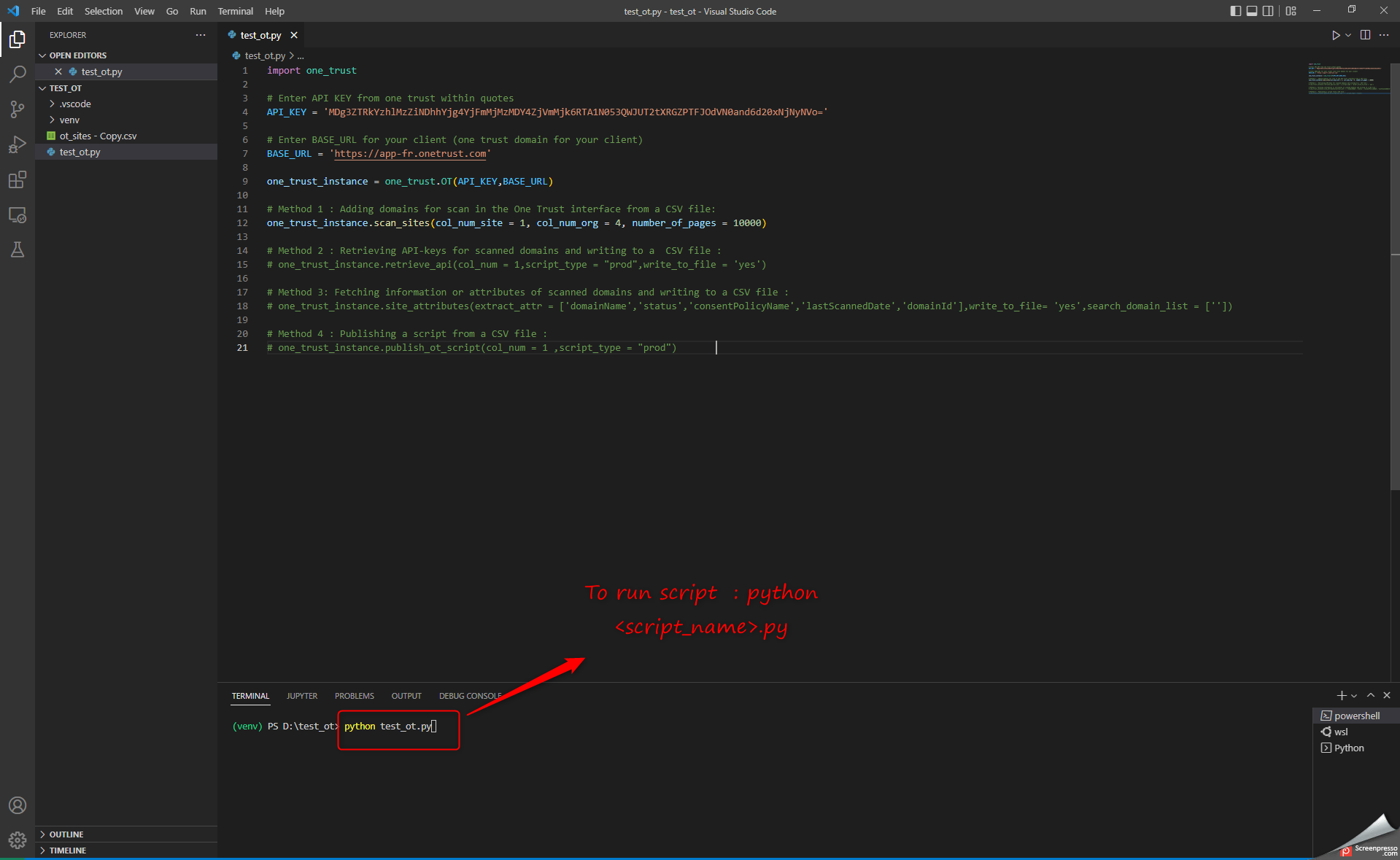
3. Copy and paste the boiler plate code
Create a folder for your project and create a new file within that folder. Copy the boiler plate code and save the file with .py extension.
Boiler plate code
import one_trust

# Enter API KEY from one trust within quotes
API_KEY = '<enter API Key here>'

# Enter BASE_URL for your client (one trust domain for your client)
BASE_URL = '<enter base URL here>'

one_trust_instance = one_trust.OT_client(API_KEY,BASE_URL)

# Method 1 : Adding domains for scan in the One Trust interface from a CSV file:
# one_trust_instance.scan_sites(col_num_site = 1, col_num_org = 4, number_of_pages = 10000)

# Method 2 : Retrieving API-keys for scanned domains and writing to a  CSV file :
# one_trust_instance.retrieve_api(col_num = 1,script_type = "prod",write_to_file = 'yes')

# Method 3: Fetching information or attributes of scanned domains and writing to a CSV file :
# one_trust_instance.site_attributes(extract_attr = ['domainName','status','consentPolicyName','lastScannedDate','domainId'],write_to_file= 'yes',search_domain_list = [''])

# Method 4 : Publishing a script from a CSV file :
# one_trust_instance.publish_ot_script(col_num = 1 ,script_type = "prod")
4. Create a CSV file
Create a csv file and rename it as : ot_sites - Copy.csv. Note: The above naming convention is important as the library is set to read/write only from a csv file that has this name.
If you’re working on a system with French as the default system language, change the default csv delimiter to (,) before continuing.
5. Generate an API Key on the One Trust platform
- Login to the One Trust Platform
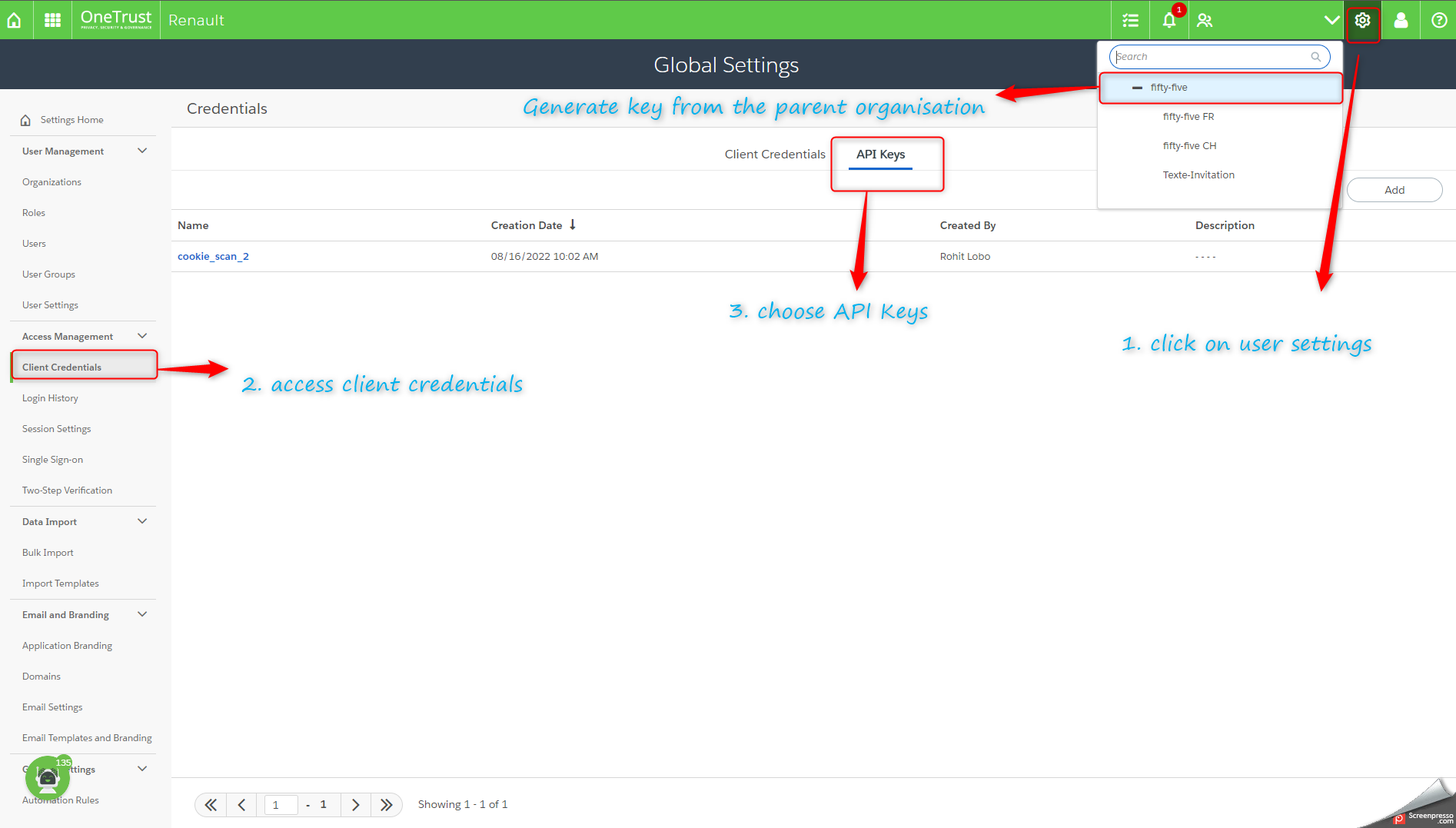
- Generate an API key from user settings
Note: Make sure you are generating the key from your parent organization.This will allow you to run the script on the parent and child organization. Creating a key from one of the child organizations will restrict the scope of your API key to only that organization from where the key was generated .
- Click on user settings
- Access client credentials
- Choose API Keys option
- Click add
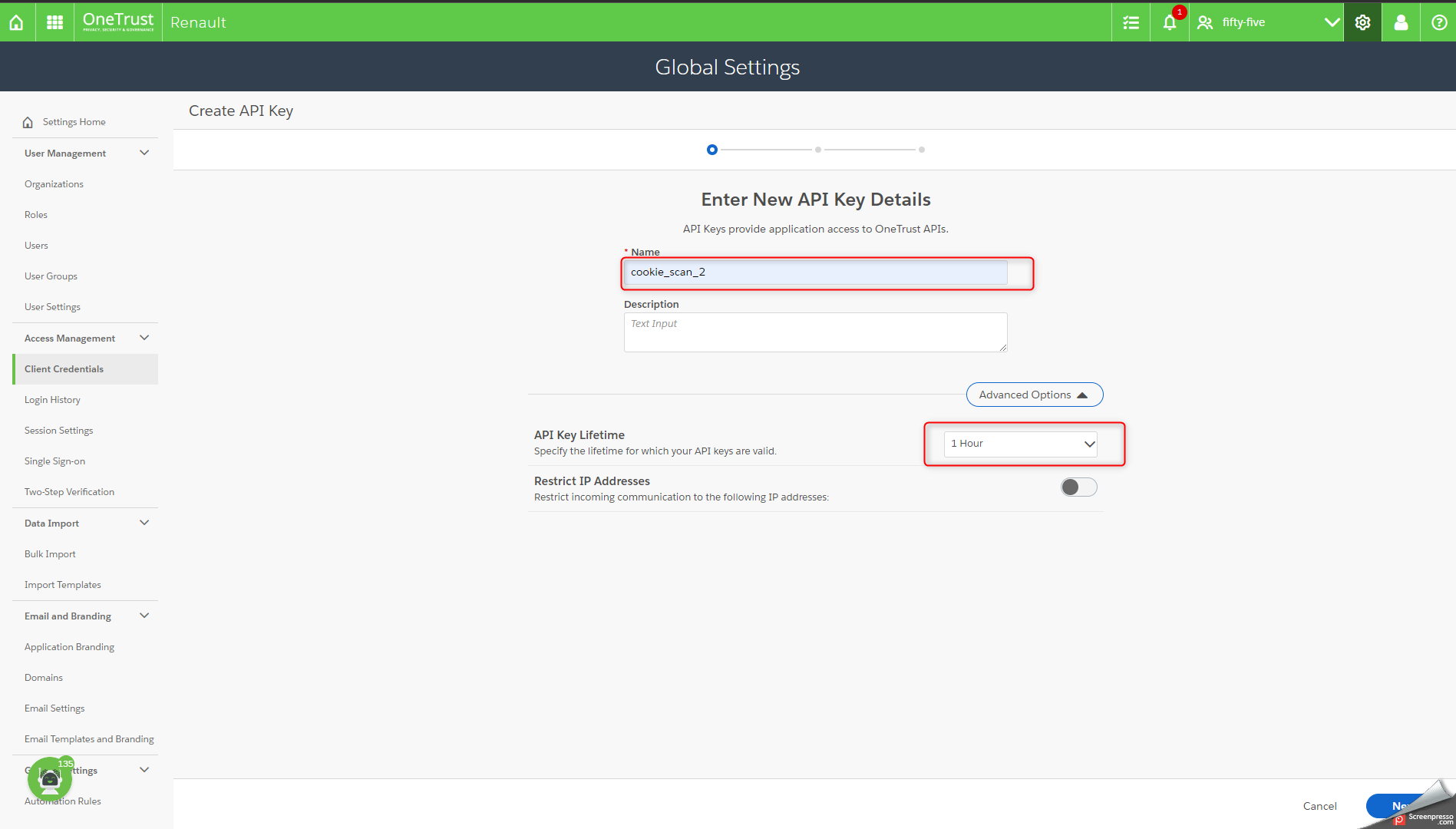
- Enter a name for the API key
- Set the lifetime to 1 hour so that the key expires after this duration
- Click on next
Note: Lifetime of 1 hour was chosen to limit the duration of the validity of the API key to the shortest possible period . This is done so that once the end user has finished using the script, the key will expire within the hour and therefore will reduce the probability of a leak or misuse of the key.
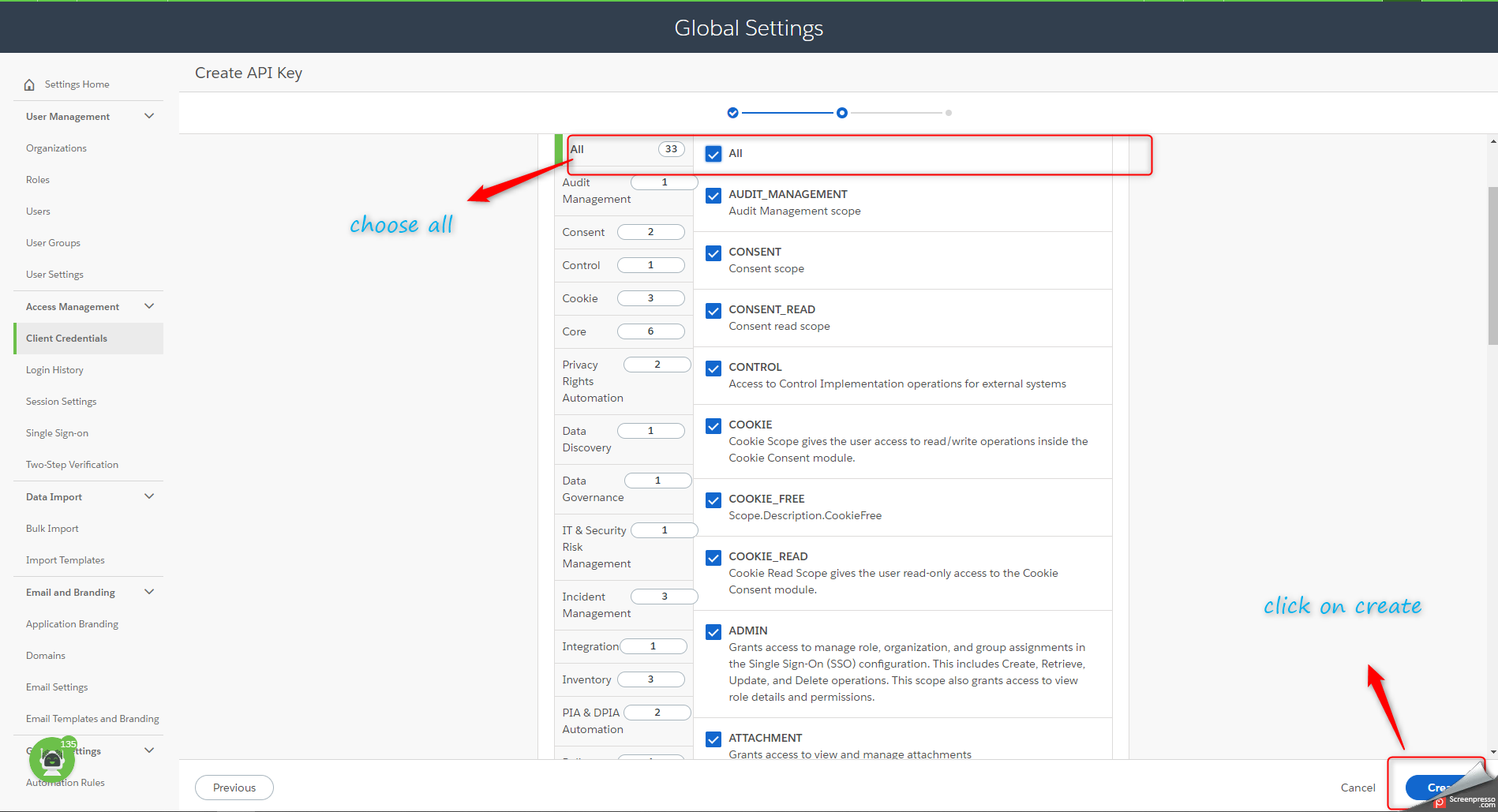
- API scopes : choose all
- Click create
- Copy the key
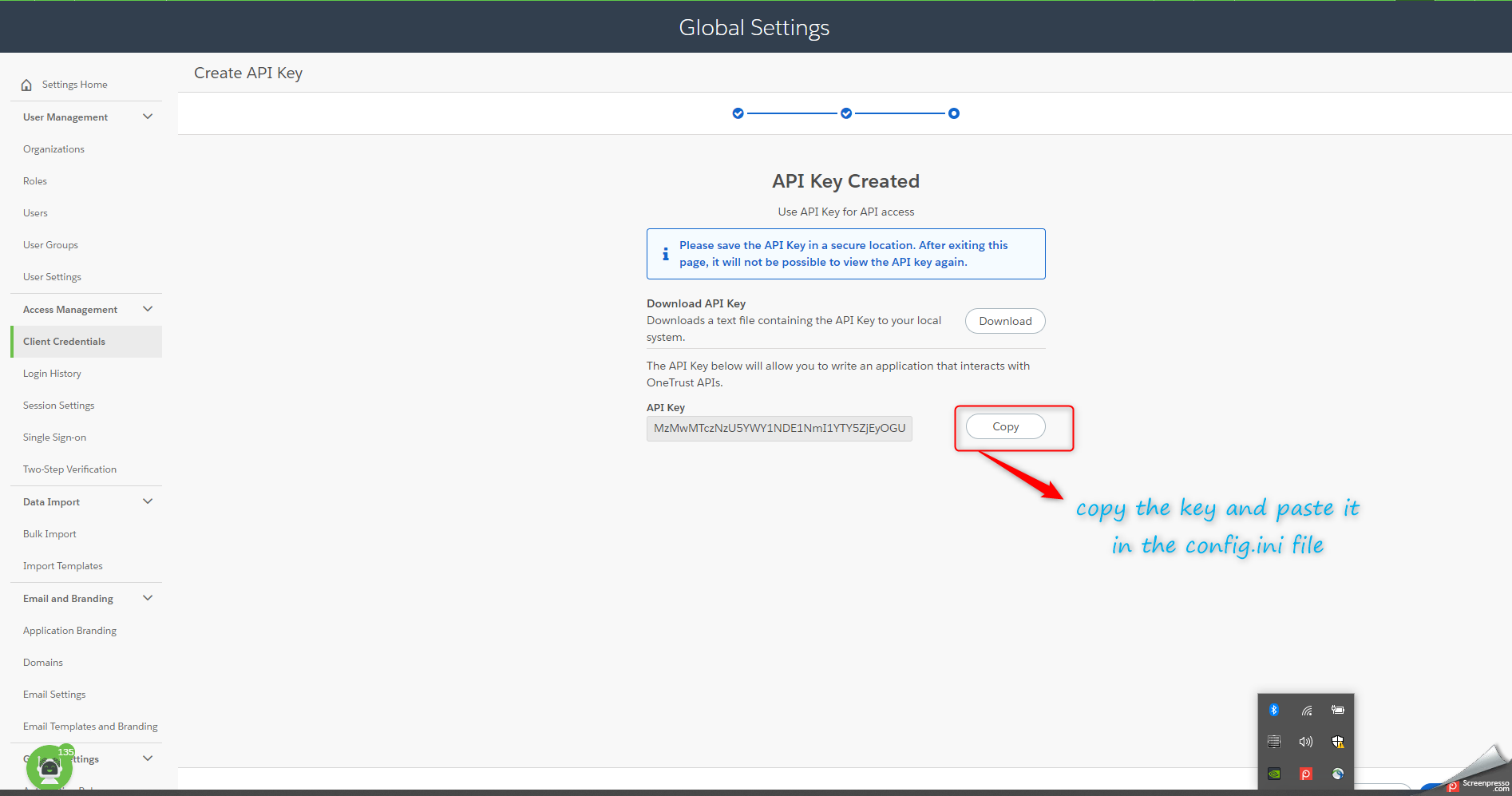
You can copy and paste this API key in the variable API_KEY.
5. Set base URL
The base url is the domain name of the one trust platform for your client. Copy this base URL and paste it in the variable BASE_URL .
Example of BASE_URL: : https://app-es.onetrust.com
6. Run script
Uncomment the method that you wish to use , set the arguments for the methods and setup the CSV files if necessary.
To run the script type : python <enter_script_name_here.py>
Technical Specifications
class initialize : OT(API_KEY,BASE_URL)
Methods :
Method 1:
Adding domains for scan in the One Trust interface from a CSV file
API-DOC : https://developer.onetrust.com/onetrust/reference/requestbulkadddomainusingpost
- Description : This method will allow the end user to add sites or scanning in bulk and also categorize these scanned sites under the relevant children or parent organizations.
class method scan_sites(col_num_site , col_num_org , number_of_pages)
-
col_num_site( type = Integer ) - indicates the column from the csv file that contains the sites to be scanned.
-
col_num_org ( type = Integer )- indicates the column from the csv file that contains the organization code under which the site will be scanned.
-
number_of_pages ( type = Integer ) - number of pages that you would like One Trust to scan for a given site.
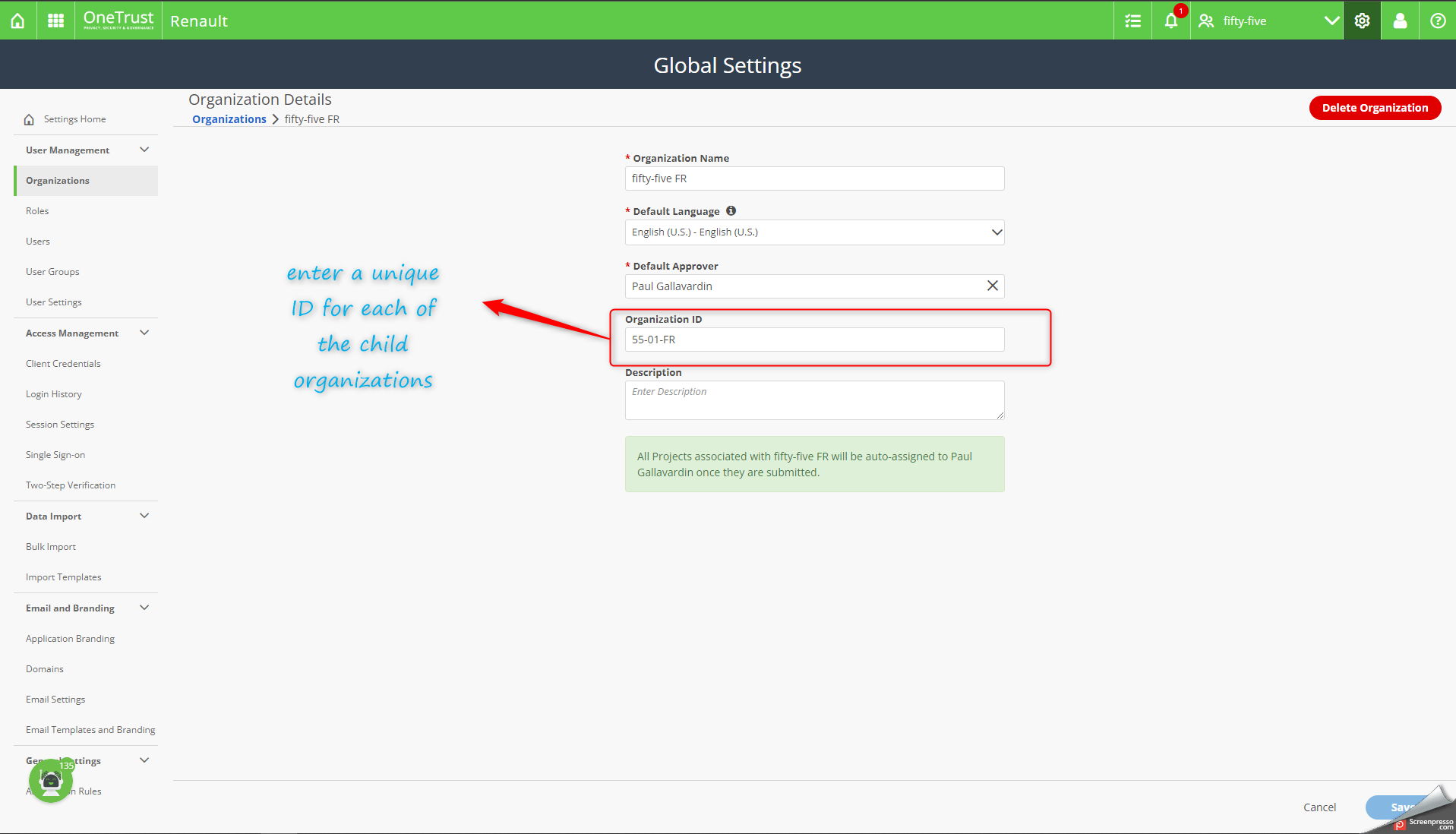
If it is required to categorize the sites under specific organizations , a preliminary step of setting up distinct and unique organizations ID’s for each of the organizations is necessary before running the method.
Head over to settings on the One trust interface and select the organizations tab under user management.
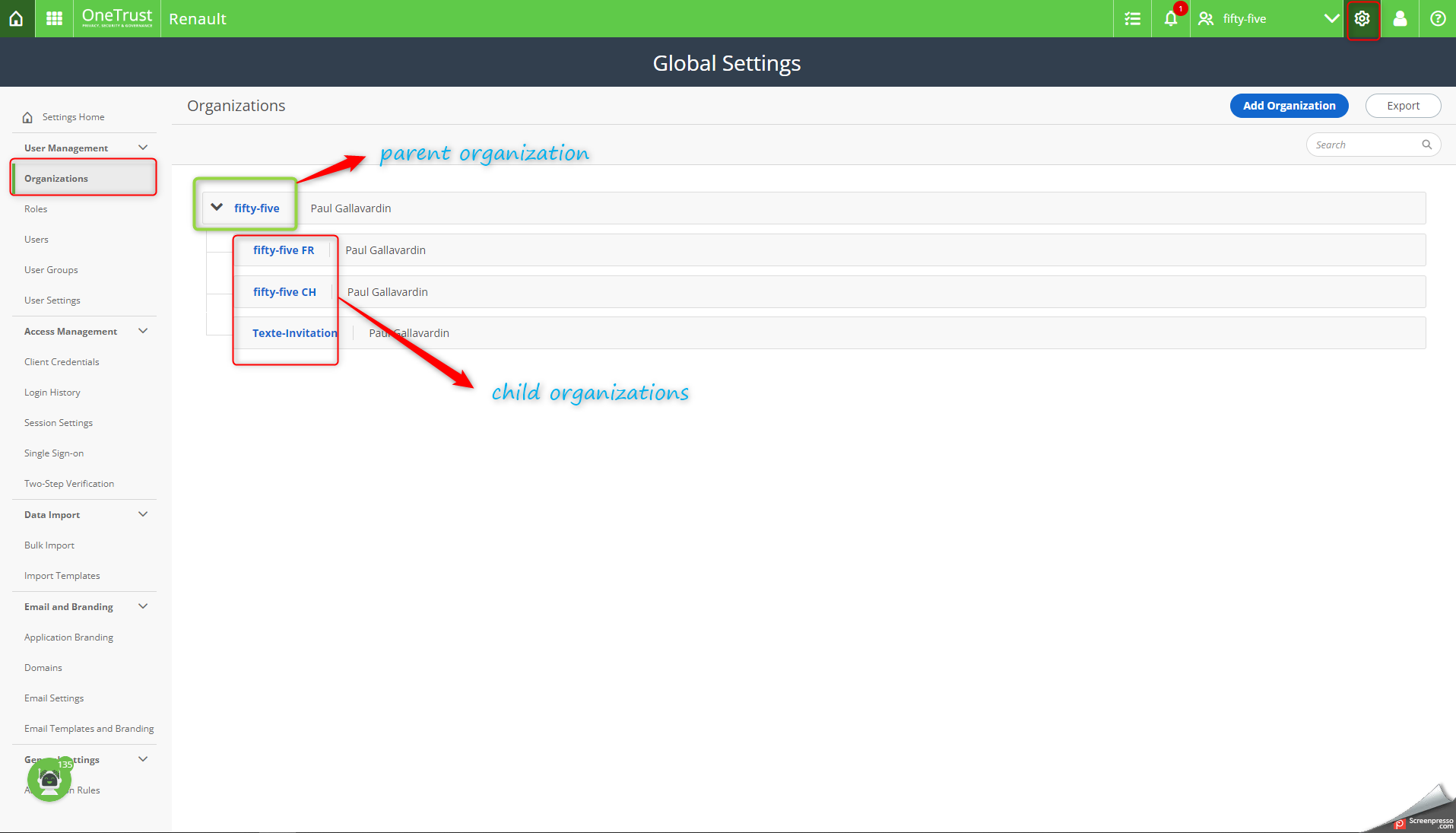
Then enter a unique ID for each of the child organizations.
Open your CSV file and then enter the sites you want to scan in One Trust and the organization ID in two separate columns. Make sure to give header names to the columns.

Note : A limitation to the number of sites/domains that can be scanned in a batch have been limited to 15. It is strongly advised not to scan more than 15 sites/domains at a time and to wait till the scans are complete before launching another batch of scans. Consultants find that the One Trust platform slows down if there are too many domains queued for scan.
Method 2:
Retrieving API-keys for scanned domains and writing to a CSV file
API-DOC : https://developer.onetrust.com/onetrust/reference/getscriptforwebsiteusingget
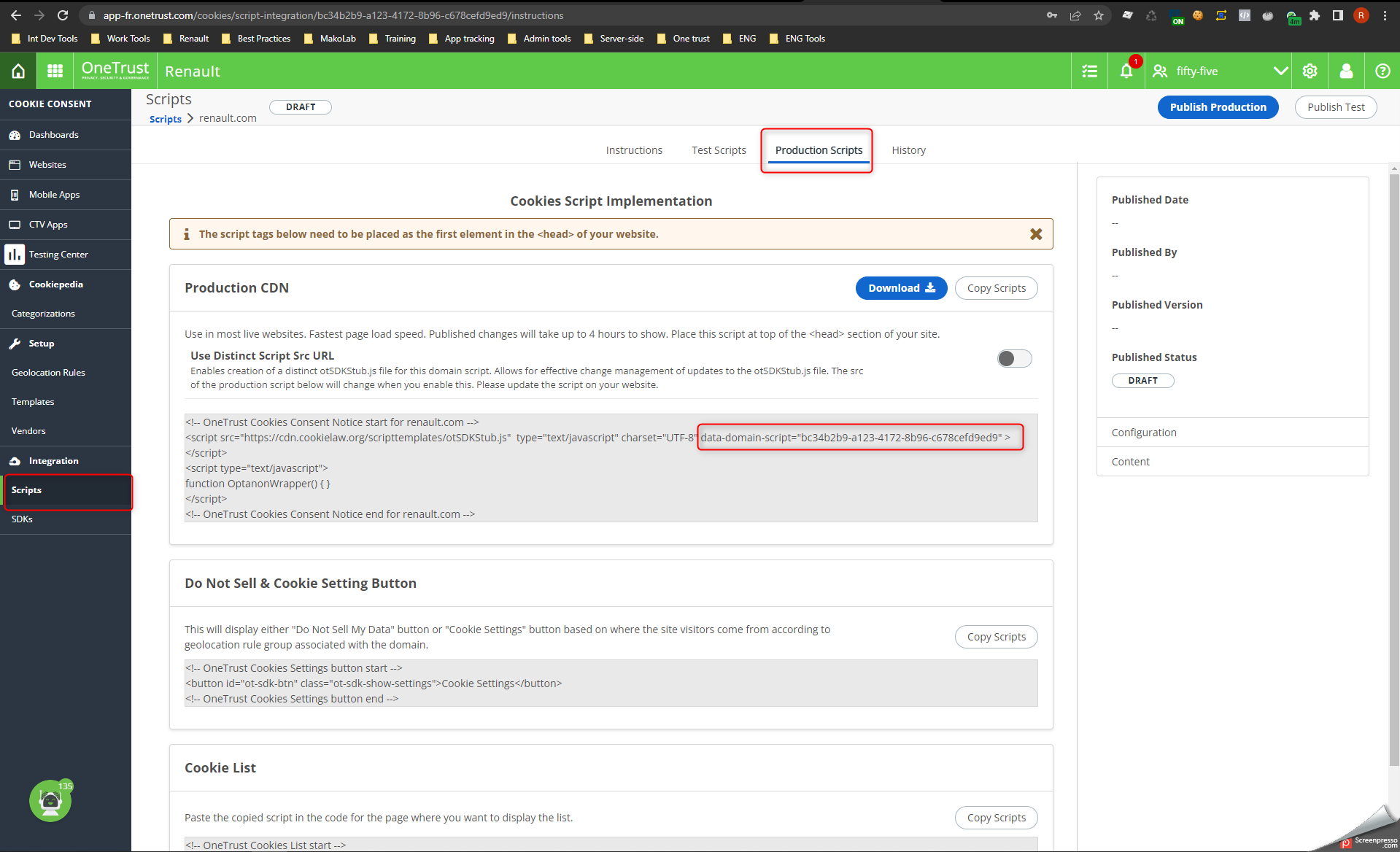
- Description : This method will allow the end user to retrieve the api keys for the sites in the One Trust Platform and will write the result to a new column in the CSV file.
class method retrieve_api(col_num_site ,script_type ,write_to_file )
-
col_num_site ( type = Integer ) - indicates the column from the csv file that contains the sites for which you need to retrieve the api key.
-
script_type ( type = string , values = “prod” or “test”) - indicates the type of script for which api key is to be retrieved. The two types of script that are available are prod or test.
-
write_to_file ( type = string , values = “yes” or “no”) - set to ‘yes’ if the result should be written on the csv file, set to ‘no’ if the result should only be displayed in the terminal console.
Method 3:
Fetching information or attributes of scanned domains and writing to a CSV file
API-DOC : https://developer.onetrust.com/onetrust/reference/getdomainsscannedbysortusingget
- Description : This method will allow the end user to fetch attributes of the scanned domains will write the result in the CSV file.
class method site_attributes(extract_attr ,write_to_file ,search_domain_list)
-
extract_attr ( type = list, values = strings ) - The end user can enter the attributes that are required to be fetched from One Trust in the form of a list.
-
write_to_file ( type = string , values = “yes” or “no”) - set to ‘yes’ if the result should be written on the csv file, set to ‘no’ if the result should only be displayed in the terminal console.
-
search_domain_list ( type = list, values = strings ) - takes in a list of string values that are used as a search query by the One Trust API.
For example : - search_domain_list = [‘fr’,’es’] - will give us all sites that contain the string fr and es . Leaving this value empty, like this [''], will result in fetching all sites within the parent organisation where the key was generated.
Method 4:
Publishing a script from a CSV file
API-DOC : https://developer.onetrust.com/onetrust/reference/publishtositeusingput
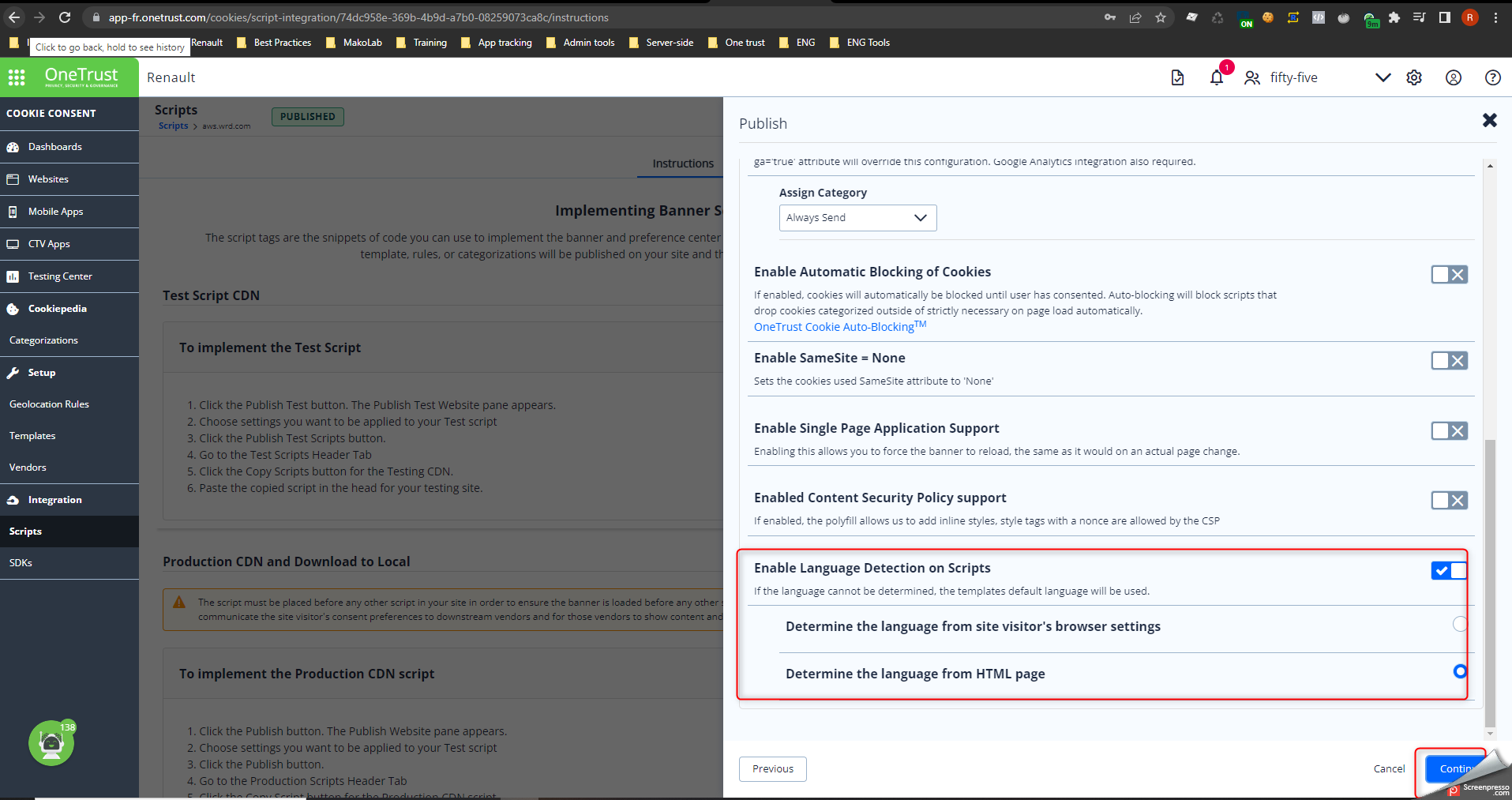
- Description :
Allows the end user to publish one trust scripts into production with language detection method (either through the HTML tag or the users browser language setting)
class method publish_ot_script(col_num ,script_type )
-
col_num_site ( type = Integer ) - indicates the column from the csv file that contains the sites for which scripts need to be published.
-
script_type ( type = string , values = “prod” or “test”) - indicates the type of script to be published. The two types of scripts that are available are prod or test.
You can verify if the scripts have been published by checking the status of the sites in the scripts tab under integration
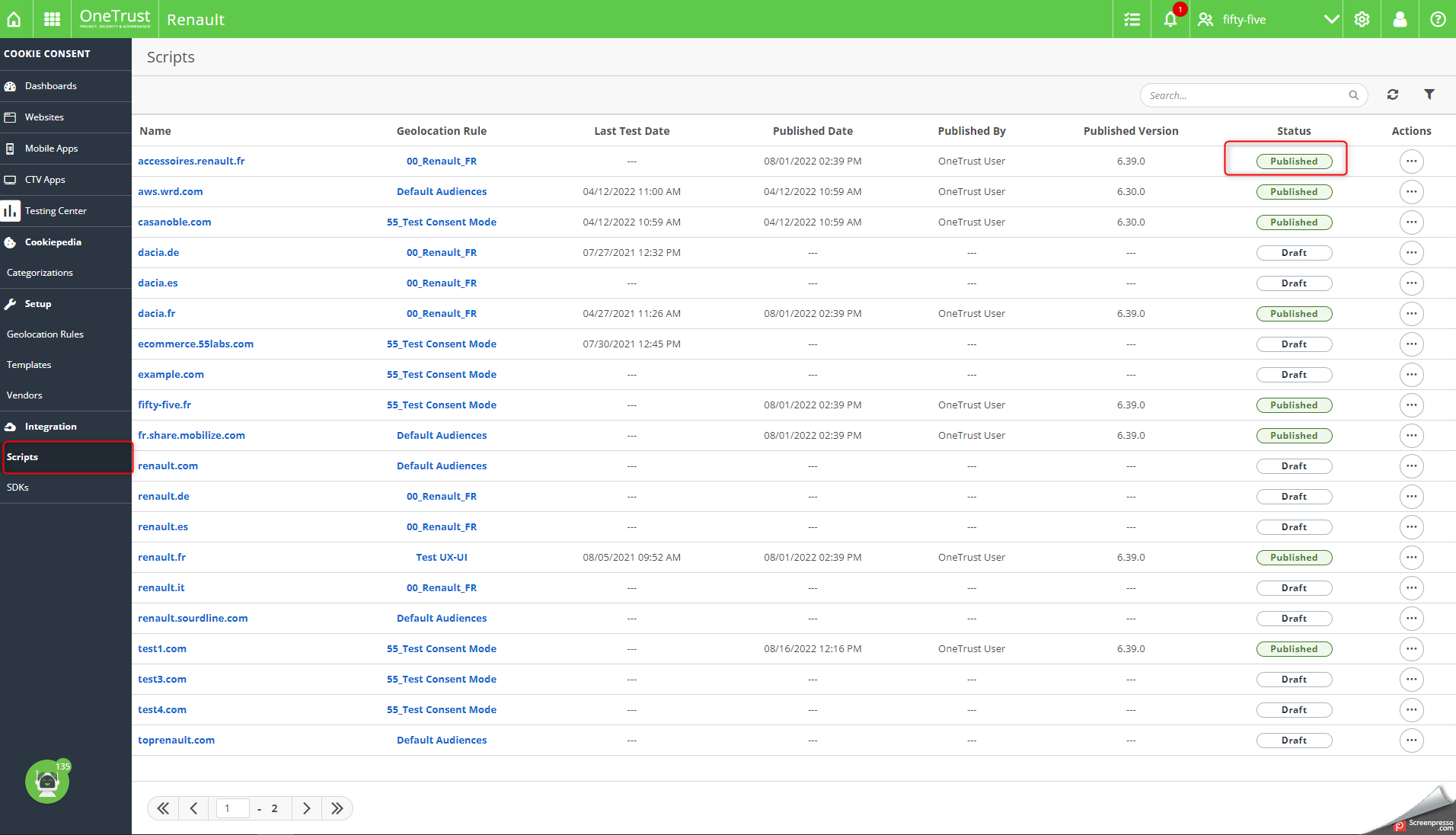
Note : by default the latest version of the script will be published. As of now there isn’t a way to set the version of the script using the API. The script also publishes the script with HTML tag language detection by default. However, we can adapt the script to publish with language detection using the browser’s language setting as well.
Release history Release notifications | RSS feed


Download files
Download the file for your platform. If you're not sure which to choose, learn more about installing packages.
Source Distributions
Built Distribution
Filter files by name, interpreter, ABI, and platform.
If you're not sure about the file name format, learn more about wheel file names.
Copy a direct link to the current filters
File details
Details for the file one_trust_55-0.0.19-py3-none-any.whl.
File metadata
- Download URL: one_trust_55-0.0.19-py3-none-any.whl
- Upload date:
- Size: 8.7 kB
- Tags: Python 3
- Uploaded using Trusted Publishing? No
- Uploaded via: twine/4.0.1 CPython/3.10.6
File hashes
| Algorithm | Hash digest | |
|---|---|---|
| SHA256 |
2c73e9022d977862e7225008f4fd51928c9156cff7c278b2e573916dded670d8
|
|
| MD5 |
345dc96dcaffa657aeecfa86432a8edc
|
|
| BLAKE2b-256 |
cb9d28eb0939c1282dce6a5b070d185f39e24fc81aa4da19ca7581956ec56514
|






