
This release is a pre-release and may not be stable for production use.
OpenEdison 🔒⚡️
The Secure MCP Control Panel
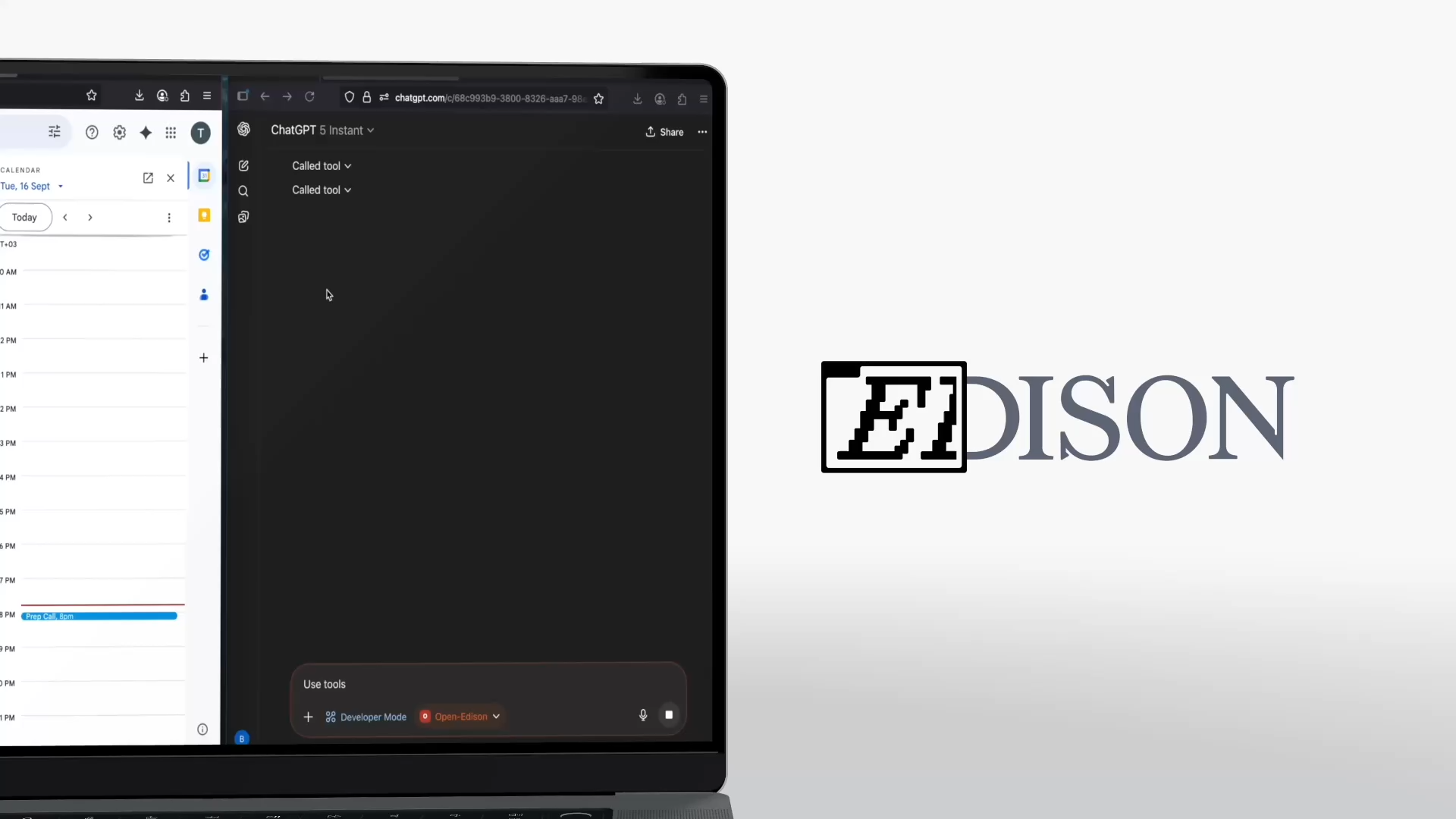
Connect AI to your data/software with additional security controls to help reduce data exfiltration risks. Gain visibility, monitor potential threats, and get alerts on the data your agent is reading/writing.
OpenEdison helps address the lethal trifecta problem, which can increase risks of agent hijacking & data exfiltration by malicious actors.
Join our Discord for feedback, feature requests, and to discuss MCP security for your use case: discord.gg/tXjATaKgTV
📧 To get visibility, control and exfiltration blocker into AI's interaction with your company software, systems of record, DBs, Contact us to discuss.




Features ✨
- 🛑 Data leak monitoring - Edison detects and blocks potential data leaks through configurable security controls
- 🕰️ Controlled execution - Provides structured execution controls to reduce data exfiltration risks.
- 🗂️ Easily configurable - Easy to configure and manage your MCP servers
- 📊 Visibility into agent interactions - Track and monitor your agents and their interactions with connected software/data via MCP calls
- 🔗 Simple API - REST API for managing MCP servers and proxying requests
- 🐳 Docker support - Run in a container for easy deployment
🤝 Quick integration with LangGraph and other agent frameworks
Open-Edison integrates with LangGraph, LangChain, and plain Python agents by decorating your tools/functions with @edison.track(). This provides immediate observability and policy enforcement without invasive changes.
🔎 Dataflow observability (LangGraph demo)

⚡️ One-line tool integration
Just add @edison.track() to your tools/functions to enable Open-Edison controls and observability.

Read more in docs/langgraph_quickstart.md
About Edison.watch 🏢
Edison helps you gain observability, control, and policy enforcement for AI interactions with systems of records, existing company software and data. Reduce risks of AI-caused data leakage with streamlined setup for cross-system governance.
Quick Start 🚀
The fastest way to get started:
# Installs uv (via Astral installer) and launches open-edison with uvx.
# Note: This does NOT install Node/npx. Install Node if you plan to use npx-based tools like mcp-remote.
curl -fsSL https://raw.githubusercontent.com/Edison-Watch/open-edison/main/curl_pipe_bash.sh | bash
Run locally with uvx: uvx open-edison
That will run the setup wizard if necessary.
⬇️ Install Node.js/npm (optional for MCP tools)
If you need npx (for Node-based MCP tools like mcp-remote), install Node.js as well:

- uv:
curl -fsSL https://astral.sh/uv/install.sh | sh - Node/npx:
brew install node

- uv:
curl -fsSL https://astral.sh/uv/install.sh | sh - Node/npx:
sudo apt-get update && sudo apt-get install -y nodejs npm

- uv:
powershell -ExecutionPolicy ByPass -c "irm https://astral.sh/uv/install.ps1 | iex" - Node/npx:
winget install -e --id OpenJS.NodeJS
After installation, ensure that npx is available on PATH.
 Install from PyPI
Prerequisites
- Pipx/uvx
# Using uvx
uvx open-edison

# Using pipx
pipx install open-edison
open-edison
Run with a custom config directory:
open-edison run --config-dir ~/edison-config
# or via environment variable
OPEN_EDISON_CONFIG_DIR=~/edison-config open-edison run
 Run with Docker
There is a dockerfile for simple local setup.
# Single-line:
git clone https://github.com/Edison-Watch/open-edison.git && cd open-edison && make docker_run

# Or
# Clone repo
git clone https://github.com/Edison-Watch/open-edison.git
# Enter repo
cd open-edison
# Build and run
make docker_run
The MCP server will be available at http://localhost:3000 and the api + frontend at http://localhost:3001. 🌐
⚙️ Run from source
- Clone the repository:
git clone https://github.com/Edison-Watch/open-edison.git
cd open-edison
- Set up the project:
make setup
- Edit
config.jsonto configure your MCP servers. See the full file: config.json, it looks like:
{
  "server": { "host": "0.0.0.0", "port": 3000, "api_key": "..." },
  "logging": { "level": "INFO"},
  "mcp_servers": [
    { "name": "filesystem", "command": "uvx", "args": ["mcp-server-filesystem", "/tmp"], "enabled": true },
    { "name": "github", "enabled": false, "env": { "GITHUB_PERSONAL_ACCESS_TOKEN": "..." } }
  ]
}
- Run the server:
make run
# or, from the installed package
open-edison run
The server will be available at http://localhost:3000. 🌐
🔌 MCP Connection
Connect any MCP client to Open Edison (requires Node.js/npm for npx):
npx -y mcp-remote http://localhost:3000/mcp/ --http-only --header "Authorization: Bearer your-api-key"
Or add to your MCP client config:
{
  "mcpServers": {
    "open-edison": {
      "command": "npx",
      "args": ["-y", "mcp-remote", "http://localhost:3000/mcp/", "--http-only", "--header", "Authorization: Bearer your-api-key"]
    }
  }
}
🤖 Connect to ChatGPT (Plus/Pro)
Open-Edison comes preconfigured with ngrok for easy ChatGPT integration. Follow these steps to connect:
1. Set up ngrok Account
- Visit https://dashboard.ngrok.com to sign up for a free account
- Get your authtoken from the "Your Authtoken" page
- Create a domain name in the "Domains" page
- Set these values in your
ngrok.ymlfile:
version: 3

agent:
  authtoken: YOUR_NGROK_AUTH_TOKEN

endpoints:
  - name: open-edison-mcp
    url: https://YOUR_DOMAIN.ngrok-free.app
    upstream:
      url: http://localhost:3000
      protocol: http1
2. Start ngrok Tunnel
make ngrok-start
This will start the ngrok tunnel and make Open-Edison accessible via your custom domain.
3. Enable Developer Mode in ChatGPT
- Click on your profile icon in ChatGPT
- Select Settings
- Go to "Connectors" in the settings menu
- Select "Advanced Settings"
- Enable "Developer Mode (beta)"
4. Add Open-Edison to ChatGPT
- Click on your profile icon in ChatGPT
- Select Settings
- Go to "Connectors" in the settings menu
- Select "Create" next to "Browse connections"
- Set a name (e.g., "Open-Edison")
- Use your ngrok URL as the MCP Server URL (e.g.,
https://your-domain.ngrok-free.app/mcp/) - Select "No authentication" in the Authentication menu
- Tick the "I trust this application" checkbox
- Press Create
5. Use Open-Edison in ChatGPT
Every time you start a new chat:
- Click on the plus sign in the prompt text box ("Ask anything")
- Hover over "... More"
- Click on "Developer Mode"
- "Developer Mode" and your connector name (e.g., "Open-Edison") will appear at the bottom of the prompt textbox
You can now use Open-Edison's MCP tools directly in your ChatGPT conversations! Do not forget to repeat step 5 everytime you start a new chat.
🧭 Usage
API Endpoints
See API Reference for full API documentation.
🛠️ Development
Setup 🧰
Setup from source as above.
Run ▶️
Server doesn't have any auto-reload at the moment, so you'll need to run & ctrl-c this during development.
make run
Tests/code quality ✅
We expect make ci to return cleanly.
make ci
⚙️ Configuration (config.json)
Configuration ⚙️
The config.json file contains all configuration:
server.host- Server host (default: localhost)server.port- Server port (default: 3000)server.api_key- API key for authenticationlogging.level- Log level (DEBUG, INFO, WARNING, ERROR)mcp_servers- Array of MCP server configurations
Each MCP server configuration includes:
name- Unique name for the servercommand- Command to run the MCP serverargs- Arguments for the commandenv- Environment variables (optional)enabled- Whether to auto-start this server
🔐 How Edison reduces data leakages
🔱 The lethal trifecta, agent lifecycle management
Open Edison includes a comprehensive security monitoring system that tracks the "lethal trifecta" of AI agent risks, as described in Simon Willison's blog post:

- Private data access - Access to sensitive local files/data
- Untrusted content exposure - Exposure to external/web content
- External communication - Ability to write/send data externally

The configuration allows you to classify these risks across tools, resources, and prompts using separate configuration files.
In addition to trifecta, we track Access Control Level (ACL) for each tool call, that is, each tool has an ACL level (one of PUBLIC, PRIVATE, or SECRET), and we track the highest ACL level for each session. If a write operation is attempted to a lower ACL level, it can be blocked based on your configuration.
🧰 Tool Permissions (tool_permissions.json)
Defines security classifications for MCP tools. See full file: tool_permissions.json, it looks like:
{
  "_metadata": { "last_updated": "2025-08-07" },
  "builtin": {
    "get_security_status": { "enabled": true, "write_operation": false, "read_private_data": false, "read_untrusted_public_data": false, "acl": "PUBLIC" }
  },
  "filesystem": {
    "read_file": { "enabled": true, "write_operation": false, "read_private_data": true, "read_untrusted_public_data": false, "acl": "PRIVATE" },
    "write_file": { "enabled": true, "write_operation": true, "read_private_data": true, "read_untrusted_public_data": false, "acl": "PRIVATE" }
  }
}
📁 Resource Permissions (`resource_permissions.json`)
Resource Permissions (resource_permissions.json)
Defines security classifications for resource access patterns. See full file: resource_permissions.json, it looks like:
{
  "_metadata": { "last_updated": "2025-08-07" },
  "builtin": { "config://app": { "enabled": true, "write_operation": false, "read_private_data": false, "read_untrusted_public_data": false } }
}
💬 Prompt Permissions (`prompt_permissions.json`)
Prompt Permissions (prompt_permissions.json)
Defines security classifications for prompt types. See full file: prompt_permissions.json, it looks like:
{
  "_metadata": { "last_updated": "2025-08-07" },
  "builtin": { "summarize_text": { "enabled": true, "write_operation": false, "read_private_data": false, "read_untrusted_public_data": false } }
}
Wildcard Patterns ✨
All permission types support wildcard patterns:
- Tools:
server_name/*(e.g.,filesystem/*matches all filesystem tools) - Resources:
scheme:*(e.g.,file:*matches all file resources) - Prompts:
type:*(e.g.,template:*matches all template prompts)
Security Monitoring 🕵️
All items must be explicitly configured - unknown tools/resources/prompts will be rejected for security.
Use the get_security_status tool to monitor your session's current risk level and see which capabilities have been accessed. When the lethal trifecta is achieved (all three risk flags set), further potentially dangerous operations are blocked.
Documentation 📚
📚 Complete documentation available in docs/
- 🚀 Getting Started - Quick setup guide
- ⚙️ Configuration - Complete configuration reference
- 📡 API Reference - REST API documentation
- 🧑💻 Development Guide - Contributing and development
📄 License
GPL-3.0 License - see LICENSE for details.
2 maintainers


Download files
Download the file for your platform. If you're not sure which to choose, learn more about installing packages.
Source Distribution
Built Distribution
Filter files by name, interpreter, ABI, and platform.
If you're not sure about the file name format, learn more about wheel file names.
Copy a direct link to the current filters
File details
Details for the file open_edison-0.1.127rc1.tar.gz.
File metadata
- Download URL: open_edison-0.1.127rc1.tar.gz
- Upload date:
- Size: 413.9 kB
- Tags: Source
- Uploaded using Trusted Publishing? No
- Uploaded via:
twine/6.1.0 CPython/3.12.3
File hashes
| Algorithm | Hash digest | |
|---|---|---|
| SHA256 |
1391e8277c7549c10fcb57c3fc6e000a6c0efe5756a2fe05a6117d0efe99e5e0
|
|
| MD5 |
895f30729634a1101d383efe271077c9
|
|
| BLAKE2b-256 |
88974217c6cbfb38d084015f9af33d53795ba1703a693a8d94ca8ed836187e87
|
File details
Details for the file open_edison-0.1.127rc1-py3-none-any.whl.
File metadata
- Download URL: open_edison-0.1.127rc1-py3-none-any.whl
- Upload date:
- Size: 344.4 kB
- Tags: Python 3
- Uploaded using Trusted Publishing? No
- Uploaded via:
twine/6.1.0 CPython/3.12.3
File hashes
| Algorithm | Hash digest | |
|---|---|---|
| SHA256 |
0ca1b9491ad18829edfcb9c36f022930b0e8056d59f44ef3c5596fc99cc19f21
|
|
| MD5 |
f0a93dd45593987319df9d4fa8ff52fc
|
|
| BLAKE2b-256 |
78471796b02c93f232823951ec70f98ac4e2db2b21f71ae21166f8730e73a22e
|














