

Open Net Worth
Agent harness for personal finance
Website · Download · Docs · Live demo · Discord




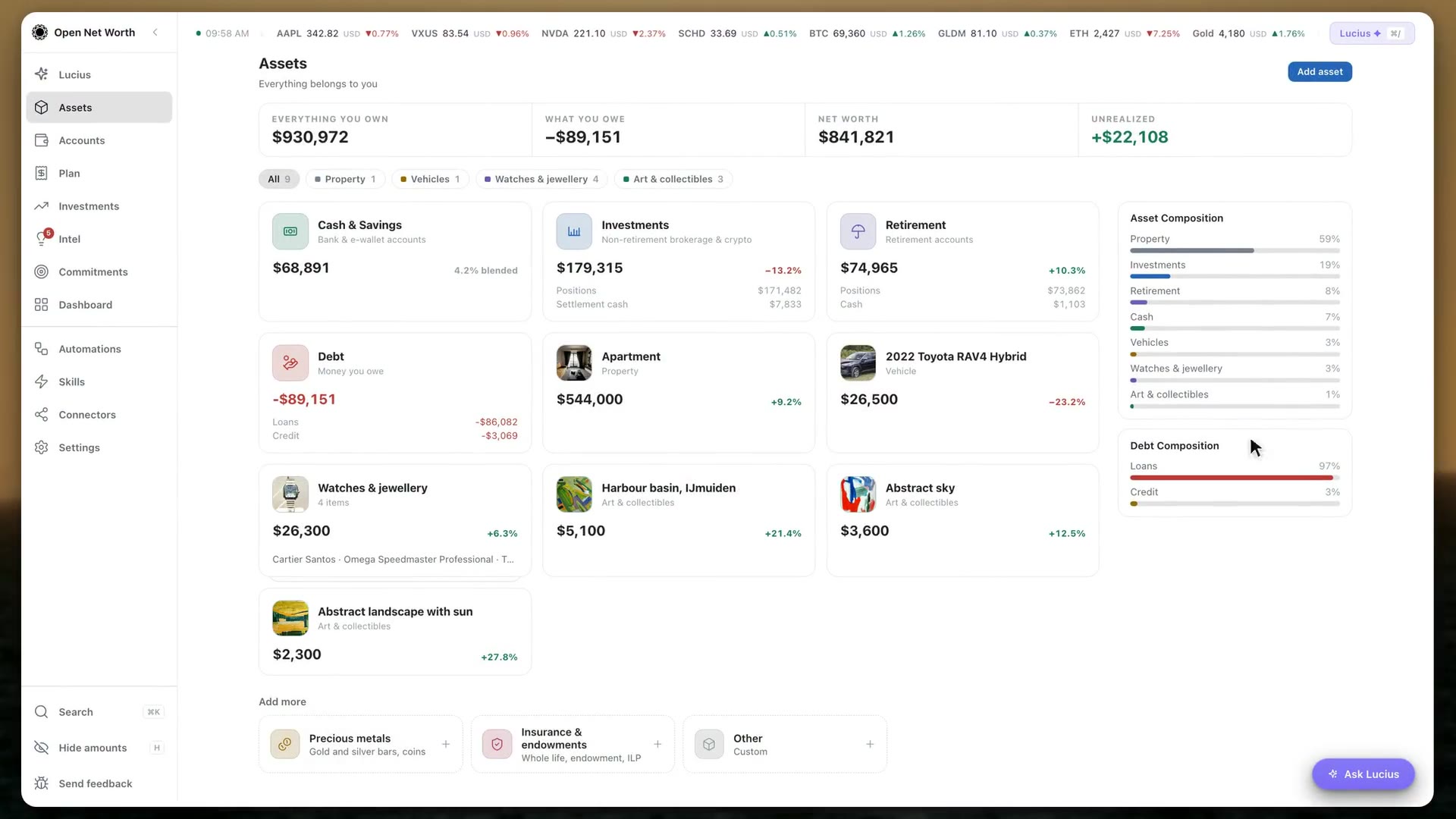
An open-source agent harness for personal finance. A real multi-currency ledger, budgets, and investments — plus an AI that can actually read and change them, not just talk about them. Self-hosted, on a machine you control.
Most personal-finance apps that added AI let it describe your data. Open Net Worth is built the other way round: the ledger, the budget, and the investment book are the substrate, and the assistant (Lucius) is an agent operating them through a registry of real tools — the same guarded write paths the UI uses.
| Chatbot bolted onto an app | An agent harness | |
|---|---|---|
| What the AI touches | a summary of your data | the ledger itself, through real write tools |
| When it's wrong | you find out later | a confirm card shows the change before it lands |
| What it can do | answer | act, on a schedule, unattended if you allow it |
| Extending it | wait for the vendor | connect an MCP server and it gains tools |
Every tool carries a permission level — always_allow, needs_approval (the default), or
blocked — enforced at dispatch for every tool in the app.
Nothing leaves your machine except the calls you explicitly configure (an AI provider, a price feed, an optional connector), and there is no telemetry. The one exception is a problem report you choose to send: you read it first, and it goes only when you press Send.
What's inside
| Ledger | Every account you own or owe, in any currency: banks, cards, loans, investments, retirement. Transfers, splits, reconcile, and statement import with a review step before anything books. |
| Budget | Zero-based envelopes (Ready to Assign, targets, credit card payments) or a simple 50/30/20 split, plus a cash flow projection. |
| Investments | Holdings, buys, sales, dividends, lots and realized gains, options, RSU and other equity grants, watchlists and price alerts. |
| Planning | Big dated commitments and how each is funded, and a retirement outlook: the odds your money lasts and the age you could retire. |
| Lucius | The AI agent on every screen. He works your real book through real tools: logs and sorts transactions, reconciles accounts, builds reports. Connect an MCP server and he acts in other apps too, like placing a trade with your broker. You choose what he does on his own and what he asks you first. |
| Automations | Jobs Lucius runs on a schedule or when something happens: a daily briefing, a weekly report, a bank sync, logging purchases from email. |
| Skills and memory | Saved playbooks he follows for a job (built in, or your own), and facts he remembers about you between conversations. |
| Connectors | Bank and broker sync (SimpleFIN, Plaid, Enable Banking, Lunch Flow, Alpaca, Interactive Brokers), YNAB, Lunch Money, your mailbox, Telegram, web search, and any MCP server. |
| Your AI | An API key (Anthropic, OpenAI or any OpenAI-compatible endpoint, including a local model), or the Claude Code, Codex or Antigravity sign-in you already have. Other AI apps can use your book too, through onw mcp. |
Is this for you?
Yes, if you want to self-host your own finances, you're comfortable running a small app on your own machine or a server you control, and you'd rather have an AI agent do the work (categorize a transaction, reconcile an account, explain a swing in net worth, act in the apps you connect) than just chat about screenshots of it.
Not yet, if you need a polished, install-and-forget consumer product, multi-user or family accounts, or mobile apps.
Requirements
- The desktop app: macOS on Apple Silicon, Windows 10/11 (x64), or Linux (x86_64, AppImage
or
.deb). It bundles its own Python, so nothing else needs installing. Intel Macs and arm64 Linux have no desktop build yet; what differs on Windows is listed indocs/WINDOWS.md. - Running a server from source: Python 3.12+ and Node.js 22+ (macOS, Linux or Windows).
- An AI model — first run asks for one, with no skip: an API key (Anthropic, OpenAI, or any OpenAI-compatible endpoint), an existing Claude Code, Codex or Antigravity CLI sign-in on the same machine (detected for you), or a free local model through Ollama.
Getting started
Option A — the desktop app (recommended)
Download it from opennetworth.ai, or from the public releases page:
| Platform | Download | Terminal install |
|---|---|---|
| macOS (Apple Silicon; signed and notarized DMG) | opennetworth.ai/download/mac | curl -fsSL https://opennetworth.ai/install.sh | sh |
| Windows 10/11 x64 (installer) | opennetworth.ai/download/windows | irm https://opennetworth.ai/install.ps1 | iex (PowerShell) |
Linux x86_64 (AppImage, or .deb from the releases page) |
opennetworth.ai/download/linux | curl -fsSL https://opennetworth.ai/install.sh | sh |
The Windows installer is not code-signed yet, so SmartScreen may show a warning: choose
More info → Run anyway. install.ps1 verifies the download against the release's
SHA256SUMS; add -RequireSigned to refuse an unsigned installer. install.sh verifies the same
checksum before it installs anything. The macOS and Windows apps update themselves in place;
a Linux AppImage replaces itself after checking its SHA-256, and a .deb points you to the
releases page.
Then follow the first-run screen: it asks where your book lives (a local folder, or an existing
server), creates your login, picks a base currency, and hands off to Lucius to add your first
account. Your data defaults to ~/.open-net-worth/, outside the app, so updating or reinstalling
never touches it. See the
desktop guide for background mode, start at login, watched
folders and keyboard shortcuts.
Option B — a server
1. Install it. You don't need Python or Node.js on your system. This is for macOS and Linux; on Windows, follow these steps instead.
curl -fsSL https://github.com/open-net-worth-ai/open-net-worth-releases/releases/latest/download/install-server.sh | sh
If it says onw was added to your PATH, run the source line it shows (for zsh,
source ~/.zshenv) or open a new terminal. It finishes by listing the commands you're likely to
need next.
2. Start it. Your browser opens the app, and first run takes it from there.
onw start --open
3. Optional: keep it running and up to date. Press Ctrl+C to stop the
copy from step 2, then run the command below. It starts the app at login, restarts it after a
crash and installs each new signed release. Leave out --auto-upgrade to update by hand. See
Keeping it running.
onw start --autostart --auto-upgrade
Other commands you may need (full list):
| Command | What it does |
|---|---|
onw start --background |
Run it without keeping this terminal, until onw stop or a reboot |
onw stop |
Stop it |
onw restart |
Restart it, the way it was running |
onw status |
Show whether it's running, its URL, version and folder |
onw logs |
Show the end of its log. -f keeps following it |
onw upgrade |
Update to the newest release |
onw reset-password |
Set a new password if you've forgotten it |
onw version |
Print the installed version |
Good to know:
- Your data lives in one working folder,
~/.open-net-worth/, holdingdata/,cache/,logs/andbackups/. First run lets you put it elsewhere and remembers the choice. No.envfile is needed. - The desktop app can connect to a server like this instead of using a local book.
- Other AI apps like Claude Desktop, Cursor or ChatGPT can use your book while the server is running. See Use your book from other AI apps.
- Working on the code? Run
make setup startfrom a checkout (Python 3.12+ and Node.js 22+).
Option C — Docker
1. Download the Compose file into an empty folder.
curl -fsSLO https://github.com/open-net-worth-ai/open-net-worth-releases/releases/latest/download/docker-compose.yml
2. Pick a password and start it. Use at least 8 characters. Compose won't start without a password.
AUTH_PASSWORD='pick a password' docker compose up -d
In Windows PowerShell, use curl.exe in step 1, and run this in step 2:
$env:AUTH_PASSWORD='pick a password'; docker compose up -d
3. Open http://localhost:8080 and log in with that password.
Good to know:
- Why the password is required: your browser reaches the container from Docker's bridge, not from localhost, so the "same machine, no login" shortcut never applies. Without a password, nothing could operate the instance. Details are in the first-run guide.
- Your data lives in a named volume that survives
docker compose down. Migrations run at boot. - The version is the public image
ghcr.io/open-net-worth-ai/open-net-worth, pinned by that Compose file to the release it came with.ONW_VERSION=x.y.zruns another. - Working on the code? From a checkout, add
-f compose.build.yml --buildto build the image locally.
Coming from YNAB or Lunch Money?
Add the YNAB or Lunch Money connector with a personal access token and your transactions flow in, refreshed every 6 hours. Categories and budgets are not copied: set them up here, or let Lucius or an Automation categorize as transactions arrive. The budget works the way YNAB's does (every dollar assigned, Ready to Assign, envelopes that hold their overspend until month end). Steps: Bank and brokerage connectors.
Keeping it running
The desktop app does this itself: Settings → Desktop has Keep running in the background and
Start at login. For a server, Open Net Worth is one Python process (onw start, which runs uvicorn and serves both the API and
the built frontend on the same port) — there is no separate web server (no Apache, no nginx) in
front of it, and none is required.
-
Docker already restarts itself:
docker-compose.ymlsetsrestart: unless-stopped, which covers a crash and a host reboot, as long as the Docker daemon itself starts on boot (the default on Docker Desktop and most Linux installs). -
Not using Docker? One command installs it as a boot service, so it starts at login/boot and restarts on crash, with no terminal window to keep open:
onw start --autostart
(
onw autostart onis the same thing, andonw autostart offturns it off again. From a source checkout,make autostartruns setup first, then the same thing.) This installs a per-user launchd LaunchAgent on macOS, a per-user systemd unit (plusloginctl enable-linger, so it starts even before you log in) on Linux, or a per-user Task Scheduler task on Windows — no sudo or admin needed on any of them.onw autostarton its own shows whether it's on;onw autostart offstops it and removes the service. Logs land in~/.open-net-worth/logs/app.log.What that installs, if you'd rather see it or do it by hand
The service runs the same interpreter
onwruns on, so it is identical for a uv install and a checkout's.venv; it also carries your shell'sPATH(launchd and systemd give a fresh process a minimal one) and any ofHOST,PORT,ONW_ROOT,DATA_DIR,CACHE_DIR,LOGS_DIR,UV_TOOL_DIR,UV_TOOL_BIN_DIR,UV_CACHE_DIR,UV_PYTHON_INSTALL_DIR,XDG_DATA_HOMEthat were set when you installed it.macOS (
~/Library/LaunchAgents/ai.opennetworth.app.plist):<?xml version="1.0" encoding="UTF-8"?> <!DOCTYPE plist PUBLIC "-//Apple//DTD PLIST 1.0//EN" "http://www.apple.com/DTDs/PropertyList-1.0.dtd"> <plist version="1.0"><dict> <key>Label</key><string>ai.opennetworth.app</string> <key>ProgramArguments</key> <array> <string>/path/to/python3</string> <string>-m</string><string>backend.cli</string><string>start</string> </array> <key>WorkingDirectory</key><string>/Users/you/.open-net-worth</string> <key>RunAtLoad</key><true/> <key>KeepAlive</key><true/> </dict></plist>
Linux (
~/.config/systemd/user/open-net-worth.service):[Unit] Description=Open Net Worth After=network.target [Service] WorkingDirectory=/home/you/.open-net-worth ExecStart=/path/to/python3 -m backend.cli start Restart=on-failure [Install] WantedBy=default.target
See
backend/cli/autostart.pyfor the exact commands (launchctl bootstrap/systemctl --user enable --now). -
Updating. The desktop app updates itself (see the desktop guide); re-running its installer also works. A server installed with uv:
onw upgradeby hand, which a running server installs and restarts into once it's idle, or start it withonw start --autostart --auto-upgradeto do that for each new signed release — off unless you ask for it (Upgrading). For Docker, download the new release'sdocker-compose.yml(it pins the image version) or setONW_VERSION=x.y.z, thendocker compose up -d(a checkout:git pull && make setup). Your data is outside all of them, and migrations run at the next start.
Configuration
Everything needed to run the app is an optional environment variable — see .env.example for
the full list (working folder, host/port, CORS).
Everything needed to make it useful is configured inside the running app and stored there: the AI provider and model under Settings, and banks, brokers, email, Telegram, web search and price sources under Connectors. You never hand-edit a config file for those.
Set ONW_ROOT only to pin the working folder from outside the app: a container, or a second
instance on the same machine (which also needs its own PORT).
Your data
One working folder (default ~/.open-net-worth/): a single SQLite database plus a small set of
file-backed stores, alongside cache/, logs/ and backups/. It never leaves your machine
except for calls you configured yourself.
Settings → Data gives you a one-click full backup .zip, automatic daily backups, and
restore-from-backup — a checkpoint is saved first, so a restore is itself undoable.
Running it beyond localhost
Open Net Worth is built for one operator on a machine you control. Treat it like a self-hosted password manager, not a public web app.
- The local machine is trusted by default. With
AUTH_TRUST_LOOPBACK=true(the default), any process on the same machine can call the API without a password — so the person sitting at the machine never has to log in. Set it tofalseon a shared machine. - A password only gates non-localhost requests. It is not, by itself, what stands between your data and the network.
- Behind a reverse proxy, loopback trust stops working as intended. A same-host proxy
(nginx, Caddy, a tunnel) makes every remote request arrive from
127.0.0.1, so it is trusted. SetAUTH_TRUST_LOOPBACK=falsebefore putting this behind one. - Before exposing it anywhere — a LAN, a tunnel, a public domain — set a strong password (Settings → Security), turn off loopback trust, and put it behind HTTPS. The app does not terminate TLS itself.
Found a vulnerability? See SECURITY.md — please do not open a public issue.
Documentation
- docs.opennetworth.ai — the full user guide. The same docs
are built into the app, searchable, under
/help. docs/DATA_MODEL.md— stores, fields, and how the money math works.CLAUDE.md— the codebase map, if you are reading code rather than using the app.CONTRIBUTING.md— dev setup, the dependency rule, test policy.
Stack
- Backend — Python 3.12, FastAPI, SQLAlchemy + Alembic (SQLite by default, Postgres supported)
- Frontend — React 19, TypeScript, Vite
- AI — Anthropic Claude by default, or any OpenAI-compatible endpoint; your key
- Prices — Yahoo Finance, CoinGecko
License
AGPL-3.0 — see LICENSE. Third-party dependency licenses are in NOTICE.
1 maintainer

Metadata
1 maintainer
Release files for open-net-worth 0.1.43
For a detailed explanation of source distributions (sdists) and built distributions (wheels), please see the package formats documentation.
Source distribution (sdist)
| File | Size | Uploaded | Provenance | Actions |
|---|---|---|---|---|
| open_net_worth-0.1.43.tar.gz | 14.8 MB | With provenance | Details for open_net_worth-0.1.43.tar.gz |
Built distribution (wheel)
| File | Interpreter | ABI | Platform | Actions Reset |
|---|---|---|---|---|
| open_net_worth-0.1.43-py3-none-any.whl | Python 3 | none | any | Details for open_net_worth-0.1.43-py3-none-any.whl |
Total release size: 30.7 MB
Release files / open_net_worth-0.1.43.tar.gz
| Download URL | open_net_worth-0.1.43.tar.gz |
|---|---|
| Size | 14.8 MB |
| Tags | Source |
|
SHA-256 checksum How to use checksums |
92eadc8b4f74144dc5ad6223bce9bb99227b8f41fc859b48c0eb9fef422d55b6
|
|
BLAKE2b-256 checksum How to use checksums |
41f93c0dc254fdb59856ca568d906dac487b8c6666ed86043250cc87d30170be
|
| Upload date | |
|
Uploaded using Trusted Publishing? What is trusted publishing? |
Yes |
| Uploaded via |
twine/7.0.0 CPython/3.13.14
|
Provenance
Provenance describes where a file came from. On PyPI, provenance is shared via attestations, which provide a verifiable record of the build or publishing details. View details, limitations and caveats.


PyPI Publish Attestation
PyPI verified that this artifact, at this checksum, originated from the publisher listed below.
Signed by GitHub Actions, verified by PyPI on Nov 8, 2026.
Transparency logRelease files / open_net_worth-0.1.43-py3-none-any.whl
| Download URL | open_net_worth-0.1.43-py3-none-any.whl |
|---|---|
| Size | 15.9 MB |
| Tags | Python 3 |
|
SHA-256 checksum How to use checksums |
98f04a352f48d8e9cdb22f9a58e311eb72a3f0a776c3b32b15b04e903e7424bb
|
|
BLAKE2b-256 checksum How to use checksums |
5bf7f835c883712bec0578f0596abba4008dc201e2889b5e4f2b057f32de9ee4
|
| Upload date | |
|
Uploaded using Trusted Publishing? What is trusted publishing? |
Yes |
| Uploaded via |
twine/7.0.0 CPython/3.13.14
|
Provenance
Provenance describes where a file came from. On PyPI, provenance is shared via attestations, which provide a verifiable record of the build or publishing details. View details, limitations and caveats.
PyPI Publish Attestation
PyPI verified that this artifact, at this checksum, originated from the publisher listed below.
Signed by GitHub Actions, verified by PyPI on Nov 8, 2026.
Transparency logSecurity for open-net-worth 0.1.43
Provenance
Provenance describes where a file came from. On PyPI, provenance is shared via attestations, which provide a verifiable record of the build or publishing details. View details, limitations and caveats.
Full provenance
Both files in this release have been uploaded with provenance metadata.
Attestation for open_net_worth-0.1.43.tar.gz
PyPI Publish Attestation
PyPI verified that this artifact, at this checksum, originated from the publisher listed below.
Signed by GitHub Actions, verified by PyPI on Nov 8, 2026.
Transparency logA note on package security
PyPI is a repository for distributing packages, not a service for auditing them. While third-party security researchers and our staff do their best to detect and remove malicious packages, PyPI cannot guarantee the quality, security or suitability of any given package.
To learn more about protecting yourself from malicious actors, visit our package security documentation.














