
OpenWrt CLI
English | 简体中文





Remote OpenWrt admin over SSH or LuCI/ubus HTTP. The same services power CLI tables (typer + rich), the setup/wizard flows (questionary), and the full-screen TUI (textual).
The command is openwrt. openwrt-cli is still installed as a compatibility alias; docs and --help always say openwrt.

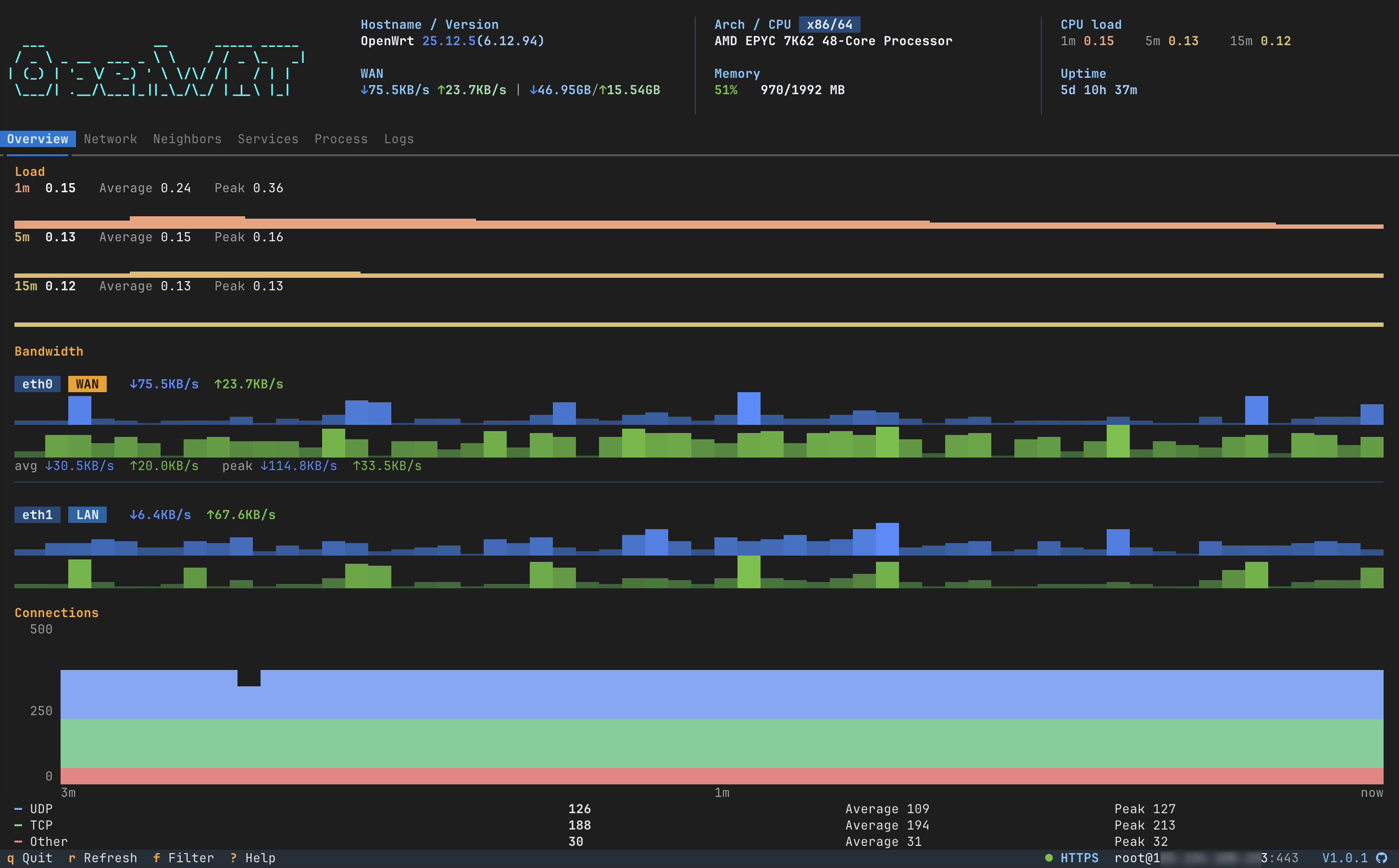
|
Network 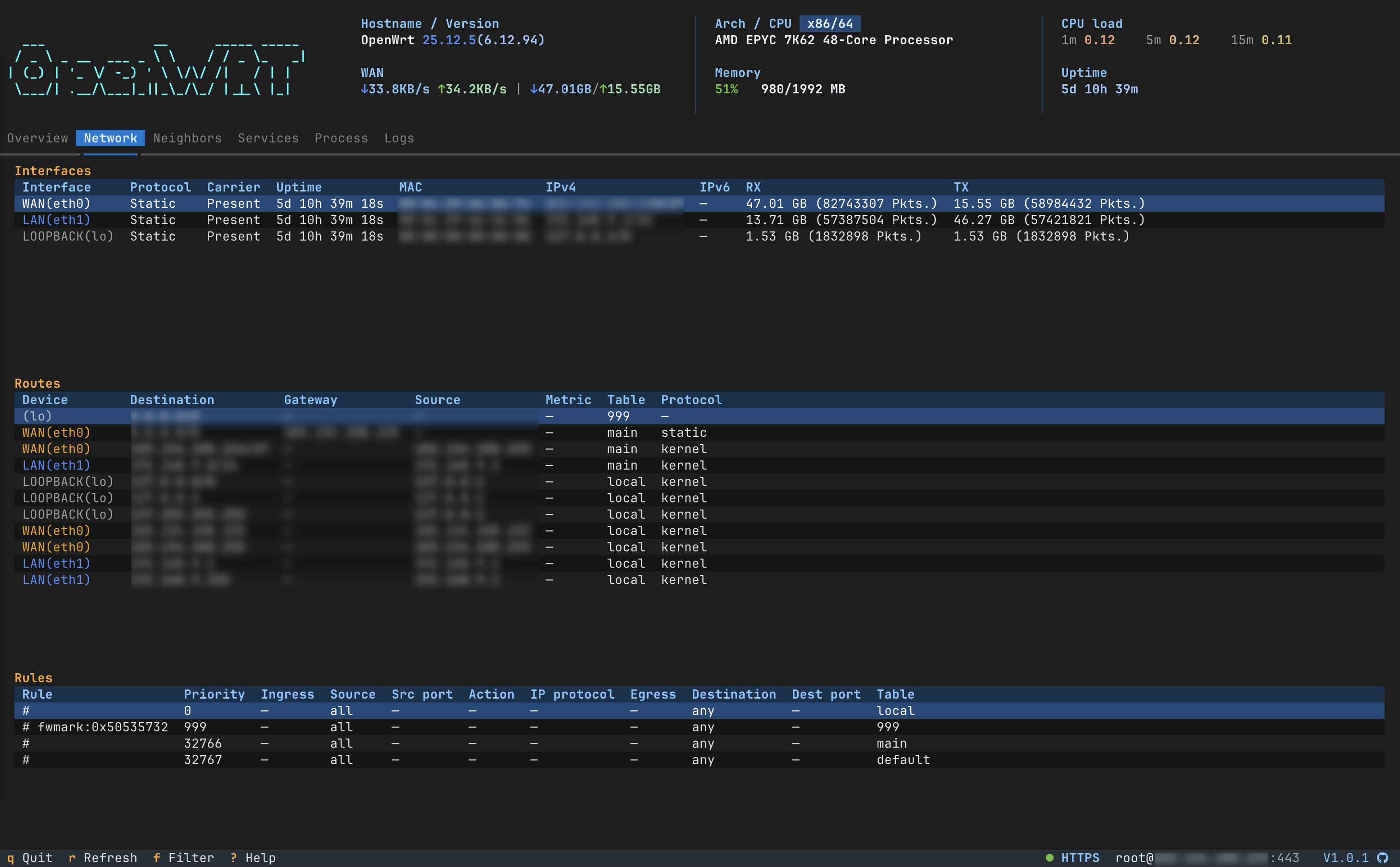
|
Neighbors 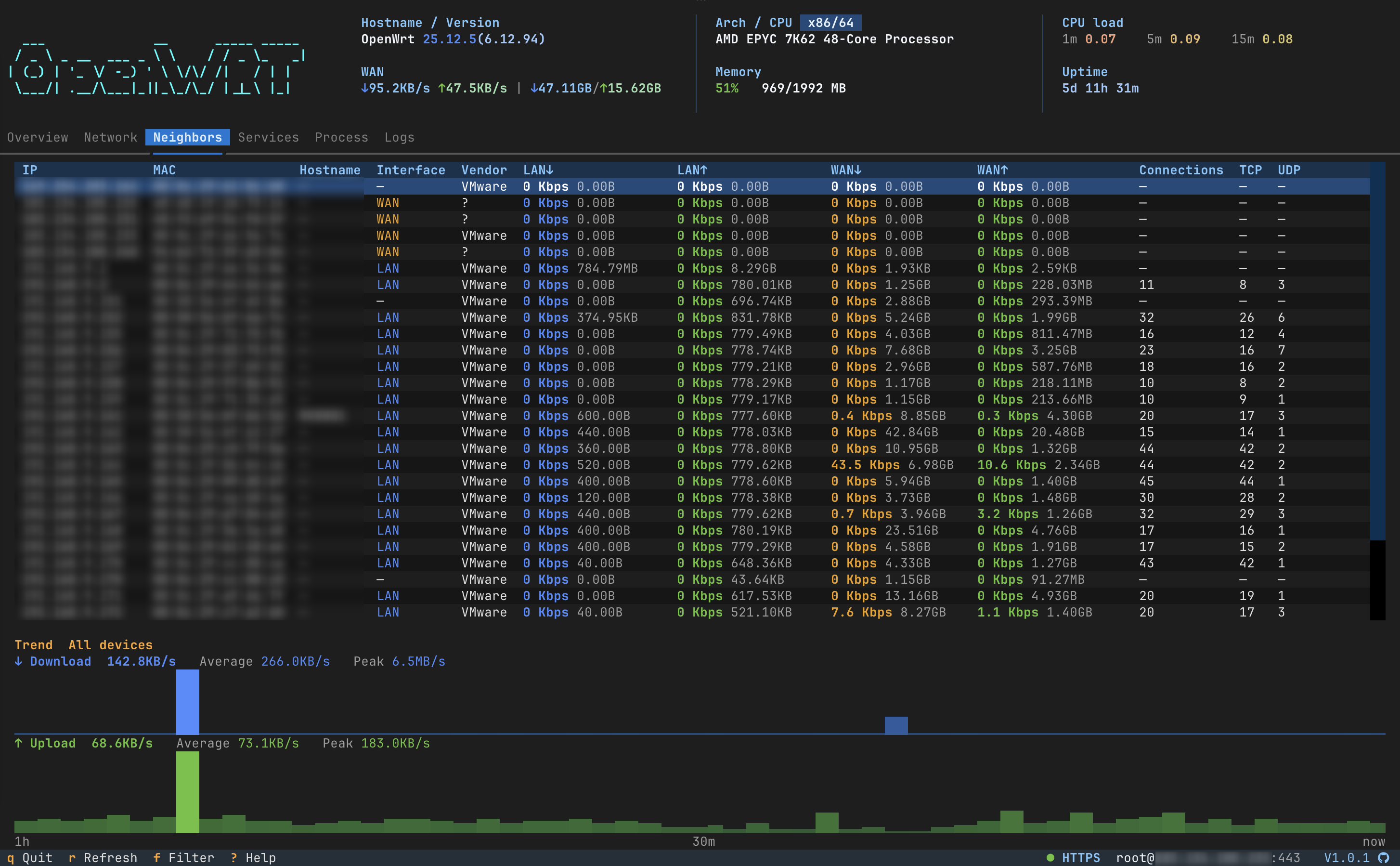
|
PassWall2* 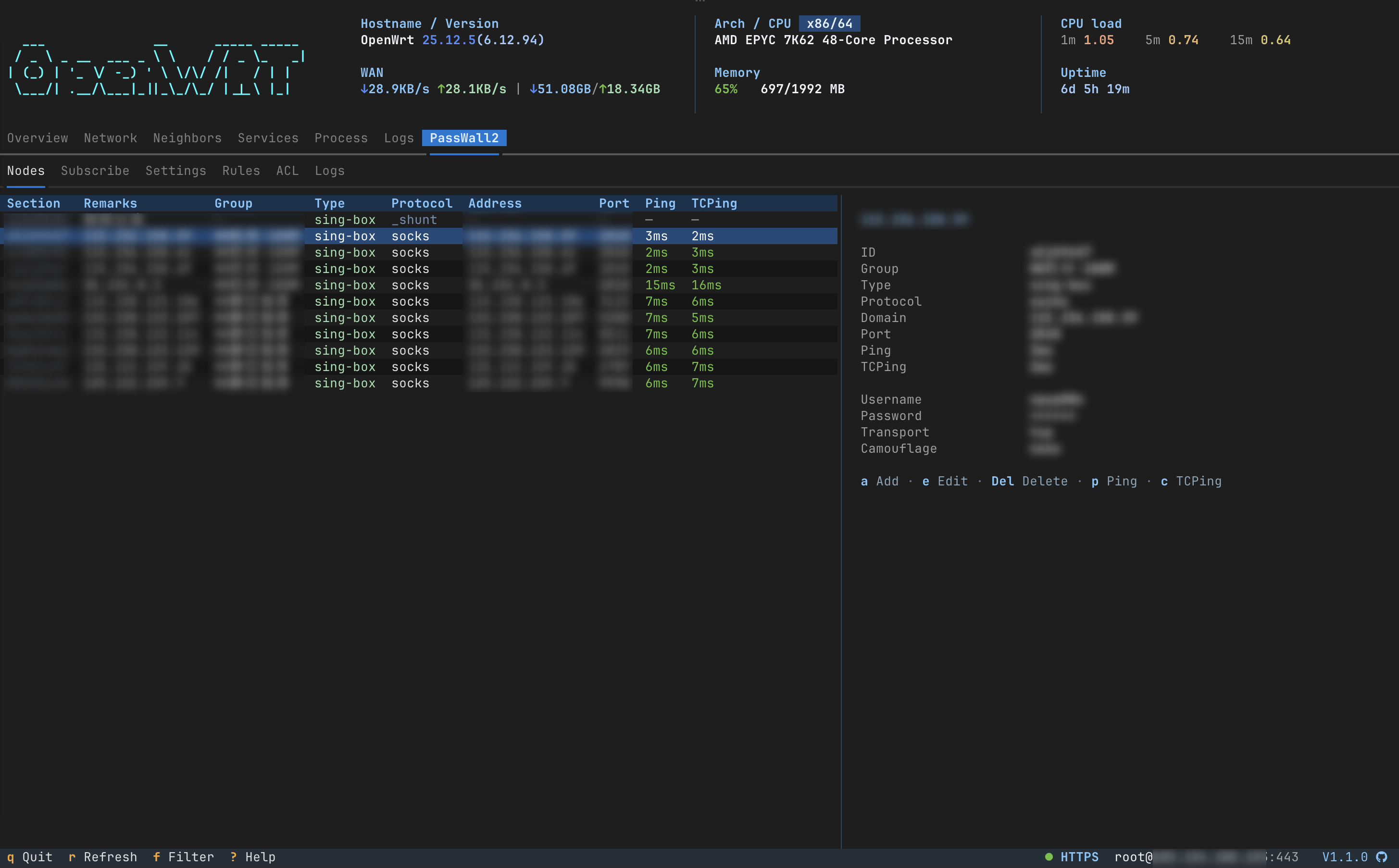
|
|
Services 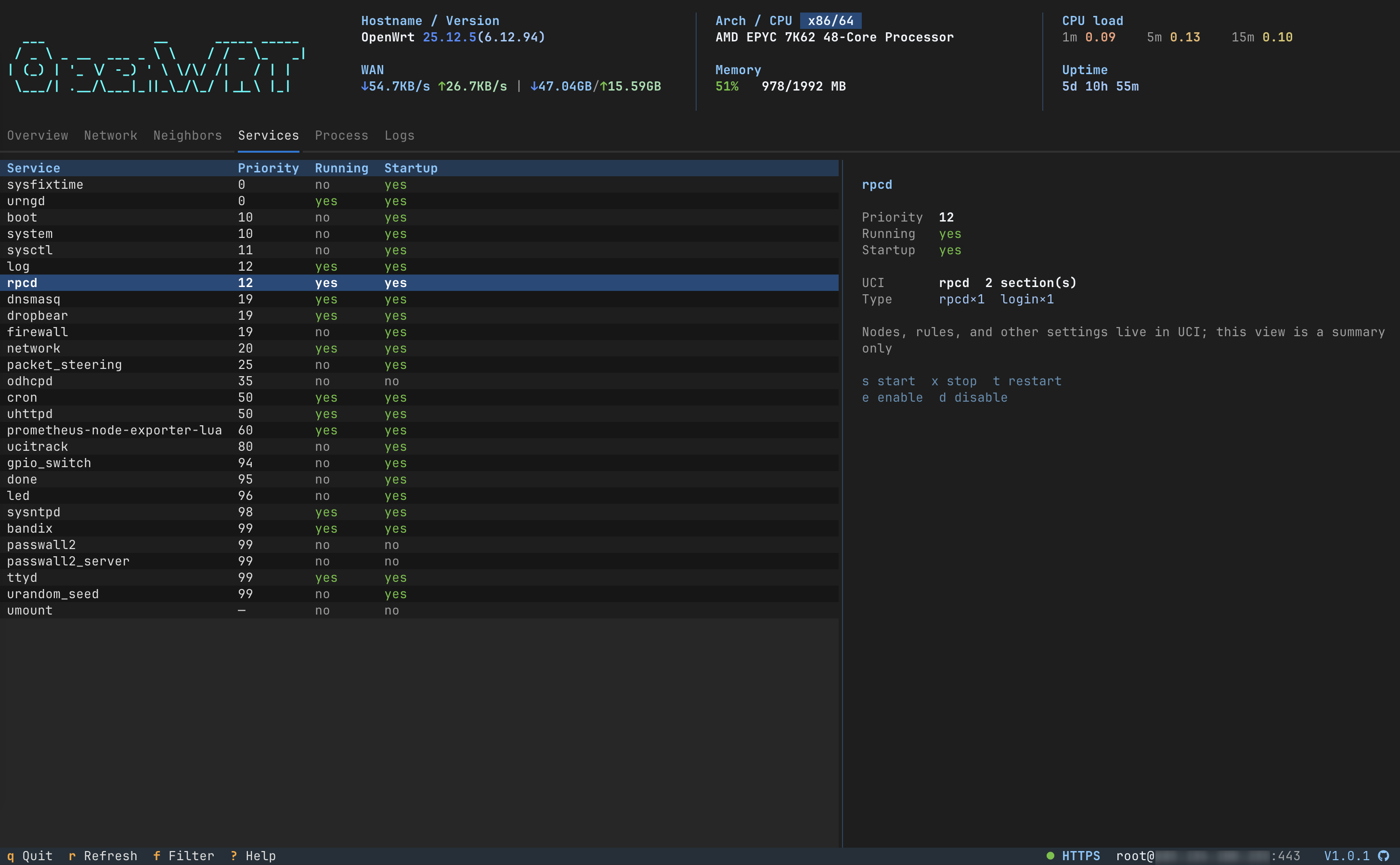
|
Process 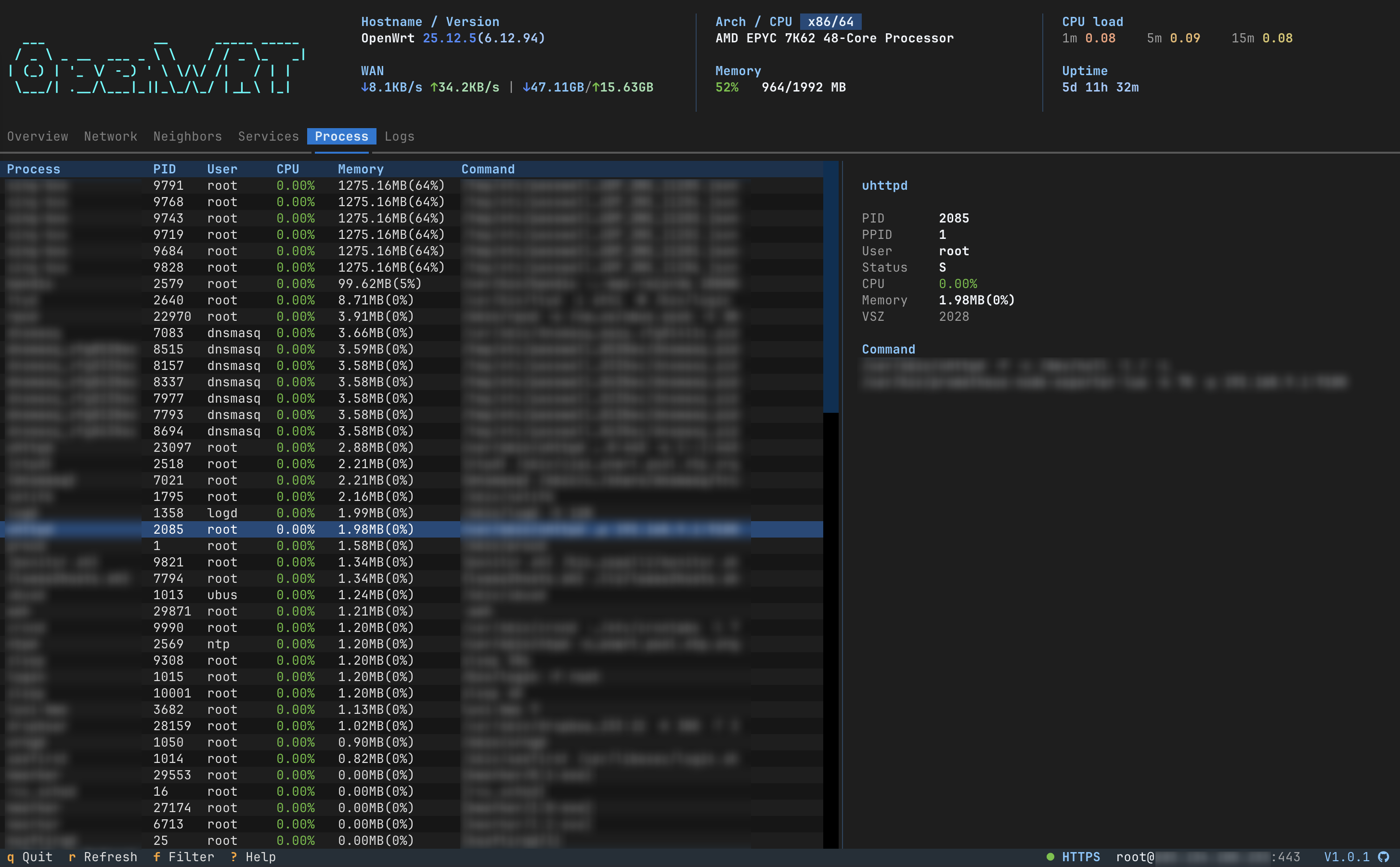
|
Logs 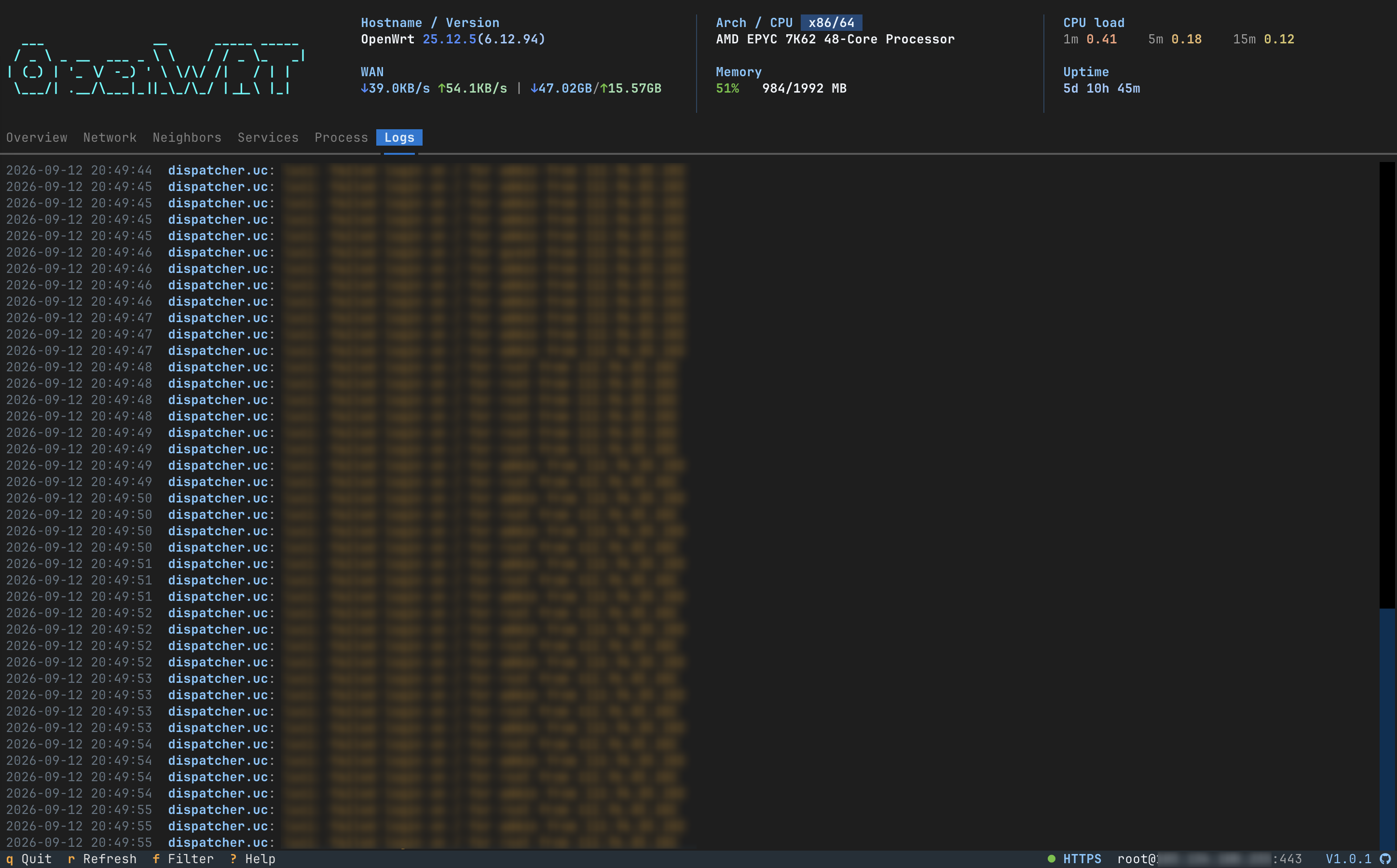
|
* PassWall2 requires openwrt-cli >= 1.1.0 and luci-app-passwall2 on the router.
Features
- Three surfaces — CLI tables,
setup+wizard, andopenwrt tui - doctor — capability-aware SSH/HTTP health checks, structured,
-f jsonready - Network — interfaces, routes, rules, neighbors, DHCP leases with MAC vendors, optional Bandix history
- PassWall2 — optional
luci-app-passwall2; requires openwrt-cli >= 1.1.0. Read status / nodes / ACL / logs; add, edit, delete nodes and ACL; TUI tab7when the package is present - One device model — SSH and HTTP share ubus / uci / shell semantics; missing capability fails loudly (no fake data)
- Agent-ready —
-f json/-f compact, no TTY or color required - MCP / Skills — wire Cursor / Claude Code / Codex in Drop it into your AI agent. Default
mcp.modeis readonly - English / 简体中文 UI — command names stay English
Quick Start
curl -fsSL https://raw.githubusercontent.com/Necho-dev/openwrt-cli/main/install.sh | bash
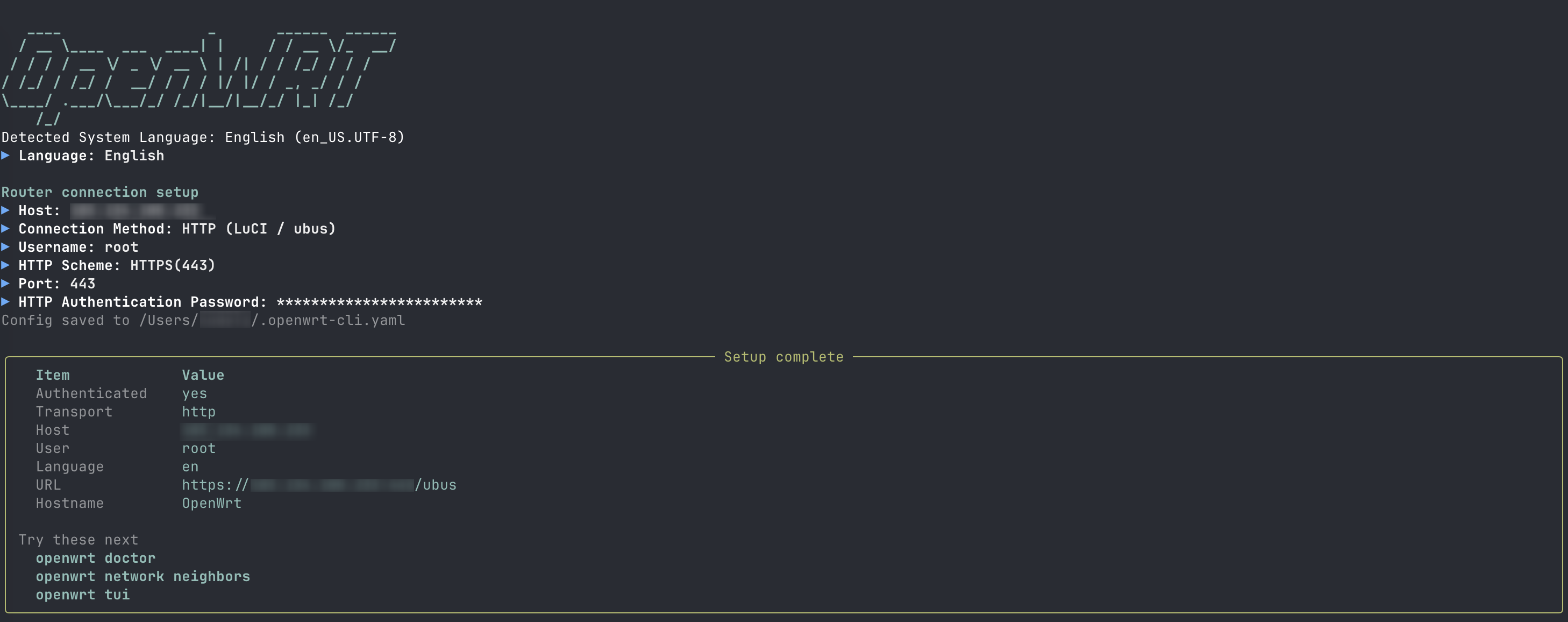
openwrt setup
openwrt doctor
openwrt tui
Using this from Cursor, Claude Code, or another Agent? Jump to Drop it into your AI agent.
Non-interactive equivalent:
openwrt -H 192.168.1.1 -u root --password your_password --save-config
Installation
Requires Python >= 3.12.
Linux / macOS
curl -fsSL https://raw.githubusercontent.com/Necho-dev/openwrt-cli/main/install.sh | bash
Windows — clone, then run install.bat, or:
pip install "openwrt-cli[mcp] @ git+https://github.com/Necho-dev/openwrt-cli.git"
pip / pipx
pipx install "openwrt-cli[mcp] @ git+https://github.com/Necho-dev/openwrt-cli.git"
Development (Poetry)
git clone https://github.com/Necho-dev/openwrt-cli.git
cd openwrt-cli
poetry install
poetry run openwrt --help
poetry install --with dev
poetry run pytest -m "not live"           # no device, CI-safe
OPENWRT_LIVE=1 poetry run pytest -m live  # read-only against ~/.openwrt-cli.yaml
Destructive commands (reboot, reload, service restart, …) are not in the live set.
Release — bump [project].version in pyproject.toml, add a matching ## [x.y.z] section to both CHANGELOG.md and CHANGELOG.zh.md, then tag vx.y.z and push the tag. The publish workflow runs unit tests, checks the tag against pyproject.toml and PyPI (refuses a version that already exists), requires the two changelogs to list the same versions, builds the wheel, uploads it, and opens a GitHub Release from the English notes (with a link to the Chinese changelog).
Command Overview
Flags may sit before or after a subcommand (openwrt network leases -f json). Full help: openwrt --help and openwrt <group> --help.
| Option | Description |
|---|---|
-H, --host |
Device IP |
-u, --user |
Username |
-p, --port |
Port (SSH 22 / HTTP 80 / HTTPS 443) |
-i, --identity-file |
SSH private key path (same as ssh -i) |
--password |
Login password |
--ssh |
Connect over SSH |
--http |
LuCI/ubus HTTP |
--https |
LuCI/ubus HTTPS |
--config |
Config file path |
-L, --language |
UI language: en / zh |
-f, --format |
Output format: text / json / compact |
--json |
Same as -f json; Agent-friendly |
--yes, -y |
Skip confirmation |
-v, --version |
Show version and exit |
Success and failure are one object with ok. Interactive commands (setup, tui, wizard) refuse JSON (error: interactive). Destructive actions prompt on a TTY; in a pipe or JSON mode they need --yes or they exit 2.
doctor / system / logs
openwrt doctor
openwrt doctor --quick
openwrt -f json doctor
openwrt system status
openwrt system memory
openwrt system processes
openwrt logs system --tail 80
openwrt logs system -f
openwrt logs kernel --tail 80
openwrt logs system --since 10m
network
openwrt network interfaces
openwrt network interfaces --rates
openwrt network routes
openwrt network rules
openwrt network neighbors          # IPv4 neighbors; Bandix overlays device rates when present
openwrt network set-hostname --mac aa:bb:cc:dd:ee:ff --name phone --yes
openwrt network leases
openwrt network metrics            # Bandix history (needs luci-app-bandix)
openwrt network metrics --ip 192.168.1.50 --since 30m
openwrt network wifi list
openwrt network lan show
openwrt network reload --yes
qos is OpenWrt SQM / tc (luci-app-sqm), not Bandix per-device limits.
passwall2
Requires openwrt-cli >= 1.1.0 and luci-app-passwall2 on the router. Older CLI builds do not have this command group or TUI tab.
When the package is present, TUI adds tab 7 with Nodes / Subscribe / Settings / Rules / ACL / Logs. The node list shows type, protocol, address, port, Ping, and TCPing; the right pane is the selected node. Keys: a add, e edit, Del delete, p Ping, c TCPing, [ ] switch sub-pages.
Read: status, nodes (Ping + TCPing on list enter/refresh), subscribe, settings, components, ACL, and logs. Write nodes and ACL through UCI (node add/set/delete, acl add/set/delete, acl source add/remove); --apply restarts PassWall2. No subscribe refresh, clear_log, or component update.
openwrt passwall2 status
openwrt passwall2 nodes
openwrt passwall2 node show <id>
openwrt passwall2 node add --from-url 'vless://...' --apply --yes
openwrt passwall2 node set <id> --remarks HK --yes
openwrt passwall2 acl
openwrt passwall2 acl add --remarks iot --sources 192.168.9.10 --yes
openwrt passwall2 logs --tail 80
firewall / qos
UCI views work over HTTP. Commands that need iptables or tc fail on HTTP instead of inventing data — use --ssh.
openwrt --https firewall zones     # UCI, OK
openwrt --https firewall rules     # needs iptables → fail (use --ssh)
openwrt qos status
service / user / backup
openwrt service list --running
openwrt service show firewall
openwrt service restart firewall --yes
openwrt user key add --yes
openwrt backup create -o /tmp/bak.tar.gz
openwrt backup restore /tmp/bak.tar.gz --yes
setup / wizard / tui
openwrt setup
openwrt wizard                 # menu
openwrt wizard wifi            # user | hostname | wifi | lan | service
openwrt tui
TUI keys: 1–6 tabs (7 PassWall2 when luci-app-passwall2 is present; openwrt-cli >= 1.1.0), r refresh, e edit (Neighbors hostname / PassWall2 node or ACL), f filter, q quit, ? help.
Configuration
openwrt setup or --save-config writes ~/.openwrt-cli.yaml:
host: 192.168.1.1
user: root
port: 22
transport: ssh
# password: prefer an SSH key
identity_file: ~/.ssh/id_ed25519_openwrt
openwrt config show
openwrt config path
openwrt config set -H 192.168.1.1 --ssh
openwrt config set --language en
openwrt config set --mcp-mode readonly    # default
openwrt config set --mcp-mode readwrite   # MCP write tools (user must confirm)
Drop it into your AI agent
The CLI is for you. The skill (openwrt-ops) is the playbook; MCP (openwrt-mcp) is the tool server. Together they let an Agent run doctor, inspect the LAN / PassWall2, and (only after you allow it) apply a change — without pasting passwords into chat.
Two ways in:
- You wire it (below). Then ask in plain language: is the router OK? who is on the LAN? PassWall2 status?
- Copy for agent — paste the block at the end of this section into Cursor / Claude Code / Codex and let it walk the same steps.
1. Connect the router once
openwrt setup
openwrt doctor
This writes ~/.openwrt-cli.yaml. The MCP server reads that file. Never copy password or identity_file into MCP JSON.
2. Install the skill
openwrt skill install            # interactive: pick a detected client
openwrt skill install --yes      # all detected clients, user-level
That copies openwrt-ops into the Agent skill directory (Cursor ~/.cursor/skills, Claude Code ~/.claude/skills, …). install.sh / install.bat can run this step for you.
3. Merge MCP (keep other servers)
pip install 'openwrt-cli[mcp]'   # skip if install.sh already did this
openwrt mcp json                 # generic mcpServers.openwrt
openwrt mcp json --client cursor
openwrt mcp path                 # recommended file per client
Cursor (~/.cursor/mcp.json) · Trae / Windsurf / Qoder (same JSON shape):
{
  "mcpServers": {
    "openwrt": {
      "command": "openwrt-mcp"
    }
  }
}
Claude Code
claude mcp add openwrt -- openwrt-mcp
Codex — openwrt mcp json --client codex prints TOML for ~/.codex/config.toml.
Reload MCP in the client. The server key must stay openwrt. If openwrt-mcp is not on PATH, use python -m openwrt_cli.mcp instead (openwrt mcp json already picks the right launch).
What the agent can do
| Tools | |
|---|---|
| First hop | doctor · config_show (password masked) |
| Read | system_status · network_overview · network_neighbors · network_leases · firewall_view · service_list · passwall2_status · passwall2_nodes (no Ping) · passwall2_logs · logs_read |
| Write | only when mcp.mode=readwrite and you confirm in chat (wifi_set, lan_set, PassWall2 node/ACL, service_action, …) |
| Never MCP | reboot · shutdown · backup restore · user add / passwd / delete — human CLI only (openwrt system reboot --yes) |
Default mcp.mode is readonly. Writes return mcp_readonly until:
openwrt config set --mcp-mode readwrite
When MCP is connected, do not mutate the router with openwrt … --yes — that skips mcp.mode.
Copy for agent
Paste this into Cursor, Claude Code, Codex, or any Agent and ask it to finish setup:
You're setting up openwrt-cli so I can operate an OpenWrt router from this chat.

WHAT IT IS
  Command: openwrt. Humans use CLI/TUI. You use MCP tools (openwrt-mcp) plus the
  openwrt-ops skill. Transport is SSH or LuCI/ubus HTTP.
  Config lives in ~/.openwrt-cli.yaml — the MCP server reads it. Never copy
  password or identity_file into MCP JSON, chat, or tool output.

INSTALL
  pip install 'openwrt-cli[mcp]'          # or: the repo install.sh / install.bat
  openwrt setup                           # language + host + SSH/HTTP
  openwrt doctor                          # first hop
  openwrt skill install                   # copies openwrt-ops into this Agent
  openwrt mcp json                        # MERGE mcpServers.openwrt; keep other servers

CONNECT MCP
  Cursor:      ~/.cursor/mcp.json  →  { "mcpServers": { "openwrt": { "command": "openwrt-mcp" } } }
  Claude Code: claude mcp add openwrt -- openwrt-mcp
  Codex:       openwrt mcp json --client codex   (TOML → ~/.codex/config.toml)
  If openwrt-mcp is missing: python -m openwrt_cli.mcp
  Reload MCP after saving.

GOLDEN PATH
  doctor → read-only inspect (system / network / passwall2)
        → preview any write → user runs: openwrt config set --mcp-mode readwrite
        → call a write tool only after a clear yes in chat
        → apply / restart is a second write (confirm again)

RULES
  1) Prefer MCP tools when the openwrt server is connected.
     Read-only CLI fallback: openwrt -f json doctor|system status|network leases
  2) mcp.mode defaults to readonly. Writes return mcp_readonly until readwrite.
  3) When MCP is available, do not mutate with openwrt … --yes (bypasses the guard).
  4) Never invent reboot, shutdown, backup restore, or user add/passwd/delete as MCP tools.

Now: run doctor, then a read-only look at neighbors and PassWall2 status.
Full skill: packaged as openwrt-ops (openwrt skill show).
openwrt mcp prompt prints a client-specific variant of the same instructions.
UI language (tables, TUI, setup, help) resolves as:
-L/--languageorOPENWRT_LANG(en/zh)languagein the config file- System locale (
LANG/LC_ALL) — Chinese locales get 简体中文, everything else English
openwrt setup detects the system language, asks you to confirm, and writes it to the config file.
Project Layout
src/openwrt_cli/
  app.py          # entry (openwrt / openwrt-cli)
  commands/       # Typer
  services/       # presentation-free business logic
  mcp/            # Skill pack, MCP guide, FastMCP server
  tui/            # textual dashboard
  ui/             # Rich / questionary
  core/           # DeviceClient, SSH / HTTP channels
  i18n/
flowchart LR
  CLI[CLI / wizard / TUI] --> Services
  Services --> DeviceClient
  DeviceClient --> SSH
  DeviceClient --> HTTP
  SSH --> Channels[ubus / uci / shell]
  HTTP --> Channels
FAQ
SSH will not connect
openwrt setup
ssh -v -p 22 root@192.168.1.1
Use a key instead of a password
openwrt user key add --yes
openwrt -H 192.168.1.1 -i ~/.ssh/id_ed25519_openwrt --save-config
Web admin only, no SSH
openwrt setup          # pick HTTP API
openwrt --https system status
firewall rules fails over HTTP — that path needs iptables. Use --ssh, or stick to UCI commands such as firewall zones.
JSON / pipe errors on reboot, reload, restart — add --yes.
passwall2 is unknown / no TUI tab 7 — that feature shipped in openwrt-cli >= 1.1.0. Upgrade the CLI, and install luci-app-passwall2 on the router. openwrt -v prints the package version.
openwrt is not on PATH — a pip install --user may have dropped the script in python -m site --user-base + /bin. Add that directory, or install with pipx.
Switch the UI language
openwrt -L zh doctor
openwrt config set --language zh
Acknowledgments
This project talks to OpenWrt through the official stack:
- openwrt/openwrt — the OpenWrt operating system
- openwrt/luci — LuCI web interface and ubus/HTTP API
- openwrt/uci — Unified Configuration Interface
Thanks to a6726170/openwrt-cli for the original inspiration.
License
MIT — see LICENSE.
1 maintainer

Release files for openwrt-cli 1.2.0
For a detailed explanation of source distributions (sdists) and built distributions (wheels), please see the package formats documentation.
Built distribution (wheel)
| File | Interpreter | ABI | Platform | Reset |
|---|---|---|---|---|
| openwrt_cli-1.2.0-py3-none-any.whl | Python 3 | none | any | Details |
Release files / openwrt_cli-1.2.0-py3-none-any.whl
| Download URL | openwrt_cli-1.2.0-py3-none-any.whl |
|---|---|
| Size | 218.2 kB |
| Tags | Python 3 |
|
SHA-256 checksum How to use checksums |
82ac4c3fdf94e56ace87923b47ef3233edb7dc7fb19ece4e7fe3d59cf1192b2d
|
|
BLAKE2b-256 checksum How to use checksums |
bf7f766526c20c1cf92fc37c360f98d6a76e221e8ef8114d1739e0c196ac142a
|
| Upload date | |
|
Uploaded using Trusted Publishing? What is trusted publishing? |
Yes |
| Uploaded via |
twine/7.0.0 CPython/3.13.14
|
Provenance
Provenance describes where a file came from. On PyPI, provenance is shared via attestations, which provide a verifiable record of the build or publishing details. View details, limitations and caveats.


PyPI Publish Attestation
PyPI verified that this artifact, at this checksum, originated from the publisher listed below.
Signed by GitHub Actions, verified by PyPI on Sep 13, 2026.
Transparency log













