





Fast and cheap synchronisation of files using Amazon S3.
S4 stands for “Simple Storage Solution (S3) Syncer”.
The intention of this project is to be an open source alternative to typical proprietary sync solutions like Dropbox. Because S4 interacts with S3 directly, you can expect very fast upload and download speeds as well as very cheap costs (See Amazon S3 Pricing for an idea of how much this would cost you). See Why? for further motivation for this project.
You can also take advantage of other cool features that S3 provides like versioning. Everytime you sync a version of a new file, you will now have the ability to easily rollback to any previous version.
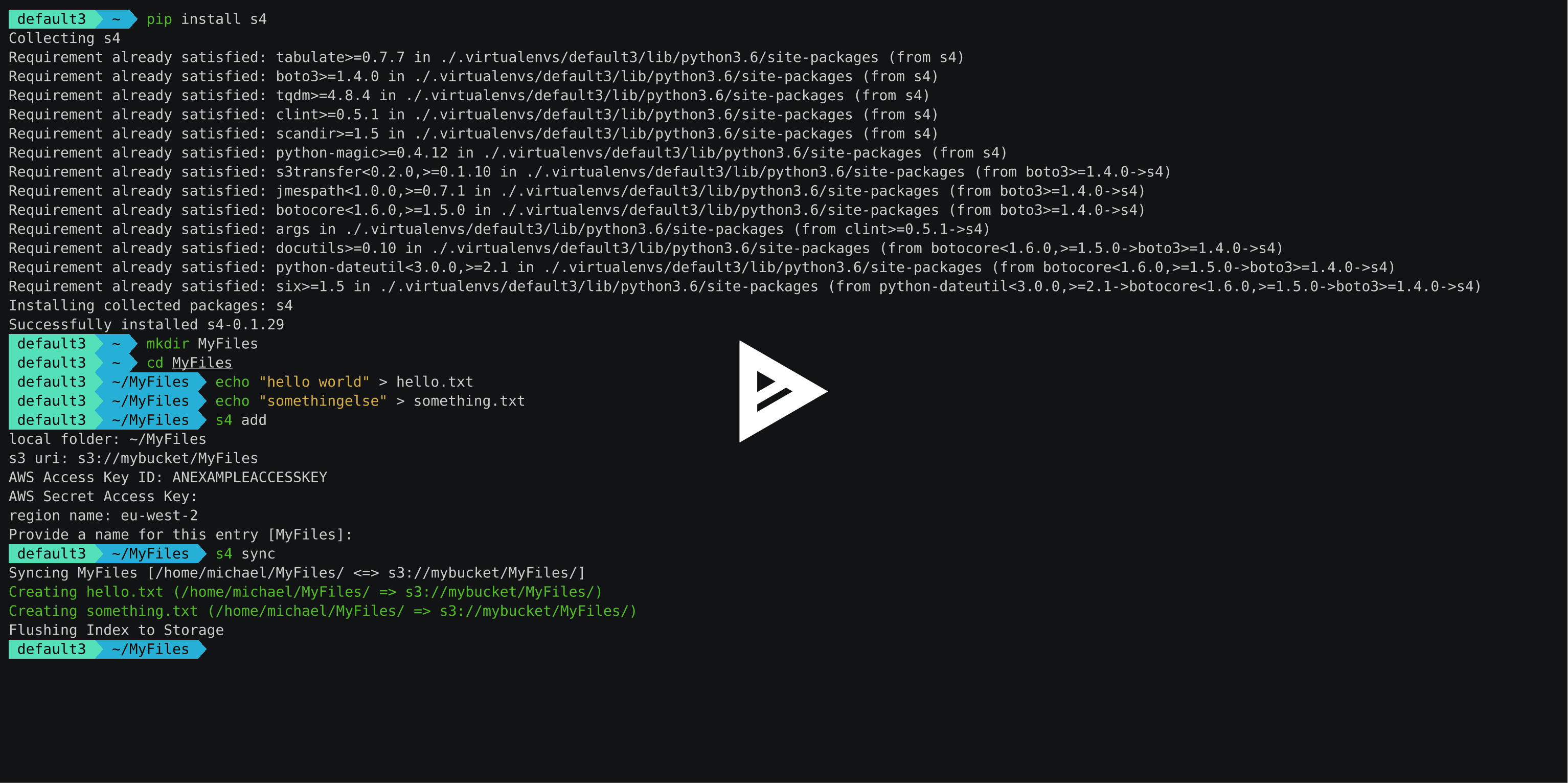
See it in action here:
Requirements
S4 requires python 3.5+ to work
Installation
The easiest way to install S4 is through pip:
$ pip install s4
You will need libmagic installed. This is installed by default on most linux distributions but on MacOSX you need to install it with brew as follows:
brew install libmagic
Setup
Run s4 add to add a new sync local folder and target S3 uri:
$ s4 add
local folder: /home/username/myfolder1
s3 uri: s3://mybucket/folder1
AWS Access Key ID: AKIAJD53D9GCGKCD
AWS Secret Access Key:
region name: eu-west-2
Provide a name for this entry [myfolder1]:
Synchronising
Run s4 sync in the project directory to synchronise the local folders you specified with the folders in the bucket.
$ s4 sync
Syncing myfolder1 [/home/username/myfolder1/ <=> s3://mybucket/folder1/]
Creating foobar.jpg (/home/username/myfolder1/ => s3://mybucket/folder1/)
Creating boarding-pass.pdf (/home/username/myfolder1/ => s3://mybucket/folder1/)
Flushing Index to Storage
All files will be automatically synced between the source and target destinations where possible.
You may specify a specific folder to synchronise by the name you provided during add.
$ s4 sync myfolder1
If you wish to synchronise your targets continuously, use the daemon command:
$ s4 daemon myfolder1
NOTE: This command is only supported on machines that can run INotify. This typically means Linux based operating systems.
Handling Conflicts
In the case where S4 cannot decide on a reasonable action by itself, it will ask you to intervene:
Syncing /home/username/myfolder1/ with s3://mybucket/folder1/

Conflict for "test.txt". Which version would you like to keep?
   (1) /home/username/myfolder1/test.txt updated at 2017-01-23 12:26:24 (CREATED)
   (2) s3://mybucket/folder1/test.txt updated at 2017-01-23 12:26:30 (CREATED)
   (d) View difference (requires diff command)
   (X) Skip this file

Choice (default=skip):
If you do not wish to fix the issue, you can simply skip the file for now.
Other Subcommands
Some other subcommands that you could find useful:
s4 targets - print existing targets
s4 edit - edit the settings of a targets
s4 rm - remove a target
s4 ls - print tracked files and metadata of a target
Use the --help parameter on each subcommand to get more details.
How S4 Works
S4 keeps track of changes between files with a .index file at the root of each folder you are syncing. This contains the keys of each file being synchronised along with the timestamps found locally and remotely in JSON format.
This is compressed (currently using gzip) to save space and increase performance when loading.
If you are curious, you can view the contents of an index file using the s4 ls subcommand or you can view the file directly using a command like zcat.
NOTE: Deleting this file will result in that folder being treated as if it was never synced before so make sure you do not delete it unless you know what you are doing.
All information about your configuration (such as targets, your keys etc..) are stored in a JSON formatted file under ~/.config/s4/sync.conf.
Ignoring Files
Create a .syncignore file in the root of the directory being synced to list patterns of subdirectories and files you wish to ignore. The .syncignore file uses the exact same pattern that you would expect in .gitignore. Each line specifies a GLOB pattern to ignore during sync.
Note that if you add a pattern which matches an item that was previously synced, that item will be deleted from the target you are syncing with next time you run S4.
Why?
There are a number of open source S3 backup tools out there - but none of them really satisfied the requirements that this project tries to solve.
Here are is a list of open source solutions that I have tried in the past.
s3cmd: Provides a sync function that works very well for backing up - but stops working correctly as soon as there is second machine you want to sync to S3.
owncloud/nextcloud: Requires you to setup a server to perform your syncing. In terms of costs on AWS, this quickly becomes costly compared with just using S3. The speed of your uploads and downloads are also heavily bottlenectked by the network and hardware performance of your ec2 instance.
seafile: suffers from the same problem as owncloud/nextcloud.
duplicity: great backup tool, but does not provide a sync solution of any kind.
Contributing
Pull requests are welcome! Make sure you pass all the tests, CircleCI will tell you if you don’t ;)
When opening a pull request, please make sure it is from a separate branch in your fork.
1 maintainer

Metadata
1 maintainer
Release files for opt-s4 1.0.1
For a detailed explanation of source distributions (sdists) and built distributions (wheels), please see the package formats documentation.
Source distribution (sdist)
| File | Size | Uploaded | |
|---|---|---|---|
| opt-s4-1.0.1.tar.gz | 50.4 kB | Details |
Built distribution (wheel)
| File | Interpreter | ABI | Platform | Reset |
|---|---|---|---|---|
| opt_s4-1.0.1-py2.py3-none-any.whl | Python 2, Python 3 | none | any | Details |
Total release size: 87.6 kB
Release files / opt-s4-1.0.1.tar.gz
| Download URL | opt-s4-1.0.1.tar.gz |
|---|---|
| Size | 50.4 kB |
| Tags | Source |
|
SHA-256 checksum How to use checksums |
86eebed79cb8fff9191c2e6f7ff37b1cb3c9e57fc75674f4fbb8c0cb716ac563
|
|
BLAKE2b-256 checksum How to use checksums |
ab1dbb8f6ed379ec87f3ee18031c35a4675e3b298a4a8ee40deaf5152d1f5699
|
| Upload date | |
|
Uploaded using Trusted Publishing? What is trusted publishing? |
No |
| Uploaded via |
twine/4.0.2 CPython/3.7.15
|
Release files / opt_s4-1.0.1-py2.py3-none-any.whl
| Download URL | opt_s4-1.0.1-py2.py3-none-any.whl |
|---|---|
| Size | 37.2 kB |
| Tags | Python 2 Python 3 |
|
SHA-256 checksum How to use checksums |
cffb1dc7c142a20244cf62e959127243ae5fd463d870c9724d46c024c09e7b79
|
|
BLAKE2b-256 checksum How to use checksums |
1d95c8e5d9251d08cb22a189e3cdfce6d9451393f6324d03ffc9ba54094f4edf
|
| Upload date | |
|
Uploaded using Trusted Publishing? What is trusted publishing? |
No |
| Uploaded via |
twine/4.0.2 CPython/3.7.15
|













