
Optuna MCP Server




A Model Context Protocol (MCP) server that automates optimization and analysis using Optuna.
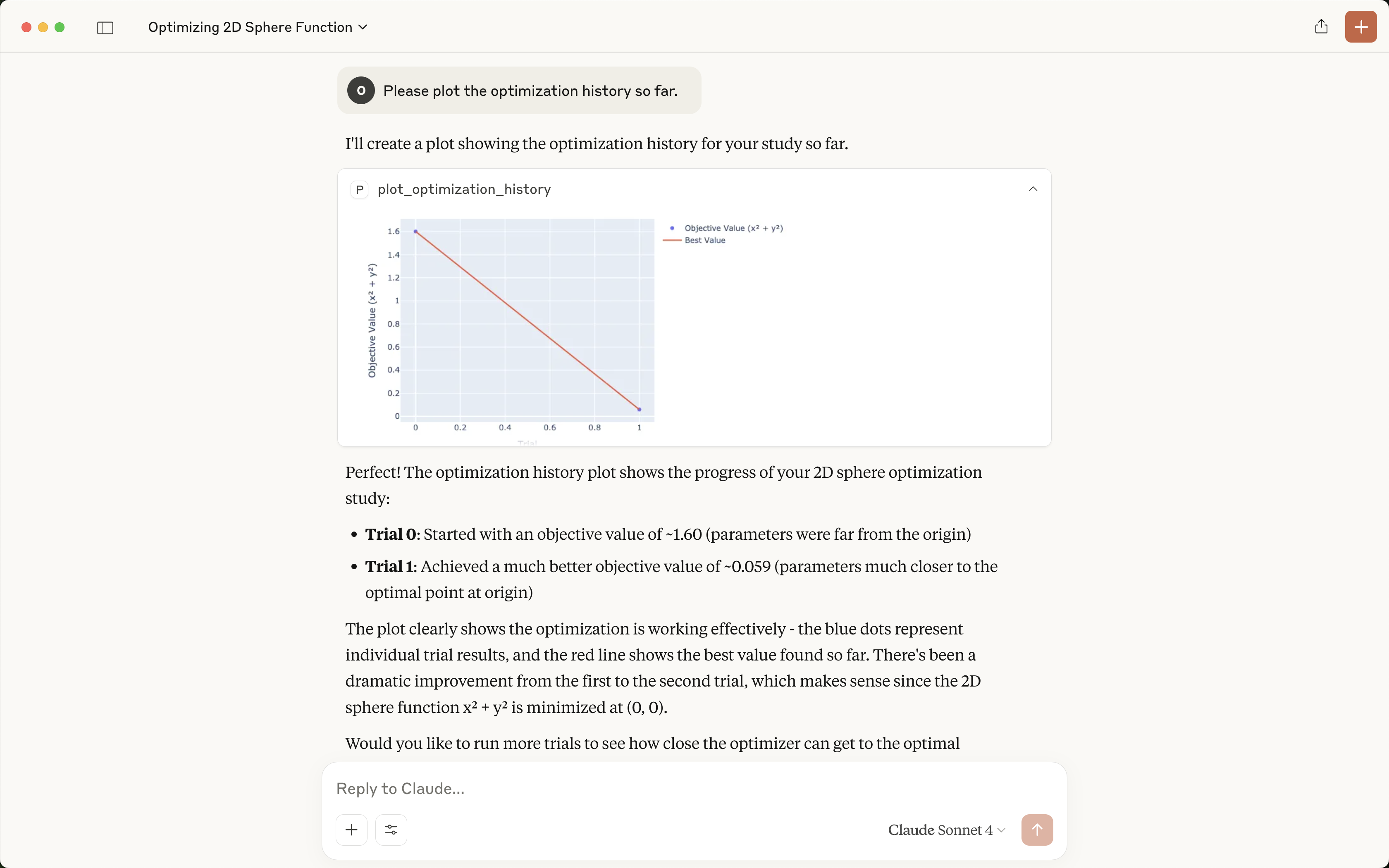
Use Cases
The Optuna MCP Server can be used in the following use cases, for example.
- Automated hyperparameter optimization by LLMs
- Interactive analysis of Optuna's optimization results via chat interface
- Optimize input and output of other MCP tools
For details, see the Examples section.
Installation
The Optuna MCP server can be installed using uv or Docker.
This section explains how to install the Optuna MCP server, using Claude Desktop as an example MCP client.
Usage with uv
Before starting the installation process, install uv from Astral.
Then, add the Optuna MCP server configuration to the MCP client.
To include it in Claude Desktop, go to Claude > Settings > Developer > Edit Config > claude_desktop_config.json
and add the following:
{
  "mcpServers": {
    "Optuna": {
      "command": "uvx",
      "args": [
        "optuna-mcp"
      ]
    }
  }
}
Additionally, you can specify the Optuna storage with the --storage argument to persist the results.
{
  "mcpServers": {
    "Optuna": {
      "command": "uvx",
      "args": [
        "optuna-mcp"
        "--storage",
        "sqlite:///optuna.db"
      ]
    }
  }
}
After adding this, please restart Claude Desktop application. For more information about Claude Desktop, check out the quickstart page.
Usage with Docker
You can also run the Optuna MCP server using Docker. Make sure you have Docker installed and running on your machine.
{
  "mcpServers": {
    "Optuna": {
      "command": "docker",
      "args": [
        "run",
        "-i",
        "--rm",
        "--net=host",
        "-v",
        "/PATH/TO/LOCAL/DIRECTORY/WHICH/INCLUDES/DB/FILE:/app/workspace",
        "optuna/optuna-mcp:latest",
        "--storage",
        "sqlite:////app/workspace/optuna.db"
      ]
    }
  }
}
Tools provided by Optuna MCP
The Optuna MCP provides the following tools. Specifically, it offers primitive functions of Optuna such as Study, Trial, Visualization, and Dashboard. Since MCP clients know the list of tools and the details of each tool, users do not need to remember those details.
Study
- create_study - Create a new Optuna study with the given study_name and directions.
If the study already exists, it will be simply loaded.
study_name: name of the study (string, required).directions: The directions of optimization (list of literal strings minimize/maximize, optional).
- set_sampler - Set the sampler for the study.
name: the name of the sampler (string, required).
- get_all_study_names - Get all study names from the storage.
- set_metric_names - Set metric_names. Metric_names are labels used to distinguish what each objective value is.
metric_names: The list of metric names for each objective (list of strings, required).
- get_metric_names - Get metric_names.
- No parameters required.
- get_directions - Get the directions of the study.
- No parameters required.
- get_trials - Get all trials in a CSV format.
- No parameters required.
- best_trial - Get the best trial.
- No parameters required.
- best_trials - Return trials located at the Pareto front in the study.
- No parameters required.
Trial
- ask - Suggest new parameters using Optuna.
search_space: the search space for Optuna (dictionary, required).
- tell - Report the result of a trial.
trial_number: the trial number (integer, required).values: the result of the trial (float or list of floats, required).
- set_trial_user_attr - Set user attributes for a trial.
trial_number: the trial number (integer, required).key: the key of the user attribute (string, required).value: the value of the user attribute (any type, required).
- get_trial_user_attrs - Get user attributes in a trial.
trial_number: the trial number (integer, required).
Visualization
- plot_optimization_history - Return the optimization history plot as an image.
target: index to specify which value to display (integer, optional).target_name: target’s name to display on the axis label (string, optional).
- plot_hypervolume_history - Return the hypervolume history plot as an image.
reference_point: a list of reference points to calculate the hypervolume (list of floats, required).
- plot_pareto_front - Return the Pareto front plot as an image for multi-objective optimization.
target_names: objective name list used as the axis titles (list of strings, optional).include_dominated_trials: a flag to include all dominated trial's objective values (boolean, optional).targets: a list of indices to specify the objective values to display. (list of integers, optional).
- plot_contour - Return the contour plot as an image.
params: parameter list to visualize (list of strings, optional).target: an index to specify the value to display (integer, required).target_name: target’s name to display on the color bar (string, required).
- plot_parallel_coordinate - Return the parallel coordinate plot as an image.
params: parameter list to visualize (list of strings, optional).target: an index to specify the value to display (integer, required).target_name: target’s name to display on the axis label and the legend (string, required).
- plot_slice - Return the slice plot as an image.
params: parameter list to visualize (list of strings, optional).target: an index to specify the value to display (integer, required).target_name: target’s name to display on the axis label (string, required).
- plot_param_importances - Return the parameter importances plot as an image.
params: parameter list to visualize (list of strings, optional).target: an index to specify the value to display (integer/null, optional).target_name: target’s name to display on the legend (string, required).
- plot_edf - Return the EDF plot as an image.
target: an index to specify the value to display (integer, required).target_name: target’s name to display on the axis label (string, required).
- plot_timeline - Return the timeline plot as an image.
- No parameters required.
- plot_rank - Return the rank plot as an image.
params: parameter list to visualize (list of strings, optional).target: an index to specify the value to display (integer, required).target_name: target’s name to display on the color bar (string, required).
Web Dashboard
- launch_optuna_dashboard - Launch the Optuna dashboard.
port: server port (integer, optional, default: 58080).
Examples
- Optimizing the 2D-Sphere function
- Starting the Optuna dashboard and analyzing optimization results
- Optimizing the FFmpeg encoding parameters
- Optimizing the Cookie Recipe
- Optimizing the Matplotlib Configuration
Optimizing the 2D-Sphere Function
Here we present a simple example of optimizing the 2D-Sphere function, along with example prompts and the summary of the LLM responses.
| User prompt | Output in Claude |
|---|---|
| (Launch Claude Desktop) | 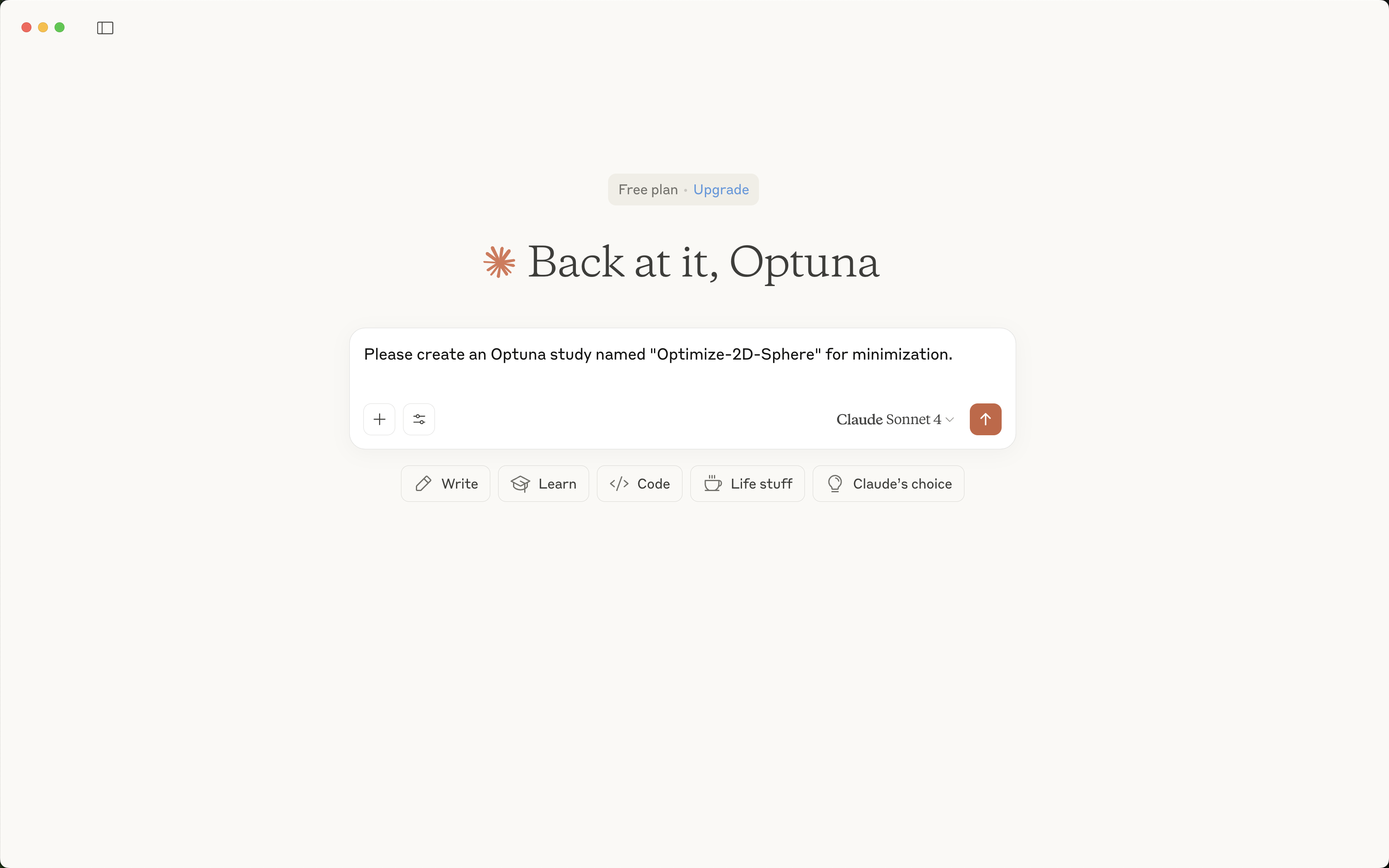 |
| Please create an Optuna study named "Optimize-2D-Sphere" for minimization. | 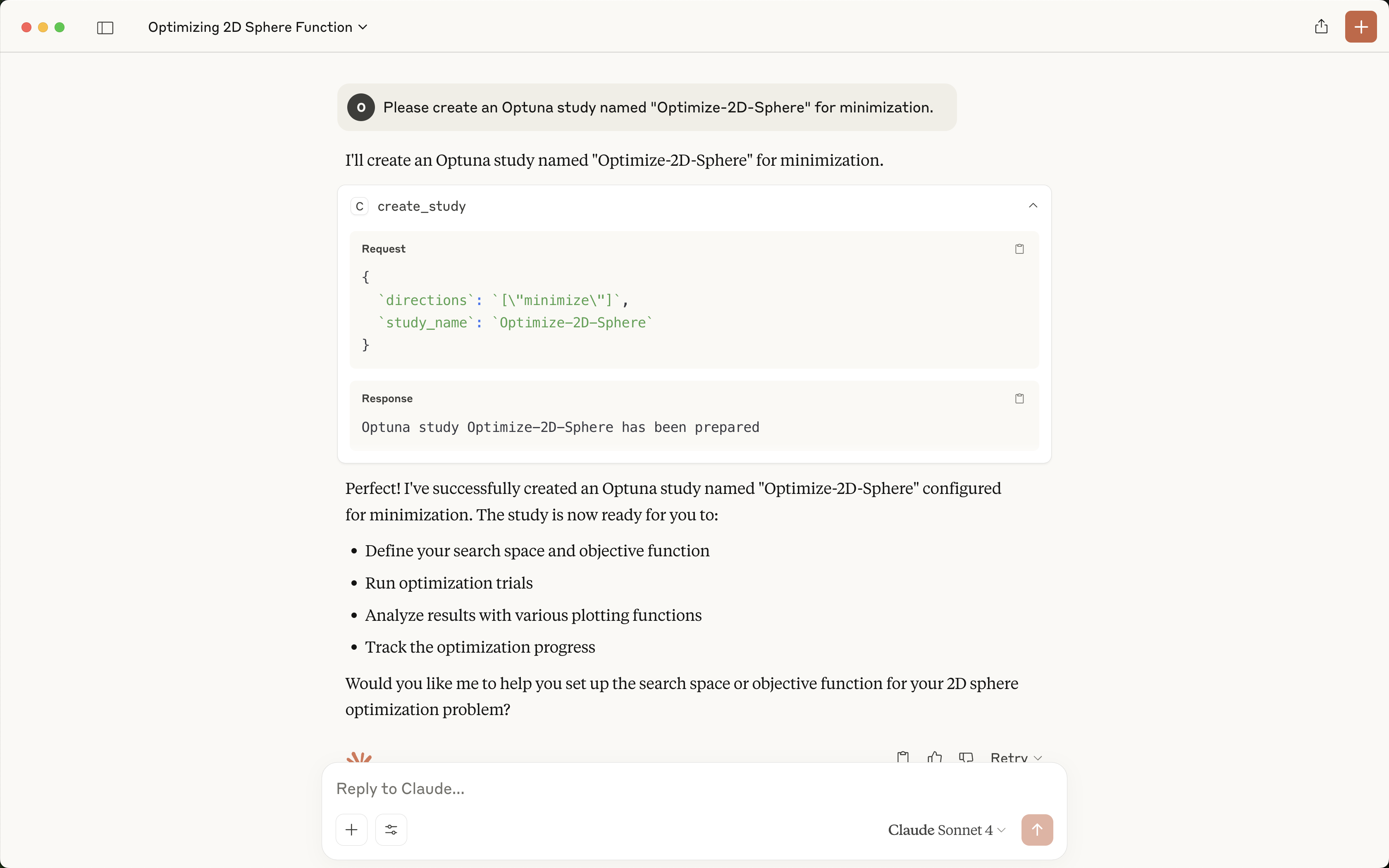 |
| Please suggest two float parameters x, y in [-1, 1]. | 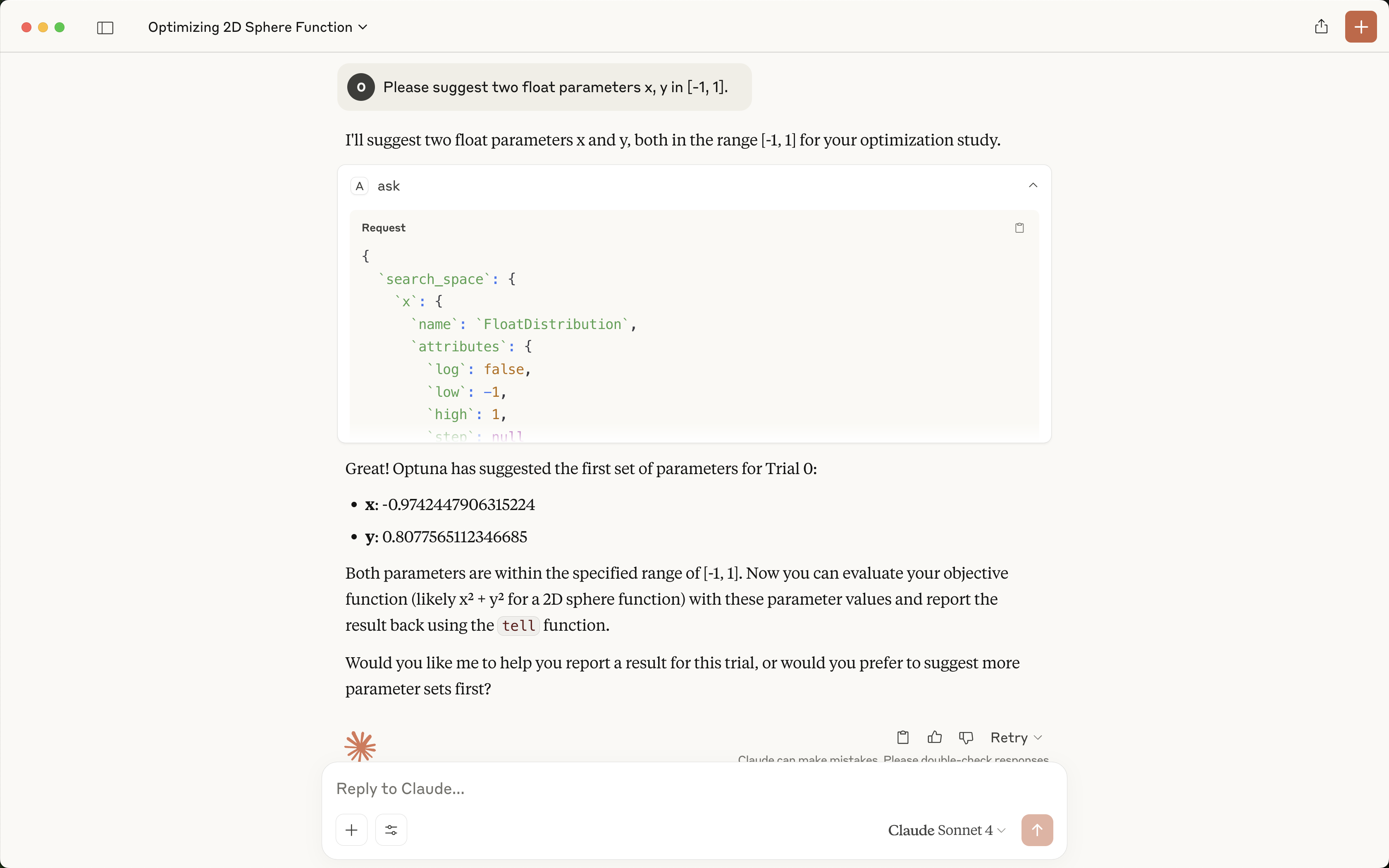 |
| Please report the objective value x**2 + y**2. To calculate the value, please use the JavaScript interpreter and do not round the values. | 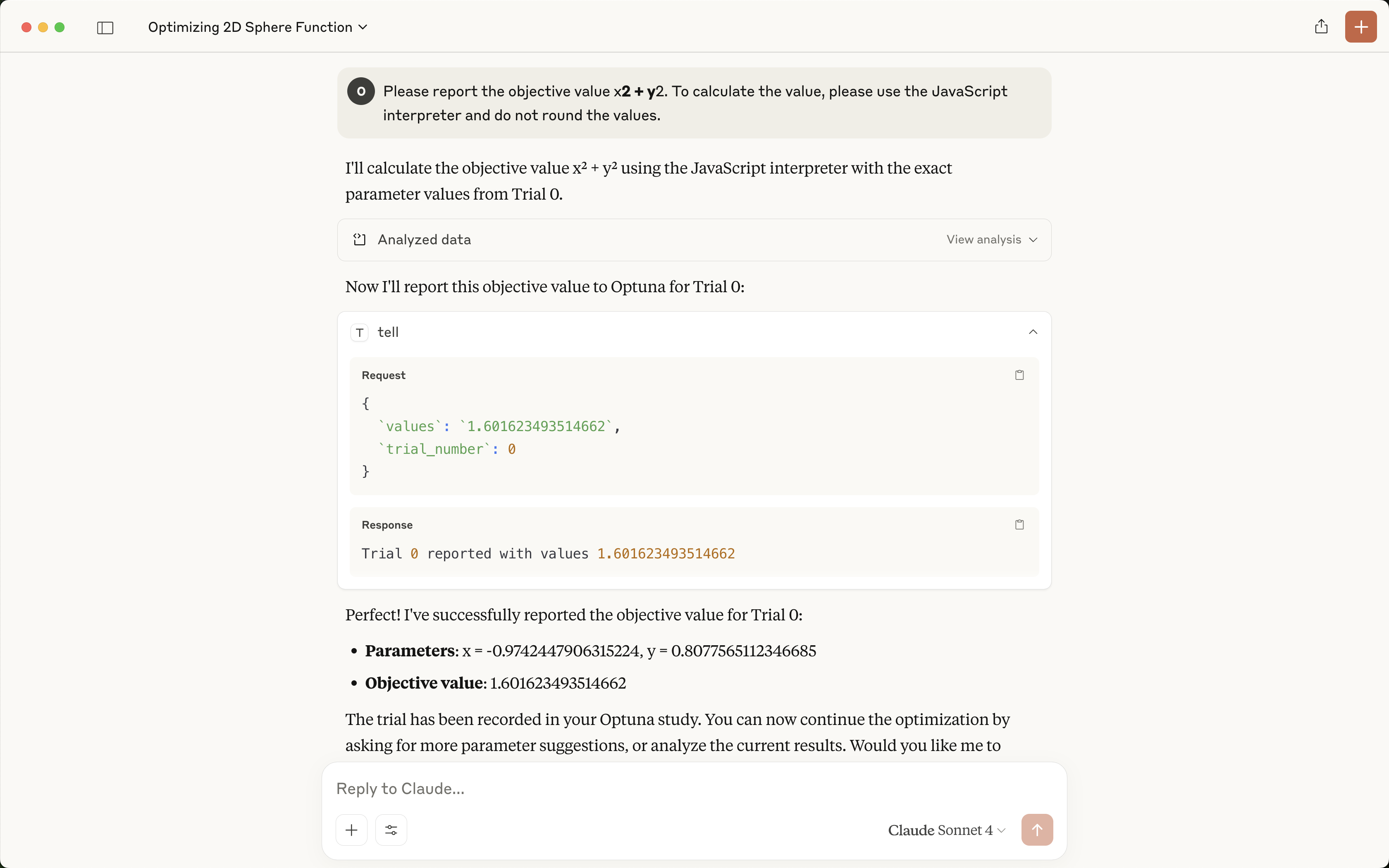 |
| Please suggest another parameter set and evaluate it. | 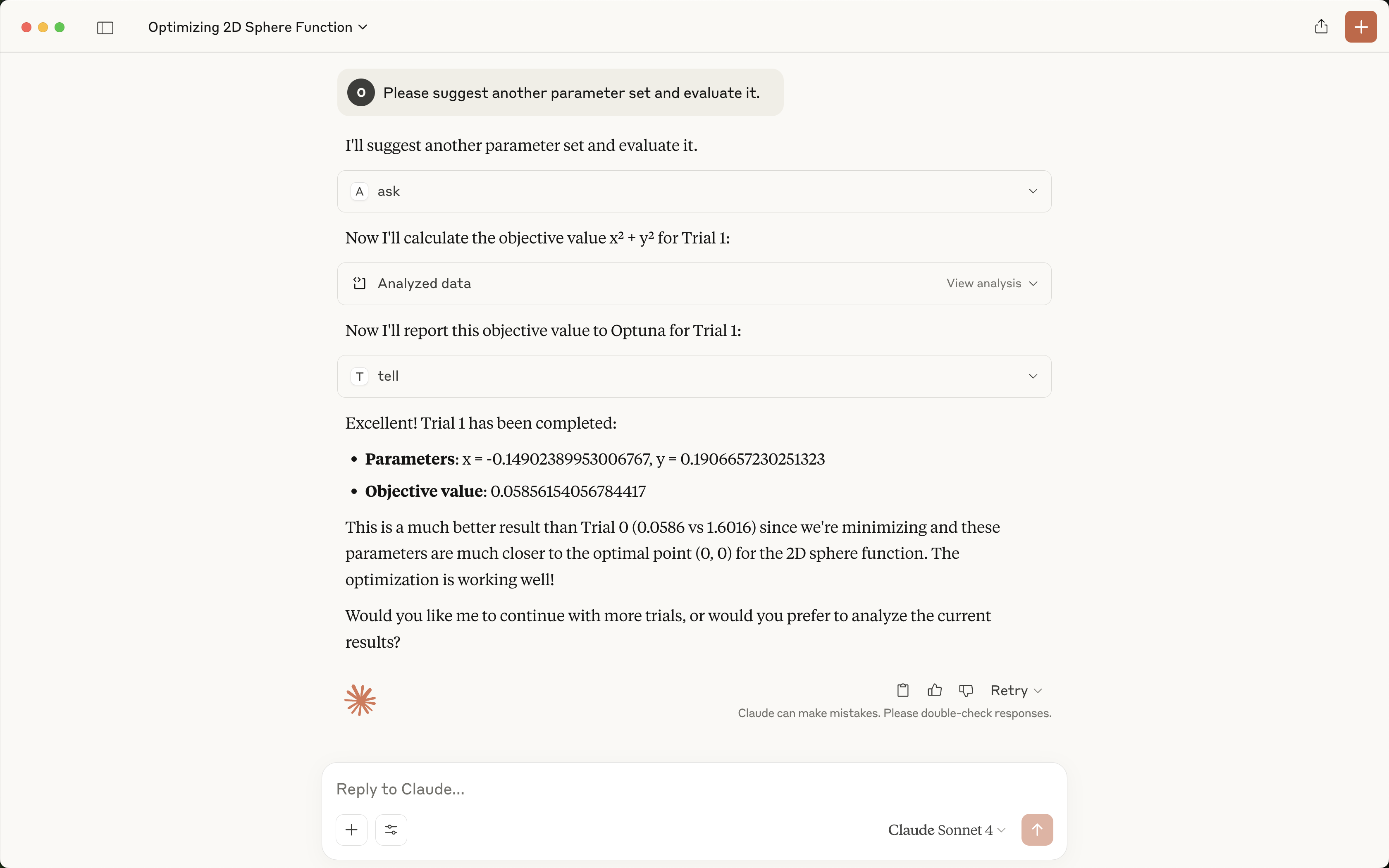 |
| Please plot the optimization history so far. | |
Starting the Optuna Dashboard and Analyzing Optimization Results
You can also start the Optuna dashboard via the MCP server to analyze the optimization results interactively.
| User prompt | Output in Claude |
|---|---|
| Please launch the Optuna dashboard. | 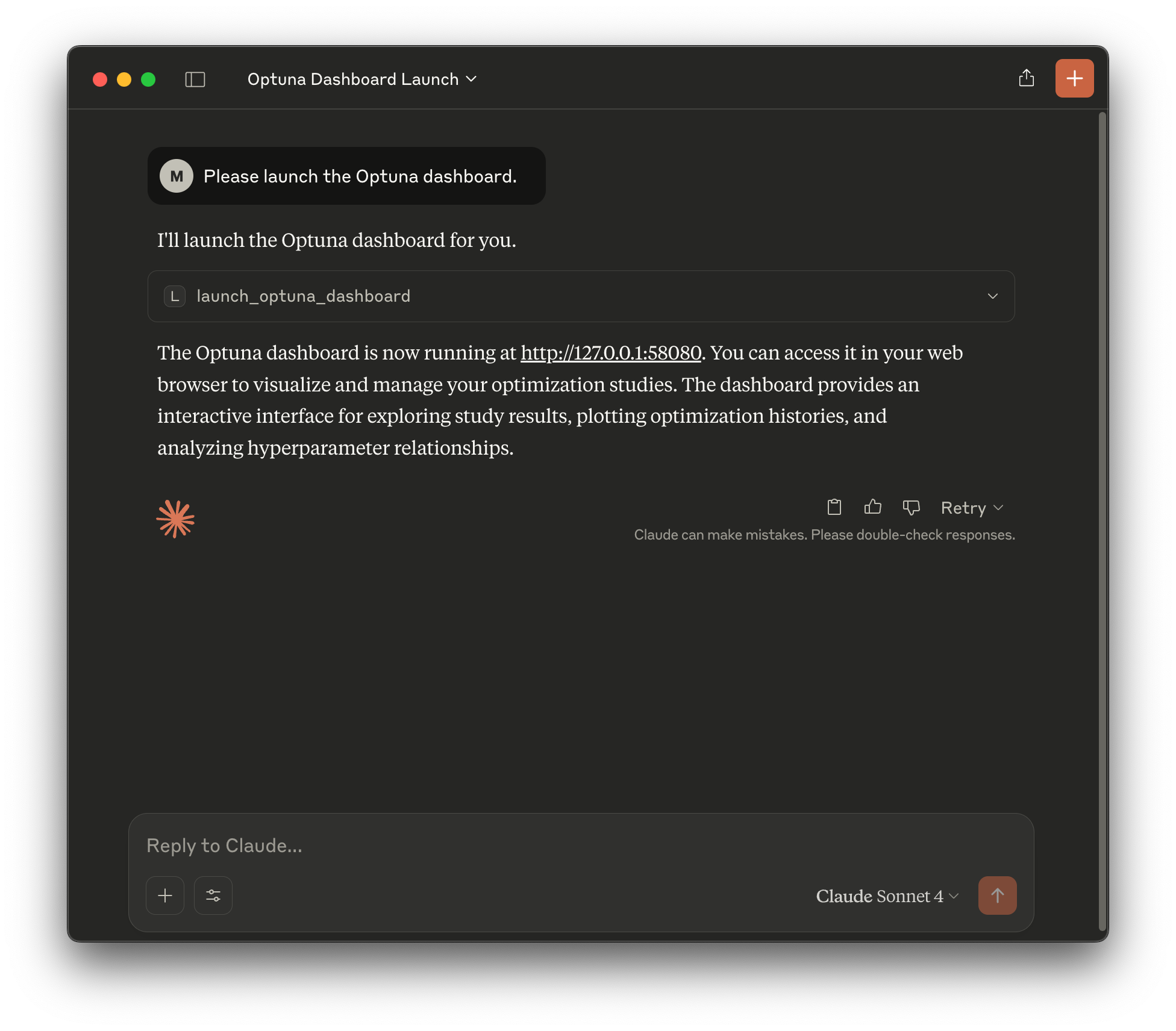 |
By default, the Optuna dashboard will be launched on port 58080.
You can access it by navigating to http://localhost:58080 in your web browser as shown below:
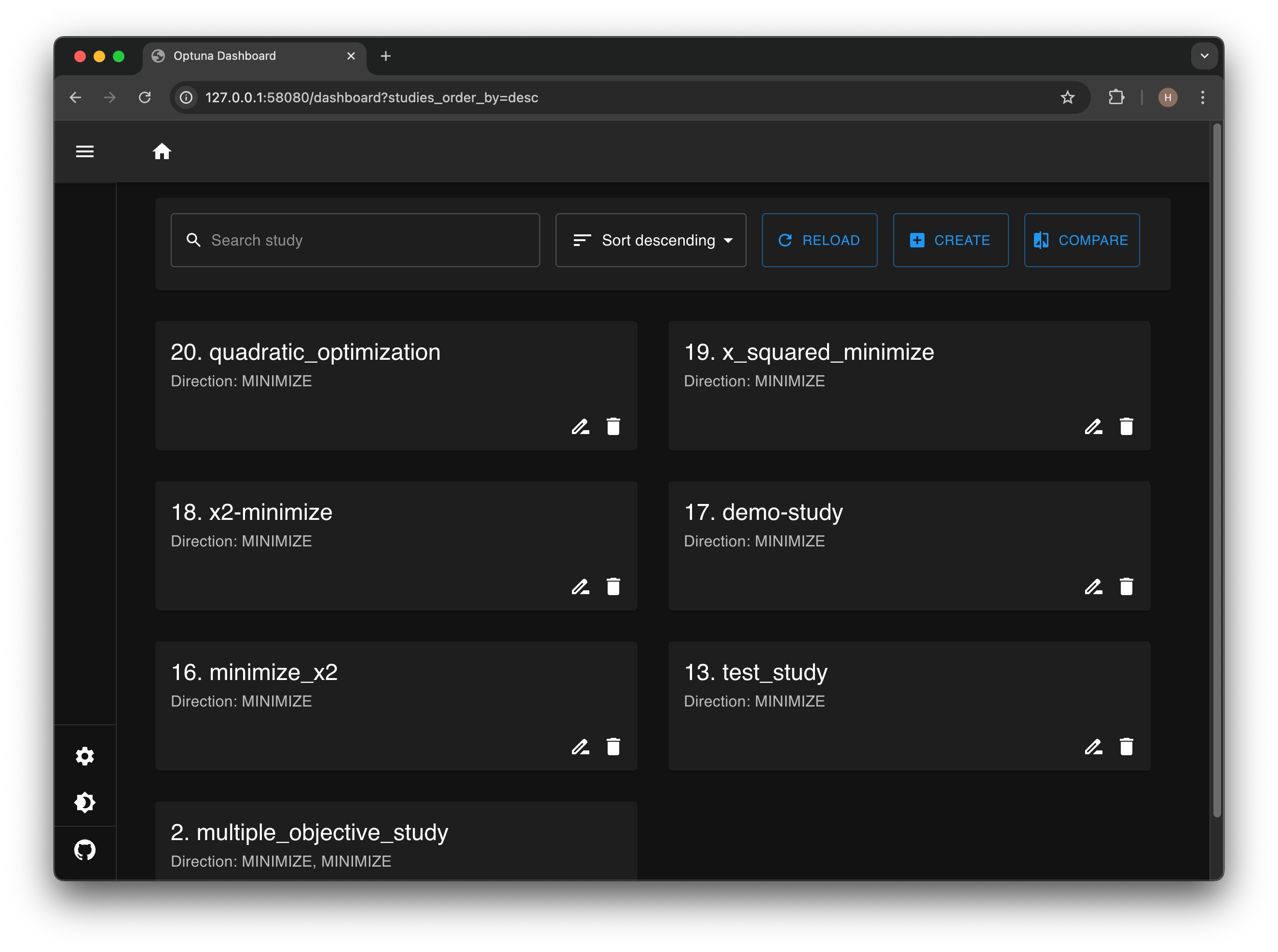
Optuna dashboard provides various visualizations to analyze the optimization results, such as optimization history, parameter importances, and more.
Optimizing the FFmpeg Encoding Parameters
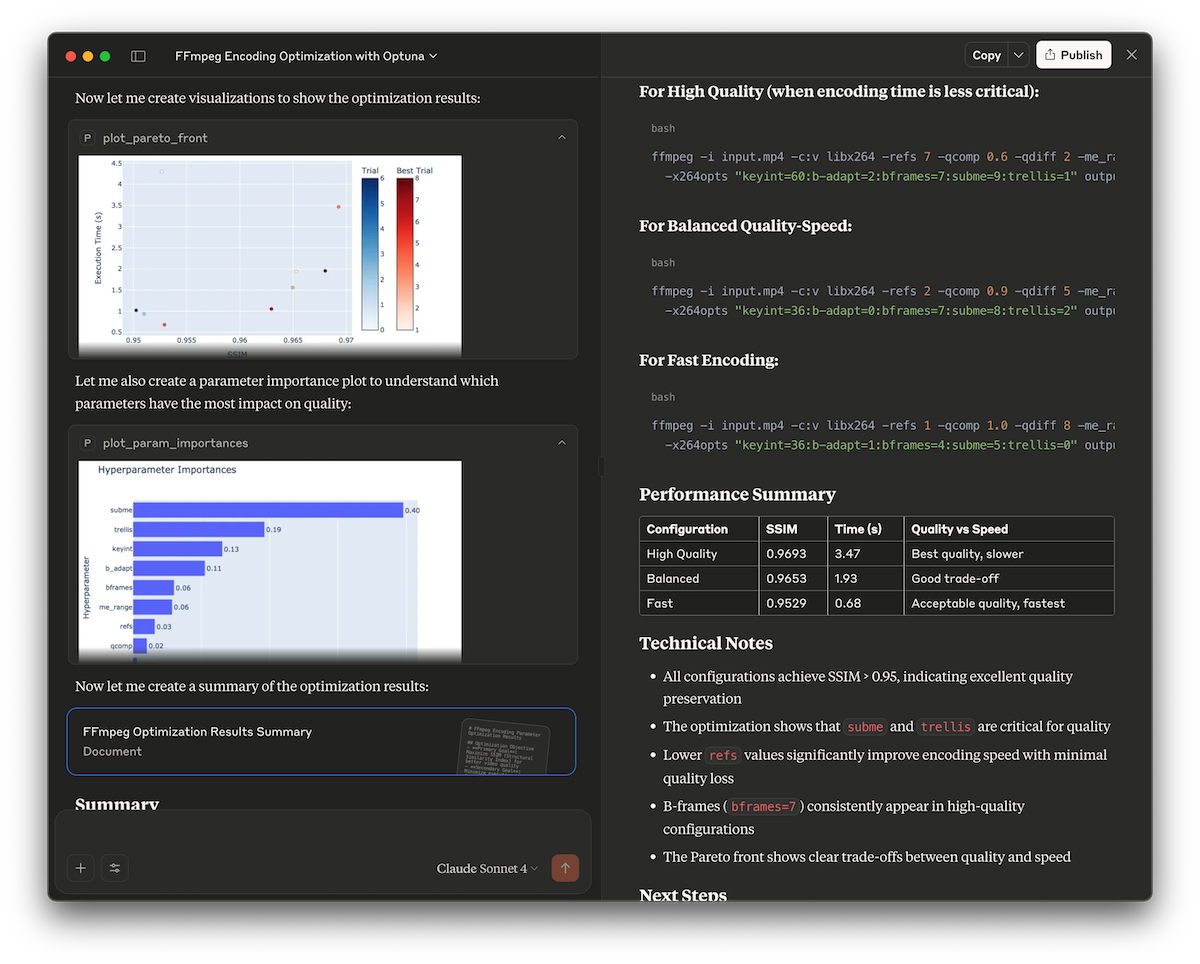
This demo showcases how to use the Optuna MCP server to automatically find optimal FFmpeg encoding parameters. It optimizes x264 encoding options to maximize video quality (measured by the SSIM score) while keeping encoding time reasonable.
Check out examples/ffmpeg for details.
Optimizing the Cookie Recipe
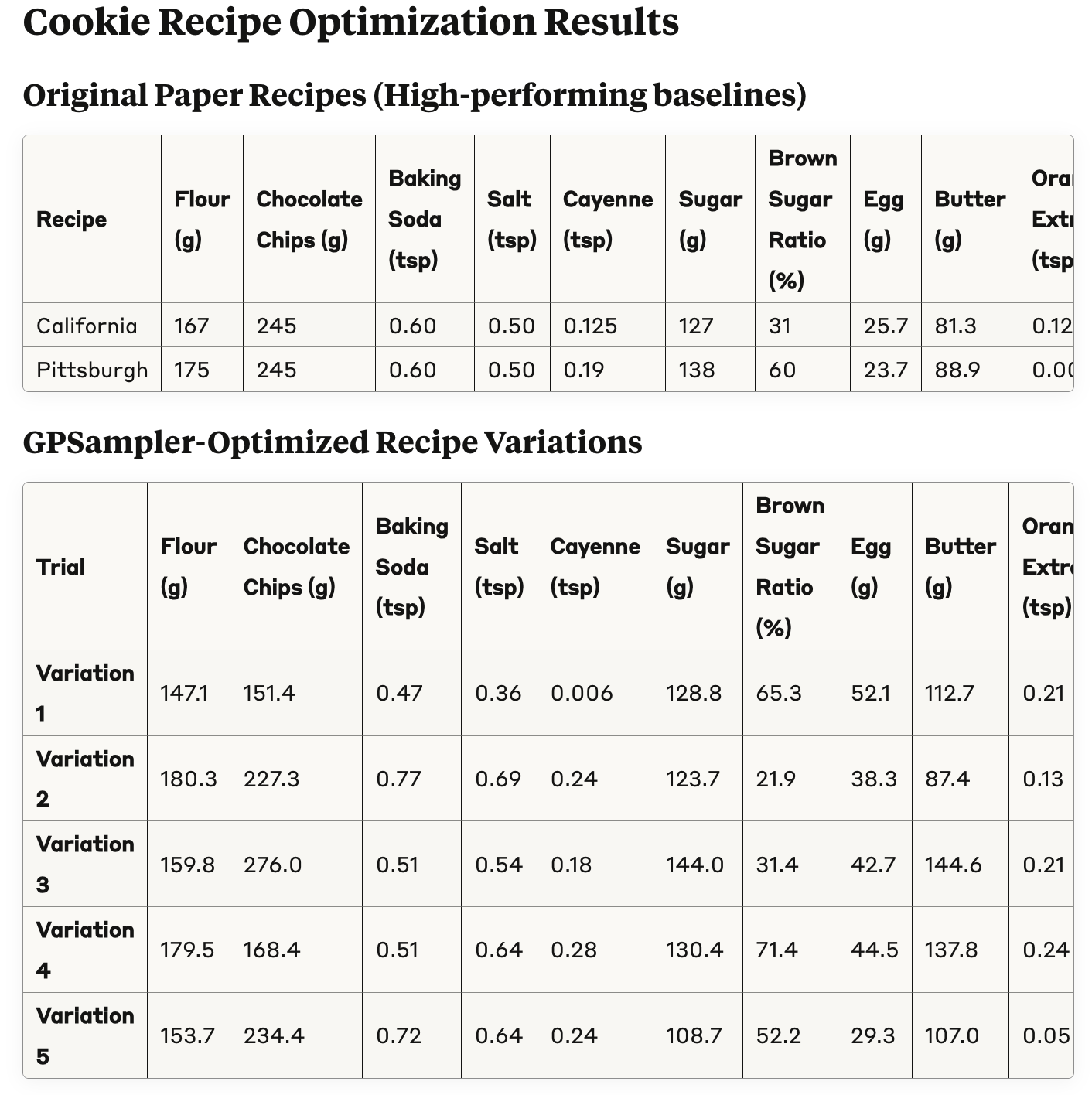
In this example, we will optimize a cookie recipe, referencing the paper titled "Bayesian Optimization for a Better Dessert".
Check out examples/cookie-recipe for details.
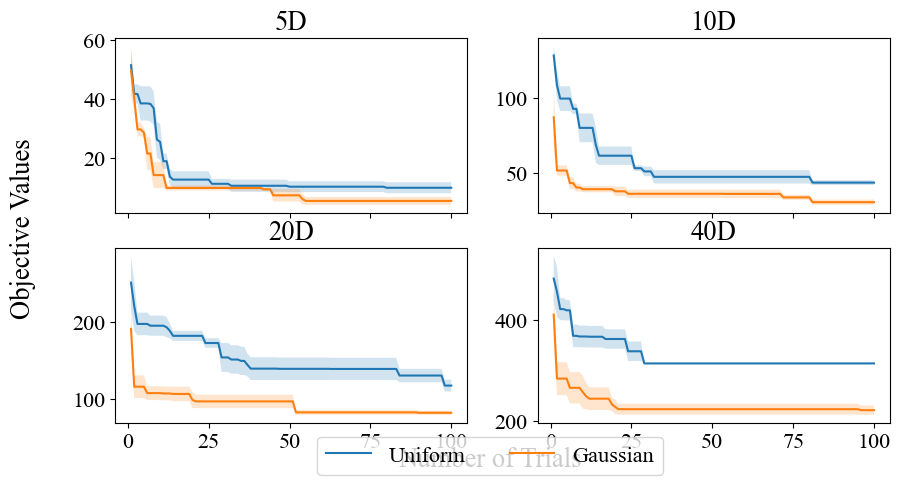
Optimizing the Matplotlib Configuration
 |
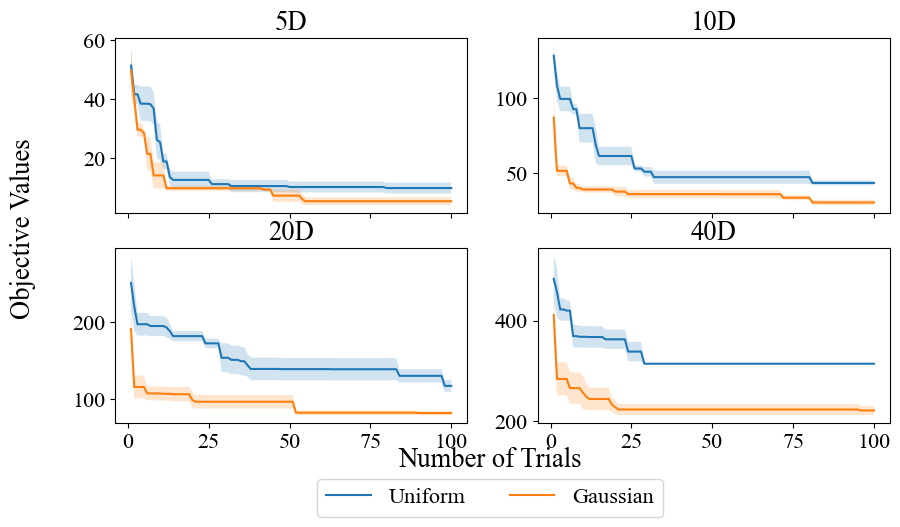 |
This example optimizes a Matplotlib configuration.
Check out examples/auto-matplotlib for details.
License
MIT License (see LICENSE).


Release files for optuna-mcp 0.2.0
For a detailed explanation of source distributions (sdists) and built distributions (wheels), please see the package formats documentation.
Source distribution (sdist)
| File | Size | Uploaded | |
|---|---|---|---|
| optuna_mcp-0.2.0.tar.gz | 16.7 kB | Details |
Built distribution (wheel)
| File | Interpreter | ABI | Platform | Reset |
|---|---|---|---|---|
| optuna_mcp-0.2.0-py3-none-any.whl | Python 3 | none | any | Details |
Total release size: 28.0 kB
Release files / optuna_mcp-0.2.0.tar.gz
| Download URL | optuna_mcp-0.2.0.tar.gz |
|---|---|
| Size | 16.7 kB |
| Tags | Source |
|
SHA-256 checksum How to use checksums |
d74476edbe3144919cce3fef0ceaee003da746271925934c9f5637d6c6f40b65
|
|
BLAKE2b-256 checksum How to use checksums |
03f010efcc39eb131c267b1c508fb78a06702e84d421409d5b2949faf79d5192
|
| Upload date | |
|
Uploaded using Trusted Publishing? What is trusted publishing? |
Yes |
| Uploaded via |
twine/6.1.0 CPython/3.13.7
|
Release files / optuna_mcp-0.2.0-py3-none-any.whl
| Download URL | optuna_mcp-0.2.0-py3-none-any.whl |
|---|---|
| Size | 11.3 kB |
| Tags | Python 3 |
|
SHA-256 checksum How to use checksums |
d194523c833a8ec4881213968b214205d6ddabaa023d4781f1e9bdffbde1dbdd
|
|
BLAKE2b-256 checksum How to use checksums |
2453c4f7c7ea7e8b21824d46c2075aa351e20a60c3b505960744dcf3c621f8a6
|
| Upload date | |
|
Uploaded using Trusted Publishing? What is trusted publishing? |
Yes |
| Uploaded via |
twine/6.1.0 CPython/3.13.7
|














