

Work with your AI assistant to get the print you're after, and learn how OrcaSlicer gets you there.



OrcaSlicer MCP connects an AI app on your computer to OrcaSlicer. Tell the assistant your goal in plain words. It finds the settings that matter, explains each one, and shows what they cost before you print. The changes happen in the OrcaSlicer window you already use, and the OrcaSlicer MCP panel beside the 3D view lists each one with a way to undo it.
1. Tell it your goal
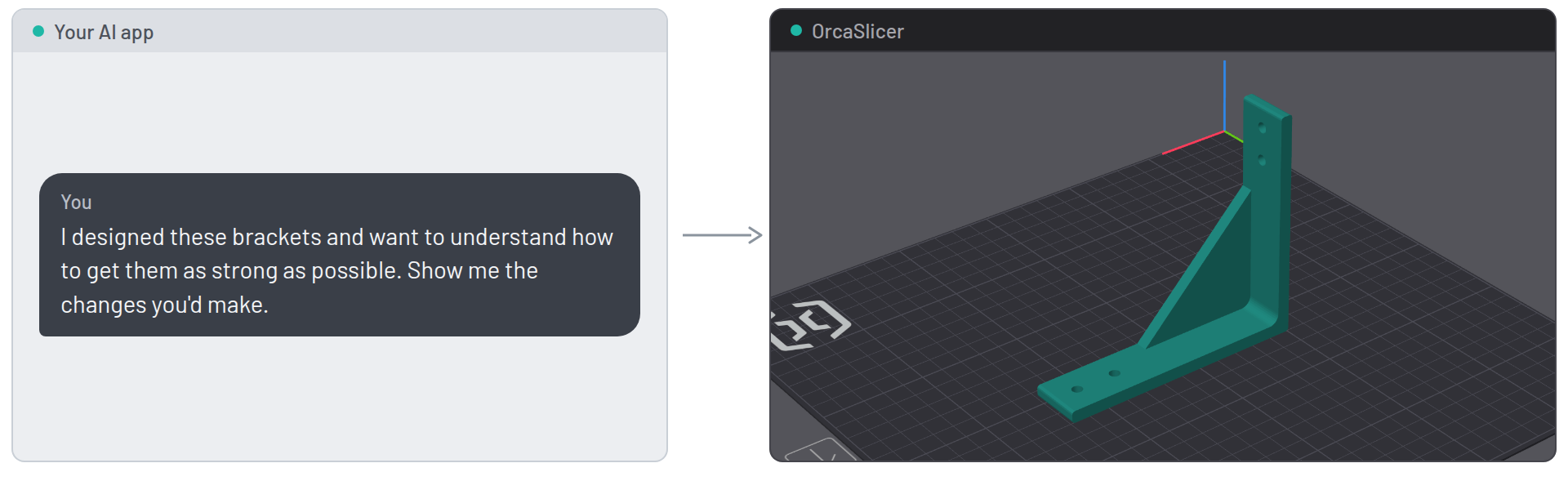
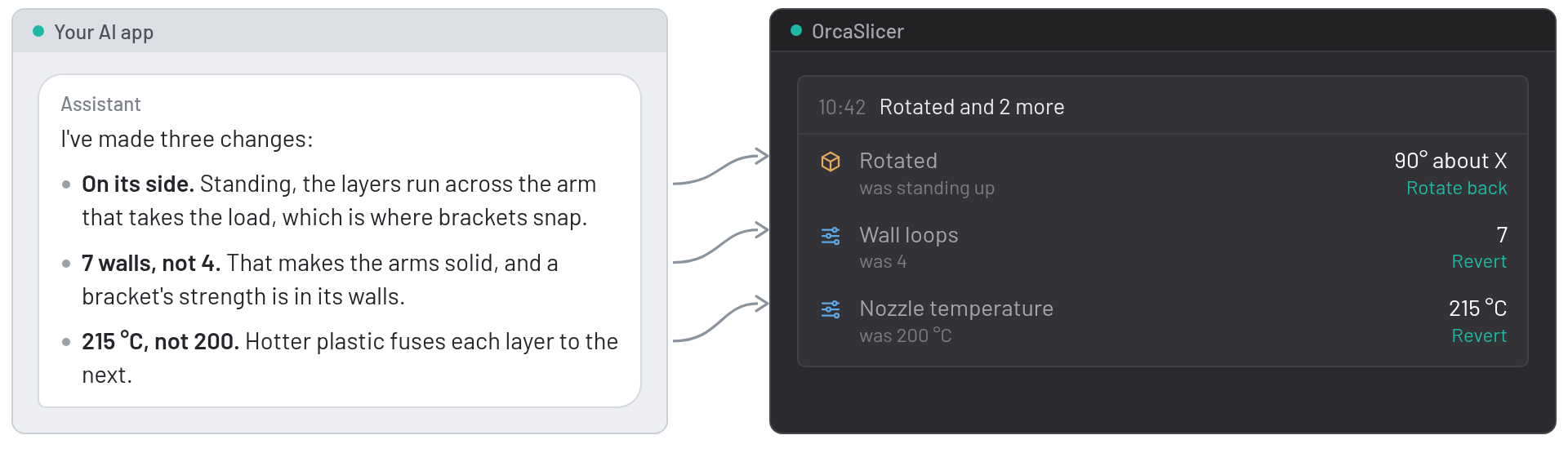
2. It changes what matters, and explains why
3. See the trade-off before you print
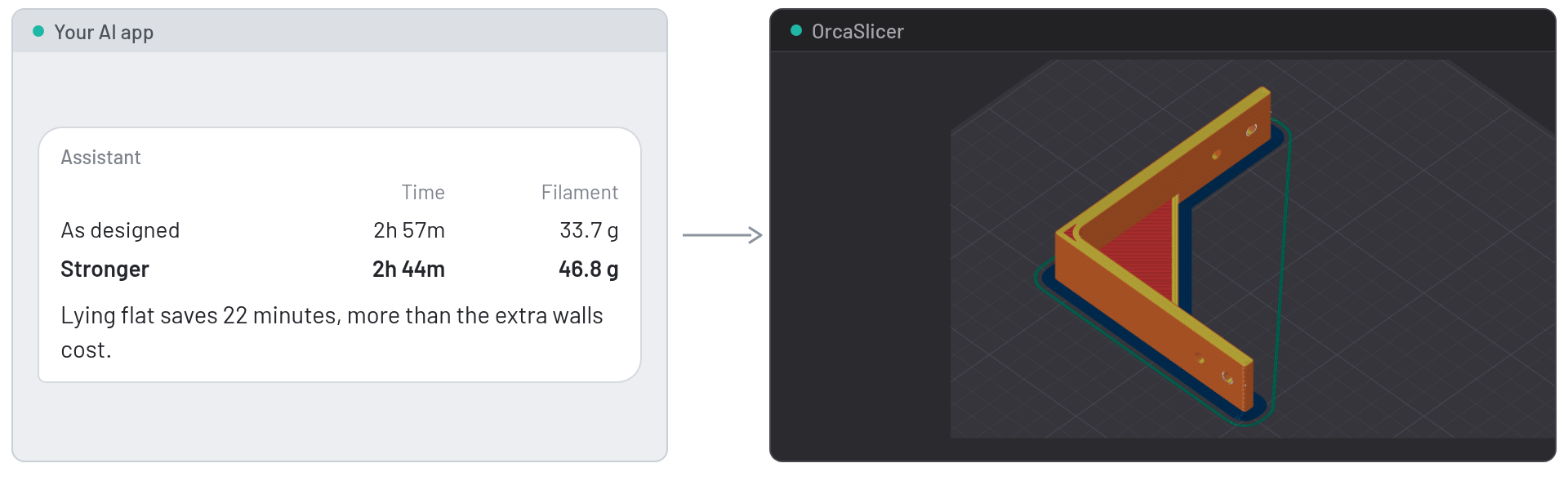
Shown with the OrcaSlicer MCP build. With the plugin, you press Slice yourself and the assistant reads each slice.
What you need
- An AI app on your computer that can use MCP connectors, such as Claude Desktop, Cursor, VS Code or LM Studio. MCP is how these apps connect to other programs, and
orcaslicer-mcpis the connector for OrcaSlicer. Chats in a web browser and phone apps can't use it, because the connector runs on your computer. - OrcaSlicer 2.5 on Windows, macOS or Linux, with the OrcaSlicer MCP build or the plugin (compared below).
- About ten minutes. OrcaSlicer MCP is free. Your AI app uses whatever plan you already have, and with a local model nothing leaves your computer.
OrcaSlicer MCP build or plugin
| OrcaSlicer MCP build | OrcaSlicer MCP plugin | |
|---|---|---|
| What it is | OrcaSlicer 2.5 with the connection built in | A plugin for stock OrcaSlicer 2.5 |
| Read and change settings | ✓ | ✓ |
| Switch presets | ✓ | ✓ |
| Save, rename and delete presets | ✓ | ✗ |
| Load, move and arrange models | ✓ | ✗ |
| Read the slice you made: time, filament, G-code | ✓ | ✓ |
| Start slices, and compare them side by side | ✓ | ✗ |
| See the plate as a picture | ✓ | ✗ |
| Manage plates and projects | ✓ | ✗ |
| Undo each change in the panel | ✓ | ✓ |
| Restore the project to an earlier point | ✓ | ✗ |
| Read your printer's status | ✓ | ✓ |
| Your OrcaSlicer | Replaced, with your printers and presets kept | Stays as it is |
| Updates | Offered by the build | Automatic from OrcaCloud |
| Get it | Download | OrcaCloud or the latest release |
The trade-off: the build can do everything but replaces your OrcaSlicer. The plugin keeps your OrcaSlicer: it works with settings and presets, and reads each slice you make, but it can't slice or move models itself. To run the build next to stock OrcaSlicer, use its portable Windows zip or Linux AppImage. A plugin installed from a downloaded file doesn't update itself; your assistant tells you when a newer one is out. Install the newer file the same way; OrcaSlicer then turns the plugin off and asks for its permissions again, so click Yes and tick Activate again. The plugin's source code is in plugin/.
Get started
1. Turn on the connection in OrcaSlicer.
-
Build: open Preferences → Remote API, tick Enable Remote API and copy the token (a password for your AI app).
-
Plugin: open OrcaSlicer's main menu (the icon beside File) → Plugins, then install it one of two ways:
- From OrcaCloud: subscribe on OrcaCloud, then install OrcaSlicer MCP from the list.
- From a downloaded file: download
orcaslicer_mcp_plugin.pyfrom the latest release. Click the arrow beside Install plugin and choose Install local plugin. The first time, this only renames the green button, so click Install local plugin again and pick the file.
Tick Activate. OrcaSlicer then shows Plugin permissions: network access to
127.0.0.1, which means this computer only; permission to create a thread, which keeps the connection running; and read access to OrcaSlicer's own temporaryorcaslicer_modelfolder, where it saves the G-code of each slice. Choose Yes; No stops the plugin. Then copy the token from the plugin's Config tab. Use one install or the other: each keeps its own token.
2. Add the connector to your AI app.
-
Claude Desktop: download
orcaslicer-mcp-<version>.mcpbfrom the latest release, open it, and paste the token into its settings. Nothing else to install. -
Other apps (Cursor, VS Code, LM Studio and the like): install uv once, a small tool that runs the connector:
curl -LsSf https://astral.sh/uv/install.sh | shon macOS and Linux, orirm https://astral.sh/uv/install.ps1 | iexin PowerShell on Windows. Then add this to the app's MCP settings:{ "mcpServers": { "orcaslicer": { "command": "uvx", "args": ["orcaslicer-mcp"], "env": { "ORCA_API_TOKEN": "<your token>" } } } }
3. Check it works. With OrcaSlicer open, ask "Which printer and filament is OrcaSlicer set up for?" The answer should name your printer and filament presets. If it can't connect, or your app warns about too many tools, see troubleshooting.
You stay in charge
- Every change shows in the OrcaSlicer MCP panel. Undo any one there, or put the project back to an earlier point (build only). OrcaSlicer's own Ctrl+Z (⌘Z on a Mac) undoes model edits, not settings, so use the panel to take a setting back. Closed the panel on the build? View → OrcaSlicer MCP panel brings it back.
- It knows what you changed. When you edit something yourself, the assistant is told with its next reply, so it doesn't undo your work.
- It stays on your computer. OrcaSlicer only accepts connections from this computer, and each one needs the token. Security details
- Scripts and G-code stay locked. The assistant can't touch scripts, custom G-code or printer connections. With the build, tick Allow script, G-code and connection edits in OrcaSlicer's Preferences → Remote API, then ask again. Only that box allows it, and no assistant or API call can tick it. With the plugin it never can.
Privacy policy
orcaslicer-mcp has no backend and collects nothing. It talks to OrcaSlicer and, for the printer tools, your printer, and to nothing else. Your conversation, tool replies included, goes to whichever model your assistant app uses; with a local model nothing leaves your network. Full privacy policy
More
Tools · Security · Printers and print history · Troubleshooting · Development · API reference · Report a problem
Free and open source under AGPL-3.0, like OrcaSlicer. If it saves you time, you can buy me a coffee.
1 maintainer

Metadata
1 maintainer
Release files for orcaslicer-mcp 0.1.22
For a detailed explanation of source distributions (sdists) and built distributions (wheels), please see the package formats documentation.
Source distribution (sdist)
| File | Size | Uploaded | Provenance | Actions |
|---|---|---|---|---|
| orcaslicer_mcp-0.1.22.tar.gz | 3.2 MB | Without provenance | Details for orcaslicer_mcp-0.1.22.tar.gz |
Built distribution (wheel)
| File | Interpreter | ABI | Platform | Actions Reset |
|---|---|---|---|---|
| orcaslicer_mcp-0.1.22-py3-none-any.whl | Python 3 | none | any | Details for orcaslicer_mcp-0.1.22-py3-none-any.whl |
Total release size: 3.4 MB
Release files / orcaslicer_mcp-0.1.22.tar.gz
| Download URL | orcaslicer_mcp-0.1.22.tar.gz |
|---|---|
| Size | 3.2 MB |
| Tags | Source |
|
SHA-256 checksum How to use checksums |
60ca88cb88d4aa1be0852453dea50ffb2f970e5233b59e1d2882169be8597037
|
|
BLAKE2b-256 checksum How to use checksums |
5d30ee7bdfc3d0e89b3eb7533cad5f40c775fc6fd7fb59b1fefb19a2a0bbeac7
|
| Upload date | |
|
Uploaded using Trusted Publishing? What is trusted publishing? |
No |
| Uploaded via |
uv/0.11.29 {"installer":{"name":"uv","version":"0.11.29","subcommand":["publish"]},"python":null,"implementation":{"name":null,"version":null},"distro":{"name":"Ubuntu","version":"24.04","id":"noble","libc":null},"system":{"name":null,"release":null},"cpu":null,"openssl_version":null,"setuptools_version":null,"rustc_version":null,"ci":null}
|
Release files / orcaslicer_mcp-0.1.22-py3-none-any.whl
| Download URL | orcaslicer_mcp-0.1.22-py3-none-any.whl |
|---|---|
| Size | 255.3 kB |
| Tags | Python 3 |
|
SHA-256 checksum How to use checksums |
86f125b2eed04074ebdd646b3f9da0a160684191a49a7c77205b1ae811499c15
|
|
BLAKE2b-256 checksum How to use checksums |
7c82baae9e898e192344b90126f6247f08d5bf967ec133c701737a7ddda080cd
|
| Upload date | |
|
Uploaded using Trusted Publishing? What is trusted publishing? |
No |
| Uploaded via |
uv/0.11.29 {"installer":{"name":"uv","version":"0.11.29","subcommand":["publish"]},"python":null,"implementation":{"name":null,"version":null},"distro":{"name":"Ubuntu","version":"24.04","id":"noble","libc":null},"system":{"name":null,"release":null},"cpu":null,"openssl_version":null,"setuptools_version":null,"rustc_version":null,"ci":null}
|
Security for orcaslicer-mcp 0.1.22
Provenance
Provenance describes where a file came from. On PyPI, provenance is shared via attestations, which provide a verifiable record of the build or publishing details. View details, limitations and caveats.
No provenance found
None of the files in this release were uploaded with provenance metadata.
A note on package security
PyPI is a repository for distributing packages, not a service for auditing them. While third-party security researchers and our staff do their best to detect and remove malicious packages, PyPI cannot guarantee the quality, security or suitability of any given package.
To learn more about protecting yourself from malicious actors, visit our package security documentation.














