









os-download is a two-command Python CLI that finds the latest download URL for 15 popular OS ISO families and pulls them to disk — with signature-checked verification, working resume, parallel and multi-connection downloads, and automatic retries.
os-finder          # resolve latest ISO URLs for all supported OSes
os-download        # download everything that was found, verifying as it goes
Supported operating systems
| OS | Source | Auto-version | Format | Verification |
|---|---|---|---|---|
| Ubuntu | Launchpad API + releases.ubuntu.com | Yes (LTS + latest) | .iso |
Signed (pinned key) |
| Debian | cdimage.debian.org | Yes | .iso |
Signed (pinned key) |
| Linux Mint | kernel.org Linux Mint mirror | Yes (Cinnamon x64) | .iso |
Signed (pinned key) |
| Fedora | fedoraproject.org mirrors | Yes (Workstation + Server) | .iso |
Signed (distro keyring) |
| OPNsense | pkg.opnsense.org | Yes | .iso.bz2 (auto-extracted) |
SHA256 if published |
| pfSense CE | Netgate CDN | Yes | .iso.gz (auto-extracted) |
SHA256 |
| TrueNAS Scale | truenas.com official download page | Yes | .iso |
SHA256 if published |
| Manjaro KDE | manjaro.org/products | Yes | .iso |
SHA256 if published |
| MX Linux | mxlinux.org / SourceForge | Yes (Xfce x64) | .iso |
SHA256 if published |
| Puppy Linux | SourceForge CDN → ibiblio fallback | Yes (fossapup64) | .iso |
SHA256 if published |
| CachyOS | mirror.cachyos.org | Yes | .iso |
SHA256 |
| openSUSE Tumbleweed | download.opensuse.org | Yes (Current) | .iso |
SHA256 |
| Arch Linux | geo.mirror.pkgbuild.com | Yes (latest alias) | .iso |
SHA256 |
| Rocky Linux | download.rockylinux.org | Yes (latest major x86_64) | .iso |
SHA256 |
| Windows 11 | Mido | Yes | .iso |
Handled by Mido |
Signed means the checksum file itself is verified against a signing key that os-download pins — a mirror cannot forge it. SHA256 means the hash is checked, which proves the download is intact but not that the mirror was honest. See Verification.
Windows 11 — Microsoft's ISO download requires a JavaScript session-token flow that cannot be replicated with plain HTTP. os-download delegates this to Mido, which is fetched at a pinned commit on first use.
Requirements
- Python 3.10 or newer (3.9 and earlier are not supported)
- Linux, macOS, or Windows
Two optional binaries unlock more, and os-download works without either:
| Binary | Without it |
|---|---|
gpg |
Signatures cannot be checked; verification falls back to hash-only and says so |
aria2c |
Downloads use a single connection instead of splitting each file across several |
# Debian / Ubuntu
sudo apt install gnupg aria2

# Fedora
sudo dnf install gnupg2 aria2

# Arch
sudo pacman -S gnupg aria2

# macOS
brew install gnupg aria2
Installation
os-download is on PyPI. Either installer puts os-finder and os-download on your PATH in an isolated environment, available from any directory.
With uv (recommended)
# 1. Install uv (skip if you already have it)
curl -LsSf https://astral.sh/uv/install.sh | sh

# 2. Install os-download
uv tool install os-download
# Upgrade to the latest version at any time
uv tool upgrade os-download

# Uninstall
uv tool uninstall os-download
With pipx
pipx install os-download
Bleeding edge
To install the current main rather than the latest release:
uv tool install git+https://github.com/dragonfoxsl/os-download
Development install
git clone https://github.com/dragonfoxsl/os-download
cd os-download
uv sync --locked

# Run from the project directory
uv run os-finder
uv run os-download
Usage
Step 1: Find ISO URLs
# All supported OSes (runs in parallel)
os-finder

# Specific OSes
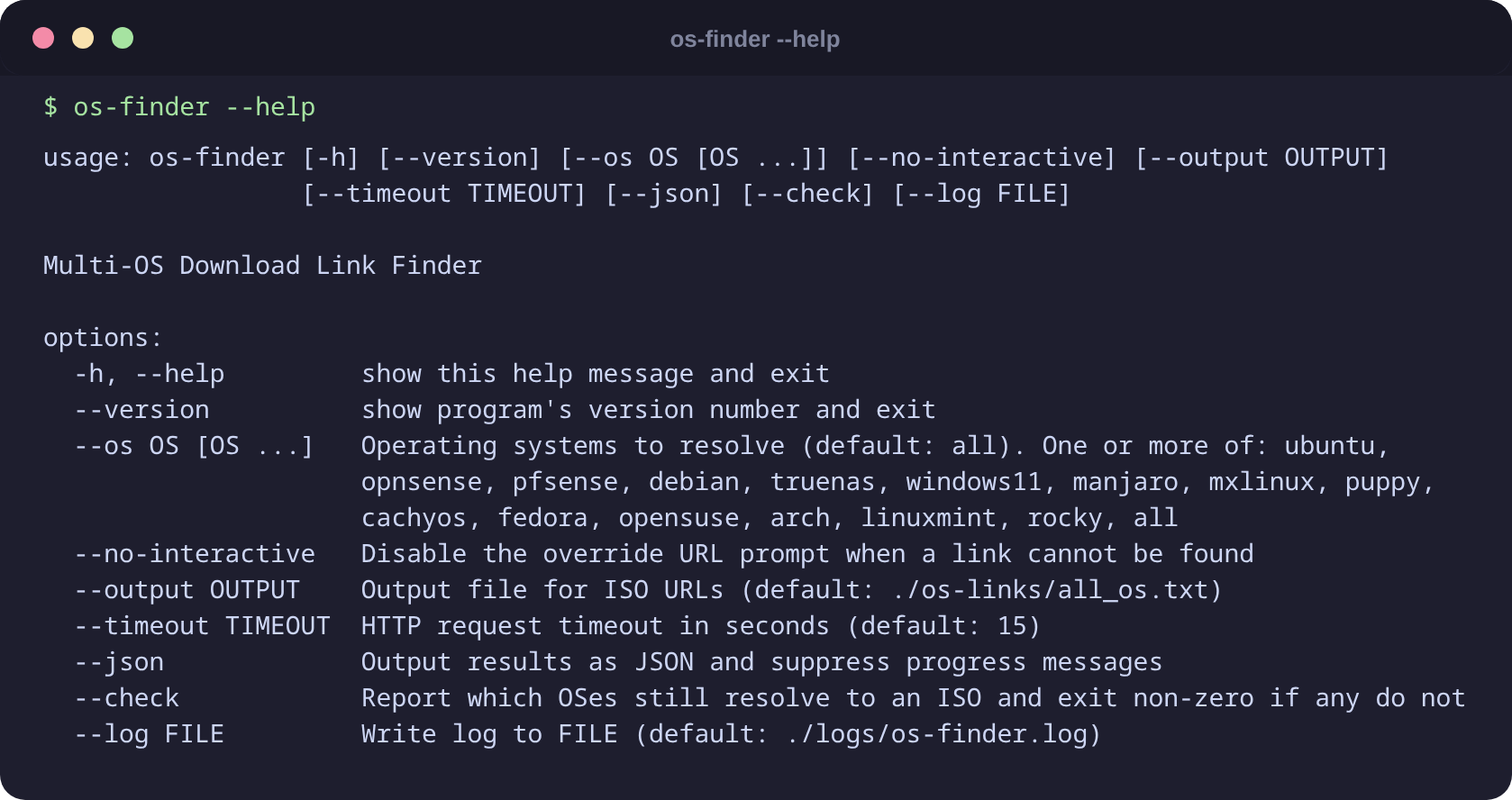
os-finder --os ubuntu fedora opensuse arch linuxmint rocky

# Save URLs to a custom path
os-finder --output ~/isos/urls.txt

# Increase timeout for slow connections
os-finder --timeout 30

# Machine-readable JSON output
os-finder --json

# Check every OS still resolves to an ISO (exits non-zero if a mirror moved)
os-finder --check
Mirrors reorganise their directory layouts, which makes a finder quietly stop resolving.
--checkis the same check a scheduled workflow runs weekly against the live mirrors, so a broken finder surfaces as a GitHub issue rather than a surprise at download time.
Step 2: Download
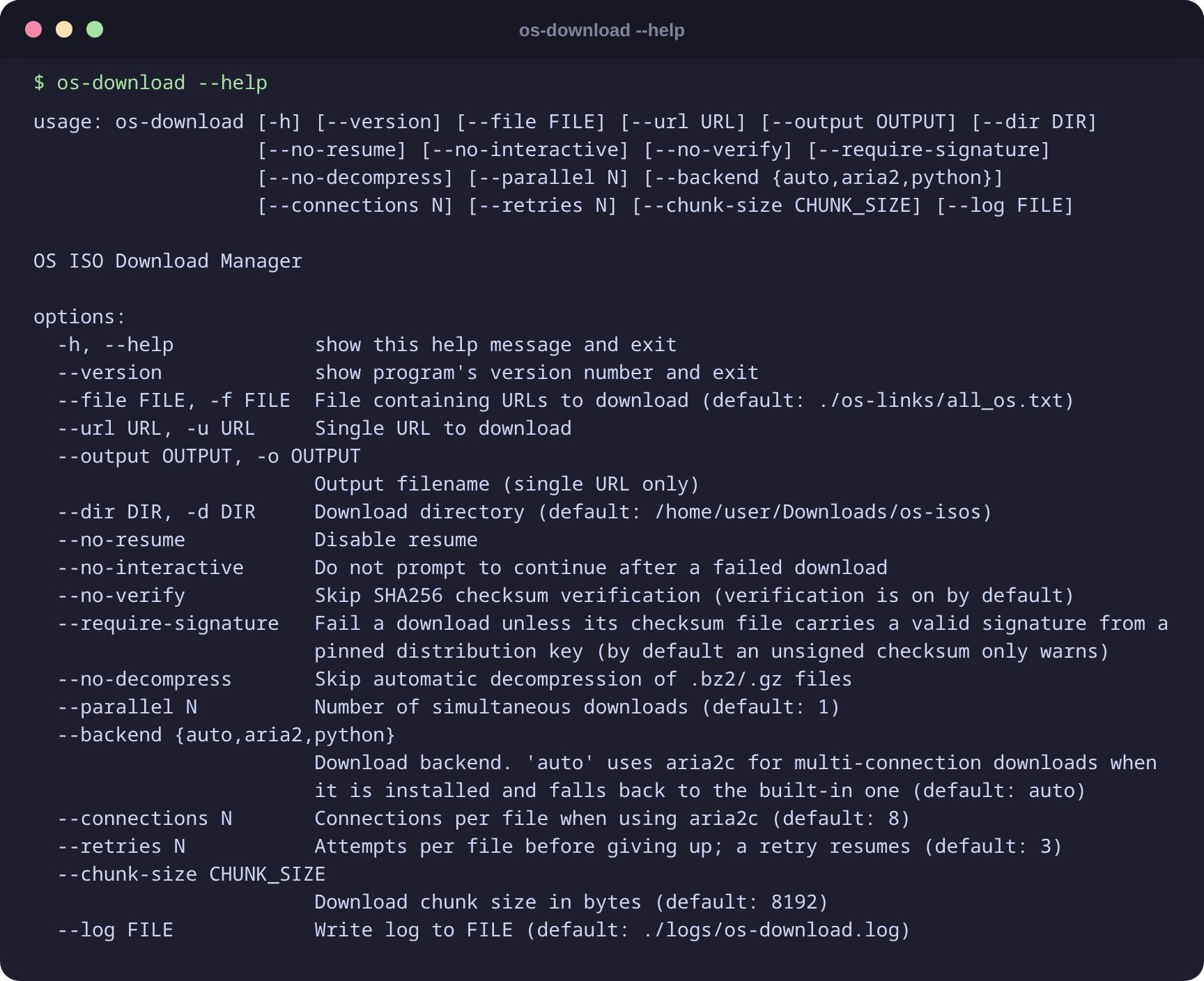
# Download everything found
os-download

# Three simultaneous downloads
os-download --parallel 3

# Skip verification (it is on by default)
os-download --no-verify

# Refuse anything not signed by a pinned distribution key
os-download --require-signature

# Faster: split each file across 16 connections (needs aria2c)
os-download --connections 16

# Force the built-in backend even if aria2c is installed
os-download --backend python

# Give up sooner on a flaky link (each retry resumes)
os-download --retries 1

# Download to a specific directory
os-download --dir /mnt/nas/isos

# Single URL
os-download --url "https://example.com/file.iso"

# Skip automatic decompression of .bz2 / .gz files
os-download --no-decompress
Interrupted downloads resume where they left off — re-run the same command. A dropped connection is retried automatically without failing the file. --output accepts a filename only; use --dir to choose its directory. Batch downloads stop before transfer when multiple URLs resolve to the same filename.
Keyboard shortcuts (download dashboard)
| Key | Action |
|---|---|
q |
Quit cleanly — partial files are saved and can be resumed |
Ctrl+C |
Interrupt — same as q, partial files resume automatically |
Download dashboard
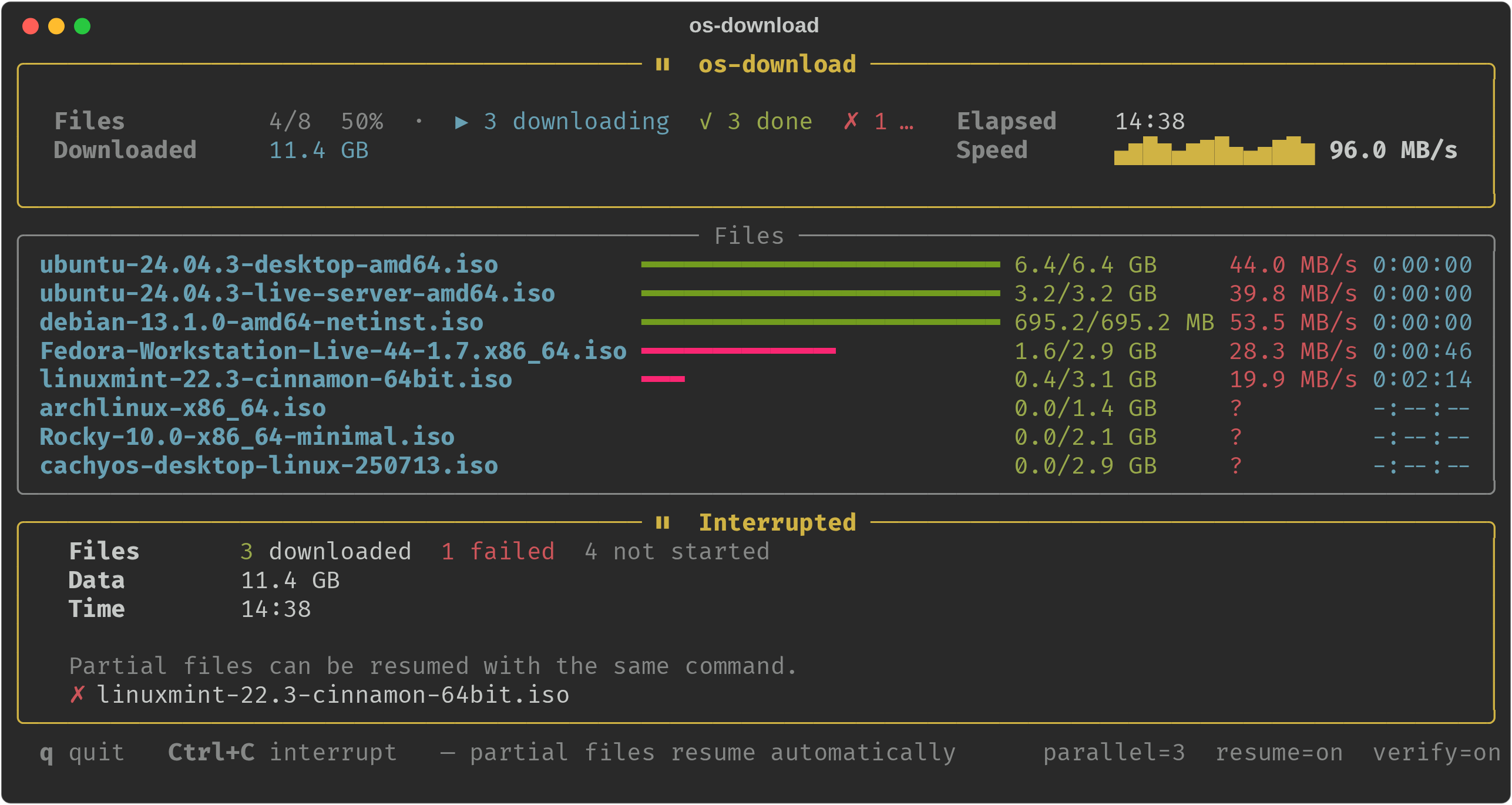
When downloading multiple files, os-download shows a live dashboard:
- Header — active / done / failed counts, total data downloaded, speed sparkline, elapsed time
- Files — one progress bar per file with size, speed, and ETA
- Footer — keyboard shortcuts and current session settings
On completion the dashboard transitions to a summary panel showing files downloaded, total data, time taken, and any failures. If downloads fail you are prompted to retry them; the retry runs only the failed files.
At startup, if an existing file is detected you are prompted to resume or start from scratch. The server's byte range is validated before anything is appended; a malformed resume response is discarded and restarted safely.
Screenshots
Verification
Every download is verified by default. Two things are checked, in this order:
- The signature on the checksum file. A hash fetched from the same mirror as the ISO
only proves the download was not truncated — whoever can serve a bad ISO can serve a
matching hash. Ubuntu, Debian, Linux Mint and Fedora sign their checksum files, and their
signing keys are pinned in
downloader/signatures.py. Keys are only ever imported by pinned fingerprint, or from a keyring published over HTTPS by the distribution itself (Fedora rotates its key every release), so a mirror can never introduce a key of its own. - The SHA256 hash of the file, once the document it came from is known to be authentic.
| Outcome | What it means | Result |
|---|---|---|
| Signed by a pinned key, hash matches | Authentic | Download succeeds |
| Hash matches, but nothing signed it | Intact, unproven | Succeeds with a warning (fails under --require-signature) |
| Bad signature | The signing key was substituted | Fails, file moved to .corrupt |
| Hash mismatch | Corrupt or tampered | Fails, file moved to .corrupt |
| No checksum published | Nothing to check against | Succeeds with a warning (fails under --require-signature) |
A file that fails verification is renamed to <name>.corrupt rather than left in place, so a
later resume cannot append to bad bytes. Authentically verified files record a .verified
marker, so a multi-gigabyte ISO is not re-hashed on every run. Unsigned hash-only results are
always checked again and never satisfy --require-signature through the cache.
Signature verification needs gpg on PATH; without it, verification falls back to
hash-only and says so.
All flags
os-finder
| Flag | Default | Description |
|---|---|---|
--os |
all |
Space-separated list: ubuntu opnsense pfsense debian truenas windows11 manjaro mxlinux puppy cachyos fedora opensuse arch linuxmint rocky |
--output |
./os-links/all_os.txt |
Output file for resolved ISO URLs |
--timeout |
15 |
HTTP timeout in seconds |
--no-interactive |
off | Skip manual override prompt when a URL cannot be found |
--json |
off | Print JSON to stdout, suppress progress display |
--check |
off | Report which OSes still resolve to an ISO; exits non-zero if any do not |
--log |
./logs/os-finder.log |
Log file path |
--version |
Print the version and exit |
os-download
| Flag | Default | Description |
|---|---|---|
--file / -f |
./os-links/all_os.txt |
URL list file |
--url / -u |
Download a single URL | |
--dir / -d |
~/Downloads/os-isos |
Output directory |
--parallel |
1 |
Simultaneous downloads |
--backend |
auto |
auto / aria2 / python. auto uses aria2c for multi-connection downloads when installed |
--connections |
8 |
Connections per file when using aria2c |
--retries |
3 |
Attempts per file before giving up; a retry resumes |
--no-verify |
off | Skip checksum + signature verification (verification is on by default) |
--require-signature |
off | Fail unless the checksum file is signed by a pinned distribution key |
--no-decompress |
off | Keep .bz2 / .gz files compressed |
--no-resume |
off | Start downloads from the beginning even if partial file exists |
--no-interactive |
off | Fail fast on error without prompting to continue |
--chunk-size |
8192 |
Download chunk size in bytes (built-in backend) |
--log |
./logs/os-download.log |
Log file path |
--version |
Print the version and exit |
How it works
os-finder                          os-download
─────────────────────────────      ─────────────────────────────
MultiOSDownloadFinder              DownloadManager
  └─ runs all finders in             └─ reads ./os-links/all_os.txt
     parallel via                       runs downloads in parallel
     ThreadPoolExecutor                 via ThreadPoolExecutor

Each finder (BaseOSFinder          Each download
subclass) is independent:            • aria2c, or streams in chunks
  • scrapes its source               • resumes via Range header
  • verifies the URL                 • retries dropped connections
  • returns {variant: url}           • checks signature, then hash
                                     • decompresses .bz2/.gz
                                     • mido:// URIs delegated to Mido
Backends: aria2c when installed (several connections per file), the built-in one otherwise, and curl as a fallback for mirrors that reject the library outright with a 403.
Adding a new OS
- Add a finder module under
src/os_download/finders/that subclassesBaseOSFinderfromsrc/os_download/finders/base.py:
class MyOSFinder(BaseOSFinder):
    def __init__(self, timeout: int = 15):
        super().__init__("My OS", timeout)

    def find_download_links(self) -> dict[str, str]:
        try:
            # fetch, scrape, return {variant: url}
            return {"amd64": "https://..."}
        except Exception as exc:
            # Mirror lookups fail routinely. Log why, or a layout change becomes an
            # unexplained "not found".
            self.log_failure(exc)
            return {}
- Register it in
src/os_download/finders/registry.py:
'myos': MyOSFinder(timeout),
- Add
'myos'toOS_CHOICESsosrc/os_download/cli/finder.pyexposes it through--os.
Releasing
Pushing a vX.Y.Z tag publishes to PyPI. The workflow authenticates with a Trusted Publisher over OIDC, so no API token is stored anywhere.
# 1. Bump the version in BOTH places — the workflow aborts if the tag does not match
#    pyproject.toml            version = "0.1.4"
#    src/os_download/__init__.py   __version__ = "0.1.4"

# 2. Update the README for anything user-facing (flags, defaults, behaviour), and
#    regenerate the screenshots if the CLI or dashboard changed
uv run python scripts/render_help_svg.py
uv run python scripts/render_dashboard_svg.py
pnpm install --frozen-lockfile
pnpm exec playwright install chromium
pnpm render-images

# 3. Verify
uv sync --locked && uv run ruff check && uv run pytest -q && uv build

# 4. Tag and push
git tag -a v0.1.4 -m "os-download 0.1.4" && git push origin v0.1.4
Get the README right before tagging: the PyPI project page is baked in at upload time, so a later README fix will not appear there without a new release. A published version can be yanked but never re-uploaded.
Contributing and security
See CONTRIBUTING.md for development and pull-request checks. Report suspected vulnerabilities privately by following SECURITY.md.
Credits
| Project | Role |
|---|---|
| Mido by @ElliotKillick | Windows 11 ISO download — Mido replicates Microsoft's JavaScript session-token flow to deliver a direct ISO. os-download clones and invokes it automatically. |
License
MIT
1 maintainer

Metadata
1 maintainer
Release files for os-download 0.1.4
For a detailed explanation of source distributions (sdists) and built distributions (wheels), please see the package formats documentation.
Source distribution (sdist)
| File | Size | Uploaded | |
|---|---|---|---|
| os_download-0.1.4.tar.gz | 926.3 kB | Details |
Built distribution (wheel)
| File | Interpreter | ABI | Platform | Reset |
|---|---|---|---|---|
| os_download-0.1.4-py3-none-any.whl | Python 3 | none | any | Details |
Total release size: 979.7 kB
Release files / os_download-0.1.4.tar.gz
| Download URL | os_download-0.1.4.tar.gz |
|---|---|
| Size | 926.3 kB |
| Tags | Source |
|
SHA-256 checksum How to use checksums |
4b91df92677ddf9d26f459c125ce121a2f92e8cd9eb61bfc106df43e8a043ba6
|
|
BLAKE2b-256 checksum How to use checksums |
53caa5dee50248d612f00230314dd603b8330bb2a79138f083e7c922e5cdbccd
|
| Upload date | |
|
Uploaded using Trusted Publishing? What is trusted publishing? |
Yes |
| Uploaded via |
twine/7.0.0 CPython/3.13.14
|
Provenance
Provenance describes where a file came from. On PyPI, provenance is shared via attestations, which provide a verifiable record of the build or publishing details. View details, limitations and caveats.


PyPI Publish Attestation
PyPI verified that this artifact, at this checksum, originated from the publisher listed below.
Signed by GitHub Actions, verified by PyPI on Sep 18, 2026.
Transparency logRelease files / os_download-0.1.4-py3-none-any.whl
| Download URL | os_download-0.1.4-py3-none-any.whl |
|---|---|
| Size | 53.4 kB |
| Tags | Python 3 |
|
SHA-256 checksum How to use checksums |
85c404ba2c0d294c26c2a1f5c5732da099f73a7b63036cece6b03e185b90f5cf
|
|
BLAKE2b-256 checksum How to use checksums |
0a6693c4f2eb51cd2af43c6aed2608d76e86157cecded7e3144518534c333c24
|
| Upload date | |
|
Uploaded using Trusted Publishing? What is trusted publishing? |
Yes |
| Uploaded via |
twine/7.0.0 CPython/3.13.14
|
Provenance
Provenance describes where a file came from. On PyPI, provenance is shared via attestations, which provide a verifiable record of the build or publishing details. View details, limitations and caveats.
PyPI Publish Attestation
PyPI verified that this artifact, at this checksum, originated from the publisher listed below.
Signed by GitHub Actions, verified by PyPI on Sep 18, 2026.
Transparency log













