

Your agent works in its window. Your desk stays yours.



A desktop hand for AI agents on Windows. An agent leases one window (or a whole screen), sees its controls, clicks and types inside it, and can record what it did as a tutorial with numbered steps. Any agent that speaks MCP can use it: Claude Code, Codex, Gemini CLI, or a plain script.
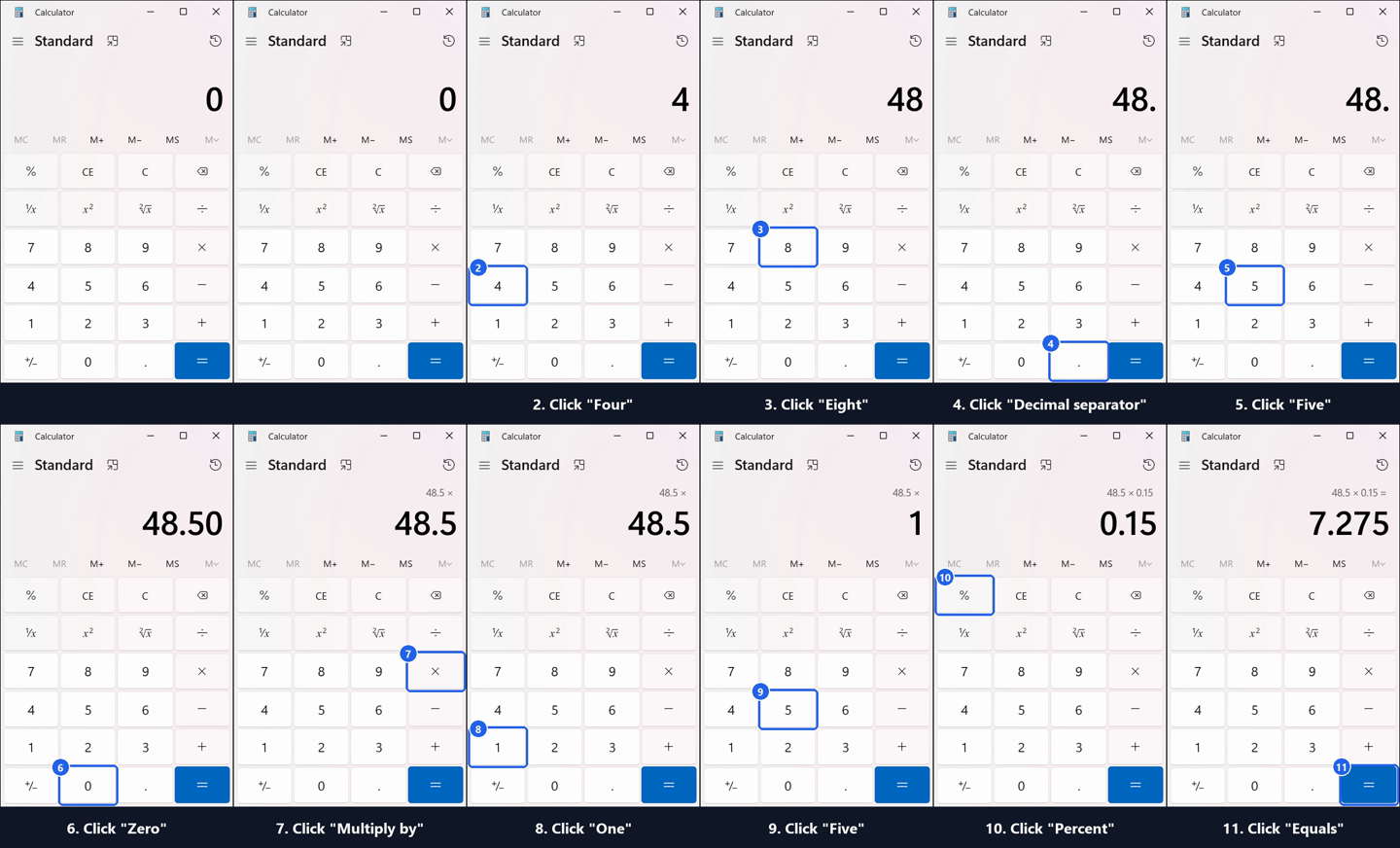
An agent recorded this on its own, through MCP: "How to work out a 15% tip on a $48.50 bill in
Windows Calculator". Video, step images and steps.md are in docs/demo/calculator-tip.
Agents work on their window in the background, so the person at the desk keeps their own cursor and keyboard. See Working beside you.
What agents learn about an app goes into its profile, and people share profiles at overshoulder.yepgent.com. See Sharing a profile.
Status: phase 6. Windows 10/11 only.
Install
Needs Windows, Python 3.11+ and ffmpeg on PATH (for recording).
python -m venv $env:LOCALAPPDATA\Programs\Overshoulder
& $env:LOCALAPPDATA\Programs\Overshoulder\Scripts\pip install overshoulder
Put %LOCALAPPDATA%\Programs\Overshoulder\Scripts on your PATH, or call overshoulder.exe from there.
To work on Overshoulder itself, install it from a clone instead:
git clone https://github.com/drknowhow/overshoulder
cd overshoulder
python -m venv .venv
.venv\Scripts\pip install -e ".[dev]"
Run Overshoulder from a normal user session. It refuses to start elevated.
Quick start
Start the gateway and the watchdog, each in its own terminal:
overshoulder serve      # MCP at http://127.0.0.1:47621/mcp
overshoulder watchdog   # panic key, human-input pause, scope outline, agent pointer
To start both at every login instead (per-user scheduled tasks, not elevated, restarted if they
crash; logs in %LOCALAPPDATA%\Overshoulder\logs):
overshoulder autostart install # also: status, uninstall
Create a client for each agent. The token is printed once; only its hash is stored.
overshoulder client add claude-code
A new client asks you before each window scope it takes and each screen scope. Add
--window allow to let it take window scopes without asking.
Register it with your agent, for example Claude Code:
claude mcp add --transport http overshoulder http://127.0.0.1:47621/mcp --header "Authorization: Bearer <token>"
Then ask the agent something like "take the Notepad window as your scope and type a shopping list".
What an agent can do
| Tool | Does |
|---|---|
windows |
List windows it could take as a scope |
take_scope |
Lease window:<hwnd>, screen:<n> or screen:all |
observe, find, read |
See the scope's controls (with refs like e12), filter them, read values; find painted buttons by their text or an icon by a description (below) |
act |
click, double_click, right_click, drag, invoke, toggle, select, set_value, type, hotkey, focus, activate, each verified afterwards |
screenshot |
Image of the scope |
record_start, record_stop |
Record the scope and render a tutorial |
redact |
While recording, hide an element in every frame of the tutorial |
annotate, render |
Edit one of its recordings' annotation layer and render it again |
profile |
What earlier sessions learned about the scope's app; add a note for the next agent (below) |
release_scope, status |
Give the desktop back; see who is driving |
Agents should prefer element refs and invoke/set_value. Coordinates work as well, for canvas
apps and other apps whose controls Windows can't see. act takes method. auto (the default) works
in the background and uses the person's mouse and keyboard only when nothing else reaches the app and
their settings allow it; background never uses them; input uses them straight away. Each result
says which method ran and whether it was a background one.
A drag goes from ref or x/y to to_ref or to_x/to_y. Both ends must be in scope, and a drop
onto something that discards or sends (a Recycle Bin, a "Delete" target) asks the person first.
Apps that paint their own buttons
Some apps draw their controls as pixels (games, canvases, many older apps), so Windows tells an agent nothing about them. Overshoulder then finds them by how the screen looks:
find(text="Save")reads the scope with the OCR built into Windows and returns where those words are as text refs (t1,t2...).observe(text=true)lists all the text it reads. A find by name that matches no control looks for the name on screen the same way.find(describe="the gear icon")asks a vision model where that is and returns a vision ref (v1...). It is off until you choose a model inovershoulder settings: Qwen3-VL 8B in Ollama on this PC (about 13 GB of graphics memory while loaded, unloaded after 5 idle minutes), or an OpenAI-compatible cloud model, which means screenshots of the agent's window leave the PC.- A vision ref is confirmed when the text inside its box, or the name Windows gives the control at its centre, matches the description. An action on an unconfirmed one asks you first, and the box on the desk shows you where the model looked. Your phone gets the words, and the picture only if you share screenshots.
- Text and vision refs take clicks and drags. Before each action the pixels under the ref are compared with what they were when it was found; if they changed, the ref is stale and has to be found again.
- A click by
x/yis checked against the text on screen at that point, sox/yon a painted Delete asks you, as a click on a Delete button does. - After an action on a text ref, a vision ref or a point, the result says how much changed around the
target (
verify.area).expect={"text_appears": "Saved"}checks with OCR that the words showed up where they were not before.
All of this reads only the agent's own scope. Reading text can be switched off in the settings, and then nothing is read.
App profiles
The first time an agent works in an app, Overshoulder starts a profile of it, and every session after that revises it. The next agent starts from what the earlier ones learned instead of from nothing.
- What it learns from use: the app's windows, the controls agents acted on (their kind and automation id; their names once two sessions have seen them), which methods worked for each kind of action there and which kept failing, the shortcut keys used, and where a vision model found a painted control, with a small hash of its pixels.
- What agents add:
profile(op="add")keeps a quirk, a shortcut, a how-to (its steps as actions and control names) or a note from a guide with its link.profile(op="learn")looks the app over without acting and adds the controls and shortcut keys an agent would use. - How it is used:
take_scopereturns a short brief of the profile, most used items first, andprofile()returns all of it. Methods that kept failing in this app are tried last. A find by name or automation id goes straight to a control the profile knows. A description a vision model answered before is checked against the screen and reused without asking the model again: 0.3 s instead of 38 s with the model loading cold, measured on a painted button with Qwen3-VL 8B. - What it never holds: window titles, typed text, what a field showed, file names, or anything an agent saw in only one session. A control whose name is the person's content keeps only its kind. Notes that hold an email address, a path or a link are refused.
- What it never does: grant anything. A profile only changes the order of methods an action may already use, and every hint is checked against the screen. Text in a profile reaches agents marked as notes from other agents, never as instructions.
Profiles are .osp files, one line per item, in %LOCALAPPDATA%\Overshoulder\profiles, with their
last 20 revisions in history\. overshoulder profile list and overshoulder profile show <app>
print them; the settings page lists them and has a switch that turns learning and hints off.
Sharing a profile
- Export from the settings page or with
overshoulder profile export <app> [file]. The copy leaves out what only this PC needs: anything seen in one session, the revision history and the bookkeeping. An agent can ask to export withprofile(op="export"); you approve it at the desk first. - Import is yours to do: upload the file on the settings page, or run
overshoulder profile import <file>. The file is checked first (its format, its size and the hash on its last line), and the page shows what it brings, including every note other agents wrote, before anything is added. An import adds only the items your profile lacks and marks them as imported; what your PC learned stays as it is. - Find profiles other people published on overshoulder.yepgent.com
under Find profiles on the settings page, or with
overshoulder profile search [text]. Nothing goes online until you press Load or run the command. The catalog's signature is checked with the key this Overshoulder ships, and apps you already have a profile for come first. Preview downloads one profile, checks it against the catalog's hash and its own signature, and opens the import page above;overshoulder profile get <app> [--by <login>]does the same in the terminal. - Publish from the settings page, or with
overshoulder profile publish <app> --as <github name>. You see every line first; it is the same copy Export saves. Then GitHub's new-file page opens on the registry with the file filled in atapps/<app id>/<github name>.osp, and GitHub makes the pull request, where the registry's checks run. A profile too long for a link opens the page with only the file's name, and you paste the text. Overshoulder never signs in to GitHub and doesn't keep your user name. - The registry is drknowhow/overshoulder-profiles.
Its checks run the export rules on every pull request; then Yep, the agent that looks after the
registry, reads the file and merges it as @yepgent. The merge signs the file and the catalog with the
registry's key and rebuilds the site. Profiles there are public domain (CC0 1.0). The import page of a
signed file says "Reviewed on the registry, published by @<name> in pull request #<n>";
any other file says it is not from the registry.
overshoulder profile verify <file>checks the signature in the terminal. - Agents can't install a profile. When an app has none on this PC, the take_scope brief says the registry has one, read from the catalog you loaded last. A weekly check for newer revisions of the profiles you installed is on the settings page, off until you turn it on.
overshoulder profile associatemakes.ospfiles open the import page when you double-click them (for your Windows user only;--removetakes it back).
Safety model
The gateway is the only path to the desktop. Every action goes through the same checks, and every refusal is logged.
-
One driver at a time. An agent holds a lease with a time limit, and others queue behind it.
-
Scope. A window scope is tied to that window and the process instance that owns it. Background actions go only to the scope's own windows. When real input is used, the click target is checked against the window actually under the pointer, and keystrokes are refused if focus has left the scope. Taking a whole screen needs a person's approval.
-
Hard denies, in every scope. Agents can't act on:
- the secure desktop (UAC prompts, the lock screen)
- elevated windows
- password fields, including a focused one when no target is given
- Win-key combos, Alt+Tab, Alt+Esc and Ctrl+Esc
- Overshoulder's own windows
If one of these checks can't tell, the answer is no.
-
Approvals. Clicking a control named like Send, Delete, Buy, Pay, Install, Save or Replace, pressing Delete, Alt+F4, Ctrl+S, Ctrl+W, Ctrl+Shift+W, Ctrl+Q or Ctrl+F4, or pressing Enter in a single-line field all need a one-time Yes from the person at the desk. So does an OK or Yes in a dialog whose text says one of those words ("Delete 3 files?"), and the first action in an Open or Save dialog that opens inside a window scope; context menus in such a dialog are refused. No answer within 60 seconds is No. The same question can also go to your phone; see Approvals on your phone.
-
Narrowing. A session can do less than its scope allows.
read_onlyrefuses every action but observing, screenshots and recording;no_typingrefuses typing,set_valueand hotkeys;deny_processes(for examplechrome.exe) takes a program's windows out of the scope, so agents can't act on them or see them inwindows(),observeorwait_for, and screen screenshots and recordings show them as black boxes. An agent can ask for these intake_scope. You can set them for a client, and its agent can't lift them:overshoulder client limit claude-code --no-typing --deny-process chrome.exe
A refusal comes back as
narrowed, with the limit and who set it.Some programs are denied to every client from the start: command shells and terminals (
cmd.exe,powershell.exe,pwsh.exe, Windows Terminal, WSL), script hosts,regedit.exe,mmc.exe, Task Manager, Settings, Control Panel, Overshoulder itself and common password managers. A scope on one of them would let an agent run any command. To allow one for a single client:overshoulder client limit claude-code --allow-process powershell.exe
-
The person always wins. While you use the mouse or keyboard, agents keep to background work, and anything that needs your real input waits until you've been idle for a few seconds. Touching them during such an action stops it. If Overshoulder can't watch for your input, it doesn't use your mouse or keyboard at all. Ctrl+Alt+P revokes the lease and pauses until you run
overshoulder resumeand then answer Yes in the box on screen, so a program that can read the operator key can't lift a panic by itself. The watchdog is a separate process, so agents can't stop it. It outlines the active scope and shows the agent's own blue pointer where it last acted; neither appears in recordings. -
Settings that give agents more. The gateway keeps the settings, phone and client files as you last accepted them, in memory and in
accepted-config.json. A change that gives agents more (a new client or token, a looser grant or limit, a higher input mode, a new phone channel or destination, vision switched on) pauses every agent and asks you in a box on screen, whether it came from the settings page,overshoulder client addor another program. No puts the old file back. If the box closes unanswered, nothing changes and agents stay paused; it asks again until you answer. A change that only takes something away is kept without asking. The gateway compares the files with the saved copy when it starts, so a change made while it was stopped is asked about too. -
The first start without a saved copy (after updating to this version, or if the copy was removed) compares the files with the defaults and asks once about everything past them, such as every client. No sets those files aside as
<name>.refusedinstead of deleting them. -
Logs. Every action goes to a JSONL file in
%LOCALAPPDATA%\Overshoulder\logs. Typed text is recorded only as its length, unless the agent took the scope withlog_text=true(needed for tutorial captions). -
Recordings and screenshots stay in scope. For a window scope, both capture that window's own pixels, even when something covers it, so your other windows never reach the agent.
-
Password fields are painted black in every picture: screenshots, recordings, the text OCR reads, what goes to the vision model, approval pictures and the screenshot sent to your phone. A window scope whose controls can't be read for password fields is not captured at all; on a screen scope such a window is painted black whole. Recordings look for fields every 0.3 s and hold each frame until the next look; a frame taken while a field moved, appeared or went away is painted black whole. A frame no look reaches within 3 s stops the recording.
-
Clients made before window scopes asked by default. A client that got
window="allow"from the old default asks again before window scopes.overshoulder client listmarks it; to give it back on purpose, keeping the token:overshoulder client grant claude-code --window allow
What this does not protect against
The gateway guards one path to the desktop: its MCP tools. An agent that also has a shell running as you, as Claude Code or Codex do, has others. It can read Overshoulder's files, rewrite the settings together with the saved copy of what you accepted, change Overshoulder's own code, end the watchdog, or send input without the gateway. The checks above don't stop that. To keep such an agent out, run it in the agent box, a WSL2 distro of its own:
overshoulder agent-box create
It downloads Debian from the list Microsoft publishes and checks its SHA-256, then locks the distro
down: Windows programs can't start (interop off), no Windows drives are mounted, the user agent has
no sudo and root is locked, the Windows clipboard and other distros' services are out of reach, and
agent's network allows only DNS, the gateway's port and the internet. It adds the client
agent-box (window scopes ask, screen scopes refused); the box on screen asks you about it. Its token
goes into the distro at /home/agent/.overshoulder/token. A UAC prompt asks to let the gateway's
Python through the Windows firewall from WSL. Finally it checks each part of the lock-down from inside.
Run it again to repair the box; overshoulder agent-box check checks it, and overshoulder agent-box remove --yes deletes it. The gateway also checks the box when it starts and once a day, including
that the network filter still refuses the agent's private and loopback connections, and shows the
result on the settings page and in overshoulder status.
create also turns on Serve the agent box on the settings page, which the box on screen asks you
about first. While it is on, the gateway listens on the WSL network adapter and serves only /mcp
there; the settings page and the operator routes stay on 127.0.0.1. The adapter's address changes
when WSL starts again, and the gateway follows it. Inside the box, the agent's MCP address is
http://overshoulder-gateway:47621/mcp, with the token from /home/agent/.overshoulder/token as
Authorization: Bearer <token>.
All WSL2 distros share one VM, kernel and network. Root in another distro, or Docker rewriting
iptables, can remove the box's network filter until the box restarts; the daily check catches that.
Give an agent in another distro no token. /mnt/wsl is shared between distros, so the agent can read
what other distros put there.
Working in the box
The agent can't see your Windows files. It works on its own clone inside the box, and code moves in
and out as git bundles, which you check before they reach your own copy. agent-box create installs
git and curl in the box, since agent can't install packages.
Open a shell in the box as agent, then install Claude Code and point it at the gateway:
wsl -d overshoulder-agent
curl -fsSL https://claude.ai/install.sh | bash
echo 'export PATH="$HOME/.local/bin:$PATH"' >> ~/.bashrc && source ~/.bashrc
claude mcp add --scope user --transport http overshoulder http://overshoulder-gateway:47621/mcp \
  --header "Authorization: Bearer $(cat ~/.overshoulder/token)"
claude mcp list    # overshoulder: ... Connected
Codex works the same way, with its own MCP setting for the same address and header. Sign in to the agent inside the box. Its API key or login then stays in the box.
To get code into the box, clone a public repository there over HTTPS. For a private one, send a bundle
from Windows; this hands the agent no GitHub credentials. The bundles go through cmd /c because
Windows PowerShell 5.1 turns a program's binary output into text:
git bundle create project.bundle --all
cmd /c "wsl -d overshoulder-agent -u agent --exec sh -c ""cat > ~/project.bundle"" < project.bundle"
# in the box: git clone -b main ~/project.bundle project
To get the agent's work out, have it commit to a branch, then fetch that branch from Windows into your copy and review it before you merge or run anything:
cmd /c "wsl -d overshoulder-agent -u agent --exec sh -c ""cd ~/project && git bundle create - main..agent-work"" > agent.bundle"
git fetch agent.bundle agent-work:agent-work
git diff main...agent-work
A fetch from a bundle runs none of the box's git hooks or config on Windows. The agent can still have written anything into the branch, including build scripts and tests, so read it before you build it.
Working beside you
Agents act on their window in the background first: UI Automation, then messages sent to the window
itself. Your cursor doesn't move, and the app you're using keeps the keyboard. Some apps respond only
to a real mouse or keyboard, and overshoulder settings sets whether an agent may then use yours:
- Never. Those actions are refused with
needs_real_input, and the agent has to ask you. - Only while I'm idle (the default). An agent may borrow them once you've left them alone for a few seconds (5 unless you change it). It brings its window forward, acts, then puts your cursor and your window back. A menu or dialog it opened stays in front for its next step, for up to 30 seconds. If you move while it works, it stops and leaves things as they are.
- Full control. An agent may use them whenever it needs to.
In every mode, touching the mouse or keyboard stops an agent that is using them.
What works in the background depends on the app. Overshoulder tries, in order: a Win32 control's own
message (BM_CLICK, WM_SETTEXT, EM_REPLACESEL), UI Automation, then messages posted to the window
(characters, clicks, drags, and hotkeys with their modifiers set in the app's own key state). The measurements
are in docs/SPIKE-phase2.md. In
docs/evidence/phase2-e2e-never, a headless Claude agent works in
Notepad, Calculator and Character Map with the input mode set to "never". Sampled every 50 ms for
56 seconds, the person's window stayed in front, the cursor did not move, and no input was injected.
docs/evidence/phase2-borrow shows a borrowed click that waited for
the person to stop using the PC, then put their cursor and window back. In
docs/evidence/phase3-e2e, a headless agent narrows its own session, drags
a box in the background while a program it was denied covers the start point, and records the drag as
a tutorial whose Shotcut project renders to match the video. In
docs/evidence/phase4-e2e, a headless agent works a window of painted
buttons with text refs and vision refs, and its click on a painted Delete is put to the person. In
docs/evidence/phase5-e2e, three headless agents do Calculator tasks: the
first with no profile, the second with the profile the first one's session built, and the third in a
clean data directory with that profile exported and imported. On Calculator, the profile did not make
the work smaller (29, 26 and 27 tool calls, no failed tries in any run); the later agents followed its
how-to and said its brief matched what they saw. In docs/evidence/phase6-e2e,
headless agents build profiles of Calculator, Notepad, Character Map and Paint, @yepgent publishes them
on the registry, and a clean data directory finds the Calculator profile on the site, installs it, and
the next agent's brief carries it.
Waiting for the person
When an agent needs you to do something (sign in, approve, finish a form), it can watch for the
result instead of asking you to say "done". overshoulder wait exits 0 as soon as any condition
holds, and 3 on timeout. Hosts that run background commands, such as Claude Code, pick the work
back up automatically. Agents can also use the wait_for tool.
overshoulder wait --window-appears "Order confirmed"
overshoulder wait --window-closes "Installing" --file "C:\Users\me\Downloads\report.pdf"
overshoulder wait --json '{"kind": "element_appears", "title_re": "Setup", "name": "Finish"}'
Detection only reads window titles, on-screen controls and files. overshoulder settings opens a
local page where you switch it on or off, choose what agents may watch, limit it to particular apps,
and set how often it checks and how long it may wait.
File waits take local paths only: a network path such as \\server\share would make Windows sign in
to that server as you. Overshoulder's own data folder is off limits. To keep a client's file waits
to some folders:
overshoulder client limit claude-code --wait-folder "C:\Users\me\Downloads"
overshoulder client limit claude-code --any-wait-folder   # lift it
Approvals on your phone
When an agent needs your Yes, Overshoulder can ask your phone at the same time as the box on your
desk. The first answer counts and closes the other prompt. No answer before the time runs out (60
seconds unless you change it) is No. Set it up in overshoulder settings under "Approvals on your
phone", then press "Send a test question" to check it.
Your PC only makes outgoing requests; nothing on it listens for your phone. The phone is told what
the agent wants to do, the program's name and when the question expires. The window's title and a
screenshot of the window are sent only if you tick those boxes. The log records which channel
answered, as approved_by.
ntfy. Install the ntfy app and subscribe to the topic the settings page shows, on the same server: ntfy.sh, or your own with an access token if it needs one. A question arrives as a notification titled with the action, such as "Allow click on 'Send'?", with Allow and Deny buttons. Allow then asks again: a second notification, "Confirm click on 'Send'?", has Cancel where Allow was and a button that names the control, "Confirm Send", beside it. Only that button approves. In testing, phone taps sometimes landed on the other button, so one stray tap can refuse an action but cannot approve one (see Limits). A button posts the answer to a second, secret topic. The answer names that question's one-time id and carries an HMAC under a key that never leaves your PC, so a forged answer, or a copy of an answer to an earlier question, is ignored. When a question is answered anywhere or expires, its notification is deleted. Anyone who knows the topics can read the questions, so keep them to yourself; "Make new topics" replaces them.
Webhook. For your own server or another app. Each question is POSTed to the webhook URL:
{"type": "overshoulder.approval", "id": "<one-time id>", "reason": "click on 'Send'",
 "process": "outlook.exe", "expires_at": 1761240000.0, "text": "<what the phone shows>"}
with title and screenshot_png_base64 added if you share them. The request carries
X-Overshoulder-Signature: sha256=<hex>, an HMAC-SHA256 of the body under the webhook secret from the
settings page. Answer in the response, or later at the answer URL, which Overshoulder polls every two
seconds with GET <answer URL>?id=<id> (signed the same way, over the id):
{"id": "<id>", "answer": "yes", "mac": "<hex HMAC-SHA256 of '<id>.yes' under the webhook secret>"}
answer is yes or no. Anything else counts as no answer yet. When the question closes,
Overshoulder POSTs {"type": "overshoulder.approval.closed", "id": "<id>", "outcome": "answered"}
(or "closed" if it was answered elsewhere or expired), signed the same way.
Tutorials
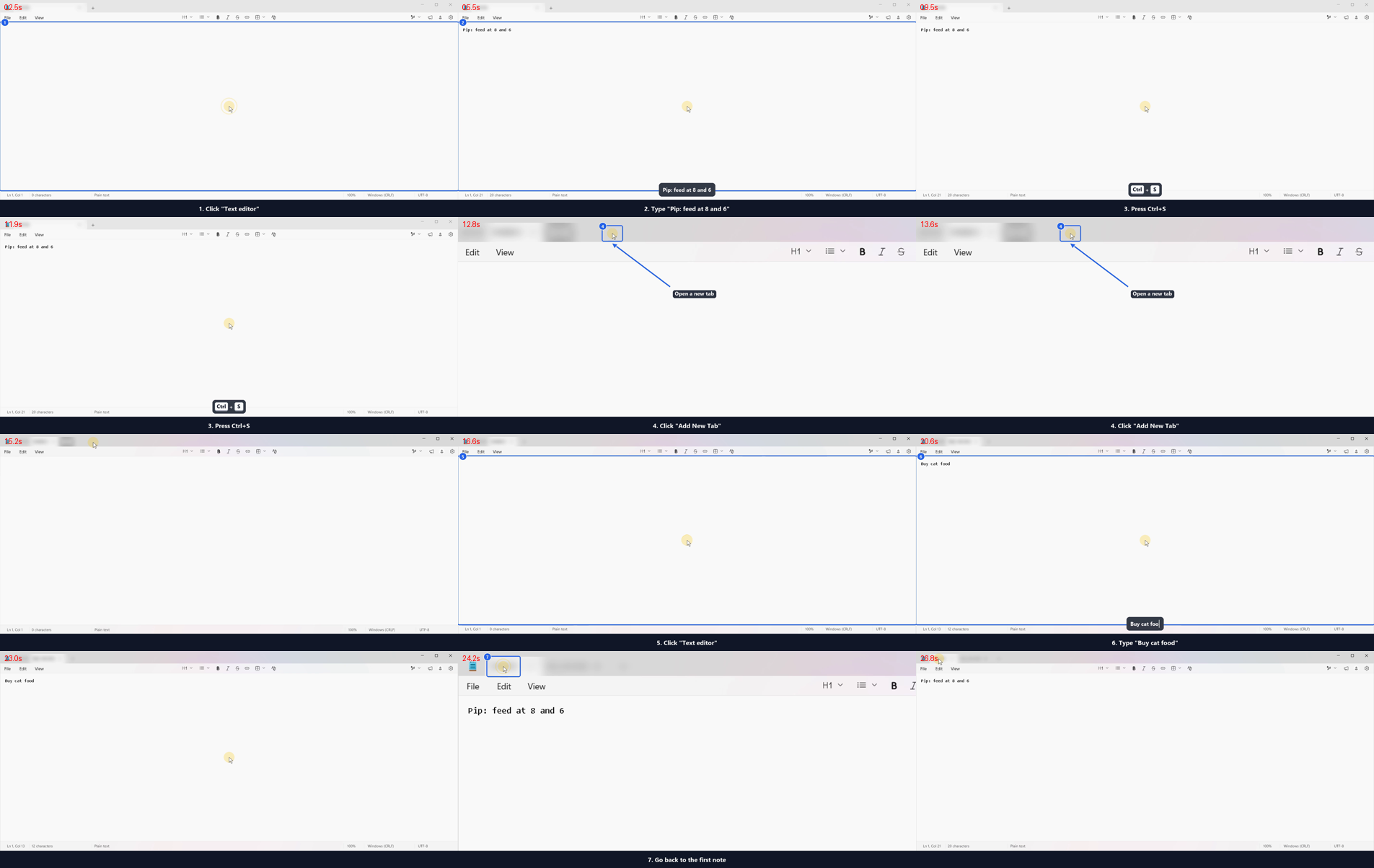
record_start captures a clean video of the scope. record_stop renders it into tutorial/ inside
the recording's folder (%LOCALAPPDATA%\Overshoulder\recordings\<stamp>-<name>):
tutorial.mp4: the agent's pointer gliding to each target, click ripples, numbered highlights and a caption strip, with the idle time between steps cut. The camera zooms in on small controls and holds still while the next steps stay in view; strokes on a canvas (x/y targets) are drawn without it moving. A run of four or more alike steps (strokes on a canvas, one button clicked again and again) plays its first step, or its first two the first time, at normal speed and the rest four times faster, under a fast-forward chip;speed="off"turns that off. Hotkeys show as keycaps, and typed text appears as a caption while it is typed.tutorial.gif, 640 px wide, for a README or a chat.step-NN.pngfor each step (always the whole frame),steps.mdandsteps.json.- With narration: a voice track in the MP4, plus
narration.wavandnarration.srt. Each line starts with its step's caption. When a line runs longer than its step, the video holds on the frame just before the pointer moves on, until the line ends. - With
mlt:tutorial.mlt, a Shotcut project of the same edit, with its media inedit/. See Finishing in Shotcut.
Everything rendered for people carries a small "Made with Overshoulder" mark at the right end of the
caption strip, where it never covers the app. An annotated screenshot gets a thin strip underneath for
it, and steps.md ends with a line linking overshoulder.yepgent.com.
The Tutorials setting "Show Made with Overshoulder" turns the visible mark off; it is on for a new
install, and turning it off costs nothing. The files say it in their metadata either way: the MP4's
comment tag, a PNG text chunk and a GIF comment. Screenshots an agent takes for itself stay clean.
The original video is never changed. Everything added on top comes from annotations.json beside it,
which the agent or you can edit before rendering again:
| Kind | Fields | Does |
|---|---|---|
box |
rect, text?, color? |
Outlined box, optionally labelled |
arrow |
tail, head, color? |
Arrow pointing at head |
text |
at, text, size?, color? |
Label on a dark pill |
badge |
at, text? |
Round badge |
spotlight |
rect |
Dims everything outside rect |
redact |
rect, style? |
blur (default), pixelate or solid, in every output |
step |
step, caption?, hidden?, narration?, audio? |
Edits one step: its caption, whether it shows, what it says |
cut |
t0, t1 |
Drops that part of the recording and the steps in it |
speed |
t0, t1 or step, factor? |
Plays that part, or that step, factor times faster (default 4); factor 1 keeps normal speed where the automatic speed-up would play it faster |
crop |
rect |
Crops every output |
Coordinates are pixels of the recorded frame, the same pixels steps.json uses for each step's
rect. A drawn item shows during one step (step: that step's id), between t0 and t1 seconds,
or throughout. Items from the example:
{"id": "a1", "kind": "redact", "rect": [56, 12, 363, 52], "style": "blur", "note": "redacted by ref e72"},
{"id": "a2", "kind": "arrow", "step": 4, "head": [387, 55], "tail": [507, 145]},
{"id": "a4", "kind": "step", "step": 3, "narration": "Press Control S to save the first note."}
Agents do the same over MCP. redact(ref) while recording hides an element's rectangle in every
frame. annotate(recording, op) lists the steps and items, or adds, edits or removes items.
render(recording, ...) renders again (zoom, keys, gif, narrate, voice, pointer, mlt). An
agent can annotate and render only its own recordings, and these two still work after it releases
the scope. From the command line:
overshoulder annotate <dir> list
overshoulder annotate <dir> add arrow --step 4 --tail 507,145 --head 387,55
overshoulder annotate <dir> add step --step 3 --narration "Press Control S to save."
overshoulder render <dir> --narrate --voice Zira     # also: --zoom off, --speed off, --no-keys, --no-gif, --pointer real, --mlt
overshoulder render <dir> --tts-cmd "piper -m en.onnx -f {out} < {text_file}"
overshoulder voices
A screenshot takes a layer too: overshoulder annotate shot.png add box --rect 10,10,200,80 writes
shot.annotations.json, and overshoulder render shot.png writes shot.annotated.png.
In docs/evidence/tutorial-annotate, a headless agent records, redacts, annotates and narrates a Notepad tutorial on its own, working in the background.
Finishing in Shotcut
tutorial.mlt opens in Shotcut as the same edit tutorial.mp4 shows, in parts
you can change:
- Recording: clips of
edit/clean.mp4with the tutorial's cuts. Each zoom is a Size, Position & Rotate filter on its clip, and each narration hold is a still (edit/hold-NN.png).clean.mp4has every recorded frame, so a clip can be lengthened. Redactions are already applied to it, so hiding the annotation track shows nothing a redaction covers. - Annotations:
edit/overlay.mov, everything drawn on top (pointer, highlights, badges, keycaps, layer items and the caption strip), transparent elsewhere. - Made with Overshoulder:
edit/mark.png, the mark on a track of its own. - Narration:
narration.wav, when the tutorial is narrated. - A marker at each step, named after its caption.
Paths in the project are relative, so the folder can be moved. Rendered with Shotcut's melt, the
project matches tutorial.mp4 frame for frame (on the Notepad example above, every frame is above
0.99 SSIM and 33 dB PSNR). If you save the project in Shotcut, the next render leaves it alone and
writes tutorial-2.mlt with its media in edit-2/.
Limits (phase 6)
- Windows only. Multi-monitor and mixed-DPI setups are untested; development used one 125% monitor.
- Chromium and Electron apps take typing only while they are in front (measured on VS Code; Chrome itself is untested), so typing into them needs real input: borrowed in "borrow" mode, refused in "never" mode. Clicks and UI Automation work on them in the background.
- UWP and XAML apps such as Calculator ignore posted clicks. UI Automation's Invoke on them brings the app forward for a moment, and Overshoulder puts the person's window straight back. Typing into them does not. The new Notepad's menus (XAML flyouts) do not open in the background.
- Drags in the background work in apps that read the pointer from each message (Win32, WinForms).
Explorer, list and tree views start drags from the real mouse, and Tk follows the real cursor while
a button is held, so dragging in them needs real input: borrowed in "borrow" mode, refused in
"never" mode. A drop into another window always needs real input. One background drag in the phase 3
end-to-end run moved nothing while someone was using the mouse at the same time; the cause is not
known (run 1). That drag reported
verify.changed: false. - In four of the six live phone runs, the phone sent a different answer from the one the person meant, in both directions. In one of them it approved Delete with Allow and Confirm when the plan was to deny it. The cause is not known (phone check). Both later runs passed: one asked its questions 10 s apart, and the other, after the titles began naming the action, 1.5 s apart. Use phone approvals for actions you could undo, or answer at the desk.
- For apps that hide their controls from UI Automation, OCR reads the languages installed for your Windows user. It was measured on two test windows only (the painted-buttons app at 100% and 125%, and Character Map). Refs found this way take only mouse actions; to type, click first.
- The vision model's own confidence is not used: measured with Qwen3-VL 8B it was 0.99 for right and wrong boxes alike. A cold local model takes about 30 s to load. The cloud option was tested against a stand-in server only, not a real provider.
- Screen-scope recordings use desktop capture, so anything on that screen is recorded, except the windows of programs the session is denied and password fields.
- A redaction is a fixed rectangle of the recorded frame. If the control it covers scrolls or moves inside the window, the redaction stays where the control was.
- Narration uses the voices System.Speech can see (
overshoulder voiceslists them; an English Windows 11 has David and Zira). For any other engine, render from the CLI with--tts-cmd. - The Shotcut project's annotation track is one video: an annotation can be hidden or trimmed with
it, but changing what it draws means editing
annotations.jsonand rendering again. - Profiles are keyed by the app's identity (its package or its program's company and name). Two programs that report nothing to tell them apart share one profile. A profile describes the app as it looked when it was learned; after an update, items not yet seen on the new version are marked so in the brief until a session sees them.
- A registry signature says the registry's checks passed and Yep accepted the file, and who published it. It does not say the profile's notes are right: they are what agents saw, and the brief gives them to agents as information, never as instructions. A file from anywhere else carries only the hash that shows it was not changed after export.
Development
pip install -e ".[dev]"
pytest -q                                   # unit tests, CI runs these
$env:OVERSHOULDER_DESKTOP_TESTS = "1"; pytest -q   # plus live tests that open real apps
Design notes: docs/PLAN.md, docs/SPIKE-phase0.md, docs/SPIKE-phase2.md. Evidence from live runs: docs/evidence.
License
MIT. See LICENSE.
1 maintainer

Metadata
1 maintainer
Release files for overshoulder 0.1.0
For a detailed explanation of source distributions (sdists) and built distributions (wheels), please see the package formats documentation.
Source distribution (sdist)
| File | Size | Uploaded | Provenance | Actions |
|---|---|---|---|---|
| overshoulder-0.1.0.tar.gz | 382.5 kB | With provenance | Details for overshoulder-0.1.0.tar.gz |
Built distribution (wheel)
| File | Interpreter | ABI | Platform | Actions Reset |
|---|---|---|---|---|
| overshoulder-0.1.0-py3-none-any.whl | Python 3 | none | any | Details for overshoulder-0.1.0-py3-none-any.whl |
Total release size: 651.4 kB
Release files / overshoulder-0.1.0.tar.gz
| Download URL | overshoulder-0.1.0.tar.gz |
|---|---|
| Size | 382.5 kB |
| Tags | Source |
|
SHA-256 checksum How to use checksums |
84fc138ccff1da27def0c0b997590eeb59dec27c3b609def0517fdccacefcf36
|
|
BLAKE2b-256 checksum How to use checksums |
a9eccb24157b8158c2627e3ceee8317a1d444b234d4d482765de9f313e8b4dd6
|
| Upload date | |
|
Uploaded using Trusted Publishing? What is trusted publishing? |
Yes |
| Uploaded via |
twine/7.0.0 CPython/3.13.16
|
Provenance
Provenance describes where a file came from. On PyPI, provenance is shared via attestations, which provide a verifiable record of the build or publishing details. View details, limitations and caveats.


PyPI Publish Attestation
PyPI verified that this artifact, at this checksum, originated from the publisher listed below.
Signed by GitHub Actions, verified by PyPI on Nov 7, 2026.
Transparency logRelease files / overshoulder-0.1.0-py3-none-any.whl
| Download URL | overshoulder-0.1.0-py3-none-any.whl |
|---|---|
| Size | 268.9 kB |
| Tags | Python 3 |
|
SHA-256 checksum How to use checksums |
66902e56dab0803ba06a54080d2548c43f50e3b06fe7dfe46a13e93e1534a75c
|
|
BLAKE2b-256 checksum How to use checksums |
1e5bd0bfedec983aae31956608b723ff58da09fe63fa4966a71249512c60391a
|
| Upload date | |
|
Uploaded using Trusted Publishing? What is trusted publishing? |
Yes |
| Uploaded via |
twine/7.0.0 CPython/3.13.16
|
Provenance
Provenance describes where a file came from. On PyPI, provenance is shared via attestations, which provide a verifiable record of the build or publishing details. View details, limitations and caveats.
PyPI Publish Attestation
PyPI verified that this artifact, at this checksum, originated from the publisher listed below.
Signed by GitHub Actions, verified by PyPI on Nov 7, 2026.
Transparency logSecurity for overshoulder 0.1.0
Provenance
Provenance describes where a file came from. On PyPI, provenance is shared via attestations, which provide a verifiable record of the build or publishing details. View details, limitations and caveats.
Full provenance
Both files in this release have been uploaded with provenance metadata.
Attestation for overshoulder-0.1.0.tar.gz
PyPI Publish Attestation
PyPI verified that this artifact, at this checksum, originated from the publisher listed below.
Signed by GitHub Actions, verified by PyPI on Nov 7, 2026.
Transparency logA note on package security
PyPI is a repository for distributing packages, not a service for auditing them. While third-party security researchers and our staff do their best to detect and remove malicious packages, PyPI cannot guarantee the quality, security or suitability of any given package.
To learn more about protecting yourself from malicious actors, visit our package security documentation.













