
OpenVoiceOS Home Screen
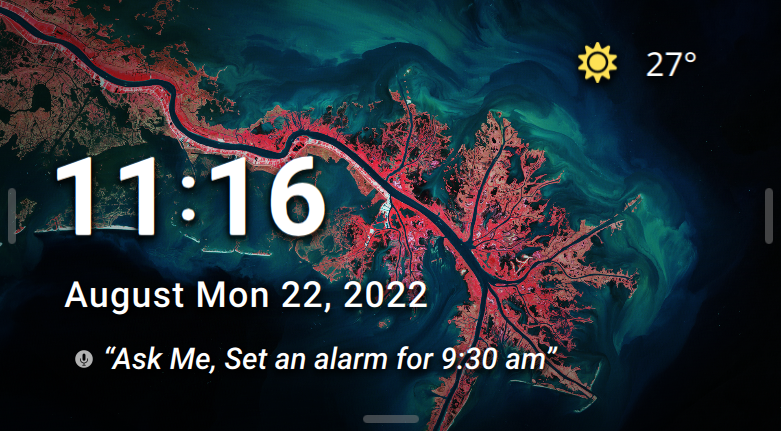
The home screen is the central place for all your tasks. It is the first thing you will see after completing the onboarding process. It supports a variety of pre-defined widgets which provide you with a quick overview of information you need to know like the current date, time and weather. The home screen contains various features and integrations which you can learn more about in the following sections.
Features
Night Mode Feature
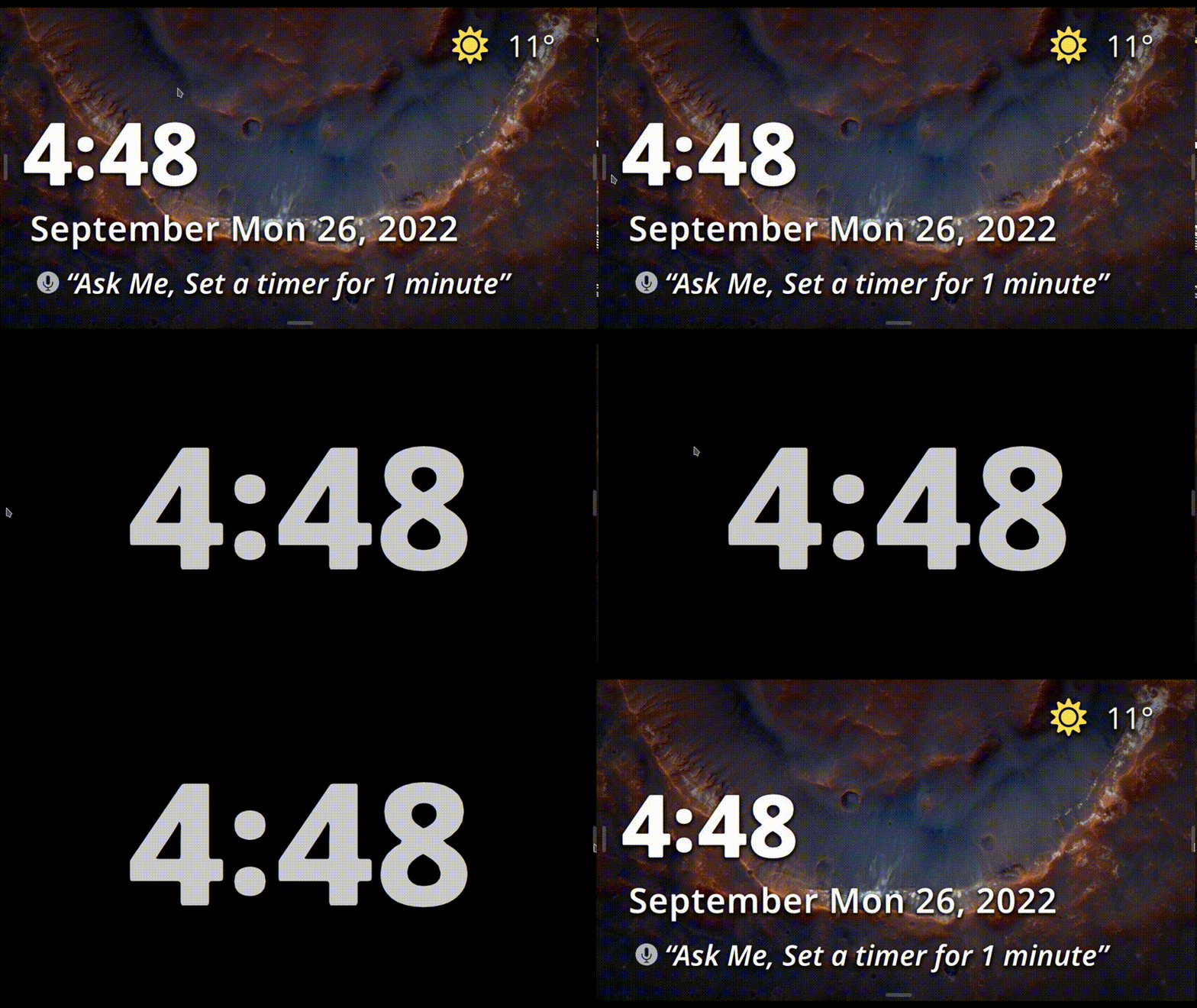
The Night Mode feature lets you quickly switch your home screen into a dark standby clock, reducing the amount of light emitted by your device. This is especially useful if you are using your device in a dark room or at night. You can enable the night mode feature by tapping on the left edge pill button on the home screen.
Quick Actions Dashboard
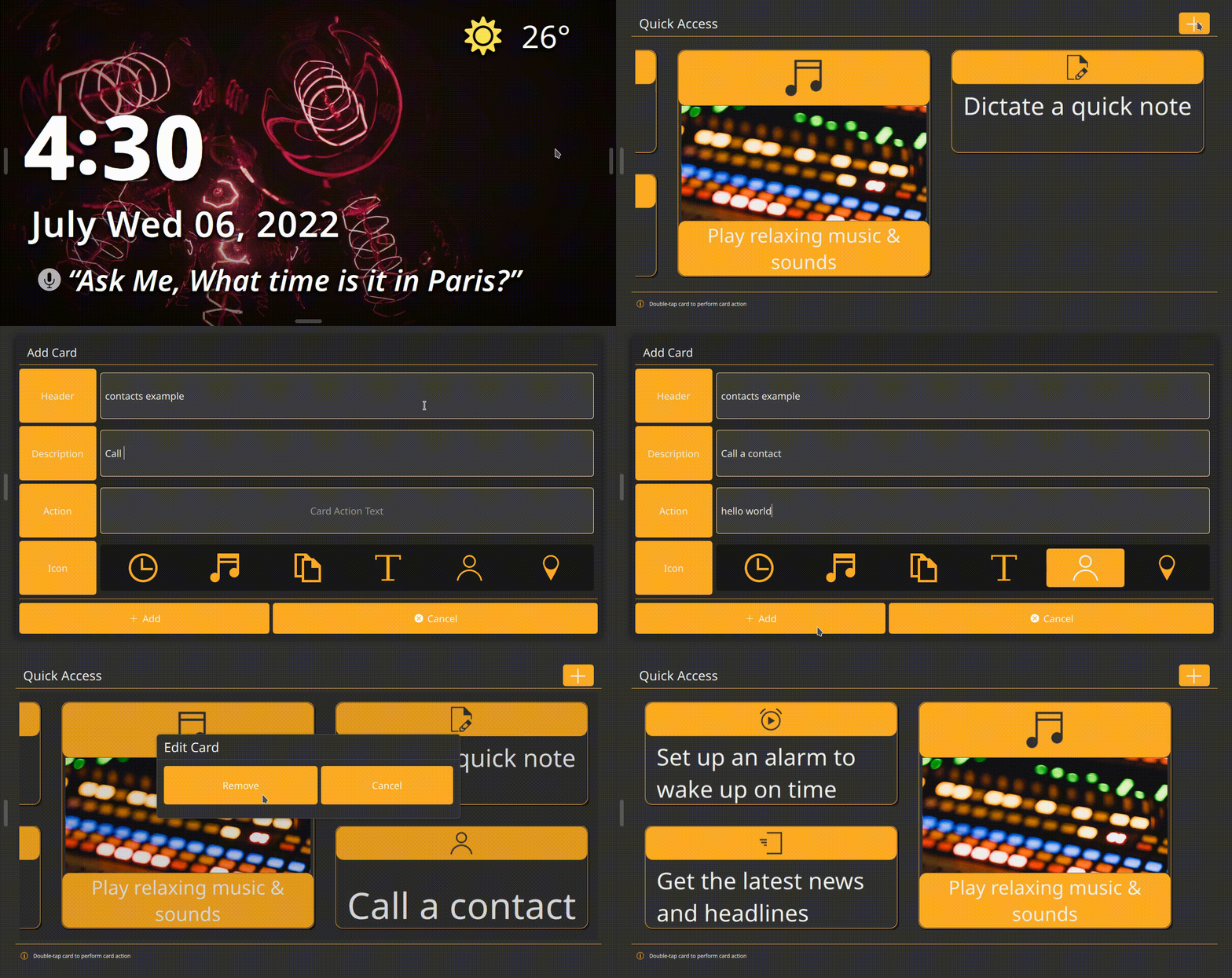
The Quick Actions Dashboard provides you with a card-based interface to quickly access and add your most used action. The Quick Actions dashboard comes with a variety of pre-defined actions like the ability to quickly add a new alarm, start a new timer or add a new note. You can also add your own custom actions to the dashboard by tapping on the plus button in the top right corner of the dashboard. The Quick Actions dashboard is accessible by tapping on the right edge pill button on the home screen.
Application Launcher
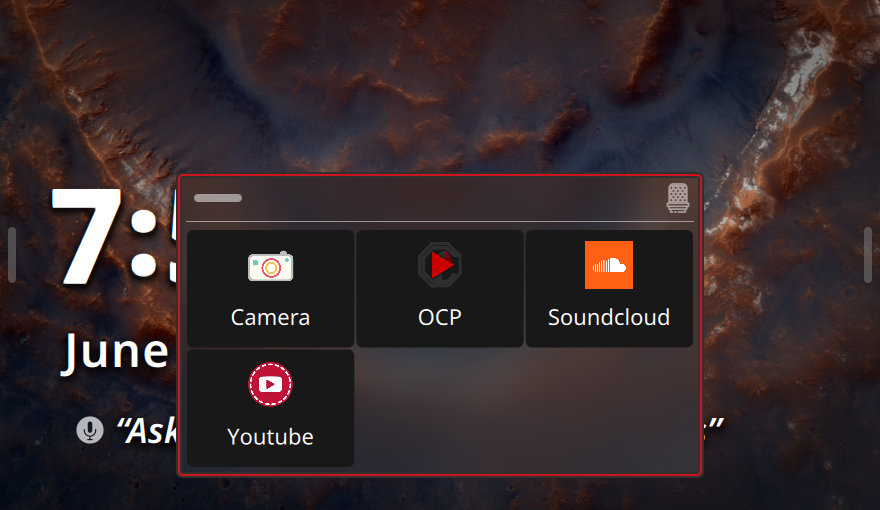
OpenVoiceOS comes with support for dedicated voice applications. Voice Applications can be dedicated skills or PHAL plugins, providing their own dedicated user interface. The application launcher will show you a list of all available voice applications. You can access the application launcher by tapping on the center pill button on the bottom of the home screen.
Wallpapers
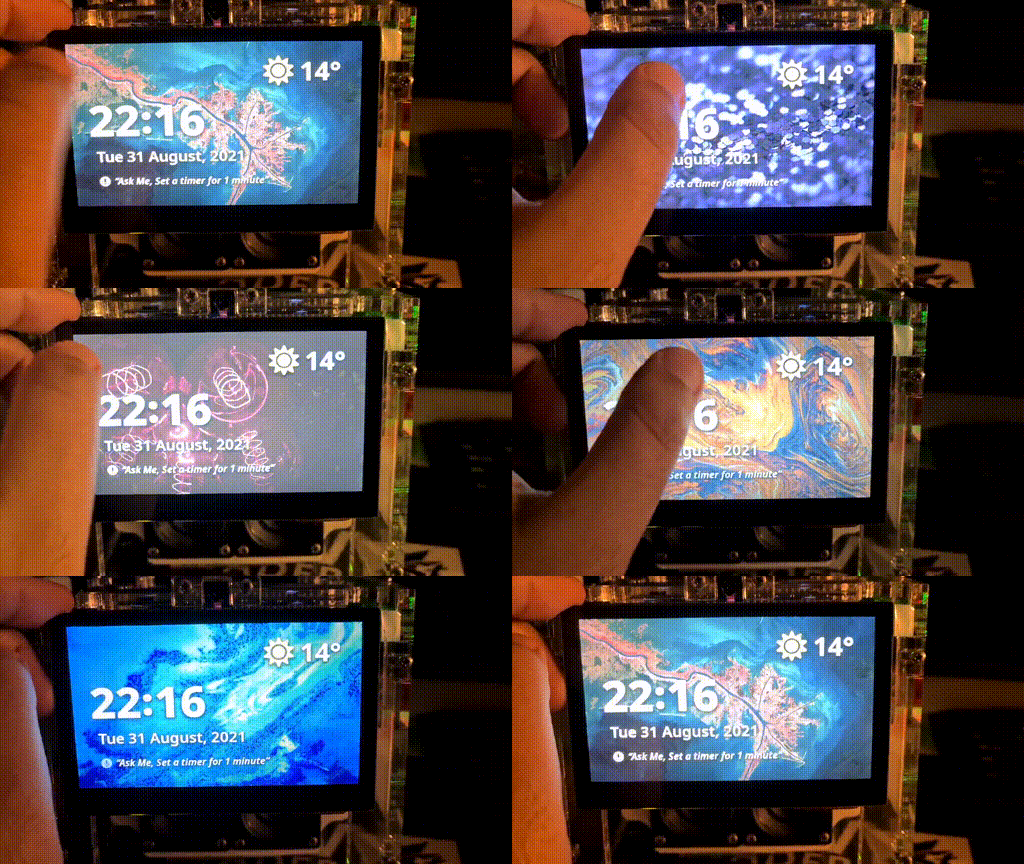
The home screen supports custom wallpapers and comes with a bunch of wallpapers to choose from. You can easily change your custom wallpaper by swiping from right to left on the home screen.
Widgets
Notifications Widget
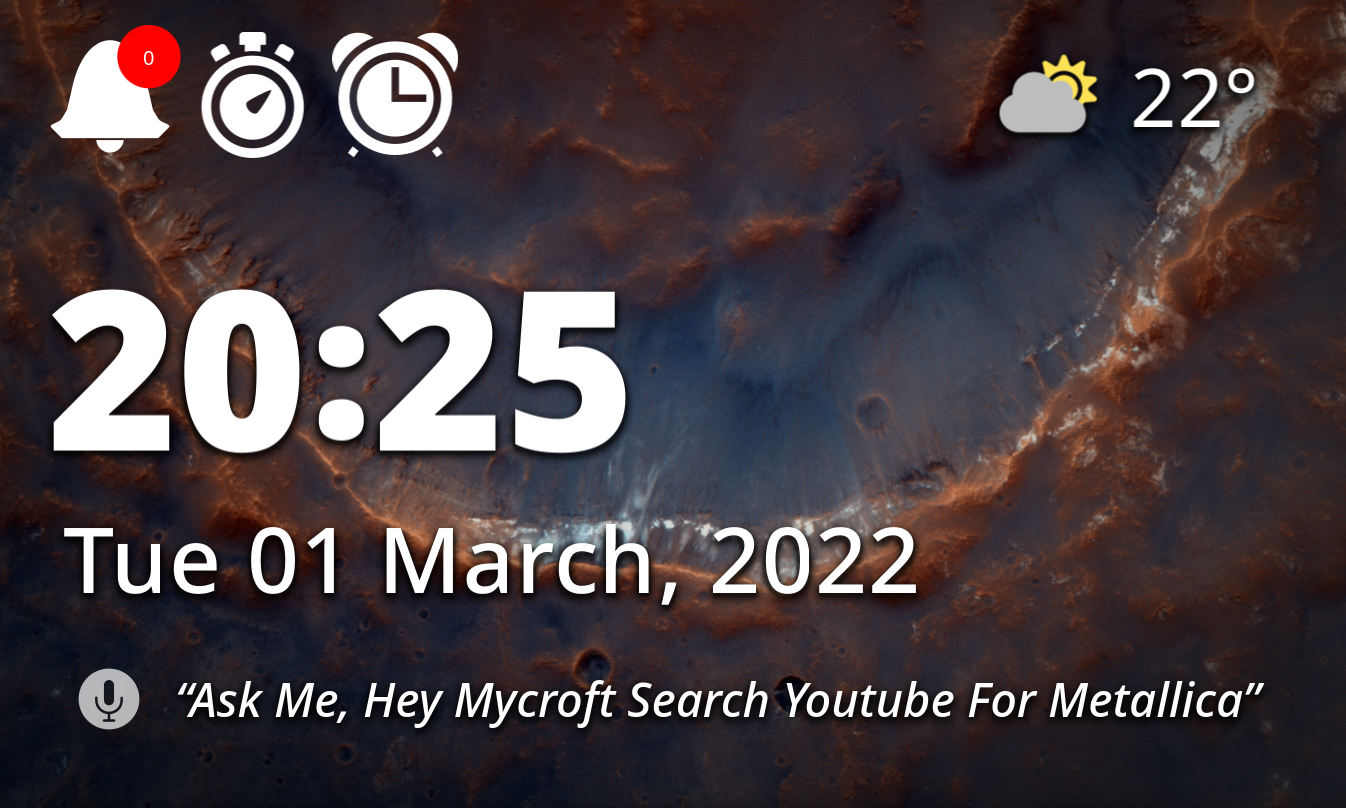
The notifications widget provides you with a quick overview of all your notifications. The notifications bell icon will be displayed in the top left corner of the home screen. You can access the notifications overview by tapping on the bell icon when it is displayed.
Timer Widget
The timer widget is displayed in top left corner after the notifications bell icon. It will show up when you have an active timer running. Clicking on the timer widget will open the timers overview.
Alarm Widget
The alarm widget is displayed in top left corner after the timer widget. It will show up when you have an active alarm set. Clicking on the alarm widget will open the alarms overview.
Media Player Widget
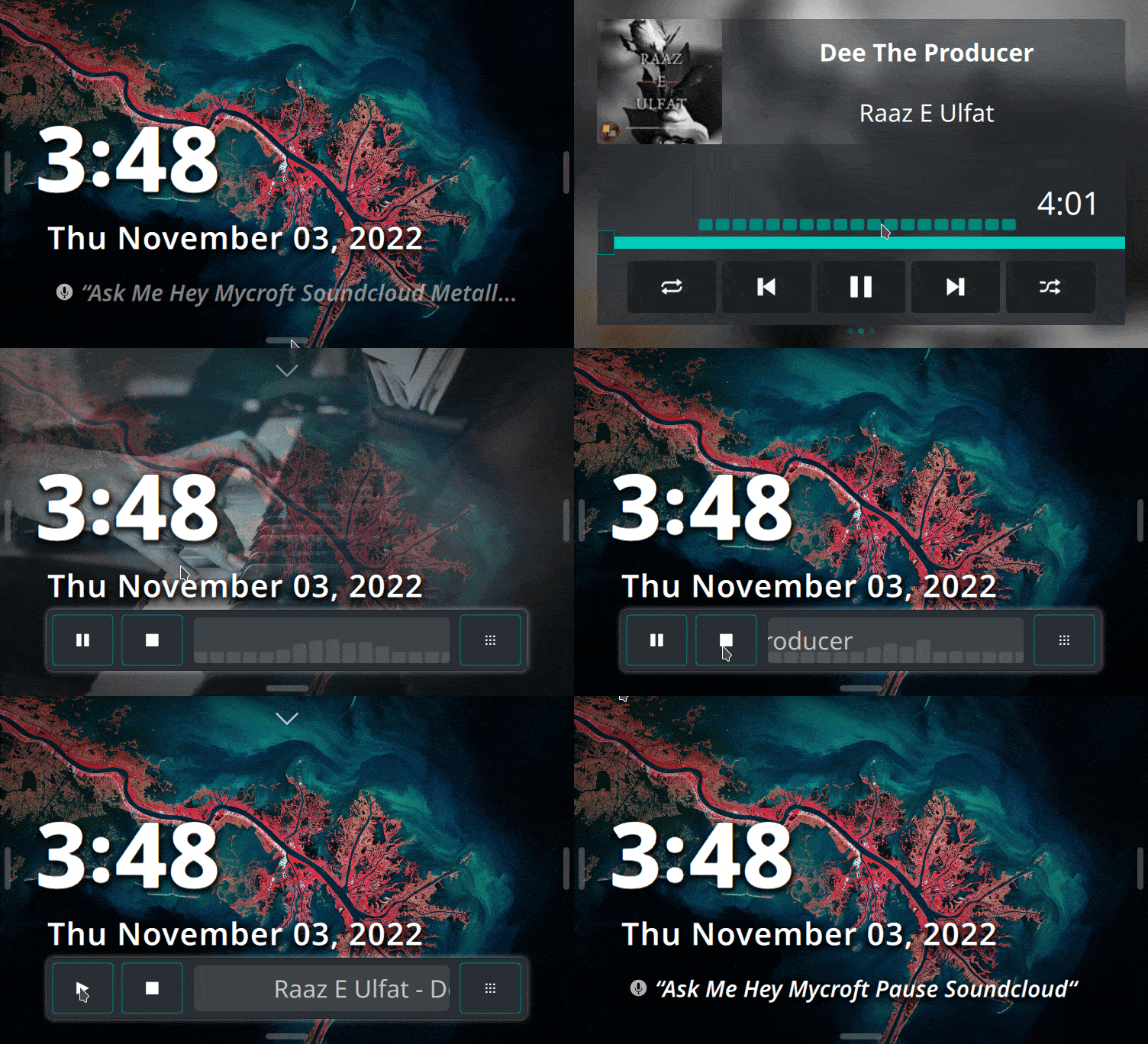
The media player widget is displayed in the bottom of the home screen, It replaces the examples widget when a media player is active. The media player widget will show you the currently playing media and provide you with a quick way to pause, resume or skip the current media. You can also quickly access the media player by tapping the quick display media player button on the right side of the media player widget.
Configuration
Settings
The homescreen has several customizations available via the standard skill settings mechanism
Sample settings.json file with all of the options explained
{
  "weather_skill": "skill-weather.openvoiceos",
  "datetime_skill": "skill-date-time.mycroftai",
  "examples_skill": "ovos-skills-info.openvoiceos",
  "wallpaper": "default.jpg",
  "persistent_menu_hint": true,
  "examples_enabled": false,
  "randomize_examples": true,
  "examples_prefix": false
}
- weather_skill: Allows you to use a custom skill to display the weather. Defaults to
skill-ovos-weather.openvoiceos - datetime_skill: Allows you to use a custom skill to display the date and time. Defaults to
skill-ovos-date-time.openvoiceos - examples_skill: Allows use of a custom skill for the displayed examples. Defaults to
ovos_skills_manager.utils.get_skills_example()function - wallpaper: Allows a custom wallpaper to be displayed. Use a complete url without any tilde
~ - persistent_menu_hint: When true, displayes a hint of the pull-down menu at the top of the page
- examples_enabled: When false, the examples at the bottom of the screen will be hidden
- randomize_examples: When false, the rotation of the examples will follow the way they are loaded
- examples_prefix: When false, the prefix 'Ask Me' will NOT be displayed with the examples
settings.json will be located in the following places:
OVOS: ~/.config/mycroft/skills/skill-ovos-homescreen.openvoiceos/settings.json
Neon: ~/.config/neon/skills/skill-ovos-homescreen.openvoiceos/settings.json
For other OVOS-based installations, first try the OVOS location, which is the default.
1 maintainer

Release files for ovos-skill-homescreen 3.0.3
For a detailed explanation of source distributions (sdists) and built distributions (wheels), please see the package formats documentation.
Source distribution (sdist)
| File | Size | Uploaded | |
|---|---|---|---|
| ovos-skill-homescreen-3.0.3.tar.gz | 126.1 kB | Details |
Built distribution (wheel)
| File | Interpreter | ABI | Platform | Reset |
|---|---|---|---|---|
| ovos_skill_homescreen-3.0.3-py3-none-any.whl | Python 3 | none | any | Details |
Total release size: 284.5 kB
Release files / ovos-skill-homescreen-3.0.3.tar.gz
| Download URL | ovos-skill-homescreen-3.0.3.tar.gz |
|---|---|
| Size | 126.1 kB |
| Tags | Source |
|
SHA-256 checksum How to use checksums |
576040f77f6a7f7a35a982a059a759c020a55b22ed48af4a7b9330a946d06166
|
|
BLAKE2b-256 checksum How to use checksums |
27665c0c72683907a45b5f582a794e80c325f8ea1bcedd1b54487e9bab9f774e
|
| Upload date | |
|
Uploaded using Trusted Publishing? What is trusted publishing? |
No |
| Uploaded via |
twine/6.1.0 CPython/3.9.23
|
Release files / ovos_skill_homescreen-3.0.3-py3-none-any.whl
| Download URL | ovos_skill_homescreen-3.0.3-py3-none-any.whl |
|---|---|
| Size | 158.4 kB |
| Tags | Python 3 |
|
SHA-256 checksum How to use checksums |
9140cf66676e6b6a0197812276c49c790e065c752744edb9cd14b6e79c4d1d6d
|
|
BLAKE2b-256 checksum How to use checksums |
75179bfac857487e5f24a593a18f9145f047b738b6ca77787941721644e9b9cf
|
| Upload date | |
|
Uploaded using Trusted Publishing? What is trusted publishing? |
No |
| Uploaded via |
twine/6.1.0 CPython/3.9.23
|














