
PeakTech P1255 Oscilloscope Tool

Project description
Peaktech P1255
Peaktech P1255 open-source remote data acquisition software
This software can query data from the Peaktech P1255 oscilloscope via LAN, decode and export the data. It can be installed via pipx:
pipx install p1255
and it provides two executables: peak-view is a GUI application to view and export data and peak-capture is a command line tool to grab data and save it to a file.
Use peak-capture --help to see all available options.
Connection
The network configuration for the oscilloscope needs to be done on the device itself. The device does not support DHCP, so you need to set a static IP address.
IPv4 LAN
The Oscilloscope is connected to a network via a LAN cable. The network interface provides an IPv4 TCP/IP socket, listening on port 3000 on the device. Unfortunately these devices do not support DHCP, so the network settings need to be done manually:
- Press the "utility" button on the oscilloscope
- Press the "H1" button to access the possible menus
- Scroll down to "LAN Set" by rotating the "M" knob
- Press the "M" knob to enter the menu
- Press on the "H2" Button ("Set")
- You can use The "F*" buttons and the "M" knob to adjust all settings in this menu.
- Don't forget to save the changes. Restart the device to apply the changes.
IPv6
There is no information about IPv6 support available
Usage
GUI
The GUI can be started in various modes by the command line. By default, the software can be started after installing system-wide or in a Virtual Environment (venv) via the command peak-view.
On start the input field for the IPv4 address is empty, as well as the network port, which is set to the default value of 3000.
Fig. 1: Start Screen of the GUI.
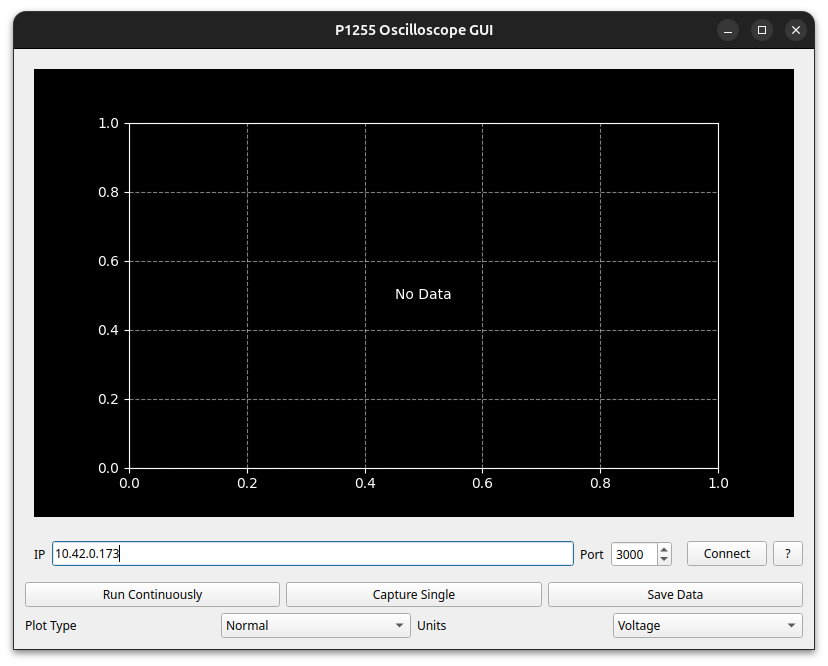
By inserting the IPv4 address of the device and clicking on the "Connect" button the software connects to the oscilloscope.
Fig. 2: Display Oscilloscope Data.
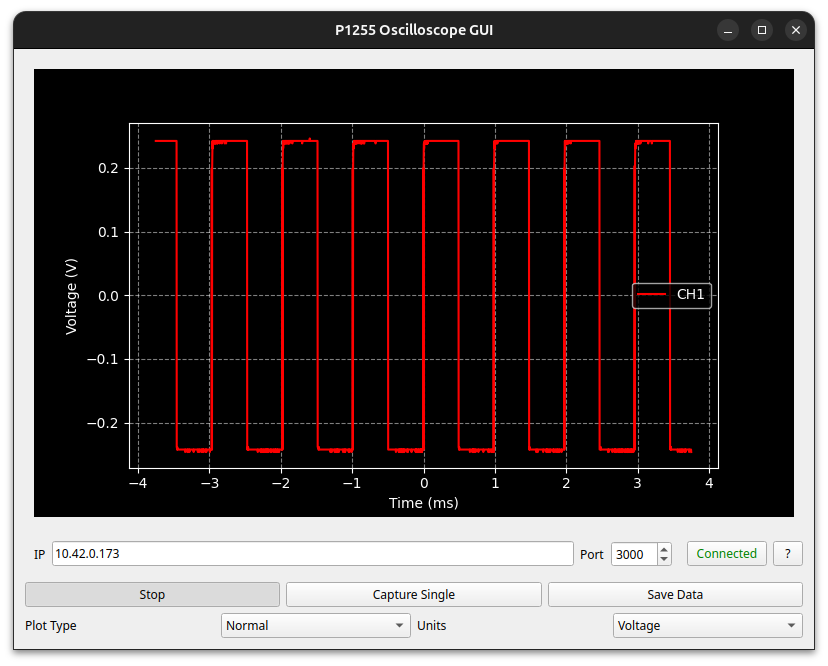
When the software is connected to the oscilloscope, pressing the “Run Continuously” or “Capture Single” buttons will start the visualization of the current oscilloscope display in the software. "Capture Single" only updates the screen once per click, while "Run Continuously" updates the screen twice per second.
When both channels are connected, both channels are displayed and XY-mode can be activated.
By Changing from "Voltage" to "Divisions" it is possible to get the identical Y-scale as visible on the oscilloscope display.
The data can be exported into various file formats, like .csv, .json and .npz.
Alias File
In case there are several oscilloscopes in the network, it is recommended to create an alias file with the network addresses of the individual oscilloscopes in the home directory.
To ensure that the software recognizes the file automatically, it must be named as
~/.p1255_ip_aliases.yaml
This yaml file contains a list of all available oscilloscopes with the corresponding IP Address and network port. As an Example the file could look like this:
"Osc1": ["192.168.0.70", 3000]
"Osc2": ["192.168.0.71", 3000]
"Osc3": ["192.168.0.72", 3000]
"Osc4": ["192.168.0.73", 3000]
Fig. 3: Start Screen of the GUI with Drop-down menu .
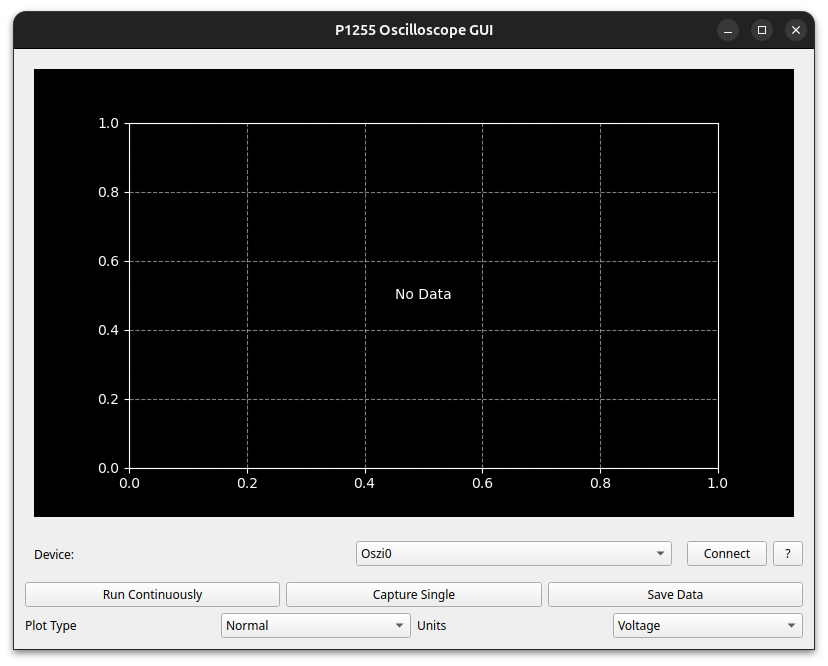
Now the correct oscilloscope can be selected from the drop-down menu and be connected.
Command Line
Capturing data can also be done via the command line, if the software is installed system-wide or started inside a Virtual Environment.
An example for capturing, decoding and exporting the data as a .csv-file:
peak-capture -a 10.42.0.173 -o ~/data.csv -f csv
The command peak-capture --help also provides assistance.
Release history Release notifications | RSS feed


Download files
Download the file for your platform. If you're not sure which to choose, learn more about installing packages.
Source Distribution
Built Distribution
Filter files by name, interpreter, ABI, and platform.
If you're not sure about the file name format, learn more about wheel file names.
Copy a direct link to the current filters
File details
Details for the file p1255-0.3.3.tar.gz.
File metadata
- Download URL: p1255-0.3.3.tar.gz
- Upload date:
- Size: 24.9 kB
- Tags: Source
- Uploaded using Trusted Publishing? No
- Uploaded via: twine/6.2.0 CPython/3.11.13
File hashes
| Algorithm | Hash digest | |
|---|---|---|
| SHA256 |
0e0b7b9fc8f0a5f6f23870f4676af40edcef8530355b1061429f7f0cca92155a
|
|
| MD5 |
5096e4b92be9d122b1fb442756b76f90
|
|
| BLAKE2b-256 |
60e845cec213a88a2a0489d67f98eacc3bd8297497ec02e8cb295a71fed58554
|
File details
Details for the file p1255-0.3.3-py3-none-any.whl.
File metadata
- Download URL: p1255-0.3.3-py3-none-any.whl
- Upload date:
- Size: 24.3 kB
- Tags: Python 3
- Uploaded using Trusted Publishing? No
- Uploaded via: twine/6.2.0 CPython/3.11.13
File hashes
| Algorithm | Hash digest | |
|---|---|---|
| SHA256 |
afd3c12ba18b1602976e11057fedc2438b80902b5cc7fee1bfbc250f2a91af41
|
|
| MD5 |
43b3f9ff11813be74ca2beb8c809b2b7
|
|
| BLAKE2b-256 |
37e60eabf9c3ae21a1511e789f184c80977233d71425e26f941f266c8d7a4e26
|






