
Floating top-strip pacing timer for timeboxed stages — meetings, talks, workouts, even cooking — with countdown and color signalling.

Project description
PaceBar




A small desktop tool that keeps you on time through any sequence of timed stages — a sales call, a talk, a workout, even a recipe. You enter the stages and how many minutes each should take; on Start a flat, always-on-top strip appears across the top of the screen and counts the current section down. The strip is green while you are on pace, pastel yellow when the section is almost over, and pastel red once you have run over — so you can feel the pacing without staring at numbers.
Written in Python with PySide6. Built cross-platform (Windows + Linux); tested and working on Windows 11, not yet tested on Linux (feedback welcome).
Screenshots
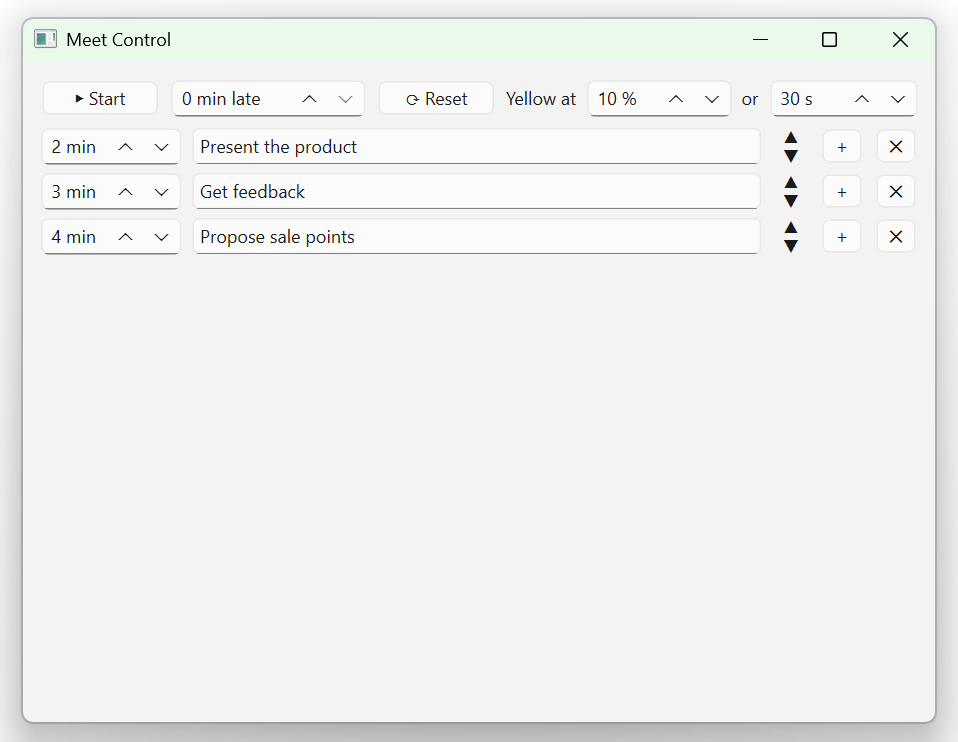
The setup window — one row per section, plus the start / lateness / reset toolbar:
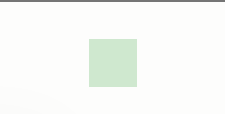
The running strip (here ~2 minutes left on the current section, next section as a button), and the minimized square that signals status by color alone:

Requirements
- uv (manages the virtual environment and dependencies)
- Python 3.10+ (uv can install it for you)
Install
pip install pacebar
pacebar
This pulls in PySide6 automatically and adds a pacebar command. (Prefer the
standalone exe if you don't want a Python environment at all — see below.)
Run from source
uv sync            # create the venv and install dependencies
uv run pacebar
Or run it in one click — double-click the script for your OS:
- Windows:
scripts\run.bat - Linux / macOS:
scripts/run.sh
(uv sync runs automatically the first time uv run is used.)
Build a standalone executable
One click: double-click scripts\build.bat (Windows) or scripts/build.sh
(Linux / macOS). Or run it manually:
uv run --extra build pyinstaller --noconfirm --clean pacebar.spec
The build is driven by pacebar.spec (a single
--windowed --onefile build). The result lands in dist/ (pacebar.exe on
Windows) — one shareable file; it starts a touch slower because it unpacks to a temp
dir on launch.
PyInstaller does not cross-compile: it freezes for the OS you run the build on.
Build on Windows to get the .exe, and on Linux (or WSL) to get a Linux binary — each
runs only on its own platform. For a platform-independent option, use pip install
above instead.
Lint & format
uv run ruff format .   # format
uv run ruff check .    # lint
Publishing to PyPI (maintainer)
uv build                          # builds the wheel + sdist into dist/
uv publish dist/pacebar-*    # upload (needs a PyPI account + API token)
The pacebar-* glob is deliberate: it uploads only the wheel and sdist and skips
pacebar.exe, which also lives in dist/. Test on TestPyPI first
(uv publish --publish-url https://test.pypi.org/legacy/ ...), and make sure the
project name is still available on PyPI before the first real upload.
How to use
Setup window
- Each row is one section: minutes (whole positive number — arrows or type) and a name (max 30 characters; it blinks red if you try to type more).
- Tab / Shift+Tab move between the two fields of the current row only.
Up / Down (while in the name field) jump to the name field of the row above /
below. Enter adds a new row. The
+button also adds one; the ▲/▼ control reorders;✕deletes. - Start is top-left. Next to it is minutes late — how late the meeting is actually starting (subtracted from the first section). Reset clears everything back to one empty row (no confirmation, by design).
- Yellow at … % or … s controls the warning threshold: the strip turns yellow when the remaining time drops below whichever is larger — that percentage of the section, or that many seconds.
Running strip (left → right)
- ◀ Back — roll back one section. It resumes on the same global timeline: with the time it still had if you switched early, or already overdue if you had overrun it.
- Timer — counts the current section down; format
HH:MM:SSwith the hours group hidden when no section is an hour or longer. Goes negative when you run over. - Current section name.
- → Next section — click to advance. On the last section it reads → End; clicking it exits the program.
- ▢ Minimize — collapses to a small square that signals status by color only. Drag it anywhere; click it to restore the full strip.
- ✕ Cancel — quits the program.
Global hotkeys (work even when another app is focused), laid out like game left/right (D = forward, A = back):
- Ctrl+Alt+D — next section (right); on the last section it triggers End (exit)
- Ctrl+Alt+A — back (left)
Chosen to stay clear of common conflicts: plain Alt+A mutes the mic in Zoom and Alt+D jumps to the browser address bar. On non-US layouts Ctrl+Alt equals AltGr, but that only matters while typing into a text field, not during a call.
The strip is intentionally visible to everyone on a screen share — it keeps the whole call honest about time. There is deliberately no pause: business calls have hard stops.
Saved state
On every Start the schedule (order, minutes, names — no lateness, no thresholds) is
written to pacebar_last_run.json, and it is loaded back the next time you launch. This
also makes the tool handy for rehearsing a talk.
The file lives next to the running exe, so each copy of the app keeps its own typical call scenario — drop a copy in a different project folder and it remembers a different schedule. (When running from source there is no exe, so it uses the current working directory instead.)
Notes & limitations
- Global hotkeys need the
pynputpackage (already a dependency). On Linux they work under X11; under Wayland they may be blocked — the on-strip buttons always work regardless. - Always-on-top is reliable over windowed apps (Zoom/Meet/Teams). A few apps in true fullscreen-exclusive mode can still cover any topmost window.
- The strip width is fixed for the run from the widest section name and worst-case timer. An extreme overrun (more minutes over than the longest section) can still nudge the timer width.
Release history Release notifications | RSS feed

Download files
Download the file for your platform. If you're not sure which to choose, learn more about installing packages.
Source Distribution
Built Distribution
Filter files by name, interpreter, ABI, and platform.
If you're not sure about the file name format, learn more about wheel file names.
Copy a direct link to the current filters
File details
Details for the file pacebar-0.1.0.tar.gz.
File metadata
- Download URL: pacebar-0.1.0.tar.gz
- Upload date:
- Size: 67.3 kB
- Tags: Source
- Uploaded using Trusted Publishing? No
- Uploaded via: uv/0.7.2
File hashes
| Algorithm | Hash digest | |
|---|---|---|
| SHA256 |
a3586f7f1ebcaa519e34325acd9d4f8eef30cb0e9334267b448c0ebb28c0c072
|
|
| MD5 |
5bf0cd79fb8eb609ab0545e1a6527a61
|
|
| BLAKE2b-256 |
41f5c90fa6f5126259de38939d4eb04a326745ff6d8e77e3c513f5af475f11e1
|
File details
Details for the file pacebar-0.1.0-py3-none-any.whl.
File metadata
- Download URL: pacebar-0.1.0-py3-none-any.whl
- Upload date:
- Size: 20.1 kB
- Tags: Python 3
- Uploaded using Trusted Publishing? No
- Uploaded via: uv/0.7.2
File hashes
| Algorithm | Hash digest | |
|---|---|---|
| SHA256 |
00f96f4e961aea829af2de6f0ac205b2d01679de666e9ac60fa308128c8a33bb
|
|
| MD5 |
471ed9c543f32df3fced09a9e4ffffa2
|
|
| BLAKE2b-256 |
130c05b7037ca8d0ced5cdfa7b57124900c90be645e6888892925b497f78ade1
|






