
ParaView MCP Server
Control ParaView with AI assistants through the Model Context Protocol (MCP).
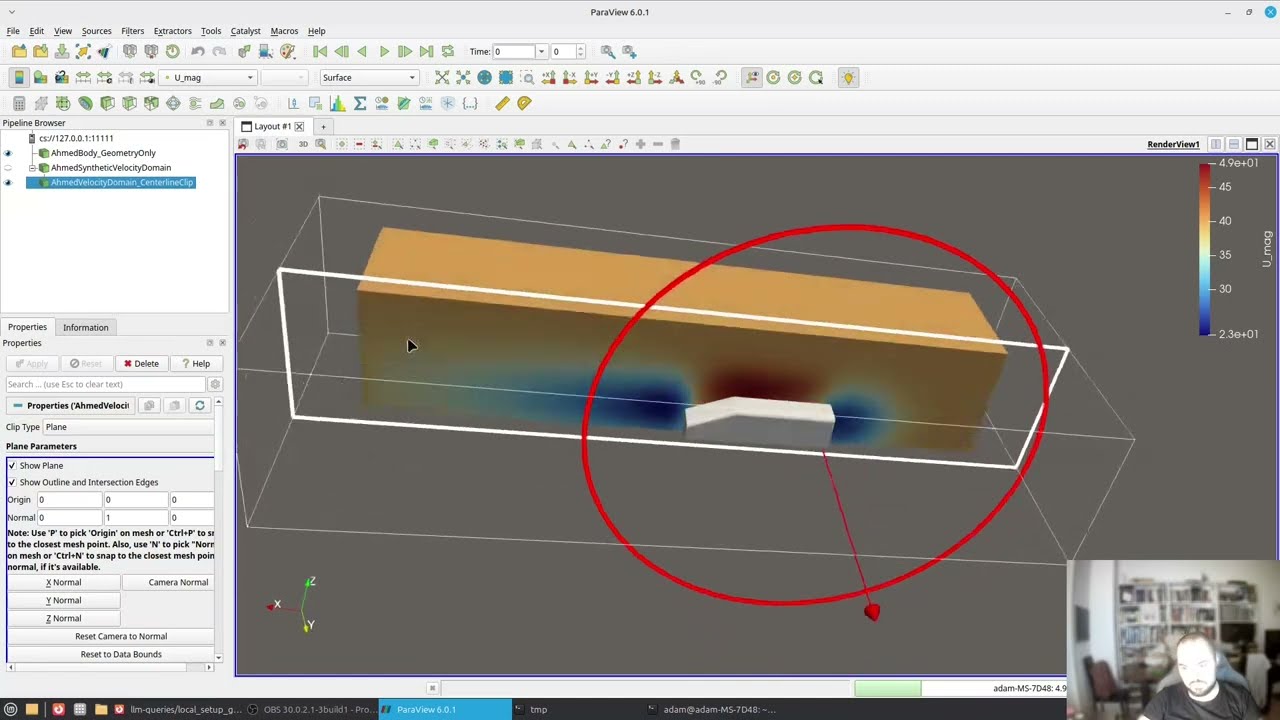
paraview-mcp-python provides an MCP server and a ParaView-side bridge. MCP clients such as Codex CLI and Claude Desktop can use it to inspect a ParaView session, open datasets, apply filters, color data, run ParaView Python, and export screenshots.
The MCP server command is:
paraview-mcp-server
Architecture
The GUI workflow has four components:
| Component | Runs in | Purpose |
|---|---|---|
| MCP client | Codex CLI, Claude Desktop, or another MCP host | Starts the MCP server and calls its tools. |
| MCP server | Standard Python environment | Communicates over MCP stdio and forwards calls to ParaView over TCP. |
| ParaView bridge | pvpython process |
Receives JSON commands over TCP and executes paraview.simple operations. |
| ParaView runtime | pvserver and a ParaView GUI client |
Owns the shared session used by the GUI and bridge. |
ParaView Python plugins and VTK timer callbacks are pipeline-extension mechanisms, not a general-purpose remote-control interface for a live GUI process. This project therefore uses ParaView's client/server model.
paraview-mcp-launch starts a local pvserver, connects the ParaView GUI as the first client, and then connects a pvpython bridge to the same session.
┌──────────────────────────────┐      stdio      ┌────────────────────────┐
│ MCP Client                   │ ◄──────────────► │ MCP Server             │
│ Codex / Claude / other host  │                  │ paraview-mcp-server    │
└──────────────────────────────┘                  └──────────┬─────────────┘
                                                              │ JSON/TCP
                                                              │ 127.0.0.1:9876
                                                   ┌──────────▼─────────────┐
                                                   │ ParaView Bridge        │
                                                   │ pvpython client        │
                                                   └──────────┬─────────────┘
                                                              │ ParaView client/server
                                                   ┌──────────▼─────────────┐
                                                   │ pvserver + GUI client  │
                                                   │ shared ParaView state  │
                                                   └────────────────────────┘
The bridge is required because paraview.simple must run inside a ParaView Python runtime. The MCP server is only a protocol adapter and cannot modify a ParaView session by itself.
Live GUI workflow:
Codex/Claude -> MCP server -> pvpython bridge -> pvserver <- ParaView GUI
Headless workflow:
Codex/Claude -> MCP server -> bridge inside pvpython -> headless ParaView runtime
See docs/architecture.md for the complete diagram, protocol reference, and tool namespace table.
Installation
Install from PyPI
Use this option when you only need the MCP server executables in your standard Python environment:
pip install paraview-mcp-python
This installs:
paraview-mcp-server
paraview-mcp-launch
The bridge code and its startup scripts ship inside the wheel, and
paraview-mcp-launch passes pvpython the path it needs, so this install is
sufficient for the full GUI workflow.
Clone the repository
Clone the repository for local development, or to read and adapt the bridge scripts:
git clone https://github.com/djeada/paraview-mcp-server.git
cd paraview-mcp-server
python -m venv .venv
source .venv/bin/activate          # Windows: .venv\Scripts\activate
pip install -e .
The executables are then available at:
.venv/bin/paraview-mcp-server
.venv/bin/paraview-mcp-launch
Start a GUI-backed session
From the repository directory, run:
paraview-mcp-launch
For a local editable checkout, you can call the executable directly:
.venv/bin/paraview-mcp-launch
Expected output:
Launching ParaView GUI connected to cs://127.0.0.1:11111
ParaView MCP bridge ready on 127.0.0.1:9876
Keep the terminal open. Closing it stops the GUI, bridge, and local pvserver session.
An MCP client can also start a clean GUI-backed session with paraview_session_start. If it reports existing_bridge_not_managed, stop any old bridge-only ParaView processes and restart with paraview-mcp-launch or paraview_session_start. The GUI client must connect before the pvpython bridge.
Start a headless bridge
Use a headless bridge only when you do not need to modify an already-open ParaView GUI:
cd /path/to/paraview-mcp-server
pvpython scripts/start_paraview_bridge.py
Expected output:
ParaView bridge ready on 127.0.0.1:9876
Keep the terminal open. This command controls the pvpython session, not a separately opened GUI window.
GUI and Qt limitations
The default live bridge runs in a separate pvpython process connected to the same pvserver session as the ParaView GUI. Because it does not run inside the GUI's Qt event loop, it can safely modify the pipeline but does not control render views by default.
Calling APIs such as GetActiveViewOrCreate("RenderView"), Show(), Render(), SaveScreenshot(), or camera and background tools from a separate pvpython client can create a detached VTK render window instead of modifying the visible GUI layout. To avoid that behavior, the bridge blocks display, camera, screenshot, animation, and render-related python.execute calls unless it is running inside the GUI bridge.
For python.execute, the block is applied to the parsed syntax tree, so a comment or a variable named Rendering is not a false positive, while pvs.Show(...), a bare Show(...), and getattr(pvs, "Show") are all caught. It is a guardrail against accidentally opening a detached window, not a sandbox: python.execute is fully trusted either way, and code that assembles a name at runtime still gets through.
Use the mcp helpers for pipeline work that should run in either mode. They skip display work instead of failing when no render view exists.
For pipeline automation, create or update sources and filters first. Fixed tools return shown: false when display is skipped.
For GUI-window automation, start the experimental in-GUI bridge from ParaView's Python Shell:
scripts/start_paraview_gui_bridge.py
To allow detached render windows for debugging, set the following environment variable before starting the bridge:
PARAVIEW_MCP_ALLOW_DETACHED_RENDER_WINDOW=1
Verify the connection
Test the bridge directly
Before configuring an MCP client, send a raw bridge command:
python scripts/paraview_bridge_request.py scene.get_info
Expected response:
{
  "success": true,
  "result": {
    "source_count": 0,
    "active_view_type": "RenderView"
  }
}
Resolve any bridge errors before configuring Codex or Claude.
Register with Codex CLI
For a PyPI installation:
codex mcp add paraview -- paraview-mcp-server
codex mcp list
For a local repository:
codex mcp add paraview -- /absolute/path/to/paraview-mcp-server/.venv/bin/paraview-mcp-server
codex mcp list
Codex starts the MCP server when needed. The ParaView bridge must already be running.
Register with Claude Desktop
Add the server to claude_desktop_config.json:
{
  "mcpServers": {
    "paraview": {
      "command": "/absolute/path/to/.venv/bin/paraview-mcp-server"
    }
  }
}
For a PyPI installation, find the absolute command path with:
which paraview-mcp-server
Restart Claude Desktop after editing the configuration.
Test through the MCP client
With the bridge running, ask the client:
List all sources in the current ParaView session.
The client should call paraview_scene_list_sources and return the pipeline sources from the server-backed GUI session started by paraview-mcp-launch.
Capabilities
The server provides two levels of control:
- Fixed MCP tools for scene inspection, data loading, filters, display and coloring, camera control, screenshots, data export, and animation export.
- Python execution through
paraview_python_execfor trusted local scripts and workflows not covered by the fixed tools.
The fixed tool set covers common operations. Python execution provides access to the broader paraview.simple API.
Demos
Runnable, end-to-end scenarios live in demos/. They drive a real ParaView session through the real MCP server and check what came back:
python demos/run_scenarios.py

"Add a contour of RTData at values 80 and 150, and hide the original volume." — scenario 04-contour, against ParaView 6.0.1.
See docs/demos.md for every scenario with screenshots, and docs/demo-run.md for the per-step results of the latest run. Running these found three real bugs that the unit tests passed over.
Example prompts
- "List all sources in the current ParaView session."
- "Open
/data/disk_out_ref.ex2." - "Create a slice through X = 0 of the disk dataset."
- "Color the dataset by Pressure."
- "Save a screenshot to
/tmp/view.png." - "Apply a contour filter on Pressure with isovalues 0.5 and 1.0."
- "Set the camera to position [10, 5, 5] looking at the origin."
- "Set the background to a gradient from white to dark blue."
- "Export an animation to
/tmp/anim.avi."
Tool reference
The server exposes 34 MCP tools.
Scene and session
| Tool | Description |
|---|---|
paraview_session_status |
Report bridge reachability and managed GUI session state. |
paraview_session_start |
Start a clean GUI-backed ParaView MCP session. |
paraview_session_stop |
Stop the session process started by this MCP server. |
paraview_scene_get_info |
Return session information, including source count and active view type. |
paraview_scene_list_sources |
List all pipeline sources. |
paraview_scene_list_views |
List open render views. |
paraview_source_get_properties |
Return the properties of a named source. |
Data loading
| Tool | Description |
|---|---|
paraview_source_open_file |
Open a dataset such as VTK, VTU, ExodusII, or CSV. |
paraview_source_delete |
Remove a source from the pipeline. |
paraview_source_rename |
Rename a source. |
Basic filters
| Tool | Description |
|---|---|
paraview_filter_slice |
Create a slice using an origin and normal. |
paraview_filter_clip |
Create a clip using an origin and normal. |
paraview_filter_contour |
Create contours or isosurfaces from a scalar array and values. |
paraview_filter_threshold |
Apply a scalar-range threshold. |
Advanced filters
| Tool | Description |
|---|---|
paraview_filter_calculator |
Apply a Calculator filter with an expression. |
paraview_filter_stream_tracer |
Create streamlines for a vector field. |
paraview_filter_glyph |
Create glyphs for vector visualization. |
Display and coloring
| Tool | Description |
|---|---|
paraview_display_show |
Make a source visible. |
paraview_display_hide |
Hide a source. |
paraview_display_color_by |
Color a source by a data array. |
paraview_display_set_representation |
Set the representation to Surface, Wireframe, Points, or Volume. |
paraview_display_set_opacity |
Set opacity from 0.0 to 1.0. |
paraview_display_rescale_transfer_function |
Rescale the color map to the data range. |
Camera and view
| Tool | Description |
|---|---|
paraview_view_reset_camera |
Fit all visible sources in the view. |
paraview_view_set_camera |
Set the camera position, focal point, and view-up vector. |
paraview_view_set_background |
Set a solid or gradient background. |
Export
| Tool | Description |
|---|---|
paraview_export_screenshot |
Save a PNG or JPEG screenshot. |
paraview_export_data |
Export source data to VTK, CSV, or another supported format. |
paraview_export_animation |
Export an animation as video or image frames. |
Python execution
| Tool | Description |
|---|---|
paraview_python_exec |
Run Python in the bridge or a headless pvpython process. |
paraview_python_exec_async |
Start a long-running Python job in headless mode. |
Job management
| Tool | Description |
|---|---|
paraview_job_status |
Return the status of an asynchronous job. |
paraview_job_cancel |
Cancel a running job. |
paraview_job_list |
List known asynchronous jobs. |
Python execution
paraview_python_exec handles workflows that need more than the fixed tool set. Scripts run in the bridge process, where paraview.simple is already imported.
Parameters
| Parameter | Type | Description |
|---|---|---|
code |
str |
Inline Python source; mutually exclusive with script_path. |
script_path |
str |
Path to a .py file; mutually exclusive with code. |
args |
dict |
Arguments exposed as args inside the script. |
timeout_seconds |
int |
Cooperative timeout in seconds; defaults to 30. |
transport |
str |
"bridge" by default, or "headless" for a separate pvpython process. |
Execution namespace
| Variable | Type | Description |
|---|---|---|
pvs |
module | The imported paraview.simple module. |
args |
dict | Arguments supplied through the args parameter. |
mcp |
helper | mcp.show(), mcp.find_render_view(), mcp.reset_camera(), mcp.create_polydata_source(). |
__result__ |
Any | Assign a JSON-serializable value to return it to the caller. |
Example
This runs under both bridge modes:
src = pvs.OpenDataFile(args["filepath"])

slice_filter = pvs.Slice(Input=src)
slice_filter.SliceType.Origin = [0, 0, 0]
slice_filter.SliceType.Normal = [1, 0, 0]

# mcp.show() displays only if a render view already exists, so this never
# opens a detached VTK window from the standalone pvpython bridge.
shown = mcp.show(slice_filter)
if shown:
    mcp.reset_camera()
__result__ = {"done": True, "shown": shown}
Calling pvs.Show() or GetActiveViewOrCreate() directly is rejected by the default bridge. See GUI and Qt limitations.
See docs/python-execute-design.md for the full design, schema reference, and additional examples.
Asynchronous jobs
Use paraview_python_exec_async for long-running pipelines:
- Start a job and store the returned
job_id. - Check its
statuswithparaview_job_status. - Cancel it with
paraview_job_cancelwhen necessary.
Asynchronous jobs run in a separate headless pvpython process through HeadlessPvpythonExecutor.
Troubleshooting
ParaView is connected, but MCP cannot inspect or close a window
A Pipeline Browser connection to cs://127.0.0.1:11111 confirms that the GUI is connected to pvserver. It does not confirm that the MCP TCP bridge is running or that MCP can access GUI Qt widgets.
Verify the bridge separately:
python scripts/paraview_bridge_request.py scene.get_info
A second VTK render window may appear if the pvpython bridge calls GetActiveViewOrCreate("RenderView") or another display or render command. The default bridge often cannot close that window through Qt because it is not the GUI process and may not include Qt Python bindings.
Delete the server-side view or layout, close the window through the window manager, or restart the ParaView-side bridge. Use the in-GUI bridge for workflows that require direct GUI-window control.
Python execution trust model
paraview_python_exec runs trusted local Python with the permissions of the active ParaView process. This includes imports and unrestricted paraview.simple workflows.
Safeguards include:
- Local authentication. The bridge writes a random token to
$XDG_RUNTIME_DIR/paraview-mcp-server/bridge.token(mode0600, falling back to~/.local/state) and requires it on every request. The MCP server and the debug CLI read the same file, so same-user setups need no configuration. Without it, any local account on a shared host could execute Python in your ParaView session. SetPARAVIEW_MCP_DISABLE_AUTH=1to opt out. - Loopback only. The default bind is
127.0.0.1; binding elsewhere logs a warning. Requests are capped at 8 MB. - stdout and stderr are limited to 50 KB in the reported result, and the capture buffers themselves are bounded.
- The default cooperative timeout is 30 seconds. On the bridge transport a
timed-out script keeps running — Python cannot kill a thread — and the
result reports
abandoned_threadsso you can tell. - Script paths can be restricted to approved root directories with
PARAVIEW_MCP_APPROVED_SCRIPT_ROOTS.
This project is a local desktop automation tool, not a public API sandbox.
Development
Install development dependencies:
pip install -e ".[dev]"
Run the test suite:
pytest tests/
The tests do not require ParaView. Command-handler tests patch _import_pv with a MagicMock that mimics the paraview.simple API.
Send raw bridge commands for debugging:
python scripts/paraview_bridge_request.py scene.get_info
python scripts/paraview_bridge_request.py source.open_file --params '{"filepath":"/data/disk.vtu"}'
python scripts/paraview_bridge_request.py export.screenshot --params '{"filepath":"/tmp/shot.png"}'
Project structure
paraview-mcp-server/
├── pyproject.toml
├── src/
│   ├── paraview_mcp_server/
│   │   ├── __init__.py          # Re-exports main() and __version__
│   │   ├── server.py            # FastMCP stdio server (34 tools)
│   │   ├── launcher.py          # Starts pvserver, GUI, and bridge together
│   │   └── headless.py          # Headless pvpython executor and job manager
│   └── paraview_mcp_bridge/     # stdlib-only: runs inside ParaView's Python
│       ├── __init__.py
│       ├── server.py            # TCP socket bridge server
│       ├── gui_bridge.py        # Experimental in-GUI bridge helpers
│       ├── command_handler.py   # Command registry and paraview.simple handlers (27 commands)
│       ├── models.py            # Bridge parameter validation
│       ├── runtime.py           # State directory and local auth token
│       └── execution.py         # Trusted local python.execute helper
├── demos/
│   ├── scenarios.py             # Prompt, tool calls, and checks per scenario
│   └── run_scenarios.py         # MCP client that drives a live ParaView
├── scripts/
│   ├── start_paraview_bridge.py
│   ├── start_paraview_gui_bridge.py
│   ├── paraview_bridge_request.py
│   └── library/                 # Reusable pvpython snippets
│       ├── open_dataset.py
│       ├── create_slice.py
│       ├── create_contour.py
│       ├── color_by.py
│       ├── reset_camera.py
│       └── save_screenshot.py
├── docs/
│   ├── architecture.md
│   ├── demos.md                 # Scenario walkthrough with screenshots
│   └── python-execute-design.md
└── tests/
    ├── conftest.py              # Isolates bridge state from the real user dir
    ├── test_server.py           # 34 tools, connection, headless, async jobs
    ├── test_protocol.py         # Wire encoding and fake-bridge integration
    ├── test_runtime.py          # Token/auth, state paths, launcher discovery
    └── test_command_handler.py  # All 27 handlers and execution controls
License
MIT. See LICENSE.
1 maintainer

Metadata
1 maintainer
Release files for paraview-mcp-python 0.2.0
For a detailed explanation of source distributions (sdists) and built distributions (wheels), please see the package formats documentation.
Source distribution (sdist)
| File | Size | Uploaded | |
|---|---|---|---|
| paraview_mcp_python-0.2.0.tar.gz | 1.1 MB | Details |
Built distribution (wheel)
| File | Interpreter | ABI | Platform | Reset |
|---|---|---|---|---|
| paraview_mcp_python-0.2.0-py3-none-any.whl | Python 3 | none | any | Details |
Total release size: 1.1 MB
Release files / paraview_mcp_python-0.2.0.tar.gz
| Download URL | paraview_mcp_python-0.2.0.tar.gz |
|---|---|
| Size | 1.1 MB |
| Tags | Source |
|
SHA-256 checksum How to use checksums |
ac483f29d212c94f61df7caa9de592ab92a96b8c686224e0c2b85f7954e49434
|
|
BLAKE2b-256 checksum How to use checksums |
08c8f362694339595493fd30d2d4039d63ff7dd4e25089333f43226b14c59614
|
| Upload date | |
|
Uploaded using Trusted Publishing? What is trusted publishing? |
Yes |
| Uploaded via |
twine/7.0.0 CPython/3.13.14
|
Provenance
Provenance describes where a file came from. On PyPI, provenance is shared via attestations, which provide a verifiable record of the build or publishing details. View details, limitations and caveats.


PyPI Publish Attestation
PyPI verified that this artifact, at this checksum, originated from the publisher listed below.
Signed by GitHub Actions, verified by PyPI on Sep 22, 2026.
Transparency logRelease files / paraview_mcp_python-0.2.0-py3-none-any.whl
| Download URL | paraview_mcp_python-0.2.0-py3-none-any.whl |
|---|---|
| Size | 58.3 kB |
| Tags | Python 3 |
|
SHA-256 checksum How to use checksums |
51a8643393a5e73fc93ab0d1b9da4044e685e22299a912d19573a35ca7ede3bc
|
|
BLAKE2b-256 checksum How to use checksums |
87f049f0b92d1c2fd55c8be1e4a072d8bfe8d36b1fb756f1f9cb4ff8e6494bcf
|
| Upload date | |
|
Uploaded using Trusted Publishing? What is trusted publishing? |
Yes |
| Uploaded via |
twine/7.0.0 CPython/3.13.14
|
Provenance
Provenance describes where a file came from. On PyPI, provenance is shared via attestations, which provide a verifiable record of the build or publishing details. View details, limitations and caveats.
PyPI Publish Attestation
PyPI verified that this artifact, at this checksum, originated from the publisher listed below.
Signed by GitHub Actions, verified by PyPI on Sep 22, 2026.
Transparency log













