
Terminal UI for Ollama and other LLM providers
Verified details
These details have been verified by PyPIProject links
GitHub Statistics
Maintainers

Project description
PAR LLAMA
Table of Contents
- About
- Features
- Screenshots
- Prerequisites for running
- Prerequisites for dev
- Prerequisites for huggingface model quantization
- Installing using pipx
- Installing using uv
- Installing for dev mode
- Command line arguments
- Environment Variables
- Running PAR_LLAMA
- Running against a remote instance
- Running under Windows WSL
- Quick start Ollama chat workflow
- Quick start image chat workflow
- Quick start OpenAI provider chat workflow
- Custom Prompts
- Memory System
- Template Execution
- Themes
- Screen Help
- Contributing
- FAQ
- Roadmap
- What's new






About
PAR LLAMA is a TUI (Text UI) application designed for easy management and use of Ollama based LLMs. (It also works with most major cloud provided LLMs) The application was built with Textual and Rich and my PAR AI Core. It runs on all major OS's including but not limited to Windows, Windows WSL, Mac, and Linux.

Features
Core Capabilities
- Multi-Provider Support: Seamlessly work with Ollama, OpenAI, Anthropic, Groq, XAI, OpenRouter, Deepseek, and LiteLLM
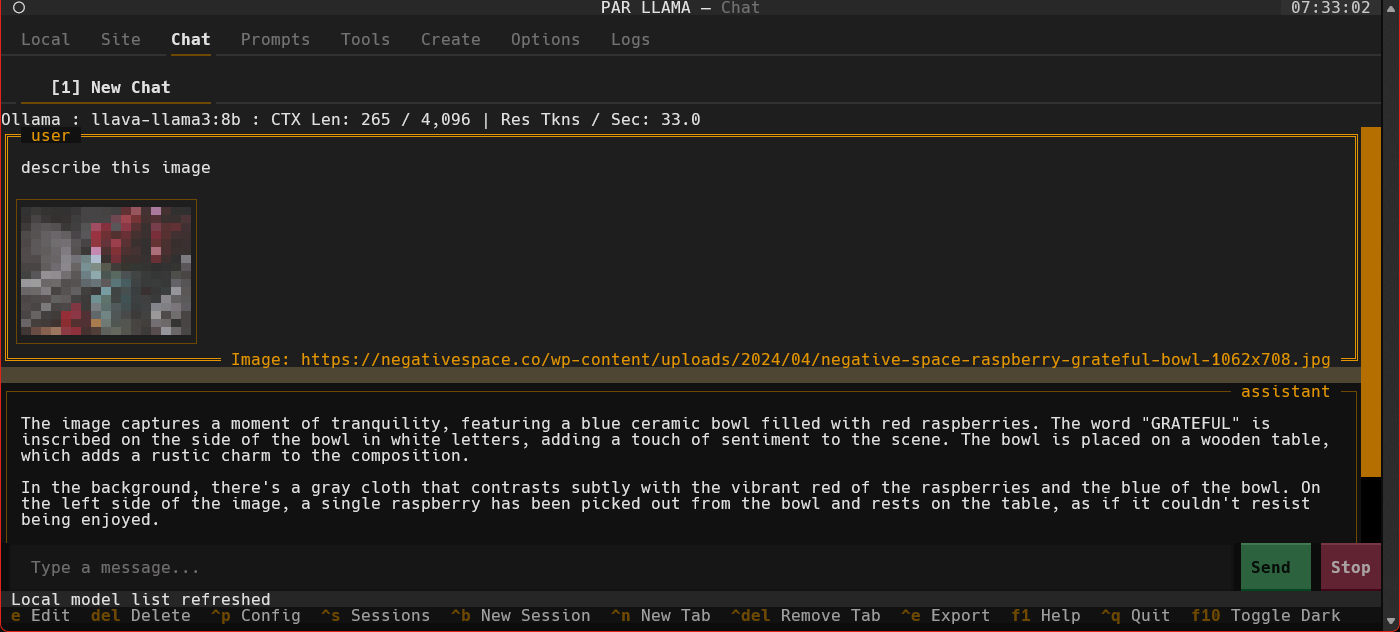
- Vision Model Support: Chat with images using vision-capable models like LLaVA and GPT-4 Vision
- Session Management: Save, load, organize, and export chat sessions with full conversation history
- Custom Prompts: Create, import, and manage a library of custom system prompts and templates
- Fabric Integration: Import and use Fabric patterns as reusable prompts
- Model Management: Pull, delete, copy, create, and quantize models with native Ollama support
Advanced Features
- Memory System: Persistent user context that remembers information across all conversations with AI-powered updates
- Template Execution: Secure code execution system with configurable command allowlists and customizable security patterns
- Smart Model Caching: Intelligent per-provider model caching with configurable durations
- Provider Management: Enable/disable providers, manage API keys, and configure endpoints
- Theme System: Dark/light modes with custom theme support via JSON configuration
- Auto-naming: Automatically name chat sessions using LLM-generated titles
- Slash Commands: Extensive command system for quick actions and navigation
- Export Options: Export conversations as Markdown files for documentation
- Security: Comprehensive file validation and secure operations for all data handling
Technical Excellence
- Async Architecture: Non-blocking operations for smooth, responsive UI performance
- Type Safety: Fully typed Python codebase with comprehensive type checking
- Extensible Design: Easy to add new providers, features, and customizations
- Cross-Platform: Native support for Windows, macOS, Linux, and WSL
- Hot Reload: Development mode with automatic UI updates on code changes
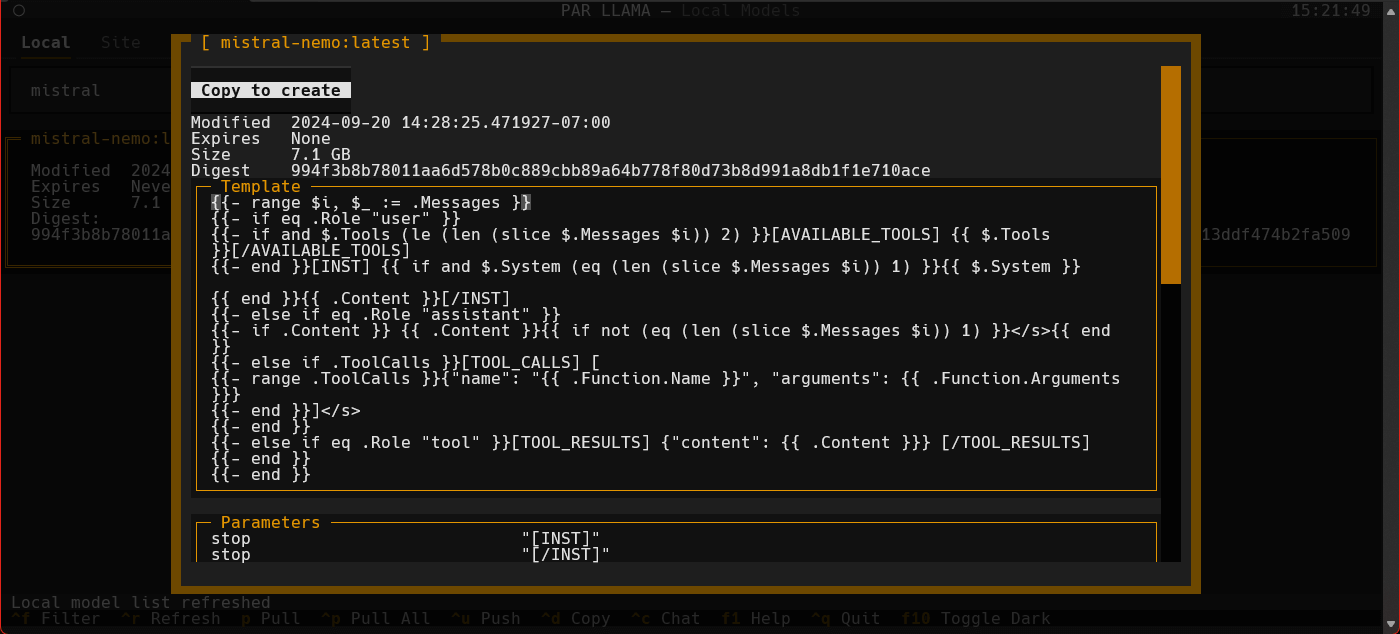
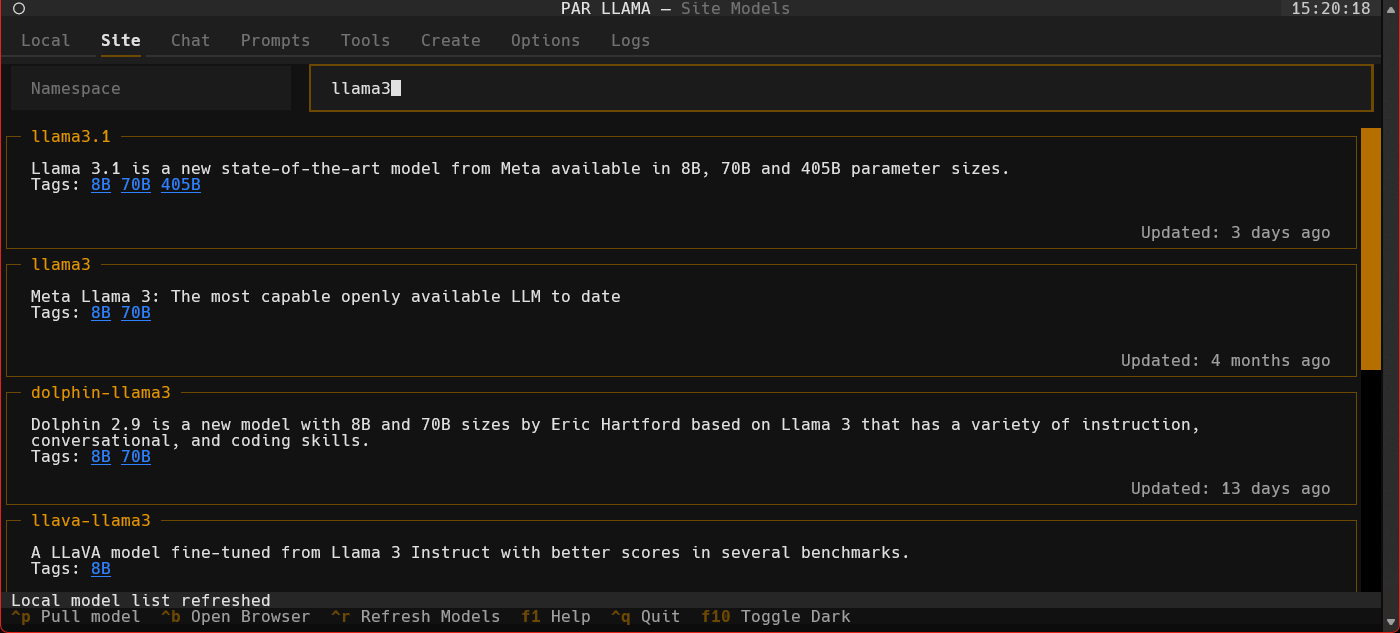
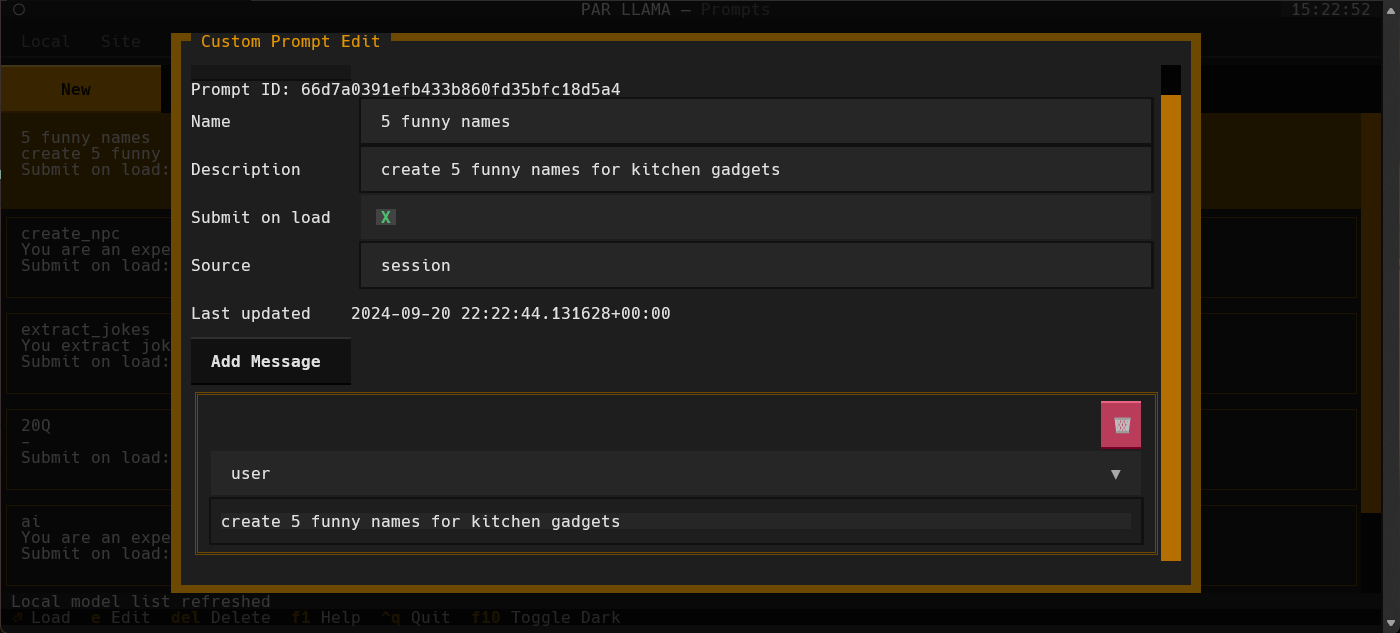
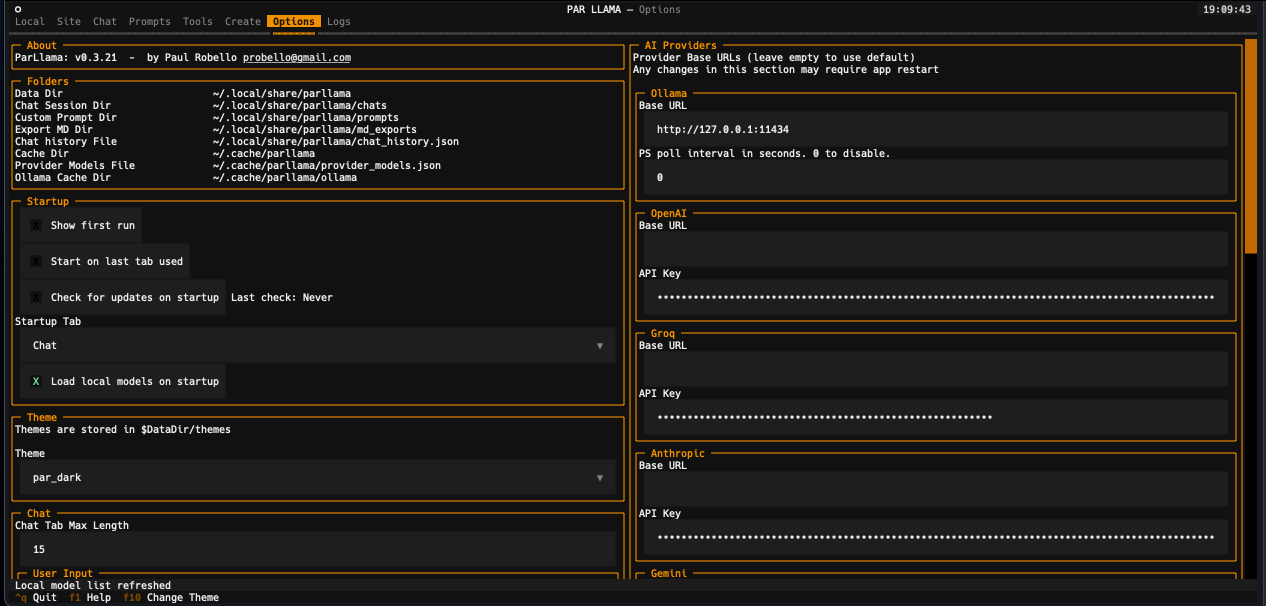
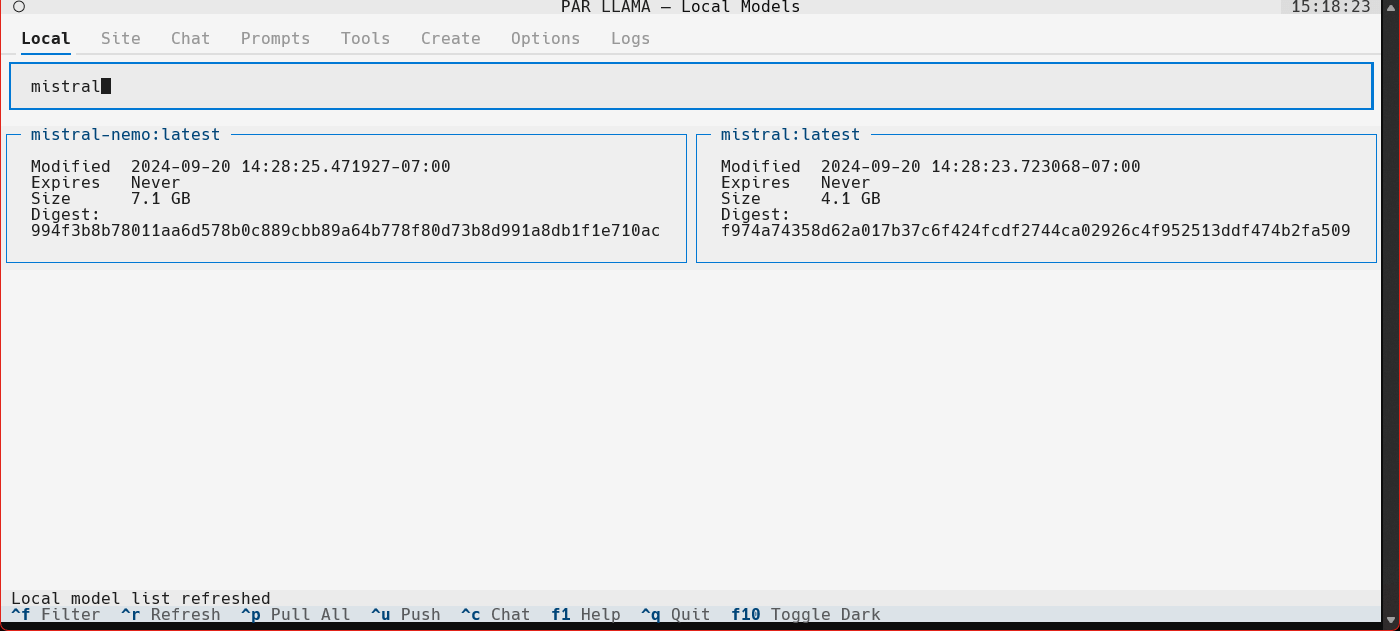
Screenshots
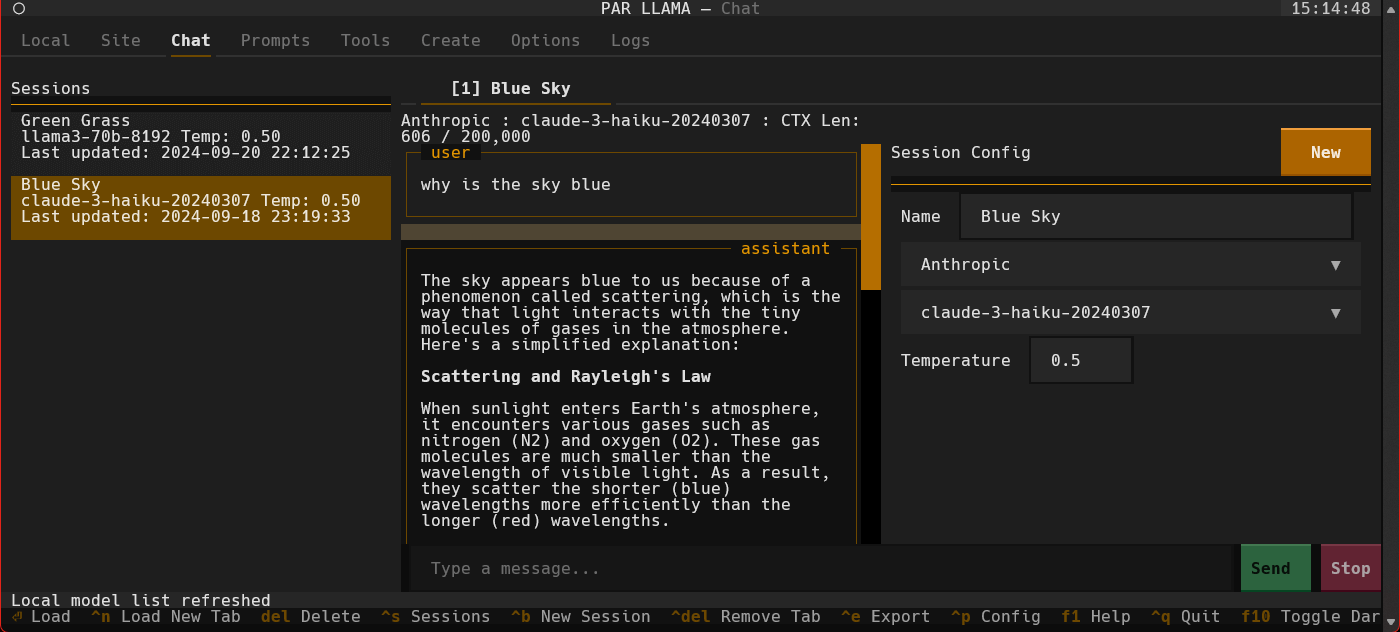
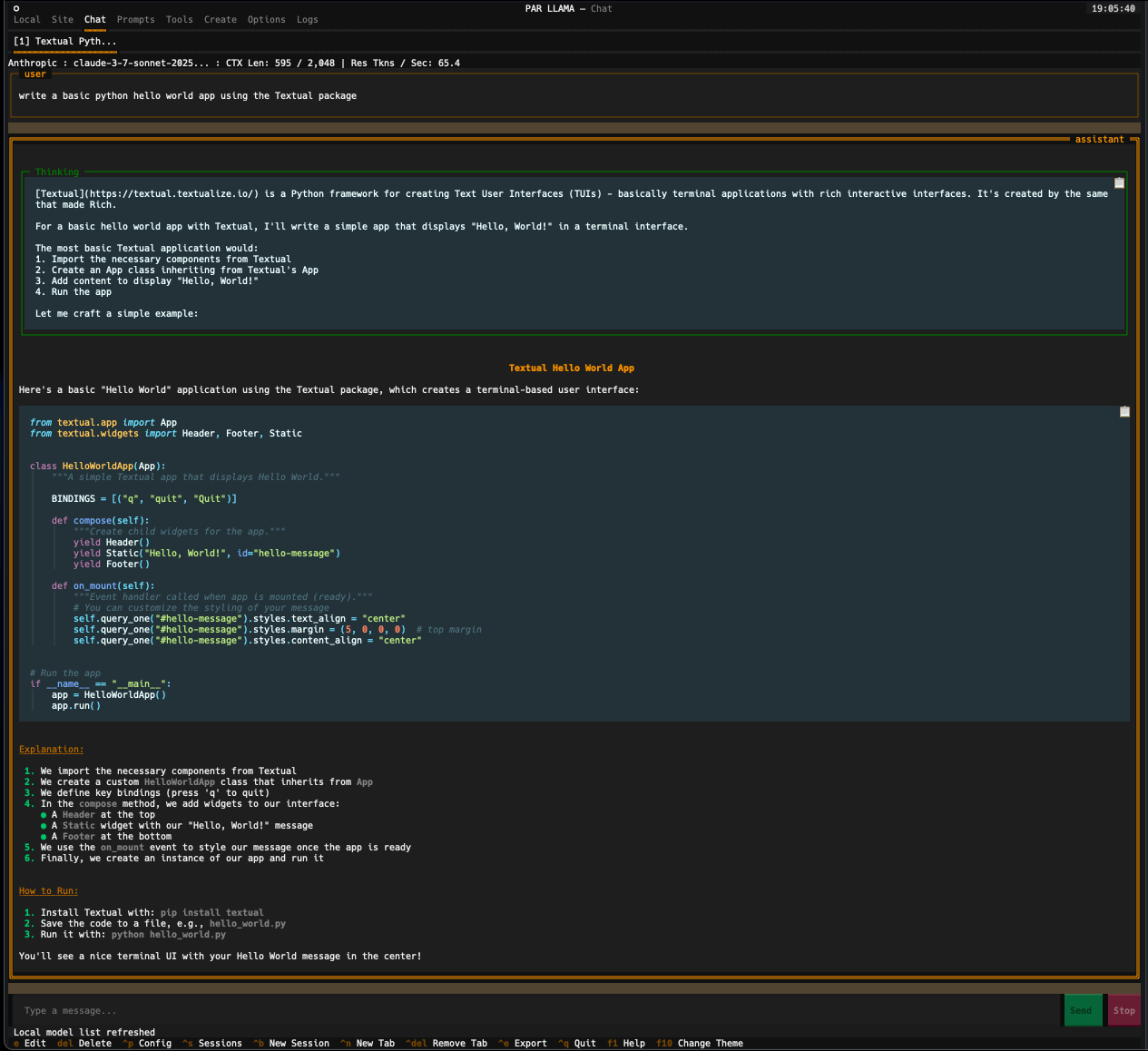
Supports Dark and Light mode as well as custom themes.
Videos
Prerequisites for running
- Install and run Ollama
- Install Python 3.11 or newer
- https://www.python.org/downloads/ has installers for all versions of Python for all os's
- On Windows the Scoop tool makes it easy to install and manage things like python
- Install Scoop then do
scoop install python
- Install Scoop then do
Prerequisites for dev
- Install uv
- See the Using uv section
- Install GNU Compatible Make command
- On windows if you have scoop installed you can install make with
scoop install make
- On windows if you have scoop installed you can install make with
Model Quantization
Native Ollama Quantization
Ollama now supports native model quantization through the create model interface. When creating a new model, you can specify a quantization level (e.g., q4_K_M, q5_K_M) to reduce model size and memory requirements.
Important: Native quantization only works with F16 or F32 base models. If you try to quantize an already-quantized model (like llama3.2:1b which is already Q4_0), you'll receive an error.
Prerequisites for HuggingFace model quantization
For quantizing custom models from HuggingFace that aren't available through Ollama:
- Download HuggingFaceModelDownloader from the releases area
- Install Docker Desktop
- Pull the docker image:
docker pull ollama/quantize
Using uv
Installing uv
If you don't have uv installed you can run the following:
curl -LsSf https://astral.sh/uv/install.sh | sh
PyPi install
uv tool install parllama
To upgrade an existing uv installation use the -U --force flags:
uv tool install parllama -U --force
Installing / running using uvx
uvx parllama
Source install from GitHub
uv tool install git+https://github.com/paulrobello/parllama
To upgrade an existing installation use the --force flag:
uv tool install git+https://github.com/paulrobello/parllama -U --force
pipx
Installing
If you don't have pipx installed you can run the following:
pip install pipx
pipx ensurepath
PyPi install
pipx install parllama
To upgrade an existing pipx installation use the --force flag:
pipx install parllama --force
Source install from GitHub
pipx install git+https://github.com/paulrobello/parllama
To upgrade an existing installation use the --force flag:
pipx install git+https://github.com/paulrobello/parllama --force
Installing for dev mode
Clone the repo and run the setup make target. Note uv is required for this.
git clone https://github.com/paulrobello/parllama
cd parllama
make setup
Command line arguments
usage: parllama [-h] [-v] [-d DATA_DIR] [-u OLLAMA_URL] [-t THEME_NAME] [-m {dark,light}]
                [-s {local,site,chat,prompts,tools,create,options,logs}] [--use-last-tab-on-startup {0,1}]
                [--load-local-models-on-startup {0,1}] [-p PS_POLL] [-a {0,1}]
                [--restore-defaults] [--purge-cache] [--purge-chats] [--purge-prompts] [--no-save] [--no-chat-save]

PAR LLAMA -- Ollama TUI.

options:
  -h, --help            show this help message and exit
  -v, --version         Show version information.
  -d DATA_DIR, --data-dir DATA_DIR
                        Data Directory. Defaults to ~/.local/share/parllama
  -u OLLAMA_URL, --ollama-url OLLAMA_URL
                        URL of your Ollama instance. Defaults to http://localhost:11434
  -t THEME_NAME, --theme-name THEME_NAME
                        Theme name. Defaults to par
  -m {dark,light}, --theme-mode {dark,light}
                        Dark / Light mode. Defaults to dark
  -s {local,site,chat,prompts,tools,create,options,logs}, --starting-tab {local,site,chat,prompts,tools,create,options,logs}
                        Starting tab. Defaults to local
  --use-last-tab-on-startup {0,1}
                        Use last tab on startup. Defaults to 1
  --load-local-models-on-startup {0,1}
                        Load local models on startup. Defaults to 1
  -p PS_POLL, --ps-poll PS_POLL
                        Interval in seconds to poll ollama ps command. 0 = disable. Defaults to 3
  -a {0,1}, --auto-name-session {0,1}
                        Auto name session using LLM. Defaults to 0
  --restore-defaults    Restore default settings and theme
  --purge-cache         Purge cached data
  --purge-chats         Purge all chat history
  --purge-prompts       Purge all custom prompts
  --no-save             Prevent saving settings for this session
  --no-chat-save        Prevent saving chats for this session
Unless you specify "--no-save" most flags such as -u, -t, -m, -s are sticky and will be used next time you start PAR_LLAMA.
Environment Variables
Variables are loaded in the following order, last one to set a var wins
- HOST Environment
- PARLLAMA_DATA_DIR/.env
- ParLlama Options Screen
Environment Variables for PAR LLAMA configuration
- PARLLAMA_DATA_DIR - Used to set --data-dir
- PARLLAMA_THEME_NAME - Used to set --theme-name
- PARLLAMA_THEME_MODE - Used to set --theme-mode
- OLLAMA_URL - Used to set --ollama-url
- PARLLAMA_AUTO_NAME_SESSION - Set to 0 or 1 to disable / enable session auto naming using LLM
Running PAR_LLAMA
with pipx or uv tool installation
From anywhere:
parllama
with pip installation
From parent folder of venv
source venv/Scripts/activate
parllama
Running against a remote Ollama instance
parllama -u "http://REMOTE_HOST:11434"
Running under Windows WSL
Ollama by default only listens to localhost for connections, so you must set the environment variable OLLAMA_HOST=0.0.0.0:11434
to make it listen on all interfaces.
Note: this will allow connections to your Ollama server from other devices on any network you are connected to.
If you have Ollama installed via the native Windows installer you must set OLLAMA_HOST=0.0.0.0:11434 in the "System Variable" section
of the "Environment Variables" control panel.
If you installed Ollama under WSL, setting the var with export OLLAMA_HOST=0.0.0.0:11434 before starting the Ollama server will have it listen on all interfaces.
If your Ollama server is already running, stop and start it to ensure it picks up the new environment variable.
You can validate what interfaces the Ollama server is listening on by looking at the server.log file in the Ollama config folder.
You should see as one of the first few lines "OLLAMA_HOST:http://0.0.0.0:11434"
Now that the server is listening on all interfaces you must instruct PAR_LLAMA to use a custom Ollama connection url with the "-u" flag.
The command will look something like this:
parllama -u "http://$(hostname).local:11434"
Depending on your DNS setup if the above does not work, try this:
parllama -u "http://$(grep -m 1 nameserver /etc/resolv.conf | awk '{print $2}'):11434"
PAR_LLAMA will remember the -u flag so subsequent runs will not require that you specify it.
Dev mode
From repo root:
make dev
Quick start Ollama chat workflow
- Start parllama.
- Click the "Site" tab.
- Use ^R to fetch the latest models from Ollama.com.
- Use the "Filter Site models" text box and type "llama3".
- Find the entry with title of "llama3".
- Click the blue tag "8B" to update the search box to read "llama3:8b".
- Press ^P to pull the model from Ollama to your local machine. Depending on the size of the model and your internet connection this can take a few min.
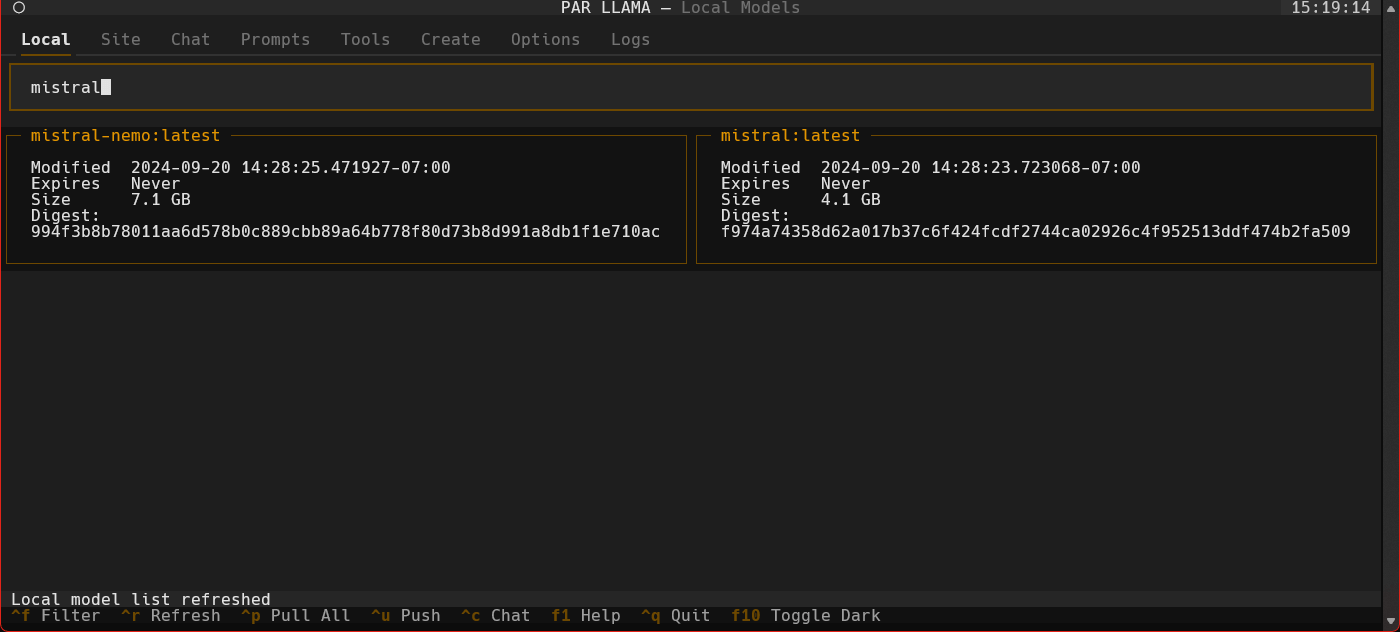
- Click the "Local" tab to see models that have been locally downloaded.
- Select the "llama3:8b" entry and press ^C to jump to the "Chat" tab and auto select the model.
- Type a message to the model such as "Why is the sky blue?". It will take a few seconds for Ollama to load the model. After which the LLMs answer will stream in.
- Towards the very top of the app you will see what model is loaded and what percent of it is loaded into the GPU / CPU. If a model can't be loaded 100% on the GPU it will run slower.
- To export your conversation as a Markdown file type "/session.export" in the message input box. This will open a export dialog.
- Press ^N to add a new chat tab.
- Select a different model or change the temperature and ask the same questions.
- Jump between the tabs to compare responses by click the tabs or using slash commands
/tab.1and/tab.2 - Press ^S to see all your past and current sessions. You can recall any past session by selecting it and pressing Enter or ^N if you want to load it into a new tab.
- Press ^P to see / change your sessions config options such as provider, model, temperature, etc.
- Type "/help" or "/?" to see what other slash commands are available.
Quick start image chat workflow
- Start parllama.
- Click the "Site" tab.
- Use ^R to fetch the latest models from Ollama.com.
- Use the "Filter Site models" text box and type "llava-llama3".
- Find the entry with title of "llava-llama3".
- Click the blue tag "8B" to update the search box to read "llava-llama3:8b".
- Press ^P to pull the model from Ollama to your local machine. Depending on the size of the model and your internet connection this can take a few min.
- Click the "Local" tab to see models that have been locally downloaded. If the download is complete and it isn't showing up here you may need to refresh the list with ^R.
- Select the "llava-llama3" entry and press ^C to jump to the "Chat" tab and auto select the model.
- Use a slash command to add an image and a prompt "/add.image PATH_TO_IMAGE describe what's happening in this image". It will take a few seconds for Ollama to load the model. After which the LLMs answer will stream in.
- Towards the very top of the app you will see what model is loaded and what percent of it is loaded into the GPU / CPU. If a model can't be loaded 100% on the GPU it will run slower.
- Type "/help" or "/?" to see what other slash commands are available.
Quick start OpenAI provider chat workflow
- Start parllama.
- Select the "Options" tab.
- Locate the AI provider you want to use the "Providers" section and enter your API key and base url if needed.
- You may need to restart parllama for some providers to fully take effect.
- Select the "Chat" tab
- If the "Session Config" panel on the right is not visible press
^p - Any providers that have don't need an API key or that do have an API key set should be selectable.
- Once a provider is selected available models should be loaded and selectable.
- Adjust any other session settings like Temperature.
- Click the message entry text box and converse with the LLM.
- Type "/help" or "/?" to see what slash commands are available.
LlamaCPP support
Parllama supports LlamaCPP running OpenAI server mode. Parllama will use the default base_url of http://127.0.0.1:8080. This can be configured on the Options tab.
To start a LlamaCPP server run the following command in separate terminal:
llama-server -m PATH_TO_MODEL
or
llama-server -mu URL_TO_MODEL
Custom Prompts
You can create a library of custom prompts for easy starting of new chats. You can set up system prompts and user messages to prime conversations with the option of sending immediately to the LLM upon loading of the prompt. Currently, importing prompts from the popular Fabric project is supported with more on the way.
Memory System
PAR LLAMA features a comprehensive memory system that allows you to maintain persistent context across all your conversations. This addresses the common issue of LLMs forgetting important information about you between chat sessions.
Core Features
- Memory Tab: Dedicated interface for managing your personal information and preferences
- Automatic Injection: Memory content is automatically injected as the first message in every new conversation
- AI-Powered Updates: Use slash commands to intelligently update your memory with AI assistance
- Real-time Synchronization: Changes made via commands instantly update the Memory tab interface
Managing Your Memory
Memory Tab Interface
Navigate to the Memory tab to:
- Edit Memory Content: Use the large text area to add information about yourself, your preferences, work context, or any details you want the AI to remember
- Enable/Disable Memory: Use the checkbox to control whether memory is injected into new conversations
- Save and Clear: Use the Save button to persist changes or Clear to remove all memory content
Slash Commands
Memory can be dynamically updated from any chat using these commands:
-
/remember [information]: Add new information to your memory using AI assistance- Example:
/remember I prefer concise technical explanations - Example:
/remember I work in Python and React development
- Example:
-
/forget [information]: Remove specific information from your memory using AI assistance- Example:
/forget my old job title - Example:
/forget I mentioned liking verbose responses
- Example:
-
/memory.status: View your current memory content and status -
/memory.clear: Clear all memory content (with confirmation)
Example Memory Content
My name is Alex and I'm a senior software engineer working primarily with:
- Python (FastAPI, Django)
- React and TypeScript
- AWS cloud infrastructure

I prefer:
- Concise, technical explanations
- Code examples with comments
- Best practices and security considerations

Current projects:
- Building a microservices API
- Learning Rust programming language
How Memory Works
- Storage: Memory content is securely stored in your local settings file
- Injection: When starting a new conversation, memory is automatically prepended as a system message
- AI Updates: Slash commands use your current LLM to intelligently modify memory content
- Persistence: All memory changes are immediately saved and synchronized across the interface
The memory system transforms PAR LLAMA into a truly personalized AI assistant that remembers who you are and adapts to your preferences across all conversations.
Template Execution
PAR LLAMA includes a powerful yet secure template execution system that allows you to run code snippets and commands directly from chat messages. This feature enables interactive development workflows, data analysis, and quick testing without leaving the chat interface.
Security & Safety
The execution system is designed with security as a top priority:
- Command Allowlists: Only pre-approved commands can be executed
- Content Validation: Dangerous patterns are automatically detected and blocked
- Sandboxing: Commands run in a controlled environment with restricted permissions
- Timeout Protection: All executions have configurable time limits
- Output Limiting: Command output is truncated to prevent resource exhaustion
Configuration
Template execution settings are configurable in the Options tab under "Template Execution":
- Execution Enabled: Toggle to enable/disable the execution feature (Ctrl+R on chat messages)
- Allowed Commands: Comma-separated list of base commands permitted for execution
- Default includes:
uv,python3,python,node,tsc,bash,sh,zsh,fish - Add your own trusted commands as needed
- Changes take effect immediately without restart
- Default includes:
Usage
- Enable Execution: Ensure "Execution enabled" is checked in Options
- Create Executable Content: Paste or type code/commands in a chat message
- Execute: Press Ctrl+R on any chat message to execute its content
- Review Results: Execution results appear as a new chat response with:
- Command that was executed
- Standard output and error streams
- Exit code and execution time
- Any temporary files created
Execution Templates
The system supports flexible execution templates that can:
- Execute inline code directly from message content
- Create temporary files for multi-line scripts
- Set custom working directories
- Configure environment variables
- Run commands in foreground or background
- Handle different programming languages and tools
Best Practices
- Start with a restrictive allowed commands list and expand as needed
- Test execution templates with non-destructive commands first
- Be cautious with commands that modify files or system state
- Use the timeout settings to prevent long-running processes
- Review execution results before relying on outputs
This feature transforms PAR LLAMA into a powerful development companion, enabling seamless transitions between conversation and code execution.
Themes
Themes are json files stored in the themes folder in the data directory which defaults to ~/.parllama/themes
The default theme is "par" so can be located in ~/.parllama/themes/par.json
Themes have a dark and light mode are in the following format:
{
  "dark": {
    "primary": "#e49500",
    "secondary": "#6e4800",
    "warning": "#ffa62b",
    "error": "#ba3c5b",
    "success": "#4EBF71",
    "accent": "#6e4800",
    "panel": "#111",
    "surface":"#1e1e1e",
    "background":"#121212",
    "dark": true
  },
  "light": {
    "primary": "#004578",
    "secondary": "#ffa62b",
    "warning": "#ffa62b",
    "error": "#ba3c5b",
    "success": "#4EBF71",
    "accent": "#0178D4",
    "background":"#efefef",
    "surface":"#f5f5f5",
    "dark": false
  }
}
You must specify at least one of light or dark for the theme to be usable.
Theme can be changed via command line with the --theme-name option.
Contributing
See CONTRIBUTING.md for development setup, code style, commit conventions, and the pull request process.
FAQ
- Q: Do I need Docker?
- A: Docker is only required if you want to Quantize models downloaded from Huggingface or similar llm repositories.
- Q: Does ParLlama require internet access?
- A: ParLlama by default does not require any network / internet access unless you enable checking for updates or want to import / use data from an online source.
- Q: Does ParLlama run on ARM?
- A: Short answer is yes. ParLlama should run any place python does. It has been tested on Windows 11 x64, Windows WSL x64, Mac OSX intel and silicon
- Q: Does ParLlama require Ollama be installed locally?
- A: No. ParLlama has options to connect to remote Ollama instances
- Q: Does ParLlama require Ollama?
- A: No. ParLlama can be used with most online AI providers
- Q: Does ParLlama support vision LLMs?
- A: Yes. If the selected provider / model supports vision you can add images to the chat via /slash commands
Roadmap
Where we are
- Core Model Management - Find, maintain, pull, delete, copy, and create new models with full Ollama integration
- Multi-Provider Support - Seamless integration with Ollama, OpenAI, Anthropic, Groq, Google, xAI, OpenRouter, Deepseek, and LiteLLM
- Advanced Chat System - Multi-tab conversations with full history management and session persistence
- Vision Model Support - Chat with images using vision-capable LLMs like LLaVA and GPT-4 Vision
- Memory System - Persistent user context across all conversations with AI-powered memory management
- Template Execution - Secure code execution system with configurable command allowlists and safety controls
- Custom Prompt Library - Create, manage, and import prompts from Fabric and other sources
- Theme System - Full dark/light mode support with custom JSON-based theme configuration
- Smart Caching - Intelligent per-provider model caching with configurable durations
- Comprehensive Slash Commands - Extensive command system for navigation, session management, and memory operations
- Export Capabilities - Export conversations as Markdown files for documentation
- Security & Validation - Comprehensive file validation and secure operations for all data handling
- Cross-Platform Support - Native support for Windows, macOS, Linux, and WSL environments
Where we're going
- Better image support via file pickers
- RAG for local documents and web pages
- Expand ability to import custom prompts of other tools
- LLM tool use
What's new
v0.8.7 (Latest)
- Chat Cost Tracking: Session status bar now shows cumulative cost for paid providers. Token usage and cost are accumulated across all messages and persisted with the session file
- Markdown Export Frontmatter: Exported markdown files now include YAML frontmatter with provider, model, date, token usage, and cost
v0.8.6
- Edit & Continue: Press
con any completed assistant message to continue generation from that point. Works with all providers. After stopping generation, edit the partial response withe, then presscto continue (#45)
v0.8.4
- First Run Fix: Fixed error message appearing on first run when
settings.jsondoesn't exist yet (#69) - Python 3.11 Compatibility Fix: Fixed syntax errors when running on Python 3.11
For the full version history, see CHANGELOG.md.
Project details
Verified details
These details have been verified by PyPIProject links
GitHub Statistics
Maintainers
Release history Release notifications | RSS feed


Download files
Download the file for your platform. If you're not sure which to choose, learn more about installing packages.
Source Distribution
Built Distribution
Filter files by name, interpreter, ABI, and platform.
If you're not sure about the file name format, learn more about wheel file names.
Copy a direct link to the current filters
File details
Details for the file parllama-0.8.7.tar.gz.
File metadata
- Download URL: parllama-0.8.7.tar.gz
- Upload date:
- Size: 178.9 kB
- Tags: Source
- Uploaded using Trusted Publishing? Yes
- Uploaded via: twine/6.1.0 CPython/3.13.12
File hashes
| Algorithm | Hash digest | |
|---|---|---|
| SHA256 |
c005baa642e27188f227aed0a308007730b7899e93fd359bcdaca10e432c2673
|
|
| MD5 |
2ea5ae9a038d8ba688a5d17b63699bb5
|
|
| BLAKE2b-256 |
75378ef9c4eb2229b558bf5ba65120a7dd09df189c2024f61bb6fb8caf7b71cf
|
Provenance
The following attestation bundles were made for parllama-0.8.7.tar.gz:
Publisher:
publish.yml on paulrobello/parllama
-
Statement:
-
Statement type:
https://in-toto.io/Statement/v1 -
Predicate type:
https://docs.pypi.org/attestations/publish/v1 -
Subject name:
parllama-0.8.7.tar.gz -
Subject digest:
c005baa642e27188f227aed0a308007730b7899e93fd359bcdaca10e432c2673 - Sigstore transparency entry: 1444269483
- Sigstore integration time:
-
Permalink:
paulrobello/parllama@d4ec76cba42a5552893f2fd20d020195dc175a12 -
Branch / Tag:
refs/heads/main - Owner: https://github.com/paulrobello
-
Access:
public
-
Token Issuer:
https://token.actions.githubusercontent.com -
Runner Environment:
github-hosted -
Publication workflow:
publish.yml@d4ec76cba42a5552893f2fd20d020195dc175a12 -
Trigger Event:
workflow_dispatch
-
Statement type:
File details
Details for the file parllama-0.8.7-py3-none-any.whl.
File metadata
- Download URL: parllama-0.8.7-py3-none-any.whl
- Upload date:
- Size: 234.3 kB
- Tags: Python 3
- Uploaded using Trusted Publishing? Yes
- Uploaded via: twine/6.1.0 CPython/3.13.12
File hashes
| Algorithm | Hash digest | |
|---|---|---|
| SHA256 |
ad7e12b556f5635eb074949ee21c9cbdbd7e86068bb0cc74ff21ac638408fab3
|
|
| MD5 |
5f0a33ab75c050a05c092ace3ff50b72
|
|
| BLAKE2b-256 |
23083da0c4cce2ae6bcb6ff5debba2cbff81ac0038bef6239a68af0d53511148
|
Provenance
The following attestation bundles were made for parllama-0.8.7-py3-none-any.whl:
Publisher:
publish.yml on paulrobello/parllama
-
Statement:
-
Statement type:
https://in-toto.io/Statement/v1 -
Predicate type:
https://docs.pypi.org/attestations/publish/v1 -
Subject name:
parllama-0.8.7-py3-none-any.whl -
Subject digest:
ad7e12b556f5635eb074949ee21c9cbdbd7e86068bb0cc74ff21ac638408fab3 - Sigstore transparency entry: 1444269638
- Sigstore integration time:
-
Permalink:
paulrobello/parllama@d4ec76cba42a5552893f2fd20d020195dc175a12 -
Branch / Tag:
refs/heads/main - Owner: https://github.com/paulrobello
-
Access:
public
-
Token Issuer:
https://token.actions.githubusercontent.com -
Runner Environment:
github-hosted -
Publication workflow:
publish.yml@d4ec76cba42a5552893f2fd20d020195dc175a12 -
Trigger Event:
workflow_dispatch
-
Statement type:






