
pdf-redpen
English | 한국어
pdf-redpen takes the sentences an LLM quoted while reviewing a PDF and finds them in the original file, even when the model changed spaces, punctuation or the page number. It then draws standard highlight + note annotations that open in any PDF viewer, turning a review note like "this sentence somewhere on page 3" into a highlighter mark and a sticky note at that exact spot. Try it with no API key: uv tool install git+https://github.com/LeeGyeongPil/pdf-redpen && pdf-redpen demo --out out (the demo replays hand-written recorded answers, a practice mock). MIT license.
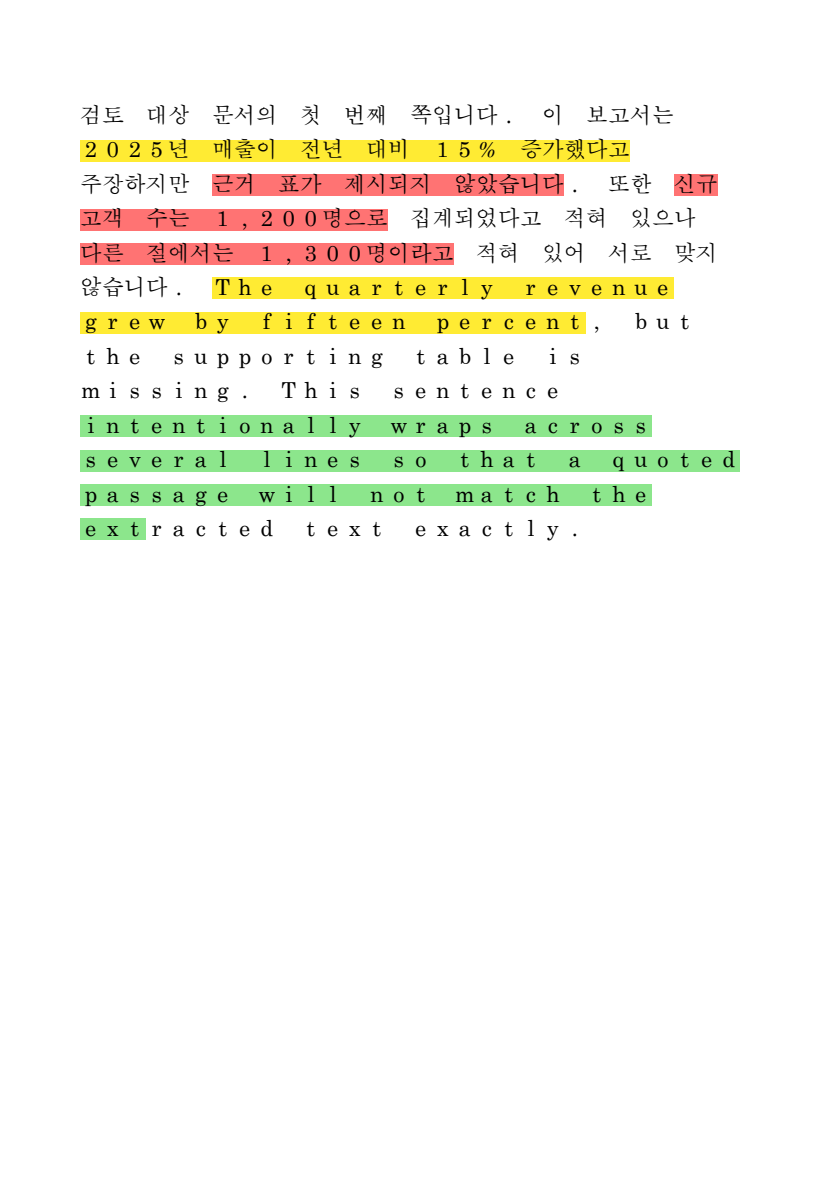
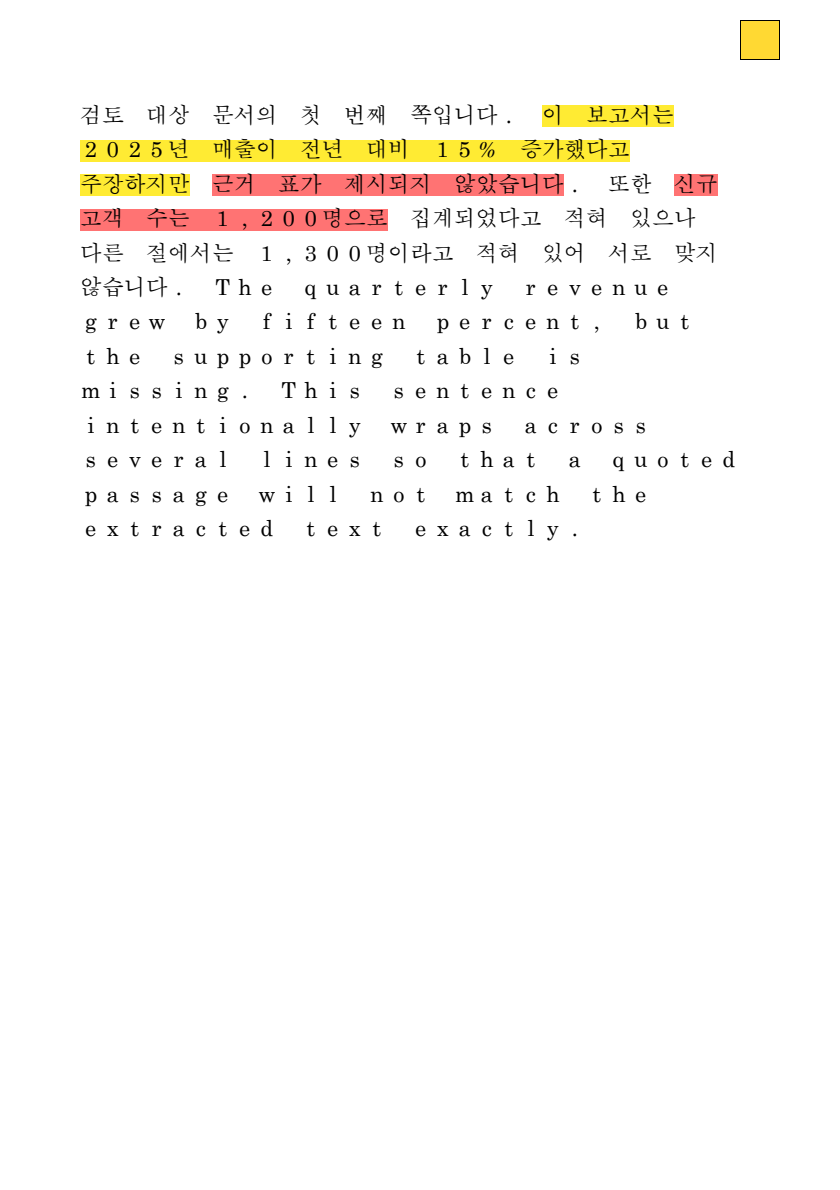
reviewed.pdf made by pdf-redpen demo. Sentences that span several lines are painted line by line. (The image renderer draws the Korean font with a substitute typeface, so the letter spacing looks wide, but the painted positions follow the character coordinates exactly.)
Who it is for
- People who have an LLM do a first review of a report, proposal or paper PDF, and find it tedious to go back and forth between the list of remarks and the original to find sentences
- People who have run into the problem that a sentence the model quoted "does not show up in search" (spaces, word spacing or punctuation changed, wrong page number)
- Developers who want to show the findings JSON from other tools, such as spell or terminology checkers, on top of a PDF
- People who want to see in numbers how many more findings appear when the LLM is asked once more, "did you miss anything?"
Why it is needed (a red-pen analogy)
If a proofreader writes only "something is off somewhere on page 3", you end up rereading page 3. If they draw a highlighter line on the odd sentence and stick a note beside it, you can fix it right away. An LLM is good at the earlier part (finding a sentence and talking about it), but it cannot copy the quoted sentence identically down to the last character. This tool handles the follow-up work of tying that "nearly identical sentence" to the real character positions in the PDF.
Installation
# Prerequisite: uv (Python package manager). Skip if you already have it.
curl -LsSf https://astral.sh/uv/install.sh | sh
# Install the tool (Python 3.11 or later)
uv tool install git+https://github.com/LeeGyeongPil/pdf-redpen
You can also clone it and use it without installing: git clone https://github.com/LeeGyeongPil/pdf-redpen && cd pdf-redpen && uv sync && uv run pdf-redpen --version
On a minimal Linux (for example a slim container), curl, git and ca-certificates are needed. The PDF-processing dependencies (pdfplumber, pypdf, Pillow) are all installed as wheels, so no separate system libraries are needed.
Quick start
No key or model is needed.
pdf-redpen demo --out out
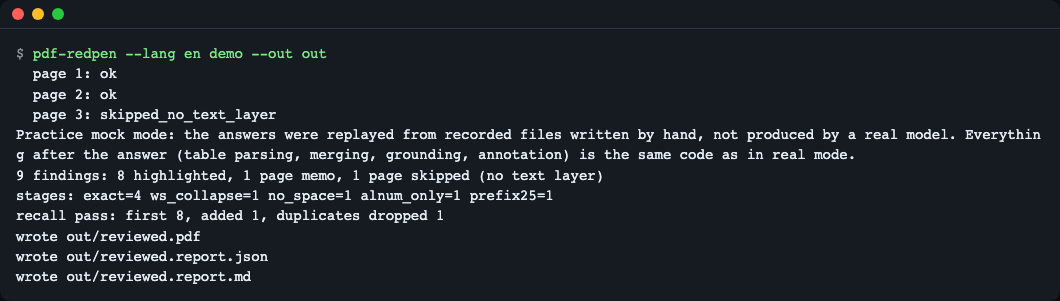
demo run screen (English; the screenshot adds --lang en to make the language explicit). Page 3 has no text layer, so the model is not called and the page is skipped. The quoted sentences in the sample report are Korean, so they stay Korean in every screen.
This is a practice mock mode. The model's responses are replaced by recorded files bundled in the repository (
src/pdf_redpen/data/recorded/, written by hand by a person and not the real output of any particular model). What happens after a response arrives (table parsing, recall merge, locating, writing annotations) is the same code as in the real mode. A real model will flag more or fewer items, and different ones. The real mode can be much slower because of the model calls.
How to read it:
| Output | Meaning |
|---|---|
9 findings |
9 findings produced by the model (the recording) |
8 highlighted |
8 were located in the PDF and highlighted |
1 page memo |
1 could not be found in the body and was written into that page's corner memo |
1 page skipped |
Pages without a text layer (scans, blank pages) are skipped |
stages: exact=4 ... |
A tally of which stage's matching method found each finding |
recall pass: first 8, added 1, ... |
8 in the first pass, 1 added by asking again for "only what was missed", 1 duplicate removed |
Open out/reviewed.pdf in any PDF viewer. A finding that was located becomes a highlight (/Highlight) and its explanation is in the highlight's note (/Contents), visible when you click or hover over the highlight. Findings that were not located are gathered under [not found] in a single note icon at the page corner.
Usage
| Command | What it does | Example |
|---|---|---|
demo |
Reviews the 3 bundled sample pages with recorded responses | pdf-redpen demo --out out |
review |
Reviews a PDF with a model and produces an annotated PDF and a report | pdf-redpen review a.pdf --recall-pass -o a.reviewed.pdf |
apply |
Attaches a findings JSON to a PDF, without a model | pdf-redpen apply a.pdf findings.json -o a.marked.pdf |
clear |
Removes only the annotations this tool added | pdf-redpen clear a.marked.pdf -o a.clean.pdf |
review options: --instructions FILE (review guidelines), --mock DIR (replay recordings), --record DIR (save responses), --recall-pass (ask again for what was missed), --max-highlights-per-page N (default 20), --pages 1-3,5, --author, --lang ko|en (the prompt language sent to the model, default ko; not the screen language, see below).
Exit codes:
0Normal. It is 0 even if no findings were located (reported in the report), and if only some pages fail it printswarning: N page(s) failed ...to stderr and is still 0.1All pages sent to the model failed (error: every page failed; ...), or an unexpected error.2Input error (nonexistent file, bad JSON, out-of-rangepage, unknownseverity, no model configured, etc.) or a file you cannot read or write (error: cannot access <path>: <reason>, for example a read-only output folder).
Screen language (English / Korean)
Everything you read in the terminal (help, progress and summary lines, error messages) and the Markdown report can be shown in English or Korean. The notes written into the PDF follow the same language. The first one that is set wins:
| Priority | How | Example |
|---|---|---|
| 1 | Global option, placed before the command | pdf-redpen --lang ko demo --out out |
| 2 | Environment variable | PDF_REDPEN_LANG=ko pdf-redpen demo --out out |
| 3 | Locale: LC_ALL, then LC_MESSAGES, then LANG (a value starting with ko means Korean) |
LANG=ko_KR.UTF-8 pdf-redpen demo --out out |
| 4 | Nothing set, or any other value | English |
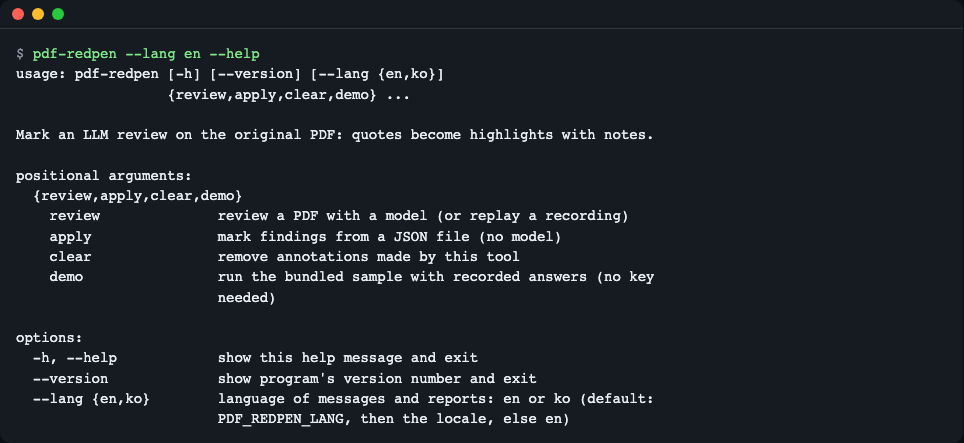
pdf-redpen --lang en --help. With --lang ko the same screen is shown in Korean. argparse's own headings (usage:, positional arguments:, options:) and the description lines of -h and --version stay English.
--langbefore the command is the screen language.review --lang ko|enafterreviewis the prompt language that is sent to the model (and it keeps its defaultko). They are separate:pdf-redpen --lang en review a.pdf --lang koshows English messages but asks the model in Korean.- The notes inside the PDF are
[not found],[over cap]and(loose match)in English, and[위치 못 찾음],[상한 초과]and(느슨 일치)in Korean. Versions before 0.2.0 always wrote the Korean ones. report.jsonis for machines and is always English, whatever the language. Status and stage codes (highlighted,exact, ...) are the same in both languages.
Scenario 1. Review your own document with a local model
export PDF_REDPEN_BASE_URL=http://localhost:11434/v1   # OpenAI-compatible endpoint (e.g. Ollama)
export PDF_REDPEN_MODEL=<your-model-name>
pdf-redpen review report.pdf --instructions review.md --recall-pass --record rec -o report.reviewed.pdf
(<your-model-name> is a placeholder for the name of the model you have pulled.)
- It extracts the text of each page and sends it to the model, then picks the quotations from the response table and locates them.
- With
--record rec, the responses are saved torec/page{n}_turn{k}.md, so later you can reproduce the same result with--mock recwithout a key or network (for sharing with a team or regression checks). When you replay files you recorded yourself, the report still carries the "practice mock" notice, but the content is that model's response, not something a person wrote.--mockand--recordcannot be used together (giving both is exit code 2). - This mode sends the page text to the endpoint you specify. For sensitive documents, use a local model.
If the endpoint is not up or the model name is wrong, the cause is shown per page in the terminal. If all the pages sent fail, the exit code is 1. (The example below was produced with PDF_REDPEN_TIMEOUT=2 and PDF_REDPEN_BASE_URL=http://127.0.0.1:9/v1; with the default you would see now 120s.)
  page 1: error - LLMError: Could not reach http://127.0.0.1:9/v1/chat/completions (<urlopen error [Errno 61] Connection refused>). Is the server running? Local models can be slow; raise PDF_REDPEN_TIMEOUT (now 2s).
  ...
error: every page failed; see the causes above (or the Pages table in the report). Nothing was reviewed.
(With --lang ko the same lines appear in Korean.)
If you do not specify a model, it stops like this (exit code 2).

PDF_REDPEN_MODEL or use demo or --mock.
Scenario 2. Attach another tool's findings to a PDF (apply)
findings.json is an array like this (full example: examples/findings.json).
[
  {"page": 1, "quote": "근거 표가 제시되지 않았습니다", "comment": "근거 표 추가 필요", "severity": "high"},
  {"page": 2, "quote": "존재하지 않는 문장입니다", "comment": "못 찾으면 페이지 메모로", "severity": "high"}
]
(In this sample, the first quote means "no supporting table is presented" and its comment is "supporting table needed"; the second quote is "a sentence that does not exist" and its comment is "if not found, as a page memo".)
severity is high, medium or low (colors: red, yellow, green) and may be omitted. Common aliases such as critical, major and 높음 ("high") are accepted, but unknown values (typos and the like) are rejected instead of silently becoming yellow.
If page exceeds the PDF's page count, it stops with exit code 2 and does not create the output PDF, so no finding disappears.

An unknown severity is rejected with error: f.json: item 0: unknown severity 'urgnt'; use high, medium or low (or omit 'severity'). (exit code 2).
Scenario 3. A page with too many findings, and clearing to start over
The paths in this command (src/..., examples/findings.json) assume you run it in the folder where you cloned the repository. If you installed only with pip or uv tool, replace them with your own PDF and JSON paths.
pdf-redpen apply src/pdf_redpen/data/sample_report.pdf examples/findings.json -o cap3.pdf --max-highlights-per-page 3
pdf-redpen clear cap3.pdf -o clean.pdf
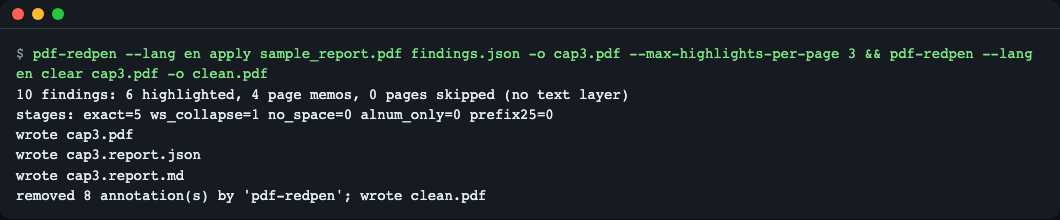
clear removes only the 8 annotations whose author is pdf-redpen (6 highlights + 2 page memos, one per page).
[over cap] list.
clear removes only annotations whose /T (author) is pdf-redpen, so annotations added by people stay. If you attached them with a different author through review --author name, you must also give pdf-redpen clear a.pdf -o b.pdf --author name when clearing. Like review, apply also creates <name>.report.json and <name>.report.md next to the output PDF.
Reading the report
review and demo create <name>.report.json (for machines) and <name>.report.md (for people) next to the output PDF (for example out/reviewed.report.md). Details not visible in the terminal are here.
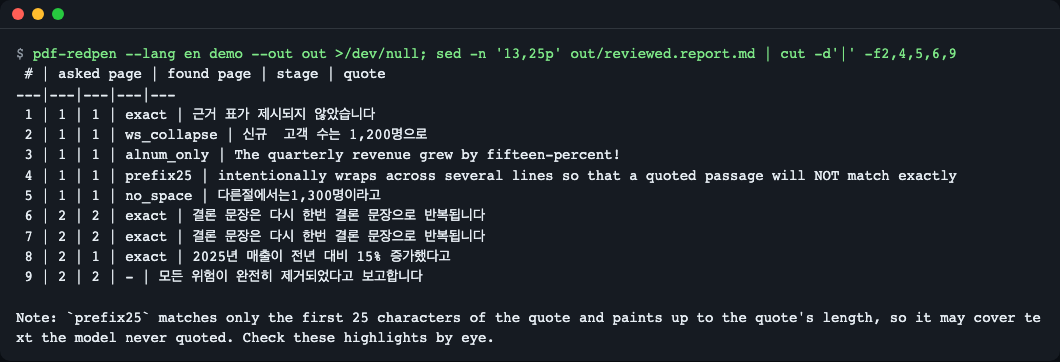
reviewed.report.md (only the columns #, asked page, found page, stage and quote are shown, cropped). Finding 8 was said to be on page 2 but was found on page 1, and 9 is - (not found), so it went to the page memo.
Findings table columns: # number / source (turn1 = first query, recall = recall query, apply = JSON input) / asked page (the page the model said) / found page (the page actually found) / stage (which match stage, - if not found) / status / severity / quote / comment.
Finding status |
Meaning | What you see in the PDF |
|---|---|---|
highlighted |
Located and painted | Highlight + note |
memo_not_found |
Not found in the body | [not found] list in the page corner note |
memo_overflow |
Exceeded the per-page highlight cap (--max-highlights-per-page) |
[over cap] list in the page corner note |
Pages table: for each page, status, plus first (number of first-pass findings), recall added, duplicates dropped, broken rows, and note.
Page status |
Meaning |
|---|---|
ok |
Processed by calling the model |
skipped_no_text_layer |
No text layer, so the model was not called (the reason is in note) |
error |
The call for that page failed. The cause (for example Could not reach ...) is left in note, and the same cause also shows in the terminal |
If note contains page text truncated before sending, that page's text was cut at 12000 characters per page before going to the model, so findings in the latter part may be missing. Also, findings whose stage is prefix25 may be painted longer than the quotation (see the 5-stage explanation below), so check them by eye.
Configuration
Environment variables (needed only for the real review; not needed for demo, apply, clear or review --mock). Example: .env.example.
| Variable | Default | Description |
|---|---|---|
PDF_REDPEN_BASE_URL |
http://localhost:11434/v1 |
The front part of an OpenAI-compatible chat/completions endpoint |
PDF_REDPEN_MODEL |
(none, required) | Model name |
PDF_REDPEN_API_KEY |
(none) | If set, sent as Authorization: Bearer. Not recorded in code, reports or recording files |
PDF_REDPEN_TIMEOUT |
120 |
Seconds to wait for a response |
PDF_REDPEN_LANG |
(none) | Screen language en or ko; the global --lang option wins over it. Works for every command, including demo and apply |
How it works
There are two key parts: locating (grounding) and the recall pass.
flowchart LR
  A["Extract page text"] --> B["Query the model"]
  B --> C["Parse response table"]
  C -.->|--recall-pass| D["Recall query: only what was missed"]
  D -.-> E["Parse table + dedupe"]
  C --> F["5-stage locating"]
  E -.-> F
  F -->|found| G["Highlight + note"]
  F -->|not found| H["Page corner note"]
  G --> I["Annotated PDF + report"]
  H --> I
- Extract text: it flattens a page's text into one line of string, and for each character of the string remembers "the original character box number". The text sent to the model and the target being searched are the same string, so a copied sentence is always found. Pages without a text layer are skipped.
- Query: for each page, the model is asked to answer in a "quoted original | finding | severity" table. Even if the table's header names or column order differ, or some rows are broken, it does not stop; it just counts each broken row and skips it.
- Recall query (
--recall-pass, the dotted line): after parsing the first-pass response table, it asks once more in the same conversation, "the list I just flagged is this, so add only what was missed." The point is to show the first-pass findings in the prompt, so only new findings are added rather than repeating the same things. The tables of the two responses are merged and duplicates are removed. - 5-stage locating: it tries in order from strict to loose and uses the first stage that succeeds.
- Write annotations: it makes a standard
/Highlightwith one rectangle (quad) per line, and also writes appearance information (/AP) so the highlight does not look different in each viewer. It saves to a temporary file (.part) page by page and replaces the whole, so even if it fails midway, the annotations of finished pages remain.
5-stage locating
| Stage | How it matches | Variation it catches |
|---|---|---|
exact |
The text as is | A normal quotation |
ws_collapse |
Runs of spaces and line breaks collapsed into one space | Double spaces, copied line breaks |
no_space |
All whitespace removed | Korean word-spacing errors |
alnum_only |
Compare letters and digits only | Punctuation and hyphen variations |
prefix25 |
Match only the first 25 characters and paint to the quotation's length | Paraphrase of the latter part |
- If the same sentence appears twice, it avoids characters already painted and paints the next occurrence (findings 6 and 7 in the demo).
- If the model gets the page number wrong, it also looks in the neighboring pages (finding 8 in the demo: said page 2 but found on page 1).
prefix25is the loosest, so it can paint characters the model did not quote. That is why it is the last resort, and the green tail ("ext") in the hero image above is an example. Check findings located at this stage by eye in the report.
For what the table columns mean, see "Reading the report" above.
Why the recall pass is needed
Recall is "the share of the problems that actually exist that the model found". The recall of a single query can be low, to the point that asking the same model about the same document twice gives different numbers of findings. The recall pass is a further query to raise it: it keeps the first answer in the same conversation as an assistant message, shows the first-pass finding list again in the user message, and asks for only what was missed (implementation: prompts.recall_turn). The report lists the first-pass count and the added and de-duplicated counts separately. This technique does not guarantee a number of findings, and figures such as added 1 in the demo are hand-written recorded values. Below is the recall prompt the demo actually sent.
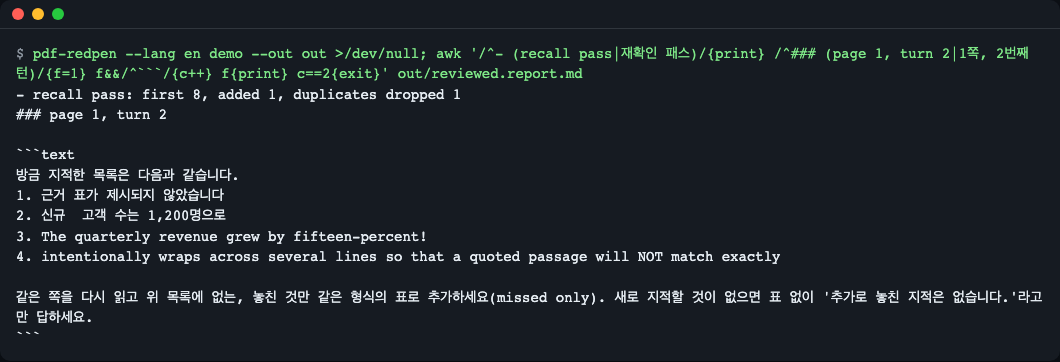
recall pass: first 8, added 1, duplicates dropped 1. The prompt body is in Korean because the prompt language (review --lang, which demo uses) defaults to ko and is separate from the screen language; the screen language only changes the surrounding lines. The awk pattern in the command matches both languages' headings.
A tour of the code
src/pdf_redpen/grounding.py: 5-stage locating (ground) and neighboring-page search (ground_finding).src/pdf_redpen/recall.pyandprompts.py: the recall query and merging.src/pdf_redpen/writer.pyandquads.py: annotations and quad coordinates (PDF puts the origin at the bottom left while extracted coordinates put it at the top left, so a conversion is needed).
Using it from Python
The sample paths in the example below also assume you run it in the folder where you cloned the repository.
from pdf_redpen import Finding, annotate_pdf

report = annotate_pdf(
    "src/pdf_redpen/data/sample_report.pdf",
    [Finding(1, "근거 표가 제시되지 않았습니다", "근거 표 추가 필요"),
     Finding(2, "존재하지 않는 문장입니다", "못 찾음")],
    "marked.pdf",
)
for p in report.placements:
    print(p.status, p.stage)   # highlighted exact / memo_not_found None
| Public name | Description |
|---|---|
annotate_pdf(src, findings, dst, *, max_per_page=20, author=..., lang=None) |
Attaches a list of findings to a PDF, saves it to dst and returns a Report. lang ("en" or "ko") sets the language of the notes in the PDF; the default is English unless pdf_redpen.i18n.set_lang("ko") was called (the CLI does this for you) |
Finding(page, quote, comment, severity=None) |
One finding |
Report |
Tallies such as placements (status and stage per finding) and pages |
ground(page, quote, used) |
Low-level function: it needs an internal PageText, so you normally use only annotate_pdf |
Match, InputError |
The match result type, and the input error exception |
Limits
- Scanned PDFs and PDFs with broken characters (
cid) have no text layer and are skipped (no OCR). - In two-column layouts the character reading order can get mixed up, so multi-line quotations may not be found.
- The look of highlights and notes can differ slightly between viewers.
- The real mode depends on the model's speed, and the page text is sent to the endpoint.
- Known limits of the screen language: the screen language option goes before the command (
pdf-redpen --lang ko demo), the headings and-h/--versiondescription lines that argparse adds stay English, and the library's default PDF notes are English unless you passlang=. The Korean screen calls the recorded responses "녹음" files (the practice-mode files), which is a wording quirk, not audio.
When to use it
- This tool fits if you want to attach findings from an LLM or another tool to a standalone PDF file as annotations at the original's positions. Findings whose position could not be found are left as a page memo.
- If you handle several document formats or are in a .NET environment, look at groupdocs ai-document-review-annotations-net.
- If you manage paper annotations inside a Zotero library, look at zotero-mcp.
- Other tools' features can change, so check the details yourself at each link. (The links were noted during the 2026-11-09 survey.)
Troubleshooting
| Symptom | Cause | Fix |
|---|---|---|
error: No model configured ... (exit code 2) |
A real review without a model configured |
Set PDF_REDPEN_MODEL, or use demo / --mock DIR |
error: cannot access <path>: ... (exit code 2) |
The output folder is read-only, does not exist or is full | Choose another -o path and check the permissions |
| The screen is in the wrong language | The locale or PDF_REDPEN_LANG decides it |
Pass --lang en or --lang ko before the command |
unrecognized arguments: --lang en (exit code 2) |
The screen language option was placed after the command | Put it before the command: pdf-redpen --lang ko demo |
A page is shown as skipped_no_text_layer |
A scan, a blank page, or broken character mapping | Use a PDF with a text layer (OCR is not supported) |
A finding becomes memo_not_found |
The model made up a sentence that is not in the body | Check the page corner note. If needed, use --recall-pass or strengthen the instructions |
| The painted range is longer than the quotation | It was found at the prefix25 stage |
Check the stage in the report and inspect by eye |
| Annotations overlap after running the same PDF again | The previous annotations remain | Run pdf-redpen clear first |
Development and contributing
git clone https://github.com/LeeGyeongPil/pdf-redpen && cd pdf-redpen
uv sync
uv run pytest
Only the script that regenerates the sample PDF (scripts/make_sample_pdf.py) needs PyMuPDF (AGPL-3.0), and the package does not use it. Please leave bugs and suggestions as issues. Change history is in CHANGELOG.md.
Learn more
Checked 2026-11-09.
- pypdf, adding annotations: https://pypdf.readthedocs.io/en/stable/user/adding-pdf-annotations.html
- pdfplumber: https://github.com/jsvine/pdfplumber
- The concept of tying model quotations to document coordinates (grounding): https://artifex.com/blog/grounding-in-document-extraction
- Tools in the same family: https://github.com/neuml/annotateai, https://github.com/onekin/AnnotateGPT
License
MIT. Direct dependencies: pdfplumber (MIT), pypdf (BSD-3-Clause), Pillow (MIT-CMU) (indirect dependencies such as pypdfium2 and cryptography are Apache-2.0/BSD family). For the sample PDF's fonts and sources, see NOTICE.md.
1 maintainer

Metadata
1 maintainer
Release files for pdf-redpen 0.2.0
For a detailed explanation of source distributions (sdists) and built distributions (wheels), please see the package formats documentation.
Source distribution (sdist)
| File | Size | Uploaded | Provenance | Actions |
|---|---|---|---|---|
| pdf_redpen-0.2.0.tar.gz | 1.0 MB | Without provenance | Details for pdf_redpen-0.2.0.tar.gz |
Built distribution (wheel)
| File | Interpreter | ABI | Platform | Actions Reset |
|---|---|---|---|---|
| pdf_redpen-0.2.0-py3-none-any.whl | Python 3 | none | any | Details for pdf_redpen-0.2.0-py3-none-any.whl |
Total release size: 1.1 MB
Release files / pdf_redpen-0.2.0.tar.gz
| Download URL | pdf_redpen-0.2.0.tar.gz |
|---|---|
| Size | 1.0 MB |
| Tags | Source |
|
SHA-256 checksum How to use checksums |
a808d69d7bb315b71dd69431c9dabd495e7f7bf892bb3a9cde10b42b6bdbf7c6
|
|
BLAKE2b-256 checksum How to use checksums |
84418c0b2d8c269724412d924129339b8e75dd718c9a9b8d65e6f78833788e48
|
| Upload date | |
|
Uploaded using Trusted Publishing? What is trusted publishing? |
No |
| Uploaded via |
uv/0.13.6 {"installer":{"name":"uv","version":"0.13.6","subcommand":["publish"]},"python":null,"implementation":{"name":null,"version":null},"distro":{"name":"macOS","version":null,"id":null,"libc":null},"system":{"name":null,"release":null},"cpu":null,"openssl_version":null,"setuptools_version":null,"rustc_version":null,"ci":null}
|
Release files / pdf_redpen-0.2.0-py3-none-any.whl
| Download URL | pdf_redpen-0.2.0-py3-none-any.whl |
|---|---|
| Size | 48.5 kB |
| Tags | Python 3 |
|
SHA-256 checksum How to use checksums |
fc7fa792833ca08fc0f7d1e2e1347c20d06126f875bee8c59a7446eb19eade6c
|
|
BLAKE2b-256 checksum How to use checksums |
7b2d00250a3977663b3f73f645e3b975f636daa74d5cfd64a06505cf7ad95a02
|
| Upload date | |
|
Uploaded using Trusted Publishing? What is trusted publishing? |
No |
| Uploaded via |
uv/0.13.6 {"installer":{"name":"uv","version":"0.13.6","subcommand":["publish"]},"python":null,"implementation":{"name":null,"version":null},"distro":{"name":"macOS","version":null,"id":null,"libc":null},"system":{"name":null,"release":null},"cpu":null,"openssl_version":null,"setuptools_version":null,"rustc_version":null,"ci":null}
|
Security for pdf-redpen 0.2.0
Provenance
Provenance describes where a file came from. On PyPI, provenance is shared via attestations, which provide a verifiable record of the build or publishing details. View details, limitations and caveats.
No provenance found
None of the files in this release were uploaded with provenance metadata.
A note on package security
PyPI is a repository for distributing packages, not a service for auditing them. While third-party security researchers and our staff do their best to detect and remove malicious packages, PyPI cannot guarantee the quality, security or suitability of any given package.
To learn more about protecting yourself from malicious actors, visit our package security documentation.













