
 Polar Ecosystems Program GUI


Table of Contents
Terminology
- Task - a task is a unit of work in the GUI and is comprised of running a single dataset through a pipeline.
- Job - a job is one or more tasks, so a job is comprised of running one or more datasets through a pipeline.
- Dataset - a dataset is an image list or a set of image lists which point to images in the dataset. Images within an image list can be in different directories, or two dataset's image lists could all point to images in the same directory (for example for splitting test and non-test data). See Dataset Manifest for details.
The GUI
- Setup -
This GUI runs kwiver pipelines using VIAME's underlying kwiver. Some pipelines(anything requiring a transformation file)
may require kwiver plugins only available in the SEAL-TK distribution.
Binaries for SEAL-TK or VIAME can be found here.
pip install pep_tk
pep_gui # command to run the GUI
Because by default this was installed for your user you may need to add the user bin/ path to your PATH variable for pep_gui to work export PATH=~/.local/bin:$PATH.
I tested this on Windows11 and succeeded with the above instructions. I recommend creating a conda environment especially on our windows VMs where
you may have limited permissions with the global python.
Other
If for some reason you are struggling and the pep_gui target doesn't work a simple script like this could be used to launch the GUI.
# example my_custom_launcher.py
from pep_tk import launch

launch.main()  # launch GUI
- Configuring the application preferences -
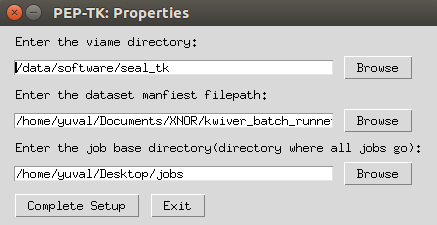
When the application is launched for the first time you will be prompted to configure the following properties.
After that, to modify these properties, go to File > Properties.
Here you can set:
- Which SEAL-TK directory to use.
- Which dataset manfieset file to use.
- The base directory for jobs (new jobs will be created in
/path/to/job_base_dir/)
- Creating a Job -
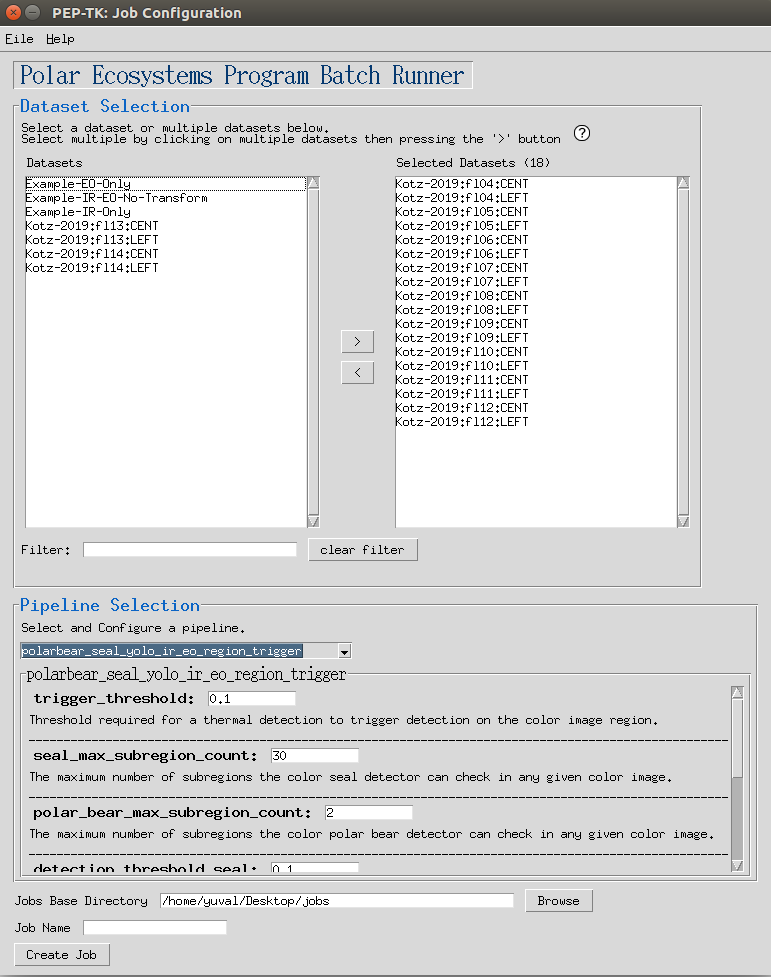
When you first launch the program you will be brought to a page to create a job. To create a job:
- Select which datasets you want to run
- Select which pipeline to use
- Select a unique name for your job
- Resuming a job -
Resuming a job is usefil if for some reason the GUI or machine you are on crashes mid-job. In addition if for some reason you were to cancel some tasks in a job, and decide you want to run them later, resuming will re-run any cancelled tasks.
To resume a Job click File > Resume Job which will open a prompt to select a folder. Select the folder of the job you would like to resume.
Since a task is the smallest unit of work, if a task fails half way through, resuming a job will re-run that task from the beginning. If a task is successful resuming a job will not re-run that task.
- Job progress -
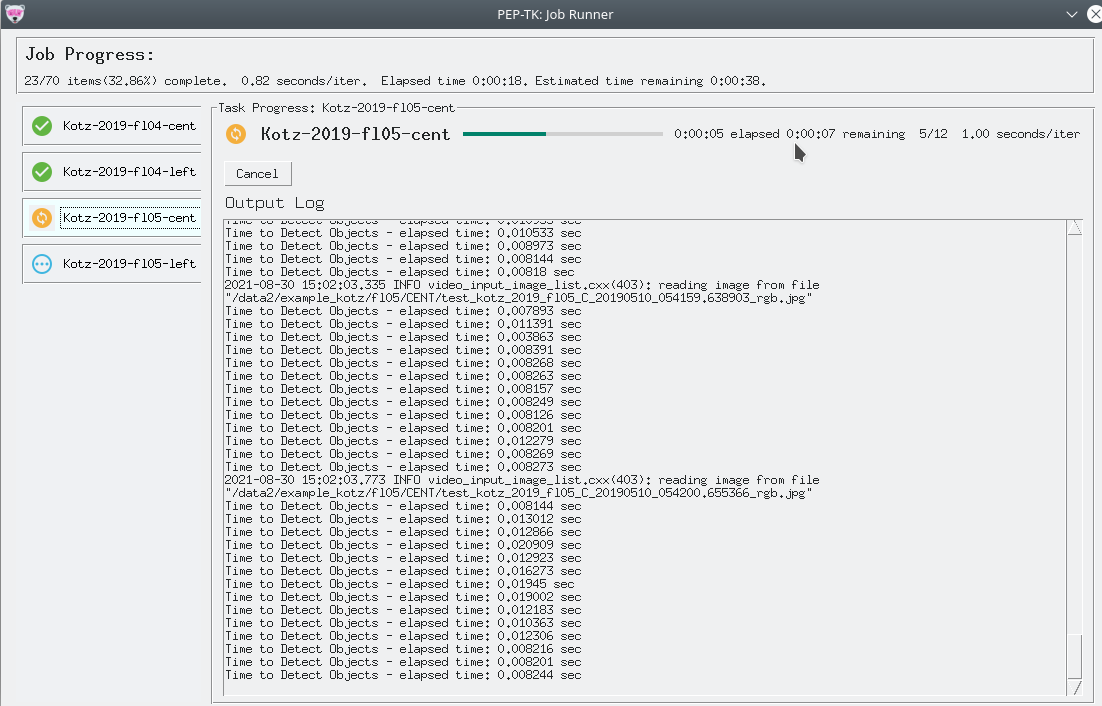
The job progress GUI allows you to track individual task's progress, to cancel a task, and to see metrics such as seconds/iteration and estimated time to completion.
- Job outputs -
Pipeline outputs (processed image lists/detections)
- When a task is running, the task's outputs will be written to
job_base_dir/job_name/outputs_pending/. - When a task is cancelled or an error occurs the task's output files will be moved to
job_base_dir/job_name/outputs_error/. - When a task is successfully completed the task's output files will be moved to
job_base_dir/job_name/outputs_success/.
Logs
The job_base_dir/job_name/logs/ directory contains the underlying kwiver outputs and application logs which are helpful for debugging purposes
Dataset Manifest
The dataset manifest is a file that defines all of the datasets available in csv or ini format. When creating a job you will be able to select and filter which datasets from the dataset manifest to run.
This format allows us to organize datasets as arbitrary hierarchies.
- Dataset attributes -
Currently a dataset must have one or more of the following attributes:
dataset_name- a unique name for this dataset (required and unique)color_image_list- the color image list txt file (one required)thermal_image_list- the thermal image list txt file (one required)
Additional optional attributes are:
transformation_file- the .h5 transformation file (optional)
- Example 1 (CSV Format) -
This format requires .csv file extension.
dataset_name, color_image_list, thermal_image_list, transformation_file
Kotz-2019-fl04-CENT, /path/to/kotz/fl04/CENT/color_images.txt, /path/to/kotz/fl04/CENT/thermal_images.txt, /path/to/Homographies/A90_RGB-IR_C_100mm_0deg_20190509_fl4.h5
Kotz-2019-fl04-LEFT, /path/to/kotz/fl04/LEFT/color_images.txt, /path/to/kotz/fl04/LEFT/thermal_images.txt, /path/to/Homographies/A90_RGB-IR_L_100mm_25deg_20190509-11_fl4-7.h5
This example defines 2 datasets, exactly the same as the INI example below, which we can select from in the GUI for running pipelines.
Kotz-2019-fl04-CENT
Kotz-2019-fl04-LEFT
- Example 2 (INI Format) -
Can use file extension .ini or .cfg for this format. The datset_name in INI format is provided by the section name in brackets as shown below.
[Kotz-2019-fl04-CENT]
thermal_image_list=/path/to/kotz/fl04/CENT/thermal_images.txt
color_image_list=/path/to/kotz/fl04/CENT/thermal_images.txt
transformation_file=/path/to/Homographies/A90_RGB-IR_C_100mm_0deg_20190509_fl4.h5

[Kotz-2019-fl04-LEFT]
thermal_image_list=/path/to/kotz/fl04/LEFT/thermal_images.txt
color_image_list=/path/to/kotz/fl04/LEFT/thermal_images.txt
transformation_file=/path/to/Homographies/A90_RGB-IR_L_100mm_25deg_20190509-11_fl4-7.h5
This example defines 2 datasets, exactly the same as the CSV example above, which we can select from in the GUI for running pipelines.
Kotz-2019-fl04-CENT
Kotz-2019-fl04-LEFT
- Example 3 (Relative Paths) -
You can use absolute or relative paths. If using relative paths, the relative path must be relative to the manifest file.
; if this manifest is located at '/path/to/kotz/manifest.cfg'
; then the two below are equivalent
[Kotz-2019-fl04-CENT-relative]
thermal_image_list=fl04/CENT/thermal_images.txt
color_image_list=fl04/CENT/thermal_images.txt
transformation_file=/path/to/Homographies/A90_RGB-IR_C_100mm_0deg_20190509_fl4.h5

[Kotz-2019-fl04-CENT-absolute]
thermal_image_list=/path/to/kotz/fl04/CENT/thermal_images.txt
color_image_list=/path/to/kotz/fl04/CENT/thermal_images.txt
transformation_file=/path/to/Homographies/A90_RGB-IR_L_100mm_25deg_20190509-11_fl4-7.h5
- Future features -
- Ability to define a set of images using wildcards instead of having to define an image list. ex
thermal_image_list: /path/to/kotz/fl04/CENT/*_ir.tif
1 maintainer

Metadata
1 maintainer
Release files for pep-tk 1.1.0
For a detailed explanation of source distributions (sdists) and built distributions (wheels), please see the package formats documentation.
Source distribution (sdist)
| File | Size | Uploaded | |
|---|---|---|---|
| pep_tk-1.1.0.tar.gz | 92.1 MB | Details |
Built distribution (wheel)
| File | Interpreter | ABI | Platform | Reset |
|---|---|---|---|---|
| pep_tk-1.1.0-py3-none-any.whl | Python 3 | none | any | Details |
Total release size: 184.2 MB
Release files / pep_tk-1.1.0.tar.gz
| Download URL | pep_tk-1.1.0.tar.gz |
|---|---|
| Size | 92.1 MB |
| Tags | Source |
|
SHA-256 checksum How to use checksums |
0070ed4b2656dee8ab1af1c3ce23382bff074b78d1abbb02e02f1f095756aa42
|
|
BLAKE2b-256 checksum How to use checksums |
9a7aff5dd2eaecc7bc6c648b2e2e7110235b85d445607ce456dbf04e6550653d
|
| Upload date | |
|
Uploaded using Trusted Publishing? What is trusted publishing? |
No |
| Uploaded via |
twine/3.7.1 importlib_metadata/4.8.2 pkginfo/1.8.2 requests/2.26.0 requests-toolbelt/0.9.1 tqdm/4.62.3 CPython/3.9.9
|
Release files / pep_tk-1.1.0-py3-none-any.whl
| Download URL | pep_tk-1.1.0-py3-none-any.whl |
|---|---|
| Size | 92.1 MB |
| Tags | Python 3 |
|
SHA-256 checksum How to use checksums |
cba568986e17ea78950506dfe2692b85af00439f50eb8faf0275d04163ad9769
|
|
BLAKE2b-256 checksum How to use checksums |
e81ef802be7c479a653feaf4a3ab57ec2c8fca49f6ecfd5869fb3c3ee238328d
|
| Upload date | |
|
Uploaded using Trusted Publishing? What is trusted publishing? |
No |
| Uploaded via |
twine/3.7.1 importlib_metadata/4.8.2 pkginfo/1.8.2 requests/2.26.0 requests-toolbelt/0.9.1 tqdm/4.62.3 CPython/3.9.9
|













