
PyGame-Console
Full-featured game console based on pygame that can be integrated in your python game in order to execute python command/scripts/custom in-game functions.
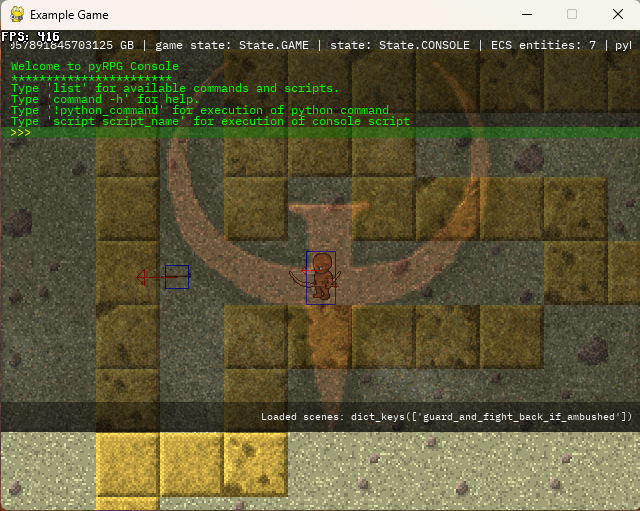
Main Features
- fully configurable look&feel via json - fonts, pictures, commands, console layouts, paddings, scrolling text and more
- history of inputed commands available upon pressing up/down buttons
- scrollable output available upon pressing pgUp/pgDown buttons and/or mouse wheel
- configurable transparency and wallpaper support
- optional header/footer text that can contain dynamic in-game values (time, fps, anything else)
- header/footer layouts supporting scrolling and more
- optional fluent animation during showing/hiding of the console
- commands implemented as a separate python scripts
- support for running custom scripts (batches of console commands) with parameters
- support for colored texts, big inputs, big outputs
- easy integration into your existing code
Running the Code
All console logic is implemented in the pgconsole package. Example game with console implementation is in examples/demo.py.
Folders examples/commands, examples/scripts and examples/configs contain configurable console logic tailored for given game. Those can be further modified/extended to implement more logic / commands / scripts into the console.
Make sure you have pygame >= 1.9.4 installed and run the code.
-
You will see pygame window with rectancle moving in random directions - simulation of game.
-
By pressing
F1button you can toggle on/off console. -
By pressing
Esckey or closing the window or typingexitwill end the program.
How to Use Console Features
Python Commands
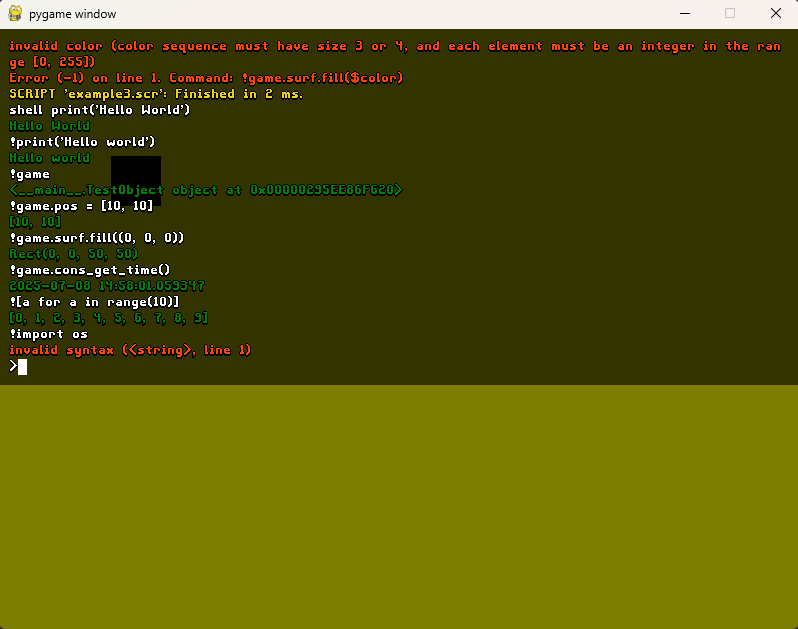
When instanciating Console class you need to specify reference to the main game class that you want to manage. Instance of this class is then referenced as game. Using console, you can then use standard python code with this instance. Python commands must start either with shell keyword or simple exclamation mark !.
Examples of couple python commands that can be used with the example game are below:
shell print('Hello world') //prints Hello world on console!print('Hello world') //same as above!game //crints <main.TestObject object at 0xXXXXXXXX> i.e. reference to the main object that is govern by the console!game.pos = [10,10] //changes position of the game rectancle!game.surf.fill((0,0,0)) //changes the color of the game rectancle from white to black!game.console.padding.up = 30 //changes the space between upper console corner and first console element (header or other depending on console layout settings)!game.cons_get_time() //prints output of the function on the console output!1+1 //prints 2 on the output![a for a in range(10)] //prints list of values from 0 to 9 on the output!import os //prints 'invalid syntax'. Such python operations are not allowed from the console due to security reasons
Custom Commands
With pygame-console you can specify your own commands. For implementing new command, e.g. dummy that takes one parameter and prints it on the console in the blue color, you need to perform following steps:
- Create a new python file
dummy.pyand place it toexamples/commandspackage (or other package specified by the consoleglobalconfiguration that can be changed). - See the existing example python files in the
commandspackage for reference.- The python file must contain
initializefunction (you can copy&paste it from example commmands). This function is called automatically when the command is first used. It manages registration of the command with the console. - The python file must contain also other function (with any name) that implements the command and is passed
game_ctx(reference to the game - same as when calling!game) and params (command parameters).
- The python file must contain
- It is good idea to return some value in case of failure. This is important if your custom command is part of some console script (read further).
There are already several custom functions implemented in the example game exit, move, change_res, and test. The move function takes 2 parameters delimited and changes position of the main game rectancle. The exit command exists the game. The list command shows information about registered commands.
Generic Commands
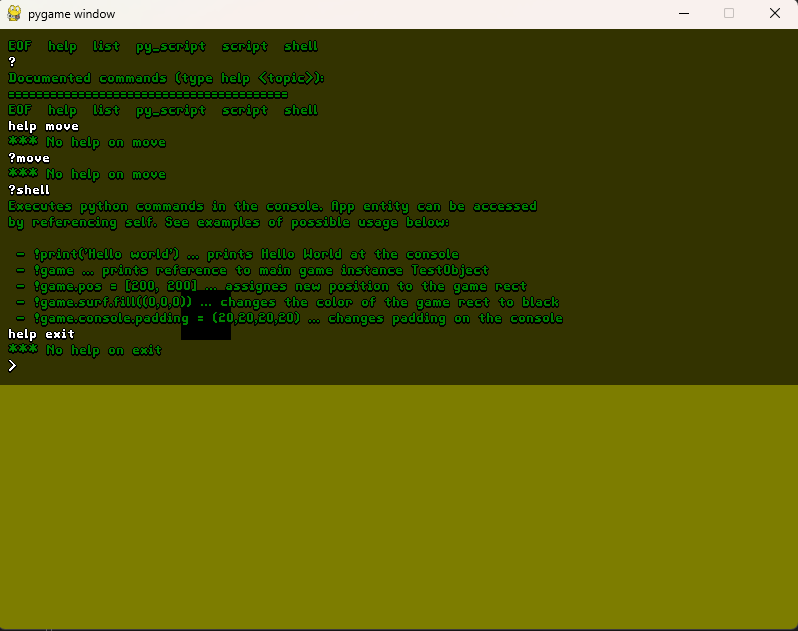
All the non-python shell commands can be listed by typing help or simply ? on the command line. The example of generic command can be exit that simply quicks the game. Also by typing help move or simply ?move will list description of the command.
Console Scripts
Python, Custom and Generic commands can be combined together into the file (one command on each line) and can be executed as a script.
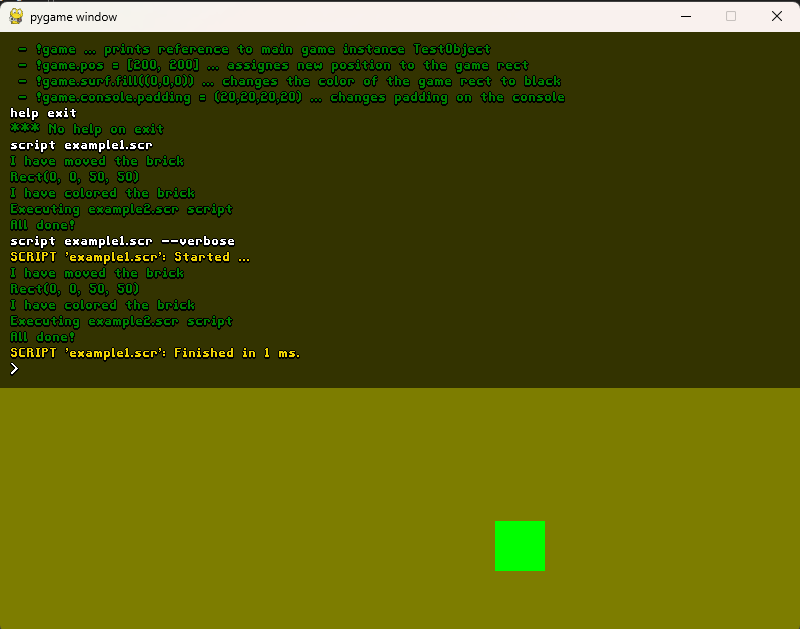
Example of invoking such simple script is below:
script example1.scr
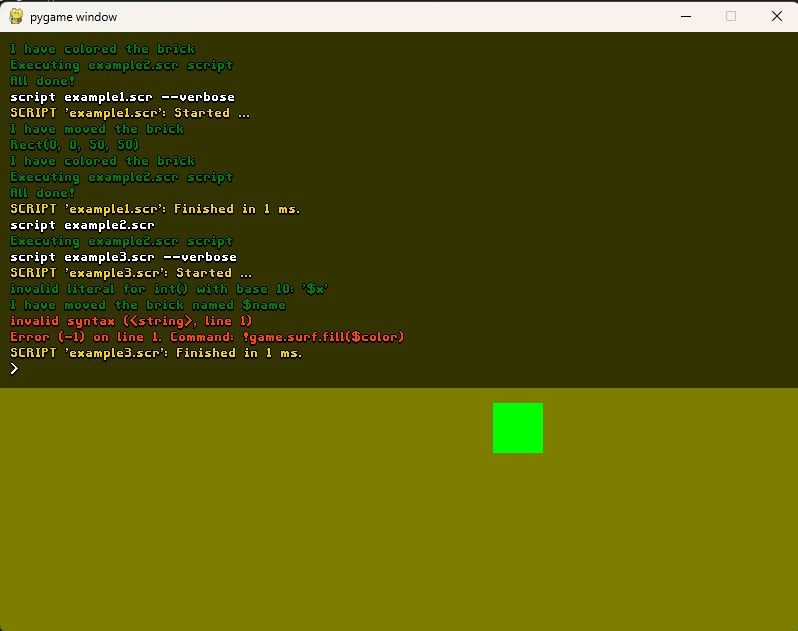
If there is an error on some line of the script, you are notified on the console with the error message - see below. The error code corresponds to the return value returned in the exception statement in the code of your custom function.
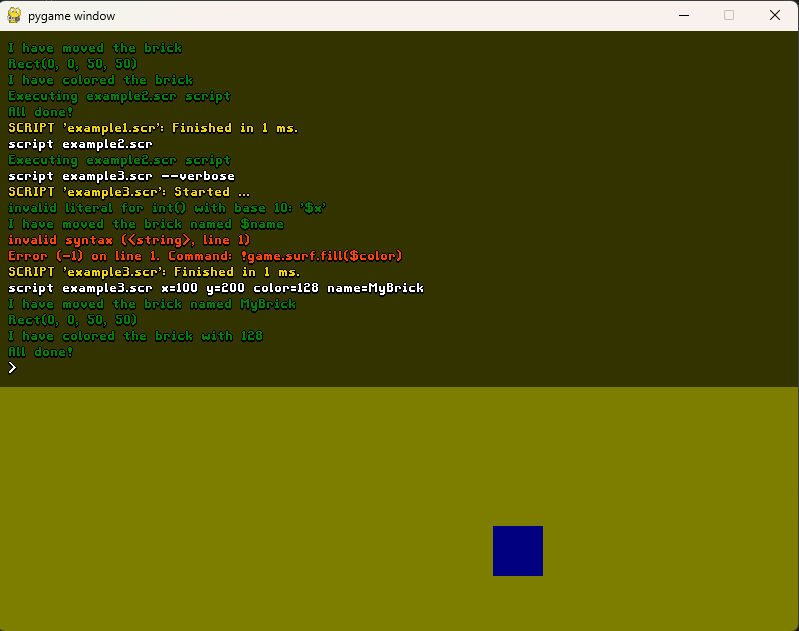
Console scripts also support parameters. See below the example using parameters for example3.scr script. Also, console script can be called from other console script.
script example3.scr x=100 y=200 color=128 name=MyBrick
The body of the script using those parameters is then looking as follows:
move $x $y
!print('I have moved the brick named $name')
!game.surf.fill((0, $color,0))
!print('I have colored the brick with $color')
!print("All done!")
The parameters are represented as keys starting with $ in the source of the console script.
Dynamic Information in Header/Footer
As mentioned above, header or footer can display dynamic data. Those data are gained as a resulf of calling of some function of the main game class. In the example game, you will see time and game object position as some of the examples of such dynamic values.
If you want to have dynamic values in your console, you need to do the following:
- Implement functions that return the requested values in string time somewhere in your game class or alternativelly in some separate module. In case of our example game there are functions
cons_get_pos()andcons_get_time(). Check the code for details. - Specify the function in configuration json. See the folder
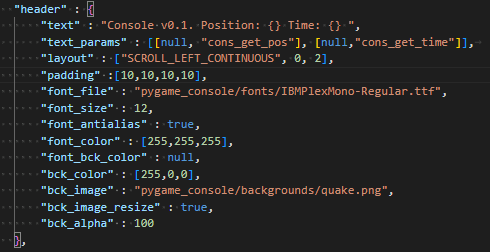
examples/configsfor examples of different configurations. Also, see below parameterstextandtext_paramswhere the functions and its placement in the scrolling text is defined.
Changing Console Layout/Configuration
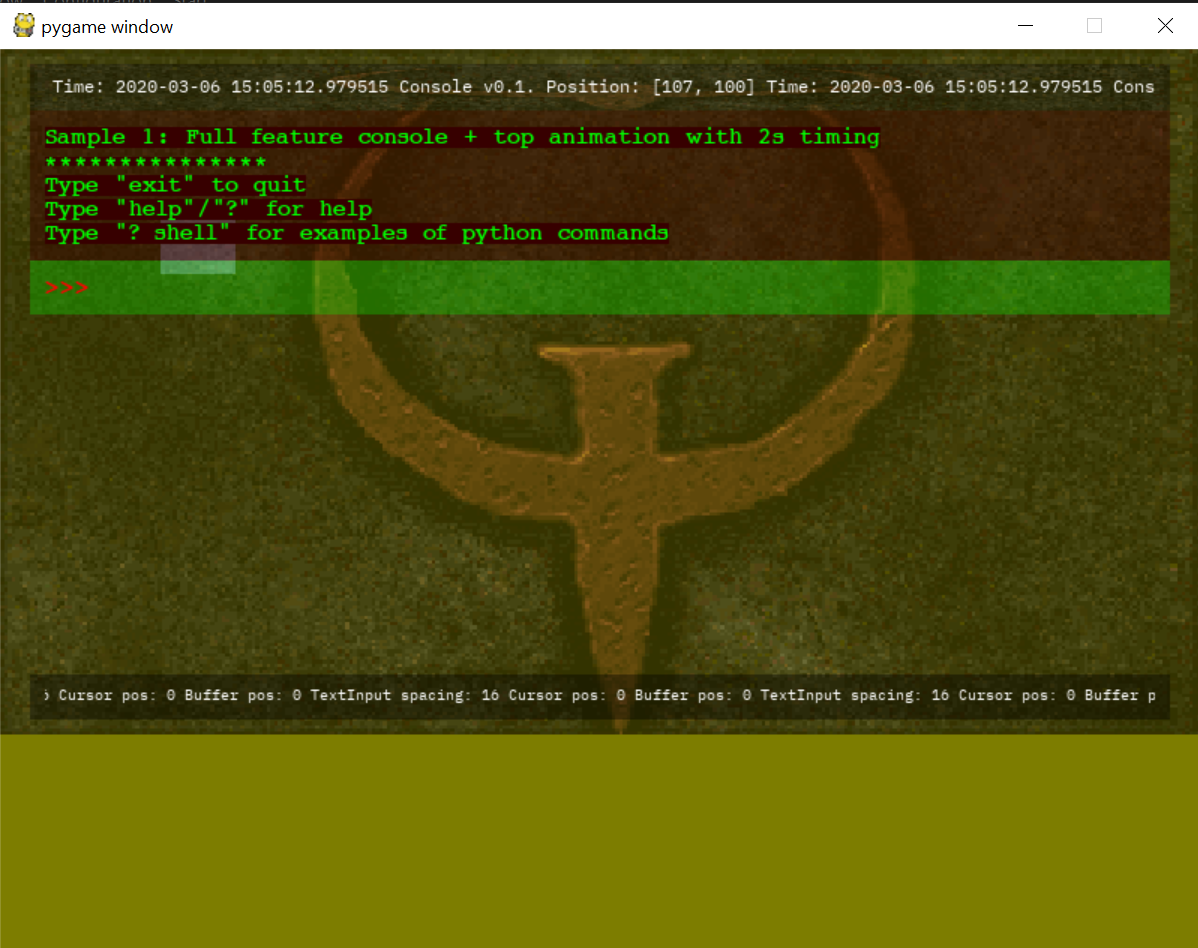
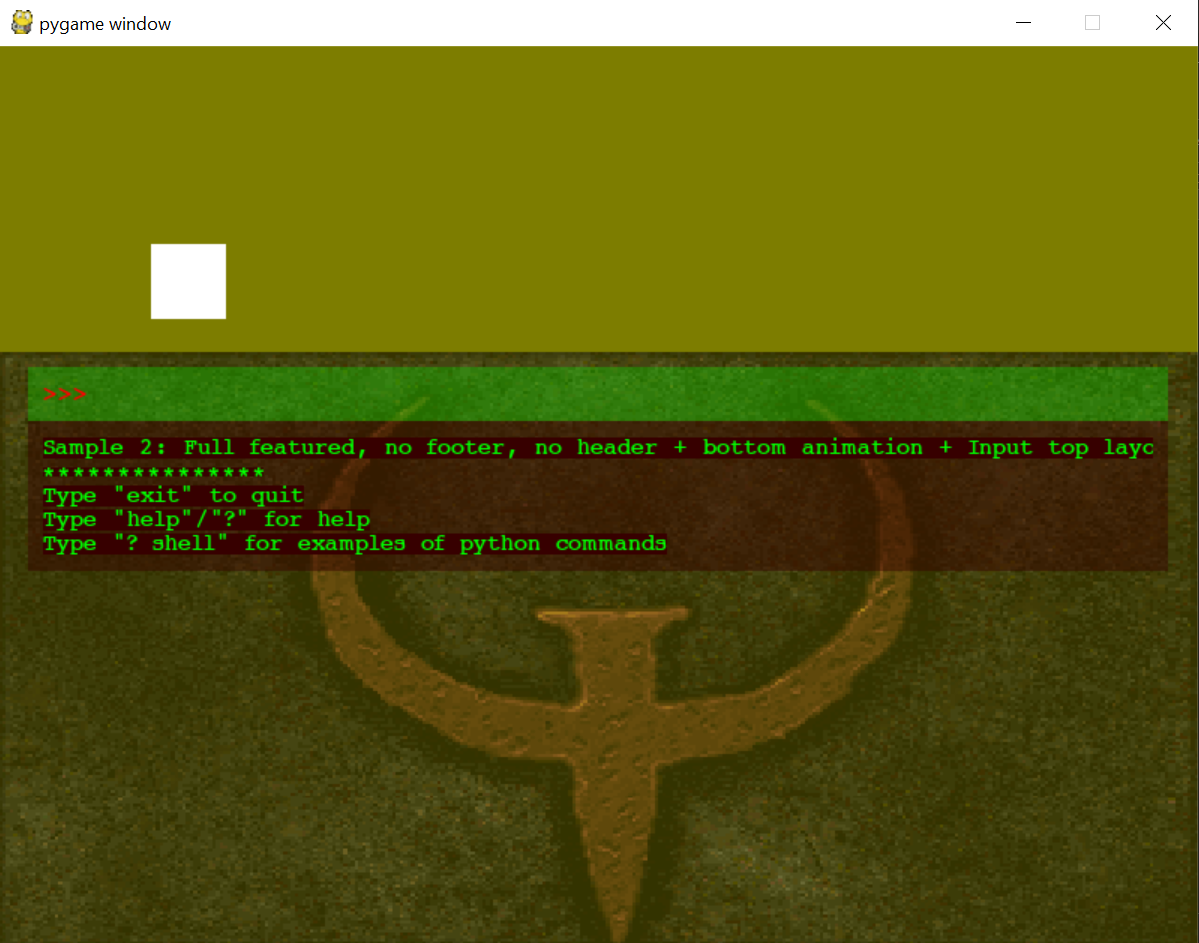
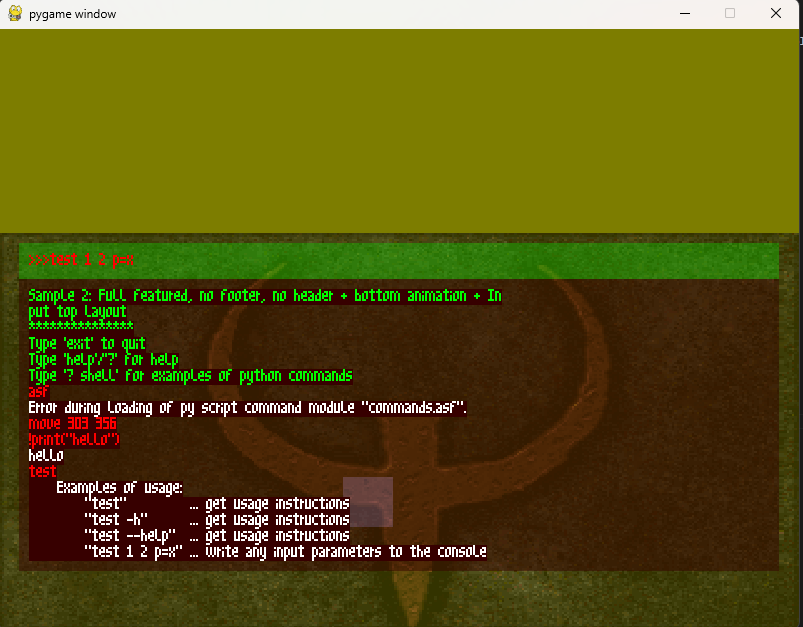
As mentioned in the list of features, console enables heavy configuration. I suggest you to see example console configs in the examples/configs directory and get inspiration from 6 configurations that are predifined there - one for truetype font and one for bitmap font.
Below you can see the pictures of those configurations in the game.
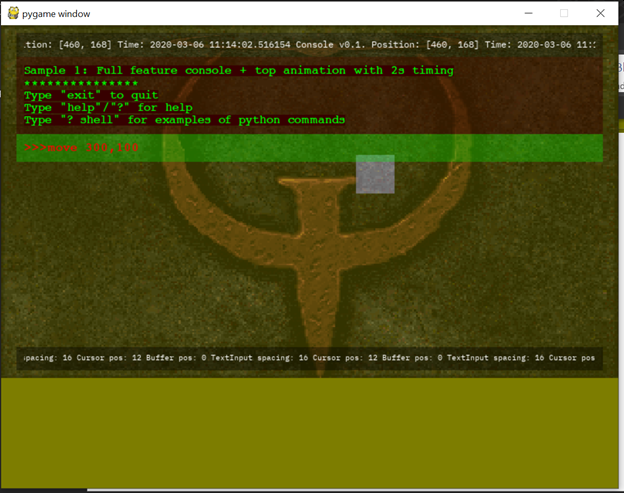
Sample Layout 1
- Scrolling dynamic text in the header and footer
- Transparency of all console parts + wallpaper
- Animation upon displaying hidding of the console set to 2s
- Different fonts for different console parts
with TrueType font
with Bitmap font
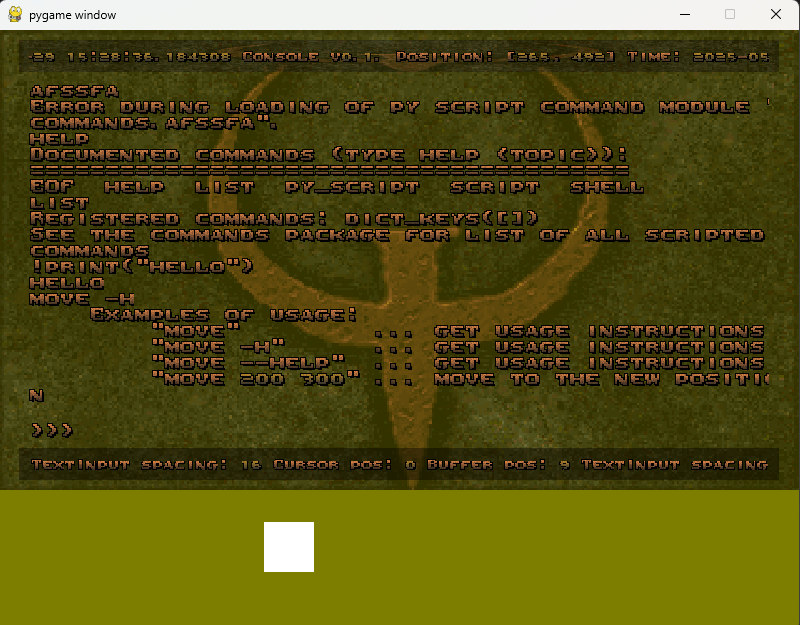
Sample Layout 2
- Header and footer omitted by configuration
- Transparency of all console parts + wallpaper
- Animation upon displaying hidding of the console - from the bottom - default time 100ms
- Command line input is above console output part
- Different fonts for different console parts
with TrueType font
with Bitmap font
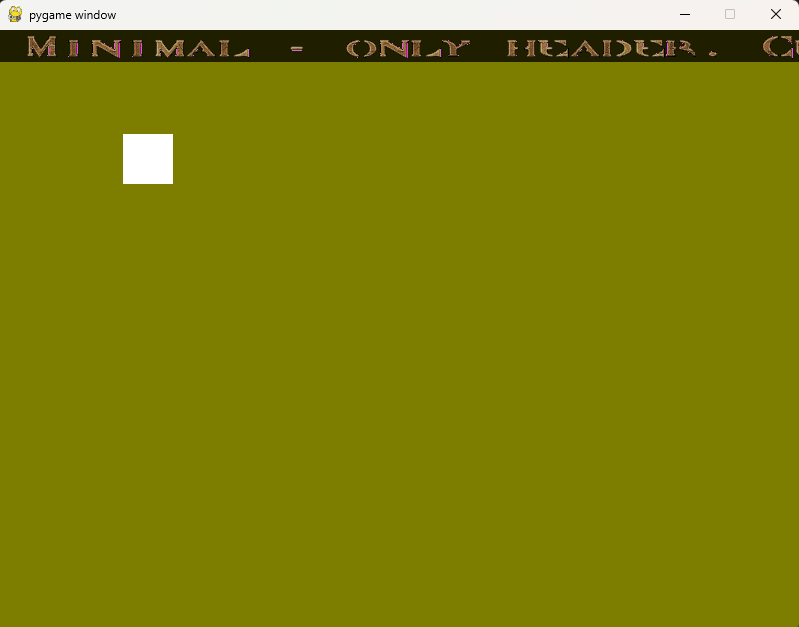
Sample Layout 3
- Totaly minimalistic - only header with dynamic text shown
- No transparency, no wallpapers
with TrueType font
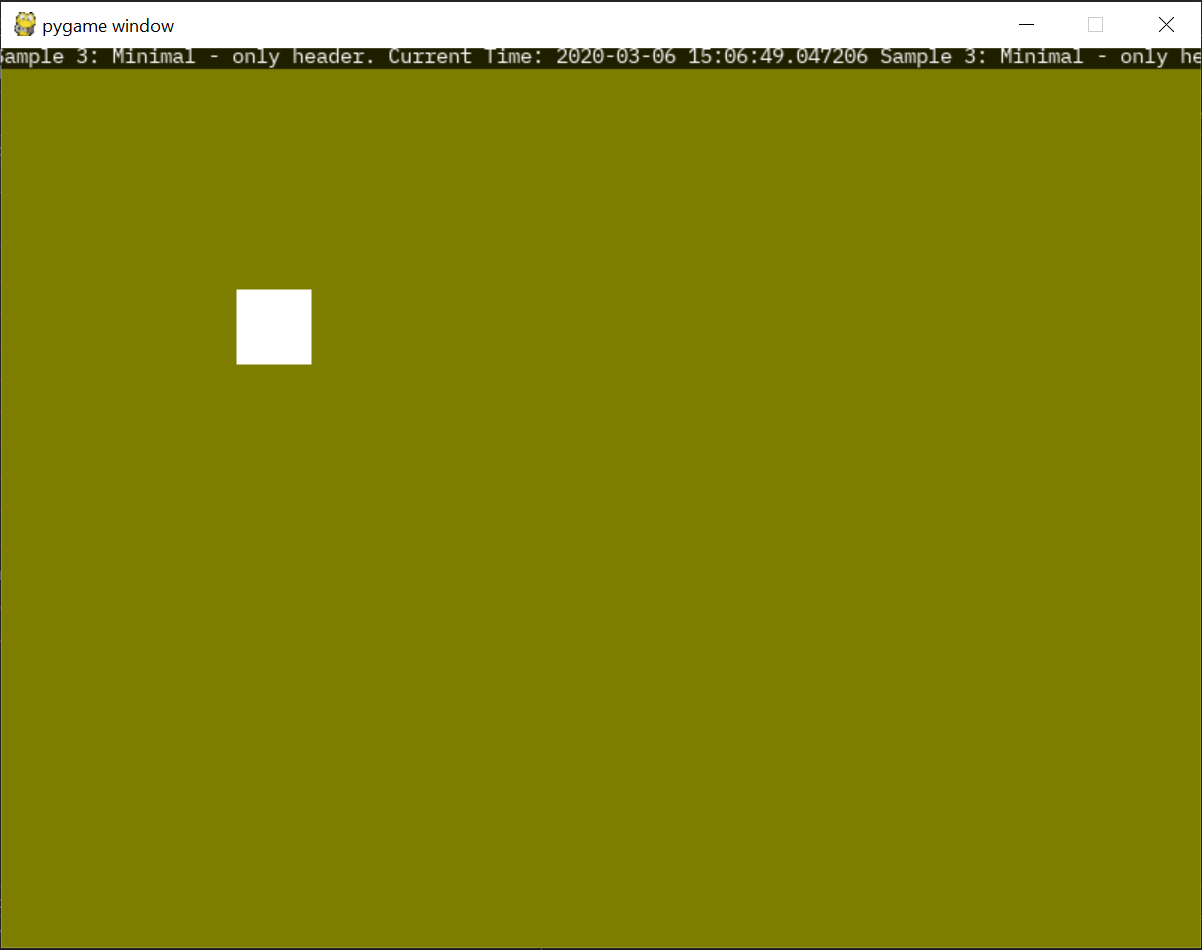
with Bitmap font
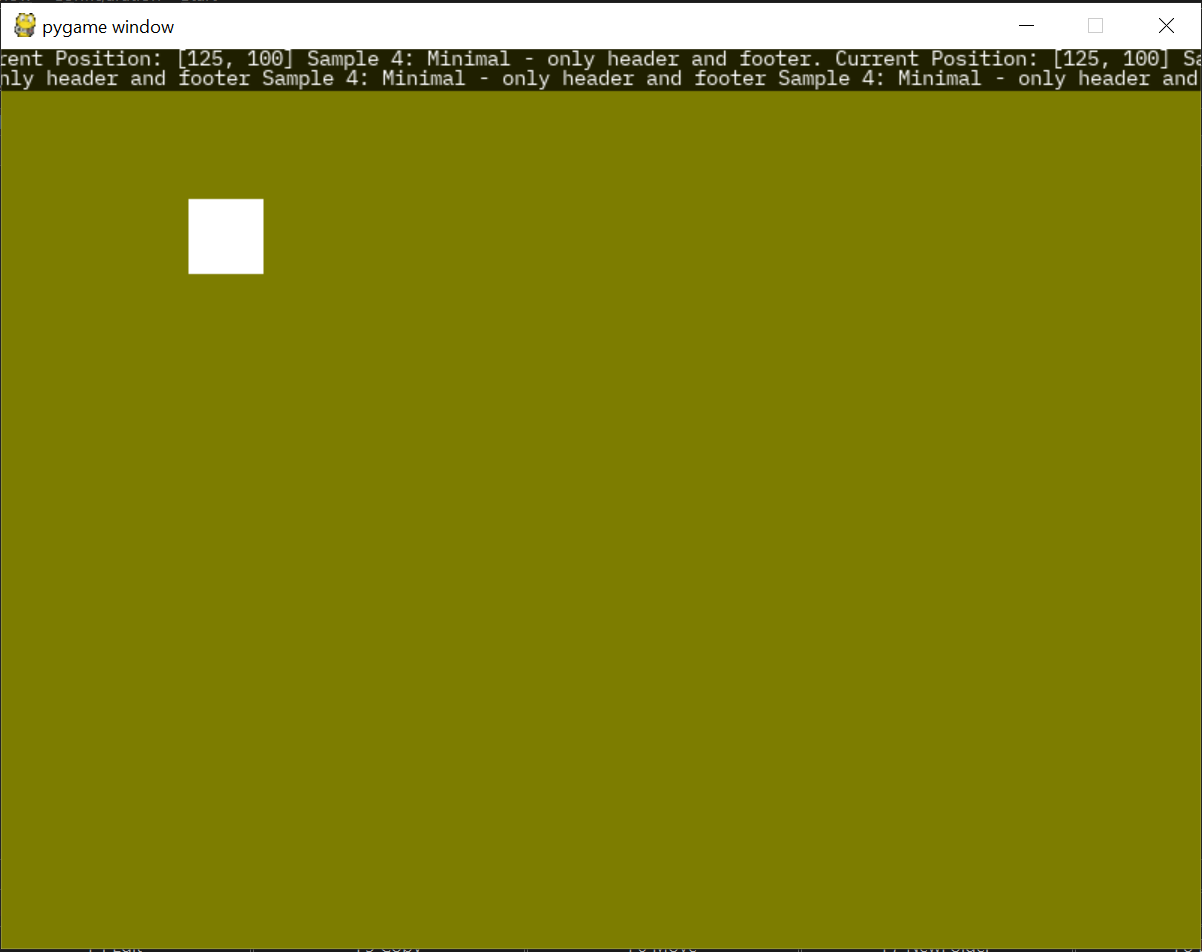
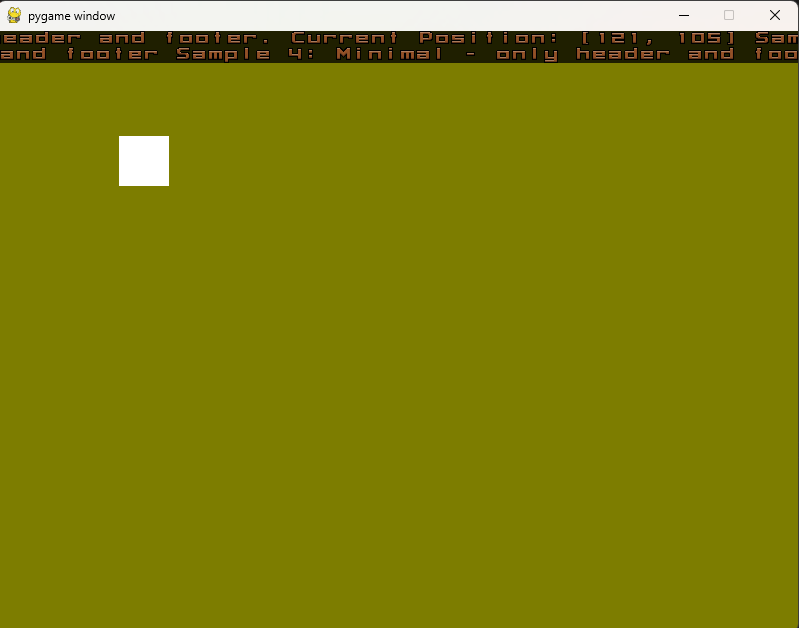
Sample Layout 4
- Minimalistic - only header and footer with dynamic text shown
- No transparency, no wallpapers
- Header and footer are scrolling by different speed
with TrueType font
with Bitmap font
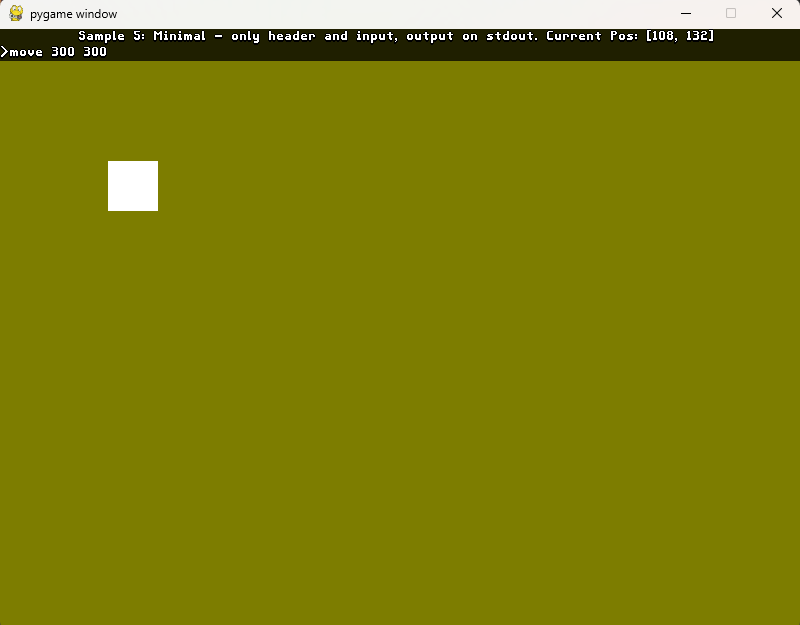
Sample Layout 5
- Minimalistic - only input and header with dynamic text shown
- No transparency, no wallpapers
with TrueType font
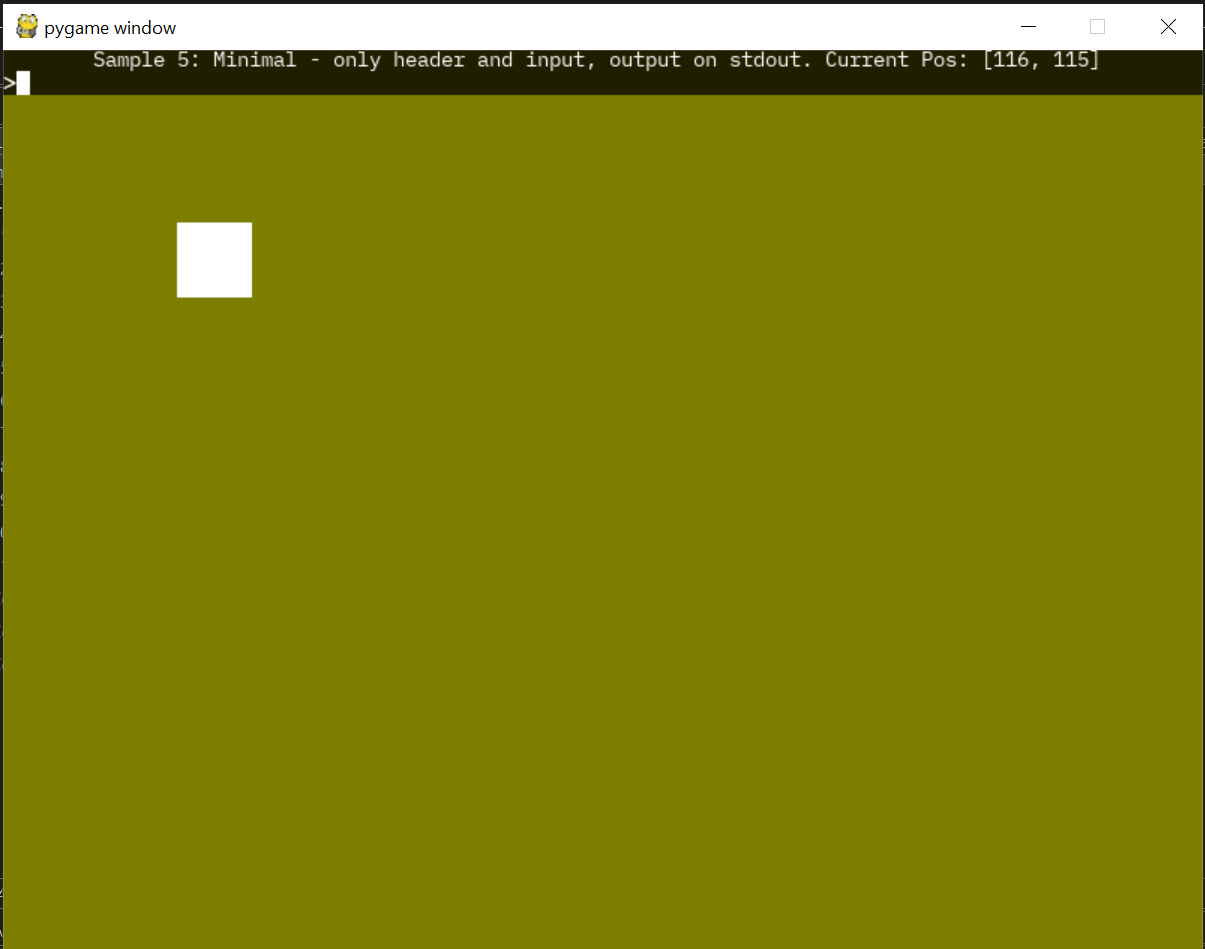
with Bitmap font
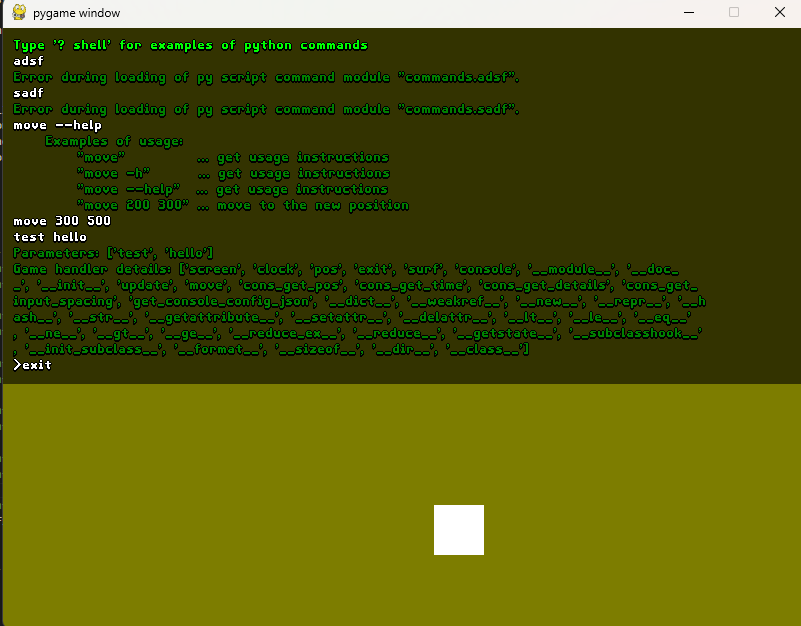
Sample Layout 6
- Minimalistic - only input and output with transparency
with TrueType font
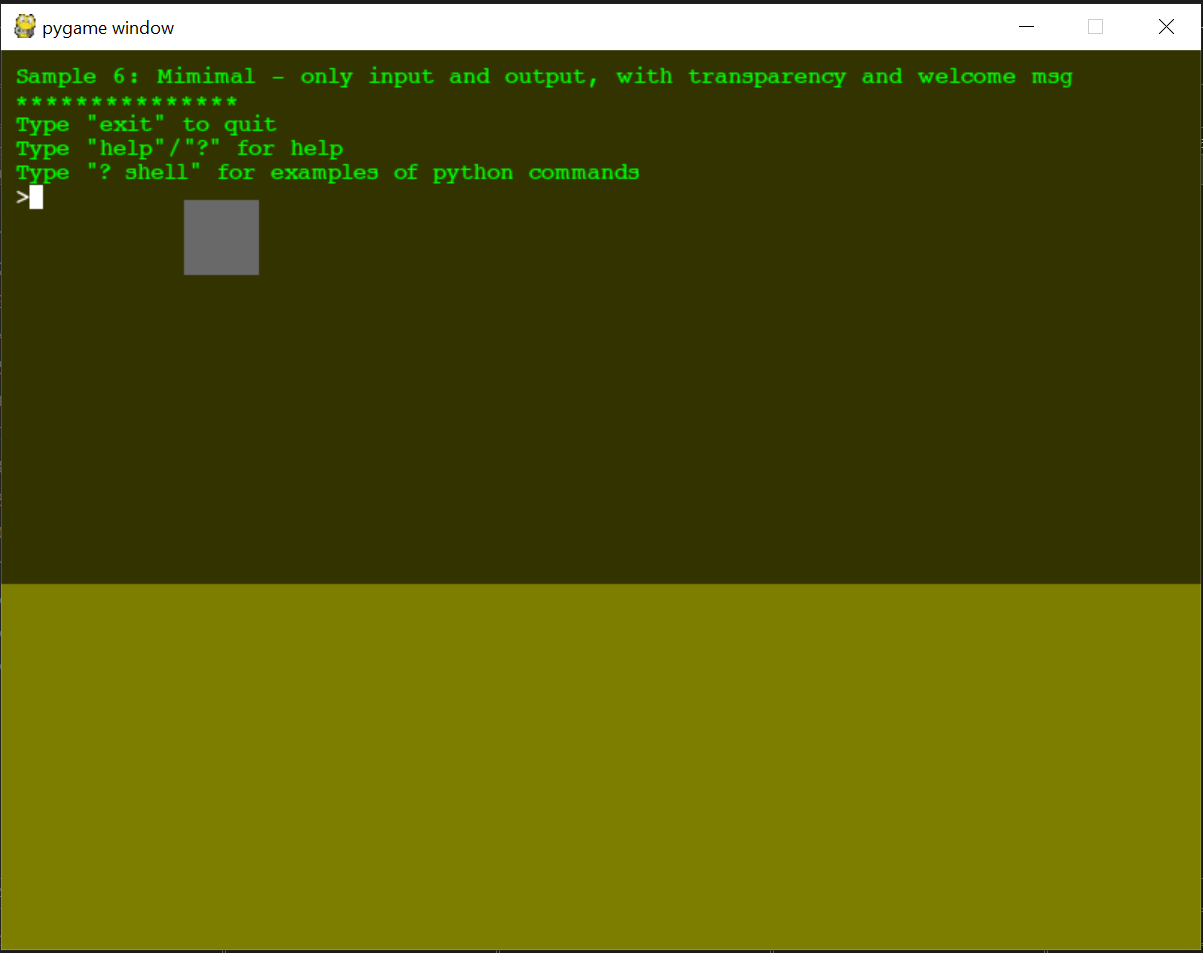
with Bitmap font
How to Integrate PyGame-Console into your Game
- Install the Pygame-Console package using
pipcommand
pip -m install pgconsole
- Prepare configuration JSON. Use sample configuration dicts in
examples/configsdirectory for inspiration. - Import Console class from
pgconsolepackage and instantiate it. - For switching console on/off call
toggle()function. - For reading the input keys and process them by console call
update()function. - For showing the console use
show()function. Animation effect is processed internally.


Using your own command dispatcher
Unknown commands are by default evaluated as Python (see do_py_script). If your game needs to route them
somewhere else - to a server, to its own command registry - supply your own CommandLineProcessor subclass
instead of subclassing the whole Console:
from pgconsole import Console, CommandLineProcessor

class MyCLI(CommandLineProcessor):
    def default(self, line):
        # Send the unknown command wherever you like instead of running it as Python
        my_game.send_admin_request(line)

console = Console(app=my_game, width=800, config=my_config, cli_factory=MyCLI)
The same can be done from the configuration with the cli_class key in the global section, which takes an
importable path - "my_game.console.MyCLI" or "my_game.console:MyCLI". The cli_factory argument wins if both
are given. The factory is remembered, so it survives a re-init() (for example after change_res).
Writing many lines at once
Console.write() re-renders the visible output buffer on every call. When pushing a burst of texts onto the
console - typically from a logging.Handler - pass defer_render=True and the re-render is done only once per
frame from update()/show():
for record in records:
    console.write(record, defer_render=True)
Making the config independent of the working directory
font_file, bck_image and script_path are by default resolved against the current working directory, so a
config with relative paths only works when the game is started from the right place. Pass base_path (or set it
in the global config section) and the relative values are resolved against it instead:
from pathlib import Path

console = Console(app=my_game, width=800, config=my_config, base_path=Path(__file__).parent)
Absolute paths in the config are always left alone, and without base_path nothing changes.
Security note: the built-in dispatcher executes arbitrary Python - both via
!/do_shelland via the fallbackdo_py_scriptfor unknown commands. That is what makes it a useful debug console, but it means untrusted input (for example anything arriving over the network) must never be passed tocli.onecmd().
Changelog
Release 0.1.1
- Logging disabled by default
- Console output buffer is re-rendered after change of the resolution. The text is nicelly align in the new resolution.
- New console command facilitating change of the resolution -
change_res.
Release 0.1.2
pygame-ceused instead ofpygamedue to problems with python 3.14- Dependency on fixed version of pgbitmapfont library version>=0.1.5
Release 0.1.3
- Custom command dispatcher can be injected -
cli_factoryargument ofConsoleorcli_classkey in theglobalconfig section (#10) - Dependency on the obsolete
pathlibPyPI backport removed - it shadowed the stdlib module and broke installs on modern Python (#12) write(..., defer_render=True)renders the output buffer only once per frame instead of once per written line (#13)- Configuration without the
globalsection no longer crashesConsole.init()(#18) Console.clear()really clears the output - it used to create a straylogattribute and clear nothing (#14)Console.reset()implemented - re-inits the console with the last used configuration and clears output and input (#15)SCROLL_LEFTandSCROLL_RIGHTheader/footer layouts fixed - they crashed on the firstshow()and now respect the layout speed in ms/px like their*_CONTINUOUScounterparts (#16)- Centred header/footer text with
font_bck_colorset no longer crashes (#17) - Output buffer trimming corrected and moved into one
_trim_buffer()function - the unprocessed buffer used to be indexed by the length of the wrapped one (#19, #26) CommandLineProcessorwriting to standard IO instead of the console supports thecolorparameter - colors are emitted as ANSI sequences when the stream is a terminal (#27)- Relative
font_file,bck_imageandscript_pathconfig values can be resolved against abase_path(constructor argument orglobalconfig key) instead of the current working directory (#24) display_linesis now optional with default 10 - omitting it used to fail later with an opaqueAttributeError(#23)- Trailing whitespace is really removed from the written text - the result of
rstrip()used to be discarded (#20) - A failing
py_scriptnow shows what the script printed before it failed (#22) - Original exception is kept as the cause when a command module cannot be loaded or registered (#21)
- Tests added for the above -
tests/test_console.py, runs headless
Tasks
General
- Update on pygame.org
For Release 0.1.3
- Put buffer management into separate function, so the logic is not repeated.
- CommandLineInterface when output is not console but standard IO, it does not support color parameter. Fix it.
1 maintainer

Metadata
1 maintainer
Release files for pgconsole 0.1.3
For a detailed explanation of source distributions (sdists) and built distributions (wheels), please see the package formats documentation.
Source distribution (sdist)
| File | Size | Uploaded | |
|---|---|---|---|
| pgconsole-0.1.3.tar.gz | 40.3 kB | Details |
Built distribution (wheel)
| File | Interpreter | ABI | Platform | Reset |
|---|---|---|---|---|
| pgconsole-0.1.3-py3-none-any.whl | Python 3 | none | any | Details |
Total release size: 69.3 kB
Release files / pgconsole-0.1.3.tar.gz
| Download URL | pgconsole-0.1.3.tar.gz |
|---|---|
| Size | 40.3 kB |
| Tags | Source |
|
SHA-256 checksum How to use checksums |
023956dc7a3b5cde9f831f849c2e293e5d2b2095f6cdde21d1034bd23be1fcab
|
|
BLAKE2b-256 checksum How to use checksums |
43c1626b1711478d905b425b965a4192f846b2dab7ac74b2a663991a344d2ed0
|
| Upload date | |
|
Uploaded using Trusted Publishing? What is trusted publishing? |
No |
| Uploaded via |
twine/6.2.0 CPython/3.14.2
|
Release files / pgconsole-0.1.3-py3-none-any.whl
| Download URL | pgconsole-0.1.3-py3-none-any.whl |
|---|---|
| Size | 29.0 kB |
| Tags | Python 3 |
|
SHA-256 checksum How to use checksums |
6cdc26267de715acafda730c73d6ea1bb0e2e0f366fe2eb2f36ec98d8cda25a2
|
|
BLAKE2b-256 checksum How to use checksums |
05458609172119b8fc29bdebb4d4d44d961af63466cb16079604dff2861f5974
|
| Upload date | |
|
Uploaded using Trusted Publishing? What is trusted publishing? |
No |
| Uploaded via |
twine/6.2.0 CPython/3.14.2
|














