
AI-based image clustering and exploration tool
Verified details
These details have been verified by PyPIProject links
GitHub Statistics
Maintainers

Project description
PhotoMapAI
Rediscover your photo collection!
PhotoMapAI is a fast, modern image browser and search tool for large photo collections. It uses the CLIP computer vision model to enable text and image-based search, image clustering, and interactive slideshows with a responsive web interface. Its unique feature is a "semantic map" that clusters and visualizes your images by their content. Browse the semantic map to find and explore thematically-related groups of photos, or use text and/or image similarity search to find specific people, places, events, styles and themes.
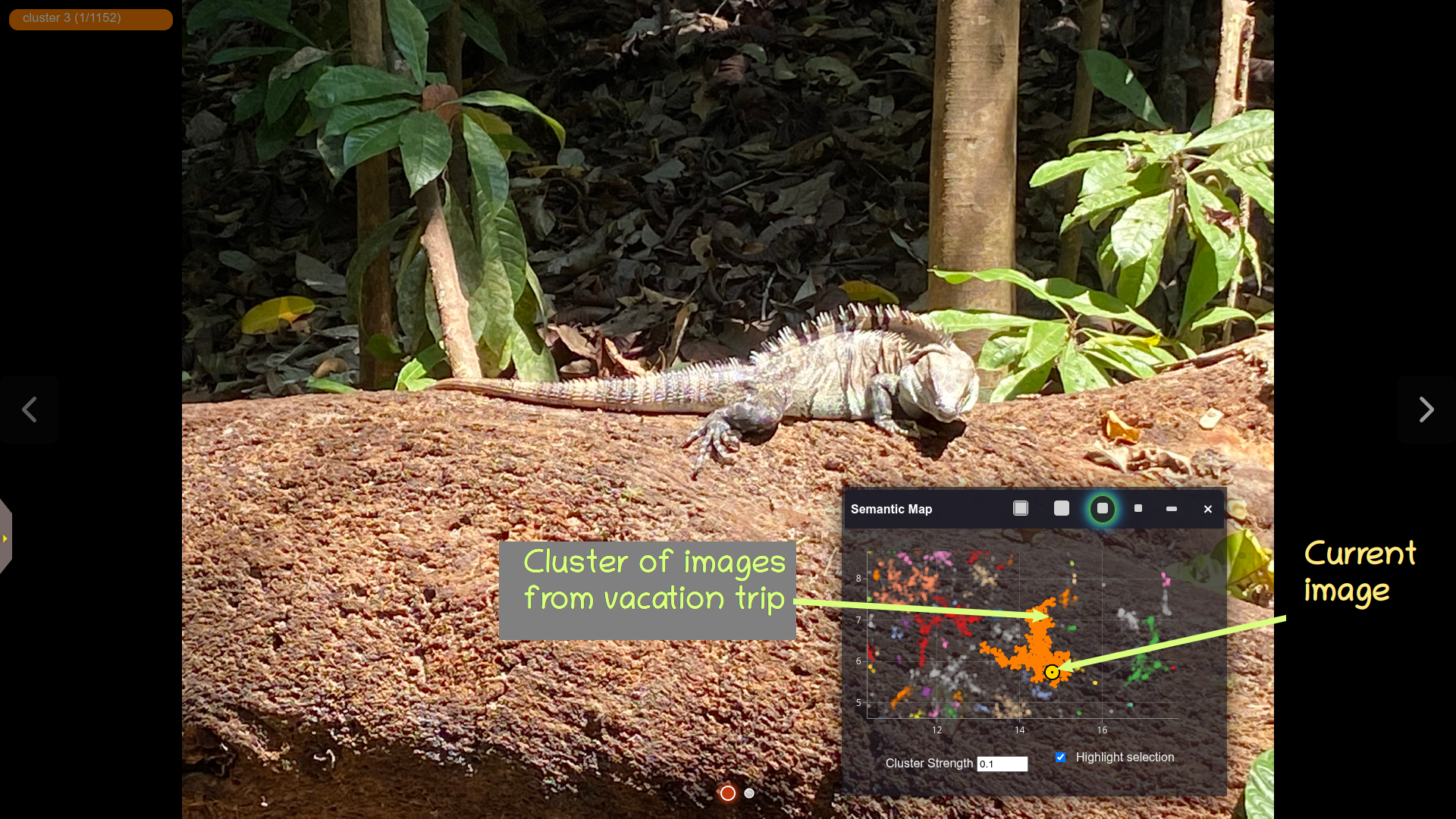
Features
- Fast browsing of large image collections
- AI-based text and image similarity search
- Thematic image clustering and visualization
- Flexible album management
- Responsive UI for desktop and mobile
- Support for wide range of image formats, including Apple's HEIC
- Integration with the InvokeAI AI image generation system
- Extensible backend (FastAPI)
The Semantic Map
PhotoMap's unique feature is its ability to identify thematically similar images and automatically cluster them, creating a "semantic map":
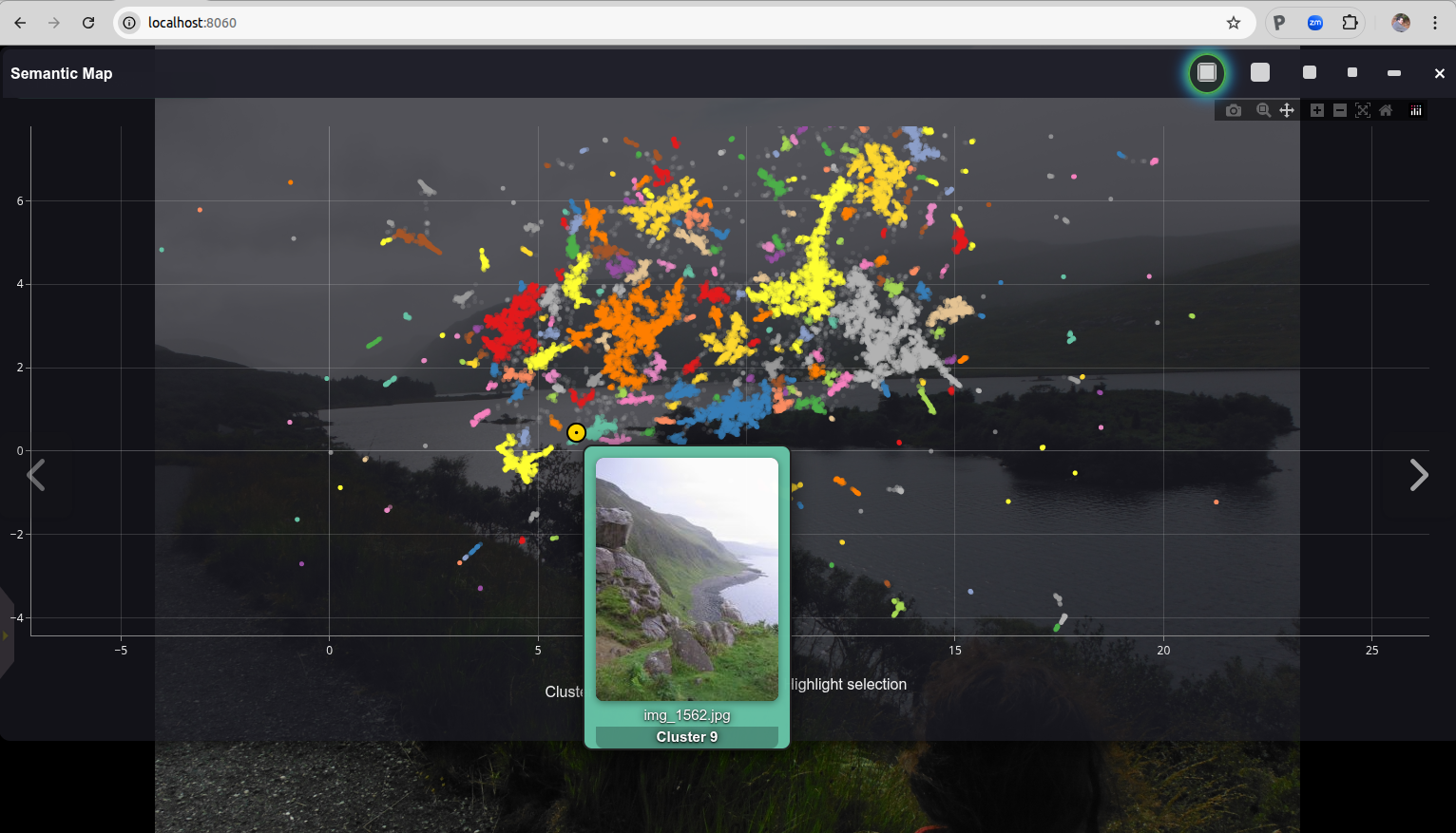
In this map, each image in the photo collection is represented as a dot. The colors distinguish different clusters of related images. You can zoom in and out of the map and pan around it. Hover the mouse over a dot in order to see a preview thumbnail of its image, or click on a cluster to view its contents at full resolution.
You can move the semantic map around, shrink it down in size, or hide it altogether. As you browser your photo collection, a yellow dot marker will highlight the location of the current image in the map.
Text and Image Similarity Search
PhotoMap lets you search your collection by similarity to another image, by text, or by a combination of image and text as shown below:
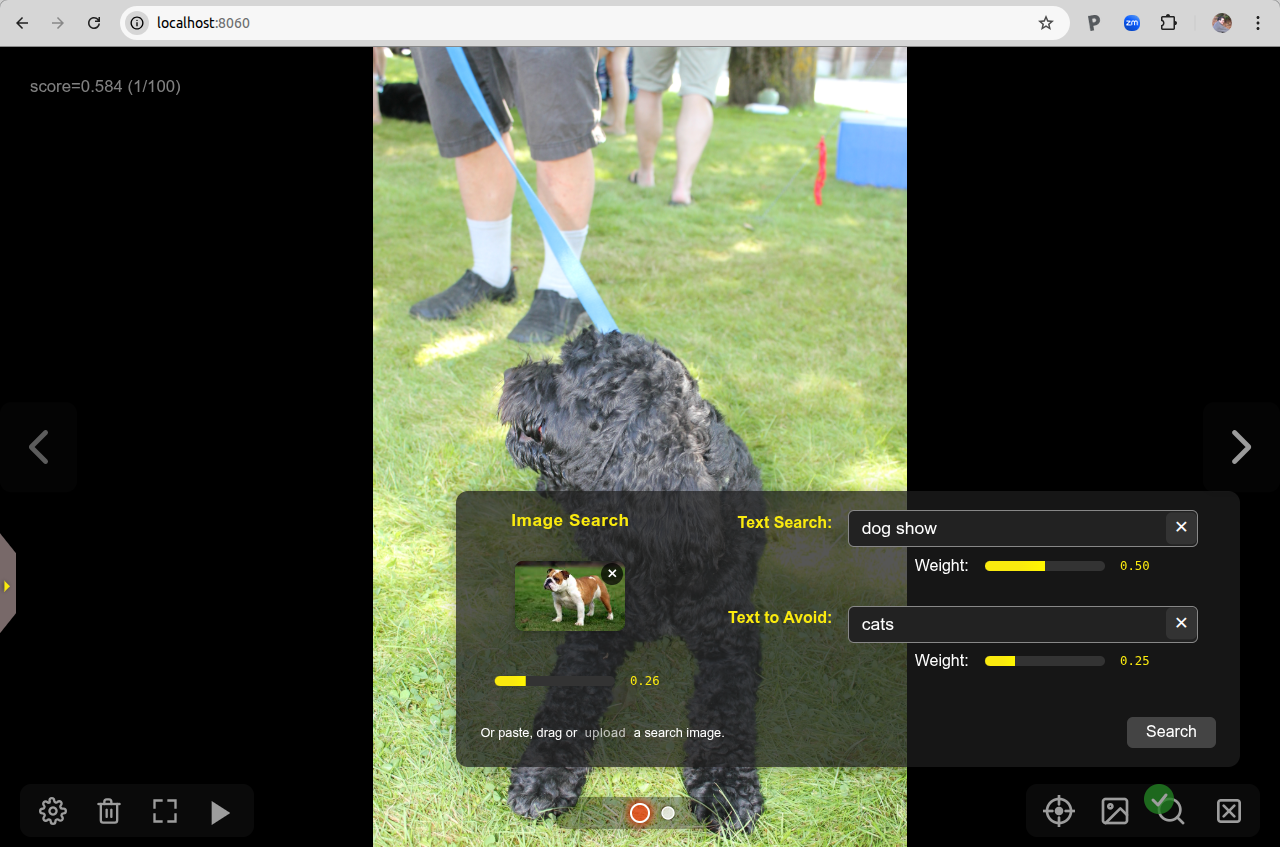
You can start an image similarity search by uploading a local image file, dragging an image from a web browser window or file browser, or by selecting an existing image from your collection. There's also a "Text to Avoid" field, which can be used to disfavor certain image content.
Support for Image Metadata
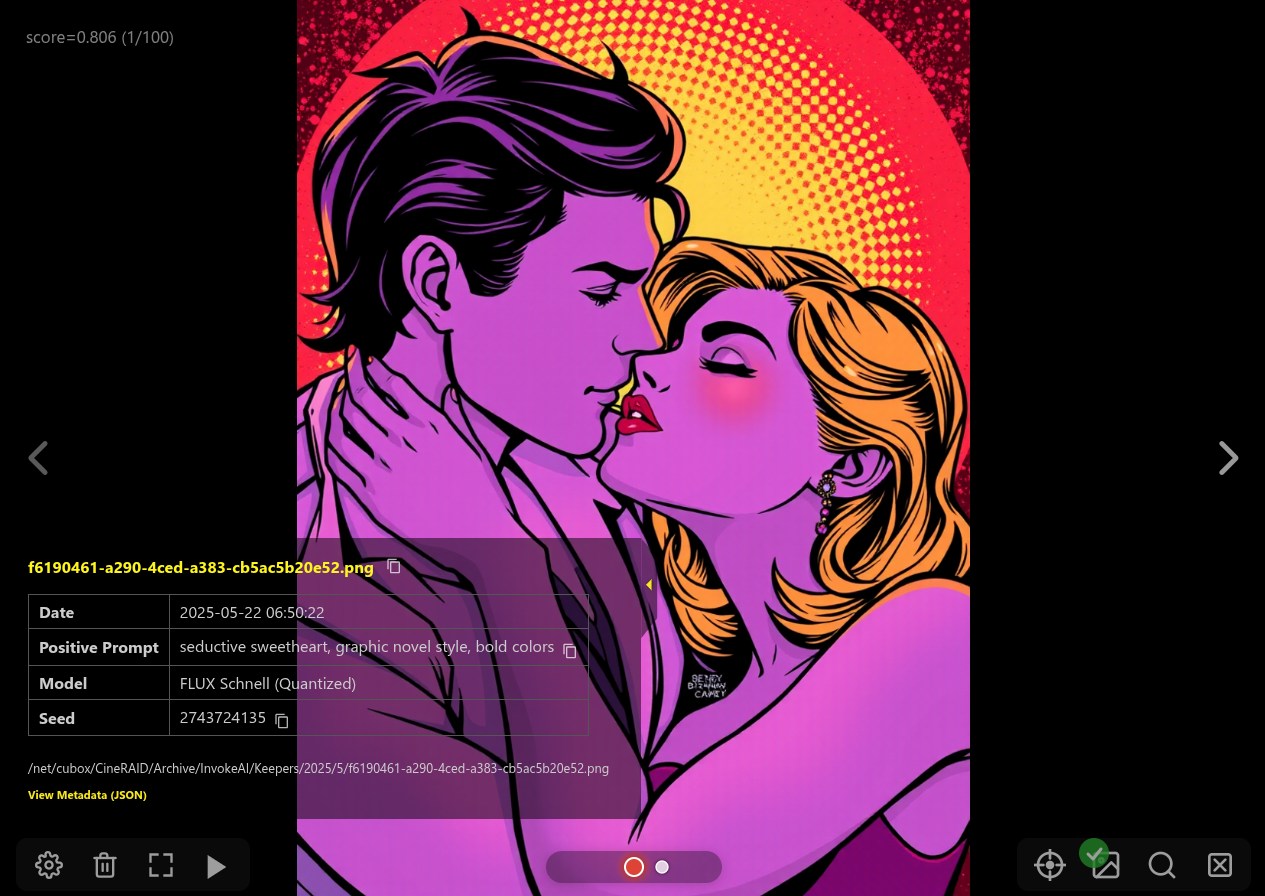
When viewing a photo in full-screen mode, you can pop out a little drawer to show its metadata, including the GPS location (if available), and the phone settings:
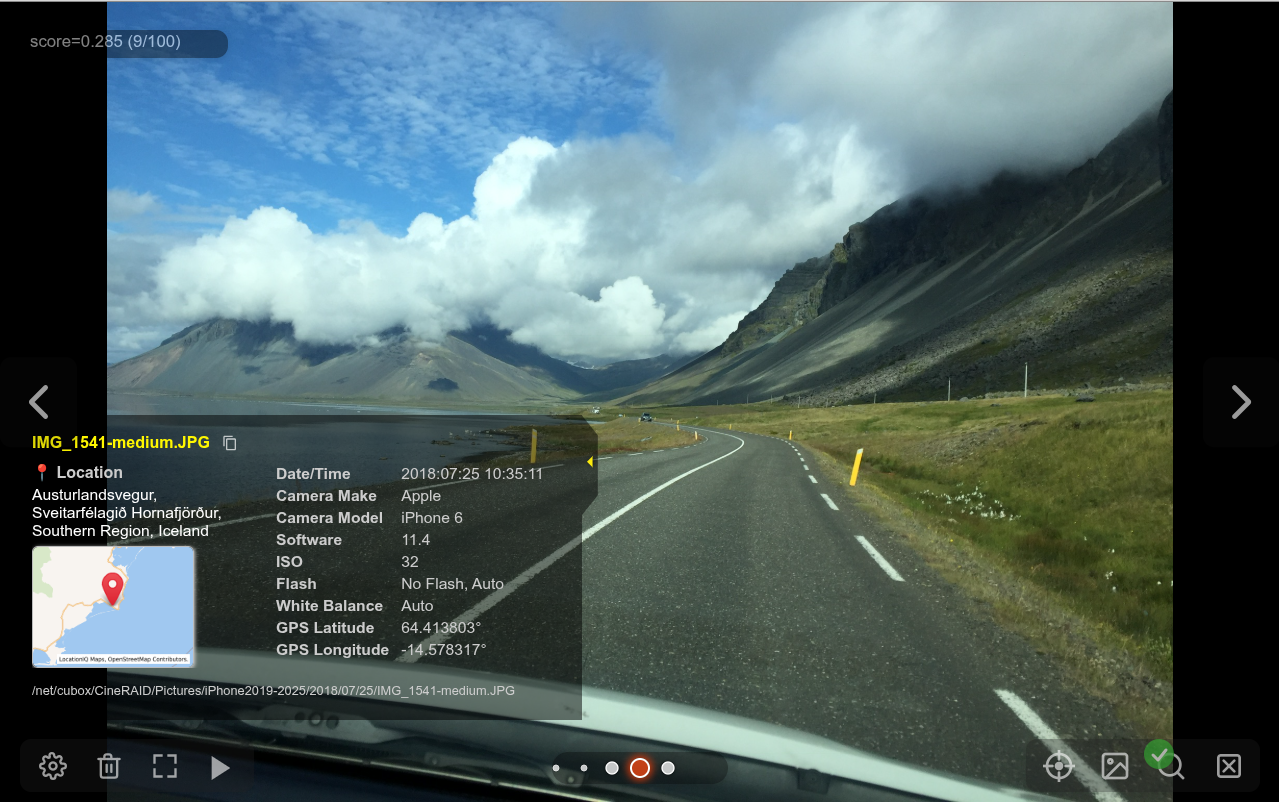
If you are a user of the InvokeAI text-to-image generation tool, you can get quick access to the key settings used to generate the image, including the prompts, model and LoRAs in use, and the input images used for IPAdapters, ControlNets and the img2img raster layer. You can also display and copy the full generation graph in native JSON format and copy it to the clipboard.
Other Features
PhotoMap supports most of the other features you would expect, including support for multiple separate photo albums, the ability to browse photos chronologically, an uncluttered fullscreen mode, and of course a configurable slideshow mode that can show images sequentially or shuffled.
Quick Start
Here are quick start instructions for Windows, Mac and Linux users using the automated installer scripts that are provided with this package. For instructions on manual installation, see Installation.
Windows
1. Download and unpack the source code
Download the PhotoMap source code as a .zip file from the latest stable Releases page. For development versions, use the "Download ZIP" link in the green "Code" button near the top of the GitHub PhotoMap home page.
Choose a convenient location in your home folder and unzip the file to create a new folder named PhotoMap.
2. Run the installer script
Navigate to the unpacked PhotoMap folder, find the INSTALL folder, and double-click the install_windows script file. The system will check that Python and other requirements are installed, download the necessary library files, and create a .bat script named start_photomap.
3. [Optional] Install Microsoft C++ Runtime DLLs
Several of PhotoMapAI's dependencies require Microsoft C++ Runtime DLLs. If these are not present, the installer will attempt to download and install them on your behalf. You will need to relaunch the install script after this is done.
4. Start the server
Double-click start_photomap.bat to launch the server. You should see a few startup messages, followed by the URL for the running server.
5. Open your browser:
Navigate to http://localhost:8050 and follow the prompts to create and populate your first album.
Linux & Mac
1. Download and unpack the source code
Download the PhotoMap source code as a .zip file from the latest stable Releases page. For development versions, use the "Download ZIP" link in the green "Code" button near the top of the GitHub PhotoMap home page.
Choose a convenient location in your home directory and unzip the file to create a new folder named PhotoMap.
2. Run the installer script
Navigate to the PhotoMap folder and launch the install_linux_mac shell script file. The script will check that Python and other requirements are installed, download the necessary library files, and create a launcher script named start_photomap on your desktop.
3. Start the server
Double click start_photomap to launch the server. You will see a few startup messages followed by the URL for the running server.
4. Open your browser:
Navigate to http://localhost:8050 and follow the prompts to create and populate your first album.
Manual Install
Follow these instructions if you are comfortable with installing Python packages on the command line.
Mac/Linux
Make sure that your version of Python is between 3.10 and 3.12. Not all required libraries are available in 3.13.
python3 -m venv ~/photomap --prompt photomap source ~/photomap/bin/activate python3 -m pip install --upgrade pip pip install photomapai start_photomap
Then open your web browser and point it to http://127.0.0.1:8050. Follow the prompts to create your first album.
Windows
Make sure that your version of Python is between 3.10 and 3.12. Not all required libraries are available in 3.13. Also make sure that Python is on your PATH.
python3 -m venv C:\Users<your name>\Documents\photomap --prompt photomap C:\Users<your name>\Documents\photomap\Scripts\activate python3 -m pip install --upgrade pip pip install photomapai start_photomap
Then open your web browser and point it to http://127.0.0.1:8050. Follow the prompts to create your first album.
Detailed Guides
Project details
Verified details
These details have been verified by PyPIProject links
GitHub Statistics
Maintainers
Release history Release notifications | RSS feed


Download files
Download the file for your platform. If you're not sure which to choose, learn more about installing packages.
Source Distribution
Built Distribution
Filter files by name, interpreter, ABI, and platform.
If you're not sure about the file name format, learn more about wheel file names.
Copy a direct link to the current filters
File details
Details for the file photomapai-0.5.5.tar.gz.
File metadata
- Download URL: photomapai-0.5.5.tar.gz
- Upload date:
- Size: 145.9 kB
- Tags: Source
- Uploaded using Trusted Publishing? Yes
- Uploaded via: twine/6.1.0 CPython/3.12.9
File hashes
| Algorithm | Hash digest | |
|---|---|---|
| SHA256 |
b25b0ff95833201aa65704b04db491cecc3db7462237f332198e38c0fa041f7b
|
|
| MD5 |
936ec2f00ee72ffd89a66c83ba196b4a
|
|
| BLAKE2b-256 |
051144bca2ebf4063ad49f1d433ae3bfa8e2ef1104663fefd2d772bd6c990665
|
Provenance
The following attestation bundles were made for photomapai-0.5.5.tar.gz:
Publisher:
release.yml on lstein/PhotoMapAI
-
Statement:
-
Statement type:
https://in-toto.io/Statement/v1 -
Predicate type:
https://docs.pypi.org/attestations/publish/v1 -
Subject name:
photomapai-0.5.5.tar.gz -
Subject digest:
b25b0ff95833201aa65704b04db491cecc3db7462237f332198e38c0fa041f7b - Sigstore transparency entry: 435951066
- Sigstore integration time:
-
Permalink:
lstein/PhotoMapAI@ceb5b68176a22c27948a4eeccf1039b4aa32dc1b -
Branch / Tag:
refs/heads/master - Owner: https://github.com/lstein
-
Access:
public
-
Token Issuer:
https://token.actions.githubusercontent.com -
Runner Environment:
github-hosted -
Publication workflow:
release.yml@ceb5b68176a22c27948a4eeccf1039b4aa32dc1b -
Trigger Event:
workflow_dispatch
-
Statement type:
File details
Details for the file photomapai-0.5.5-py3-none-any.whl.
File metadata
- Download URL: photomapai-0.5.5-py3-none-any.whl
- Upload date:
- Size: 166.1 kB
- Tags: Python 3
- Uploaded using Trusted Publishing? Yes
- Uploaded via: twine/6.1.0 CPython/3.12.9
File hashes
| Algorithm | Hash digest | |
|---|---|---|
| SHA256 |
fc482e7de4c9438c8a5fc8a113c117cd2473d58cf30cd4a758f501cd3d8d5384
|
|
| MD5 |
aa775543bac9b191dd9e3bd1f75e35b9
|
|
| BLAKE2b-256 |
32d1ef8d5215a3bad1f0a9da0874ba7750e557ac9f2b39102dcc72793018a325
|
Provenance
The following attestation bundles were made for photomapai-0.5.5-py3-none-any.whl:
Publisher:
release.yml on lstein/PhotoMapAI
-
Statement:
-
Statement type:
https://in-toto.io/Statement/v1 -
Predicate type:
https://docs.pypi.org/attestations/publish/v1 -
Subject name:
photomapai-0.5.5-py3-none-any.whl -
Subject digest:
fc482e7de4c9438c8a5fc8a113c117cd2473d58cf30cd4a758f501cd3d8d5384 - Sigstore transparency entry: 435951089
- Sigstore integration time:
-
Permalink:
lstein/PhotoMapAI@ceb5b68176a22c27948a4eeccf1039b4aa32dc1b -
Branch / Tag:
refs/heads/master - Owner: https://github.com/lstein
-
Access:
public
-
Token Issuer:
https://token.actions.githubusercontent.com -
Runner Environment:
github-hosted -
Publication workflow:
release.yml@ceb5b68176a22c27948a4eeccf1039b4aa32dc1b -
Trigger Event:
workflow_dispatch
-
Statement type:






