
PicoPWM
Control and monitor PicoPWM boards from Python or a local web dashboard.
Designed for Windows, Linux, and macOS with Python 3.10+.
PyPI · Source · Firmware releases · Report an issue
Script board operations with a Python HID client or use the included Flask dashboard to inspect channels, adjust generator outputs, and save board settings. Connect a Raspberry Pi Pico or Pico 2 running PicoPWM firmware; the firmware provides 24 logical channels across three generator or monitor banks.
- Python scripting: read realized channel state and issue board commands without implementing the USB protocol.
- Local dashboard: inspect identity, pins, and telemetry, edit generator settings, and use confirmed Save and Reboot, when supported by firmware.
- Multiple boards: select by product and serial number, and reconnect to the selected board rather than silently switching to another.
This package communicates over USB HID, not the CDC serial shell or I2C. The browser talks to Python, so it does not need WebHID support.
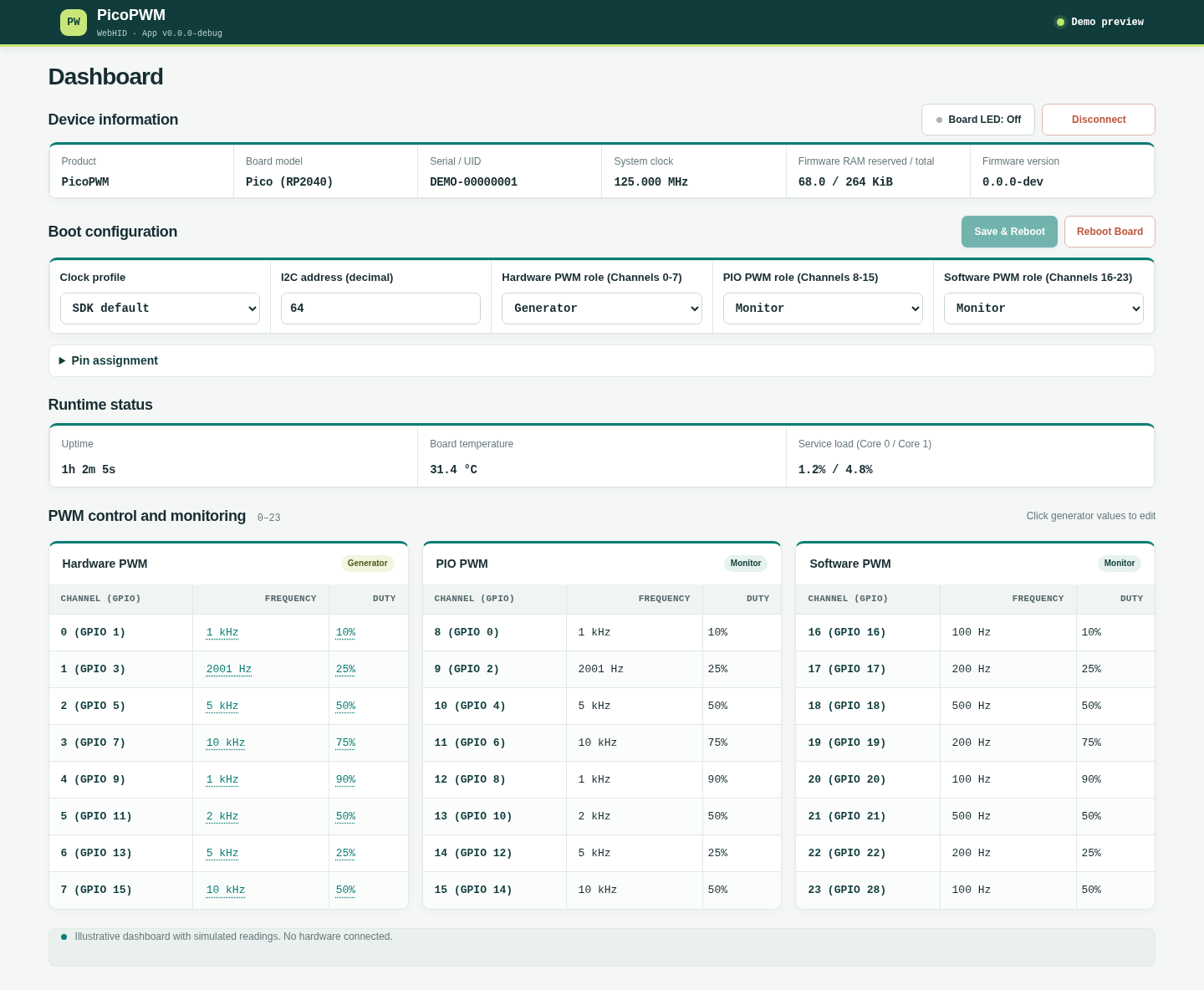
Illustrative WebHID screenshot with simulated data, not a live hardware result. The Python dashboard shares this layout; labels and columns may differ.
Quick start
Create and activate a virtual environment. On Linux or macOS:
python3 -m venv .venv
. .venv/bin/activate
On Windows PowerShell:
py -m venv .venv
.\.venv\Scripts\Activate.ps1
If PowerShell blocks activation, use the activation-free installation.
Then install and start PicoPWM:
python -m pip install picopwm
picopwm
The previous picopwm-web command remains available as a compatibility alias.
Connect your board and open http://127.0.0.1:5000. Choose the board in the
selector; use Rescan if it is not listed. Stop the application with Ctrl+C.
The board must be connected to the computer running Python, not necessarily the
computer displaying the browser.
Before driving outputs: GPIO signals are 3.3 V only. The default firmware configuration is monitor-only. Configure the intended bank as a generator and reboot before setting its output. Follow the hardware setup guide and verify your wiring first.
Requirements
- Python 3.10 or later on Windows, Linux, or macOS.
- A Raspberry Pi Pico or Pico 2 flashed with compatible PicoPWM firmware.
- A USB data cable and permission to access the board's HID interface.
On Linux, follow the HID permissions guide. Older firmware may expose fewer features; unavailable dashboard actions are disabled.
Compatibility is checked using the
HID report layouts,
not a minimum firmware release number. The client expects layout version 1,
PicoPWM product ID 0x0003, and 24 channels; optional features are capability-gated.
Unsupported layouts or identities are reported as protocol errors. A minimum
hardware-verified firmware release has not yet been established.
Use from Python
Read board and channel state without changing outputs:
from picopwm.client import PicoPwmHid

client = PicoPwmHid()
try:
    state = client.status()
    if not state["connected"]:
        raise RuntimeError(state["error"])
    print(state["identity"])
    for channel in state["channels"]:
        print(channel)
finally:
    client.close()
If multiple boards are connected, replace the client = PicoPwmHid() line above
with the following, keeping the same try/finally block:
from picopwm.transport import open_device

client = PicoPwmHid(lambda: open_device(serial="YOUR_BOARD_SERIAL"))
status() reports connection failures in its result. Mutating operations can
raise DeviceError when a command is rejected or its outcome is unconfirmed.
To change outputs, place commands inside the preceding try block, after the
connectivity check and before finally closes the client. After verifying bank
roles and wiring, client.set_channel(0, 1000, 50) requests 1 kHz at 50% duty,
and client.stop() stops all generator outputs. Read back realized state:
backend limits and timing quantization can affect the result.
Direct clients select boards through open_device() arguments; the environment
variables below select boards for the dashboard.
Configuration
Set environment variables before starting picopwm:
| Variable | Purpose | Default |
|---|---|---|
PICOPWM_SERIAL |
Preferred board serial number | Automatic selection |
PICOPWM_DEVICE_PATH |
Preferred HID device path | Automatic selection |
PICOPWM_HOST |
Listen address | 127.0.0.1 |
PICOPWM_PORT |
Listen port | 5000 |
PICOPWM_TOKEN |
API access token | Unset |
For another port, use PICOPWM_PORT=5002 picopwm on Linux/macOS, or set
$env:PICOPWM_PORT = "5002" before running picopwm in PowerShell.
Keep loopback binding for local use. Listening beyond loopback requires a token; the built-in server has no TLS and should not be exposed directly to the internet. See the Python integration guide for authentication, network access, and the dashboard's JSON HTTP API.
Troubleshooting
- No board found: check the USB data cable, firmware, HID permissions, and board
selection. The vendor interface uses VID
0xCAFEand PID0x4012. - Multiple boards found in a script: pass a serial number or device path to
open_device(). - A control is unavailable: check the bank's running role and the firmware's advertised capabilities. Monitor channels cannot be driven.
- A command outcome is unconfirmed: reconnect and inspect realized state before retrying, particularly after configuration saves or reboot.
See the setup and troubleshooting guide for more help. Internal temperature is an estimate, not calibrated ambient temperature; service load measures service-work wall time, not CPU utilization.
Documentation and development
From a repository checkout:
cd host/python
python -m pip install -e '.[test]'
python -m pytest -q
Alternatively, run tools/host/run-python.sh from the repository root to create a
virtual environment and start the dashboard.
License
PicoPWM is released under the BSD 3-Clause License. For bug reports, include the package and firmware versions, operating system, and exact error message.
1 maintainer

Metadata
1 maintainer
Release files for picopwm 0.4.1
For a detailed explanation of source distributions (sdists) and built distributions (wheels), please see the package formats documentation.
Built distribution (wheel)
| File | Interpreter | ABI | Platform | Actions Reset |
|---|---|---|---|---|
| picopwm-0.4.1-py3-none-any.whl | Python 3 | none | any | Details for picopwm-0.4.1-py3-none-any.whl |
Release files / picopwm-0.4.1-py3-none-any.whl
| Download URL | picopwm-0.4.1-py3-none-any.whl |
|---|---|
| Size | 44.9 kB |
| Tags | Python 3 |
|
SHA-256 checksum How to use checksums |
a22e34a66f294e9da76541521c5edb2648e8c827c5dc565eac2a20d824b219f9
|
|
BLAKE2b-256 checksum How to use checksums |
663446dc7f65b1cf72711e41c05530bc09072d61a59037f4a32dd5d071fc7815
|
| Upload date | |
|
Uploaded using Trusted Publishing? What is trusted publishing? |
Yes |
| Uploaded via |
twine/7.0.0 CPython/3.13.16
|
Provenance
Provenance describes where a file came from. On PyPI, provenance is shared via attestations, which provide a verifiable record of the build or publishing details. View details, limitations and caveats.


PyPI Publish Attestation
PyPI verified that this artifact, at this checksum, originated from the publisher listed below.
Signed by GitHub Actions, verified by PyPI on Oct 30, 2026.
Transparency logSecurity for picopwm 0.4.1
Provenance
Provenance describes where a file came from. On PyPI, provenance is shared via attestations, which provide a verifiable record of the build or publishing details. View details, limitations and caveats.
Full provenance
1 file in this release has been uploaded with provenance metadata.
Attestation for picopwm-0.4.1-py3-none-any.whl
PyPI Publish Attestation
PyPI verified that this artifact, at this checksum, originated from the publisher listed below.
Signed by GitHub Actions, verified by PyPI on Oct 30, 2026.
Transparency logA note on package security
PyPI is a repository for distributing packages, not a service for auditing them. While third-party security researchers and our staff do their best to detect and remove malicious packages, PyPI cannot guarantee the quality, security or suitability of any given package.
To learn more about protecting yourself from malicious actors, visit our package security documentation.














